


Page Content:
- What tasks does the module solve?
- What is required to work with the module
- Omnidirectional microphone Requirements
- Written consent of the patient
- Configured Module
- Working with appointment recording
- Listening to audio recordings in the section«Аудиозаписи приёмов»
- Frequently Asked Questions
What tasks does the module solve? 
The module will allow you to record an audio recording of a doctor's appointment with a patient. What tasks does the module solve?:
- Protects against unjustified negativity — the audio recording is at hand for an objective analysis of the situation.
- Helps to improve communication between doctors and patients
- It does not allow you to lose the important thing: after the appointment, you can return to the record and double-check the patient's complaints and medical history.
What is required to work with the module
To work with the module, you will need:
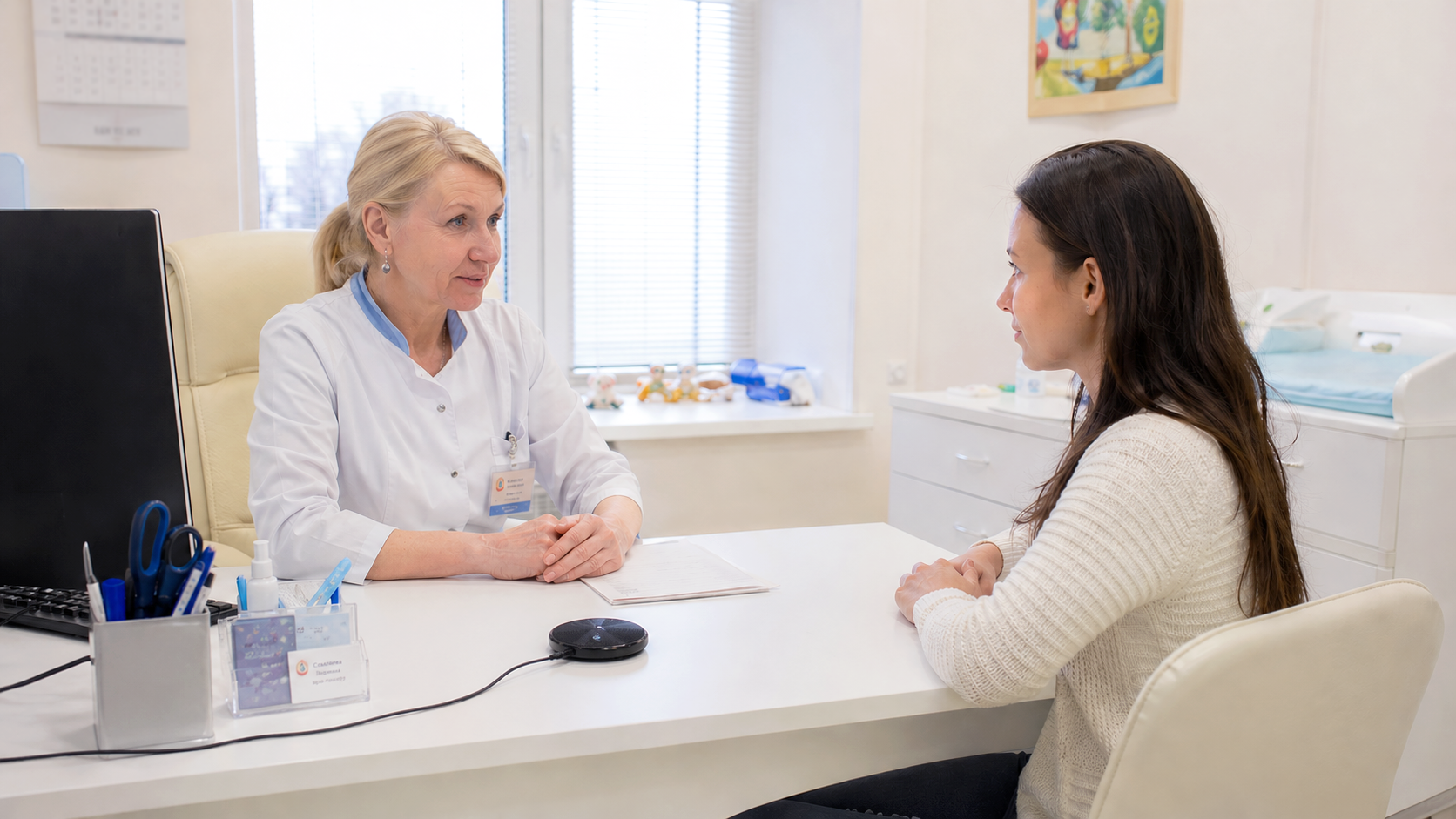
- Omnidirectional microphone placed equidistant from the doctor and patient
- Written consent of the patient
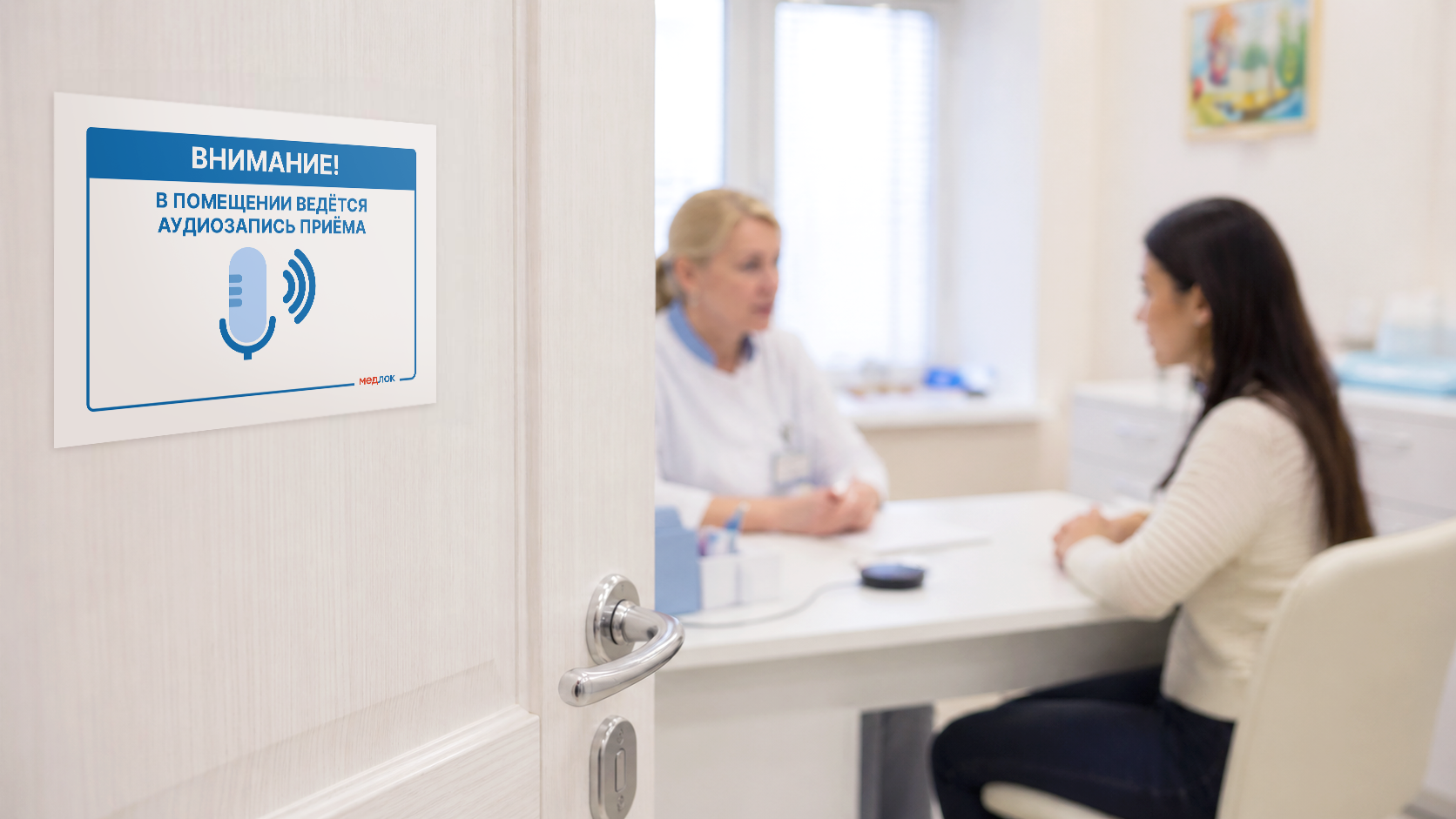
- Notification on the cabinet that an audio recording of the reception is underway
- Configured Module
Omnidirectional microphone Requirements
For high-quality audio recording of several people at the same time, an omnidirectional microphone with a USB connection is required.
Which microphone won't do:
- Any cardioid (unidirectional) microphone.
- Laptop or phone microphone.
- Microphones for podcasts and streaming.
- Buttonholes of any format.
- The microphone from the headphones.
Which microphone will do:
- Omnidirectional microphone (microphones for conferences, conference calls, online meetings), for example:
- CleverMic M100.
- JazzTel UM02.
- CleverMic 101U.
- EMEET M1A.
- StelBerry products (M100, M1277HD, M120HD).
It is important to place the microphone equidistant between the doctor and the patient for better audio recording quality.
Important! Do not place the microphone close to the keyboard/mouse, as mechanical sounds from these accessories can greatly interfere with high-quality audio recording.
Written consent of the patient
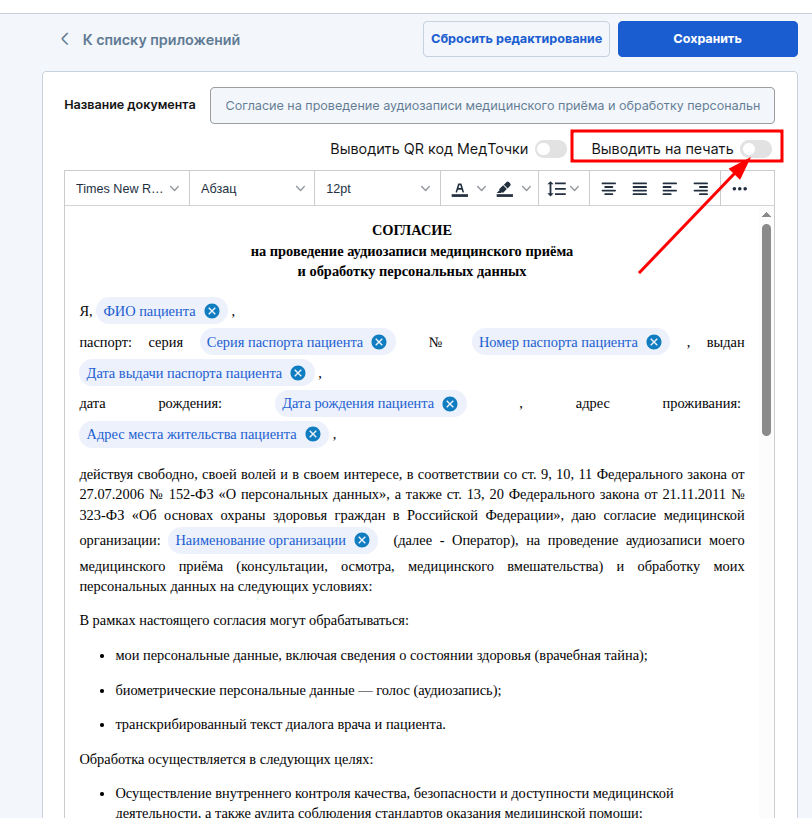
In order to make an audio recording of the appointment with the patient, his consent is required. You can find the document template in the list of documents by name«Согласие на проведение аудиозаписи медицинского приёма и обработку персональных данных».
Or choose from the link in the description of the module«Шаблон документа».
Make sure to check the box «Выводить на печать»so that the document is displayed in the print list at the reception.
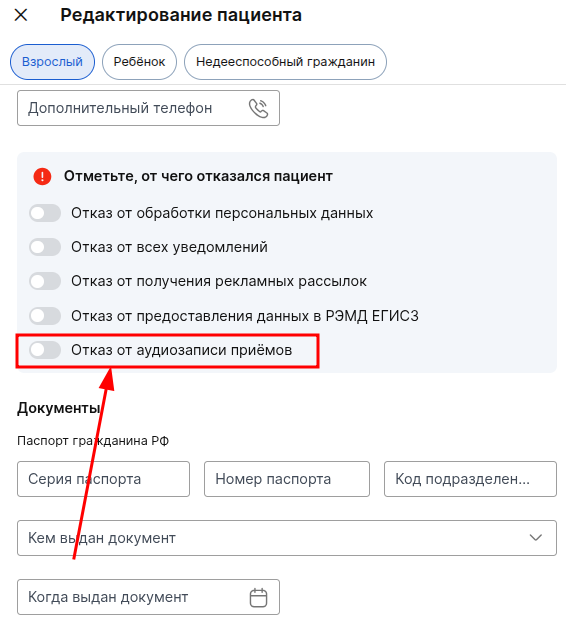
If the patient refuses to record, then he needs to put «Отказ от аудиозаписи приёмов»down . In this case, during the appointment, the MEDLOCK will not offer to start recording, and it will not be possible to make an audio recording of the appointment with such patients.
Important! If the patient has a refusal to process personal data, then the refusal to record audio appointments will be enabled automatically.
Configured Module
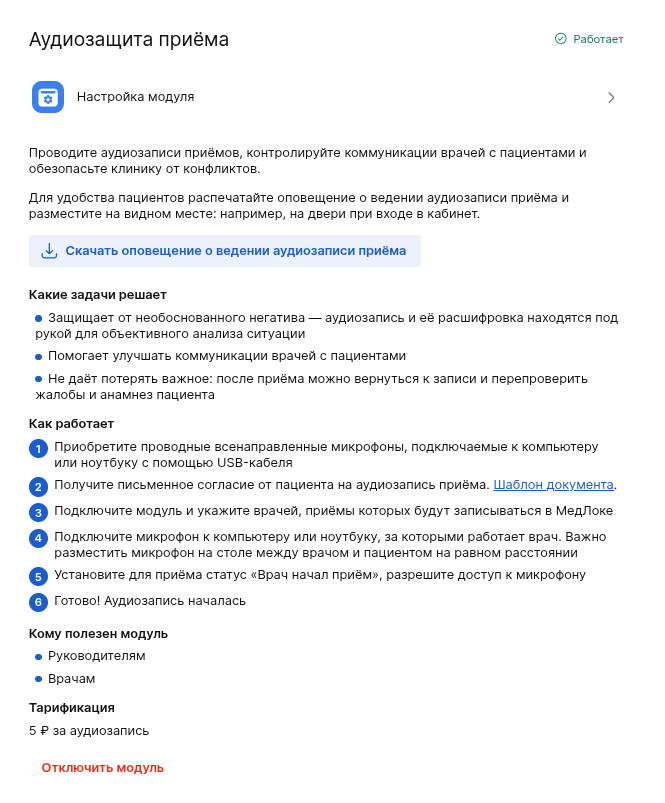
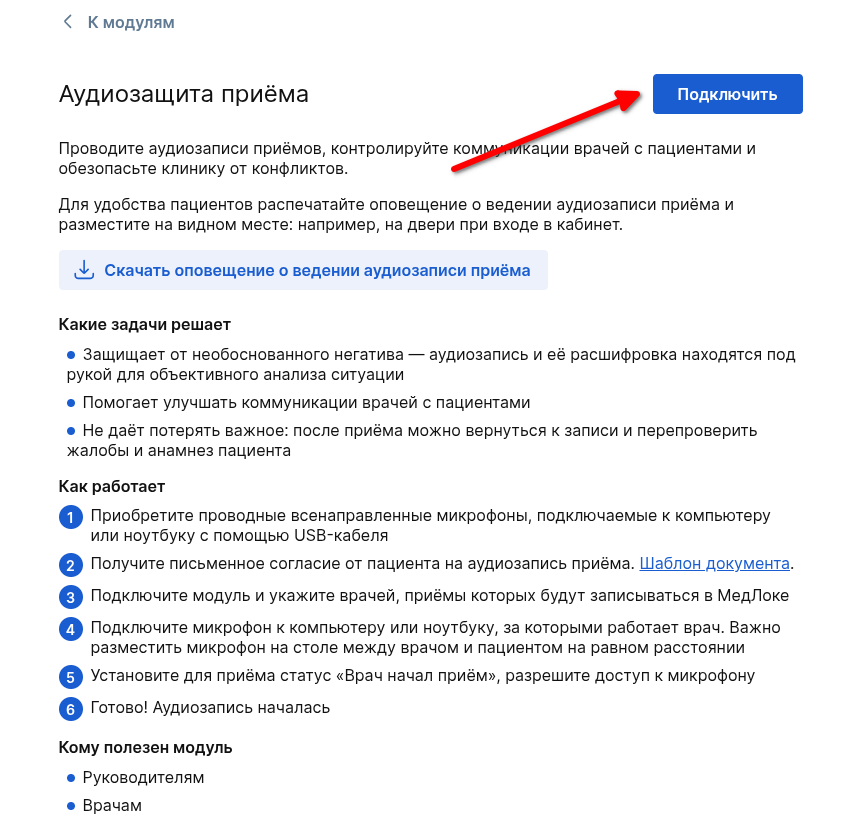
To connect and configure the module, go to the page«Модули», section«Продвинутые», and find the module«Аудиозащита приёма».
In the module, click «Подключить».
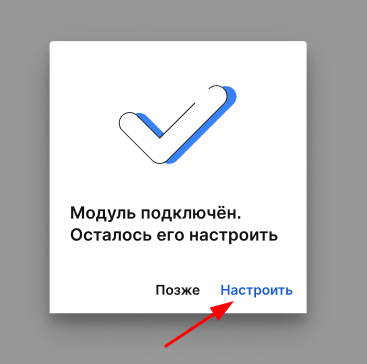
The module won't work without configuration, so click «Настроить».
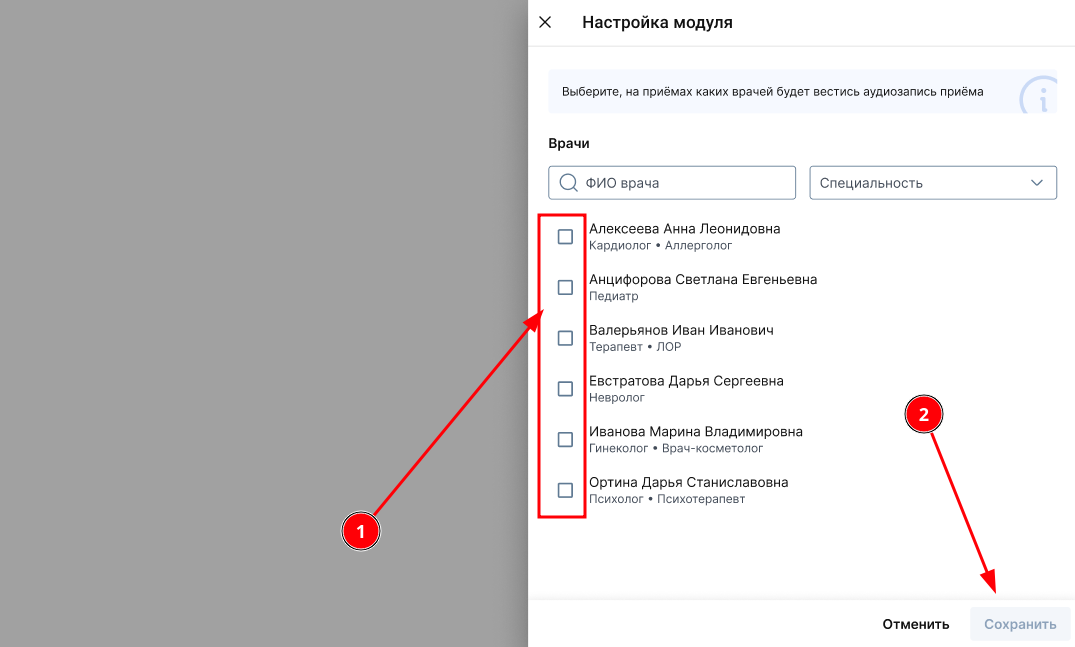
In the settings, select the doctors who will be able to record the appointment and click «Сохранить».
To make the module work, you need to select at least 1 doctor.
Ready! The module is configured.
Working with appointment recording
Only a role can start recording an appointment «врач»and only for their own appointment.
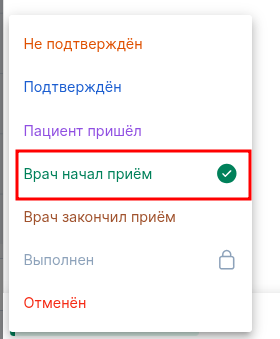
To start recording, connect the omnidirectional microphone, go to the desired reception and select the status «Врач начал приём»in it.
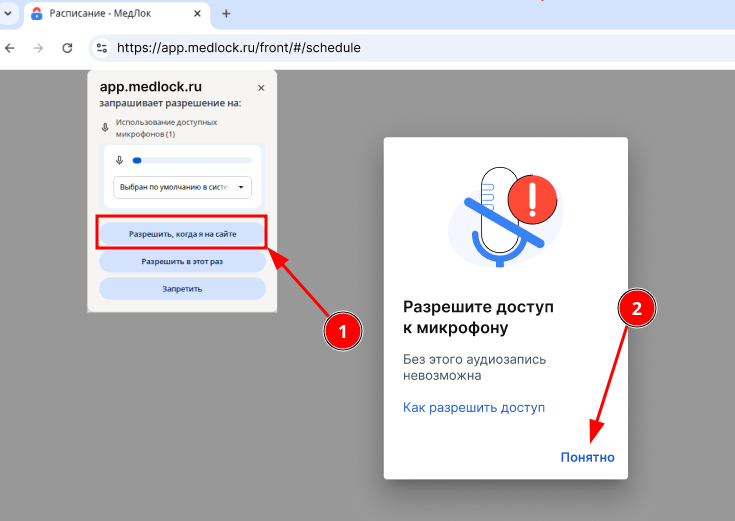
If you have never created an audio recording of the reception, you will need to give permission to access the microphone in the browser. If you have given permission, the modal window will immediately change and prompt you to start recording. If you can't set up the microphone at the moment, you can click on «Понятно»and try again later.
If you already have permission, but the system does not recognize the connected microphone or it could not be turned on, you will be able to continue receiving without audio recording.
If you still manage to connect and configure the microphone, you will need to return to any available status before starting recording«Врач начал приём», and then select the status again«Врач начал приём».
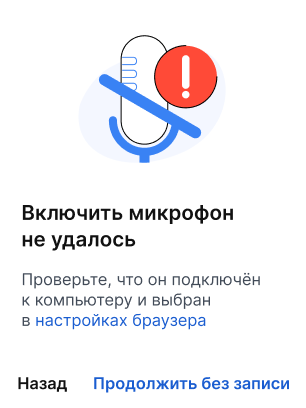
An entry will appear in the action log stating that the reception was started without audio recording.

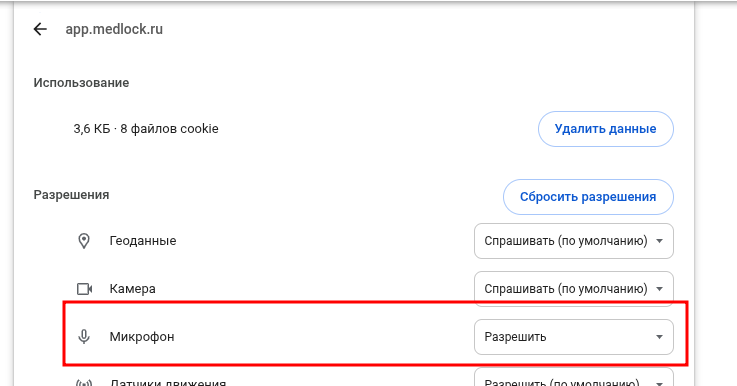
In the browser settings, you can check if the microphone is available. To do this, go to the browser settings while on the MedLock website.:
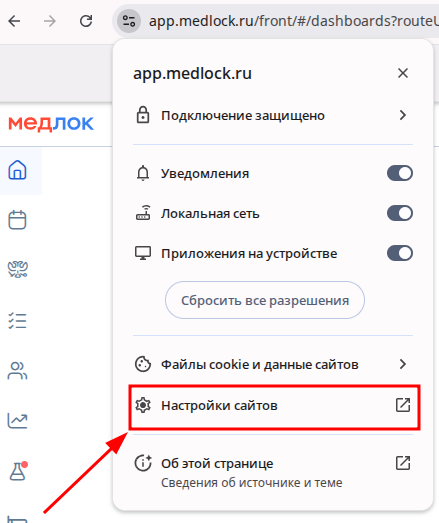
And check if there is access to the microphone.
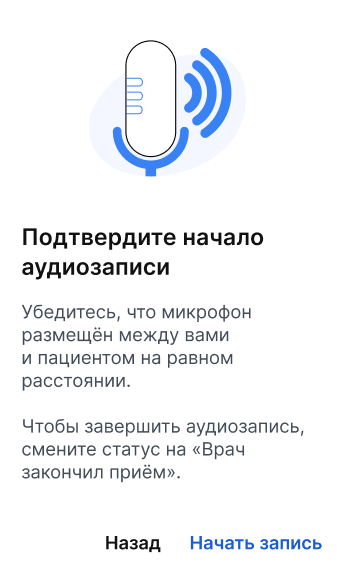
If the microphone is connected, access rights are granted and the microphone is recognized correctly, a modal window will appear to confirm the start of recording. By pressing the button«Начать запись», the reception status changes to «Врач начал приём»and audio recording begins.
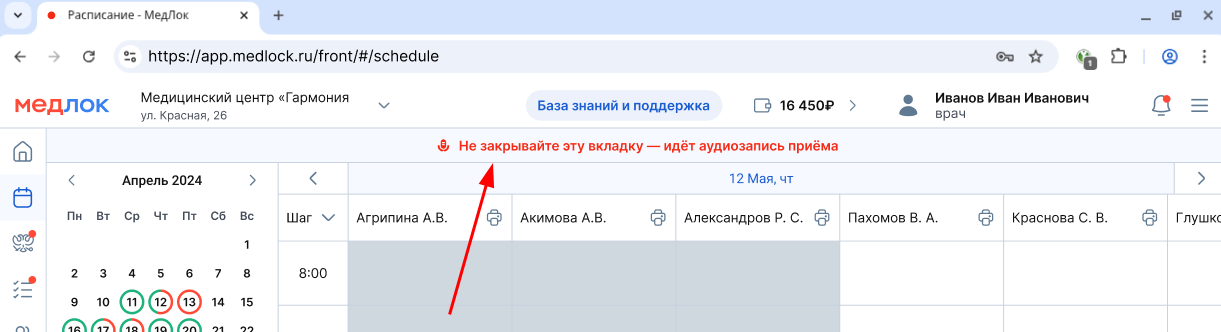
The recording is carried out in one tab, such a tab cannot be closed until the recording is completed. At the same time, you can use Medlock as usual: create a protocol, record patient data, etc.
To complete the audio recording, set the reception status«Врач закончил приём». The recording will be completed automatically and saved in the section«Аудиозаписи приёмов».
Important! The audio recording will end automatically when the reception is canceled. The maximum duration of audio recording is 60 minutes, after which the audio recording will also automatically end.
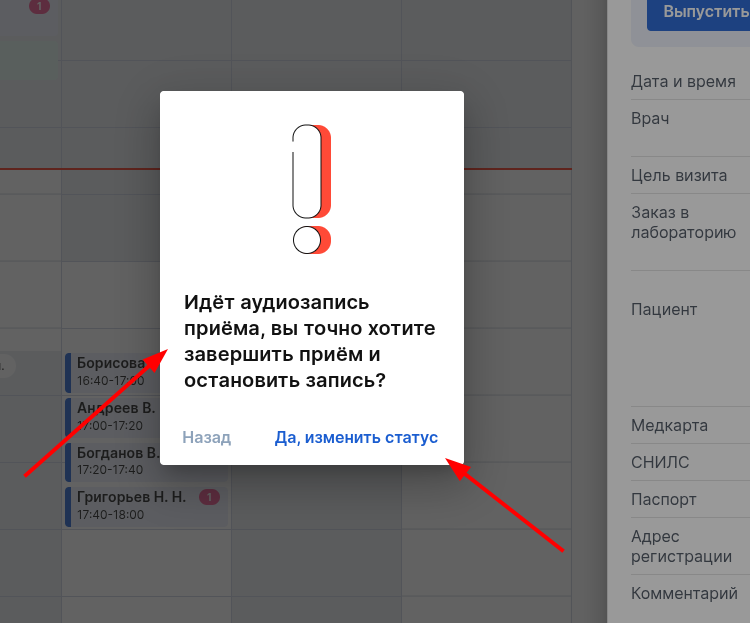
If for some reason the doctor cannot complete the appointment, the administrator will be able to complete the appointment through a status change«Врач закончил приём». Before it finishes, it will have a window warning that the audio recording of the reception will stop. To complete the recording and end the reception, you need to press «Да, изменить статус».
Listening to audio recordings in the section«Аудиозаписи приёмов»
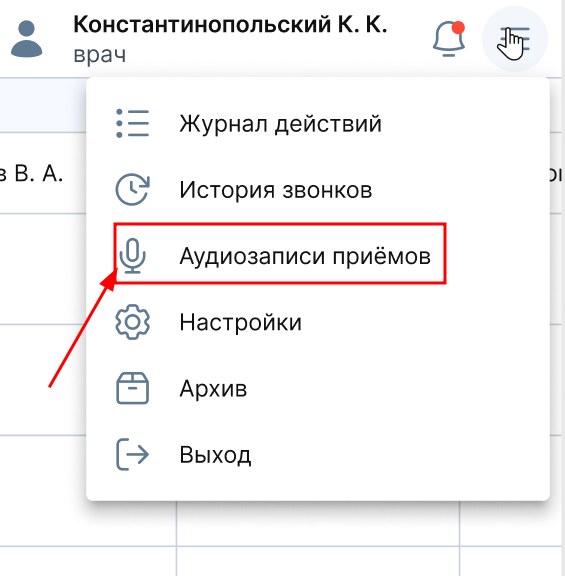
Go to the section «Аудиозаписи приёмов».
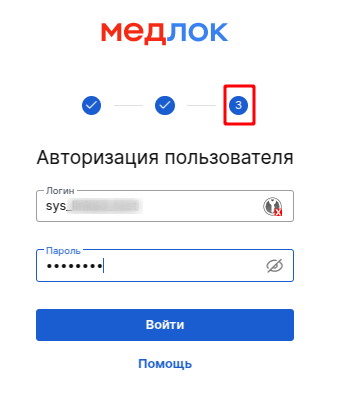
If the section is not accessible to the doctor, check the settings of his access rights. To do this, log in to your sys account_
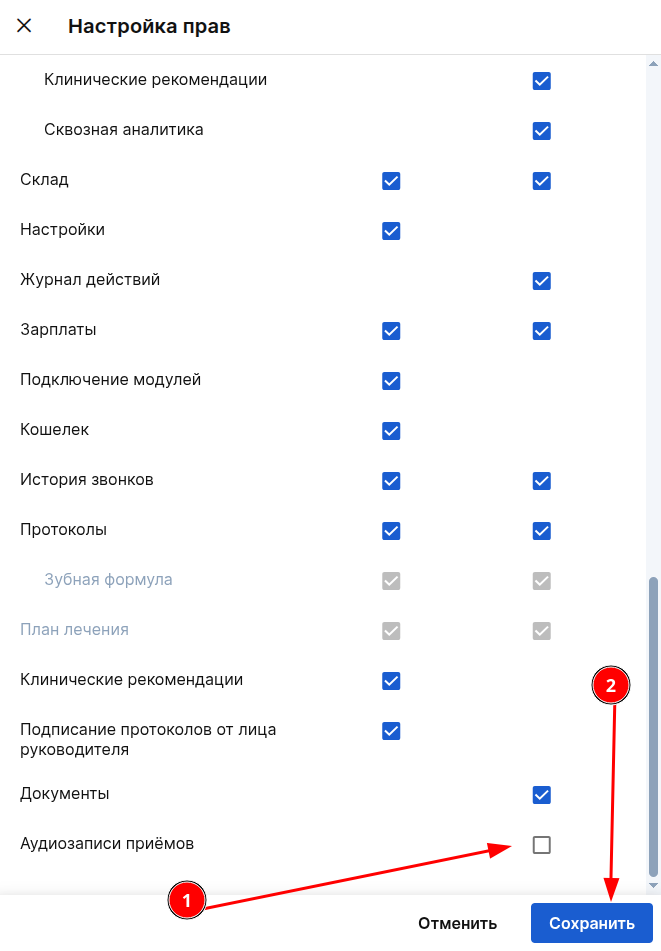
Select the desired doctor, click «Настроить права доступа»and tick the box next «Аудиозаписей приёмов»to read, save the changes.
In this section you can find audio recordings and listen to them.
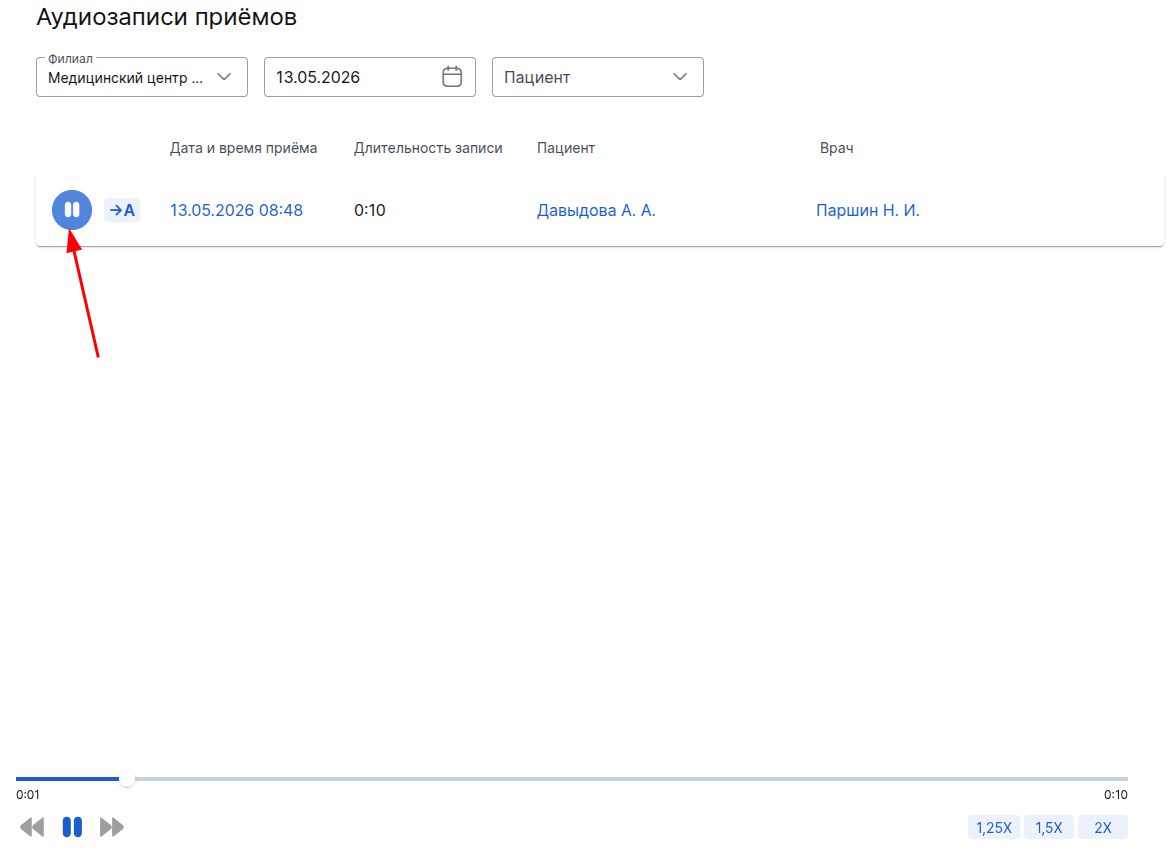
You can read the transcription of the conversation using the button«→A». It will take processing time to transcribe a long dialogue. If the reception transcription has not completed yet, a notification window will appear.

Important! If there is no dialogue in the audio recording (it consists entirely of silence), then transcription on such a recording will not work.
If the transcription has already been completed, a dialog box will appear. The dialogue will be divided into 2 roles: Doctor and Patient. The doctor with the blue outline, the patient without the outline.
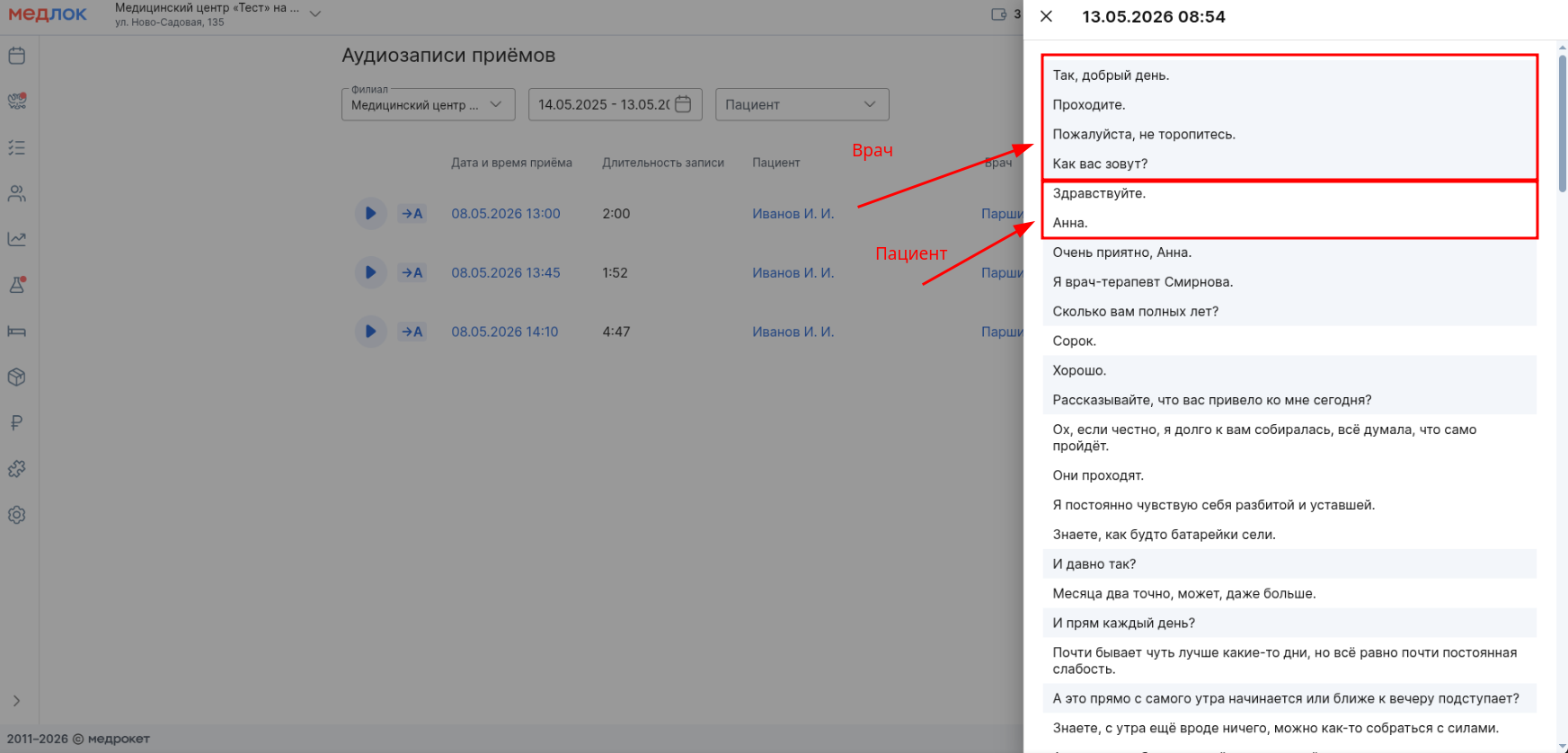
If there are several patients, or it was not possible to determine who is speaking: the doctor or the patient, the role will be fixed as the patient.
Audio recordings are stored for 30 calendar days. The transcription of the reception is stored indefinitely.
Important! You can't delete the recording, you can only listen to it. The doctor can only access his own records, and the supervisor can access all records.
Frequently Asked Questions
- Why might my branch's audio recordings be unavailable?
If you delete a branch that had receptions with audio recordings, these audio recordings will not be deleted, but they will not be displayed on the "Audio Recordings of the reception" page, since the section displays information about the selected branch. - Are you planning to use an audio recording of the appointment to automatically fill in the patient's medical history?
Yes, we plan to implement such functionality.