


Table of contents 
- What tasks does the module solve?
- Connecting and configuring communication channels
- Connecting a channel with a honey dot
- Communication Widget
- Chat notifications
- Frequently Asked Questions
What tasks does the module solve?
The module allows you to communicate with patients in a live chat directly from the MedLock.
- It facilitates the work of the administrator — all communications with patients are collected in one window.
- Improves the quality of communication — a focused administrator will be able to devote more time to the patient and his request.
- It provides uninterrupted communication with patients through a medical device — this channel is not subject to blockages, and it will also safely and carefully transmit your messages.
- It helps the manager to control the situation — if communication has gone wrong, it will be possible to quickly sort it out without switching through different channels.
Connecting and configuring communication channels
Important! Gradually, the communication channels will be supplemented.
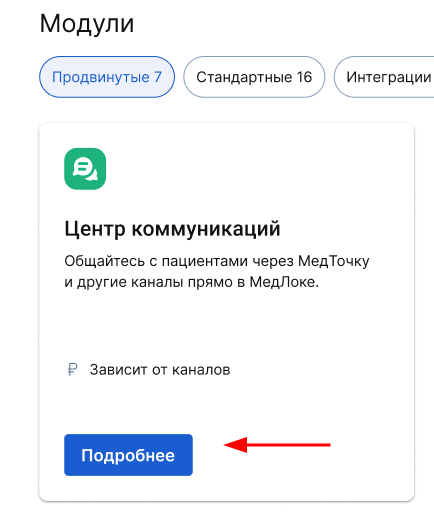
To connect, go to the page«Модули», go to the section«Продвинутые», find the module «Центр коммуникаций»and click «Подробнее».
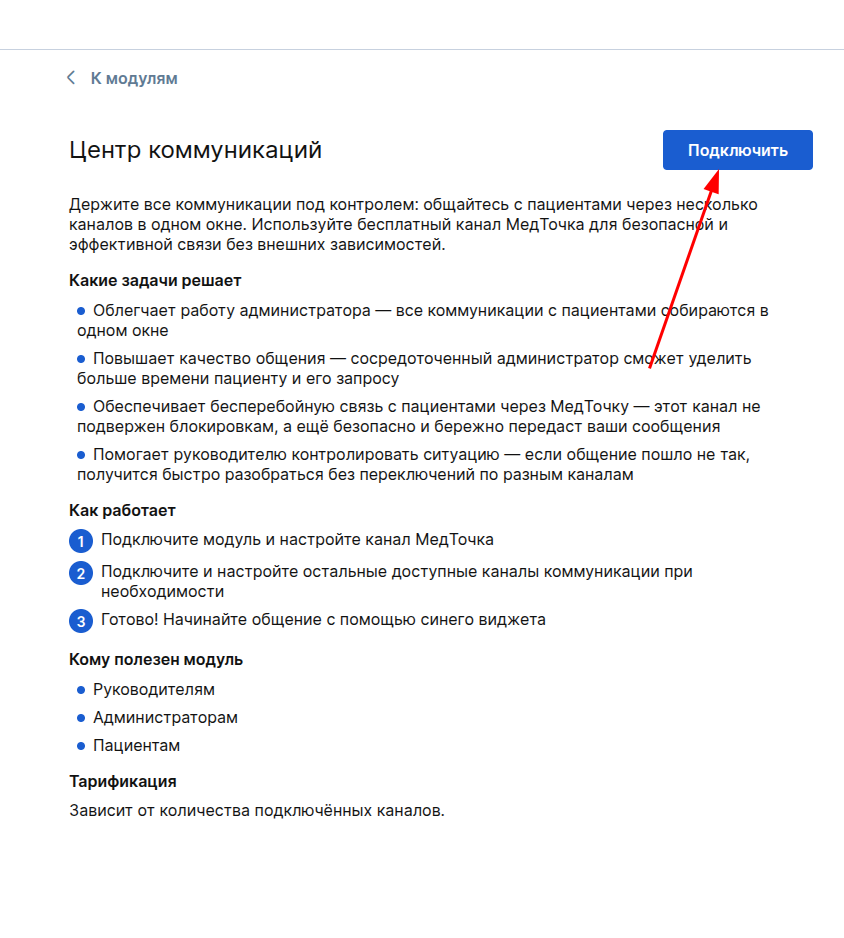
Read the description of the module and click «Подключить».
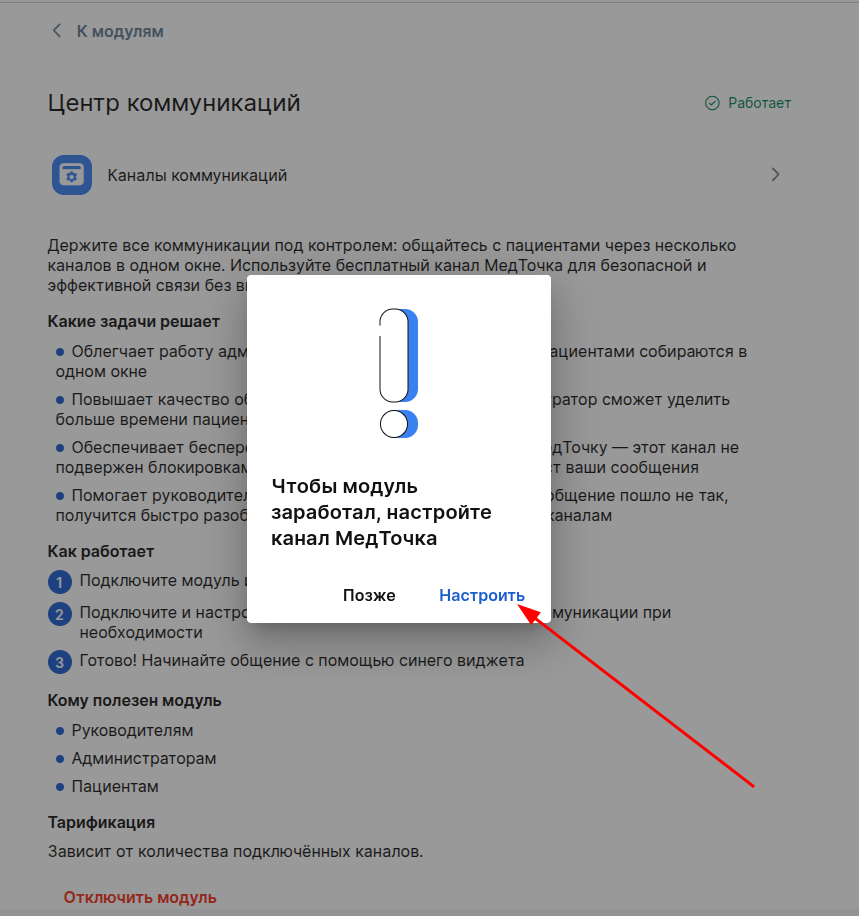
If the module is being connected for the first time, you will first need to connect the channel with a slow connection.
Important! In order for the patient to correctly display the name and address of the branches of your clinic in the medical chat, it is necessary to check the correctness of the connection settings of the branches in the medical unit with the branches in ProDoctorovand identify those responsible for the chat. To do this, you will need to connect and configure the Honey Dot channel.
Click«Настроить».
If the module has already been connected and the connection channel has already been configured, then you can select the necessary communication channel to connect.
Setting up a channel with a delay
Important! The chat is not intended for medical consultations, and therefore roles are not available«Врач».
The button «Настроить»will open the available communication channels. To set up connections between branches and those responsible for chats, click again«Настроить».
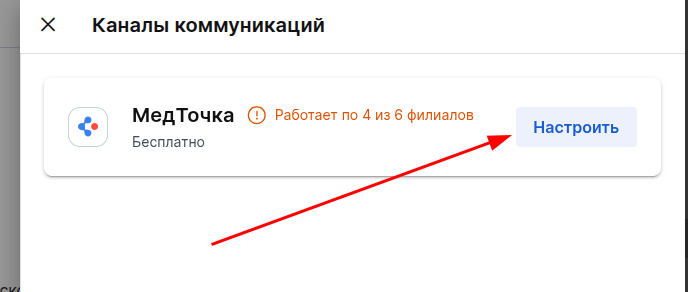
Check that the branches in MedLock are correctly linked to the branches in ProDoctorov.
Important! The patient will not be able to write to a branch that does not have a responsible person and is not affiliated with the branch in ProDoctorov.
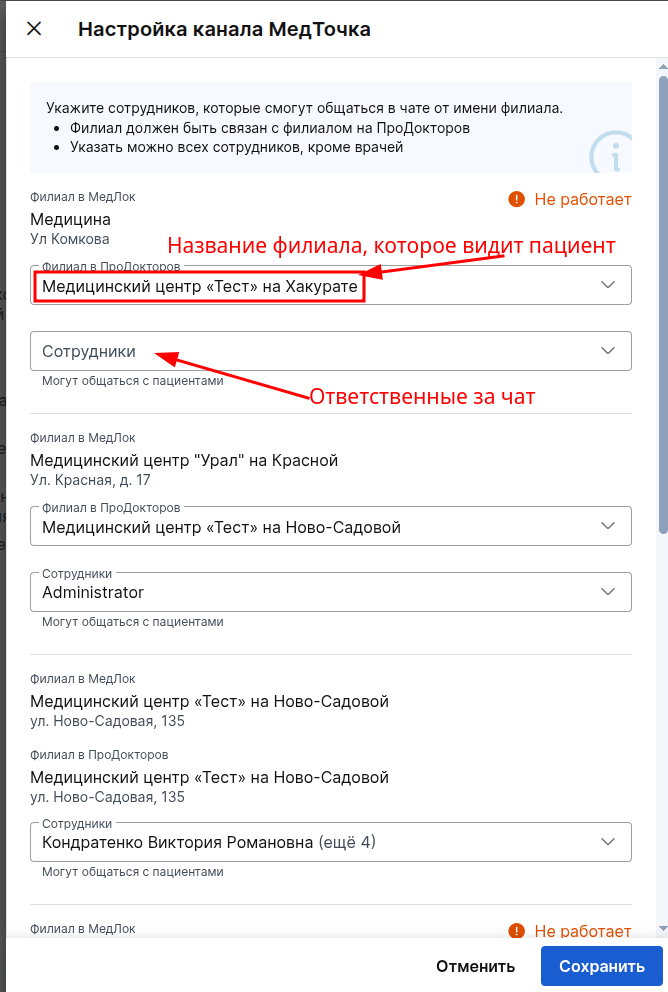
Important! Only the name of the branch in the chat will be displayed to the patientProDoctorov. If you link two branches of the medical center to one branchProDoctorov, it will be one branch in the chat for the patient.
After setting up contacts and employees who will respond to chat messages, click «Сохранить».
Important! You can start using the MedLock channel if at least 1 branch of the MedLock is linked to a branchProDoctorov, and a responsible employee has been identified for this branch. Otherwise, the settings cannot be saved.
Communication Widget
If everything is set up correctly, the selected employees will have a blue communication widget. The communications widget is always displayed in the same place on all pages.
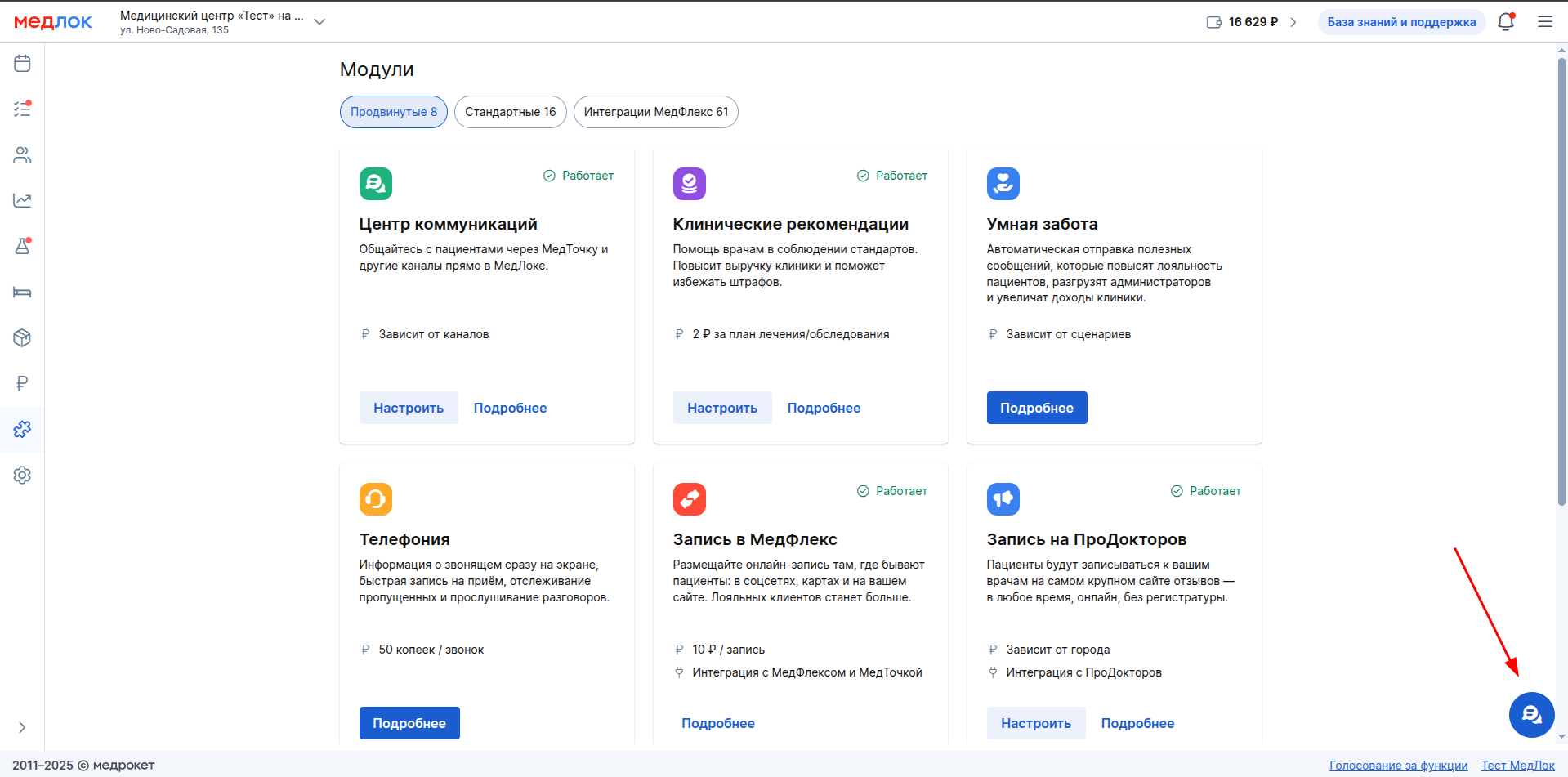
If the module is connected but not configured, the communications widget will turn red.
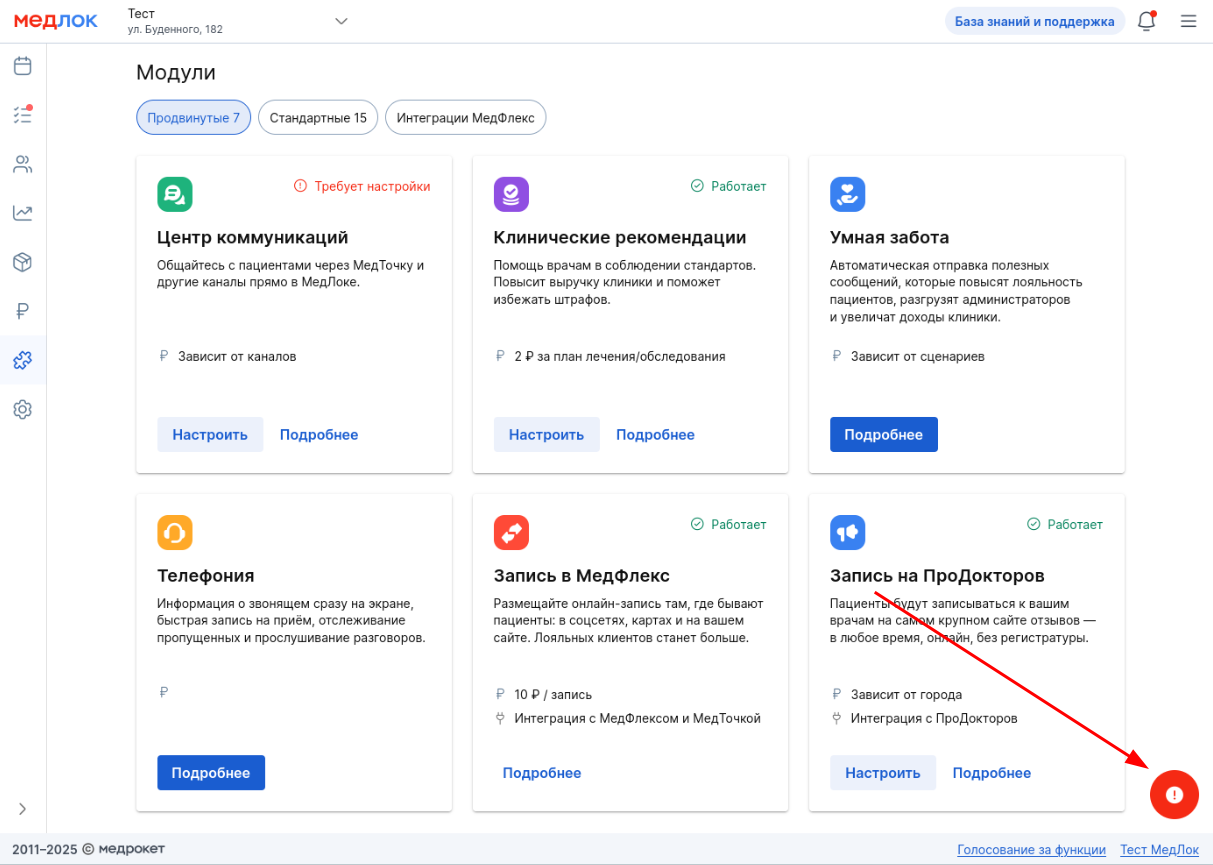
When you click on the red communication widget, you need to set up a channel with a delay. By clicking on«Настроить», the settings menu for branch and responsible relationships opens. Set up at least 1 branch to make the channel work.

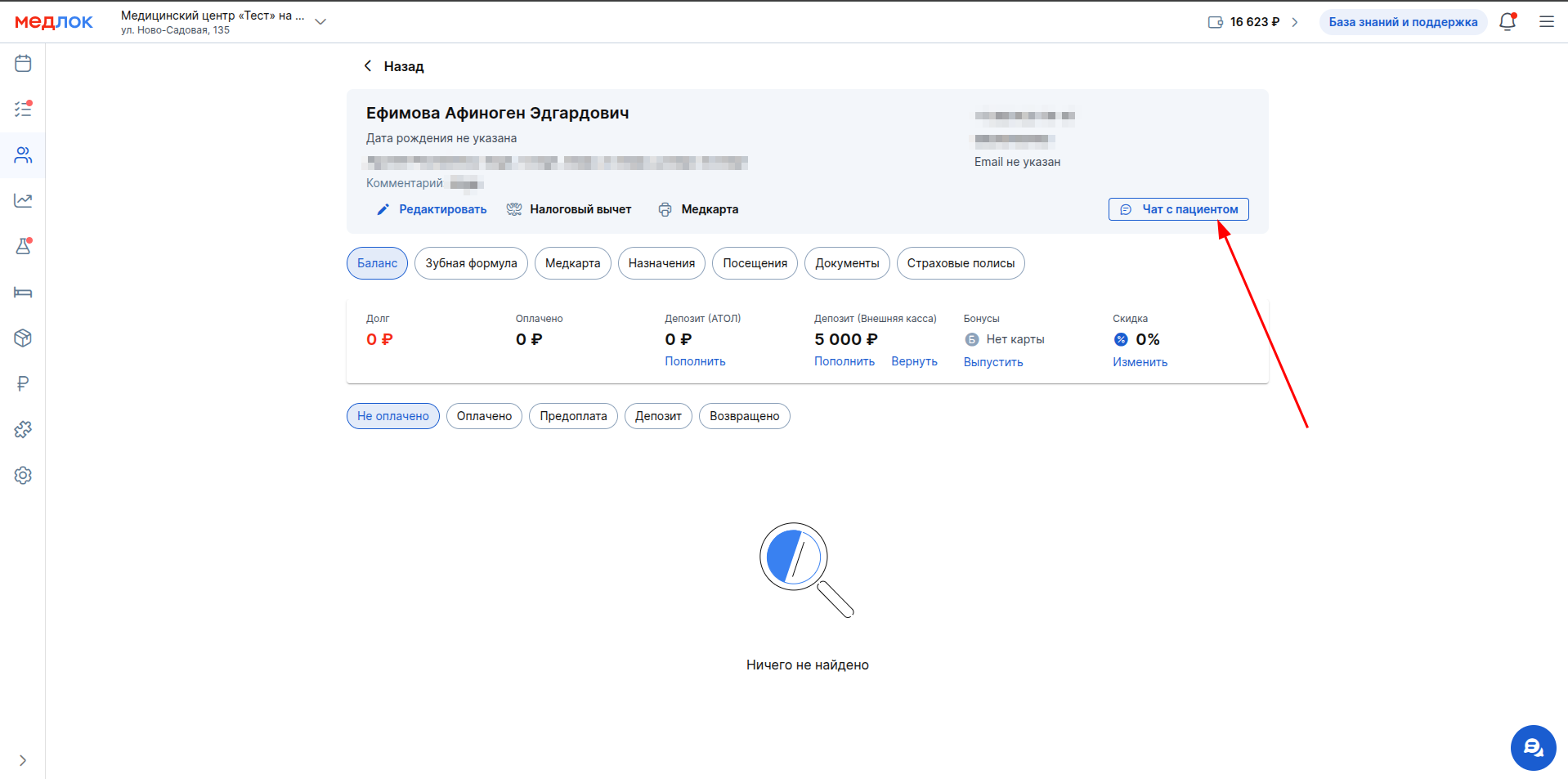
You can also always open a chat with a patient through the patient's profile by clicking the button«Чат с пациентом».
List of chats
When you click on the communications widget«Чаты», a list of chats appears in the section. It is sorted by date (new posts at the top, later posts at the bottom).

To start a chat with a patient, click on «+ Чат»in the upper-right corner.

To ensure information security, the patient list is available only through a search query. To start searching by full name, you need to enter at least 3 characters. To search by phone number, you need to enter the patient's full number.

After entering the search query, you will see no more than 10 patients. If the desired patient could not be found, enter a more precise query.
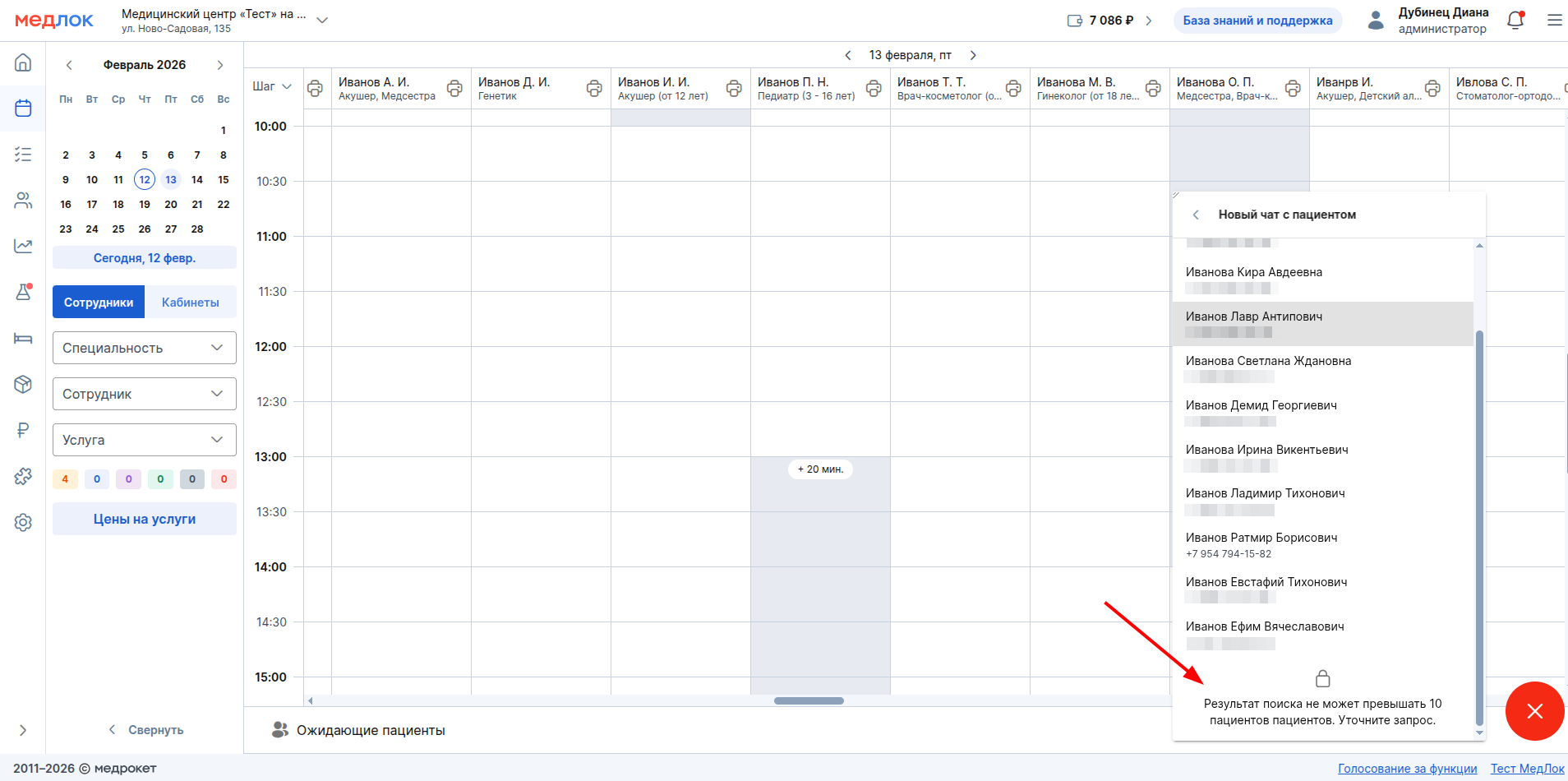
Click on the patient to start a chat with them.
The clinic staff sees the chats according to the settings of the linked branches. If the patient writes to a branch to which the employee is not linked, then this chat will not be visible to him.
If an employee is linked to all branches, they will see and be able to respond to all messages sent to the clinic.
Important! For information security purposes, the chat list is displayed for the last 7 days. You can always find a chat with the patient you need through the search.
The last message of this chat is always displayed in the chat list.

Search in the chat list
There is a search in the chat that allows you to find the necessary chat from the list.
- The search works based on the patient's full name and phone number.
- The search displays a maximum of 10 chats.
- As with adding a new chat, the full name search works when you enter 3 or more characters, and the full phone number by phone number.
- If you couldn't find the desired chat, specify the search.
Filter by unread messages
When there are unread messages from patients, their number is displayed in a special block above the widget. Click on it or on the widget itself to see the chats.

In the chat list, those with unread messages are marked with a red circle.

Activate the slider «Только непрочитанные»to see only those chats that have unread messages from patients.
Important! When the filter is enabled, the chats are sorted in reverse: from the oldest to the newest (old messages at the top, newer messages at the bottom).

If you have already read the latest messages when opening the chat, scroll up the chat, most likely you still have unread messages higher up the chat.
Working with the chat
To open a chat with a user, click on their area in the list.

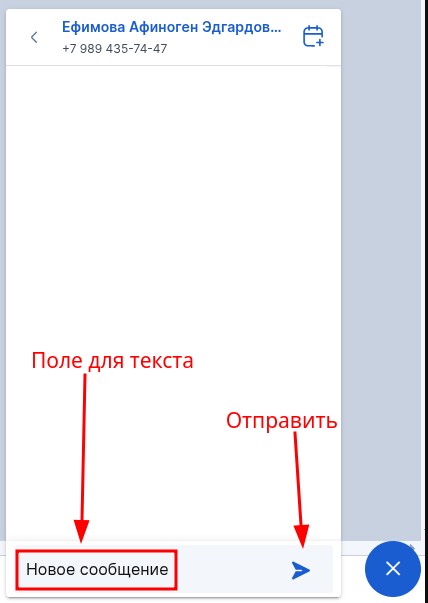
To send a message, enter the text in the field and click send.
Important! To send a message, press Ctrl+Enter. Enter simply moves the cursor to a new line in the input field.
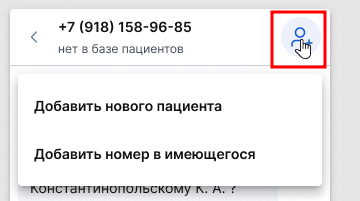
If the patient is not in your patient database and he writes to the chat for the first time, then only the patient's phone number will be on top, and it can be added to the database directly from the chat. To do this, click on the icon on the top right and select a convenient format for adding: create a new patient or add this phone to an existing patient.
For more information about creating and changing patients, see the Patient Profile article.
Important! To add a new patient, you need the rights to read and edit patients.
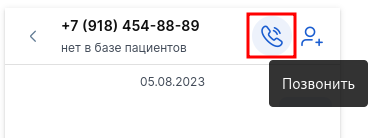
If the employee works with telephony, a call button will be available in the chat with the patient. By clicking on the call button, a call will be made to the patient via telephony.
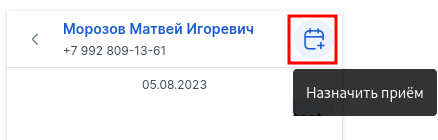
If the patient is already in the database, his full name and phone number will be displayed, and a button will also appear«Назначить приём». By clicking on the button, the reception creation menu opens, the same as in the Schedule. For more information about creating an appointment, see the article Making an appointment.
Patient selection in the chat
There are situations when there are several patients with the same phone number in the clinic's database. For such cases, there is a menu for selecting a specific patient, with whom it is necessary to communicate.
A button will appear at the top of the chat«Выберите пациента».
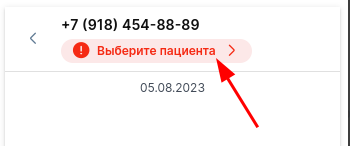
When you click on the button, a modal window will appear where you need to select the desired patient and click «Привязать».
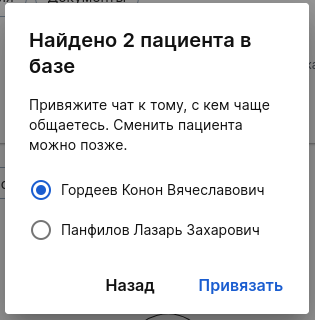
After linking, all messages to this number will be sent to the selected patient and will be assigned to him.
Important! The maximum number of patients to choose from is 20. If there are more patients, you should combine similar patients. For more information about the association, see the article Patient Profile.
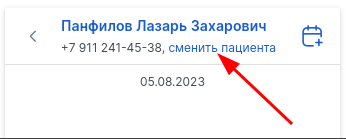
You can change the connection between the chat and the patient at any time. To do this, click the button «Сменить пациента»at the top of the chat and select the patient you need.
Choosing a communication channel in a chat
You can choose which channel to write to the patient. The available channels will be displayed in a list by clicking to the left of the input field.
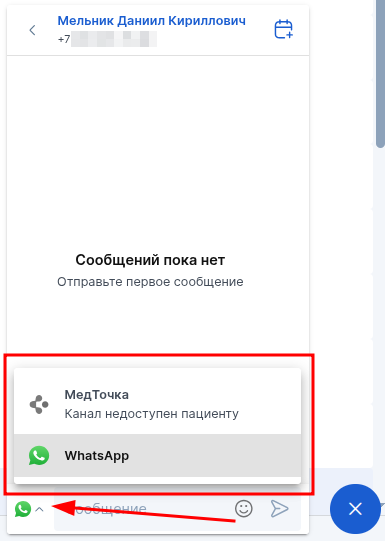
In the example above, only the WhatsApp communication channel is available to the patient. If the channel is unavailable to the patient (the patient does not have a medical device installed, for example), this will be indicated when selecting the channel.
More information about the reasons for the unavailability of each of the channels can be found in the relevant articles in our Knowledge Base.
Changing the widget size
If necessary, you can change the size of the vtjet (increase or decrease). To do this, simply pull the upper-left corner. The size is saved individually for the user (the size will not change for other users).

Chat notifications
For all new chat messages, regardless of the channel, there is a notification system for the clinic employee. Notifications consist of:
- Browser-based push notifications;
- Sound notification;
- Notifications about a new message in the browser tab.
Browser-based push notifications
The notification contains the text of a new message:

To receive browser notifications, you must allow access to them in your browser settings. Notifications are supported for Google Chrome and Yandex Browser.
Push notifications will only be used for new (unread) Chat messages.
By default, the browser will request access automatically, you need to click«Разрешить»:
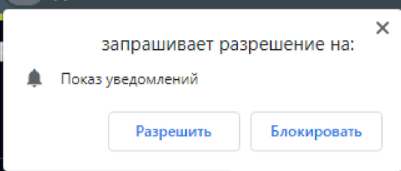
If notifications are blocked, you will not be able to receive push notifications, but you can fix this by going to the site settings.:

And give permission to receive notifications:

Then reload the MedLock page.
Notifications about a new message in the browser tab.
When you receive a new message, the tab will change its icon and the text about the new message will appear, after which the tab will return to its original state.
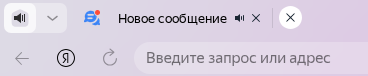
Sound notification
By default, the sound notification works for all new messages from all communication channels.
You can turn off the sound notification if necessary. To turn off the sound, click on the page settings in the browser's address bar.:
Next, find the item «Звук»and select «Отключить звук»it .

Frequently Asked Questions
- How does the Honey Chat channel work?
More information about the features of the Chat channel with Honey is described in the article of our Knowledge Base. - Is it possible to send files via chat?
Not yet, but you can upload the required file directly to the patient's medical card. For more information, see the article Sending documents from the medical card to the patient's medical card. You can also upload a file to a file sharing site and send a link to it in a chat. - Are there plans to add new communication channels?
Yes, there are plans to add most of the main messengers for communicating with patients in an application that is convenient for them. - Are you planning to add Smart Care?
Smart Care messages have already been added to the chat. For more information, see the article Smart Care in a Chat with a nurse. - Does the check mark affect «Анонимный приём»the ability to write to the patient or receive a message from him?
No, the chats of the Communication Center are not related to the anonymity of the appointment, you can write to the patient and receive a message from him.