


The article contains sections: 
- Setting up paid consumables
- Adding a paid expense account to an appointment
- Payment of consumables and refund of funds
- Report«Подробный по списаниям»
The function «Продавать расходник как товар»allows you to set up positions in the warehouse for the possibility of paying for a dose of consumables at the reception.
Setting up paid consumables
To use the feature«Продавать расходник как товар», you must have the module connected and configured«Склад».
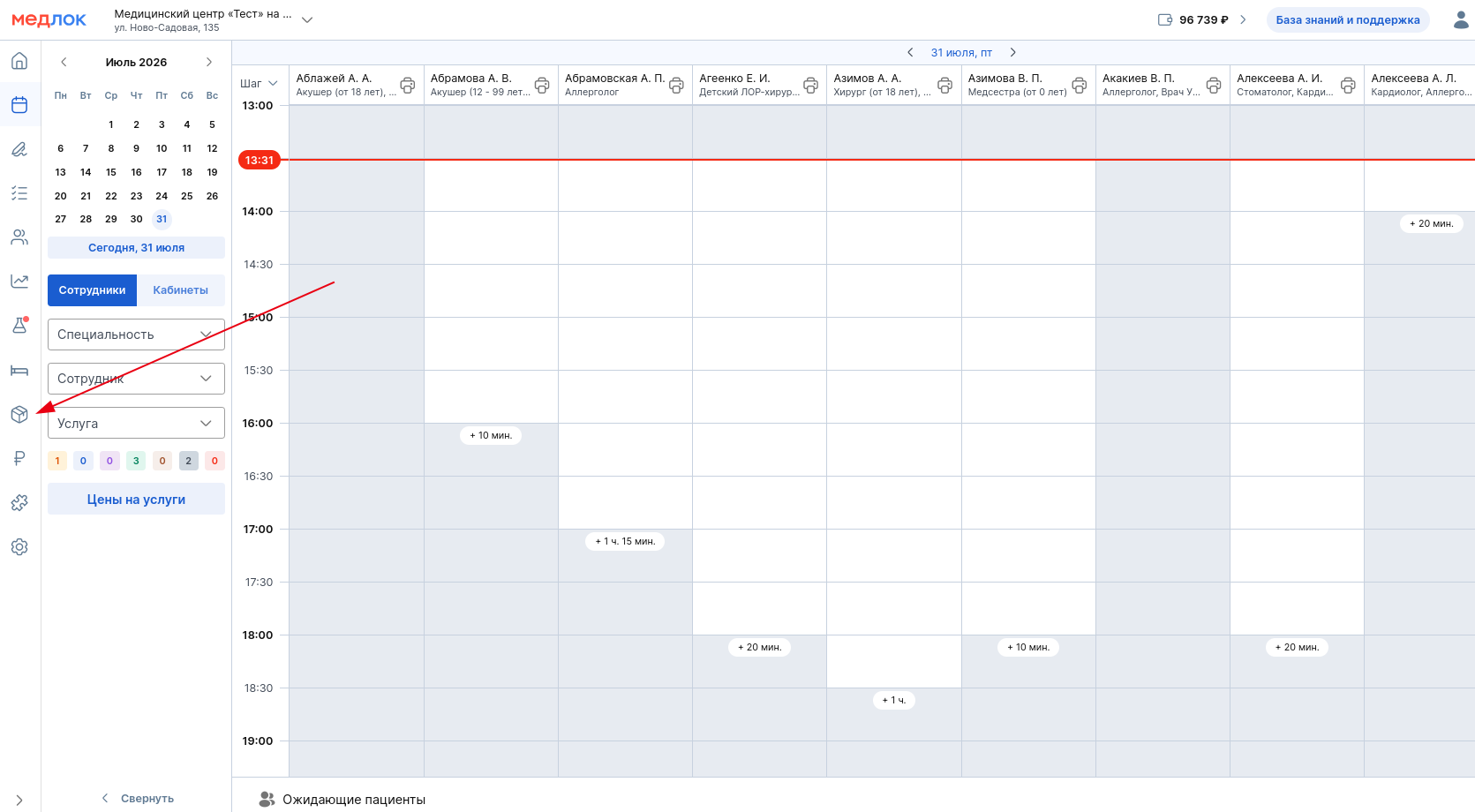
Go to the module«Склад».
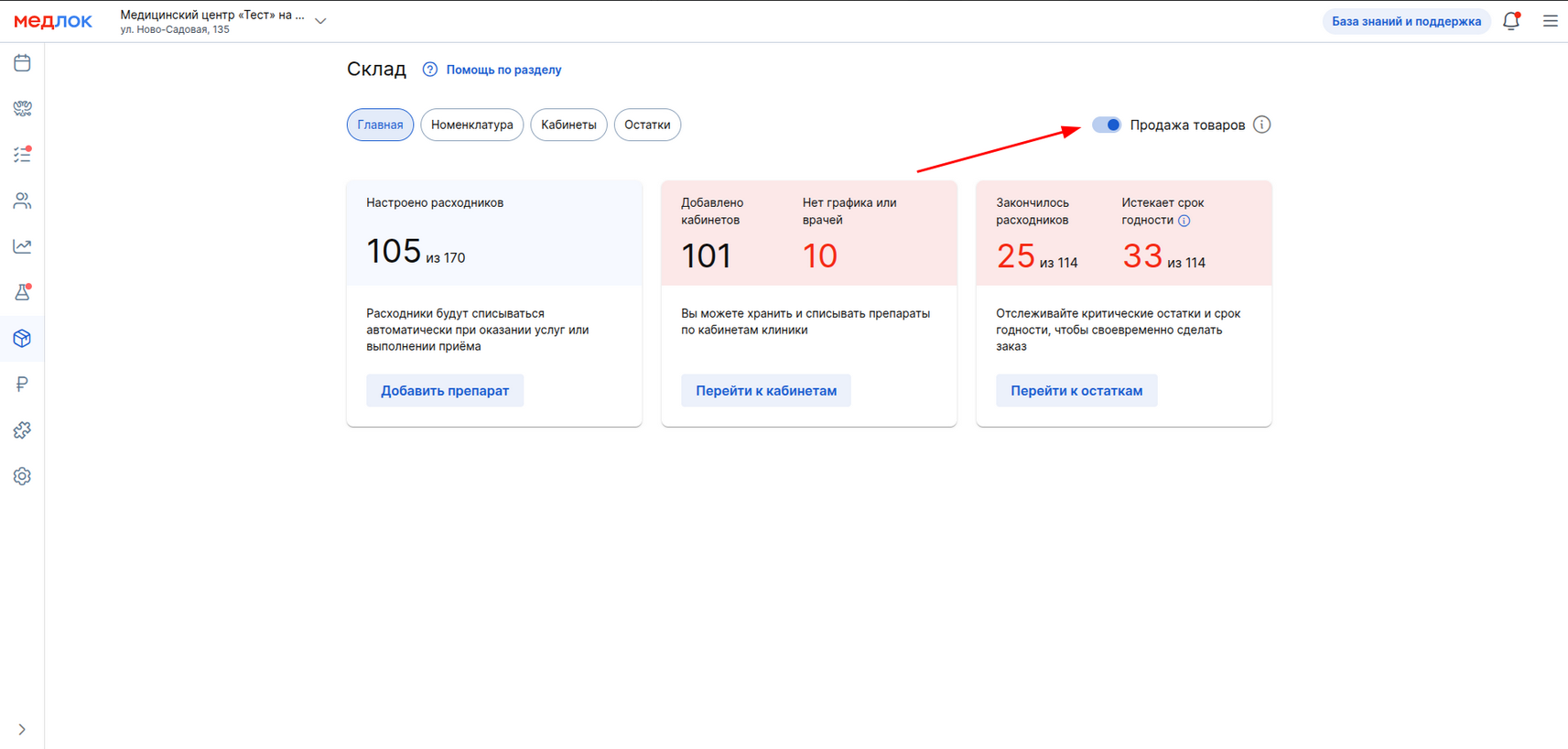
To set up paid consumables, enable the function«Продажа товаров».
Read about setting up the sale of goods in the article Sale of goods.
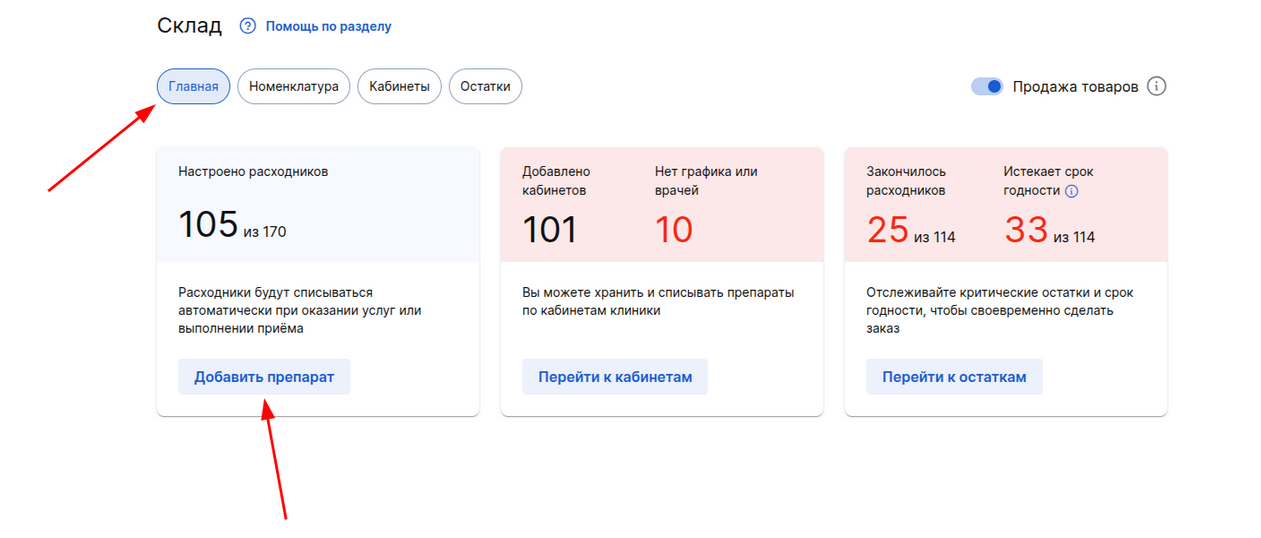
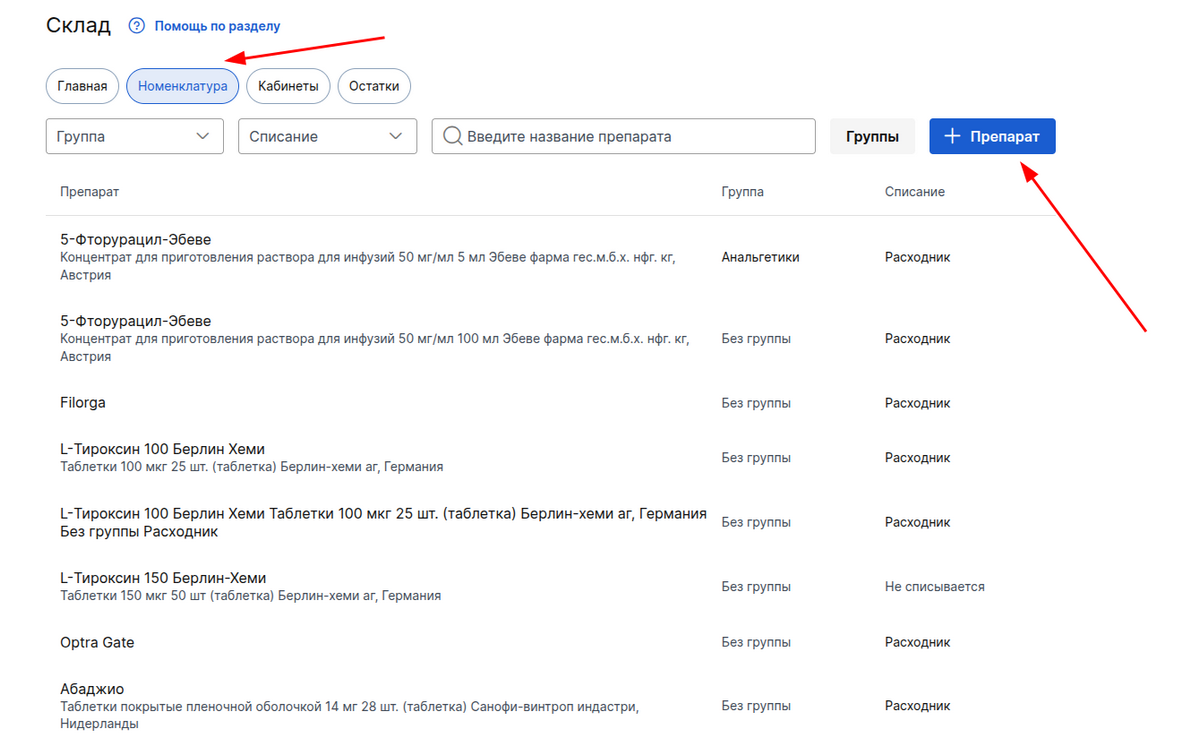
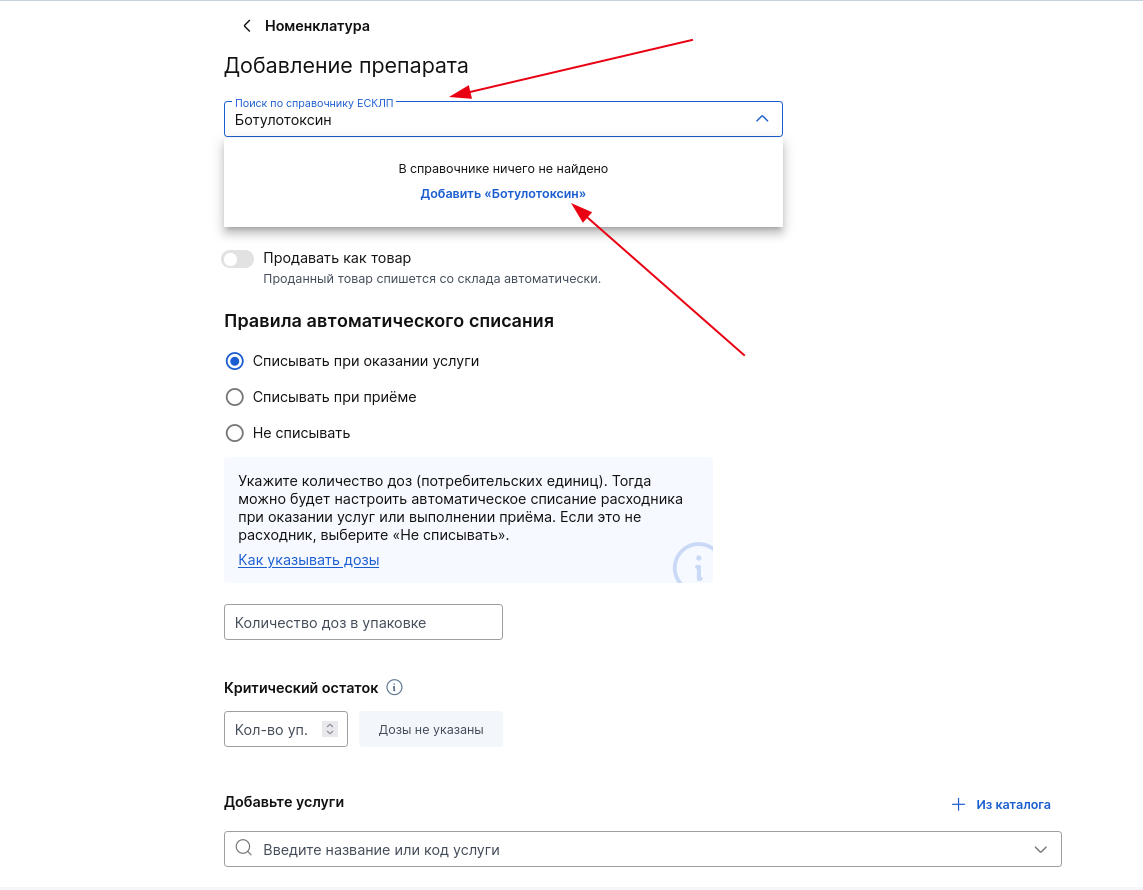
Click «Добавить препарат»in the subsection «Главная»or «+ Препарат»in the subsection«Номенклатура».
Enter the trade name of the item and click on the button that appears«Добавить ... (название товара) ...».
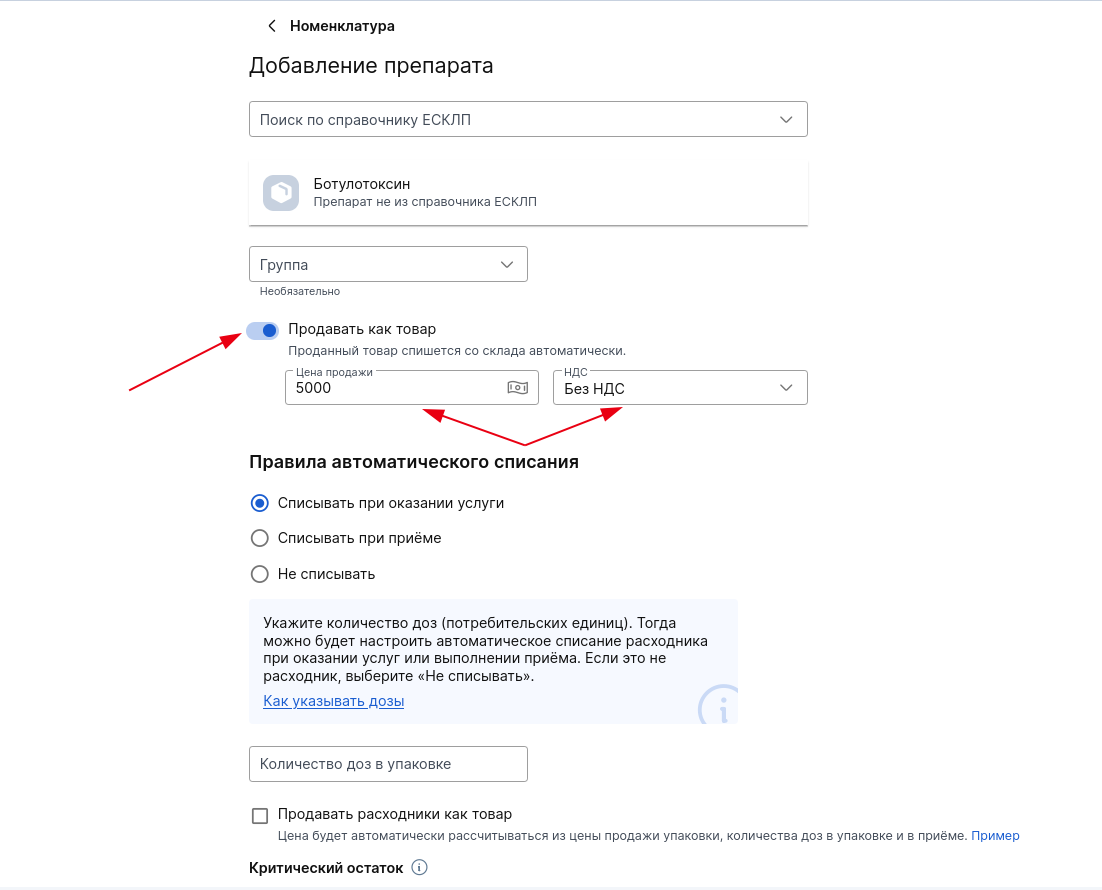
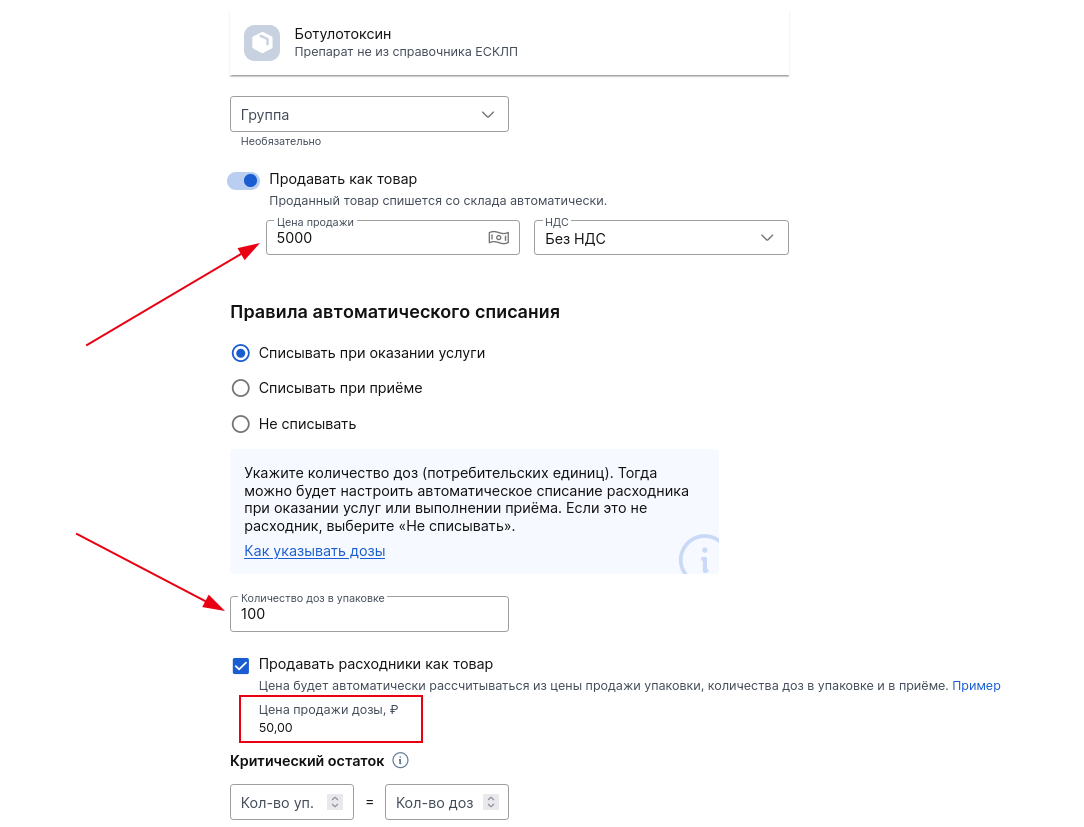
After that, turn on the function«Продавать как товар». A field for specifying the cost of the product and a field where you can select the VAT for this product will appear below.
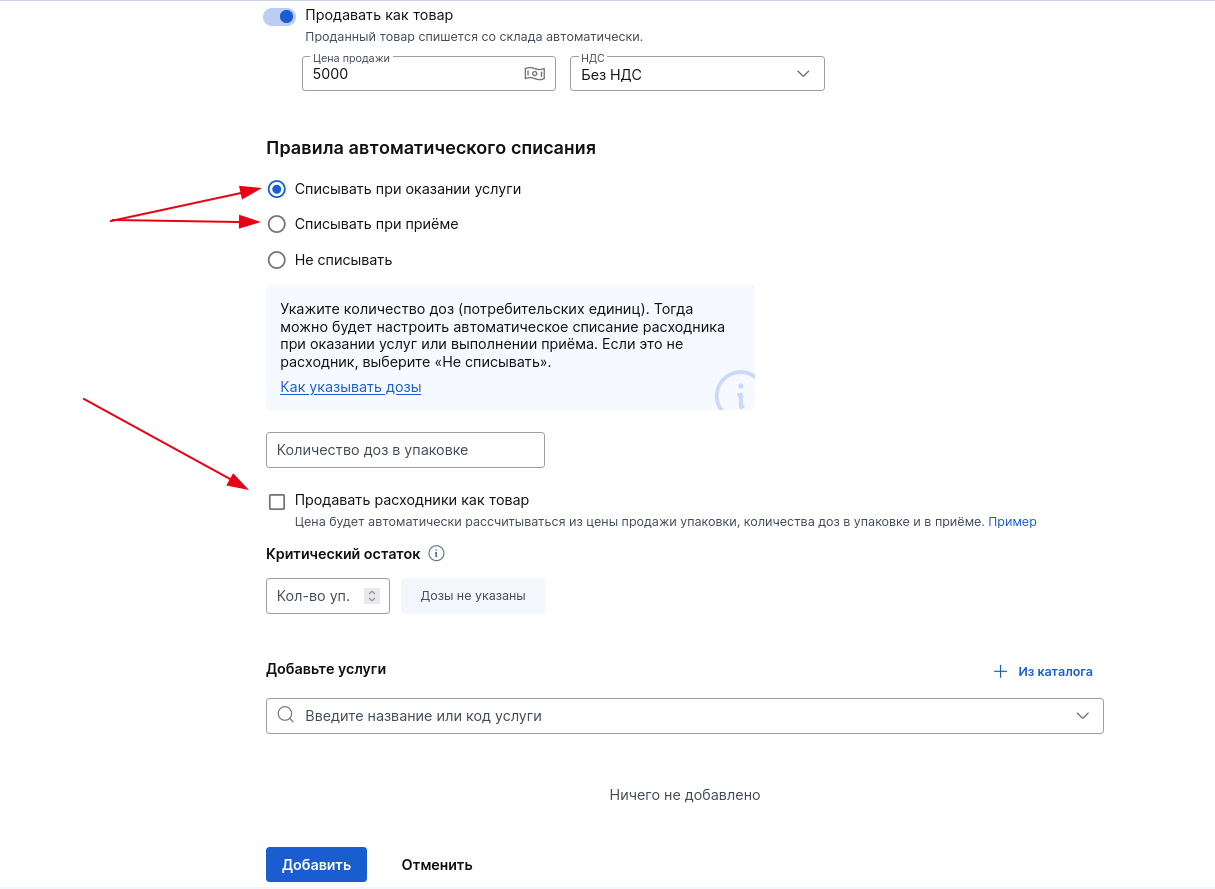
If you select the rules for automatic debiting «Списывать при оказании услуги»or «Списывать при приёме»below, an item will appear«Продавать расходники как товар».
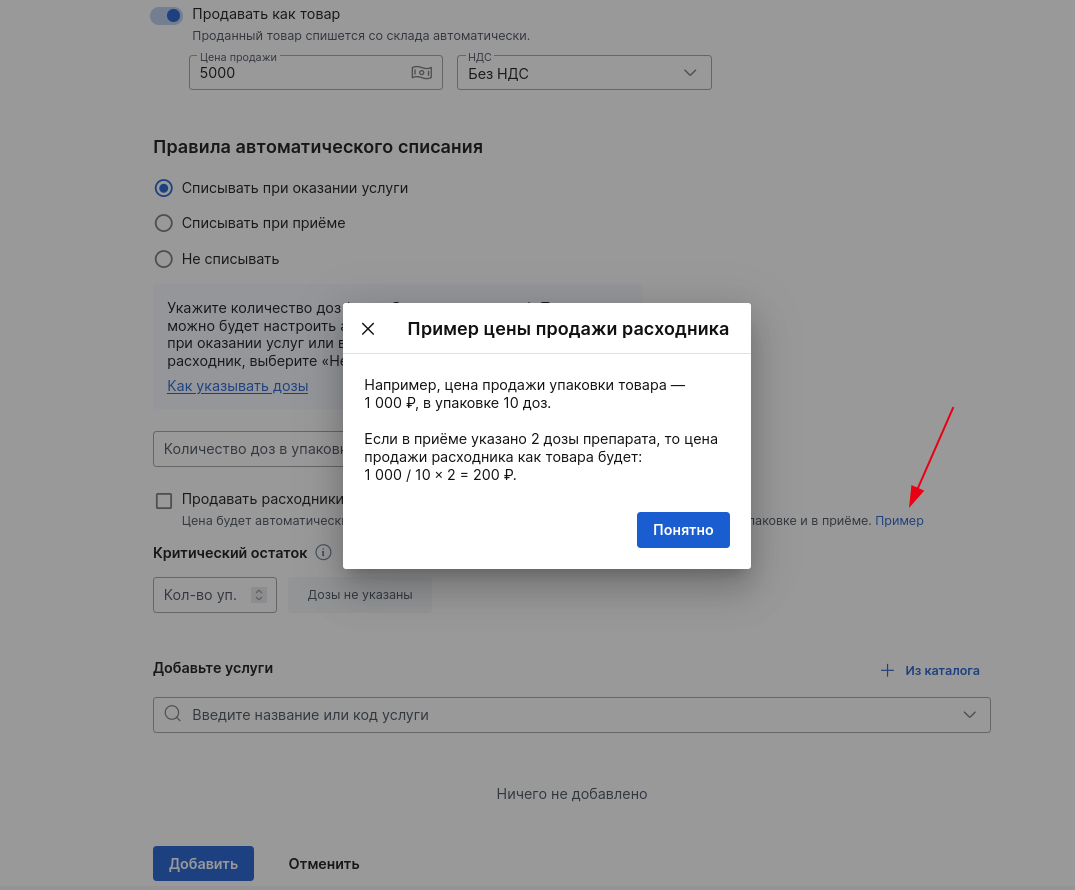
The price will be calculated automatically from the sale price of the package, the number of doses in the package and in the intake.
Clicking on «Пример»it will open a window with an example of calculating the price of a consumable.
To sell consumables, check the box next to the item«Продавать расходники как товар».
To calculate the selling price of a dose of a consumable, specify the selling price of the package and the number of doses in the package.
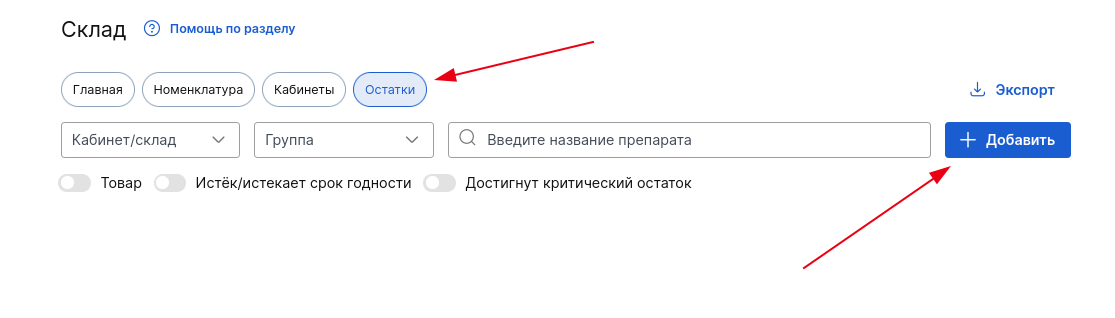
You also need to check the balances for the required position or add them for the new one that you have entered. To do this, go to the subsection «Остатки»and click «+ Добавить».
Adding a paid expense account to an appointment
Paid consumables are also added to the receipt by default, as are regular consumables that were added to the inventory with an automatic write-off rule when receiving or providing a service, as well as added to stock balances.
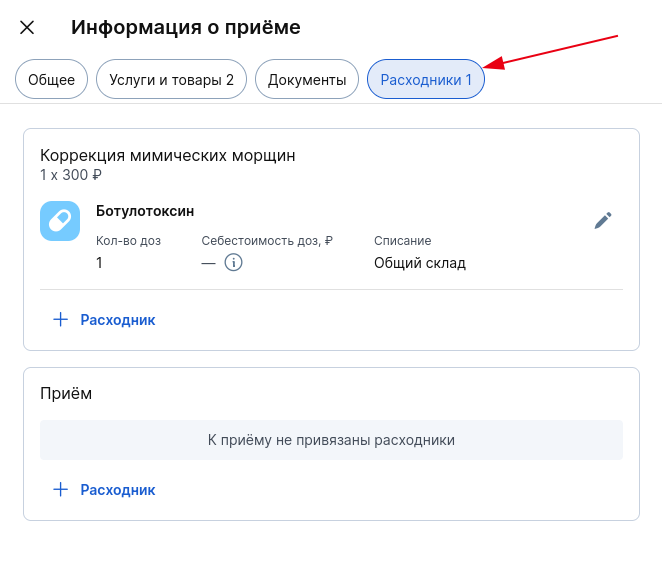
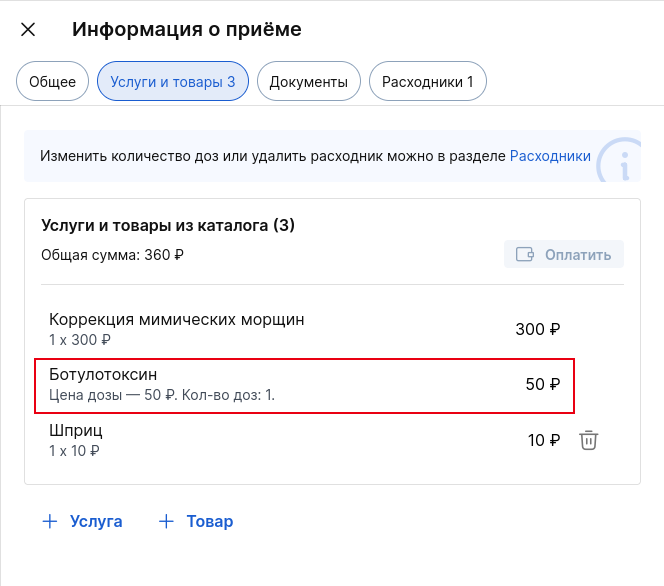
Paid consumables are displayed in the admission information window in two sections simultaneously.
Paid consumables in the section«Расходники»
Paid consumables in the section«Услуги и товары»
Differences between a paid consumable and a regular product:
- Instead of the number of packages and the price per package of the product, the paid consumables display the dose price and the number of doses in the section «Услуги и товары»that can be paid for.
- A paid expense item cannot be deleted by clicking the urn button, as it can be done with a regular item in the section«Услуги и товары». You can change the number of doses or delete the paid consumables only in the section«Расходники».
- A discount cannot be applied to a paid expense item.
- Paid consumables are not debited from the stock after payment, like goods, but are debited only after acceptance, just like regular consumables.
Important! The price of the consumables dose in the section «Услуги и товары»and the cost of the consumables in the section «Расходники»may differ, since the cost is calculated from the purchase price of the consumables, and the price of the dose for payment is calculated from the specified cost of the product in the nomenclature.
Differences between paid consumables and regular consumables:
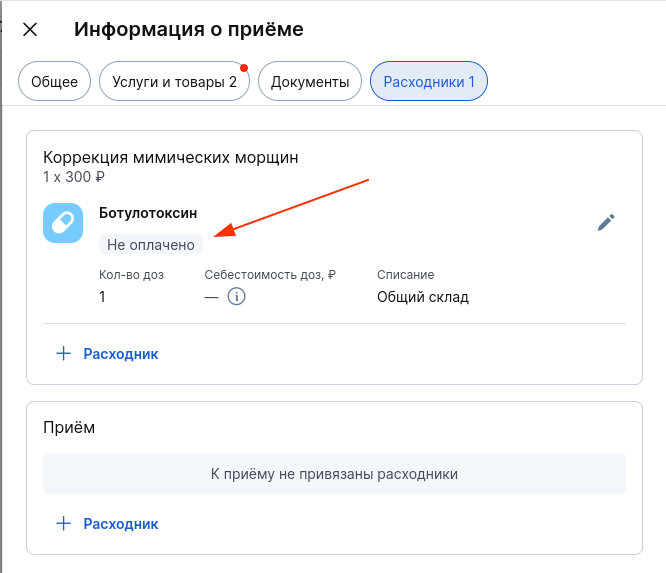
- In all acceptance statuses, starting from «Пациент пришёл», the paid consumables «Расходники»have the payment status displayed in the section.
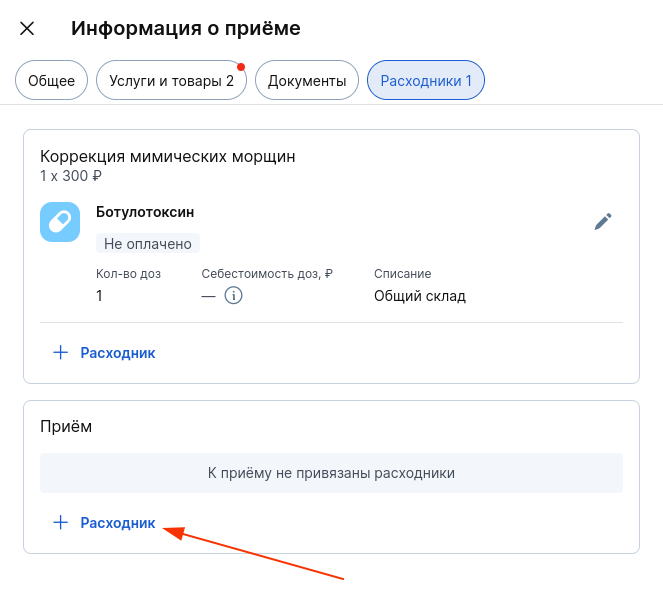
- If you need to add more consumables to the reception, «Расходники»click in the section «+ Расходник». The drug will also be added to the tab «Услуги и товары»as a separate item.
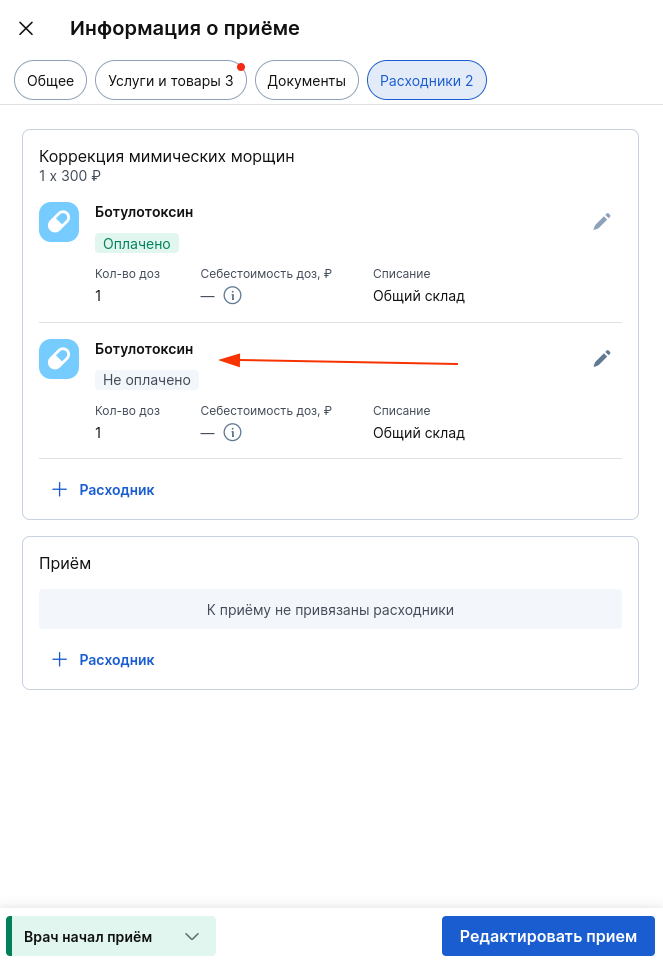
- If the consumables have been paid for, but the reception has not yet been completed, you can add the same consumables to the same service in a separate item.
Payment of consumables and refund of funds
Important! The function «Продажа товаров»involves connecting the module«Касса». If the module is disabled, you will be able to add paid consumables and goods to the reception, but you will not be able to pay for them and make refunds if necessary. At the same time, patients will accumulate debt.
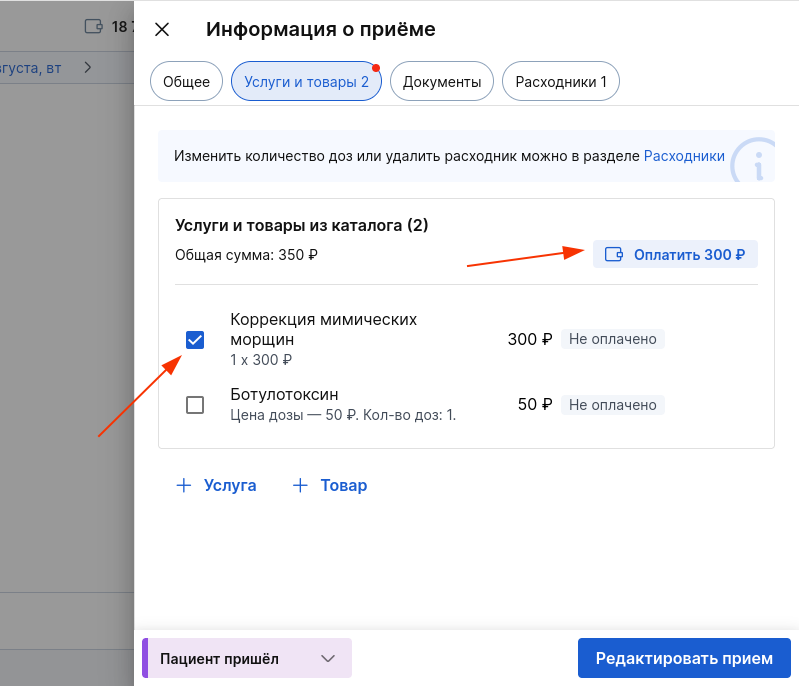
In «Услуги и товары»the window section«Информация о приёме», click the blue button with the wallet in cell c «Услугами и товарами из каталога»to pay for all paid consumables, goods and services.
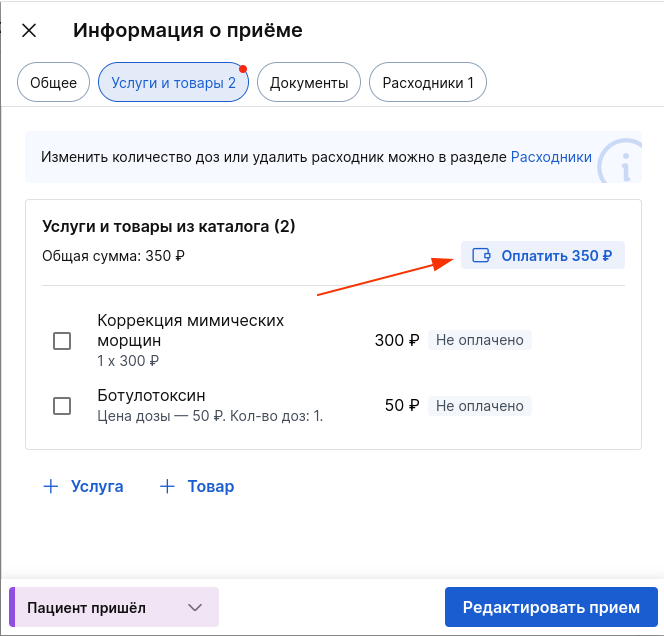
If you need to pay for individual items, tick them and click «Оплатить»(the amount inside the button will change).
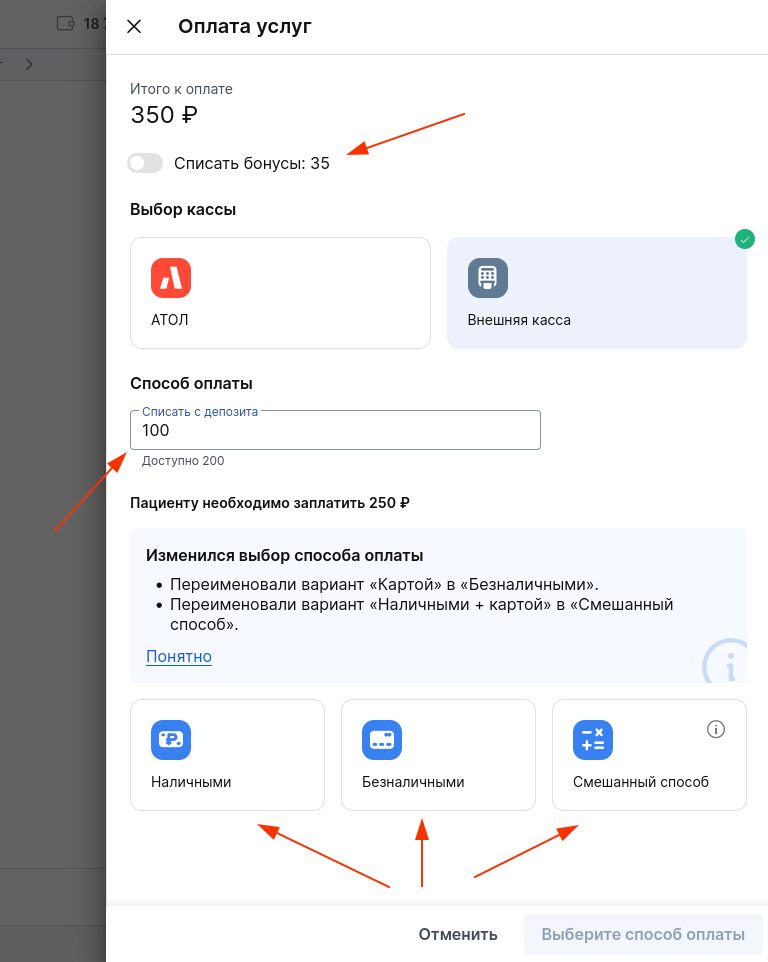
Paid consumables can be paid for in the same way as goods, using a deposit or with a debit of bonuses on a loyalty card.
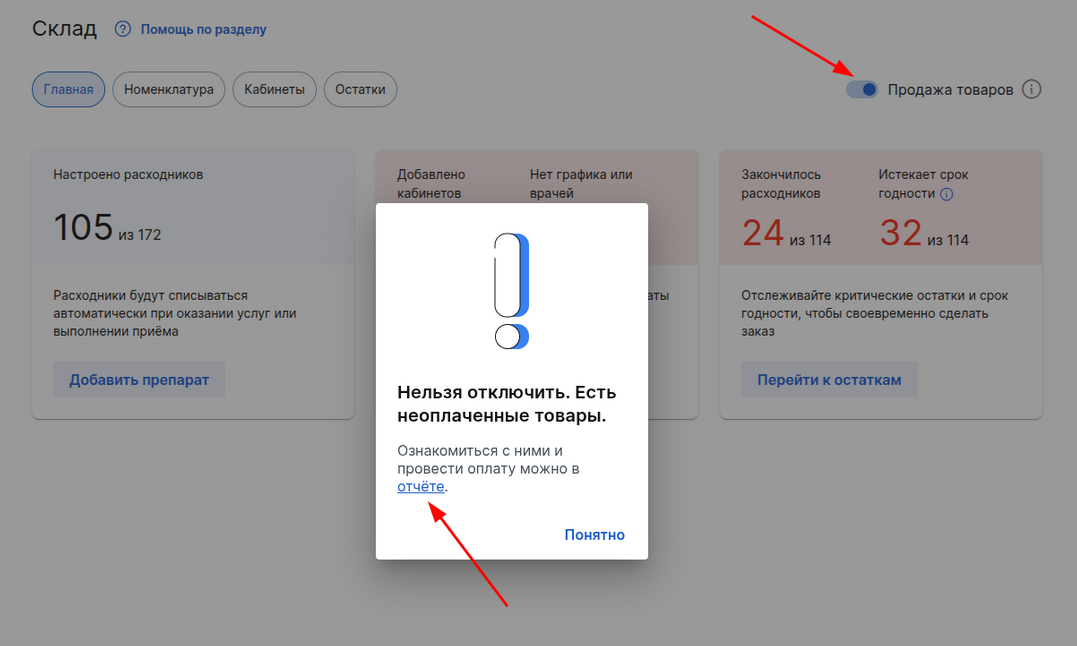
If you have receptions with unpaid consumables, you will not be able to disable the sale of goods in the module«Склад». When you try to do this, a message will appear with the option to go to the report «Неоплаченные счета»and make a payment for consumables.
If, after adding a paid expense item to the appointment, it has been removed from the stock balances and from the inventory, then «Услуги и товары»it will no longer be displayed in the window section «Информация о приёме»if it has not been paid until it is added to the balances again.
Consumables that have already been paid for will receive a notification that they cannot be debited.
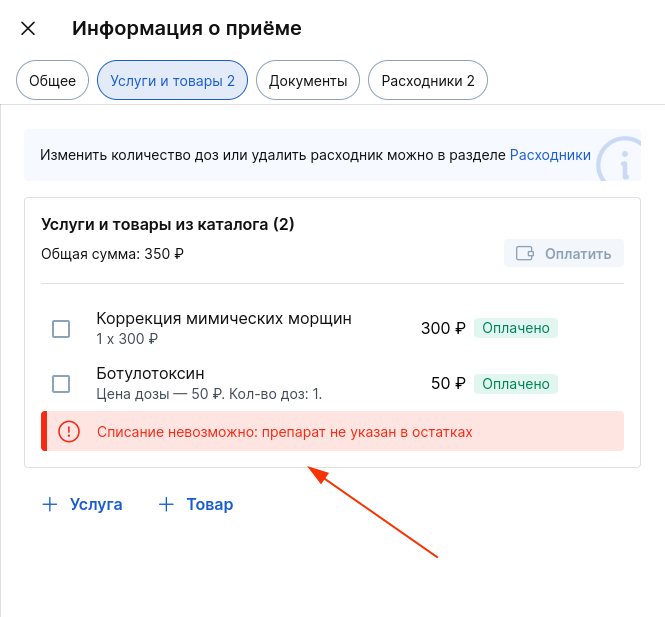
It will be impossible to pay for the expense account in the patient's profile or section «Касса»until it is added to the balance again.
When you try to pay for an expense account, you will see an error:

You can request a refund for the paid items in the patient's profile or in the section«Касса».
Important! You can use the section «Касса»to refund funds only for items paid through the cashier«Атол».
In the patient's profile, go to the balance sheet, and then to the subsection«Оплачено». Receipts where there are only paid consumables are indicated at the bottom «Продажа товара», and where there are paid consumables and services - «Из каталога».
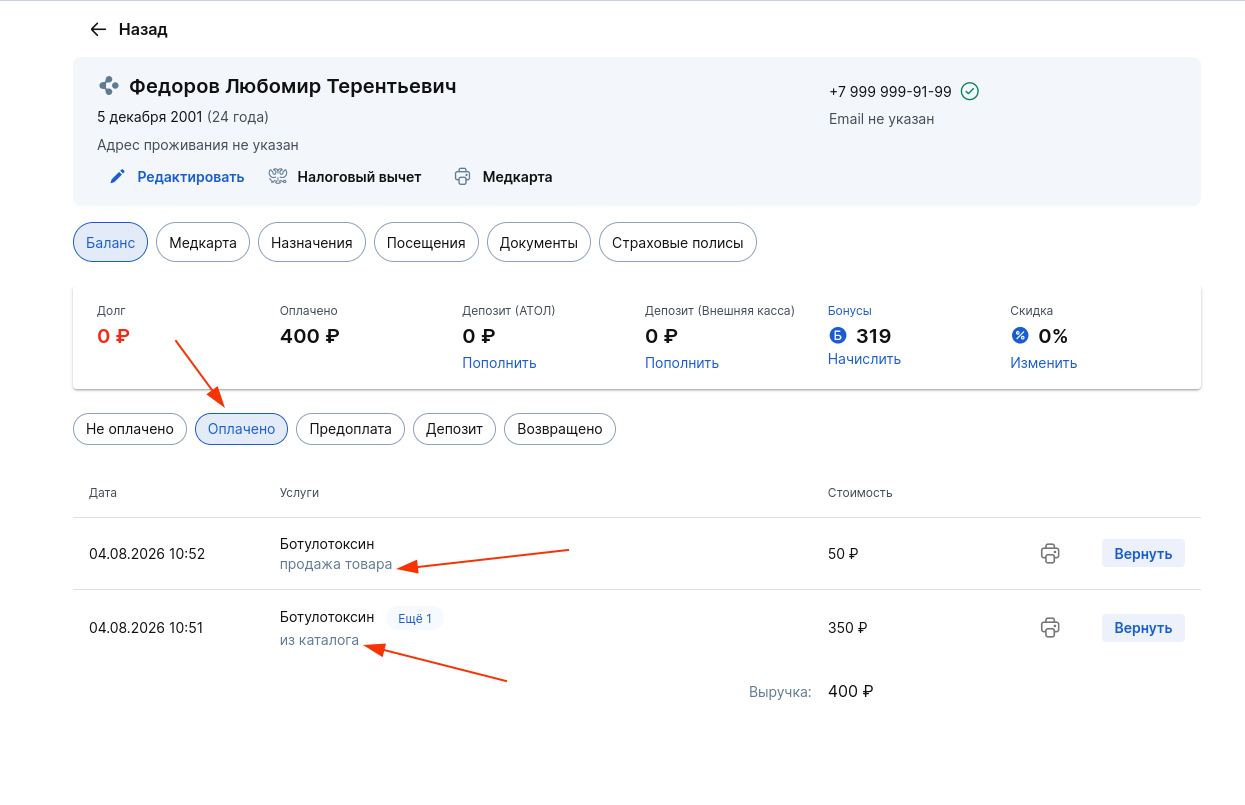
Refund actions for paid consumables are similar to the usual refund for services or goods. For more information, see the Refund article.
Important! After a refund for the paid consumables, it is not returned to the remaining stock.
If you accidentally paid for the wrong amount of a paid expense item related to an unpaid service, and you need to delete the service or reduce its quantity, you will first need to issue a refund for the paid expense item.
If you try to reduce or delete the service, you will see the corresponding error.:

Report«Подробный по списаниям»
After completing the acceptance, the paid expense account «Подробный по списаниям»will display the sale amount in the report.
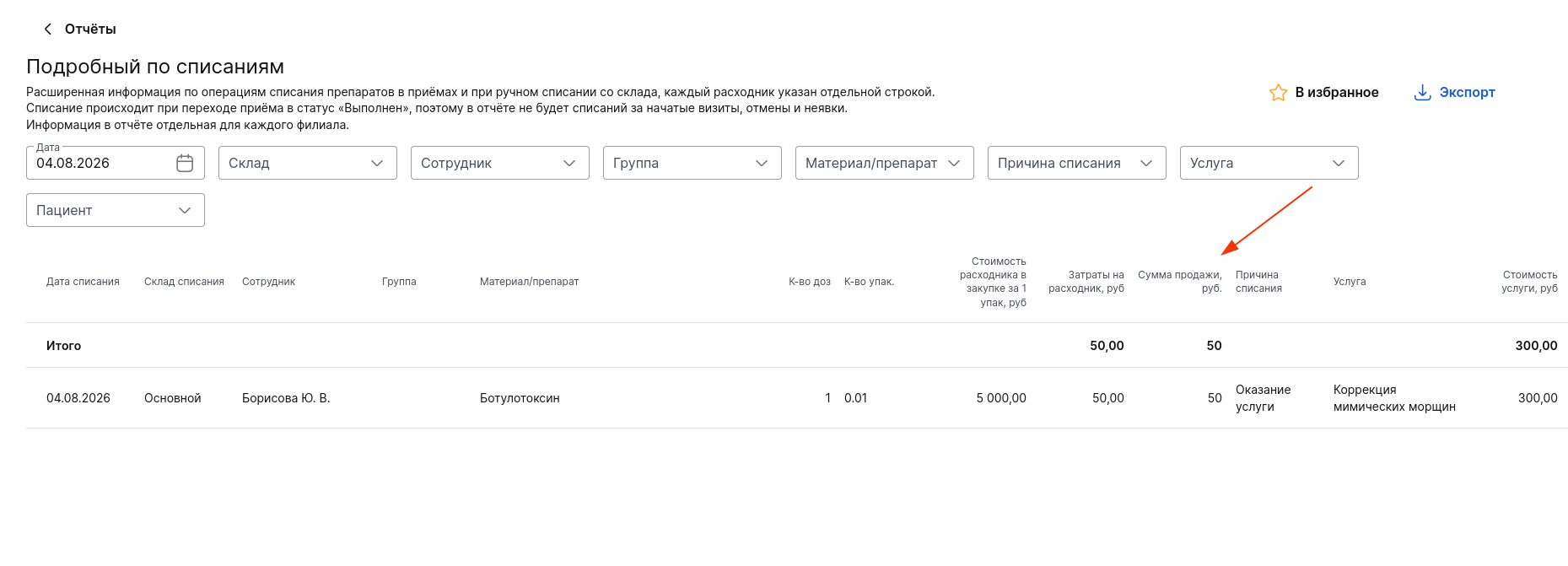
In case of a refund for a paid expense item, the sale amount will not be displayed in the report.