


The article contains sections 
Funnels are a targeted workflow where tasks are created automatically according to set rules, and administrators (the team) process them to achieve specific business goals. Tasks are placed on the board in the form of cards, and further work takes place as you decide to set up the process.
Funnels are divided into types:
Basic funnels
- The rules are preset by the system and cannot be changed.
Funnels of this type are free of charge. Tobasic
funnels include:- administrator support;
- new online patient records;
- repeated receptions;
- cancellations, no-shows, and postponed appointments
Customizable funnels
- a flexible tool for automatically collecting tasks according to the rules that you set yourself. The conditions for filling such funnels can be customized. Funnels of this type are monetized. Kcustomizable
funnels include:- Funnel by event type:
- Currently implemented for inpatient appointments.
- Patient Funnel:
- You can set up a selection by gender/age/date of last appointment/appointments for specific specialists and services.
- Funnel by event type:
Getting started
Funnels are handled in the section CRM
on the tab Funnels
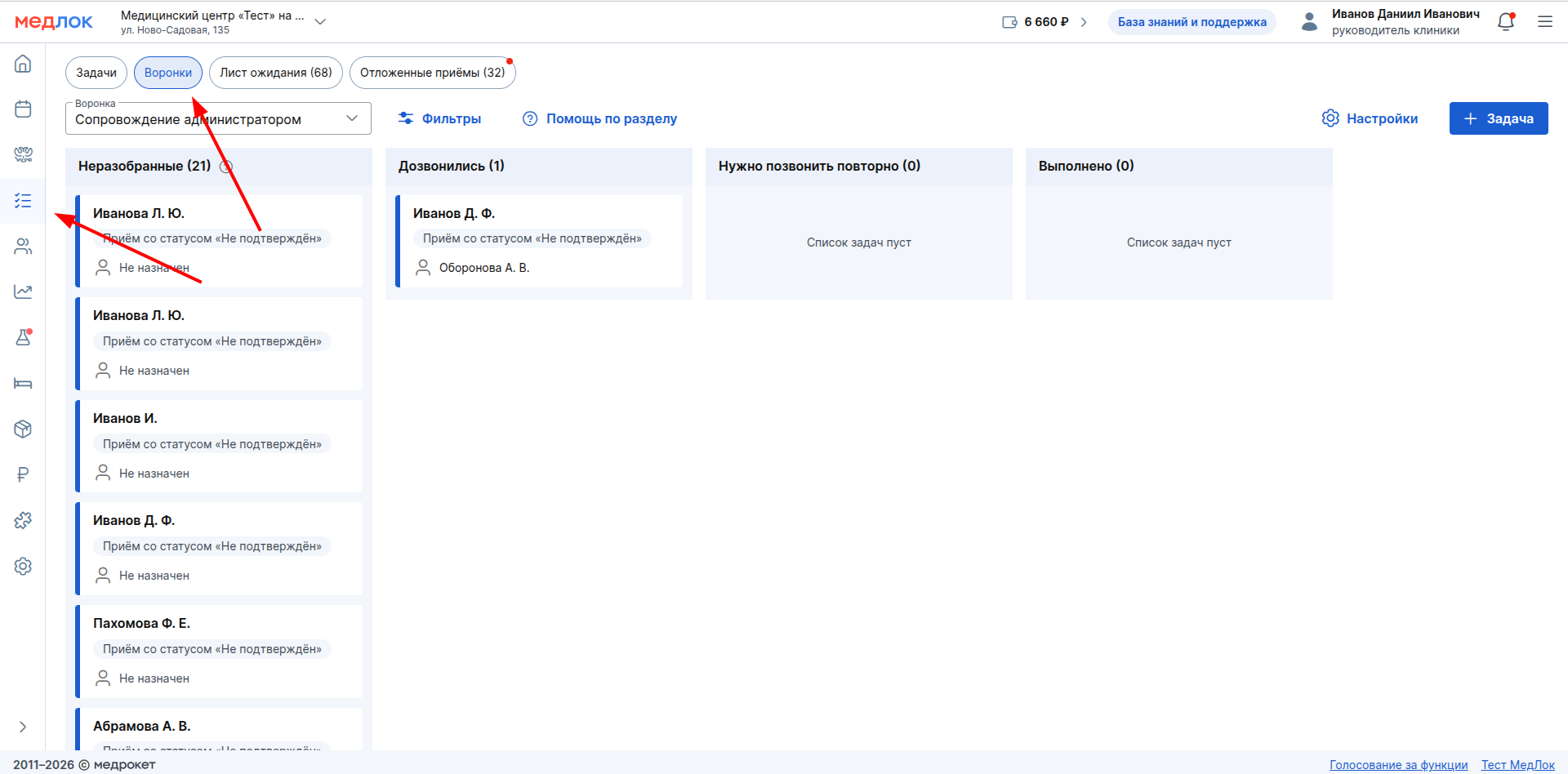
If this is your first time working with the board and cards, we recommend starting with the basic instructions for the system«Задачи». It describes in detail how to create, manage, and customize cards. The same rules apply here.
Adding funnels
- Funnel
Administrator support
it is basic - when the page is opened for the first time, it will be filled with tasks. The base funnel cannot be deleted.
How to add another funnel:
- in the drop-down list on the top panel, click«+ Новая воронка»;
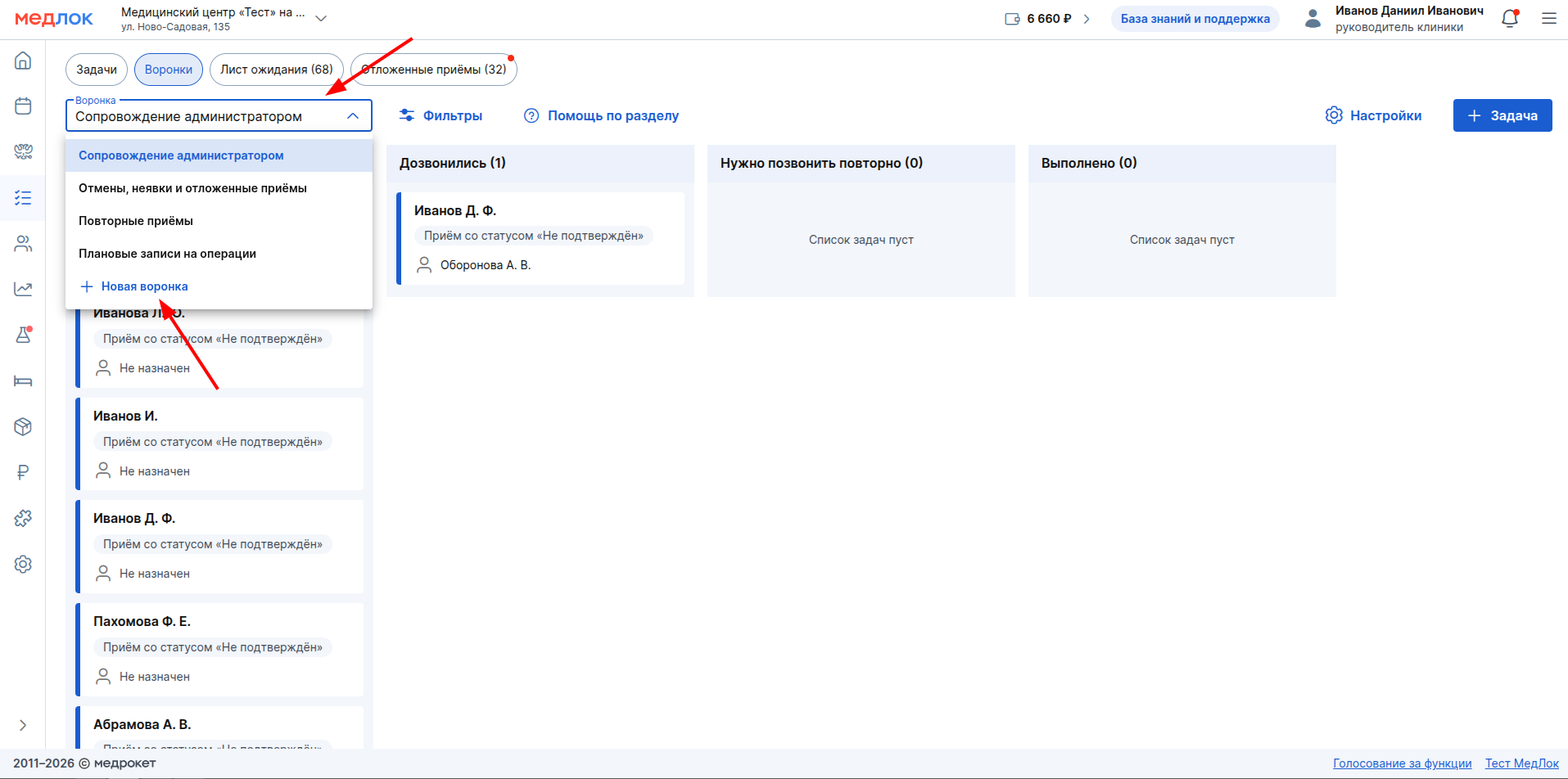
- in the window that opens, select a ready-made funnel or configure your own:
- after selecting the basic funnel, the system will show the rules of its operation. These rules are set automatically and cannot be changed. They determine which tasks will be included in the column.«Неразобранное»;
- In the customizable funnel, you can flexibly configure which tasks to send to the column«Неразобранное», and the rules of such funnels can be edited.
- Click «Добавить»— the funnel will be created and available in the drop-down list and will start filling up automatically.
General features for«Воронок»
- Rights: If the right is enabled«Редактирование досок», the user gets the opportunity to add and remove funnels.
- Adding and configuring columns on the board: There are two system columns in the funnel: «Неразобранные»and «Выполнено». They cannot be deleted or moved. The name «Неразобранные»is fixed, and «Выполнено»you can rename it if necessary. You can add up to 15 columns.
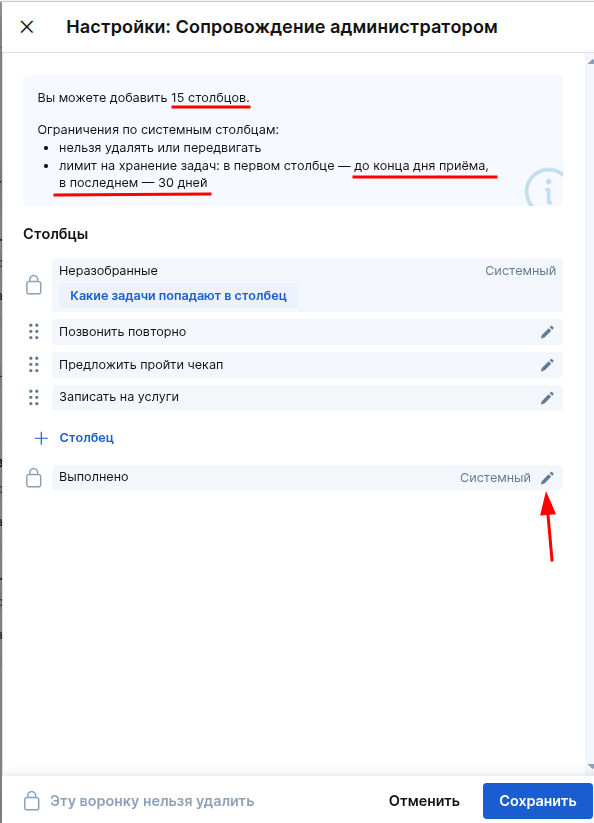
- Assigning those responsible, setting deadlines, and moving the card through the stages creates a transparent workflow: everyone sees their tasks, and the supervisor monitors progress on all active cards.
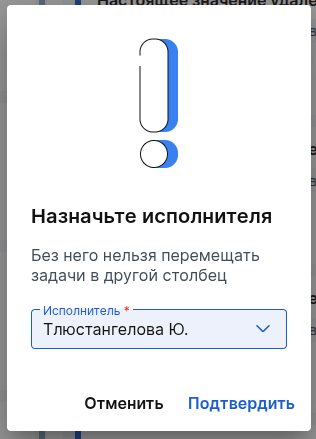
- New tasks in the funnel are created with an empty required field«Исполнитель». Therefore, when moving a card from a column «Неразобранное»(if the performer has not yet been installed) The system will require you to assign it.
- A multiple selection of employees will be available in the drop-down list.
- If the user who is moving the task does not have the rights to edit the task (but has the right to read), the modal window will not be displayed. The task executor will automatically be the one who moved it.
- If you simply change the order of tasks within one column (sort), the modal window will not be displayed, and the performer will not be automatically installed.
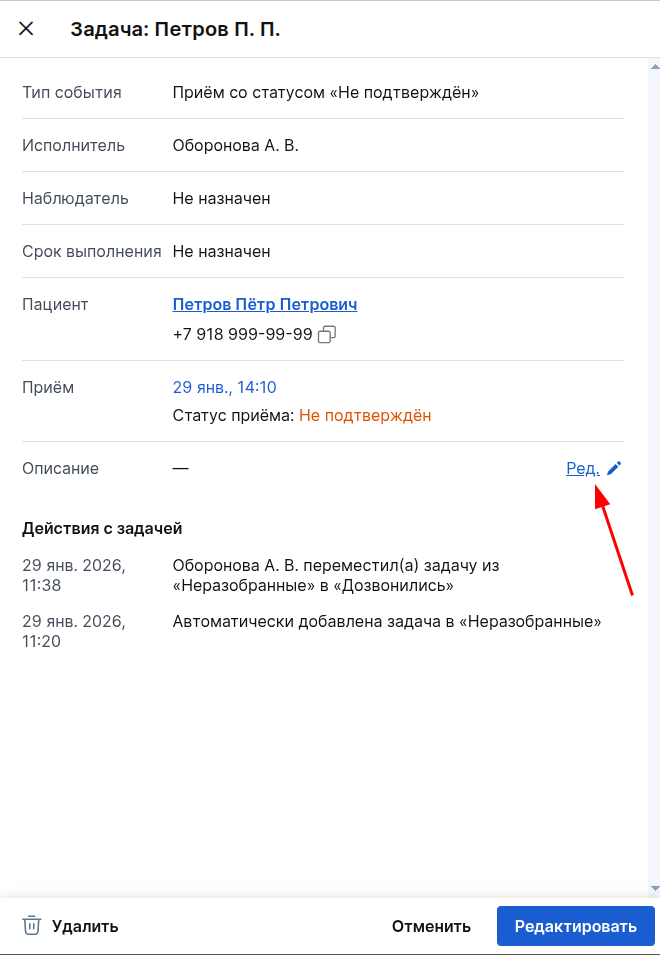
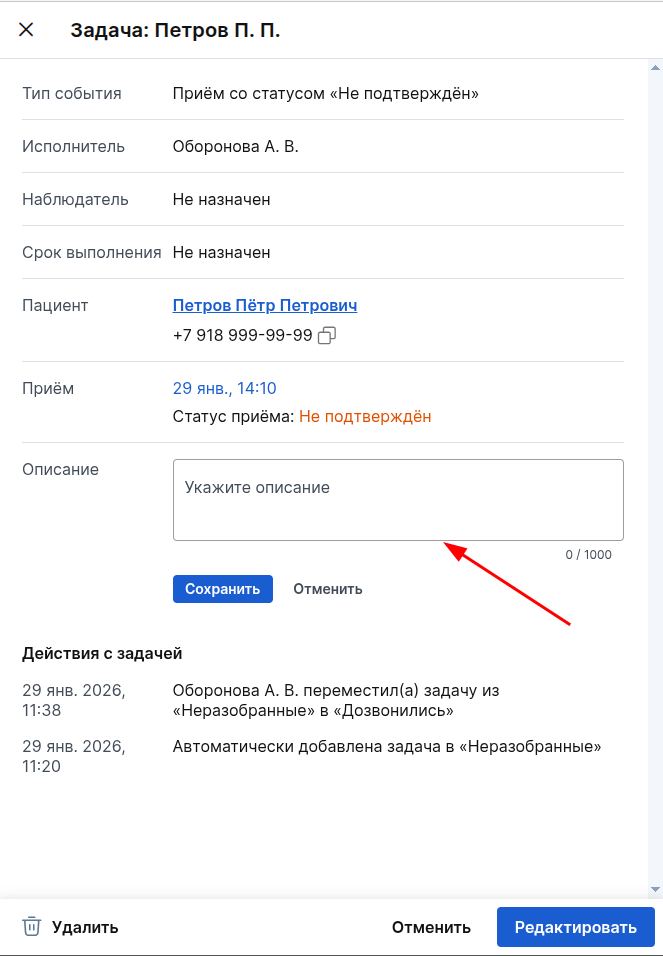
- Any card can be supplemented with working information (change the description) — this helps to capture important details about the patient or appointment.
- If a patient is listed on the card, a quick call button is available for him. It will appear if two conditions are met:
- the module is connected and configured
Telephony
; - the user works with telephony;
- the module is connected and configured

Read more about the telephony settings in the article.Telephony
- The reception cards always display the current status of the reception (it may differ from the type of event in the card).
Type of event
It does not change after the card is created.- Why is it so:
- this ensures historicity and accuracy. You can see the real situation at the moment of opening the card. For example, a card could have been created for an unconfirmed appointment, but by the time the card was opened, the patient had already confirmed it. You will see this immediately on the card.
- Why is it so:
- Features of working with archived/deleted employees:
- If you delete an employee participating in a task (performer/observer/author), the existing cards will indicate that the user is inactive.;
- Only active employees are displayed in the drop-down lists when creating/editing tasks and in all filters.:
- doctors who are registered in the medical unit;
- other employees who have an active account in
sys_...
.
Otherwise, the mechanics of working with cards and columns are similar«Задачам».
Viewing and configuring funnel rules
The rules by which the funnel is formed can be viewed by clicking on the icon «?»next to the column name«Неразобранные».
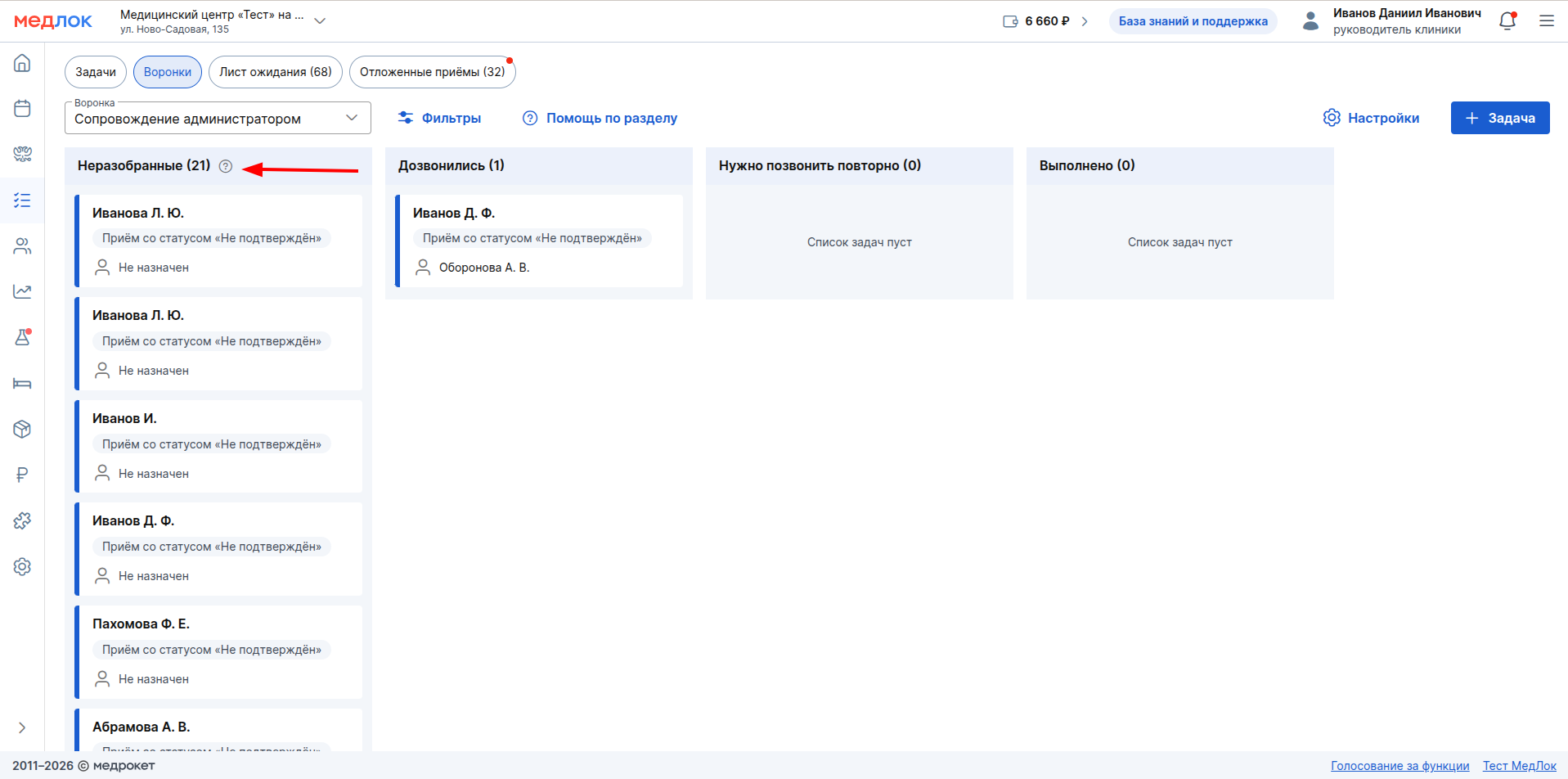
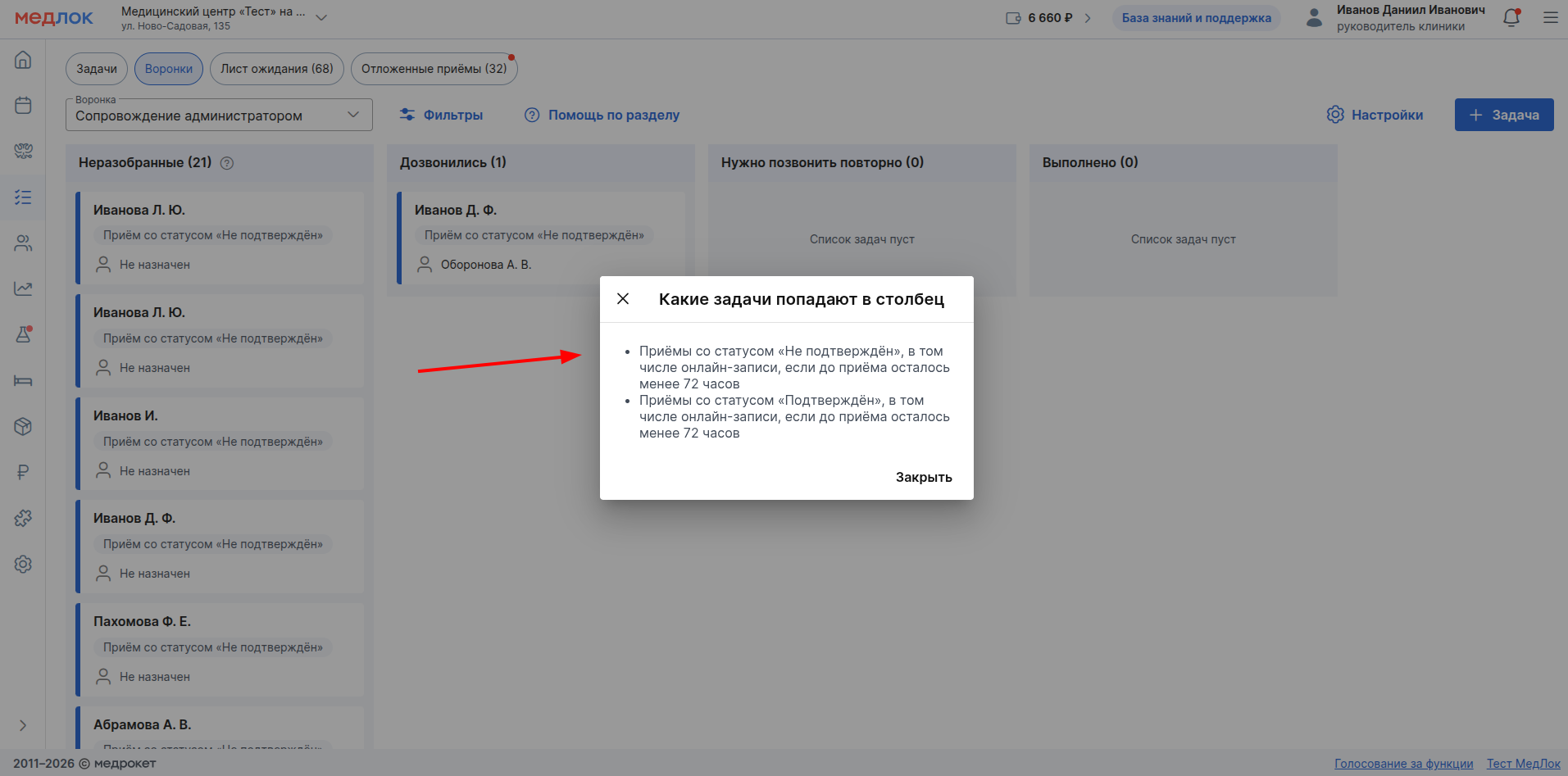
A window «Какие задачи попадают в столбец»will open with a list of all the configured parameters. The composition of the parameters depends on the type of funnel, for example, for a custom event funnel (hospital receptions) these can be selected record statuses: «Запланировано», «Пациент пришёл», «Отмена»and others.
There may also be a button in this window for custom funnels«Настроить». It is available if the user has rights to edit the boards.
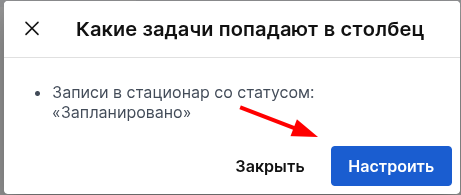
When you click «Настроить»on it, the system will warn you that the current tasks «Неразобранных»will be deleted (the money for them will not be refunded).
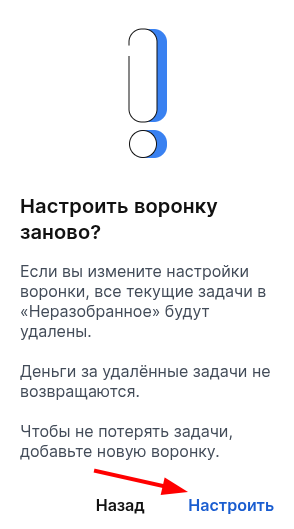
After confirmation, the funnel settings window will open.
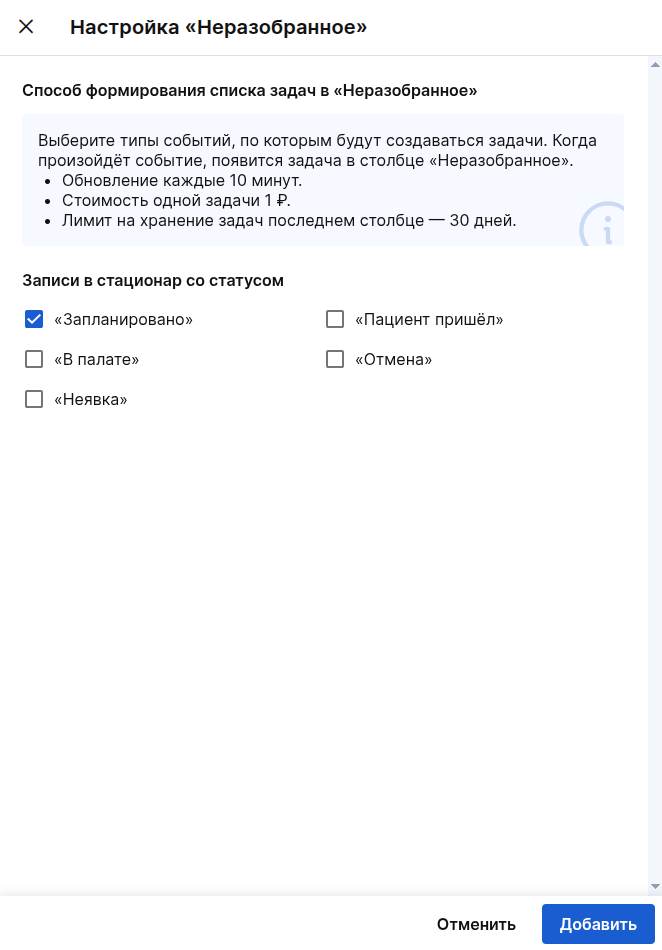
For more information about write-offs when changing funnel settings, see the section «Монетизация при редактировании воронки».
There is no button for basic «Настроить»funnels — their rules are set by the system and cannot be changed.
Filters
Using filters, you can quickly select the desired group of records. This allows you to solve point—based tasks faster, for example, to find all receptions with a specific service.
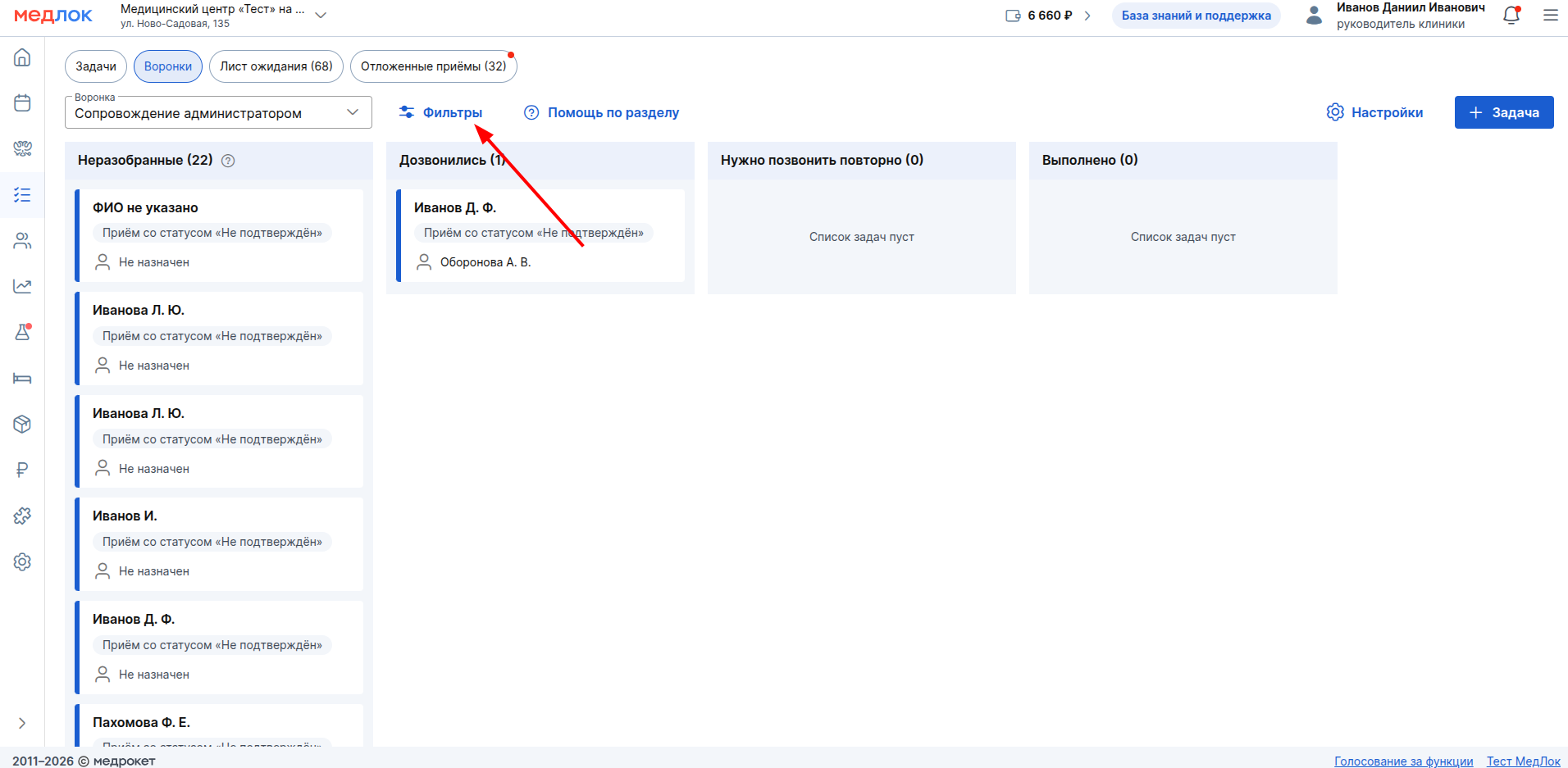
There are filters in the funnels:
- by event type (except funnel
New online patient records
). - by branch.
- by employee.
- When an employee is selected in the filter, all tasks where the user is a participant in any role (creator, performer, or observer) will be shown on the board.
- according to the doctor.
- by profession.
- for services.
- according to the patient.
- by service category (except funnel
Repeated receptions
). - by appointment date (calendar with the choice of a specific day).
- by the date when the task was created (a calendar with a choice of a specific day).
- by the date of re—admission - for the funnel
Repeated receptions
.
For a configurable funnel based on stationary records:
- doctor (the filter works for all specialists listed in the hospital record — both the attending physician and other specialties);
- date of receipt.
- date of discharge.
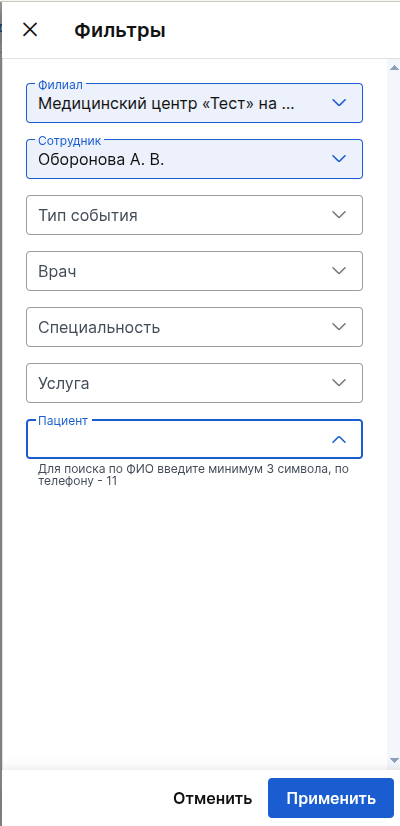
Filter Features:
- If there are branches in different time zones, date filters work and data is filtered by the time of the branch that is selected on the main page.
- Example: if a branch in Vladivostok (Moscow Time+7) is selected on the main page and a filter «Дата создания: 10 июня»is installed, the filtering results will include tasks created from 00:00 to 23:59 Vladivostok time.
- The list of services and categories in the filters is also displayed by the branch that is selected on the main page.
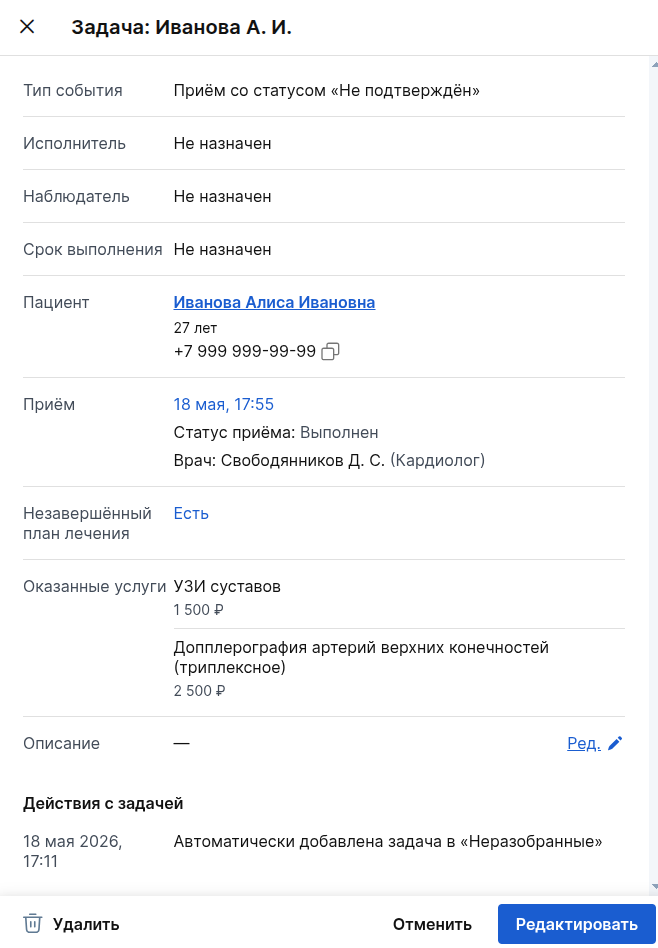
Card structure
- The title is the patient's last name and initials.
- The event type is the event that caused the card to enter the funnel. For example, the status of an appointment («Не подтверждён», «Подтверждён», «Отмена», «Неявка») or a hospital appointment, an online appointment at a clinic, etc.
- Executor and Supervisor: Not assigned by default — you can assign employees from the list.
- Due date: not set by default, you can set it manually.
- Patient data: Phone number, full name (if specified), and age (if the patient's date of birth is specified).
- Admission information: date, time, current admission status. The doctor to whom the patient is registered and his specialty are also displayed.
- Incomplete treatment plan is displayed if the patient has at least one incomplete treatment plan. Clicking on the word «Есть»will take you to the «Назначения»patient profile subsection.
- Services provided - if the reception has a status in the task card «Выполнен»and services have been added to it, then their names and cost will be displayed in this section. If one service was provided several times per appointment, then the total amount for this service is displayed under its name in the card.
- The description is not filled in by default, you can fill it in manually. To do this, click on «Ред.»next to the section name.
- Task actions — filled in automatically as you work:
- The following events are saved: creating a card, setting and removing deadlines, moving the card between the columns of the board, canceling an appointment by an employee or the patient himself, updating the description in the card, assigning or adding a performer, assigning/changing/deleting an observer.
Also, those employees who are listed as performers in the task will see the label on the card«Новая».
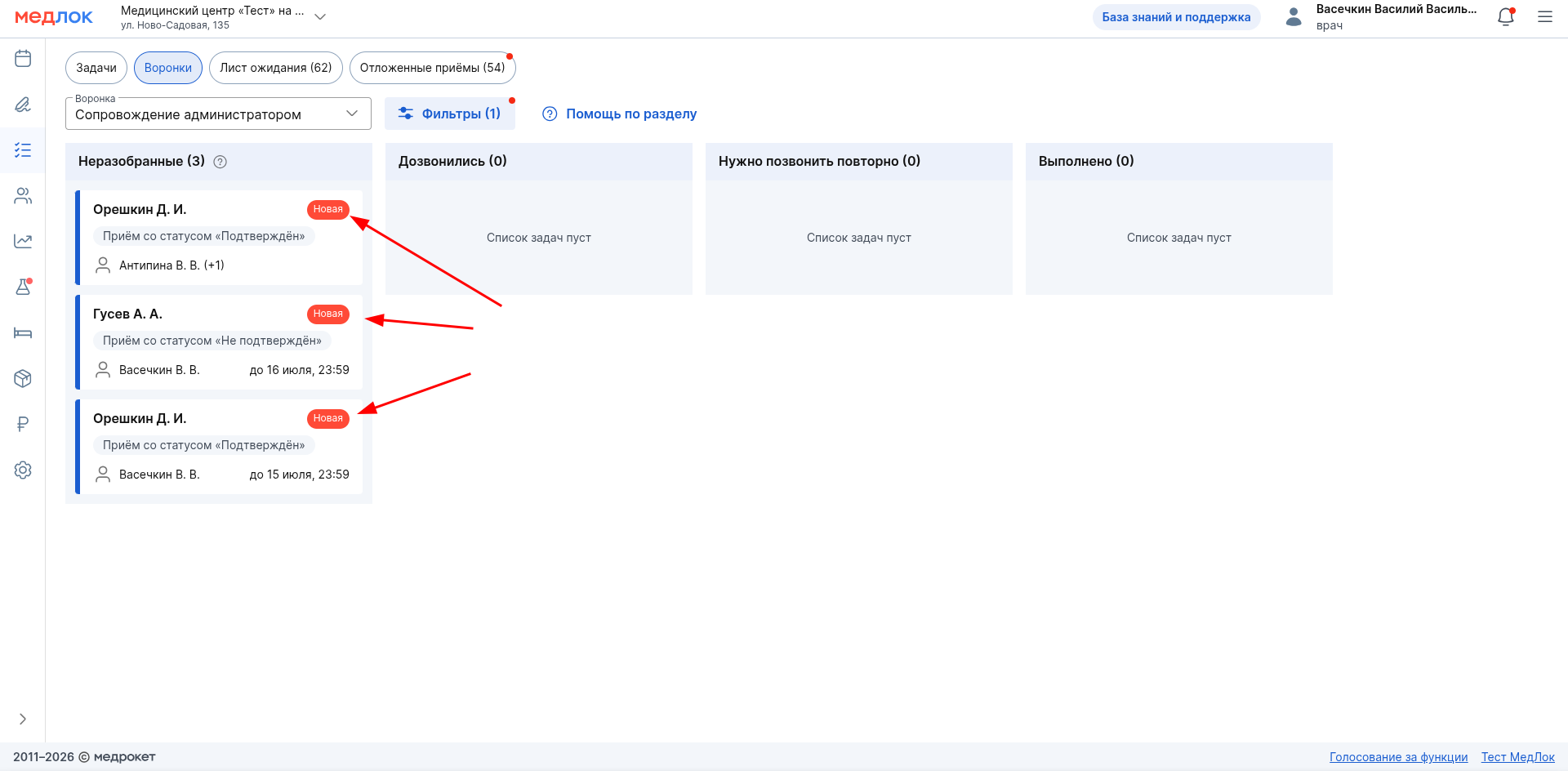
The label will disappear under the following conditions:
- Any employee has moved the task to another column.
- The employee was removed from the field «Исполнитель»in the task card.
- 3 hours have passed since the employee was appointed as the task executor.
Basic funnels
Funnel Administrator support
The funnel collects receptions that are less than three days away. Using such techniques is the most effective and helps to organize proactive monitoring of all nearby records.
- The tasks for the techniques are automatically added to the column«Неразобранные». Cards with event types are created:
- reception with the status «Не подтверждён»is an urgent confirmation task;
- An appointment with a status «Подтверждён»is a turnout control task.
- Next, new entries that fit the rule will be added to the funnel every 10 minutes.
- The cards are automatically deleted one day after the appointment date. If the appointment has been postponed, the date in the card will be updated, and the deletion period will be recalculated automatically.
- Why is it so:
- if the appointment has already taken place, then the task «напомнить о нём»becomes meaningless.;
- deleting such cards is an automatic hygiene of the workspace. It helps to maintain order and focus only on those tasks where actions can still affect the outcome.
- Why is it so:
An example of working with a funnel
Goal: The administrator needs to organize the team's work to prepare for upcoming receptions using a funnel.
- To get started, go to the section «Воронки»and select «Сопровождение администратором». The funnel will open, and the column «Неразобранные»will contain all the receptions for the next three days.
- To highlight the most important, a filter is applied, for example, by event type«Приём со статусом "Не подтверждён"». The system will hide all other cards, leaving only those that require an immediate call to patients.
- The necessary cards are opened from the filtered list.
- A responsible employee is assigned to each of them.
- A clear deadline is set.
- The card is moved to the column with the corresponding status, for example, «В работе»or «Прозвонить».
As a result, all tasks receive a performer, deadlines, and an up—to-date status - the process becomes completely transparent.
- The work with tasks is tracked by the movement of the cards through the columns of the board. At the end of the day, the system will automatically delete from «Неразобранных»the task whose acceptance date has already passed. The funnel remains relevant, allowing you to start each day only with relevant tasks.
Funnel New online patient records
This funnel collects all new online records with the status «Не подтверждён»if the appointment is more than three days away. Its purpose is to help quickly contact the patient in the first days after his appointment, while he is most involved, even if the visit itself is scheduled for a distant date.
- When you create a funnel, all new online entries for the last 3 days will immediately enter it, but only those with more than three days left before the appointment.
- New entries that match the rule will be added to the funnel every 10 minutes.
- Shelf life: the card in the column «Неразобранные»is automatically deleted after three days if it has not been moved to other columns.
- Why this is so: this limitation motivates us to process new records promptly, since initial contact with the patient is optimal in the first three days after recording. The automatic deletion of such cards maintains order and focus on more pressing tasks.
- If there are less than three days left before the appointment, the card is deleted from this funnel, but it automatically appears in the funnel «Сопровождение администратором»for confirmation and reminder work.
An example of working with a funnel
The goal: to quickly establish personal contact with each new patient in the first three days after his online appointment in order to increase loyalty and reduce the risk of cancellation.
- Every morning, the administrator opens the funnel and sees a list of new online entries.
- The administrator opens the card and appoints himself as a performer. It contains all the information for the contact: the patient's full name, phone number, doctor, date and time of the appointment (which is scheduled more than 3 days in advance).
- The administrator calls the patient and confirms the appointment time. Clarifies important points (for example, notifies which tests it is advisable to take in advance).
- If the patient responds and confirms the visit, the administrator changes the admission status to «Подтверждено»and transfers the card to the column«Выполнено».
- If the patient does not respond, the administrator enters a description in the task and moves the card to the column«Перезвонить», sets the deadline.
As a result, all new patients who have signed up online receive a prompt callback. Each request is assigned to the responsible person, and its status (confirmed, not reached) is always clear to the whole team. This significantly reduces the risk of non-attendance and increases loyalty from the first contact.
Funnel Repeated receptions
The funnel collects patients for whom the doctor indicated the date of the follow-up visit in the examination report. Her goal is to help the administrator quickly assemble the patients who need to be invited for a follow-up appointment.
The funnel is available if the module is enabled. Electronic medical record
or Dentistry
.
- When creating a funnel, patients with a readmission date less than 14 days away will immediately enter it.
- New patients will also be added to the funnel 14 days or less before the expected date.
- Shelf life: The card in the column «Неразобранные»is automatically deleted at the end of the day for which the appointment was scheduled, unless it has been moved to other columns.
- Why this is so: the restriction helps to focus on current tasks in order to invite the patient to the clinic on time. Automatic deletion of cards maintains order and eliminates the need to manually delete outdated tasks.
- Patients in whose protocols the doctor noted the date of re-admission «После обследования»do not enter the funnel.
An example of working with a funnel
Purpose: to contact the patients to whom the doctor recommended a repeat visit in order to remind them about the visit and arrange their appointment for a specific date and time.
- The administrator opens the funnel every morning«Повторные приёмы». The column «Неразобранные»displays patient cards scheduled for a follow-up visit in the next 14 days.
- To work more efficiently, you can immediately apply a filter — for example, sort the cards by the nearest date of the visit or select the patients of a specific doctor.
- The administrator opens the patient's card. It contains all the necessary information: the patient's full name, phone number, appointment (for which a protocol with a date of re-admission was created) and the expected date of re-admission.
- The administrator appoints himself as the task manager and contacts the patient, reminds them of the doctor's recommendation and suggests a convenient time to make an appointment during the specified period.
- If the patient agrees to the appointment, the administrator creates a new entry in the schedule. After that, it moves the card to the «Запись оформлена»or column «Выполнено».
- If the patient refuses, the administrator enters a description in the task and moves it to the appropriate column (for example, «Отказ»or «Перенос»). This is important for statistics and understanding the reasons for failures.
As a result, all patients who have been re-admitted receive a personal invitation to the clinic. Each task is assigned to the performer, has a clear status and deadline, and the recorded reasons for refusals, postponements, and other deviations are an analytical tool for making decisions to improve patient care.
Funnel Cancellations, no-shows, and postponed appointments
The goal: to return patients, analyze the reasons for non-attendance, and arrange a quick appointment for postponed appointments.
The funnel automatically collects receptions that did not take place for various reasons (cancellations, absences) or were postponed.
- «Неразобранные»Three types of event cards are automatically placed in the first column.:
- Admission with the status «Отмена»is both initiated by the clinic and by the patient.
- An appointment with a status «Неявка»is when the patient did not show up for an appointment.
- Delayed appointment — appointments that were canceled due to the doctor's non-working hours. More detailed:
Delayed appointments and doctor's non-working hours
- When you create a funnel, the software issues for «Отложенным приёмам»the last 30 days will be added to it immediately. The techniques from «Отменой»and «Неявкой»are not loaded when they are first created, and the funnel starts working with new cases.
- Every 10 minutes, the funnel is automatically updated with new entries that have received the or status in the last hour«Отмена»«Неявка», as well as all new deferred appointments.
Tasks for Deferred appointments
- There is a link in the card«Информация по отложенному приёму». Clicking on it will open a window for a quick appointment of the patient to the doctor to whom the appointment was canceled (with the option to select available slots for the next dates).
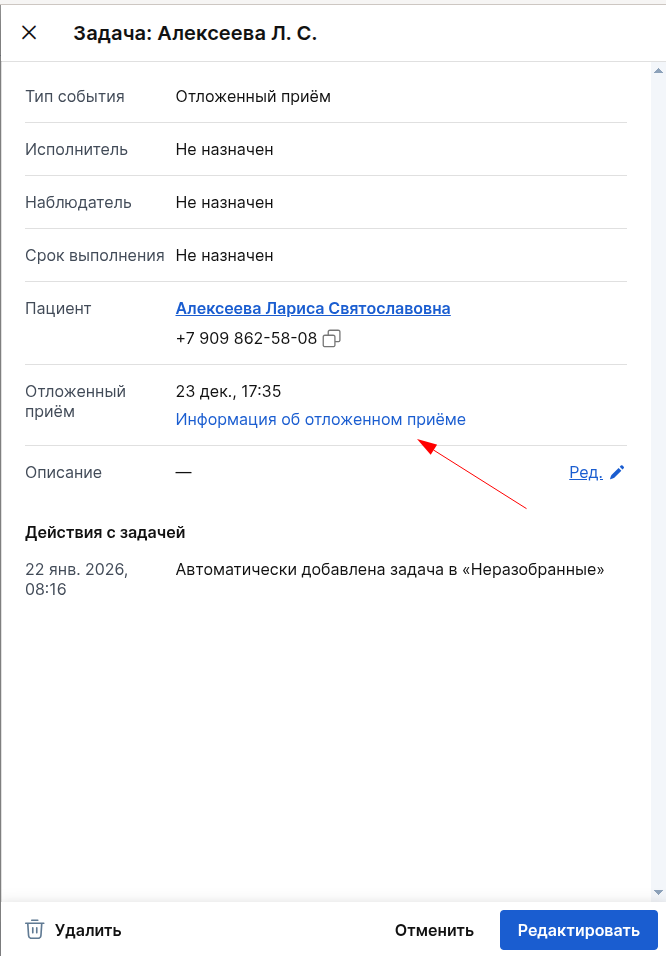
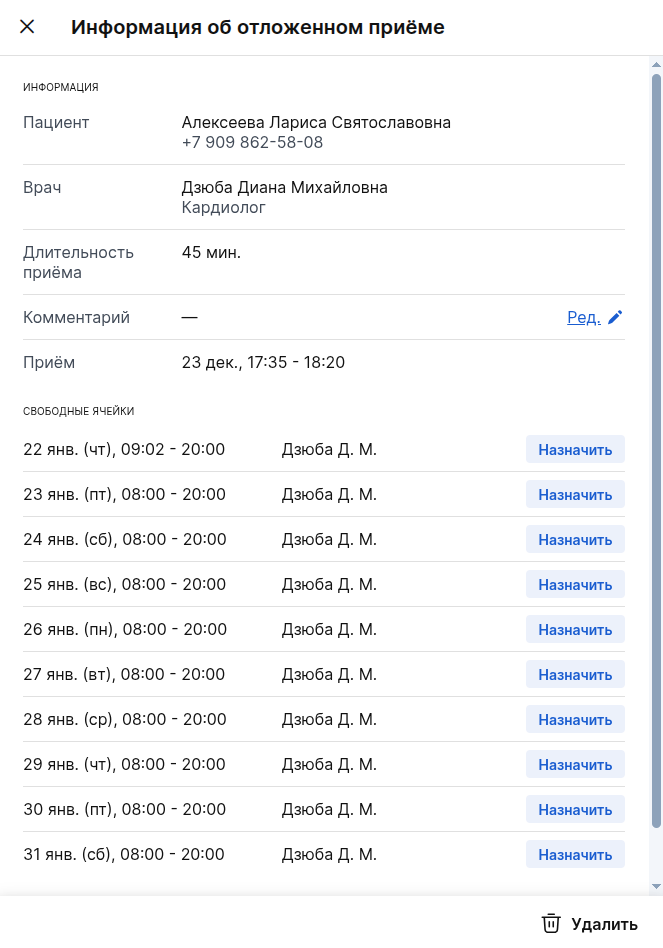
- After the successful creation of a deferred admission record, the card is automatically updated.:
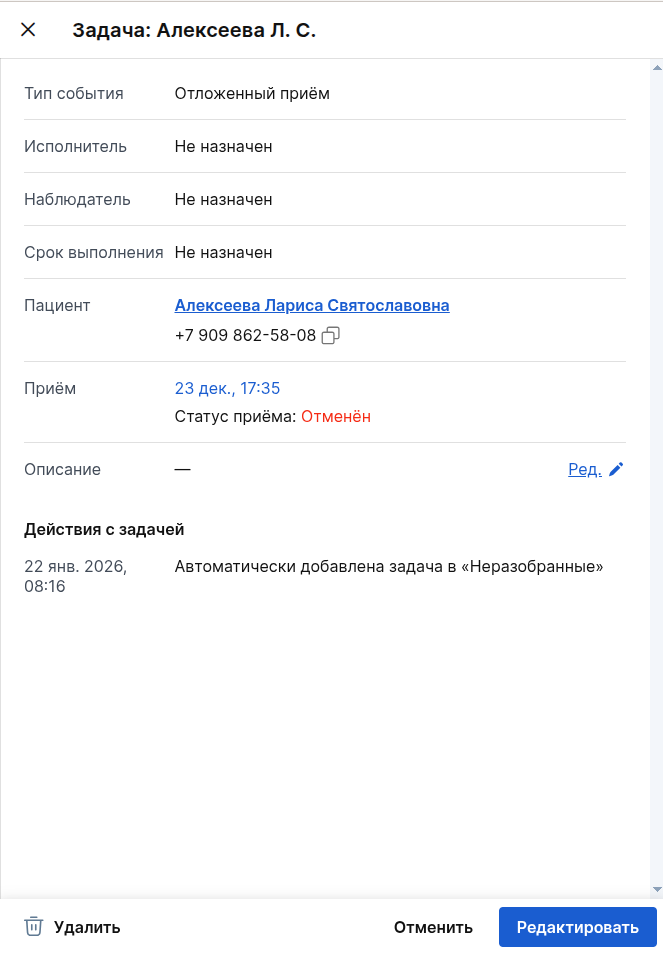
- The field «Отложенный приём»disappears from the card. This serves as a visual confirmation that the task has been completed and the delayed appointment is no longer relevant.
- A new field «Приём»appears with a link to the appointment where the cancellation occurred. This allows you to immediately see the context in which the deferred record was created. When
- When a new appointment is created based on a deferred appointment, information about it is recorded in the section«Действия с задачей». This gives a more accurate indication that the delayed reception has been processed.
Examples of working with a funnel
Example 1
The goal: to analyze the reason for the non-appearance, return the patient to the clinic and collect data for statistics.
- The administrator opens the funnel and applies the filter«Приём со статусом "Неявка"».
- The administrator opens the card and appoints himself responsible, sets a deadline «сегодня»and transfers the card to the column«В работе».
- The administrator calls the patient, clarifies the reasons for non-attendance by appointment. If possible, he suggests a new time for admission. If the patient agrees, the administrator creates an appointment.
- The result is entered in the card: «Пациент перезаписан на 15 мая». The task is moved to the column«Возвращён».
- If it was not possible to register a patient, the reason is indicated (for example, «Пациент уехал из города»), and the card goes to the appropriate column (for example, «Отказ с причиной»).
As a result, it is possible to return the patient to the clinic or collect valuable data: the reasons for non-attendance are systematized. This analysis shows why patients are not coming and serves as a basis for improving the service.
Example 2
The goal: to turn deferred appointments into recordings and track all work outcomes.
- The administrator opens the funnel and applies the filter«Отложенный приём».
- The administrator opens the card, goes to the information on the delayed appointment and checks the available slots with the doctor, and then calls the patient to offer a rewrite. Depending on the response, the administrator records the result in the card, transferring it to the appropriate status.:
- If the patient agrees to the suggested time, the administrator creates an entry, and then moves the card to the appropriate column (for example, «Запись оформлена»).
- If a Patient asks to be admitted to another doctor or to another service, the administrator makes a new appointment and leaves a note in the task description.: «Пациент перезаписан с терапевта Иванова на терапевта Петрова». The card is moved to «Запись оформлена».
- If the patient reports that he has chosen another clinic or changed his mind, the Administrator does not just archive the task, but moves the card to the column «Отказ»and necessarily indicates the reason in the description (for example: «Причина отказа — высокая цена на лечение»or «Уехал из города»). This information becomes the basis for analyzing service improvements.
- If the patient asks to call back later, the administrator sets a new deadline in the card, adds a note about the agreement and moves it to the column«Перезвонить».
As a result, each deferred request is not simple«закрывается», but receives a clear status and opportunities for further analysis. This creates a complete picture of appointments and patients: how much was recorded, how much was lost, and — most importantly — why.
Customizable funnels
By inpatient appointments
The customizable inpatient appointment funnel collects patient cards at the hospital. It was created to coordinate the work of the admission department and medical staff: from planning hospitalization to fixing check-in or cancellation. Available only when the module is connected«Стационар».
When creating or configuring a funnel, you can select one or more statuses for which tasks will be created, as well as set your own name.:
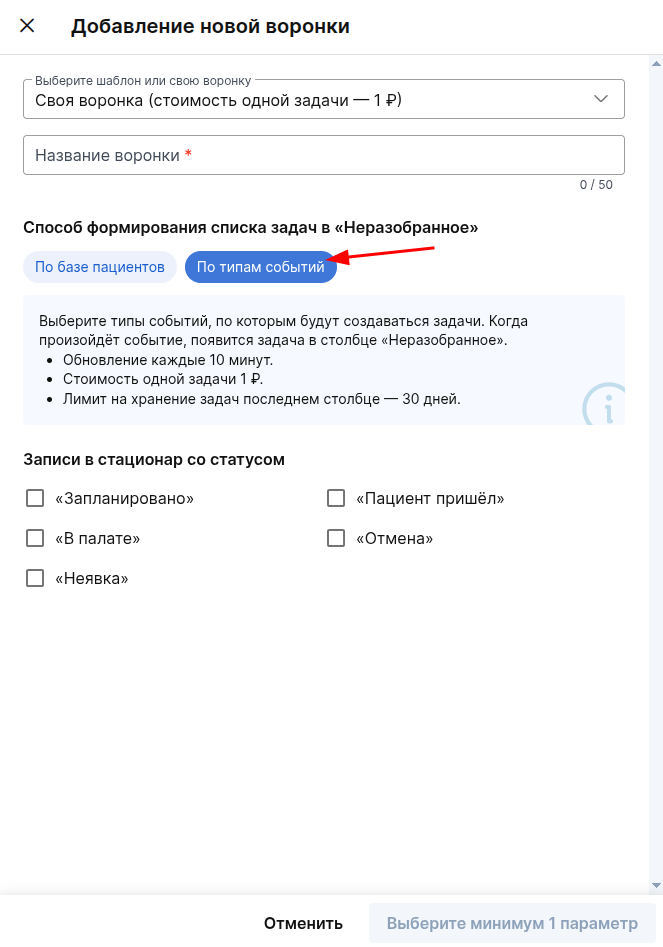
- When creating a funnel, the system fills the column «Неразобранные»with tasks for all selected statuses, except «Отмены»and «Неявки».
- «Отмены» and «Неявки»they are not filled in with historical data, but are added to the funnel at the moment when the corresponding event occurs for a specific record.
- New entries that match the rule will be added to the funnel every 10 minutes.
- The retention period for tasks in the column «Выполнено»after moving to the column is 30 days. After this period, the cards are deleted automatically so that the funnel is not overloaded with archival tasks.
An example of working with a funnel
Goal: to make hospitalization a transparent process with clear steps.: who should confirm attendance, who will prepare the ward, who will make an appointment for a repeat appointment. With the funnel, hospitalization becomes a manageable process.
- The patient is scheduled for hospitalization in 5 days. The recording status is «Запланировано».
- The card automatically falls into the column«Неразобранные».
- The administrator opens the card, appoints a responsible manager for the call and sets a deadline.
- Moves the card to the column «Прозвонить, подтвердить явку».
- Result:
- The manager sees the task on the board, calls the patient and confirms the date.
- The manager adds a description to the call results card and moves it to the «Подтверждено/Подготовить палату»or column «Подготовить документы»with a new due date.
- At this stage, the card already has:
- Who called;
- What the patient said;
- when it was confirmed;
- who is now responsible for the ward/registration preparation;
→ The patient feels cared for even before arrival. The clinic reduces the risk of non-attendance and increases loyalty from the first touch.
- After discharge, the work with the patient does not end — the funnel allows you to continue maintaining the card at any stage of further support: a reminder of a follow-up visit, an appointment for rehabilitation, clarification of well-being, planning medical examinations or additional consultations. The card is moved to the appropriate column with the designated person in charge and the deadline, so that no doctor's recommendation is ignored, and the patient remains within the perimeter of the clinic for further treatment.
By patients
The patient funnel is a tool for proactive work with specific segments of the clinic's patients. It generates a list of tasks based on the specified criteria: gender, age, the duration of the last session, and other parameters. This allows you to interact with the right audience in a targeted manner: invite them to medical checkups, remind them about a visit, and inform them about promotions.
Creating a funnel
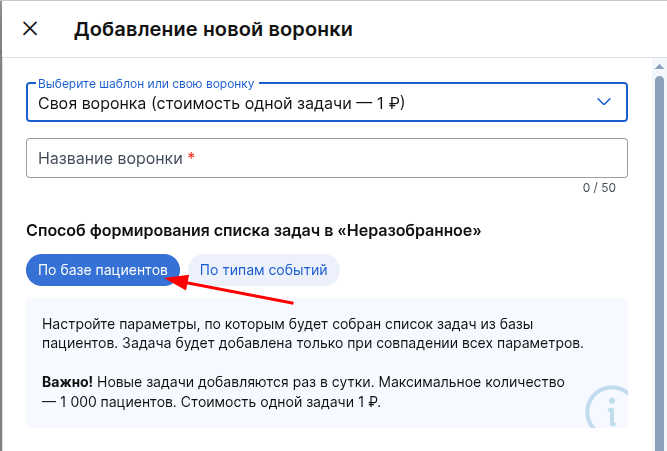
- To create a funnel, open a window«Добавление новой воронки», select a tab«По базе пациентов», and set the desired selection parameters.
Required fields/filters
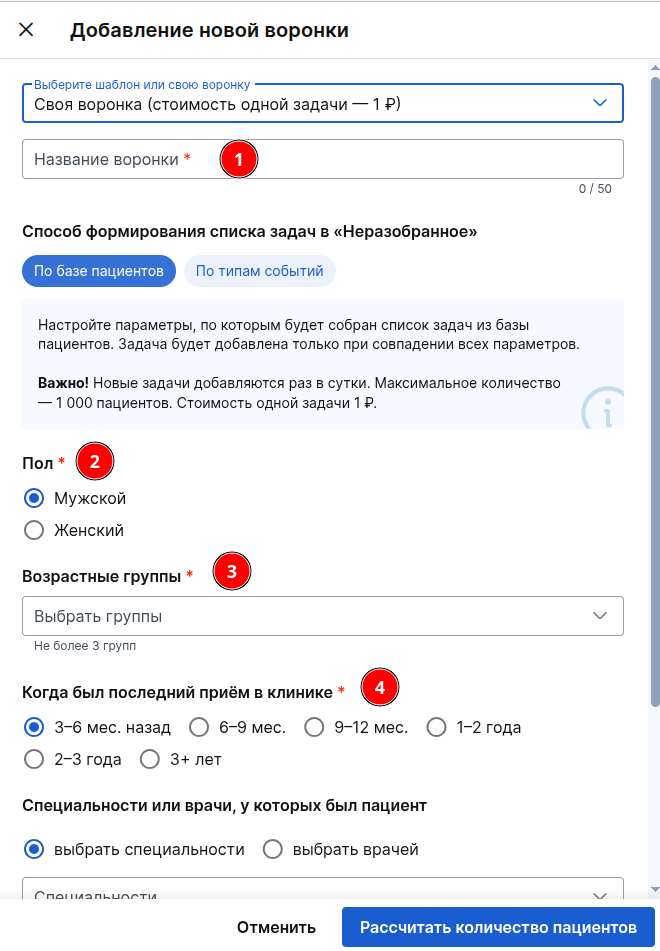
- Funnel name — the name must be unique among the customized funnels.
- Gender — you can choose only one value: male or female.
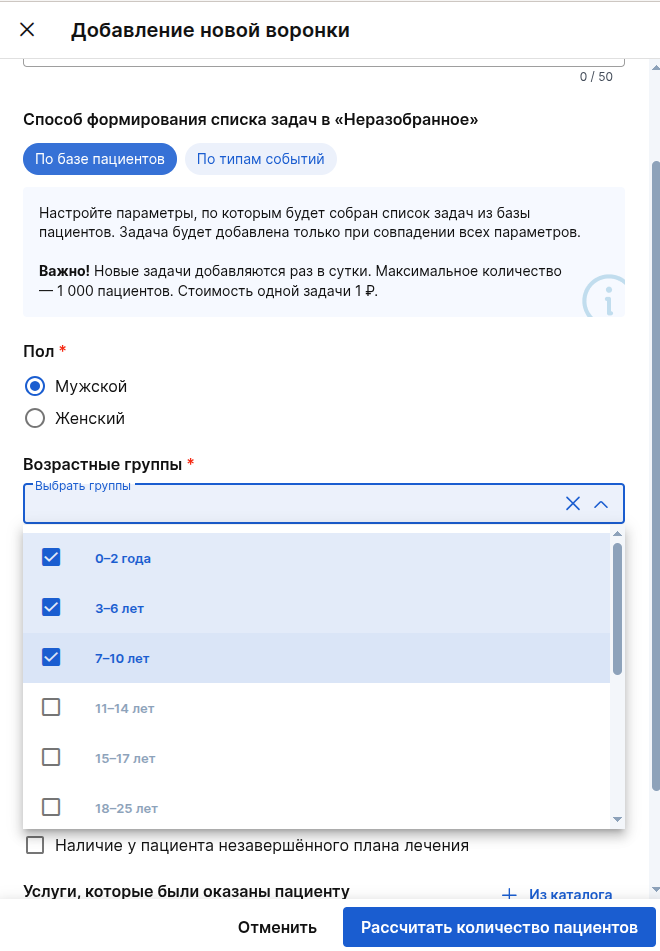
- Age groups — you can select no more than three groups.
- When was the last appointment at the clinic — the period in which the date of the patient's last appointment is indicated.
- available periods:
- 3-6 months ago
- 6-9 months ago
- 9-12 months ago
- 1-2 years ago
- 2-3 years ago
- 3+ years ago
- The filter only works for receptions with the status «Выполнен». Cancellations, no-shows, and future entries are not counted in the filtering.
- available periods:
The rule of last admission
: if there are additional filters (doctor, service, specialty), the system determines the last performed appointment of the patient only among those receptions that meet these conditions. If there are no additional filters, the selection is carried out for all completed techniques.
Optional filters
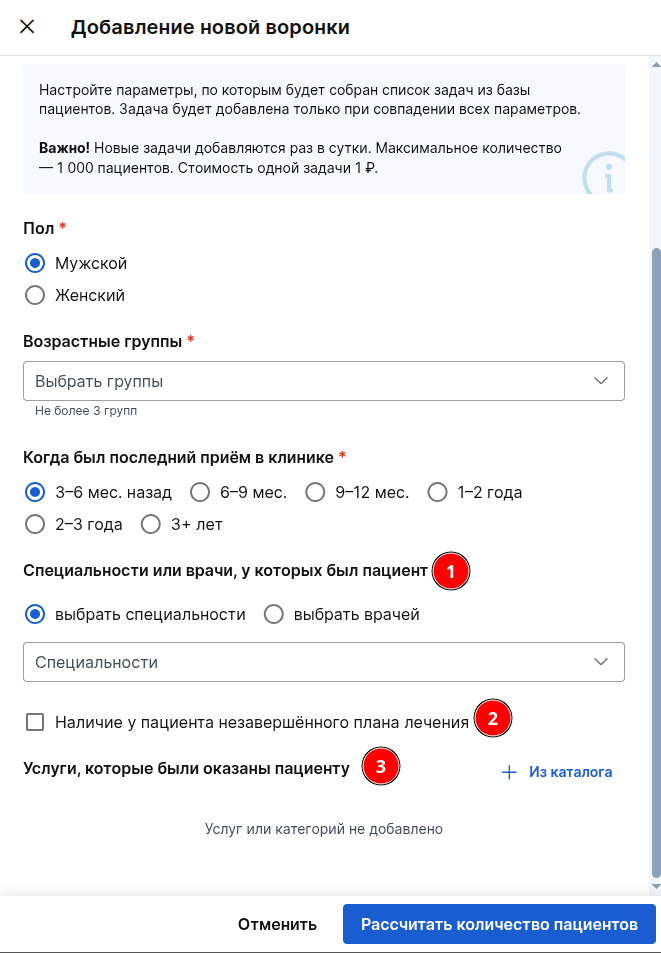
- Specialties or doctors who had a patient — you can choose one of two filters:
- choose a specialty — the funnel includes patients who have been to see any doctor from the selected specialties.;
- Select doctors — the funnel includes patients who have been to see at least one of the selected doctors.
- If multiple values are selected, filtering will work if the patient has visited at least one of the specified specialists.
- Example: when choosing a therapist and a surgeon, patients who were only with the therapist, only with the surgeon, or both will fall into the funnel.
- If the patient is suitable for several appointments (for example, he visited different specialists from the list), it is applied
the general rule of last admission
(described in detail above in the filter«Когда был последний приём»).
- The patient has an incomplete treatment plan:
- If a check box is installed, patients who have at least one incomplete treatment plan will enter the funnel.;
- if the checkbox is not installed, the filter is not applied, and the presence or absence of treatment plans does not affect the filling of the funnel.
- Services that were provided to the patient — filtering by patients with specific services provided.
- If one or more services are selected, patients who have received at least one of the selected services enter the funnel.
- If no services are selected, the filter is not applied, and the services provided do not affect the filling of the funnel.
- If other filters are already set in the funnel, the system searches for services only among the receptions that meet these conditions.
- If the patient had several appointments with different services during the specified period, it is applied
the general rule of last admission
— the card is created based on the reception where at least one of the selected services was provided and which is the latest among the suitable ones.
In summary, the funnel is filled according to the following logic between the filters:
- gender, age, and the period of the last appointment must match all the specified parameters.;
- specialties, doctors, and services work according to the principle«или»: it is enough to match at least one selected value.;
- after all the filters are applied, it is triggered
the rule of last admission
: if several visits are suitable for the patient, a card is added to the funnel for the latest of them.
Everything that remains after these checks is automatically added to the column «Неразобранные»as patient cards.
Calculating the number of patients before creation
- When all the required fields are filled in, the button «Рассчитать количество пациентов»will show how many patients meet the specified conditions.
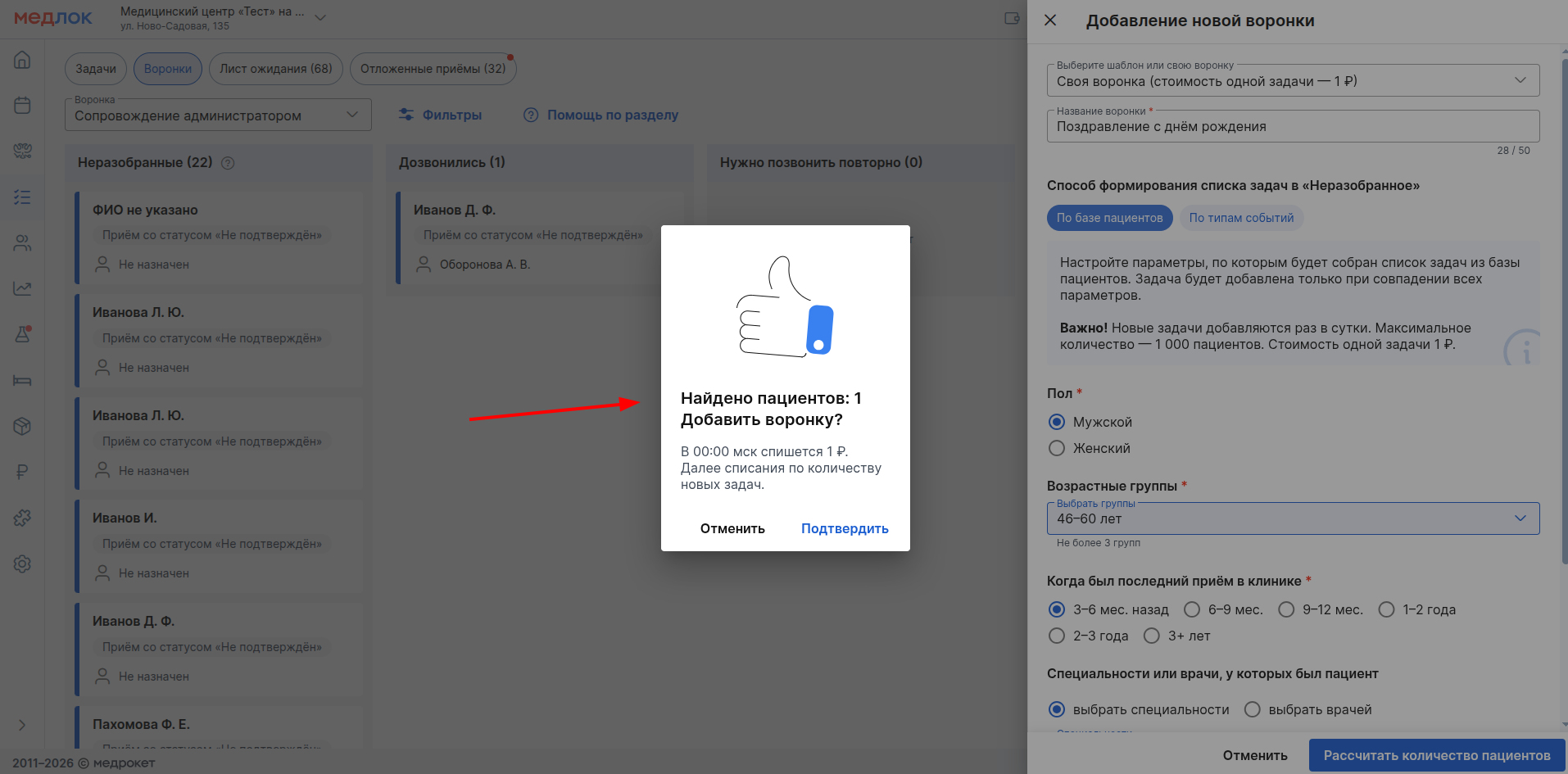
- A funnel will be created if between 1 and 1000 patients are found. In all other cases (no patients were found or the number exceeds 1000), the system will issue a warning — you will need to change the filter settings.
- Once created, the funnel will immediately be filled with the cards of all eligible patients. In the future, new tasks will be added once a day at night — the system will create new cards that correspond to the set funnel rules.
Task limit in the column«Неразобранные»
«Неразобранные»There can be no more than 2000 issues in a column. This allows you to control costs and avoid situations where the number of unprocessed cards accumulates without the real possibility of their timely processing.
When the limit is reached:
- new tasks are no longer added automatically;
- a warning appears at the top of the list;
- manual task creation via «+ Задача»remains available.
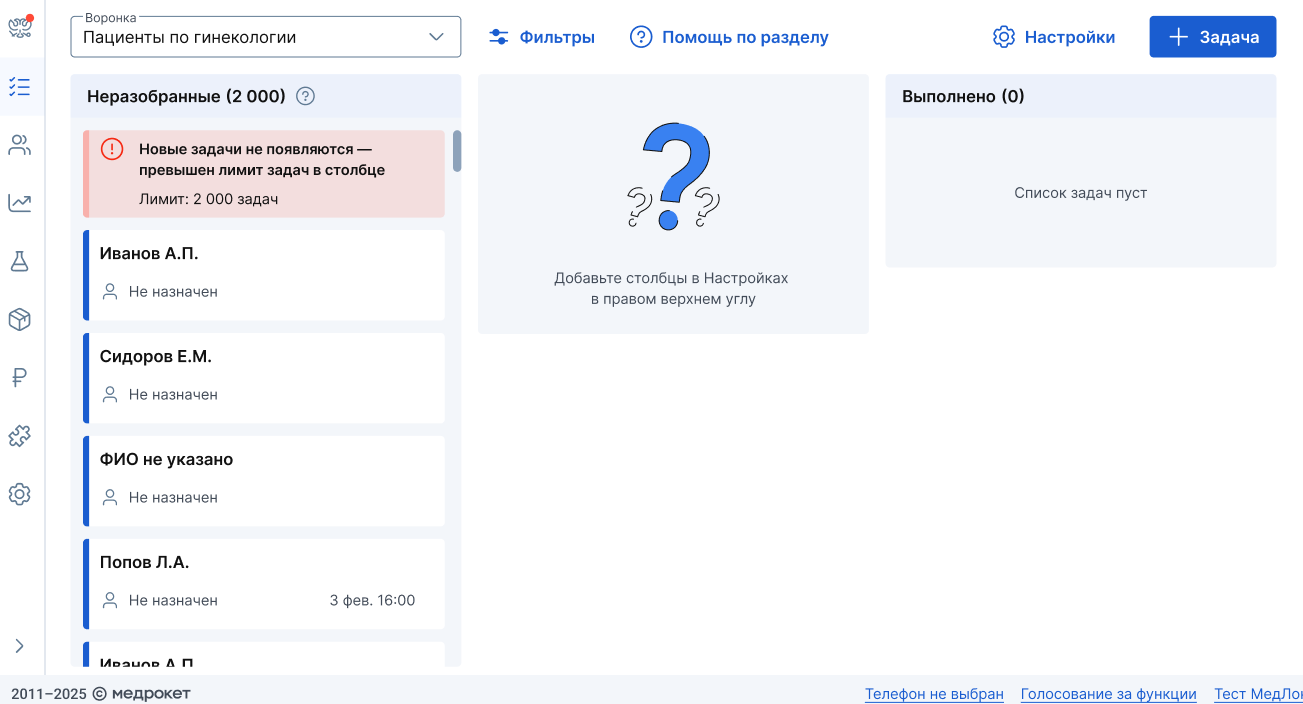
To resume automatic filling, you need to move some of the cards to other columns or delete them.
Patient Task Card
The card in the patient funnel looks the same as in other custom funnels, but there are additional fields depending on the filters you set when creating the funnel. It displays:
- Event type: «По базе пациентов».
- The executor, the observer, and the deadline are assigned manually.
- Patient data: Full name, phone number, age.
- Admission: date, time, admission status, doctor and his specialty.
- An incomplete treatment plan.
- It is displayed if the corresponding checkbox has been selected in the funnel settings.
- Services provided: a list of reception services.
- It is displayed if filters with services were selected when creating the funnel.
- If the same service has been provided several times, the quantity is included in the price. The cost is taken from the reception — the actual price is fixed with discounts, if they were applied.
- The description is for working notes.
- Task actions — automatic recording of all events on the card (creation, movement, assignment).
Filtering cards inside the funnel works according to the general rules described in the section«Фильтры».
Examples of working with a funnel
Seasonal invitation for medical examination
The clinic is launching a medical examination program for women aged 40-50 years. The funnel collects all eligible patients who have not been to the clinic for more than a year. Administrators call them on the list and offer to make an appointment for an examination.
Monitoring of incomplete treatment
There are patients with open treatment plans (for example, in dentistry, incomplete prosthetics). The funnel selects those who have an unfinished plan and the last visit was 3-6 months ago. Administrators call such patients, remind them of the need to continue treatment and make an appointment. This helps to avoid losing patients in the middle of treatment and to complete the cases that have been started.
Patient return
Patients who have not visited the clinic for 2-3 years receive a personal call with a discount offer for the first visit after a long break. The funnel automatically collects such patients, and administrators process the cards: remind them about themselves, inform them about the discount, and make an appointment. The clinic returns those who have not been for a long time, without the cost of advertising.
Informing about the promotion for the service
The clinic is holding a massage promotion. The funnel gathers patients to whom this service has already been provided before — they are more likely to respond to the offer. Administrators call them, tell them about the promotion and offer to enroll in the course. The campaign is distributed point-by-point, without mass mailings.
Monetization of customized funnels
Cost: 1 automatically created card = 1 ruble.
Write-off: daily, at night. In the UPD, payments for funnels belong to the section «АСР Лицензиара».
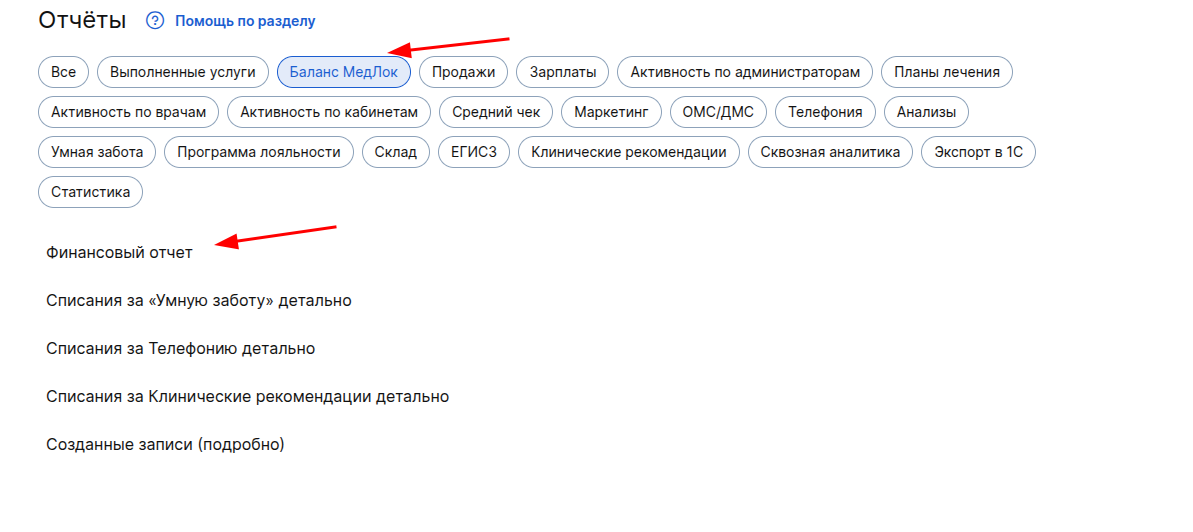
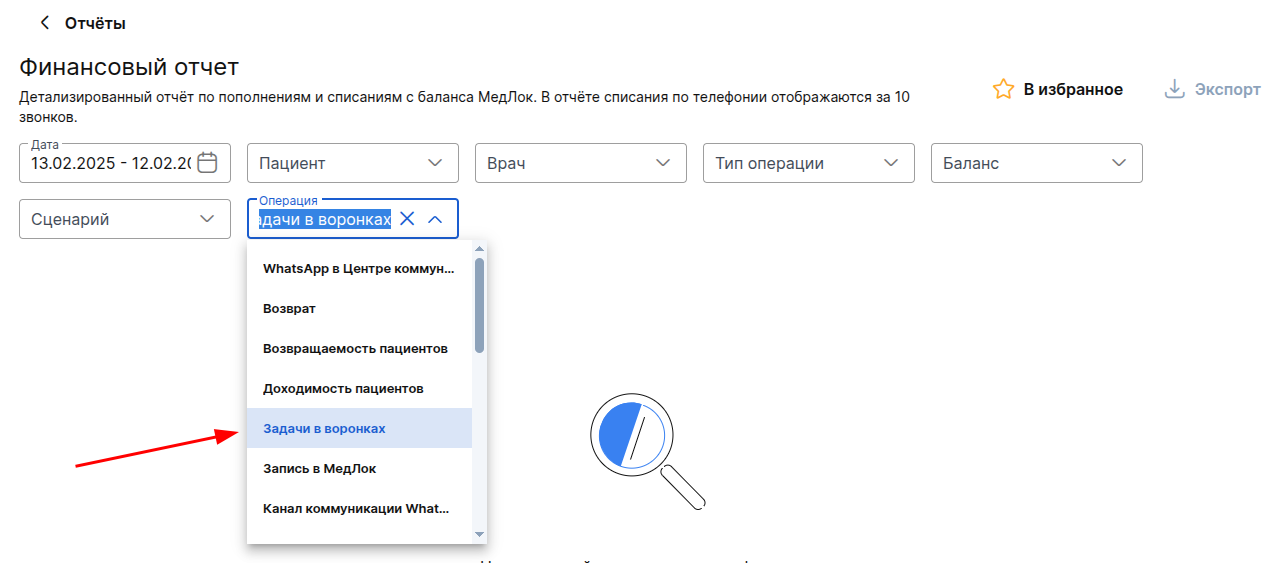
In reports: daily funnel charges will be reflected in «Финансовый отчёт»the group's report «Баланс МедЛок»with the type of operation «Задачи в воронках»(date of charge and total amount for all funnels per day);
Paid for:
- cards that are automatically created in the column «Неразобранное»according to the funnel rules (manual creation of tasks via the button «+Задача»is not monetized);
- cards that were created for the first time or repeatedly in the column «Неразобранное»when the funnel settings were changed.
Monetization when editing funnels
- If you change the settings, all current tasks «Неразобранные»will be deleted from the column — the system will show a warning.:
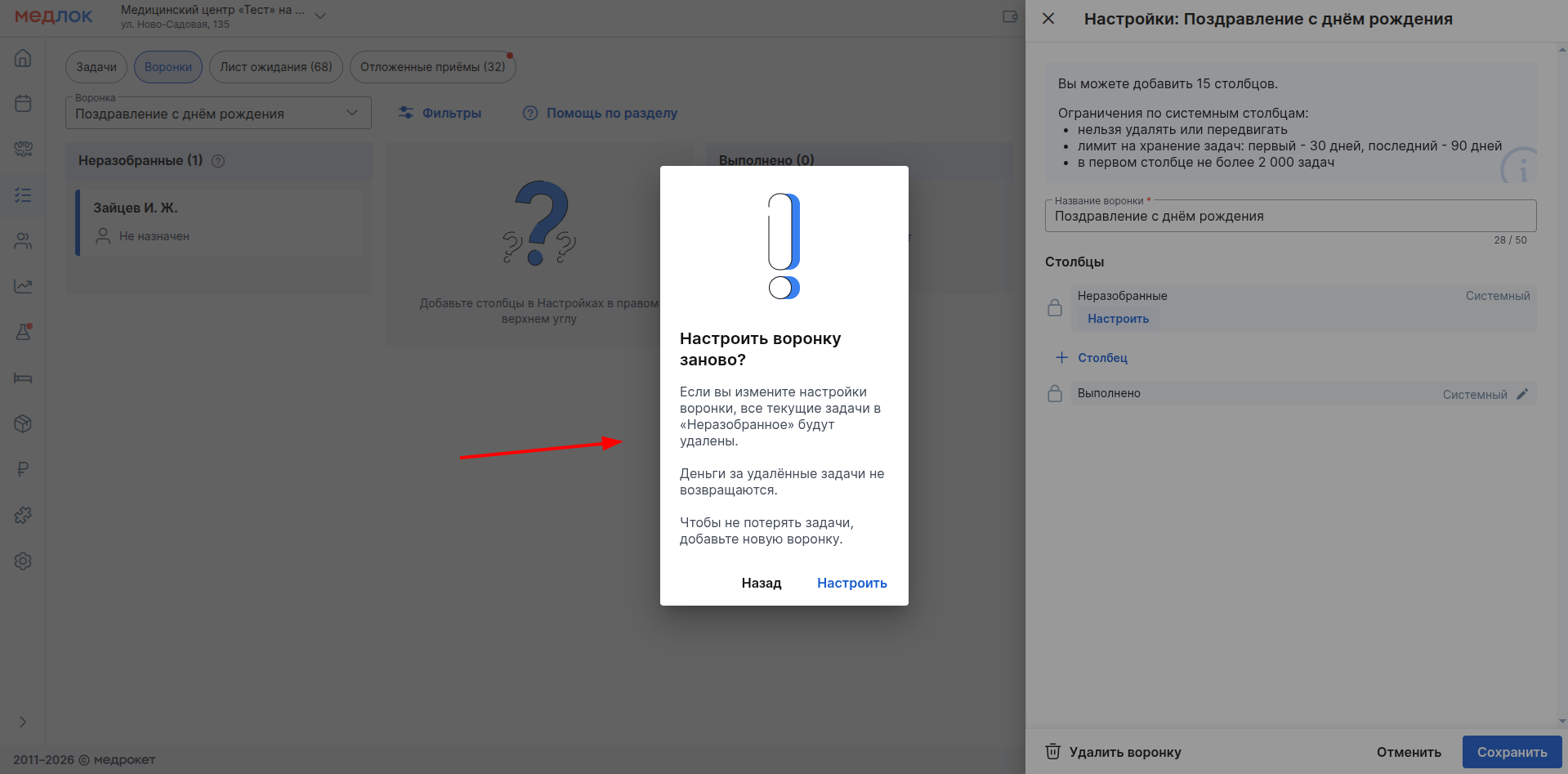
- Every task that gets into «Неразобранные»after editing is charged as a new one, even if the card that was in the column «Неразобранные»before editing falls under the new conditions.
- Money for deleted tasks is not refunded.
- If the task is already in another column (for example
At work
orDone
), then when editing, this task will not be included in«Неразобранные», and there will be no billing.
Example
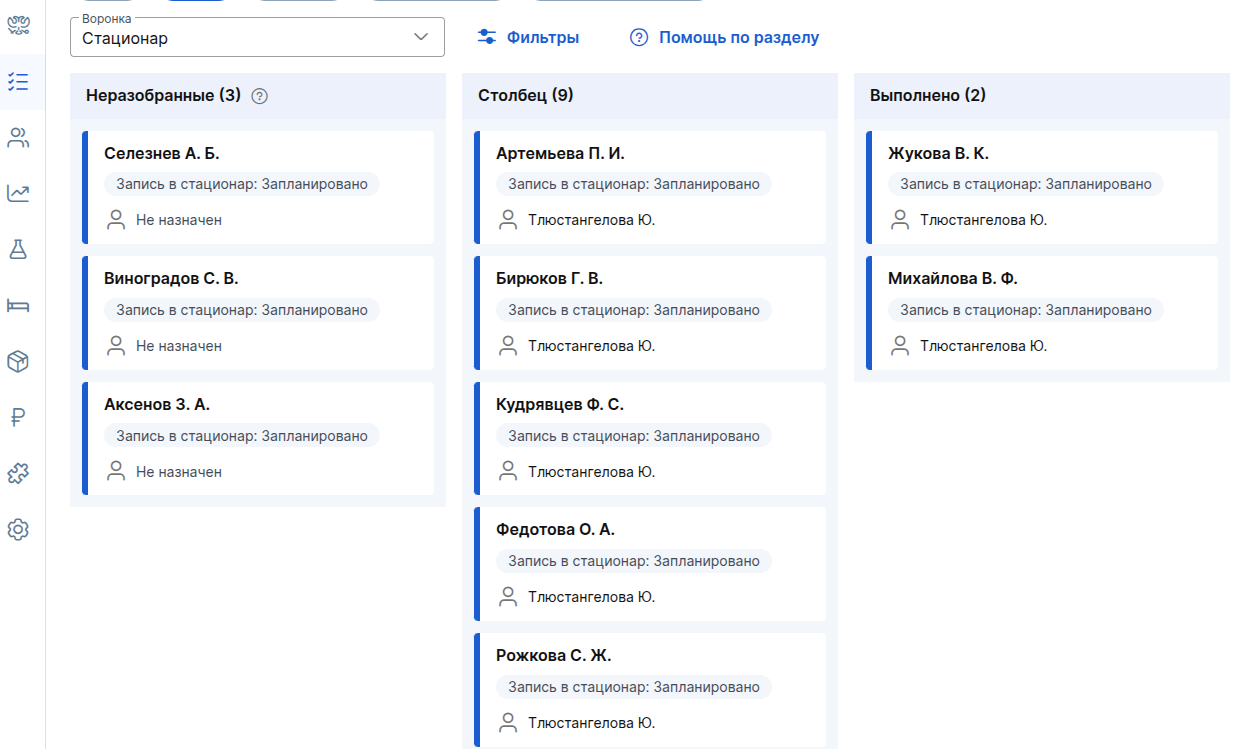
In the current funnel:
- the column «Неразобранное»contains 3 tasks with the status«Запланировано»;
- the remaining columns are 9 and 2 tasks with the status «Запланировано».
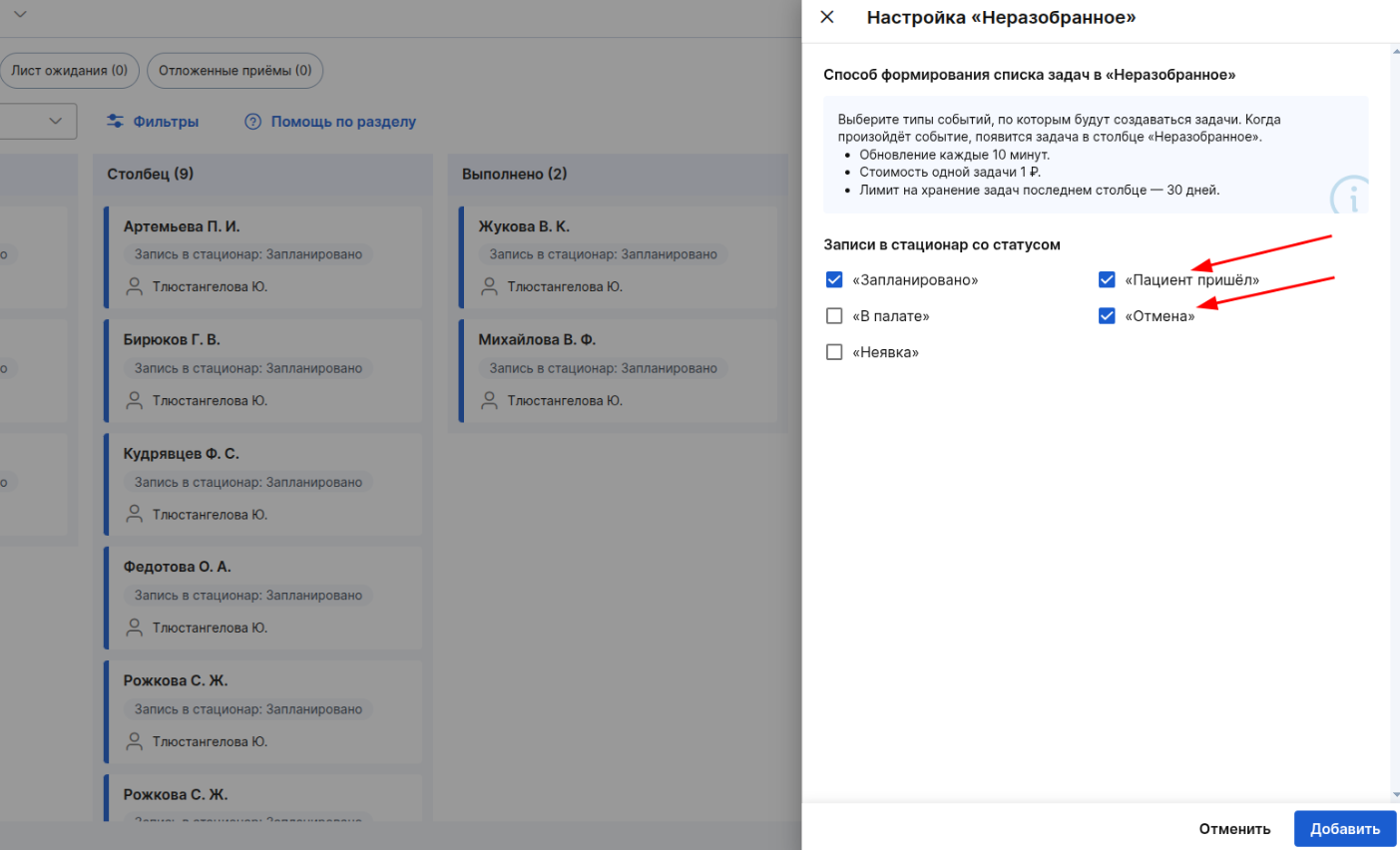
Editing the funnel rules — we leave the criteria «Запланировано», add new ones: «Пациент пришёл»and«Отмена»:
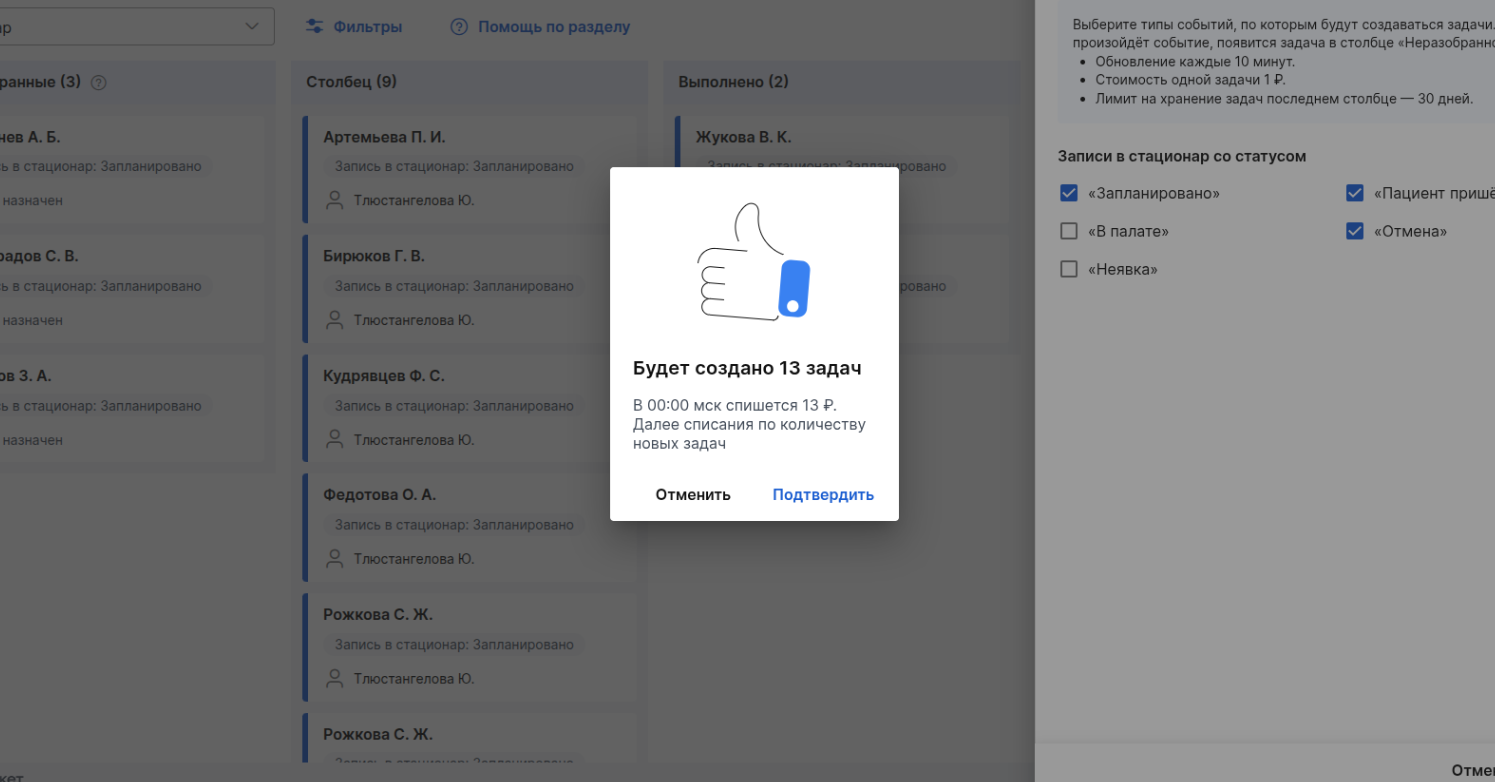
The system warns you about being charged for adding new tasks.:
After confirmation, the funnel is assembled according to the new criteria.:
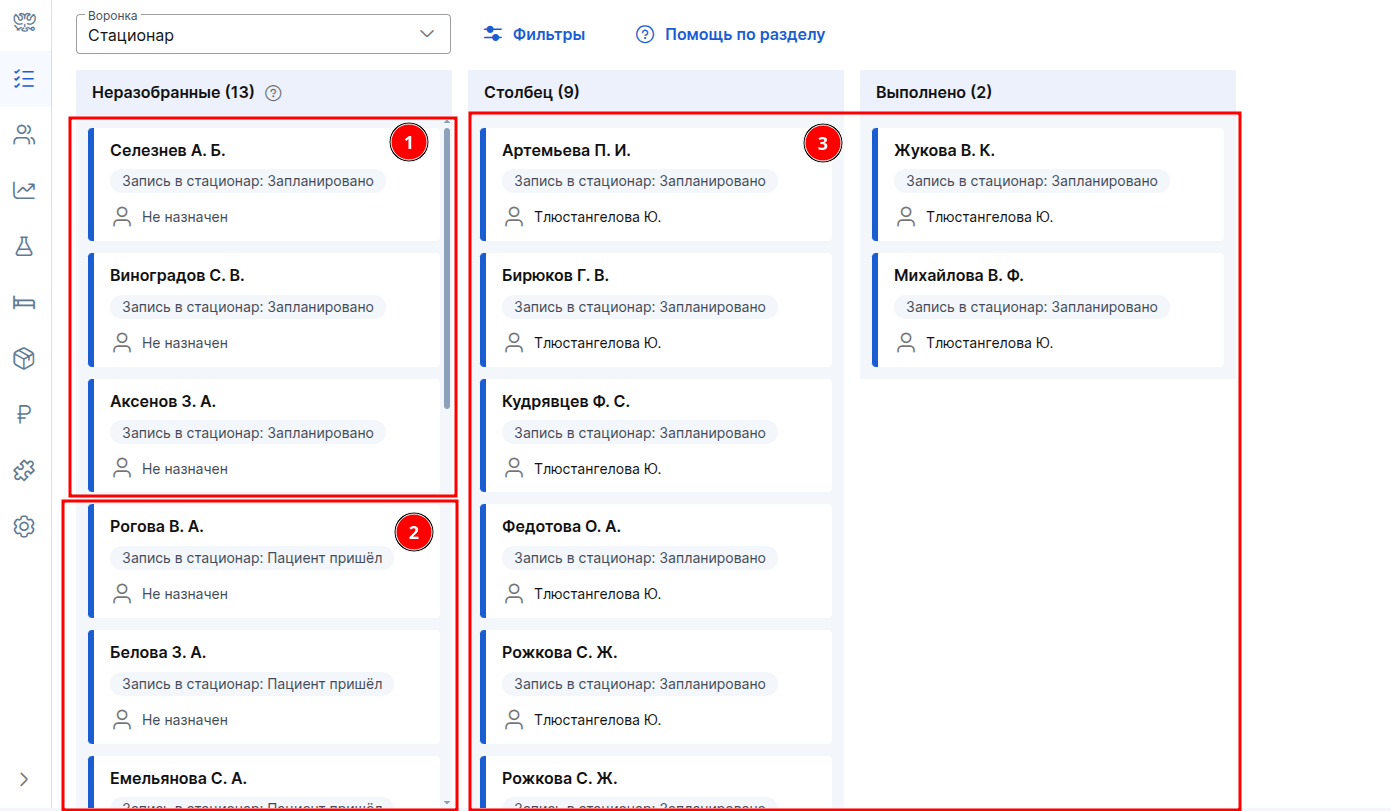
(1) 3 issues with the status «Запланировано»— have been «Неразобранном»deleted and recreated. 3 ₽ is deducted.
(2) 10 new status issues «Пациент пришёл»— previously missing from the funnel, created for the first time. 10 ₽ is deducted.
(3) The tasks in other columns (9 and 2) have not been deleted, have not been recreated, and the money for them is not being debited again.
Tasks with the status «Отмена»are not included in the example, but if they were, they would be created as new ones.