


Tasks
— this is a board for organizing work. Each task is a card. You can customize the card (for example, assign responsible persons, add a description, and deadlines) and move it through the status columns.
The article contains the following sections:
- Access rights to tasks and boards
- Adding and configuring columns on the board
- Creating an issue
- Viewing, editing, and deleting tasks
- Managing tasks on the board
- Overdue tasks
- Automatic task deletion
- Upcoming improvements
Access rights to tasks and boards 
The possibilities of working on the board Tasks
The tasks depend on the rights you have been granted. The rights are assigned by the administrator.
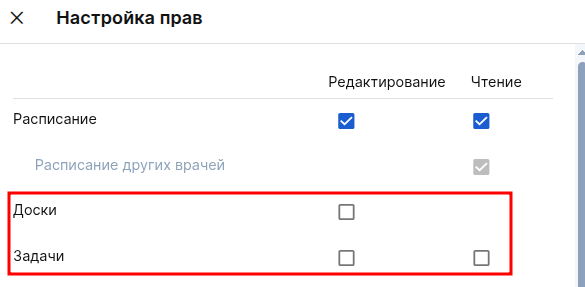
- Reading issues:
- view the board and all tasks;
- opening tasks;
- editing task descriptions;
- moving tasks between columns.
- Task editing — includes all the features of the level «Чтение», as well as:
- creating new tasks;
- complete editing and deletion of any tasks.
- Board editing — includes all the features of the level «Редактирование задач», as well as:
- adding, editing, deleting, and reordering custom columns on the board.
Important notes:
- managers who already had access to tasks will be given full access by default.«Редактирование досок»;
- The rest of the staff is automatically assigned a level«Чтение задач»;
- if no rights are set, the tab «Задачи»will be hidden.
Adding and configuring columns on the board
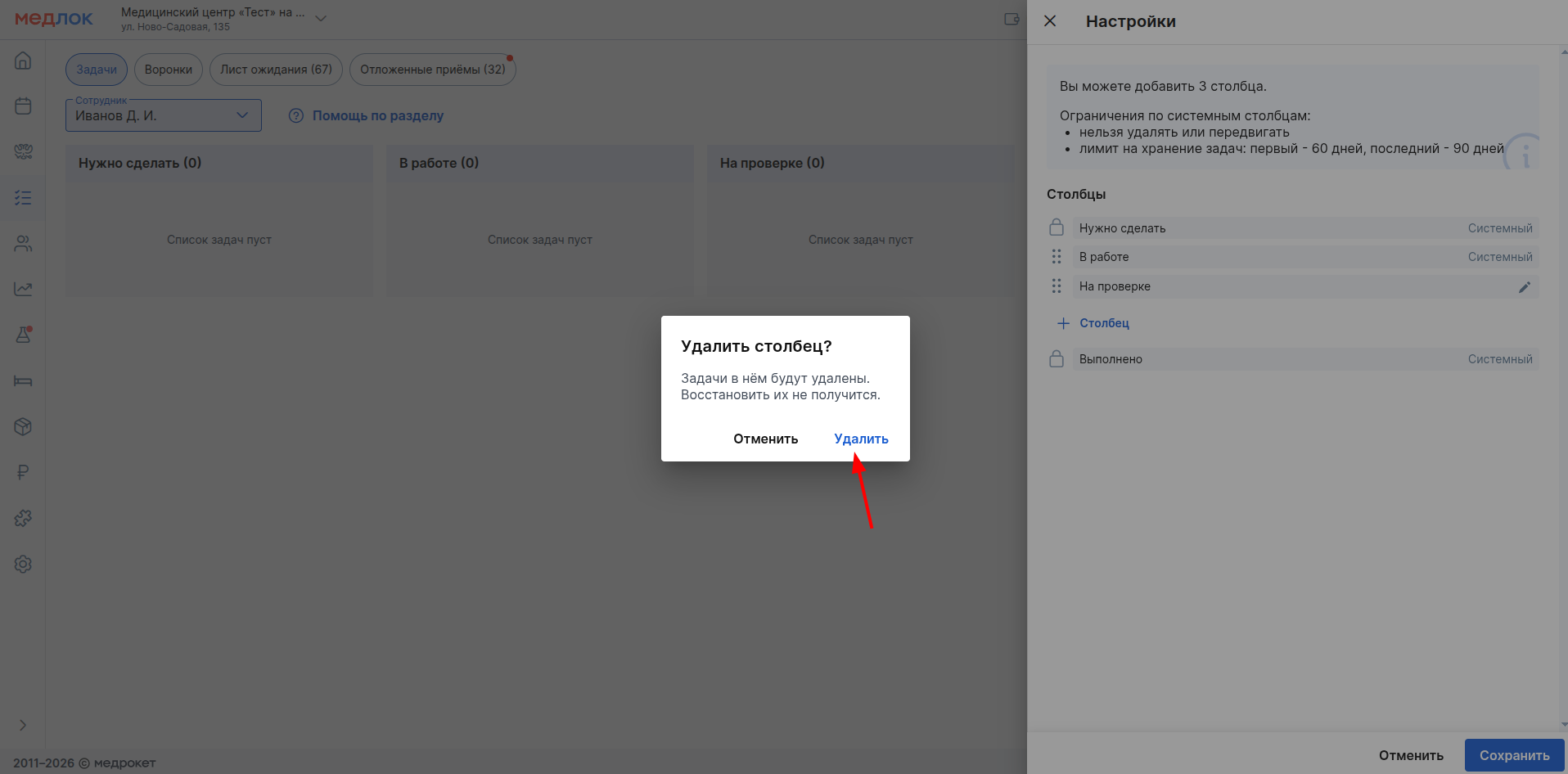
System columns «Нужно сделать»and «Выполнено»cannot be changed or moved. The column «В работе»can be moved, but it cannot be deleted. You can add custom columns to reflect the steps of your process.
How to manage columns
- click the button «Настройки»on the task board (available only to users with the right«Редактирование досок»);
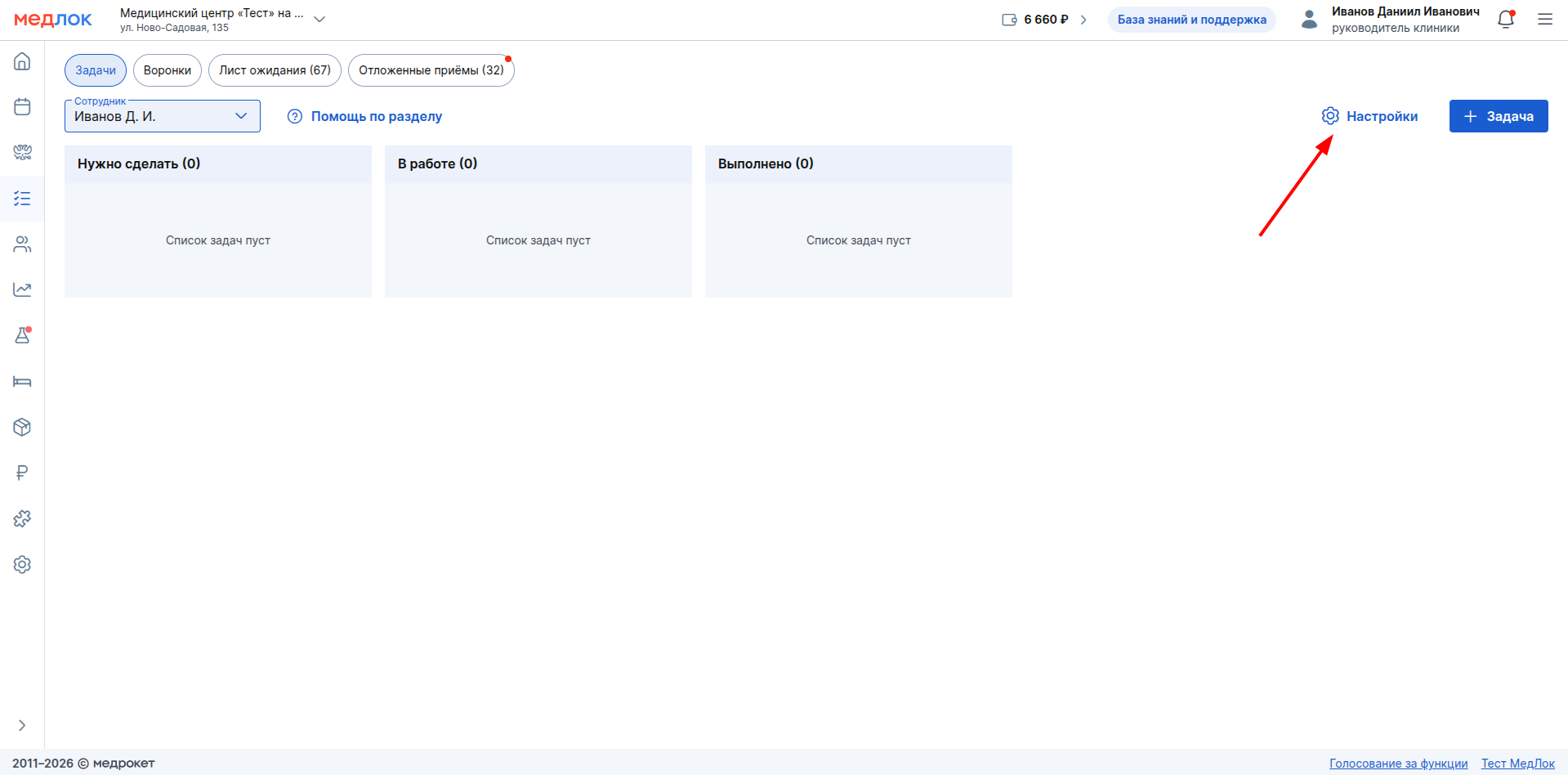
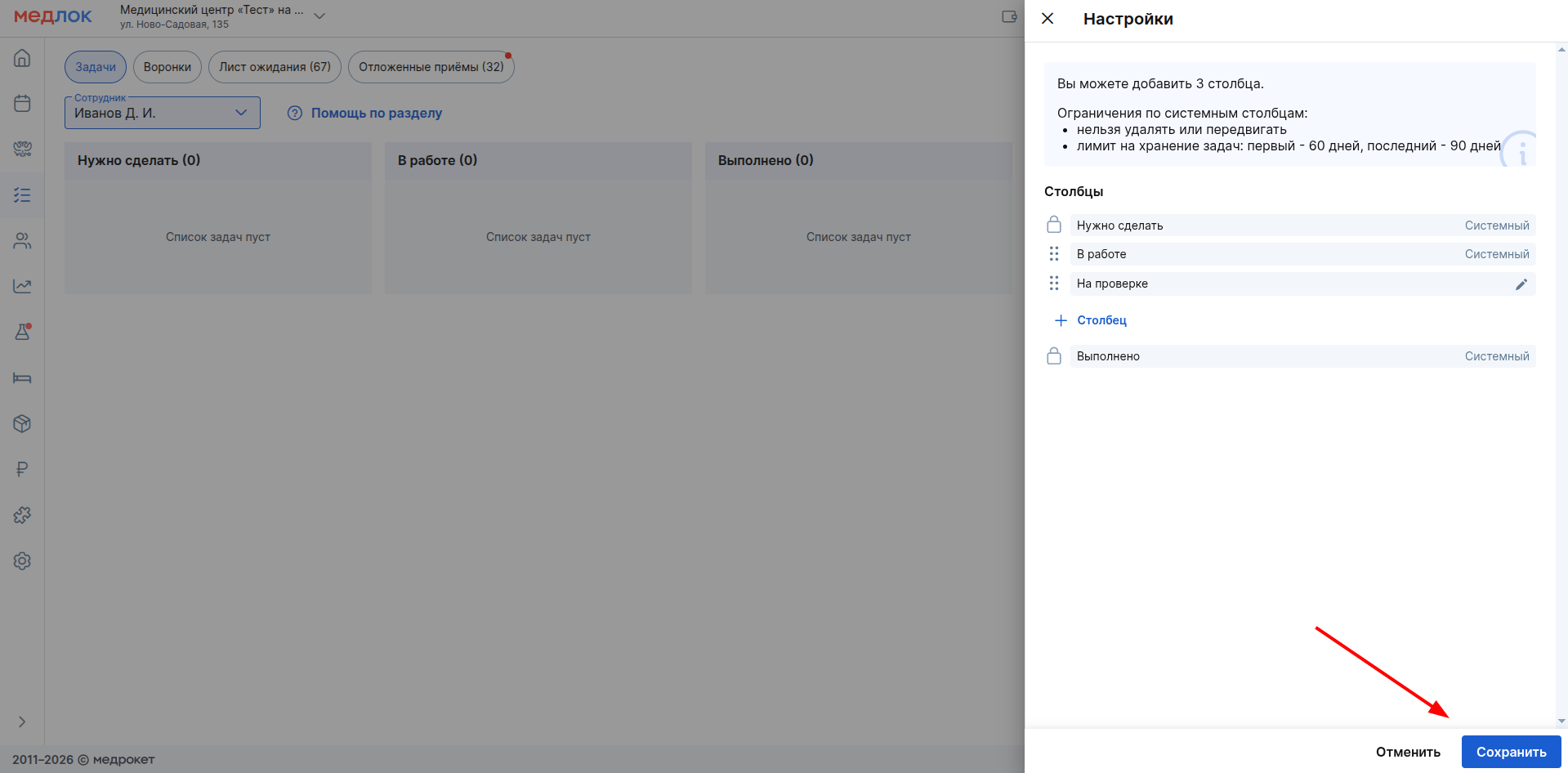
- The column control panel opens:
- The system columns «Нужно сделать»(always the first) and «Выполнено»(always the last) are marked with a lock. «В работе» — it can be moved;
- custom columns, if they have been created.
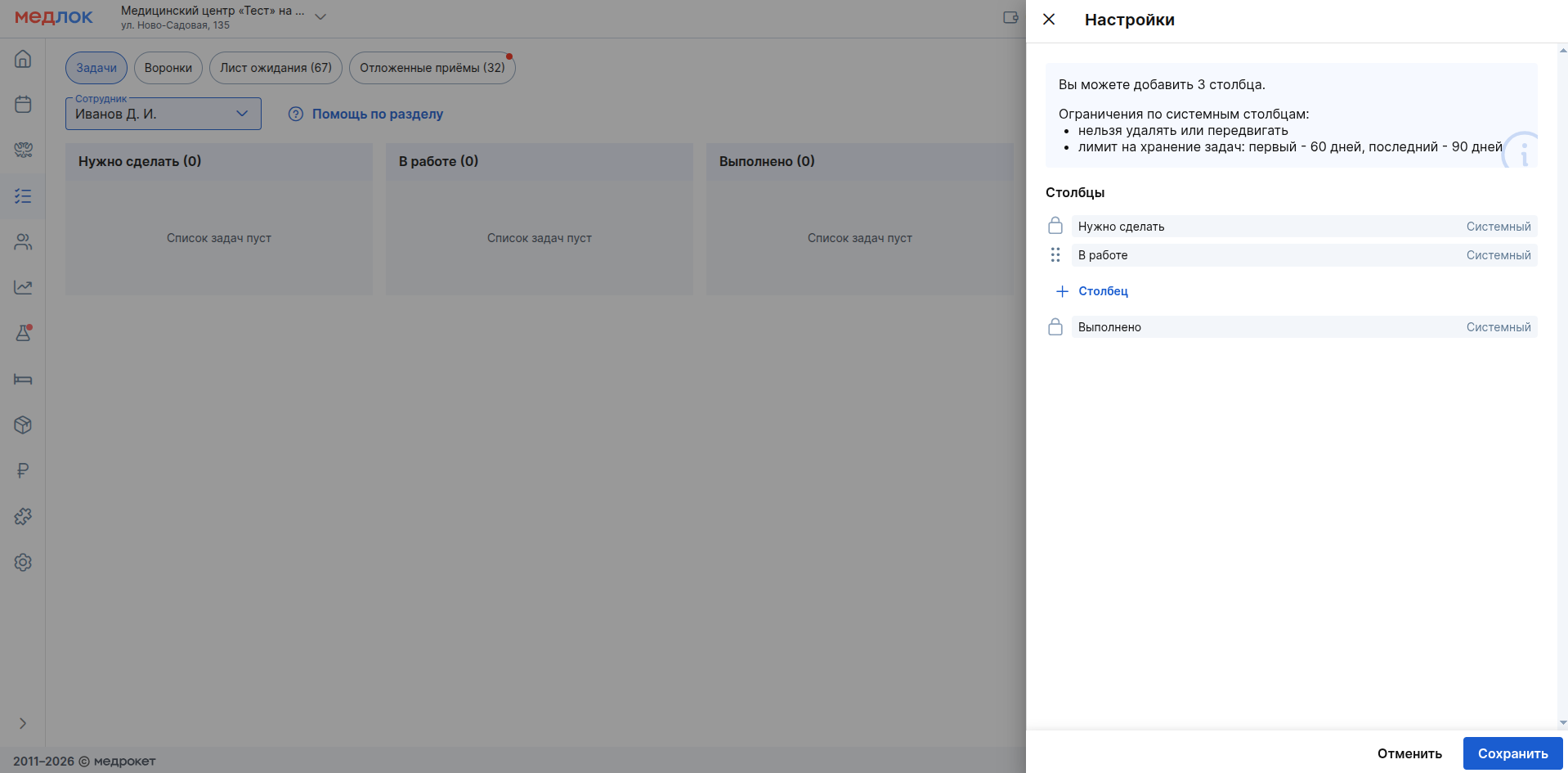
- to add a new column, click «+ Столбец». In the window that opens, enter a name (required field, no more than 50 characters) and click «Сохранить».
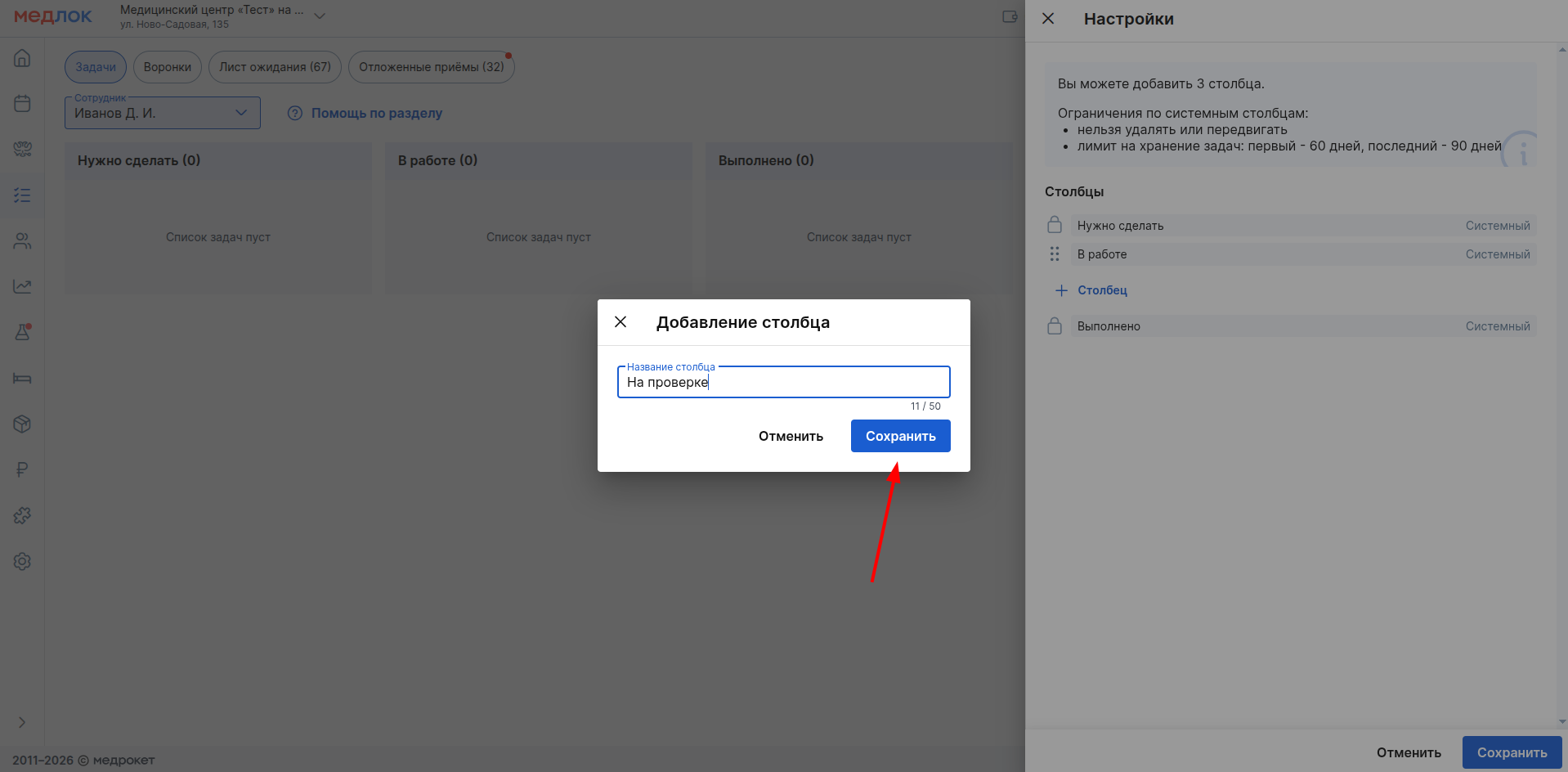
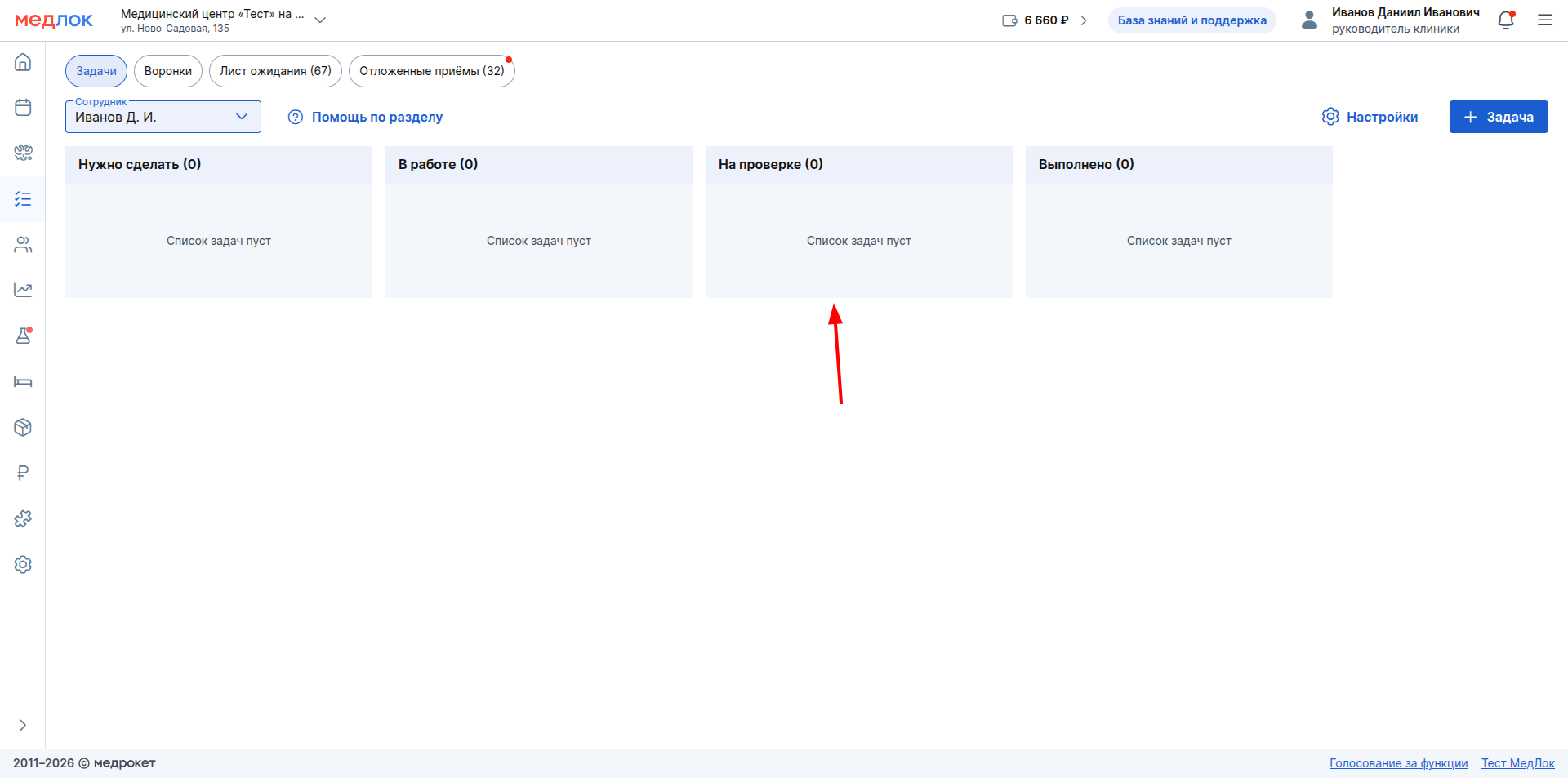
- After that, click «Сохранить»in the settings window.
- A new column will appear on the board.
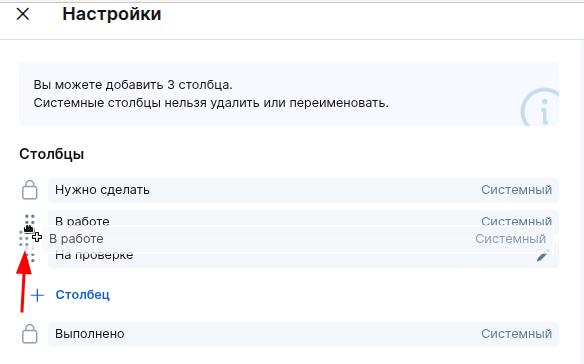
- To change the column order, hold down the drag icon in the settings window (⋮⋮) next to the column name («В работе»or custom) and move it to the desired location.
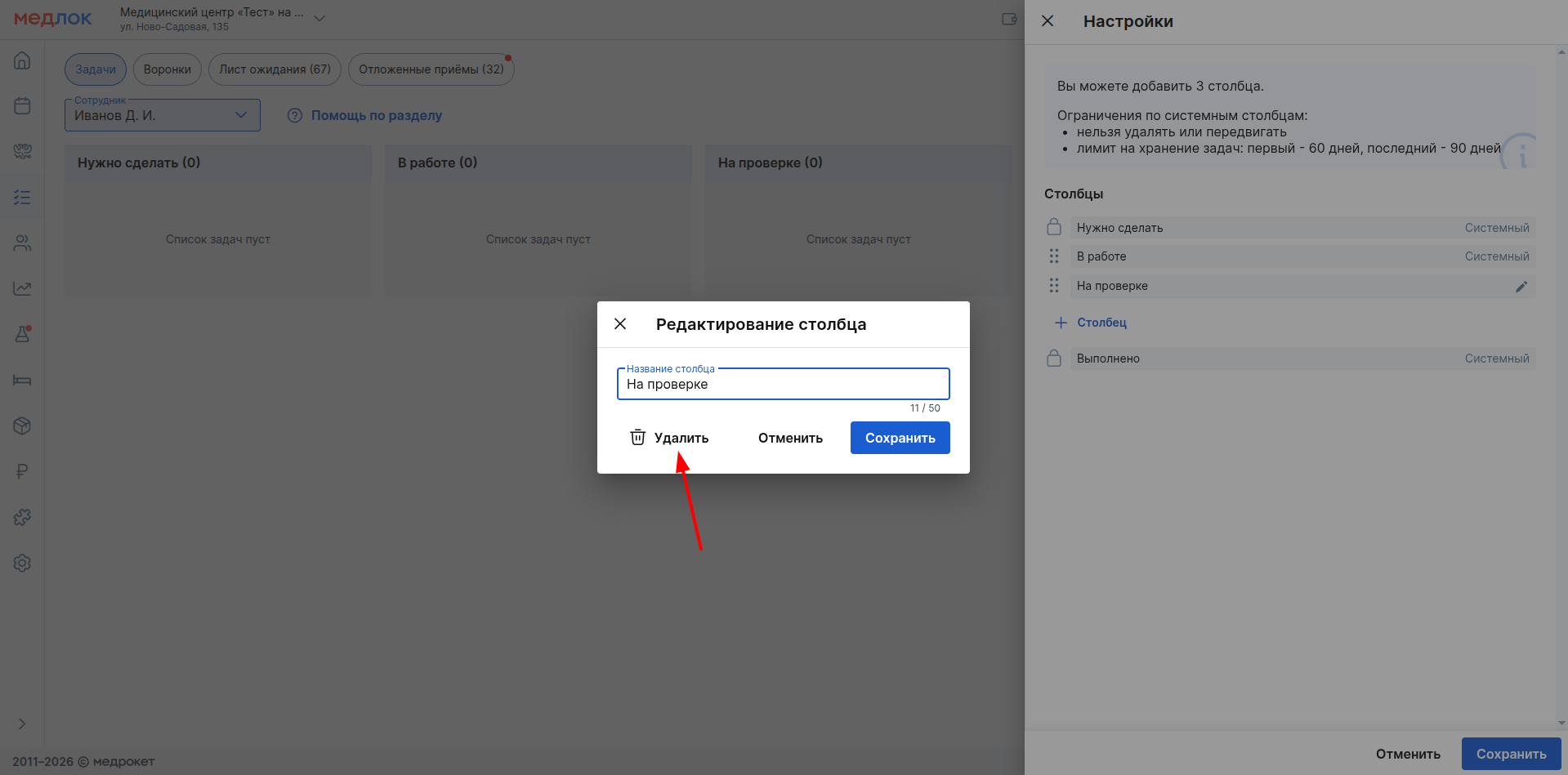
- To edit or delete a custom column, click on the pencil icon.
- If you delete a column, all the tasks in it will be permanently deleted.
Creating an issue
- Click the button «+ Задача»(available with rights «Редактирование задач»and higher) and fill in the information in the panel that opens.:
- task name (required, up to 100 characters);
- performer (required, you can select several). Only active employees are shown in the list.;
- the observer (by default, the creator of the task);
- due date (cannot be earlier than the current moment or more than 2 years in advance);
- recommendation: if the task is long—term (calculated for more than 60 days), immediately move it to a separate column — for example, «Долгосрочные»or «Планы»- so that it is not deleted automatically (see Automatic deletion of tasks).
- description (up to 1000 characters).
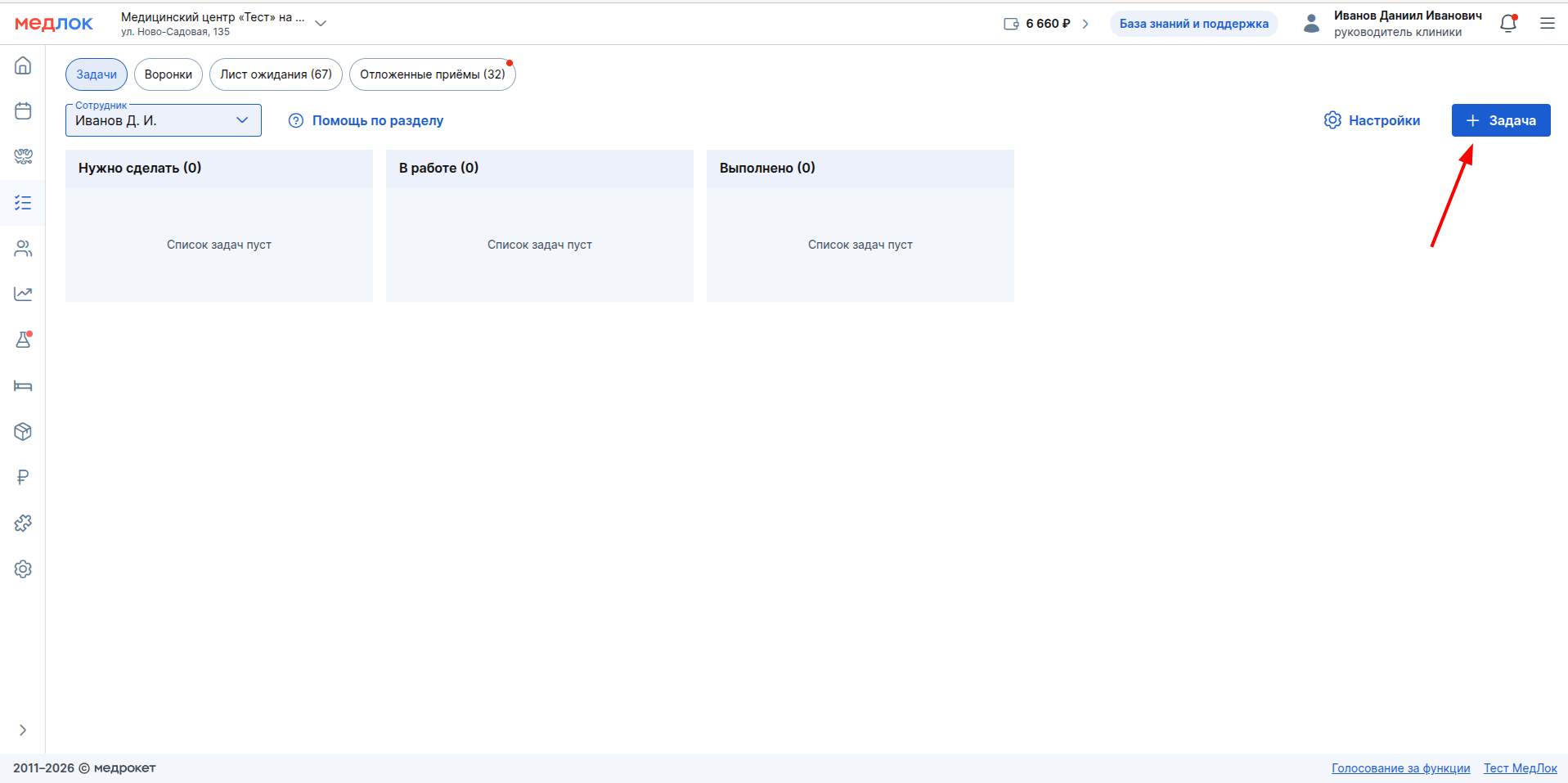
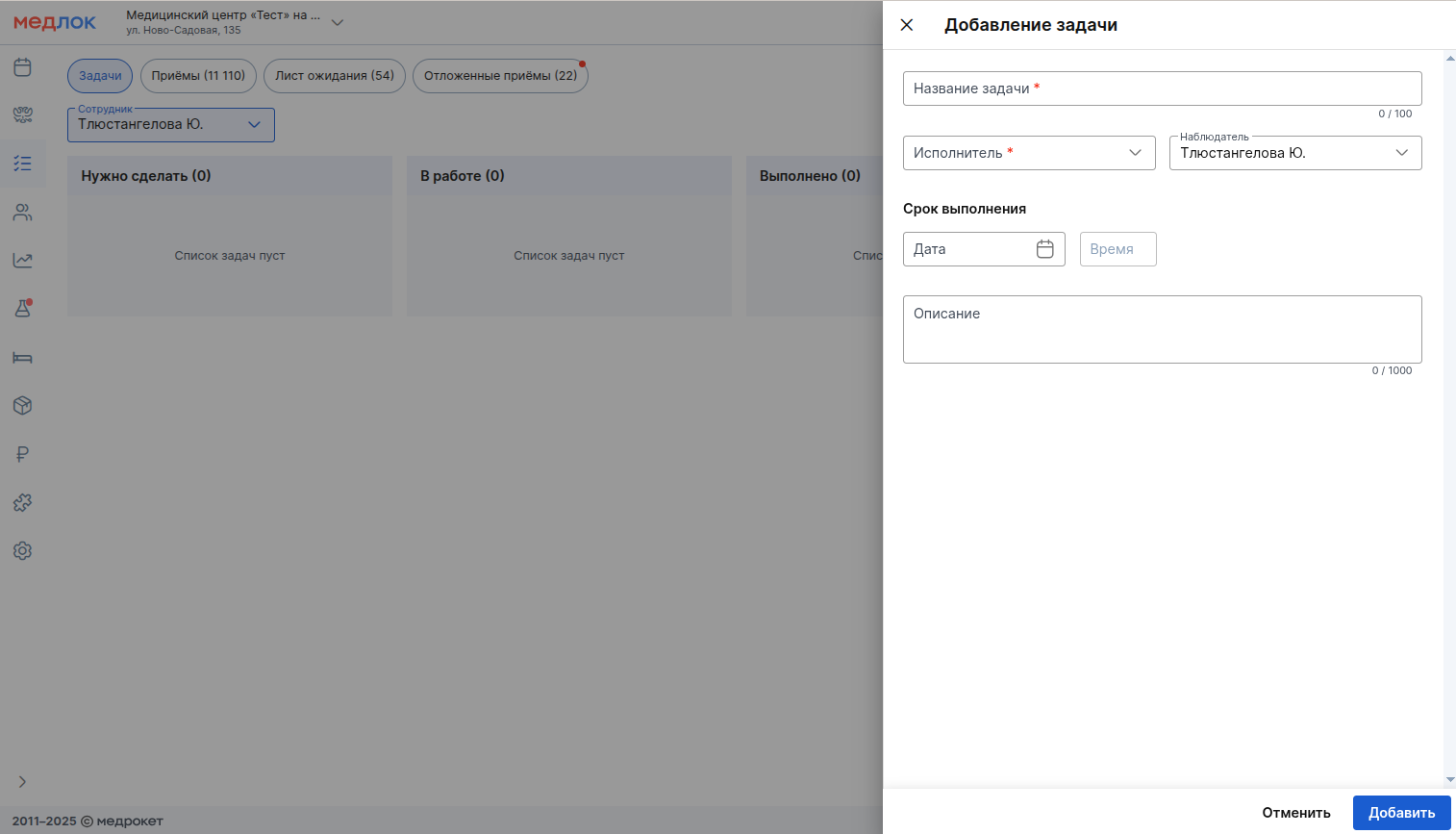
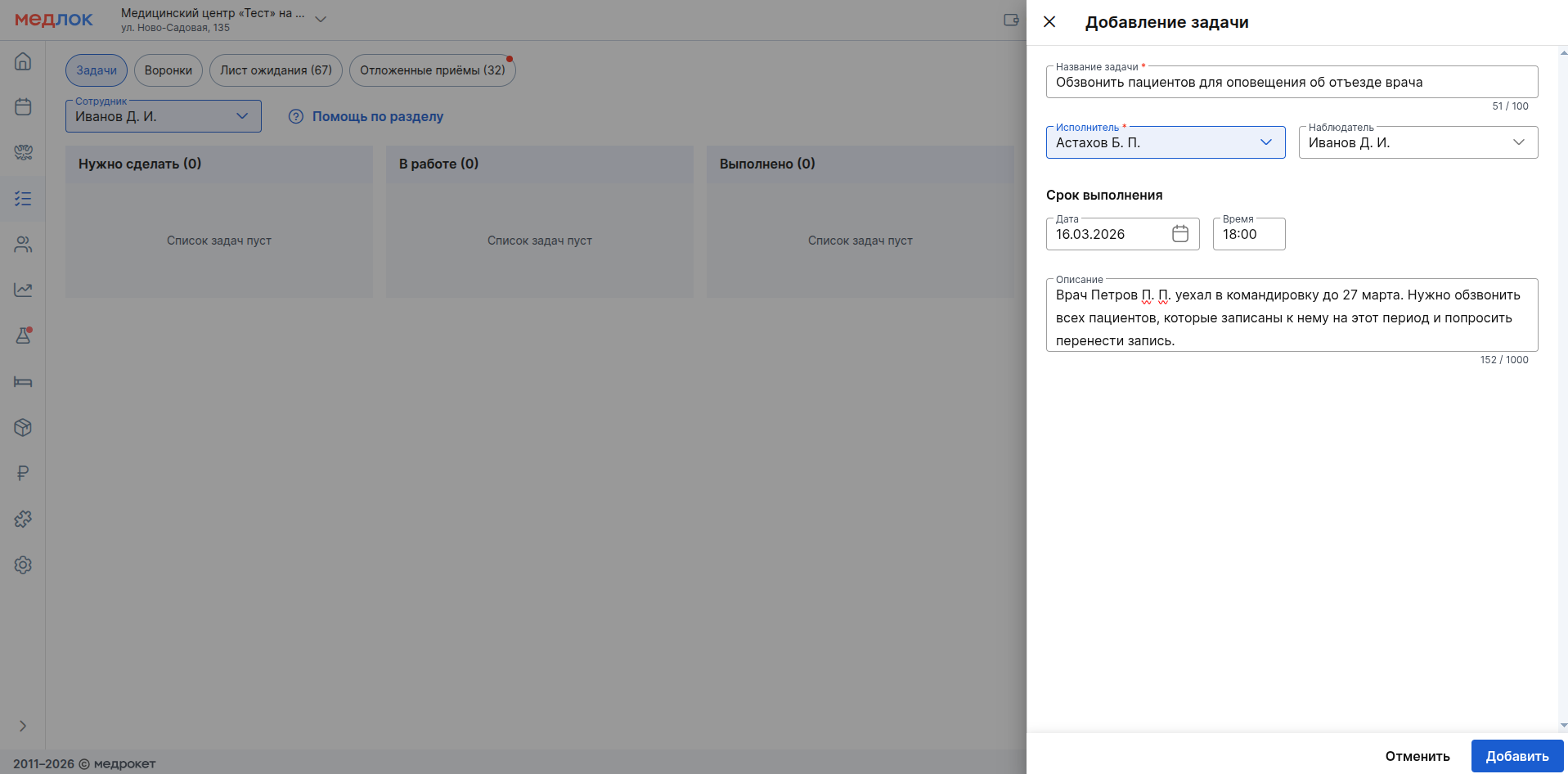
- click «Добавить»— the new task will appear at the top of the column list.«Нужно сделать»:
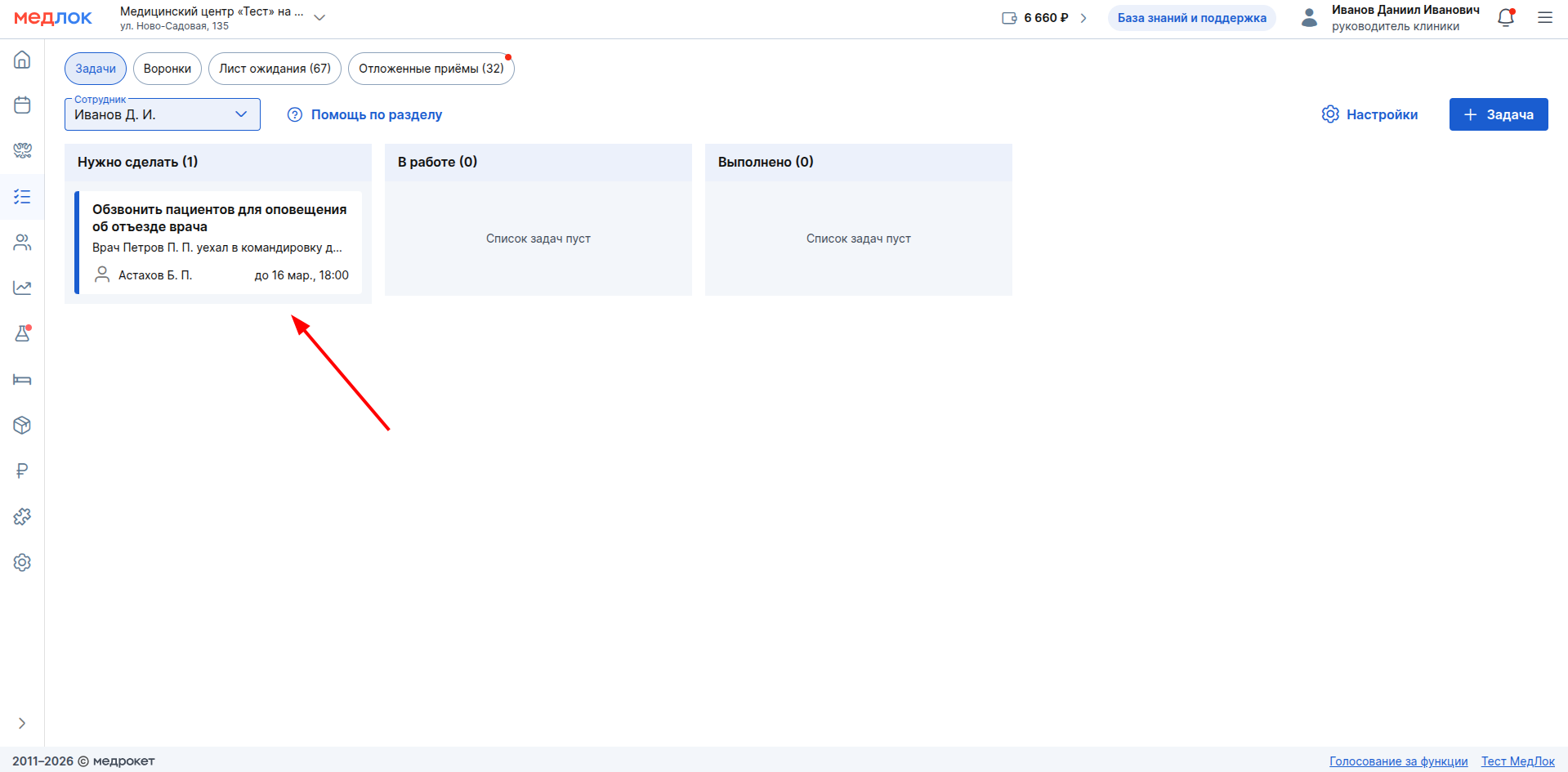
The task card compactly shows all the key information:
- The number of tasks in the column is indicated in parentheses next to the column name: (1).
- performer: Vasiliev M. V. (+2) - means that the task has 3 performers (indicated by + 2 more).
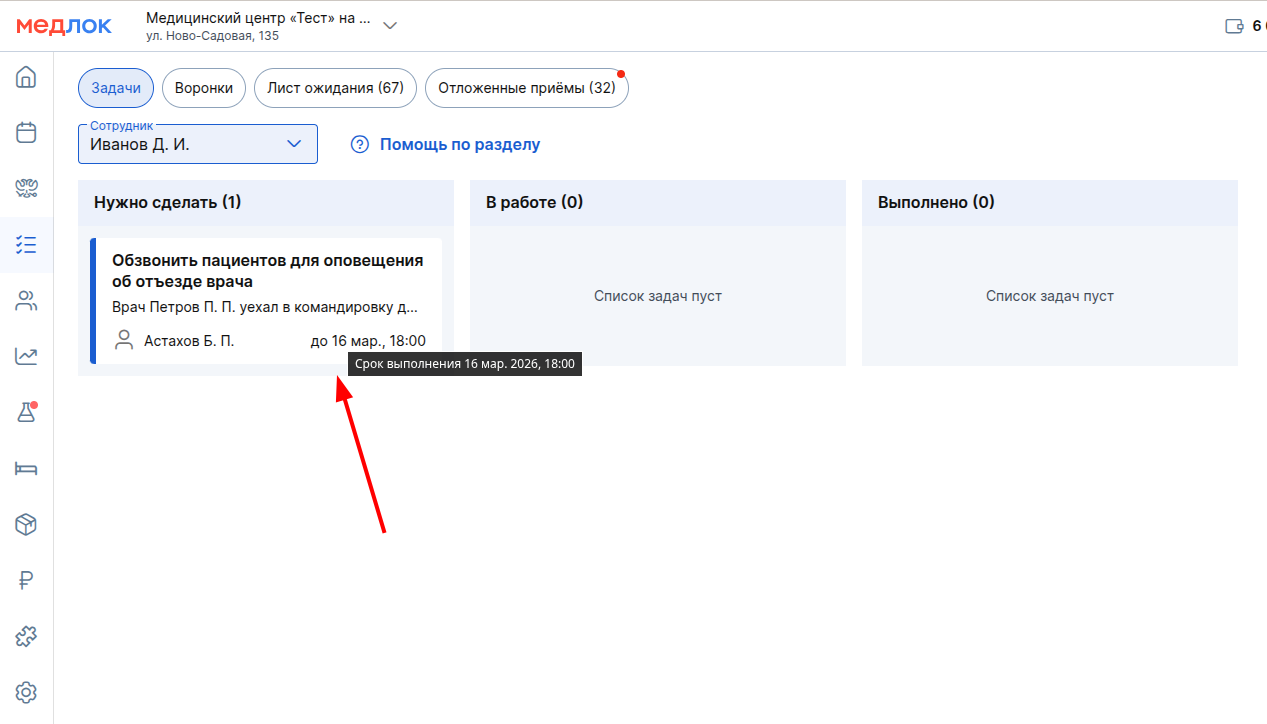
- When you hover over the due date, a prompt will appear with the full date, including the year.
Also, those employees who are listed as performers in the task will see the label on the card«Новая».
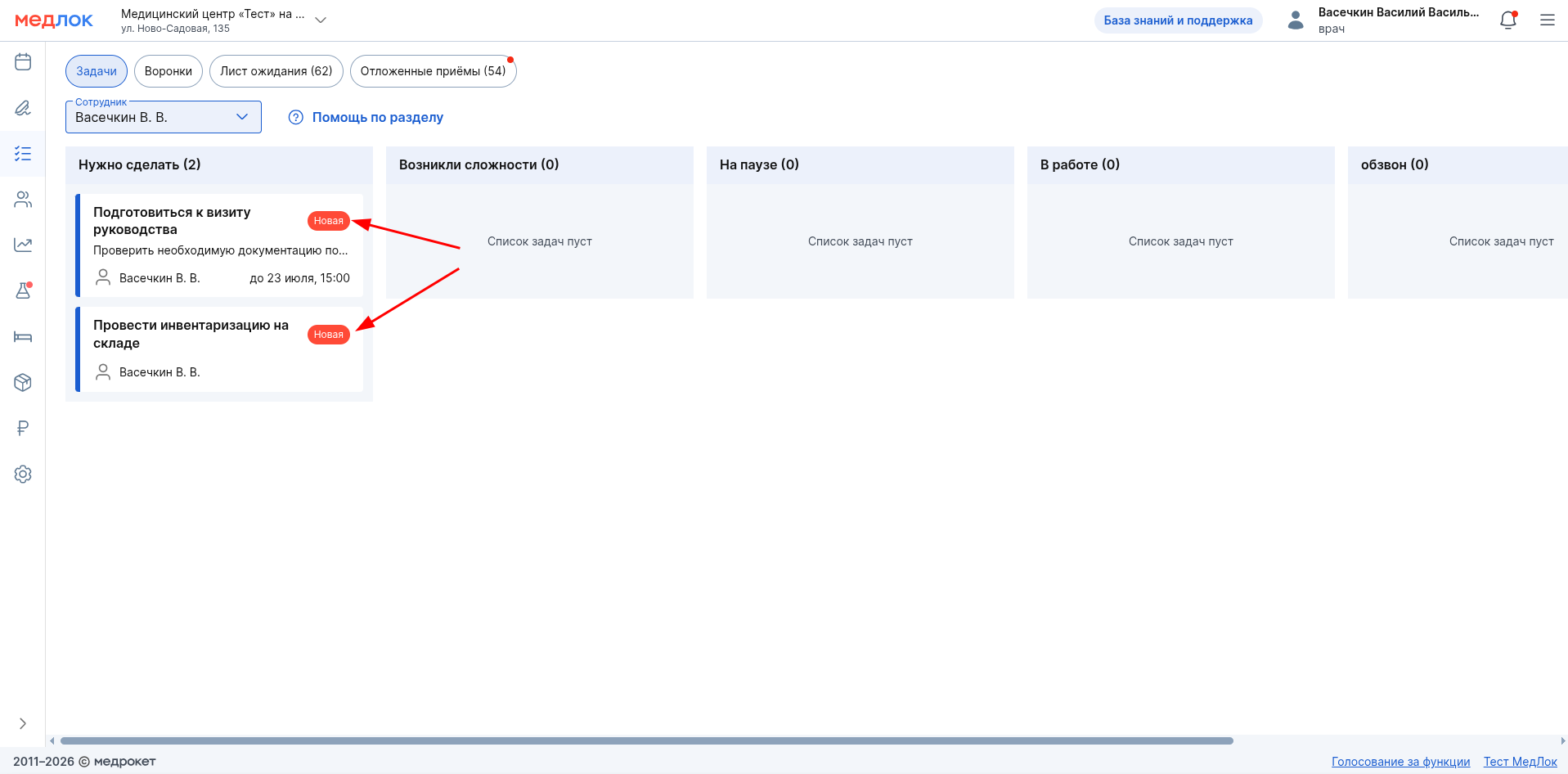
The label will disappear under the following conditions:
- Any employee has moved the task to another column.
- The employee was removed from the field «Исполнитель».
- 3 hours have passed since the employee was appointed as the task executor.
Viewing, editing, and deleting tasks
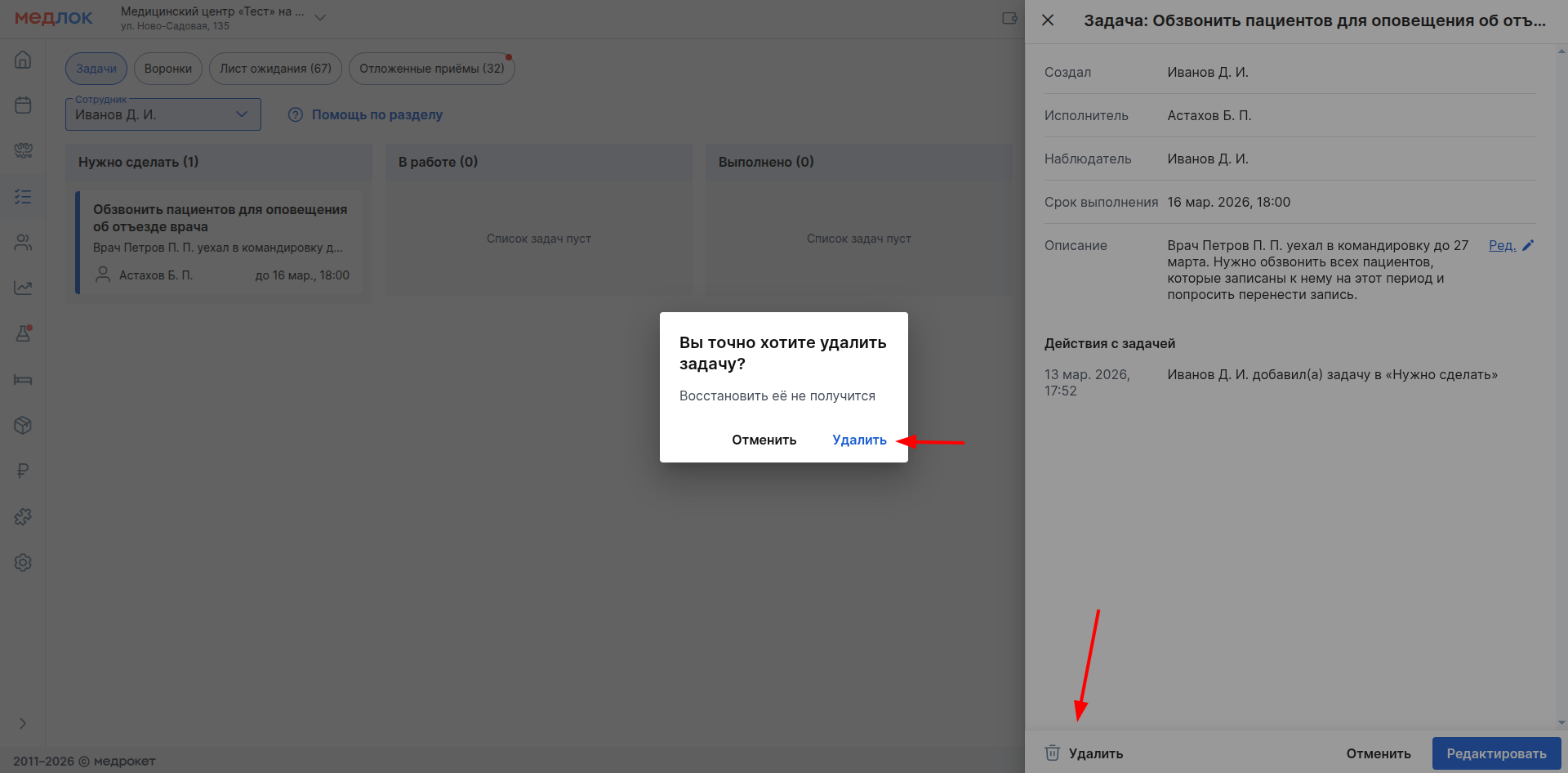
- To open a task and see all the information about it (history of changes, column movements), just click on it on the board.
- The change history records user actions to add, move tasks between columns, and change deadlines.
Important: all displayed time is calculated according to the time zone of the selected branch.
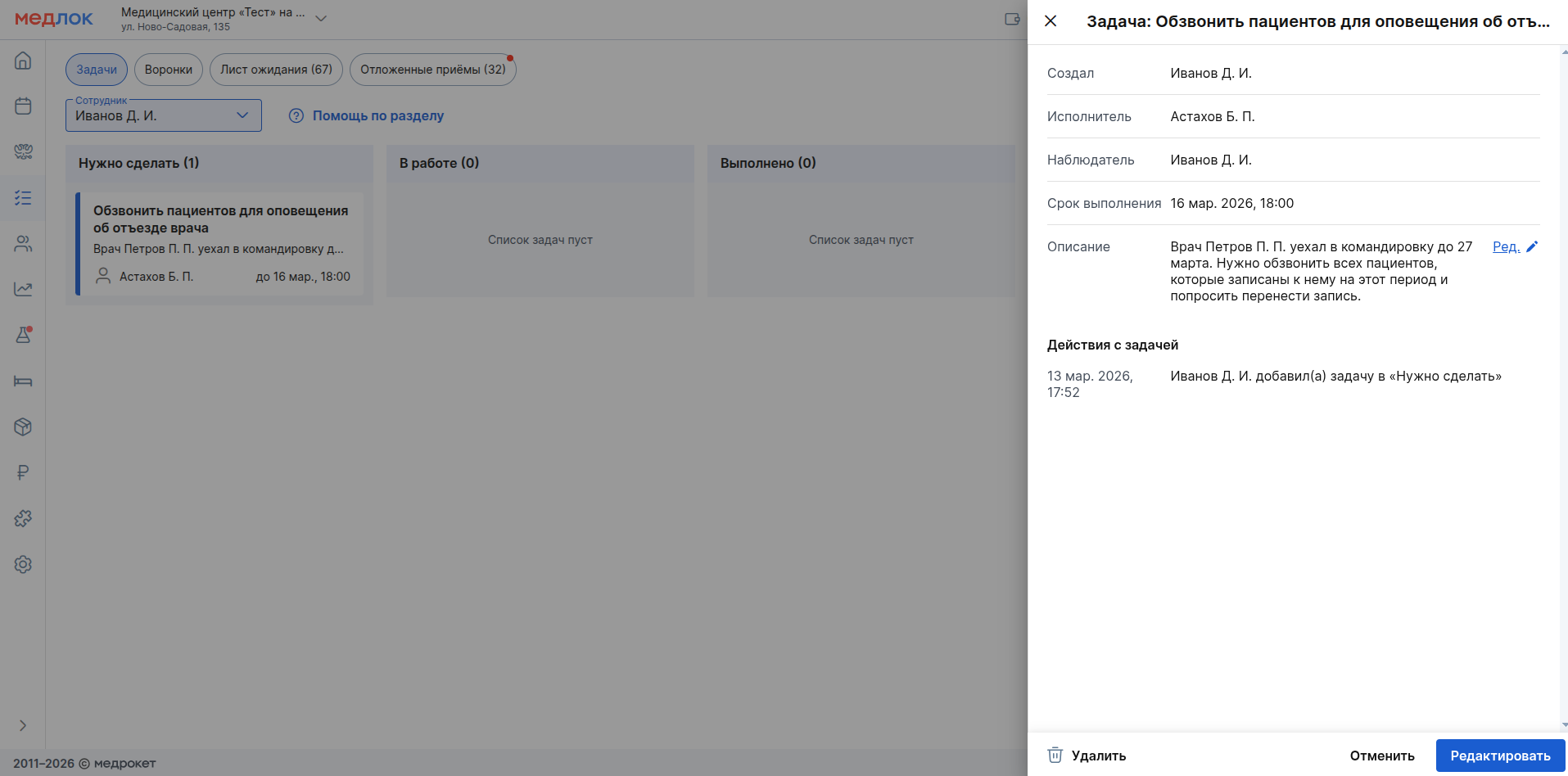
- If you have the right«Чтение задач», you can only edit the task description.;
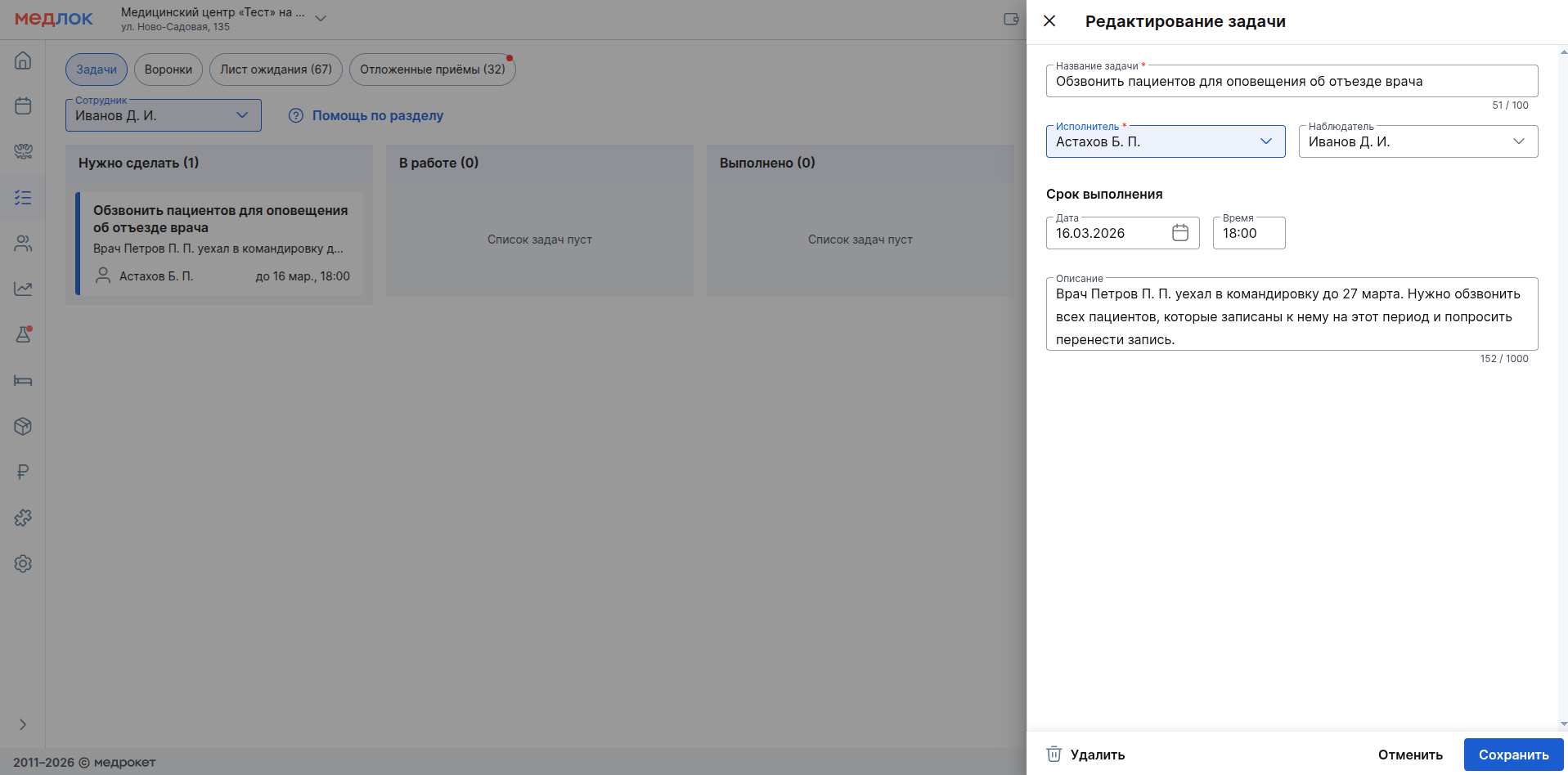
- When right«Редактирование задач», the buttons become available:
- «Удалить» - Deleted tasks are not recoverable.;
- «Редактировать» - all task fields can be changed.
Managing tasks on the board
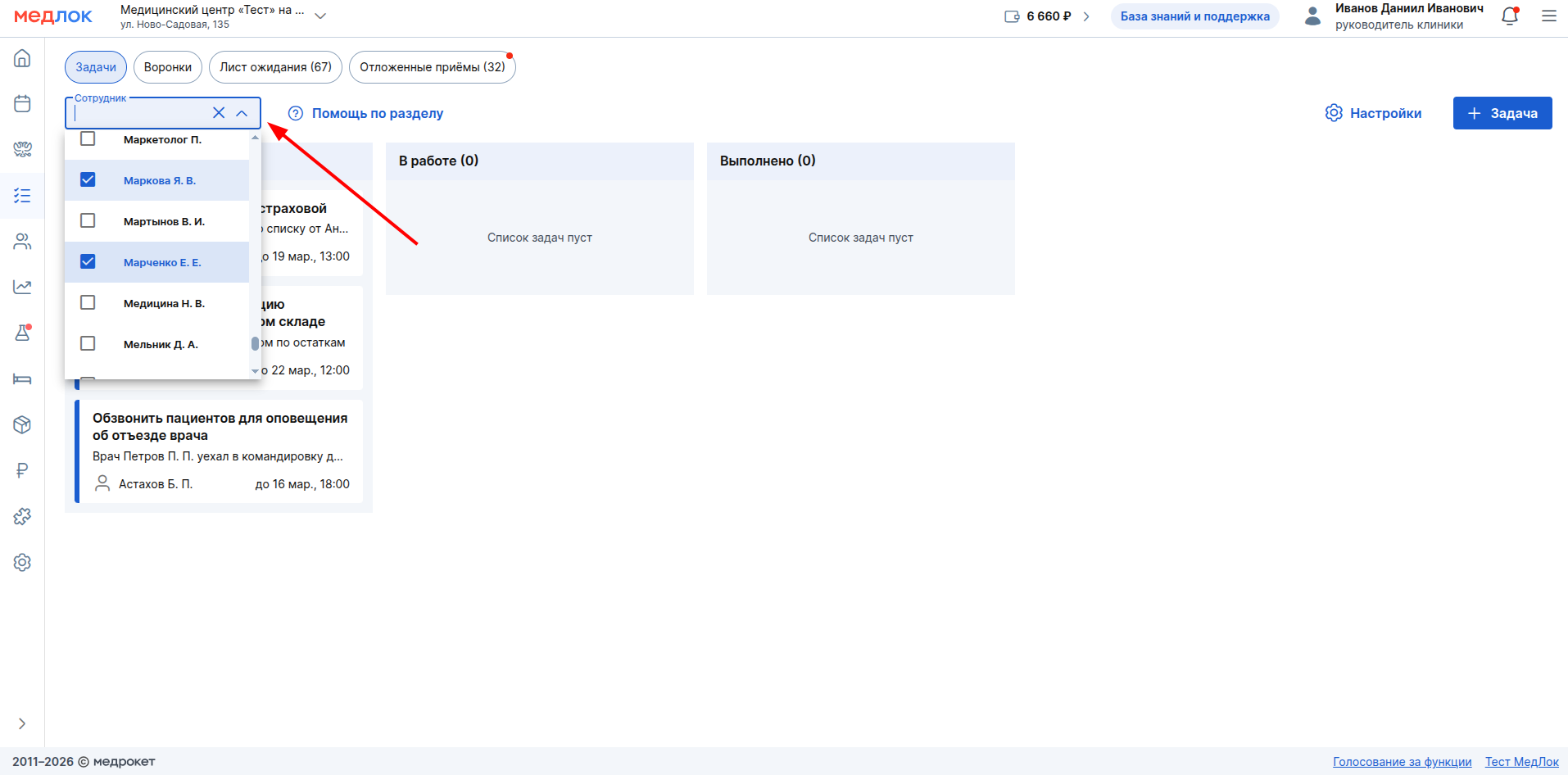
- Filtration: There is a filter above the board«Сотрудник».
- By default, an authorized user is selected in the filter and all tasks where the user is a participant in any role (creator, performer, or observer) are shown.
- You can clear the filter to see all the tasks.
- You can select multiple employees in the filter.
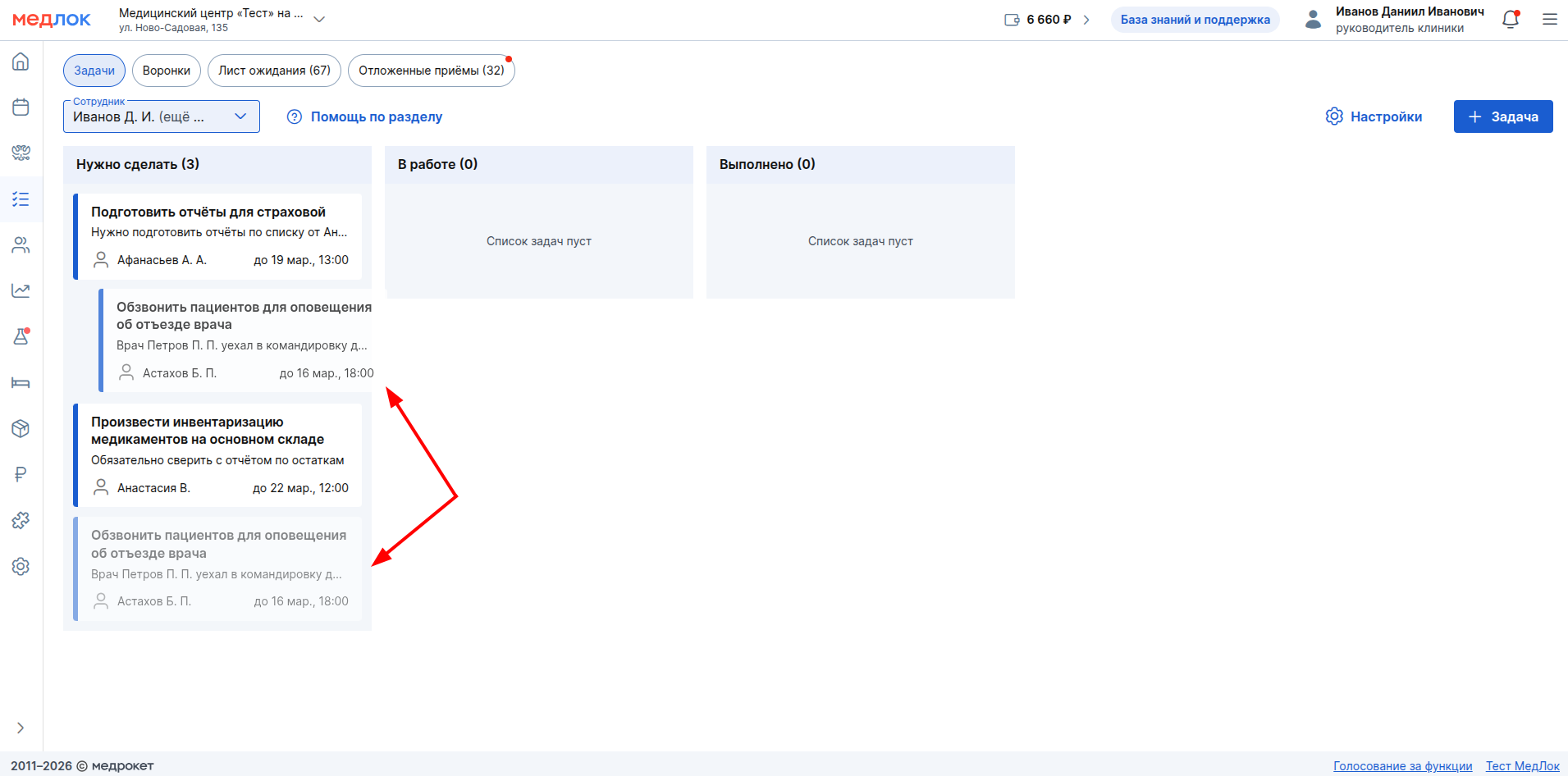
- Dragging: To change the status of an issue, hold it down and drag it to another column.
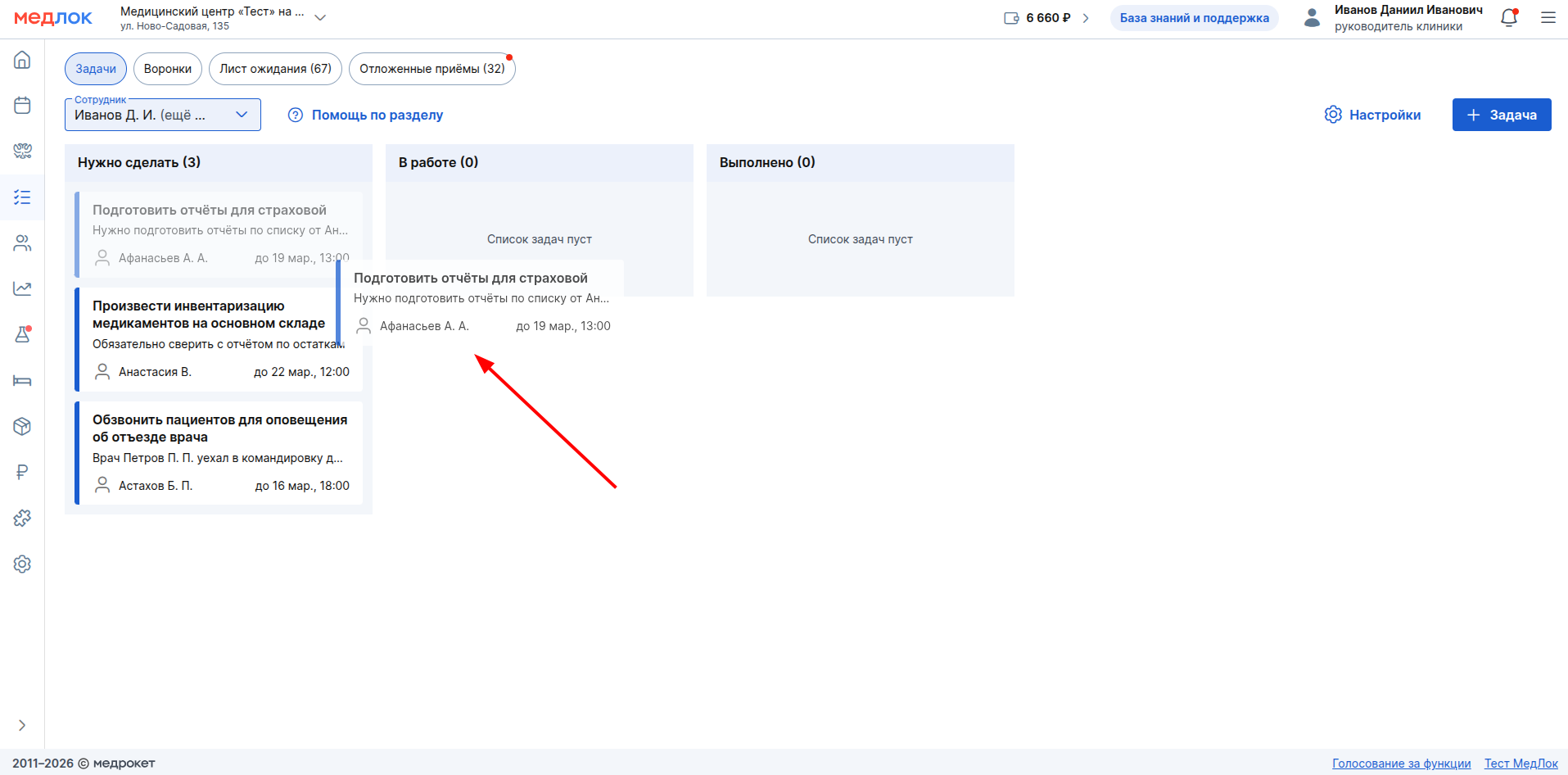
- Sorting: You can manually change the order of the tasks inside the column by simply dragging them.
Overdue tasks
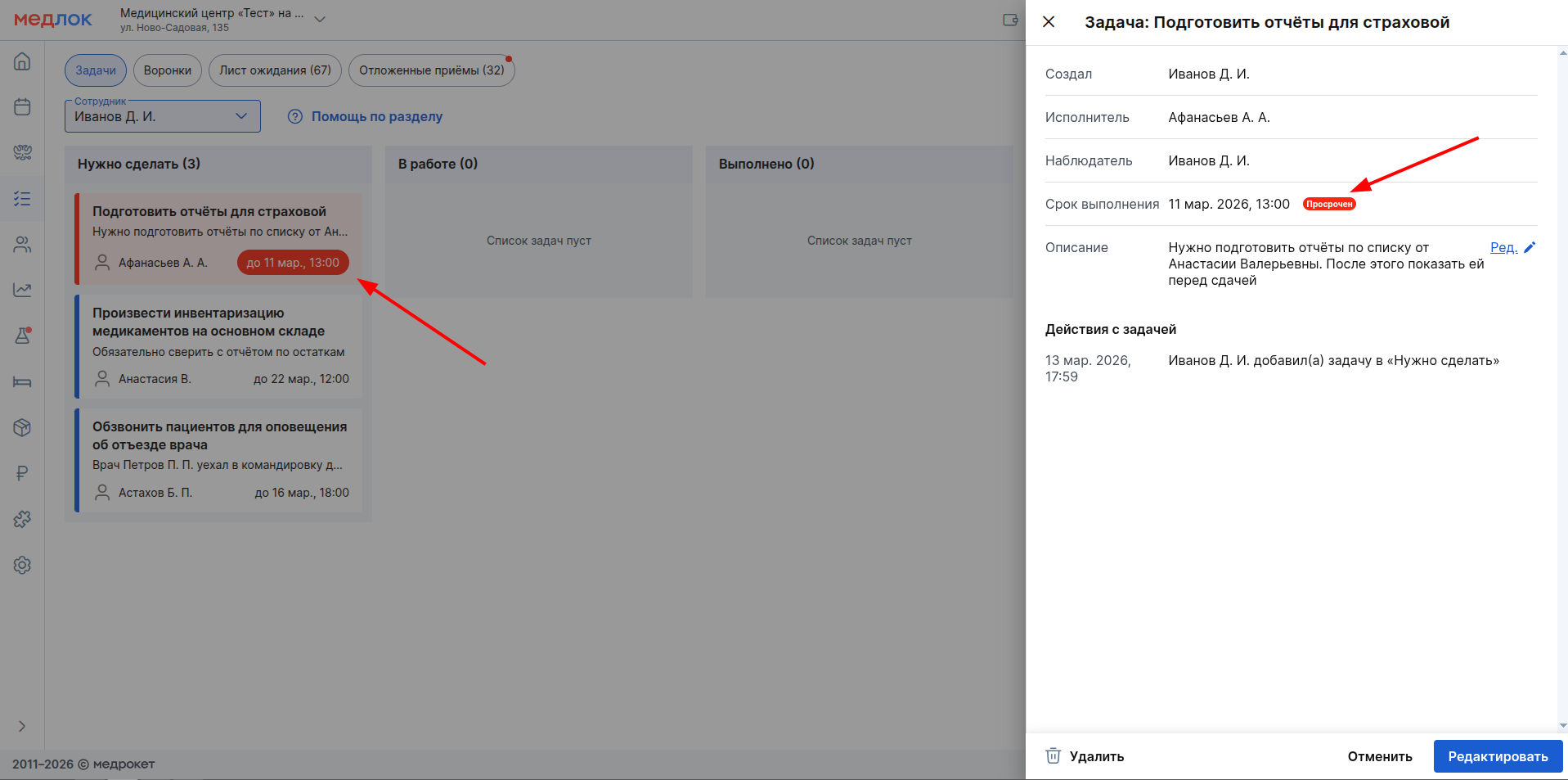
- A task is considered overdue if its deadline has expired and the task itself is not yet in the column«Выполнено».
- If the deadline for completing the task has expired, then the task card and the deadline are highlighted in red on the board. When viewing an issue«Срок выполнения», a red notification is displayed next to the field«Просрочен».
Automatic task deletion
- The tasks in the column «Нужно сделать»are stored for 60 days.
- The tasks in the column «Выполнено»are stored for 90 days.
- Active tasks (in other columns) are not deleted.
Upcoming improvements
- We will finalize the sending of notifications about overdue tasks.