


The article contains sections: 
- Yandex.Checkout activation terms
- ATOL cash register models that work with Medlock
- FFD versions
- Installing/updating the ATOL sales register driver
- Configuring the module«Касса и эквайринг»
- Checking in the Medlock
- Possible errors
Yandex.Checkout activation terms
- Medlock works with the ATOL cash register through the CCT driver, starting with version 10.10.7.0 on the 5.0 platform.
- The cash register must be physically connected to the computer on which the clinic operates in the Medical Center.
- Yandex. Checkout should not be integrated with other programs.
- There is only one cash register connected to the computer.
- ATOL Cash Register does not officially support integration with macOS computers.
ATOL cash register models that work with Medlock
ATOL 30F
ATOL 35F
ATOL 11F
ATOL 55F
ATOL 50F
ATOL FPrint-22PTK
ATOL 20F
ATOL 1F
ATOL 27F
ATOL 25F
ATOL 22 v2 F
ATOL 77F
ATOL 15F
ATOL 91F and ATOL 92F
Features of working with ATOL 91F and ATOL 92F cash desks
ATOL 91F and ATOL 92F cash registers are operated in the following mode«Фискальный регистратор (ФР)»: when the cash register is restarted and the operating mode is selected between Newger
and FR
it is necessary to select «ФР».
If the mode is FR
unavailable:
The absence of this mode in the selection menu means that the cashier does not support it in the current configuration. In this case, you must contact the ATOL support service center to update the hardware firmware.
FFD versions
FFD is a format of fiscal documents.
There are currently three fiscal data formats in Russia:
- FFD 1.05. This format is old and was considered transitional from 1.0 to 1.1. It may be canceled, but so far there is no data on this;
- FFD 1.1. This format has several innovations compared to 1.05. The main thing is counters for various operations, for example, for all operations of arrival or expense, return of arrival, and the number of operations of a specific type. These counters are maintained by the fiscal storage unit, not the cash register itself, so the data is more accurate and can be used for tax audits. In addition, the correction check works differently - it has become more detailed and allows you to correct an error in a previously stamped receipt.;
FFD 1.1 is now the most detailed and user—friendly format for anyone who does not work with labeled goods. But it is not necessary to use it — you can work on FFD 1.05 until it is canceled. - FFD 1.2. The new format, which was introduced on August 6, 2021. It is designed to work with labeled goods and allows you to create new fiscal documents: a request for a labeling code in «Честный ЗНАК»and a response to it, a notification of the sale of labeled goods with a response receipt.
Important! So far, Medlock does not support labeling«Честный ЗНАК». At the same time, the system fully works with all FFD versions, including 1.2, except for labeling functions.
How do I find out which FFD version your sales register supports?
Step 1. Determine the version (model code) of the sales register
You can check this information with the seller.
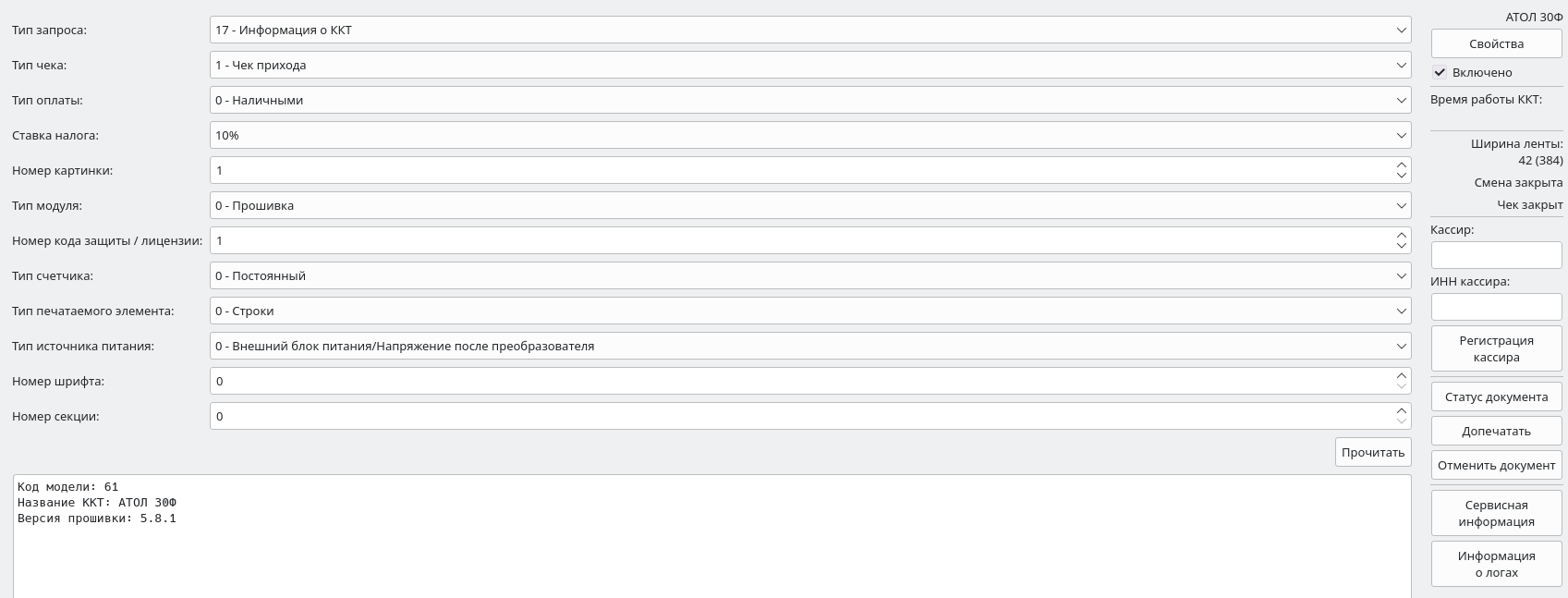
Or check in «драйвере ККТ»the section «Информация о ККТ»in the row «Код модели». The screenshot below shows that the ATOL 30F cash register has a model code of 61 or 061.:
Step 2. Find the cashier in the registry of the KKT of the Federal Tax Service
- Download the registry file on the FTS website.
- Find your sales register by the model name.
You can use the document search. For this:- press the keyboard shortcut
Ctr + F
; - Enter the name of the sales register;
- Press the key
Enter
.
- press the keyboard shortcut
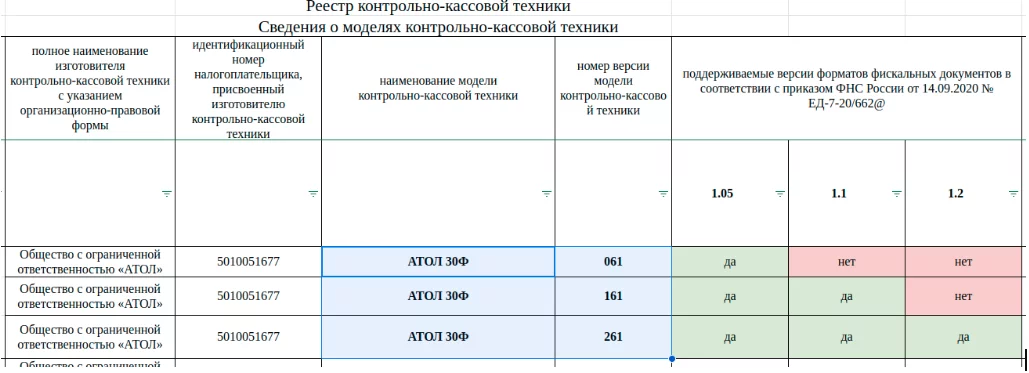
- Find the version number (model code) of your sales register.
For example, the ATOL 30F model may support 1 or 3 FFDs, depending on the version.
Installing/updating the ATOL sales register driver
Important! Before installing/updating, it is necessary to determine the target versions of the Yandex.Checkout software.
The article «АТОЛ: совместимость функций и версий ПО кассы»lists the minimum versions required for specific functionality or compliance with legal regulations.
After you have identified the necessary versions, you can proceed to the next steps.
Checking the compatibility of yandex. Checkout and the new driver version
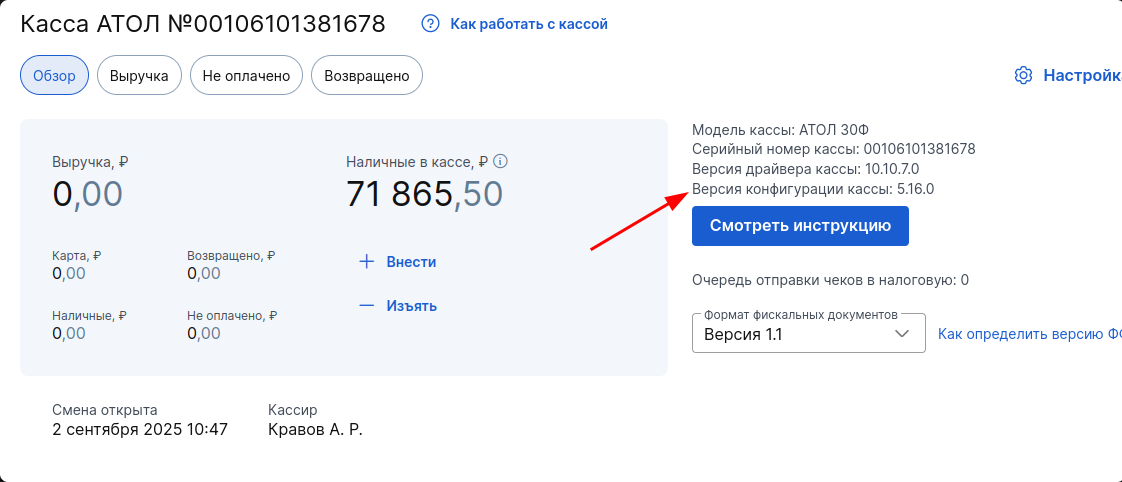
For the stable operation of the yandex.Checkout with the driver, it is necessary to determine the current configuration version. There are several ways to do this.
Option 1: through the Medlock
If the sales register is already connected to the MedLock, then you need to check the configuration version in the module.«Касса и эквайринг»:
Option 2: via the CCT driver
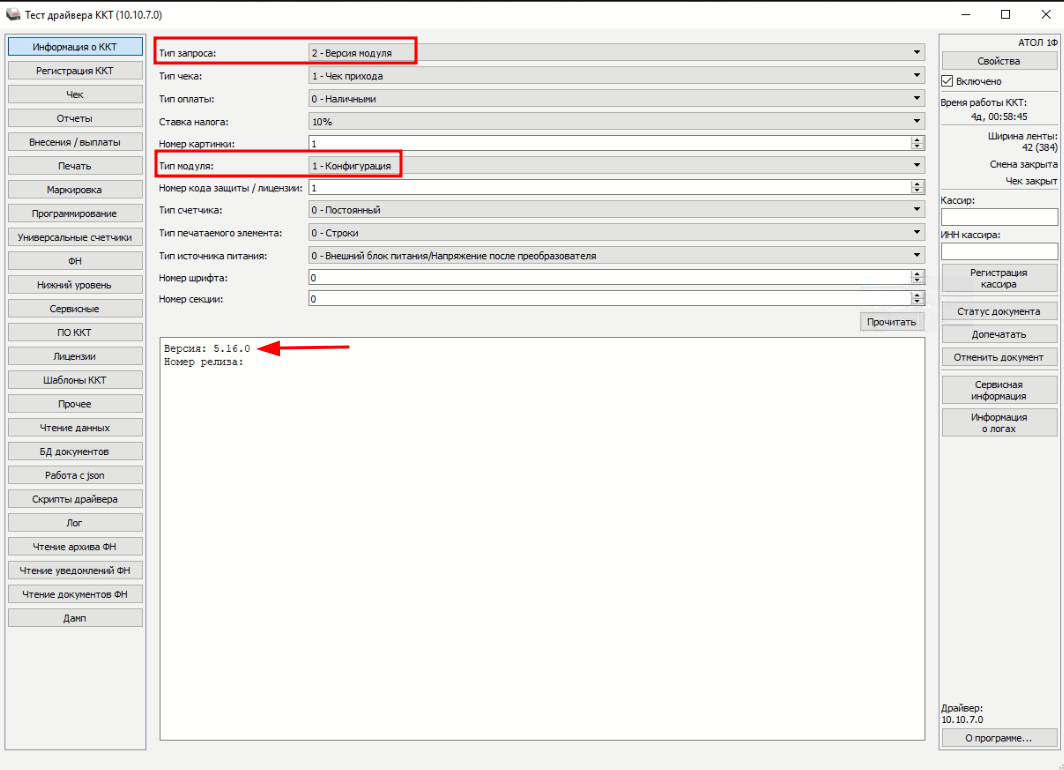
- Launch the CCT driver: click
Launch
(or a keyWin
), search: «Драйвер ККТ», open the app. - Put a check mark «Включено»(under the properties button)
- In the left side menu, select «Информация о ККТ»(1)
- Select the Type of request —«2 — Версия модуля»
- Select the Type of module —«1 — Конфигурация»
- In the section that opens, compare the configuration version with
target
.- If the version matches, you can install the driver immediately.
- If the version does not match, first update the yandex.Checkout configuration by contacting Atol support service.
When contacting ATOL support, be sure to ask a specialist to configure the cash register according to these instructions, paying special attention to creating a username/password and configuring web-Requests and configuring and testing the CCT driver.
If you have verified that your checkout's model is compatible with the target driver version, you can install or update it yourself.
Self-installation of the driver
Important! To perform the steps listed in the instructions, you will need administrator rights on your computer. If they are not available, contact your clinic's system administrator.
- First, determine the bit depth of your operating system (you will need to download the required driver in the next step):
- Press the Win + Pause/Break keys on your keyboard. A window will open for you«Система»;
- in the line «Тип системы»you will see the bit depth: 64-bit or 32-bit operating system.


- For 32-bit Windows, download the file with the name
windows32.
- For 64-bit Windows, download the file with the name
windows64.
For example:

Download here: ATOL Download Center
Installing the driver
- Run the driver installation.
- If you are updating the driver, then after launching you will see a window «Драйвер ККТ v.10 уже установлен...»— click «ОК»and continue the installation.

- Follow the instructions of the installer. When you reach the option to install the add-on, check the box next to Web-Requests.

If you accidentally passed this point and did not check the box, then start the installation again.
- After the installation is complete, check the box next to the item«Запустить и настроить Web-Requests».

- If the driver was installed for the first time: a window will open in the browser (selected by default)
Web-Request
with authorization windows. No user accounts are created during the first installation of ATOL Web-Request. This must be done manually: go to How to create a username and password for ATOL web Request - If you have updated the driver, be sure to do the following:
- Open in the browser: http://localhost:16732 .
- Determine the next steps:
- if you need to request a username and password, go to the section How to create a username and password for ATOL web Request, then follow the instructions in the sections Configuring and testing the CCT driver and Checking in the Medlock.;
- if the interface with the button «Добавить»opens, then go to the instructions in the sections Configuring and testing the CCT driver and Checking in the Medlock.;
- if the link does not open or an error appears, reinstall the driver by enabling the Web-Requests component.
- If you have any questions, please contact your personal manager or our 24-hour support service.
How to create a username and password for ATOL web request
You need to identify the folder where the file is located. atol-fptr-web-request-users.exe
responsible for managing the users of the web server.
If the installation path of the ATOL driver has not been changed, then this file will be located along one of the paths, depending on the bit depth of the installed driver (the driver, not the operating system).
- The path for the 32-bit version of the driver:
C:\Program Files (x86)\ATOL\Drivers10\KKT\web
- The path for the 64-bit version of the driver:
C:\Program Files\ATOL\Drivers10\KKT\web
- Run the command prompt as an administrator:
- click on the Start button (or the Win key);
- enter a query in the search box «cmd»or«Командная строка»;
- find it in the search results«Командная строка», right-click on it and select «Запуск от имени администратора». Or select the appropriate item from the list.

In the open command prompt, type the command:
- The command is provided if the 32-bit version of the driver is installed.:
"C:\Program Files (x86)\ATOL\Drivers10\KKT\web\atol-fptr-web-requests-users.exe" add admin Admin0123456789
- The command, if the 64-bit version of the driver is installed:
"C:\Program Files\ATOL\Drivers10\KKT\web\atol-fptr-web-requests-users.exe" add admin Admin0123456789
The meaning of the command is as follows:
- "C:\Program Files\...\atol-fptr-web-requests-users.exe " is this the address;
- add is an action (a command to add a new user);
- admin is the user name (login).;
- Admin0123456789 is the password.
Important! You must enter the username and password from the instructions - no changes.
- Press Enter.
Upon successful addition, a similar message will appear.:

- Next, you need to close the command prompt and open the browser. Enter the address in the browser: localhost:16732
- Enter the login and password for the Web Request:
- login: admin
- Password: Admin0123456789
If everything is done correctly, a new window will appear with the button«+ Добавить»:

- If there are errors during authorization in the web request, it is possible that the user was created incorrectly. In this case, you can delete it with the command:
"C:\Program Files\ATOL\Drivers10\KKT\web\atol-fptr-web-requests-users.exe " del account name
In our case, the command will look like this:
"C:\Program Files\ATOL\Drivers10\KKT\web\atol-fptr-web-requests-users.exe" del admin
Then carefully repeat the steps of creating the user again.
Configuring and testing the CCT driver
- Launch the CCT driver: press the Start button (or the Win key), search for: «Драйвер ККТ», open the application.
- Check the box «включено»(1).
- Click on the button«Свойства»

- In the new window, click on the button«Проверка связи».

The «Результат»name of the cash register model and its number will appear in the window.
- It is recommended to check the version of the fiscal storage device immediately.:
- Select the button «ФН»(2) on the left in the menu;
- in the popup menu «Тип данных»(3), select«7 - Информация о версиях ФФД»;
- next, press the button «Запросить»(4);
- «Версия ФФД ФН»copy the model number in the message that appears;

- In the section«Регистрация ККТ», make sure that the correct tax system for your clinic is specified in the default settings. It is important to check the exact value«По умолчанию», since the Medlock uses it for work.

If the wrong SRS is installed, contact the service center to re-register the cash register.
- Next, you need to return to the web-request page in the browser.
- Click on the button «Добавить»and insert the cashier's number in both fields.

- Click on the button
Add
— the sales register has been added to the web request. - Turn on the slider in the«Работа с ККТ»

Attention: the connection status may not be displayed correctly (as in our example), this does not affect the operation of the checkout!
Setting up access rights for working with yandex.Checkout
- Log in to the system administrator's profile at the 3rd authorization step.
- Open user editing.
- Click«Настроить права доступа».
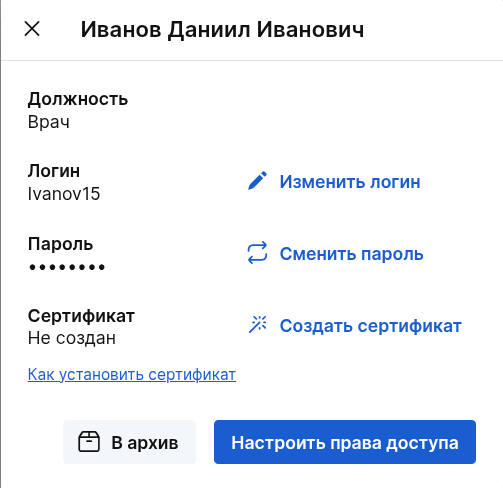
- In the window that opens, check the box next «Касса»to and «Подключение модулей».
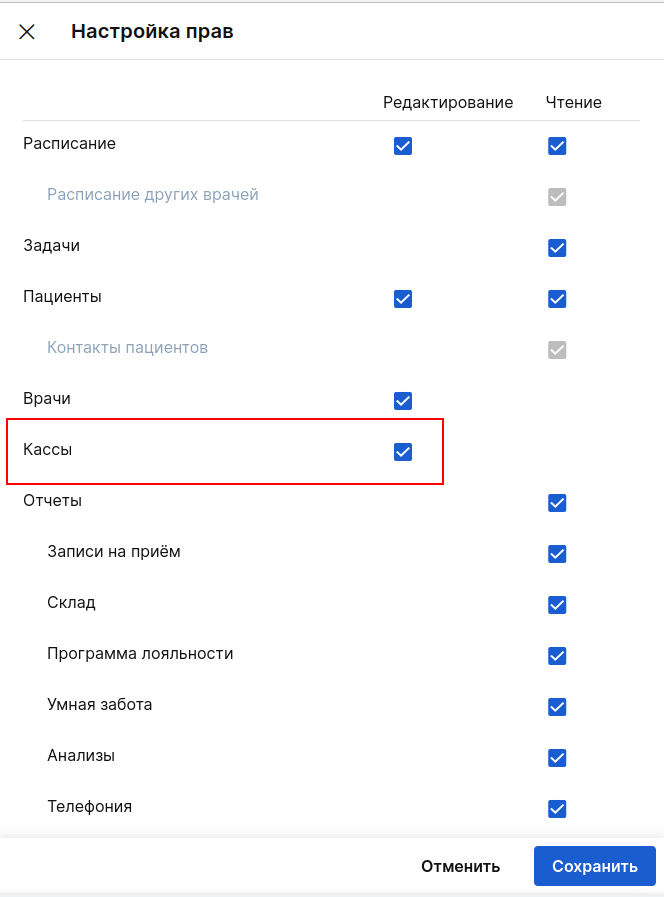
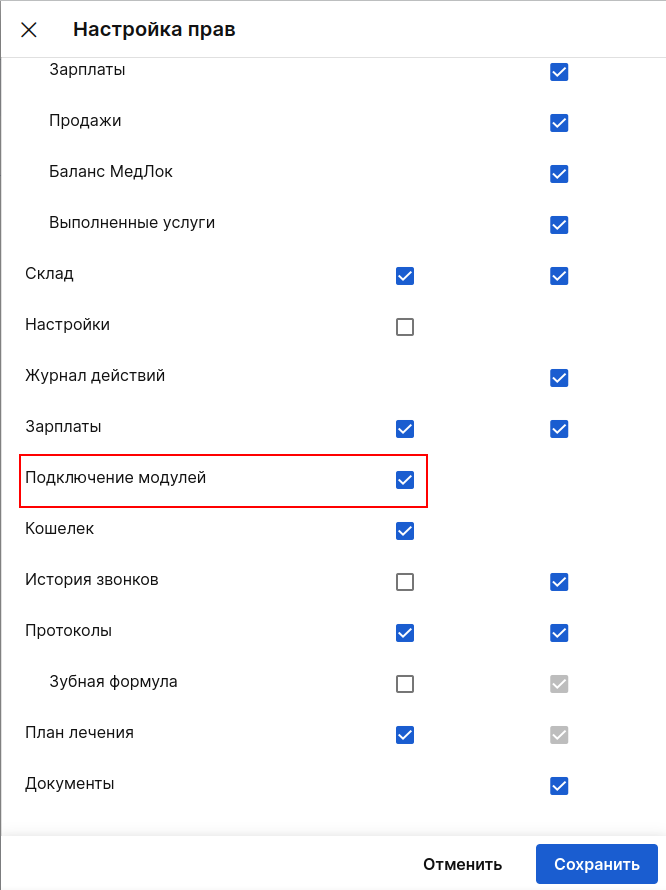
- Click«Сохранить».
- The tab «Касса»appears when access rights are enabled in the top menu.
Configuring the module«Касса и эквайринг»
Go back to authorization step 3 and log in to the profile of the employee who has access rights set up. You can open a shift through this employee's profile.
- Go to the section «Модули».
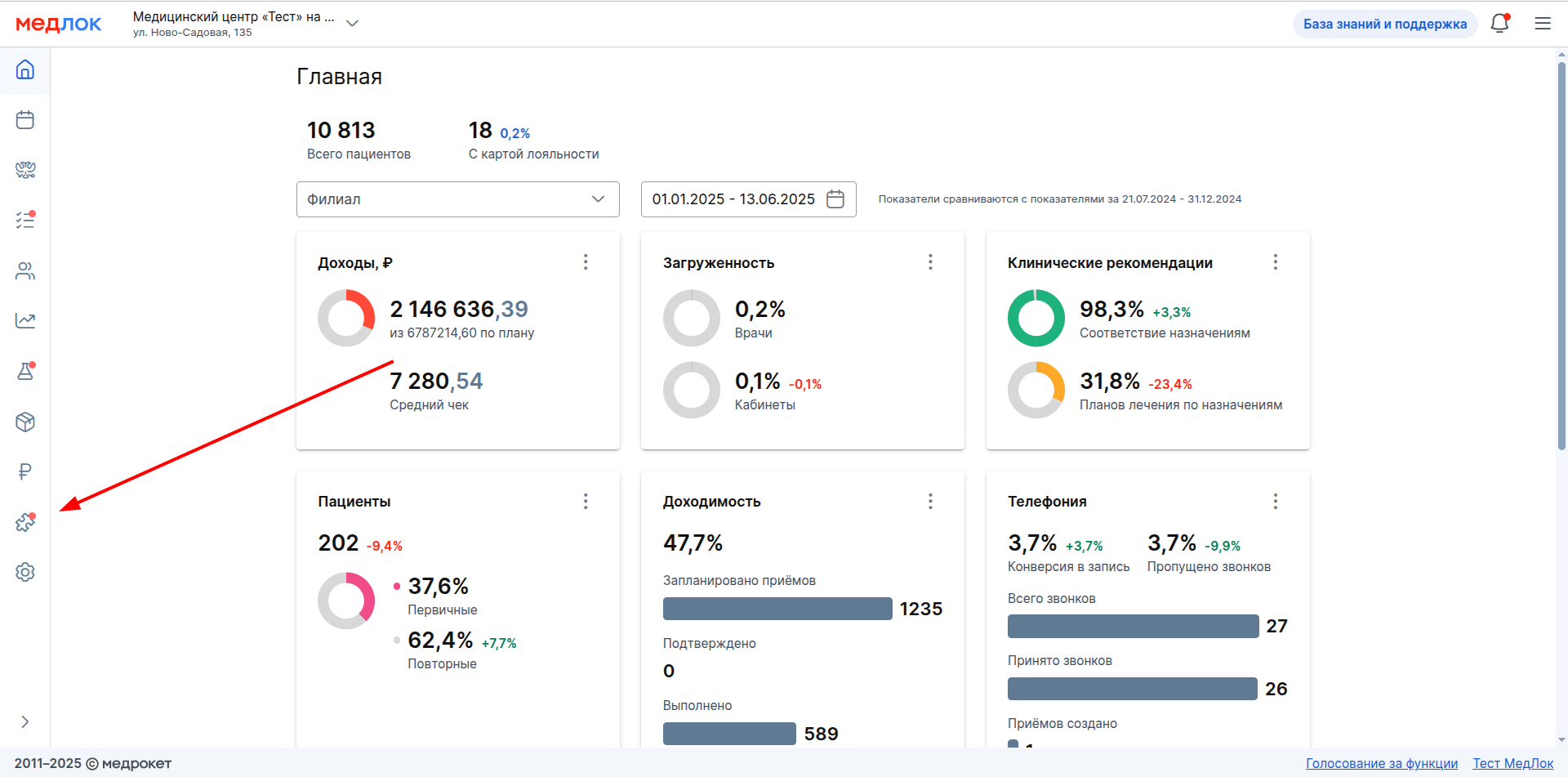
- Select a section «Стандартные».
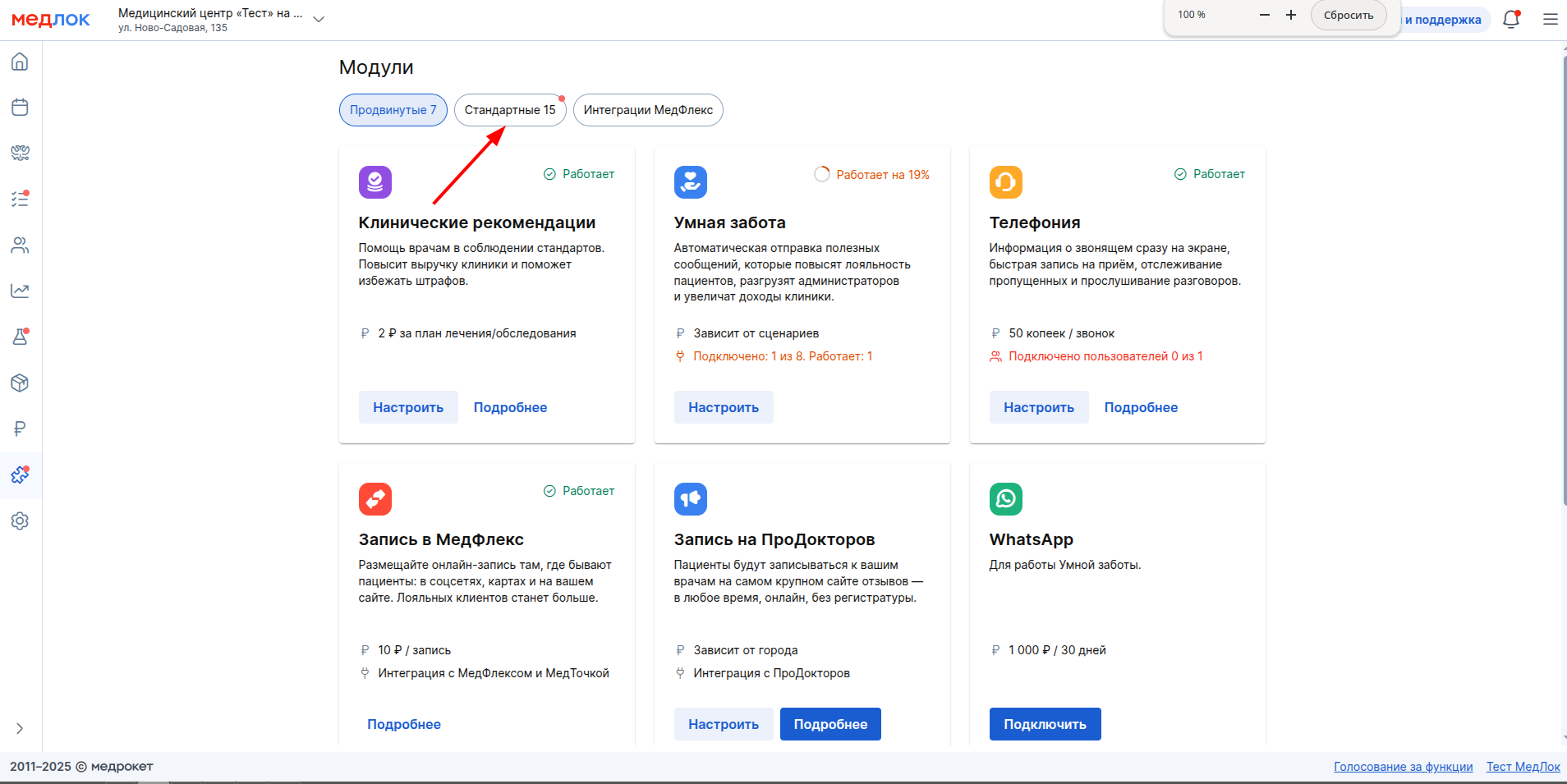
- In the module window«Касса и эквайринг», click «Настроить».

- In the window that opens, move the slider opposite the ATOLL to the right, it should turn blue. Here you can also choose the method of sending electronic checks and completely abandon the printing of checks.
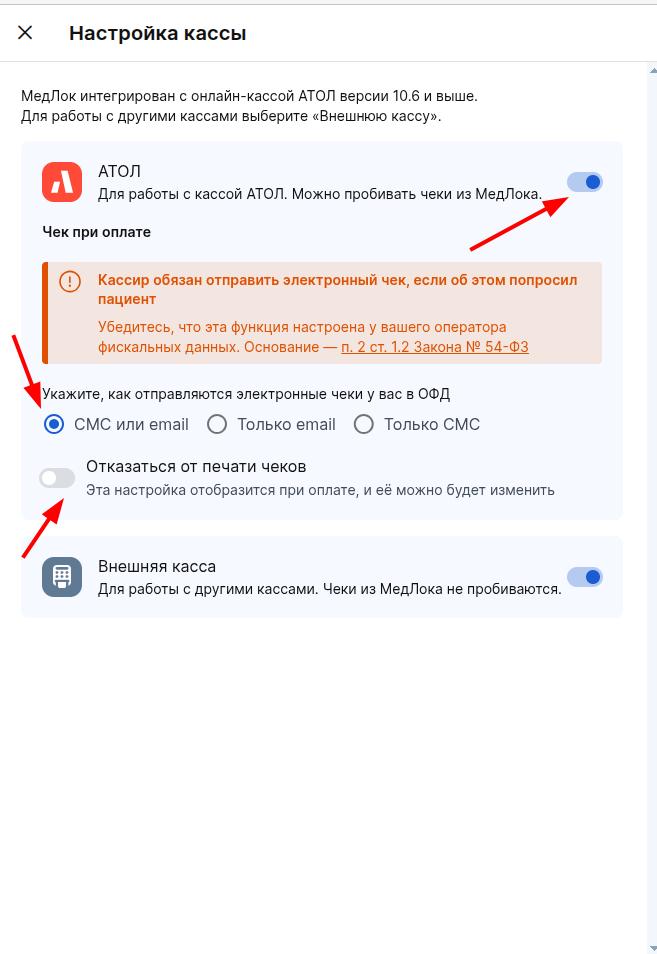
After successfully connecting the module«Касса и эквайринг», you can start working.
Checking in the Medlock
- Log in to Medlock or refresh the page.
- Log in to the module«Касса и эквайринг».
- Select your FFD (in step 1, the line where you can see the FFD FN version).
- Open the shift and start printing the x-report.
If everything worked out, then the setup is over.
If there are any problems:
- check if the path is copied correctly.;
- make sure that the command prompt is running as an administrator.;
- if the driver is installed in the wrong place, reinstall it again, specifying the correct path.
If you have any questions, please contact your personal manager or our 24-hour support service.
Possible errors
Does an error appear when the driver «Порт занят»is turned on?
If you try to activate the CCT driver (by checking the box «Включено») you see an error«Порт занят», which means that another service or program is already using the yandex.Checkout connection. This is most often due to the working web interface of the driver (Web-Requests).
How can I disable the Web-Requests of the driver?
- Open the browser.
- In the address bar, enter: http://127.0.0.1:16732 and click
Enter
- The ATOL driver's web interface should open.
- Enter the login and password for the Web Request:
- Login: admin
- Password: Admin0123456789
- Find the button
Working with CCT (off/on)
— select a positionoff

- Close the browser tab.
- Run the CCT driver and try to check the box again«Включено».