


Clinics in Kazakhstan can specify the individual patient identification number (IIN) in the medical device and then use it to search through the patient database.
How to specify the IIN when adding a patient 
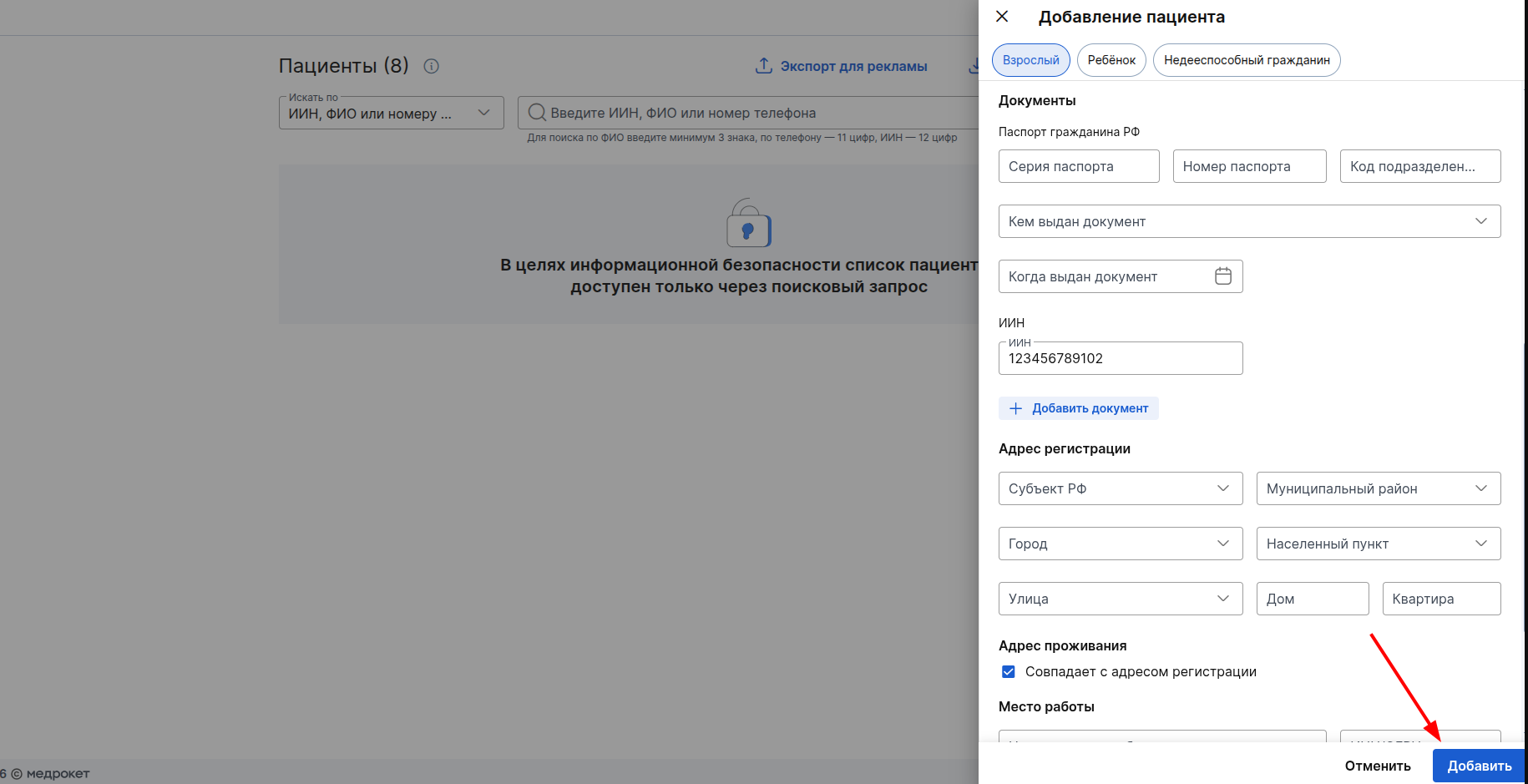
To add a patient, go to the appropriate section of the medical device and click on «+ Пациент».
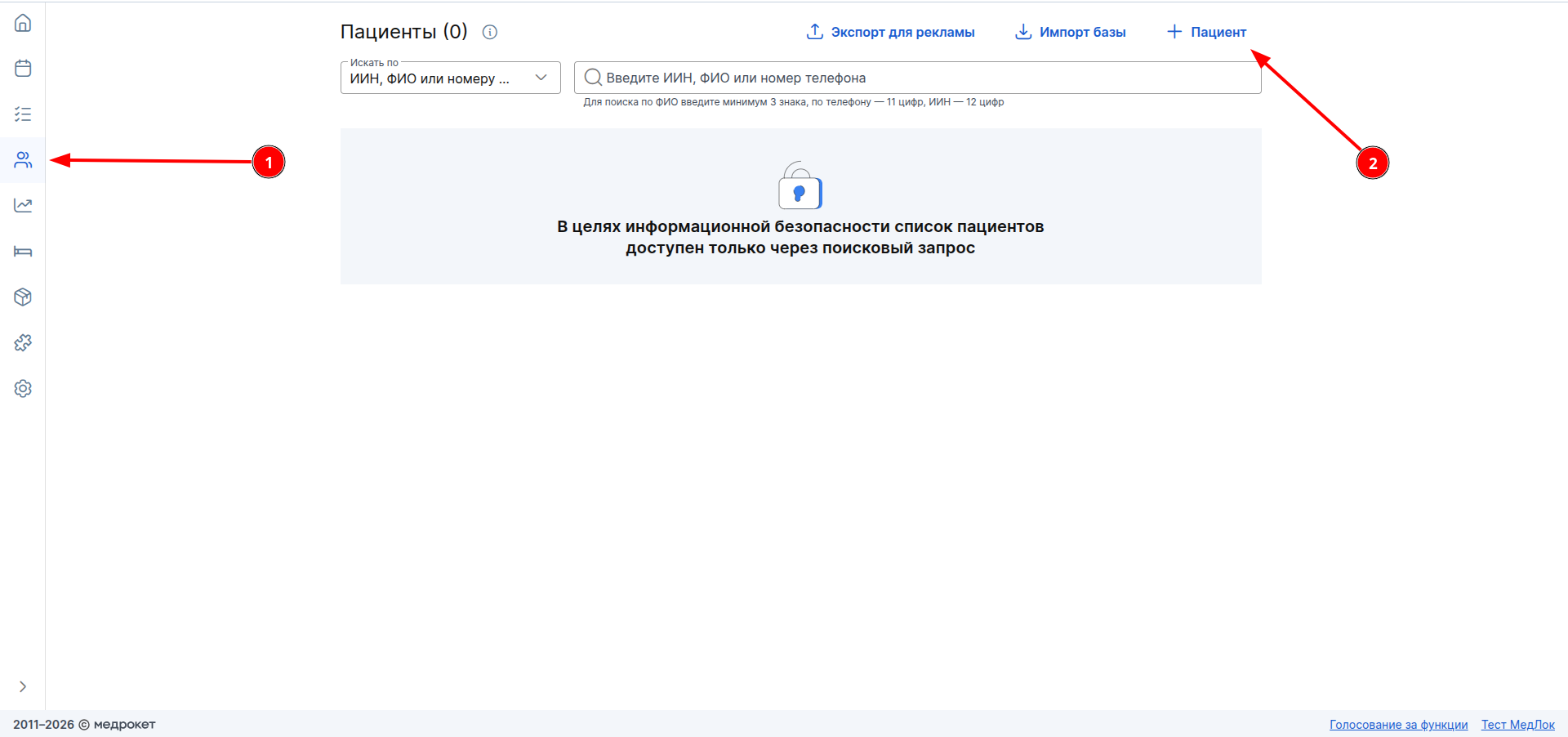
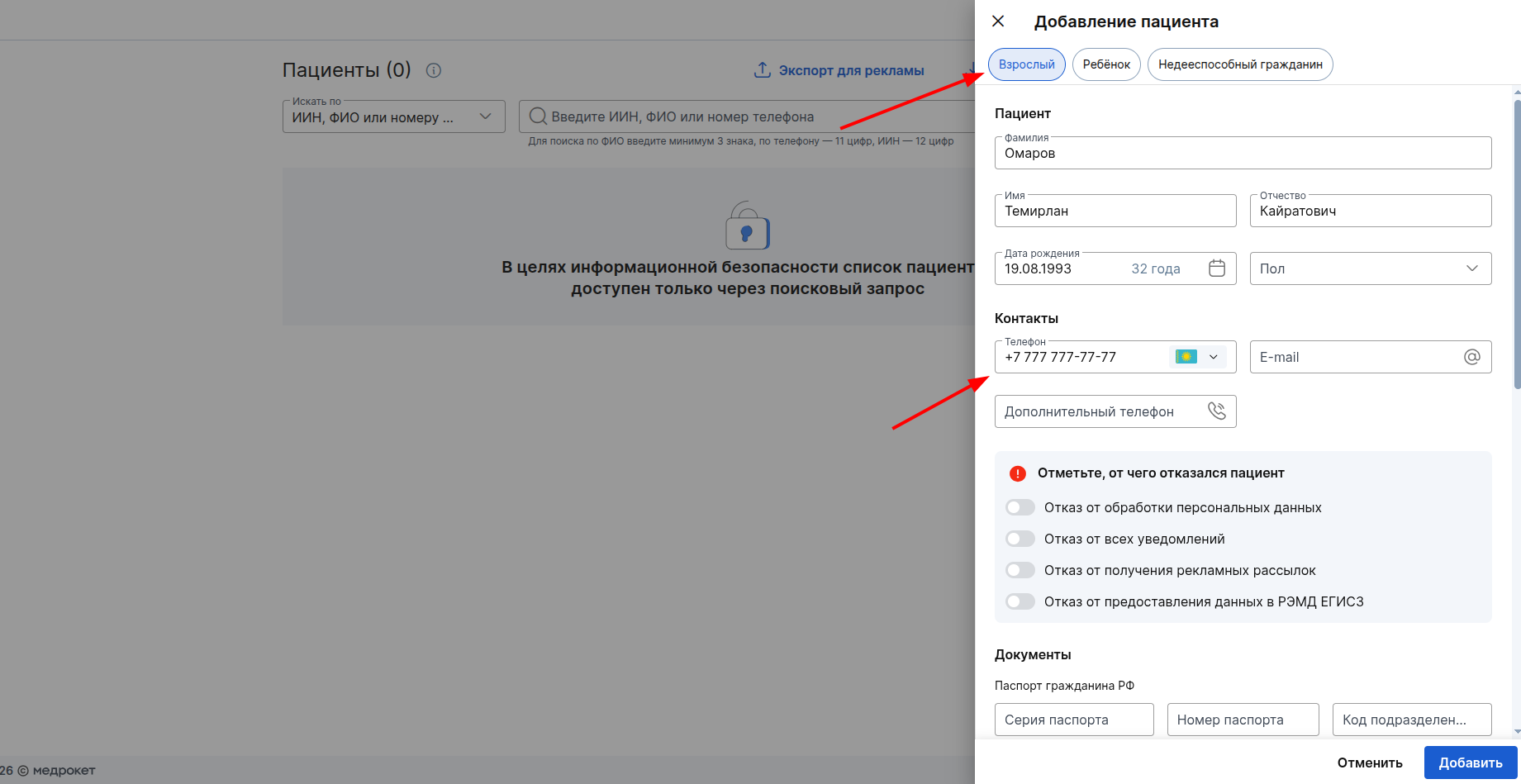
Specifying the IIN of an adult patient
The patient type will be automatically selected in the Add patient window«Взрослый». Be sure to provide the patient's phone number, as well as other information about the patient, if necessary.
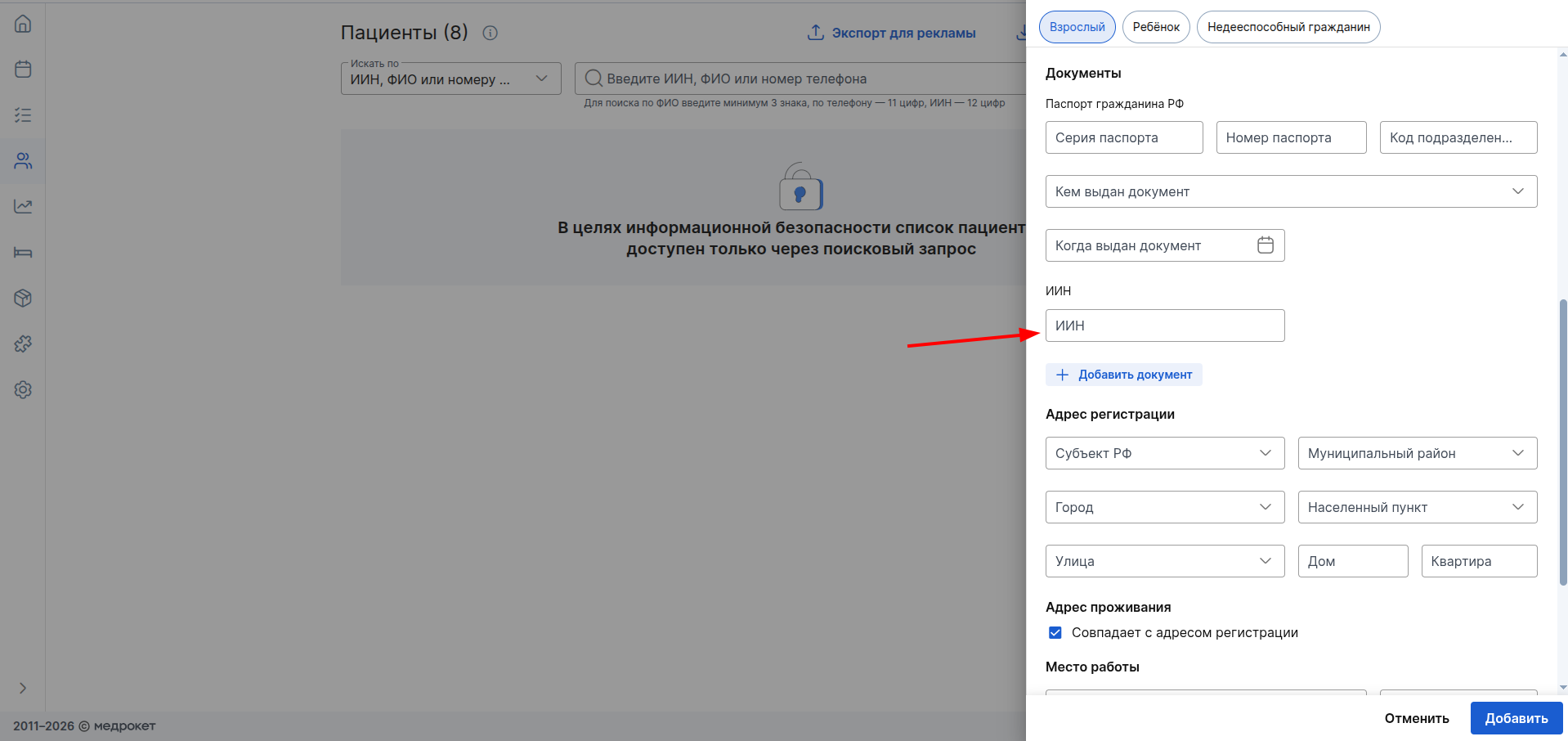
In the section below«Документы», you can specify the patient's IIN.
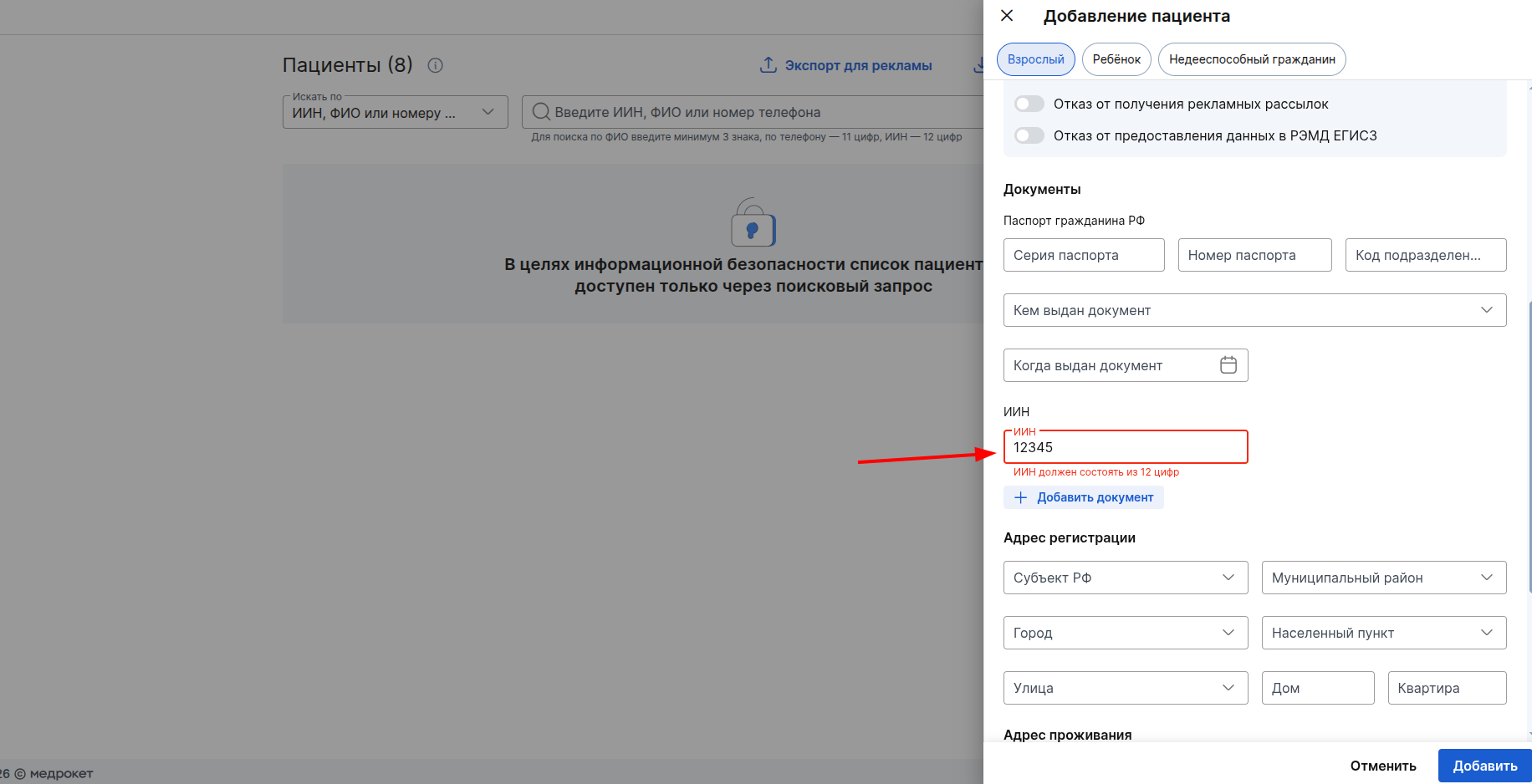
This number is 12-digit, and if more or fewer digits are specified, the field will turn red and you will not be able to save the changes.
After specifying all the necessary information about the patient, click on the button«Добавить».
Finding a guardian by IIN when adding a minor or incapacitated patient
In the Add patient window at the top, select the patient type «Ребёнок»or «Недееспособный гражданин».
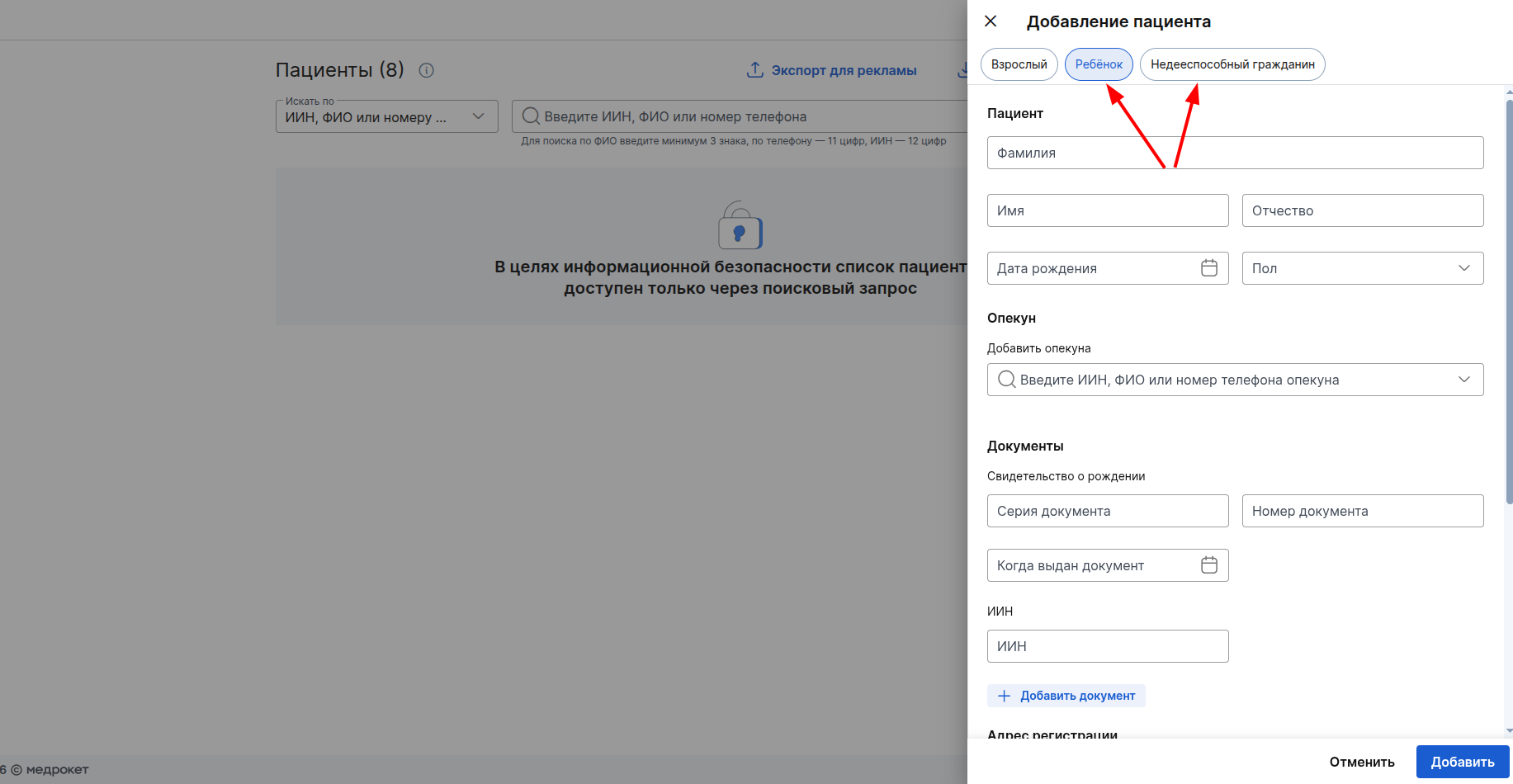
A guardian must be indicated for these types of patients. You can find a guardian among adult patients not only by full name or phone number, but also by IIN.
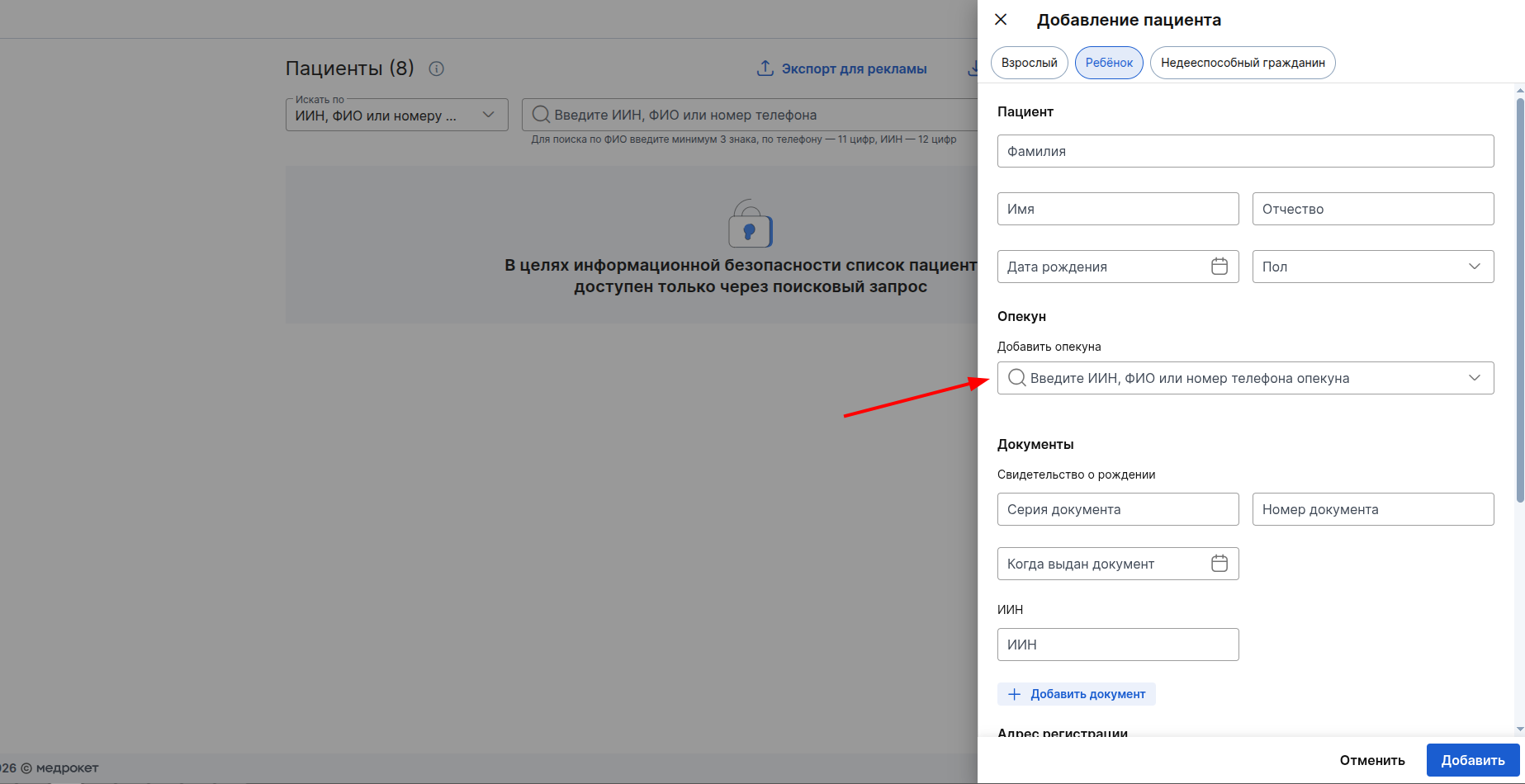
The adult patient must have an IIN specified in the profile so that it can be found in the Add minor or incapacitated window and made a guardian. To search, enter a 12-digit IIN in the search bar.
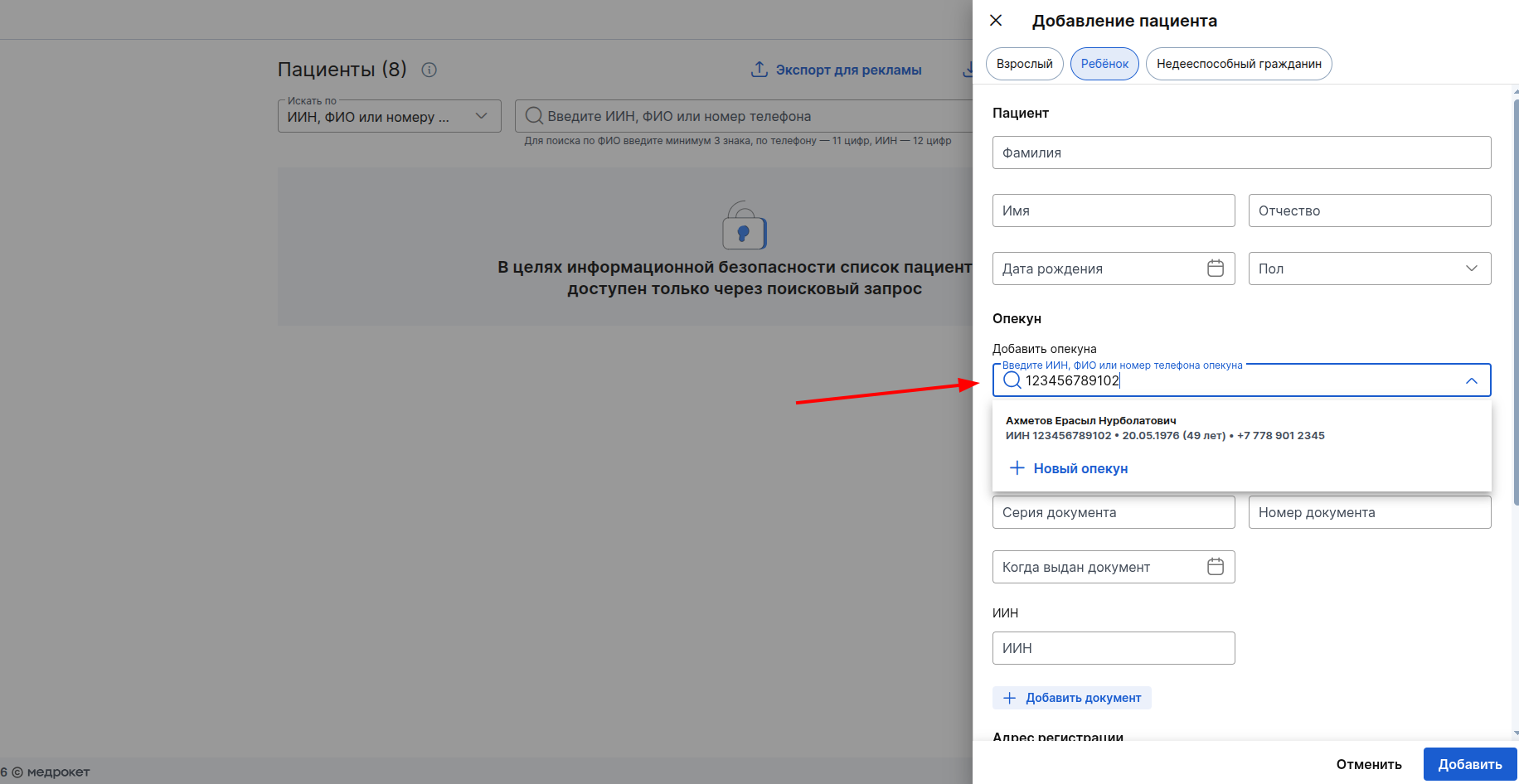
Important! Wherever a patient ID search is available, it only works if the number is a complete match and only when you enter the full number in the search bar.
The patient's IIN is also indicated under the patient's full name in the search results. Click on it to make it a guardian.
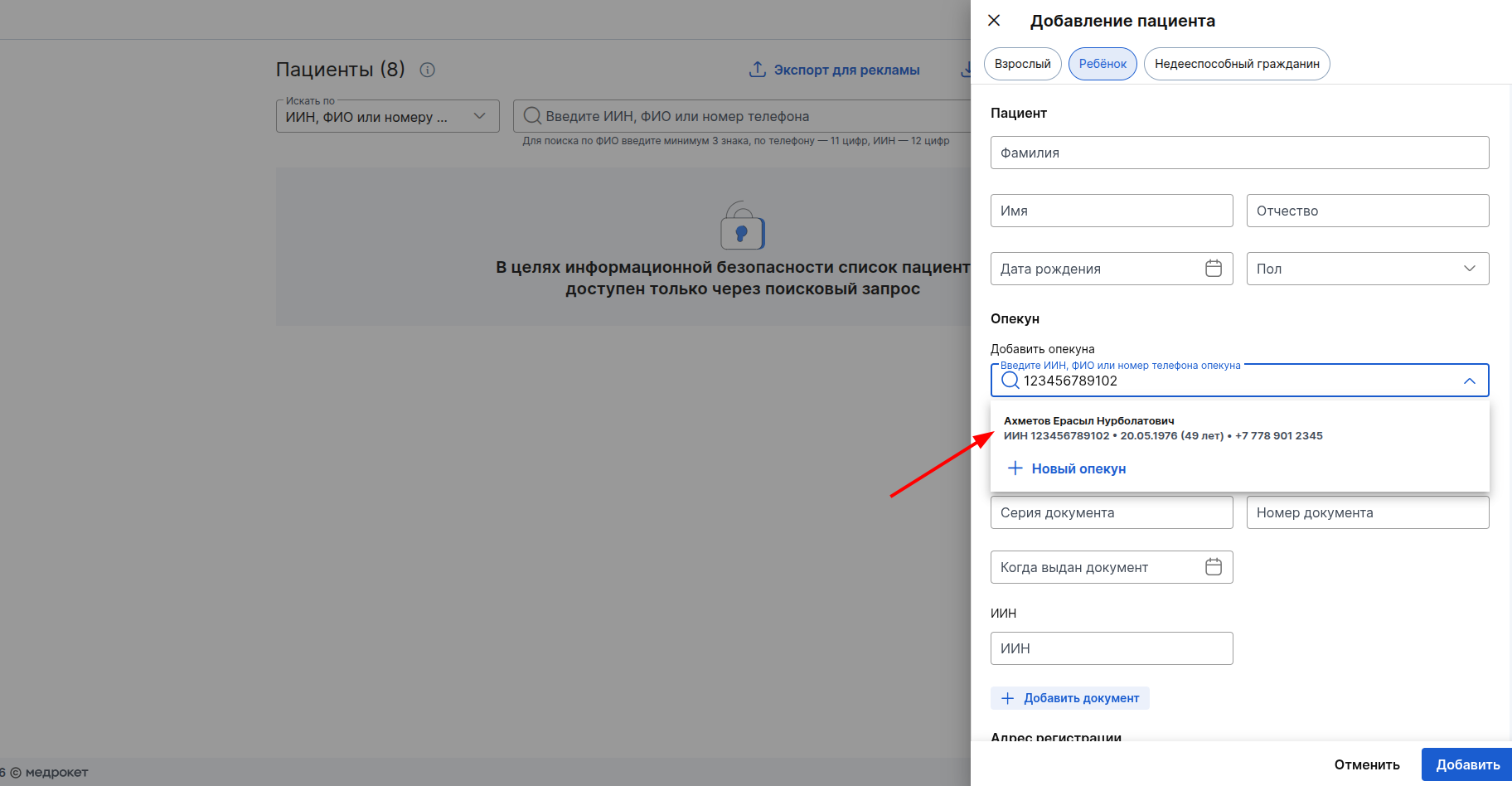
You can also specify the ID of a child or an incapacitated patient.
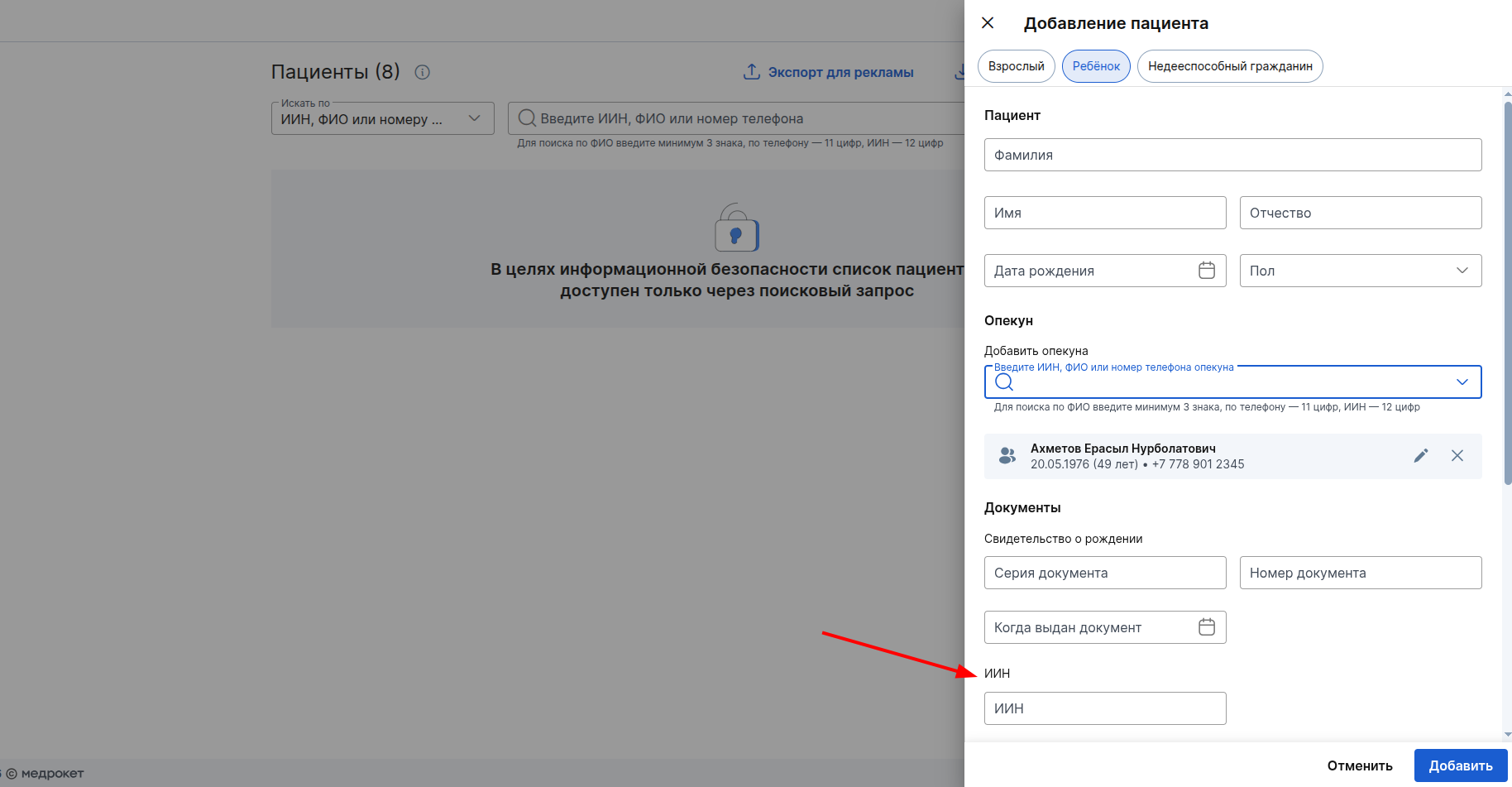
Specify other necessary information and click «Добавить».
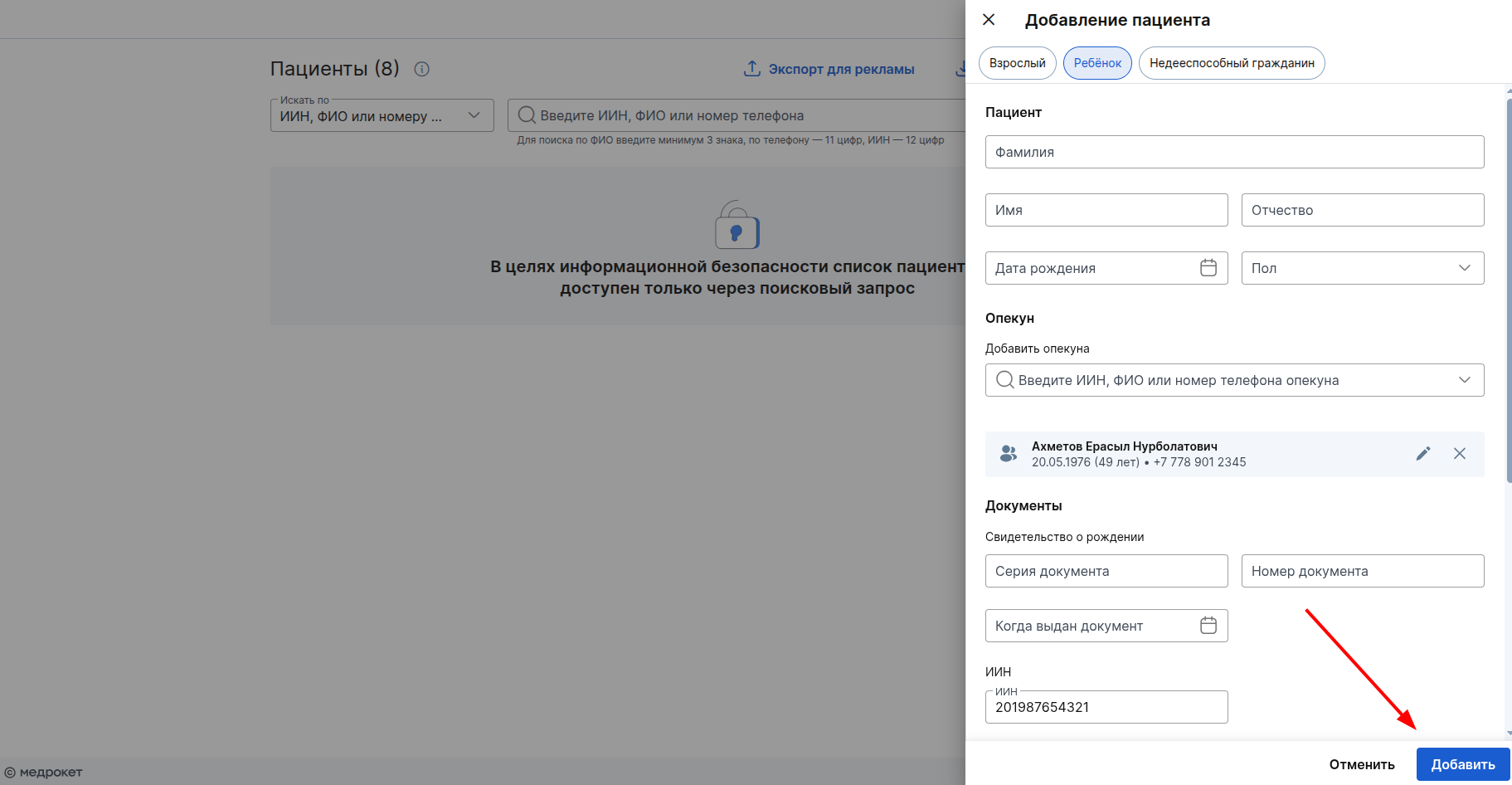
For more information about creating patients with caregivers, see the article Creating a Minor patient.
Patient search by IIN when making an appointment
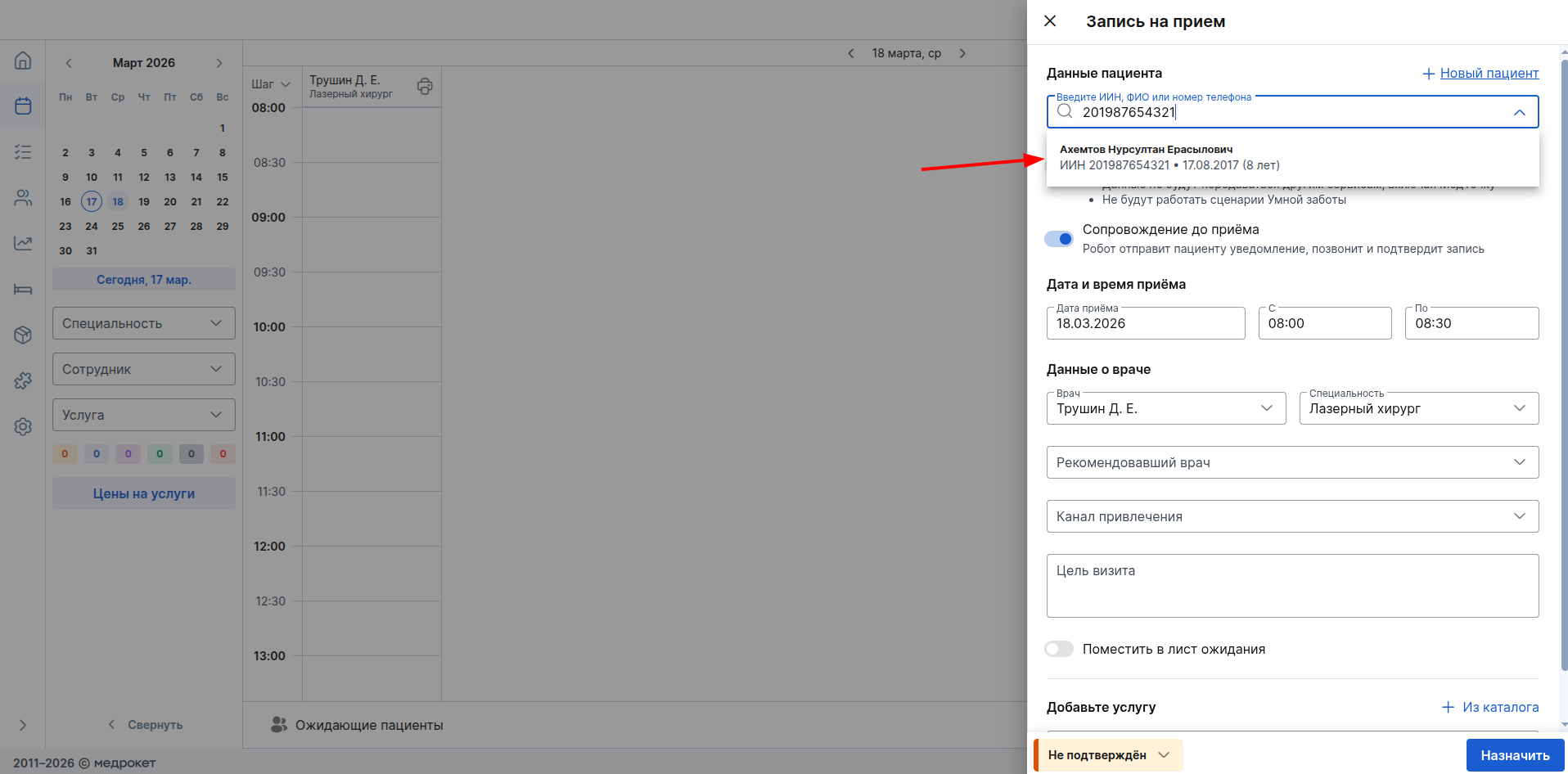
When you add an appointment, you can also find a patient by IIN.
Click on the search box and enter the number.
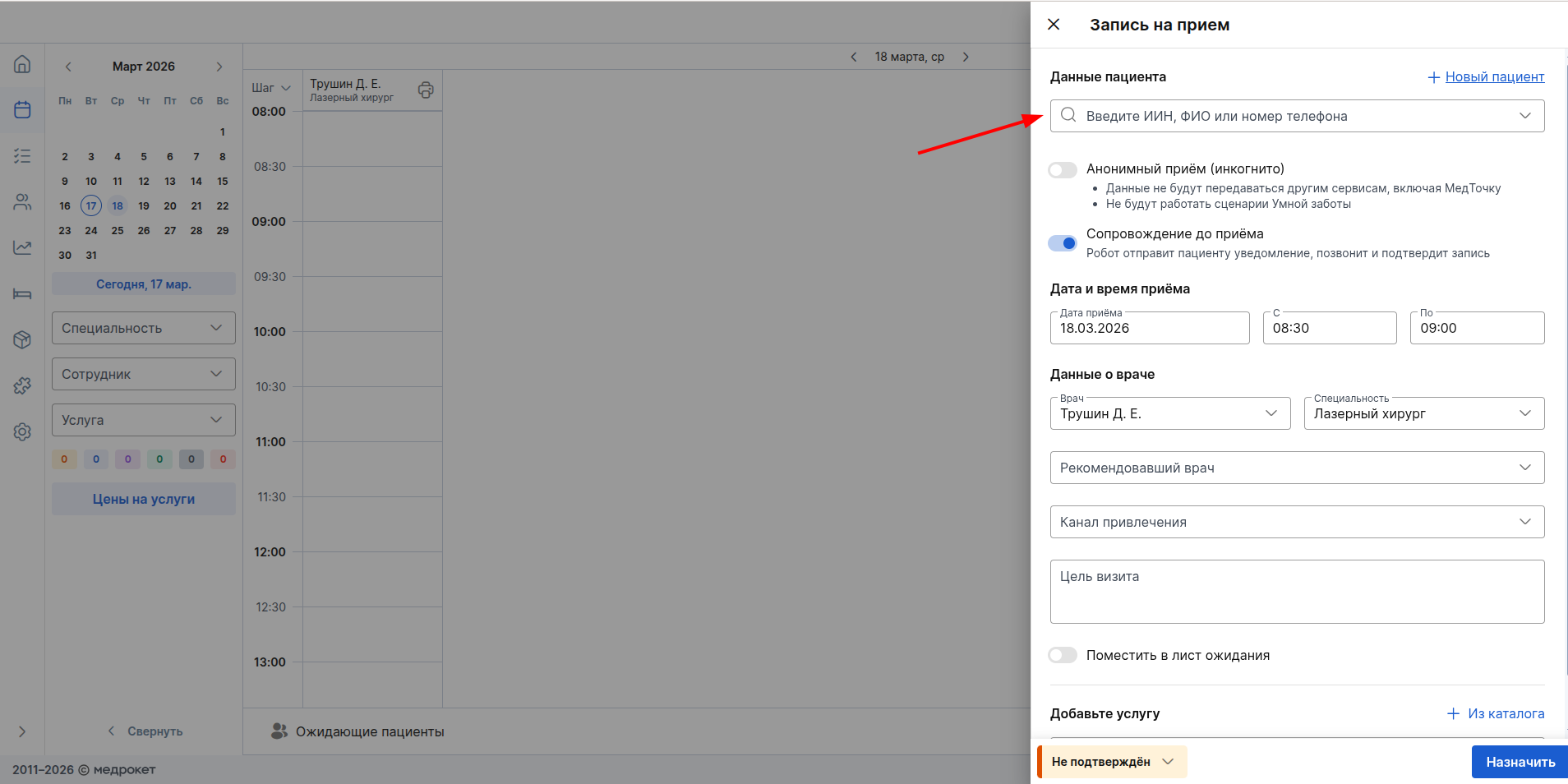
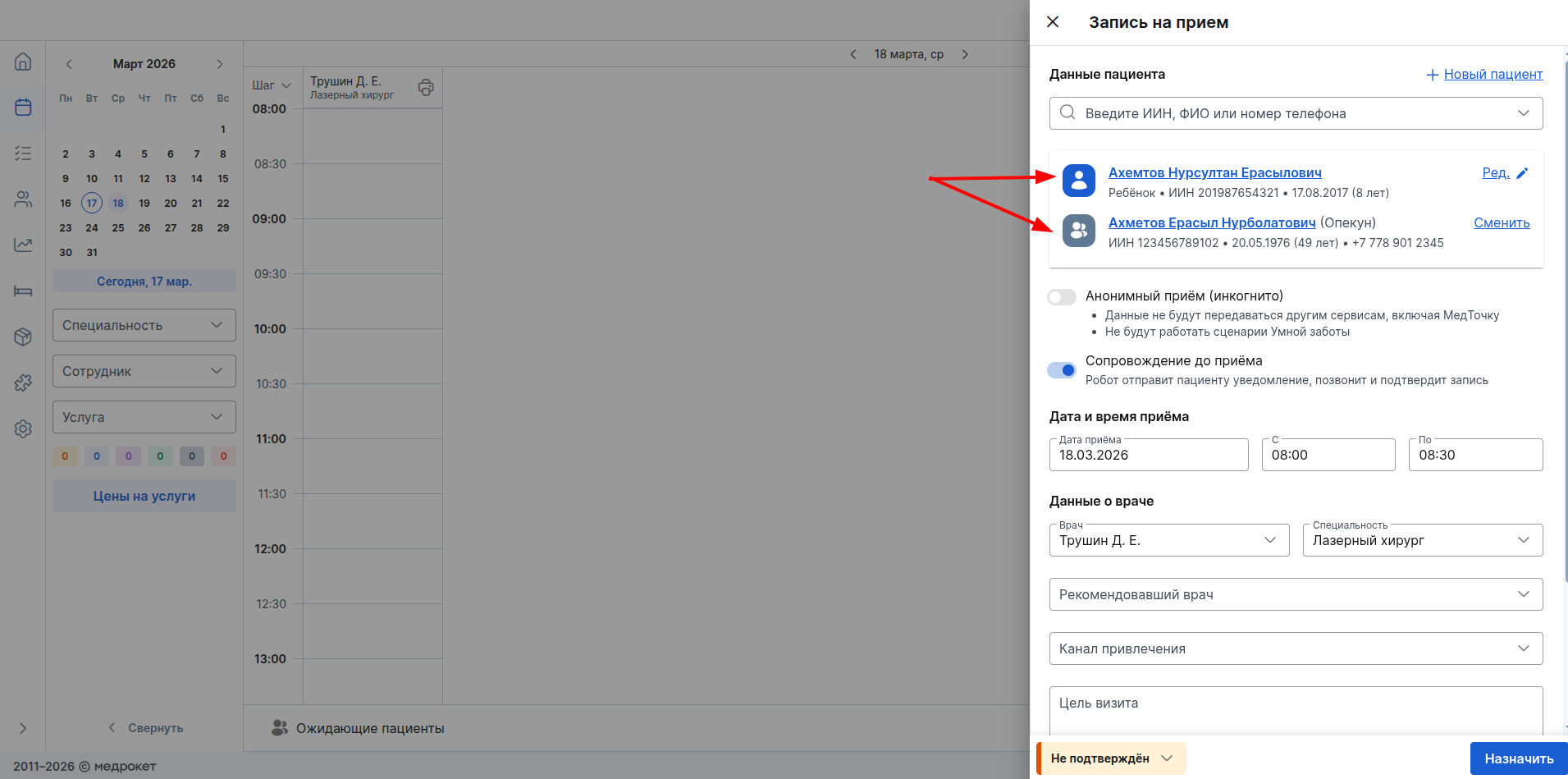
When the patient is found, click on it to add it to the appointment.
If the added patient is a child or an incapacitated person, then his guardian will be displayed next to him. The IIN is displayed under the name of the added patient and his guardian.
Enter other necessary information in the appointment and click «Назначить»at the bottom.
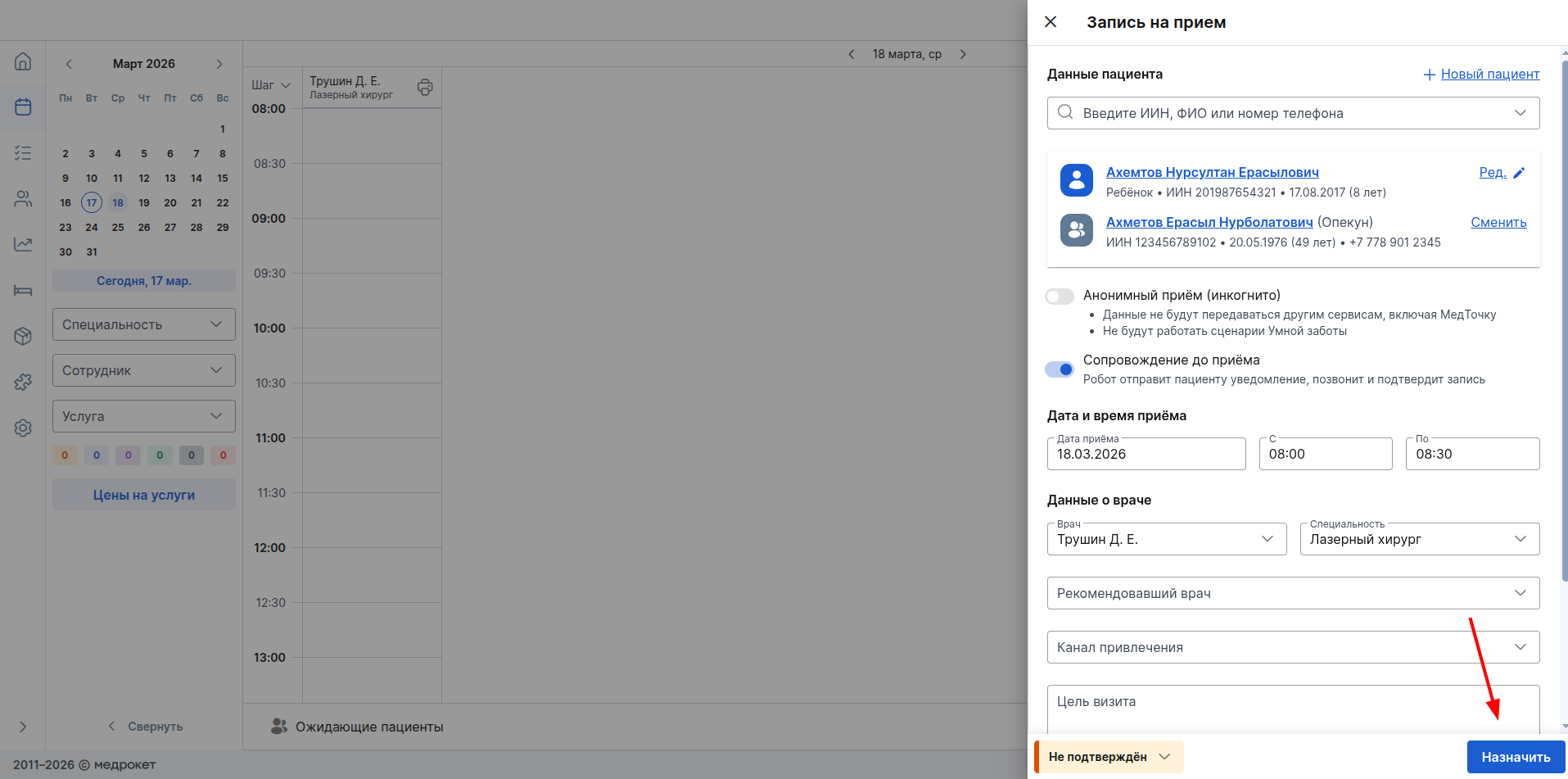
For more information about creating schedule entries, see the article Make an appointment.
IIN search in the section «Пациенты»and IIN display in the patient profile
To find a patient using the IIN in the clinic's database, go to the section «Пациенты».
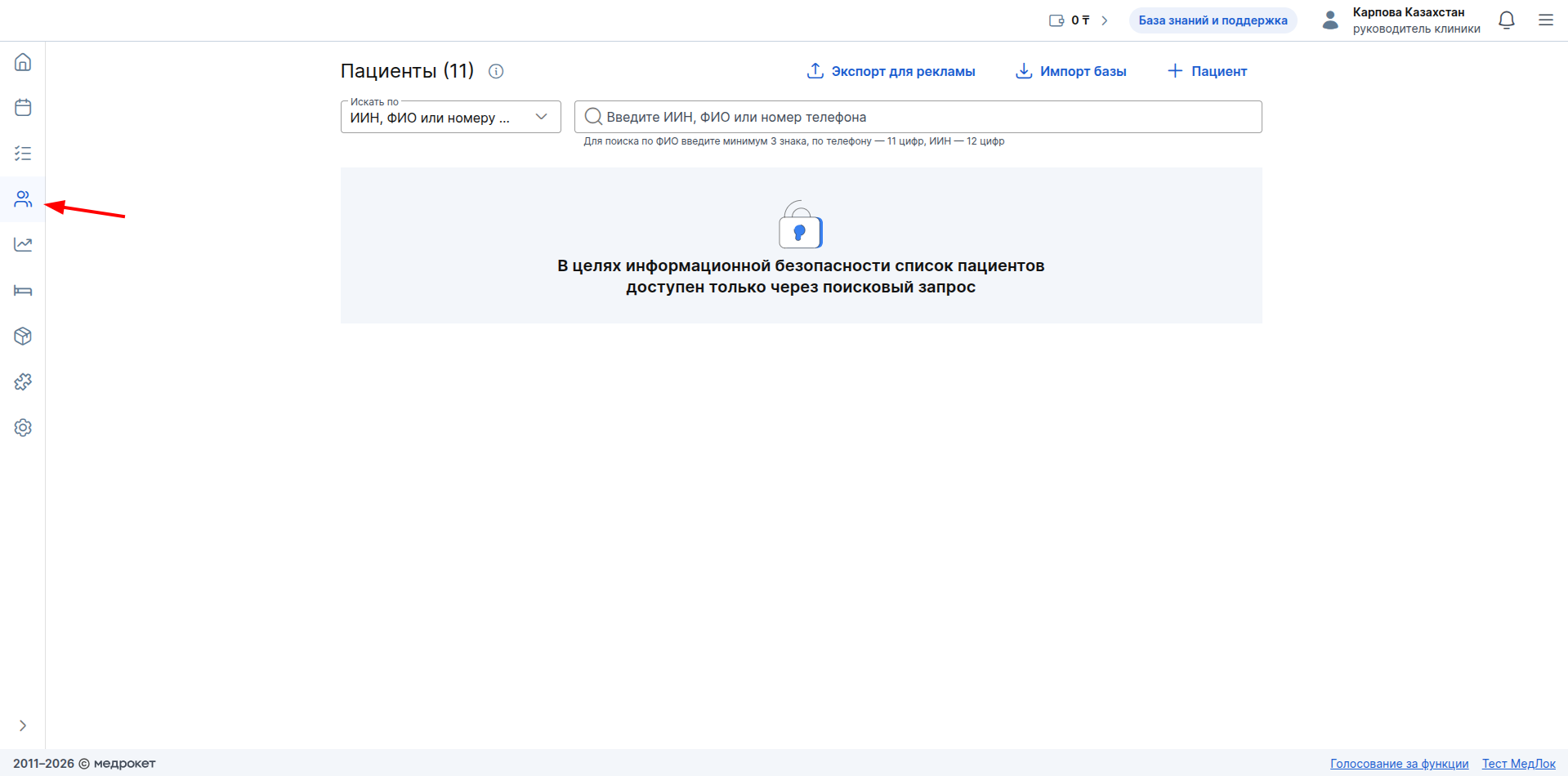
When going to this section, the software search option is always selected«ИИН, ФИО или номеру телефона».
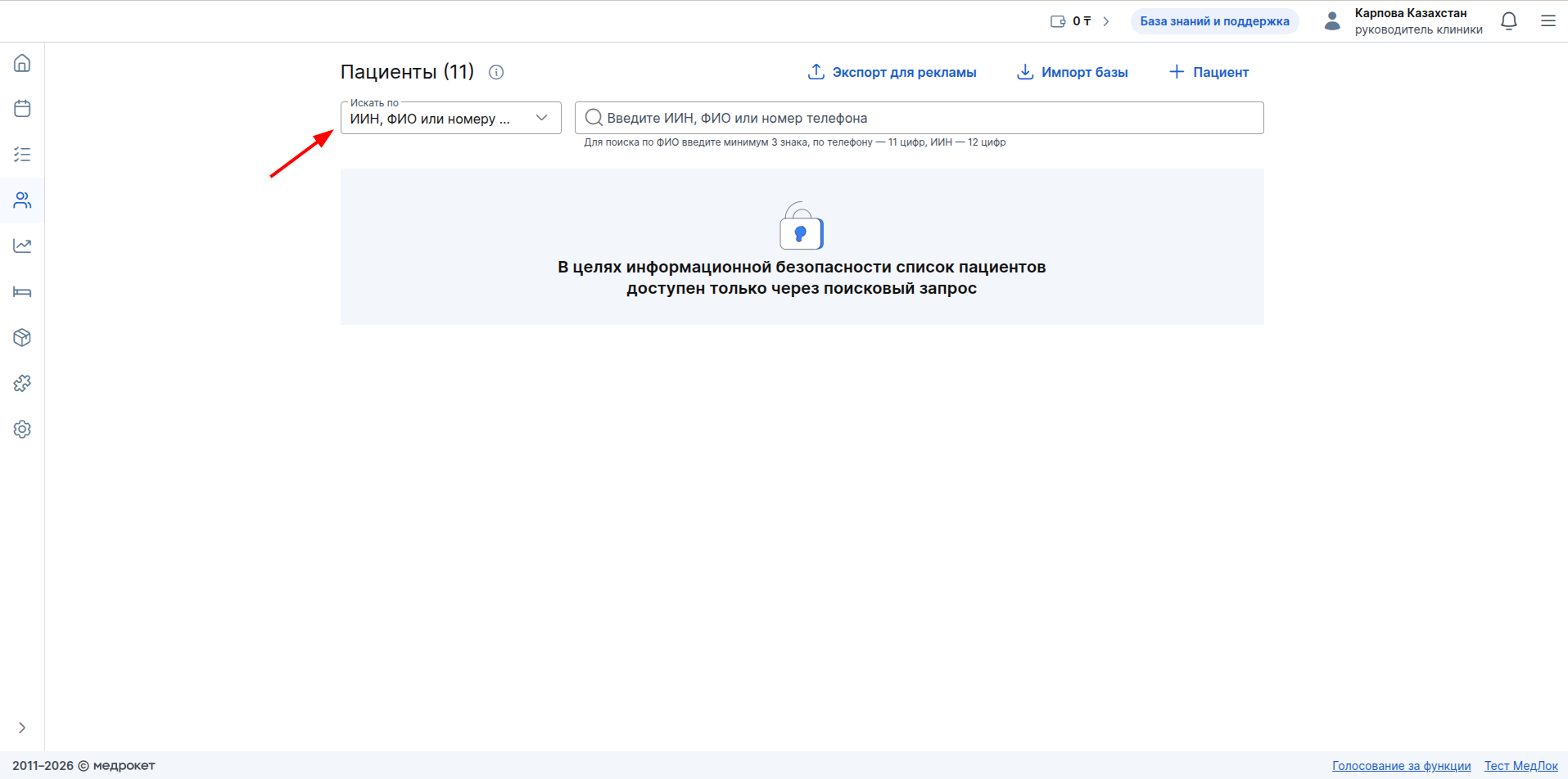
Enter the IIN to search for the patient.
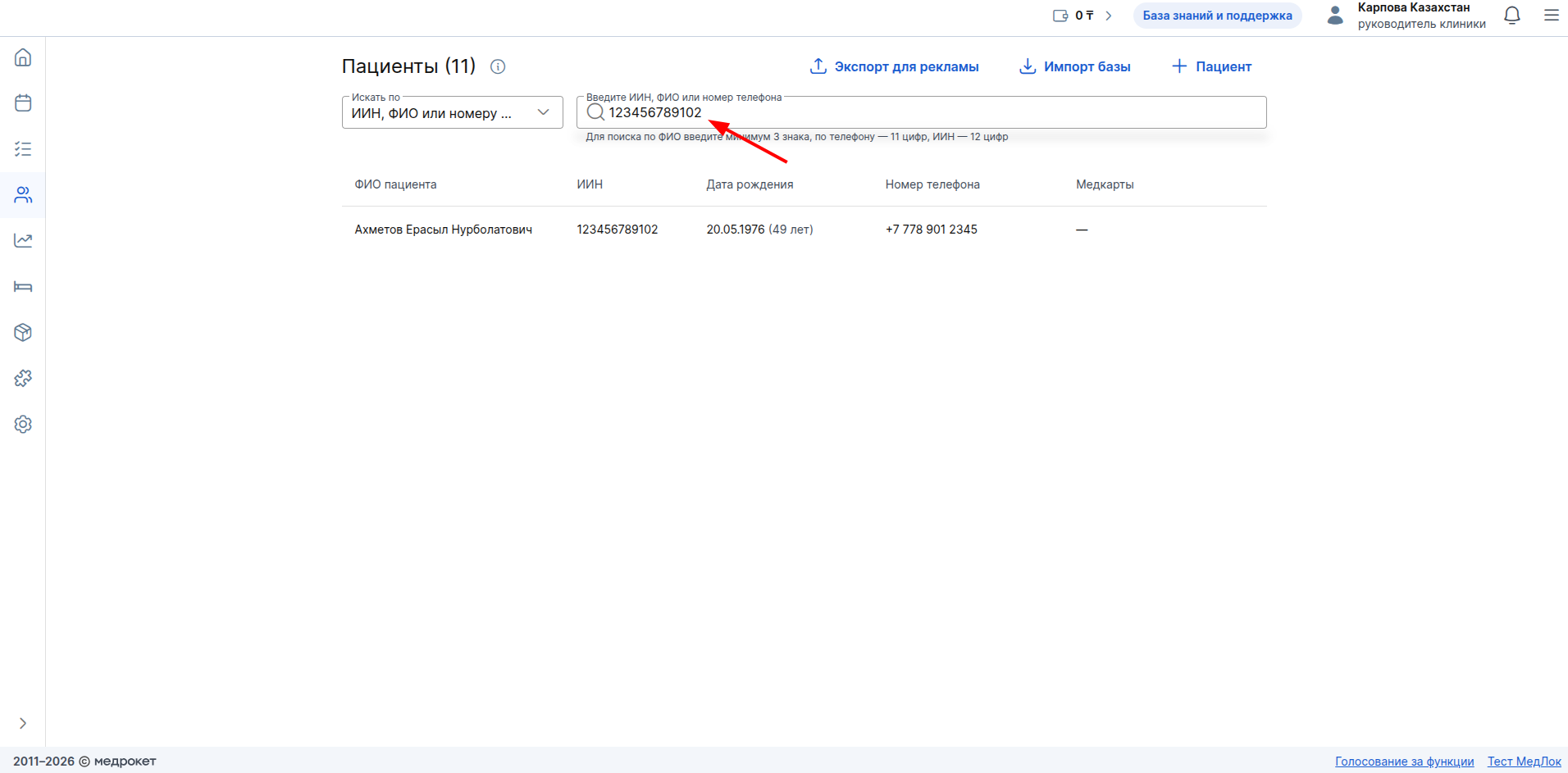
The identification number is displayed in the corresponding column next to the patient's full name.
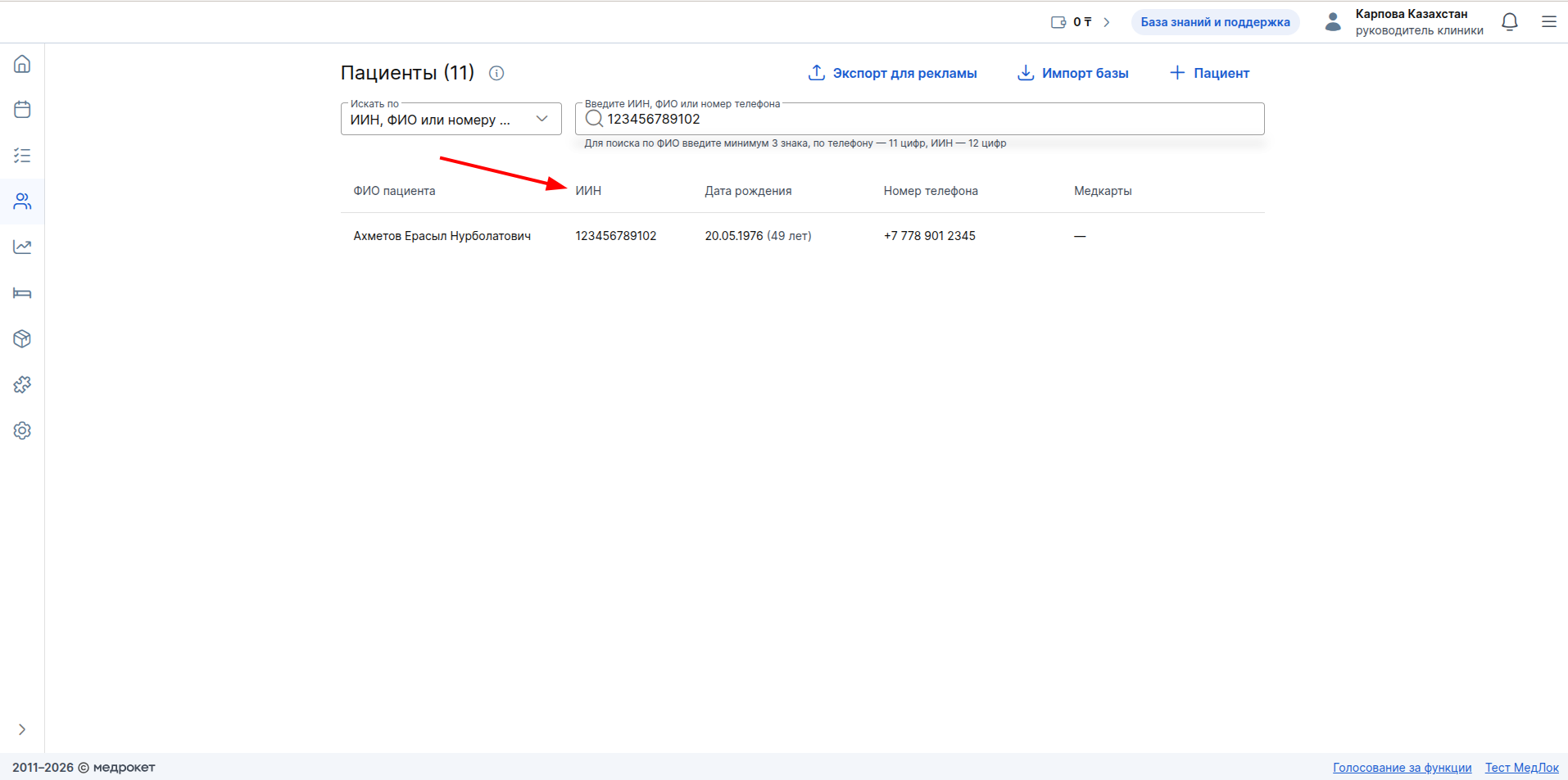
Click on the line with the found patient to go to his profile.
Under the patient's full name, his IIN is displayed next to the date of birth and age.
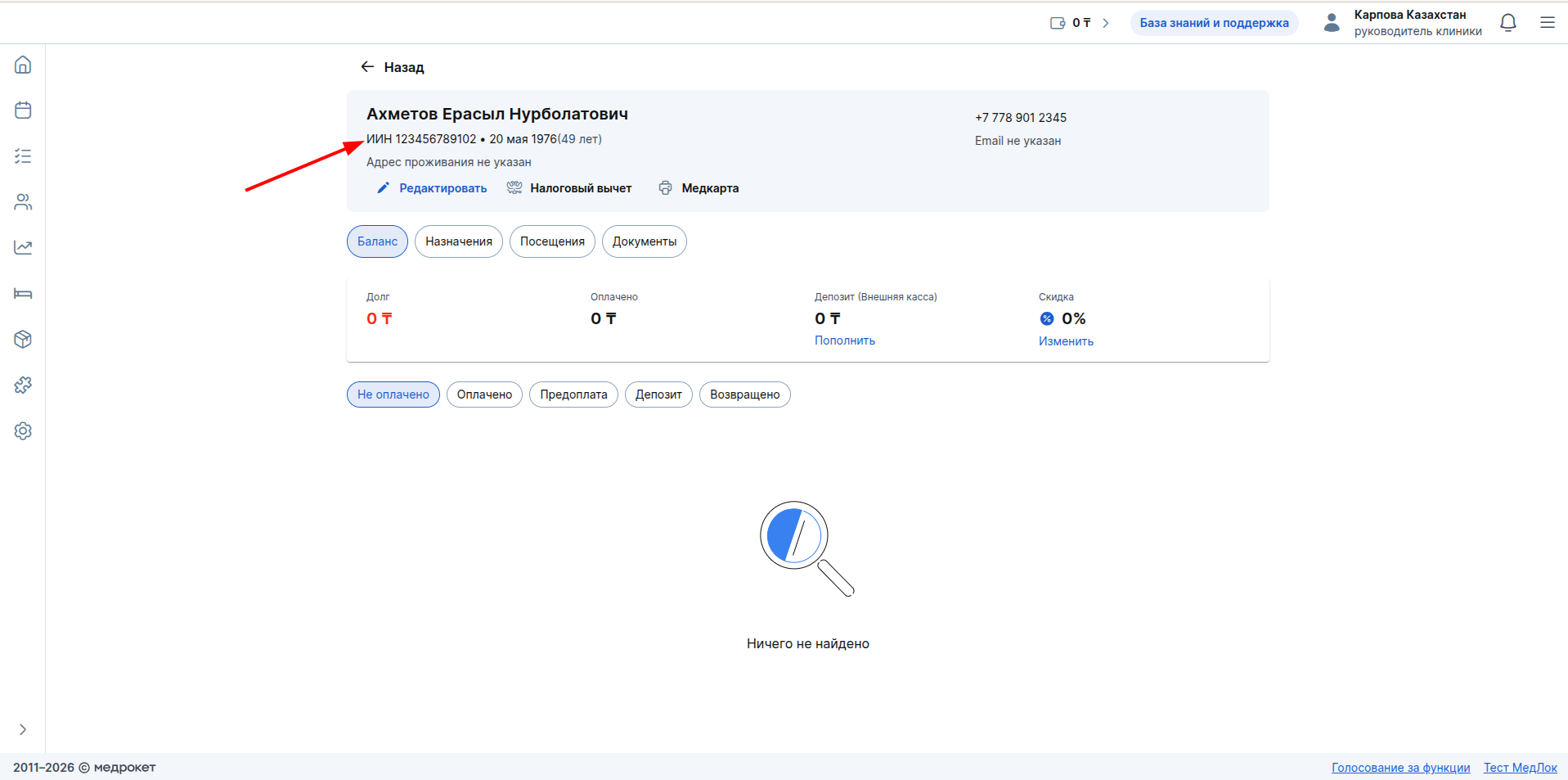
If the patient is underage or incapacitated, the IIN is displayed to the right of the patient type.
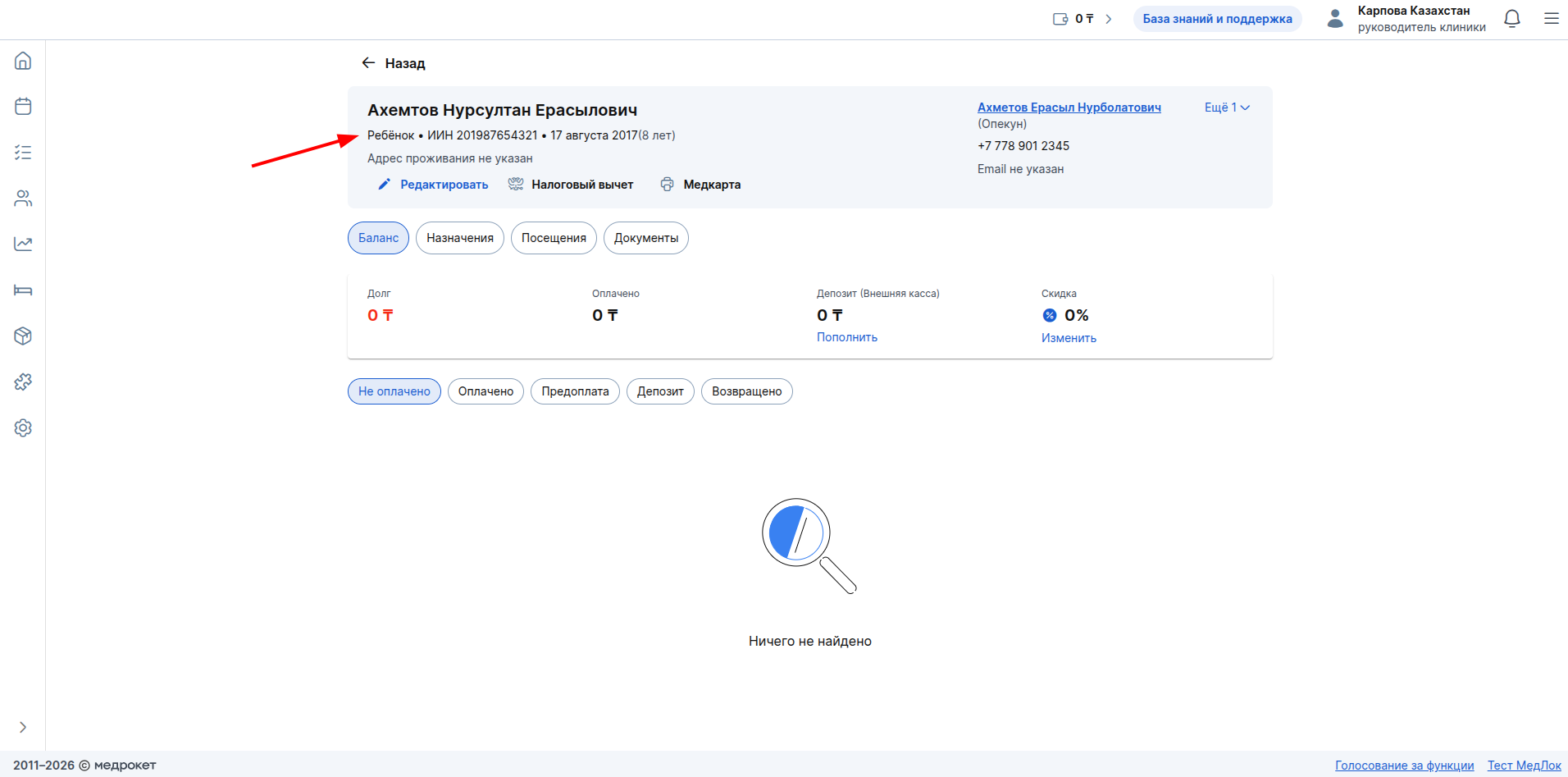
For more information about working with the section, see the Section «Пациенты».
Search by patient's IIN in reports
In all reports where the patient filter is available, you can also use the IIN search.
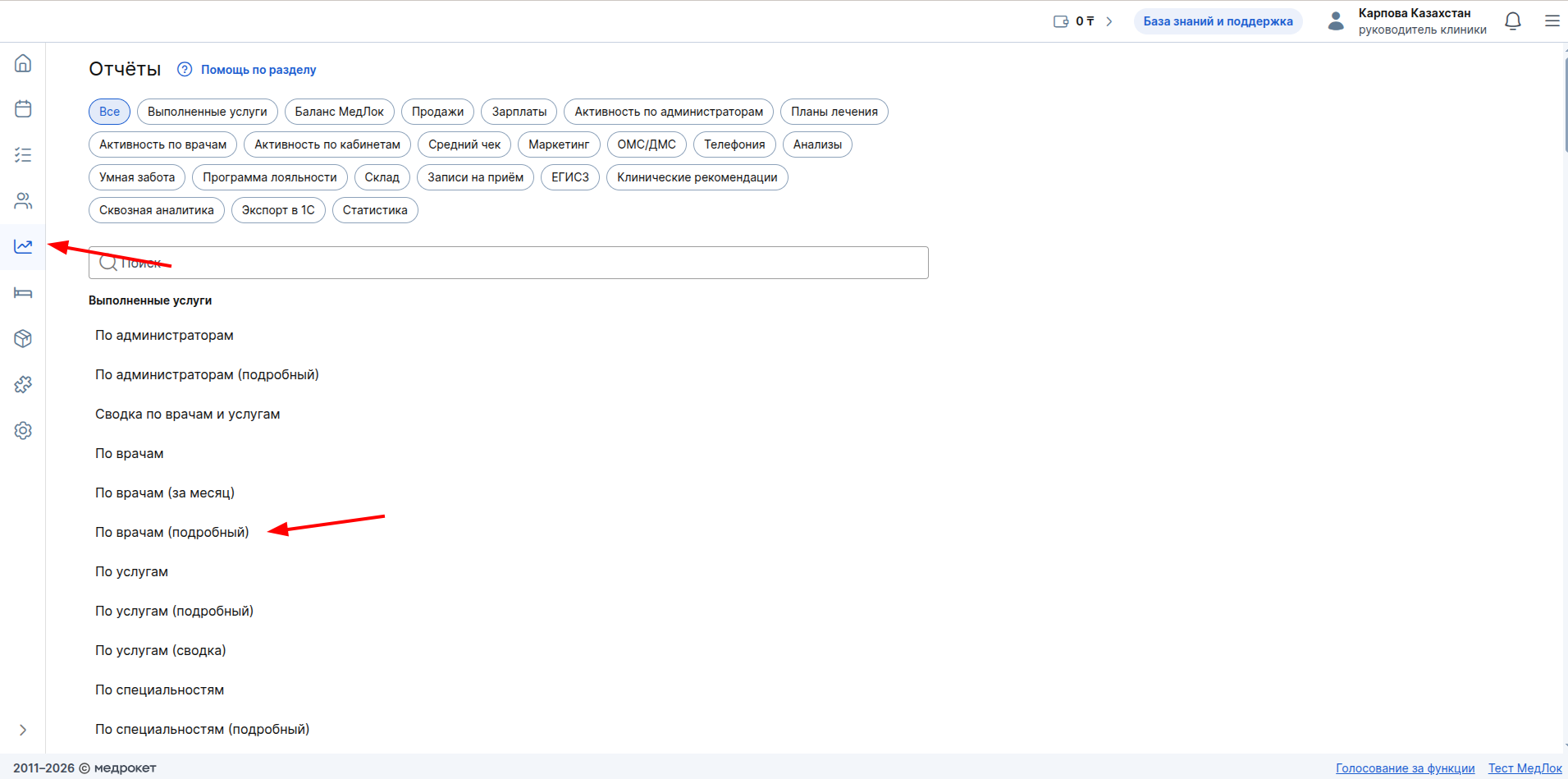
Go to the section «Отчёты»and go to the desired report.
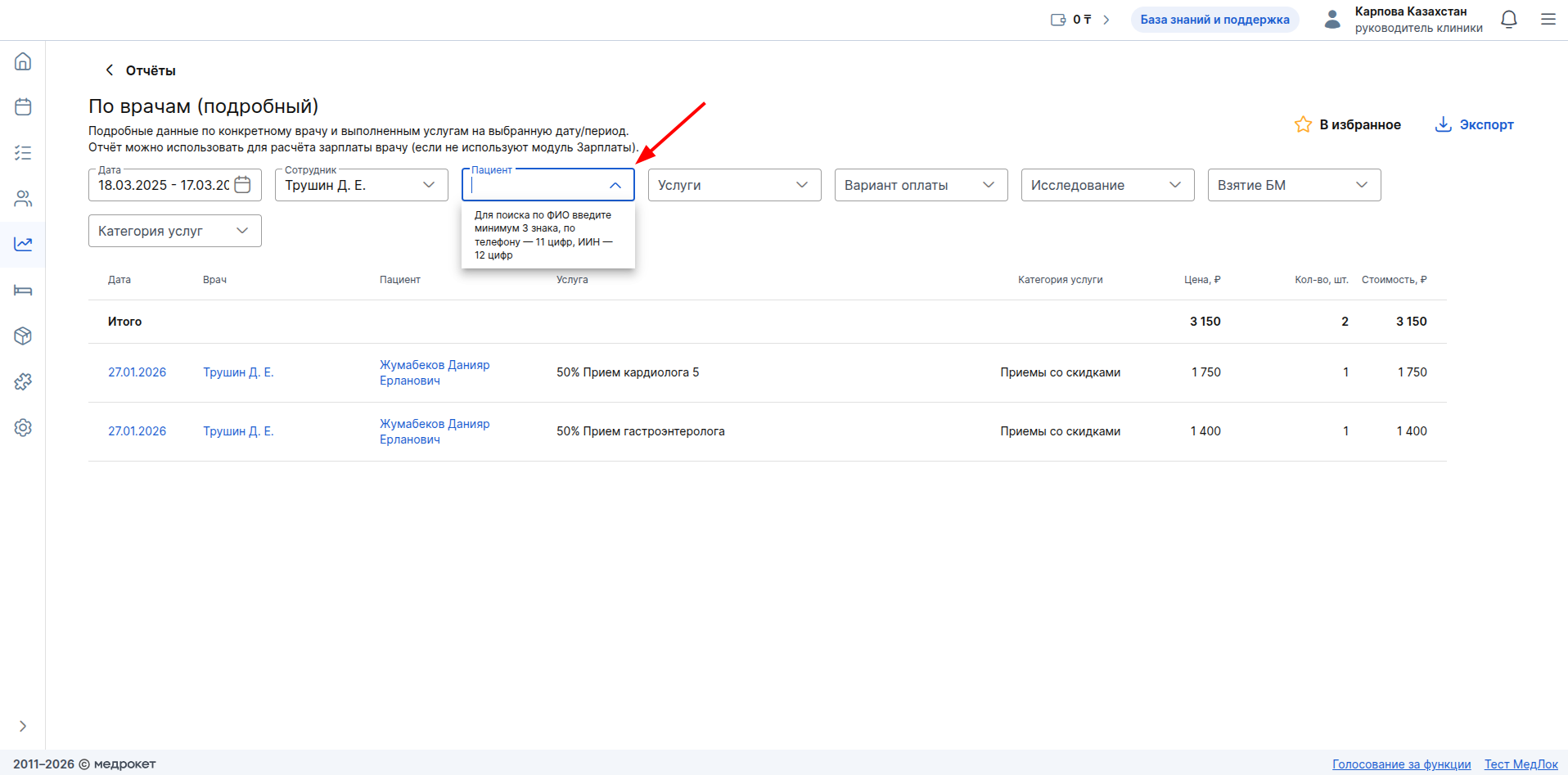
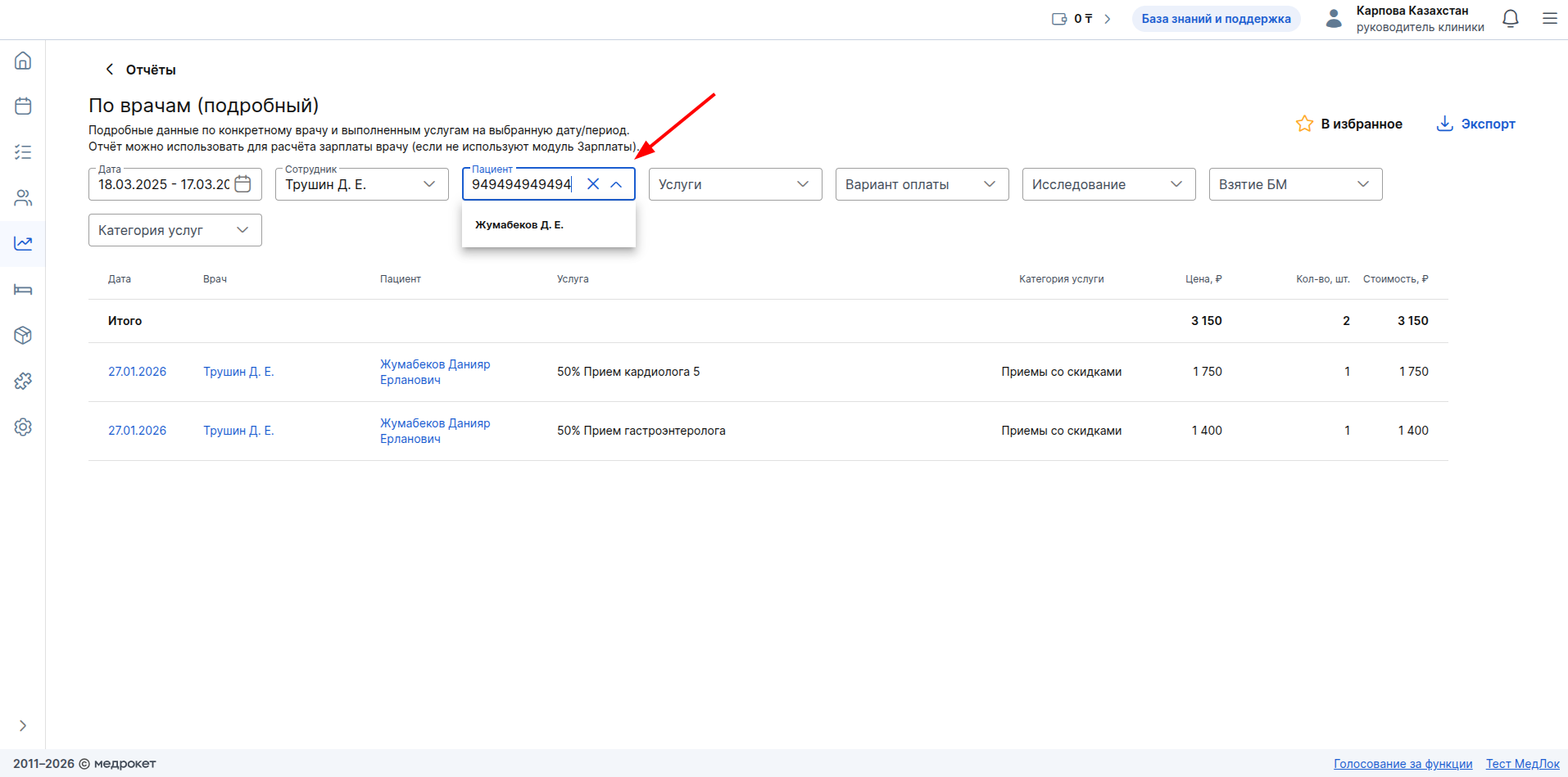
In the filter«Пациент», enter the patient's IIN to see information only for this patient.
Read more in the articles in the Reports section.
Patient search by IIN is also available in the following sections:
- The window for making an appointment for hospitalization (if the module is connected«Стационар»).
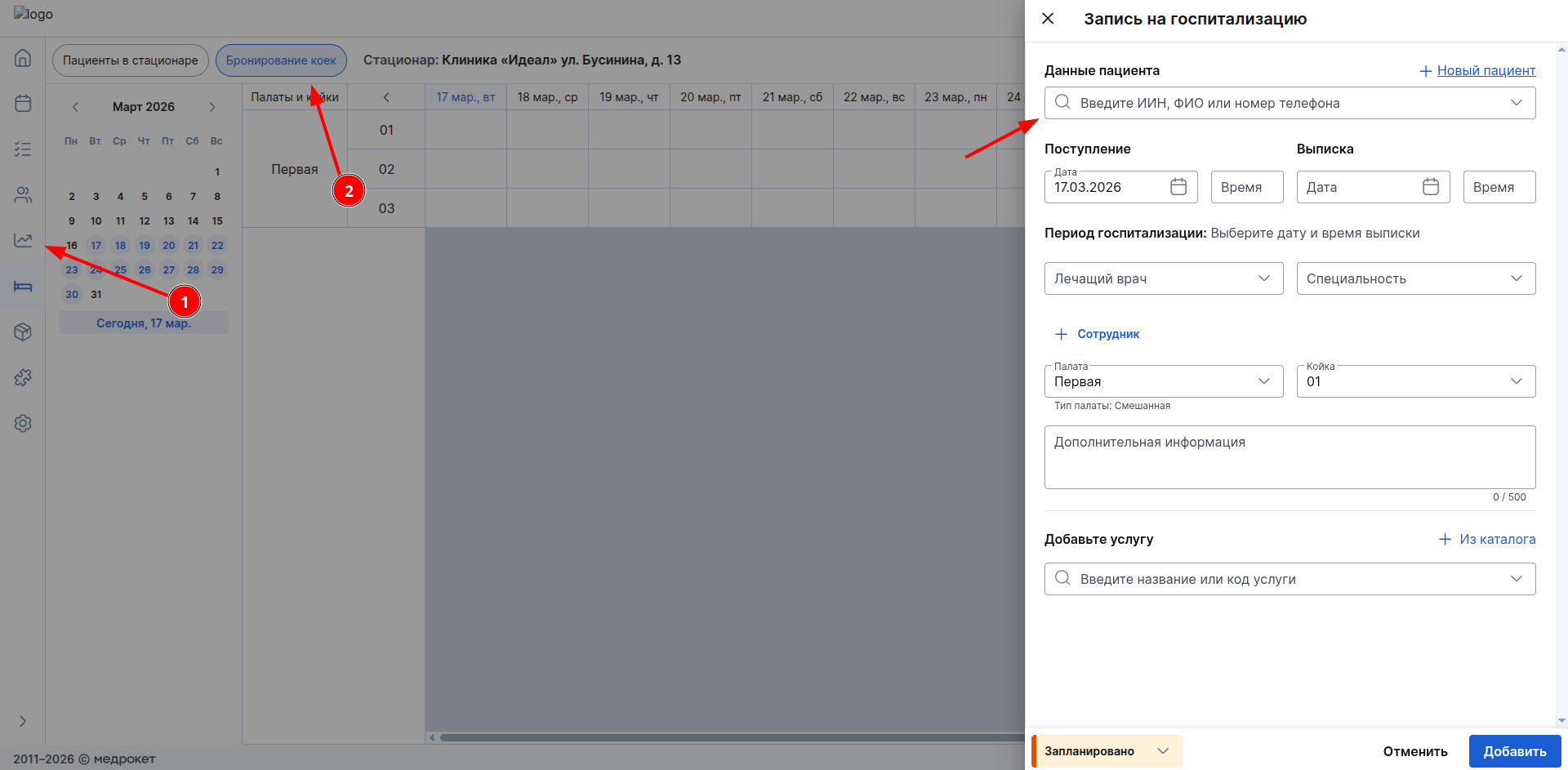
- The waiting list is in the section «CRM».
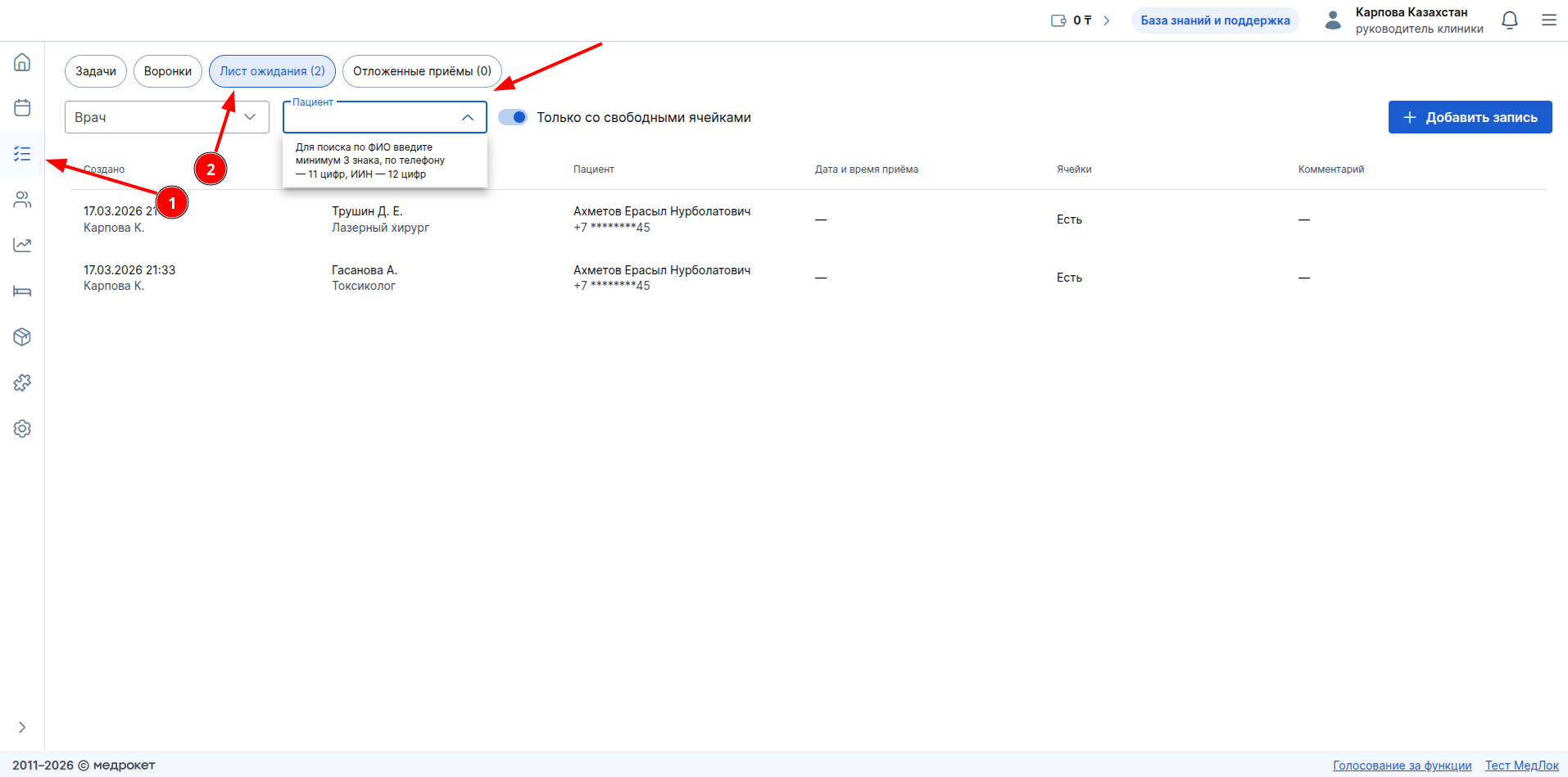
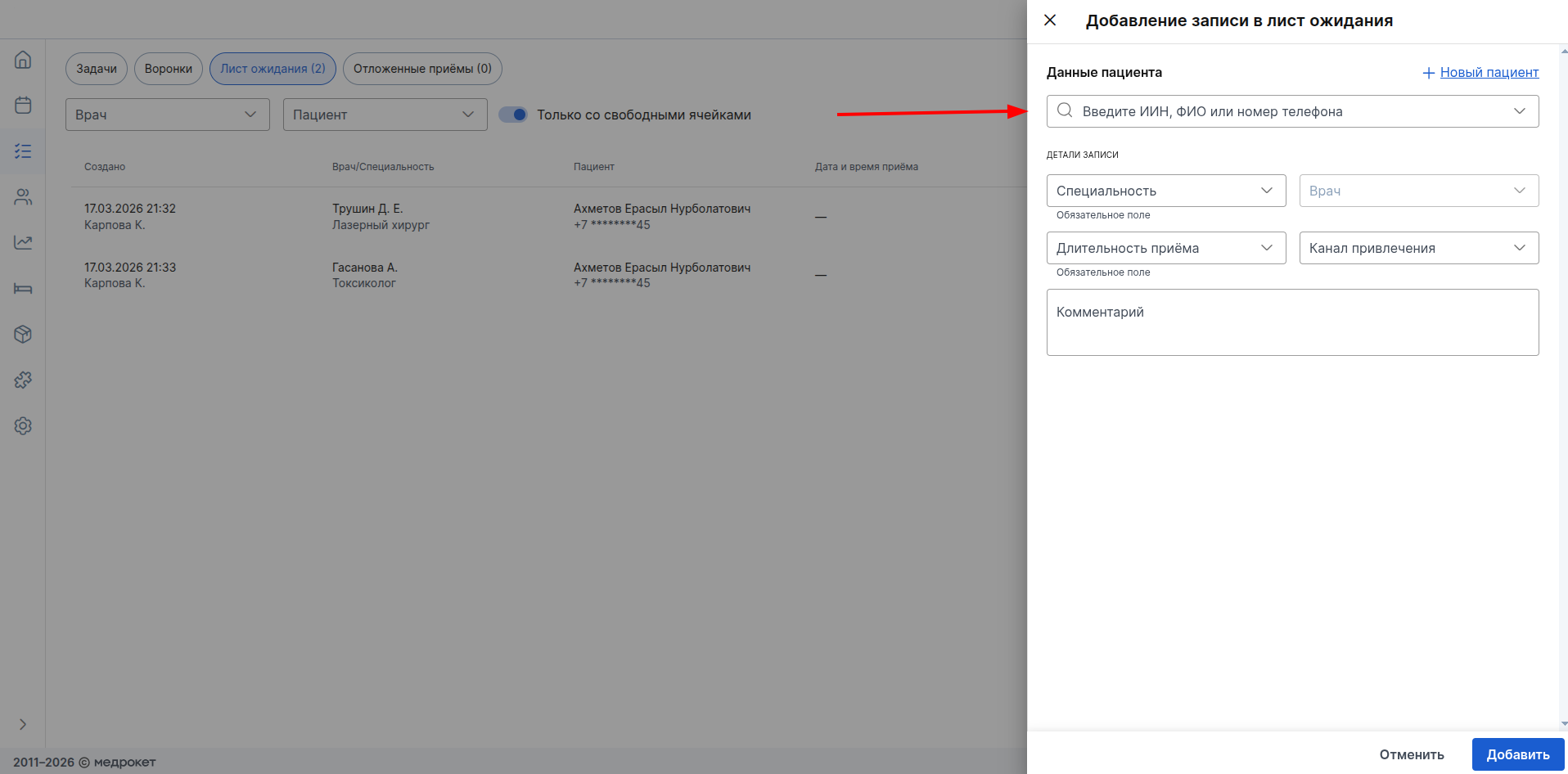
- Call history (if the module is connected«Телефония»).
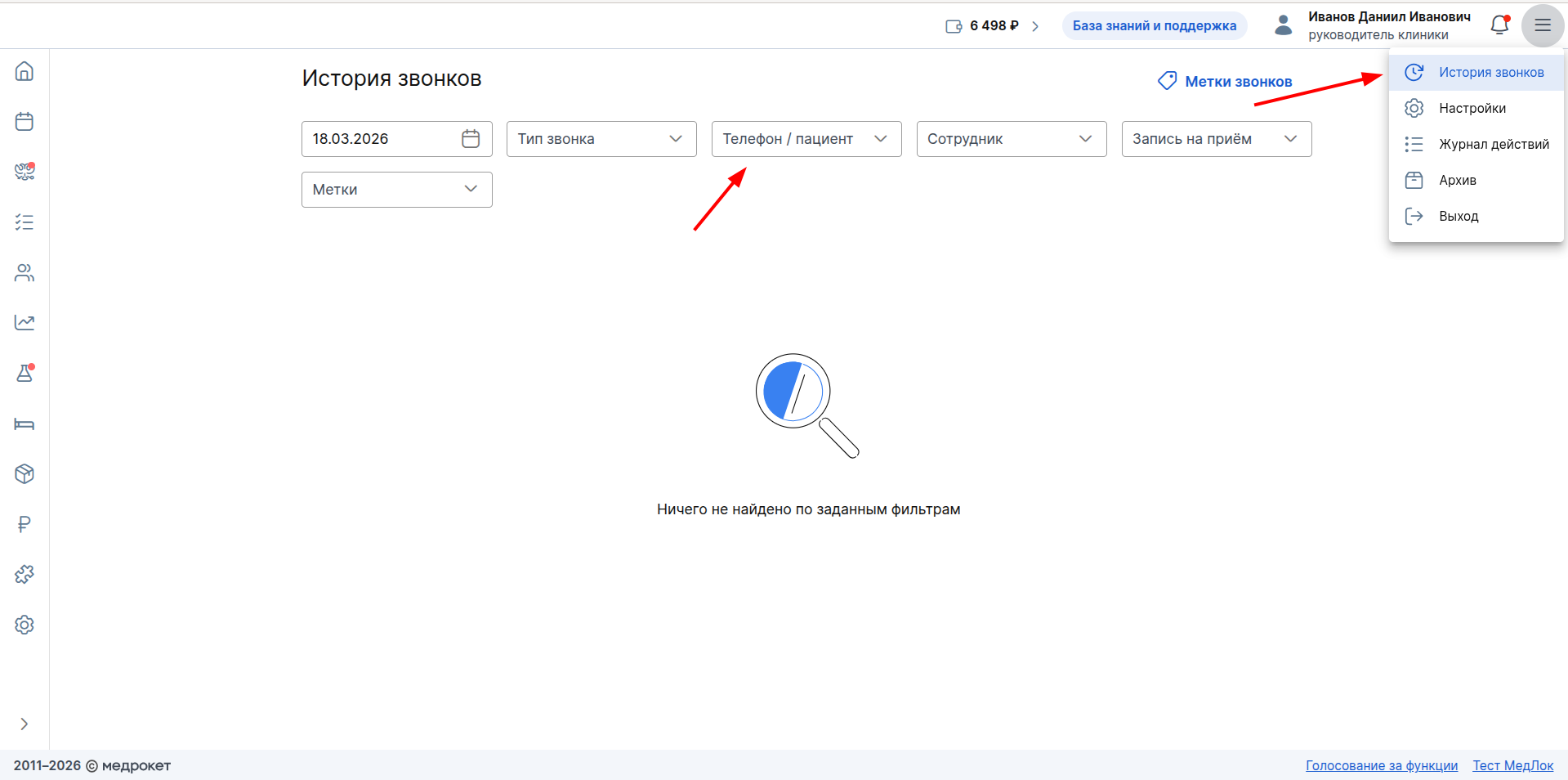
Read about these sections of MedLock in the articles:
Specifying the IIN in the documents
You can add the patient's IIN to the document templates so that it is automatically inserted when printing documents from the appointment.
To do this, go to the MedLock settings.
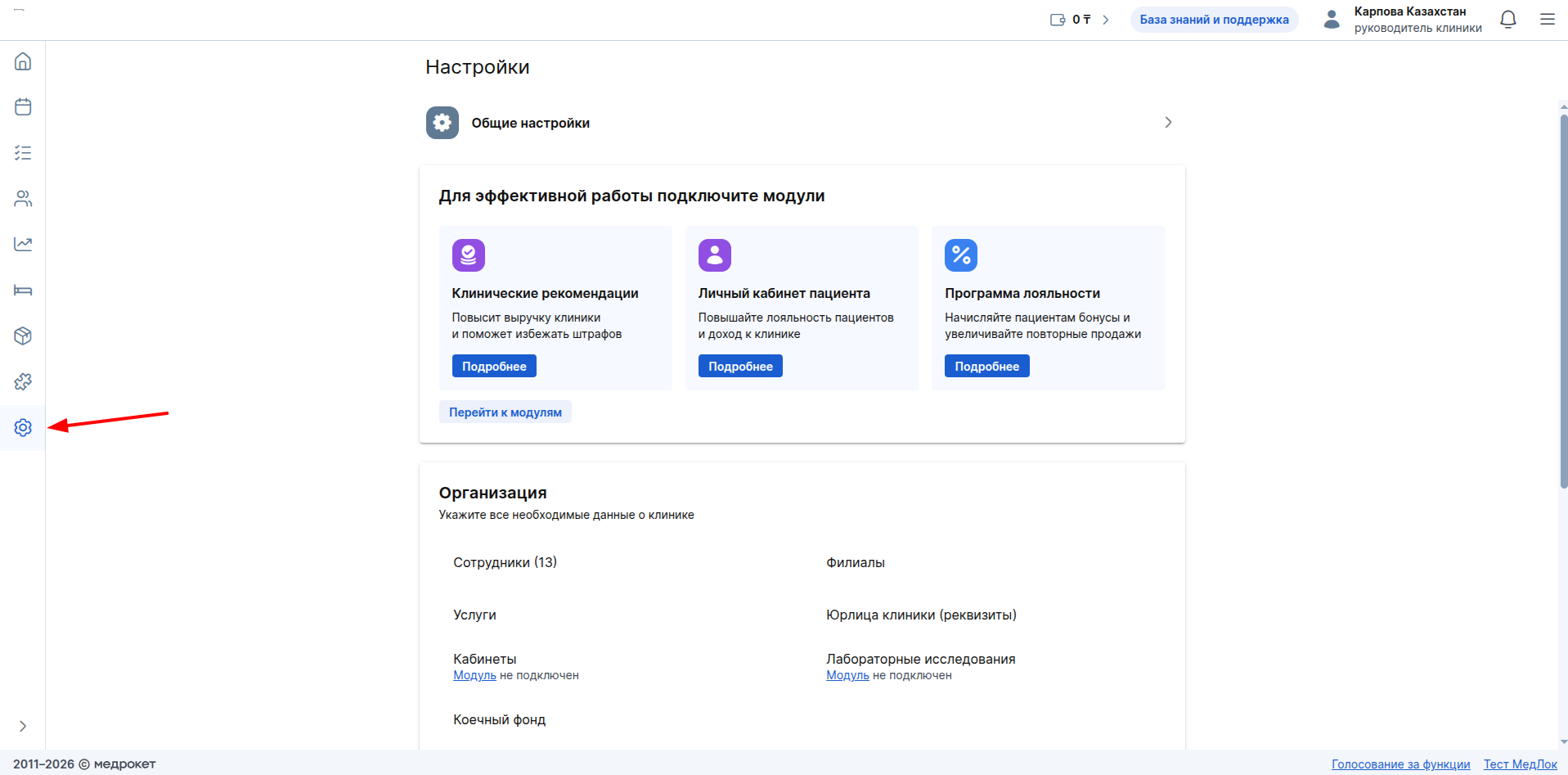
Find the section «Документы»and go to it.
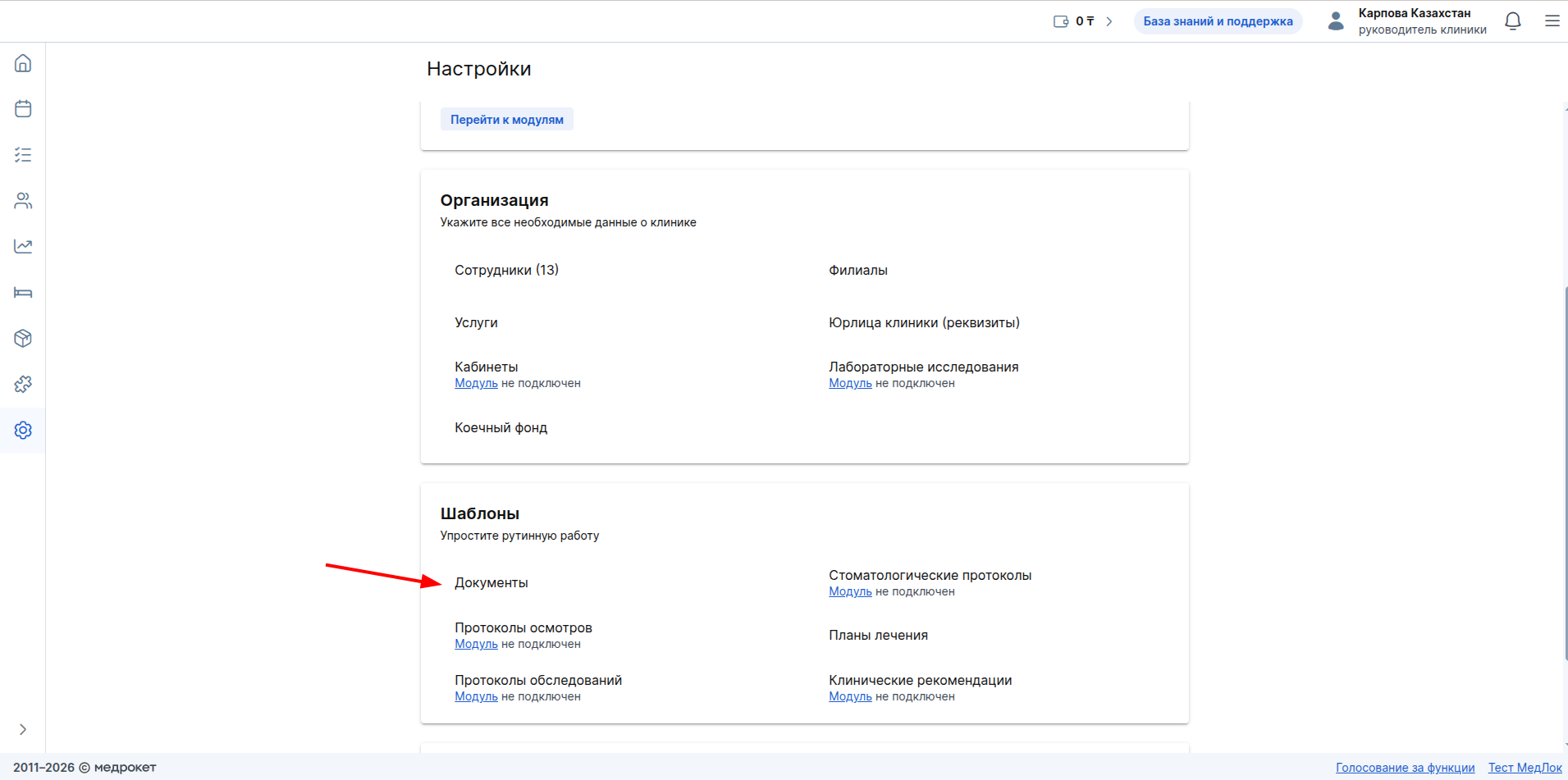
You can add the IIN display to a previously created document or create a new one.
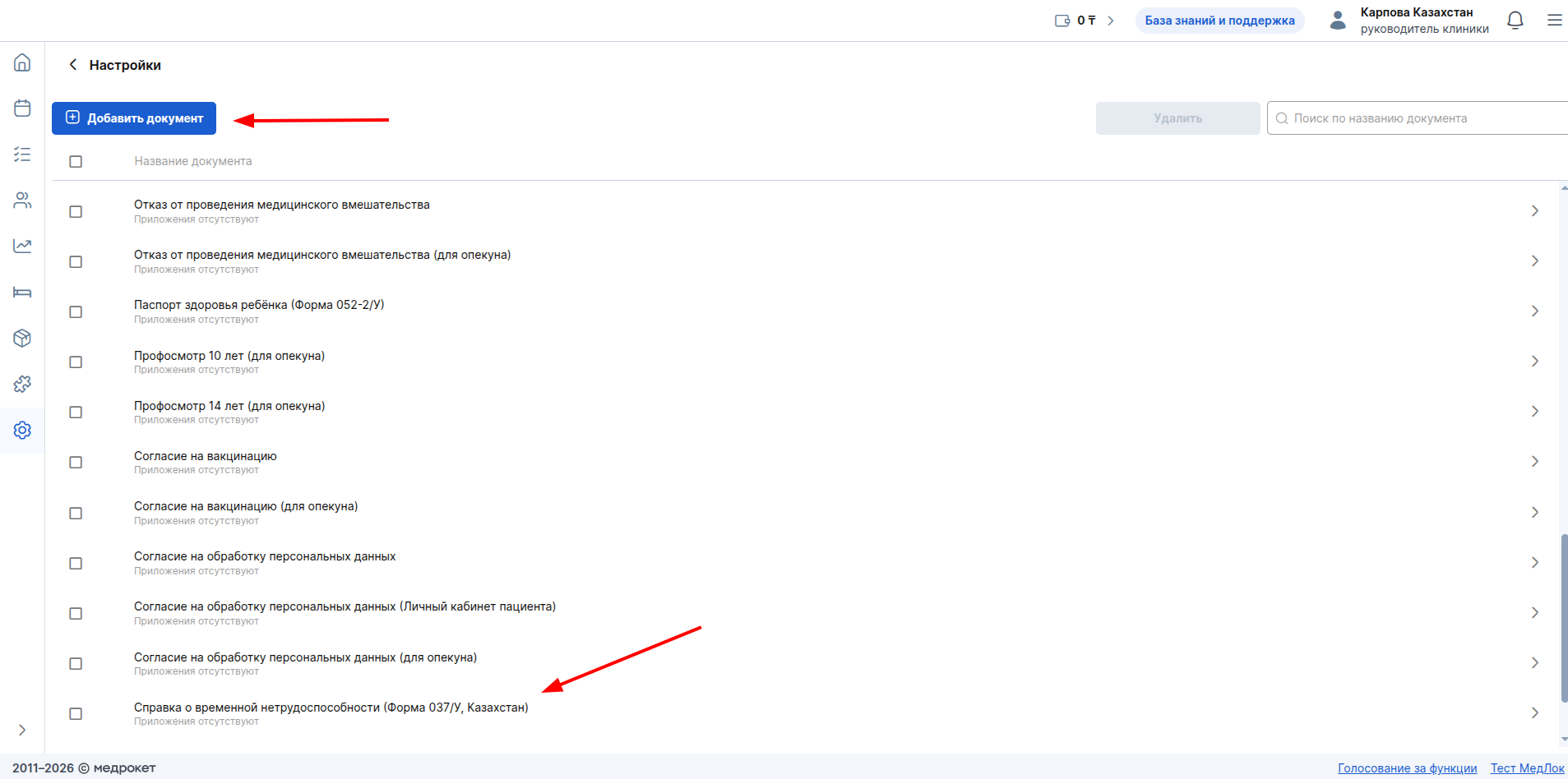
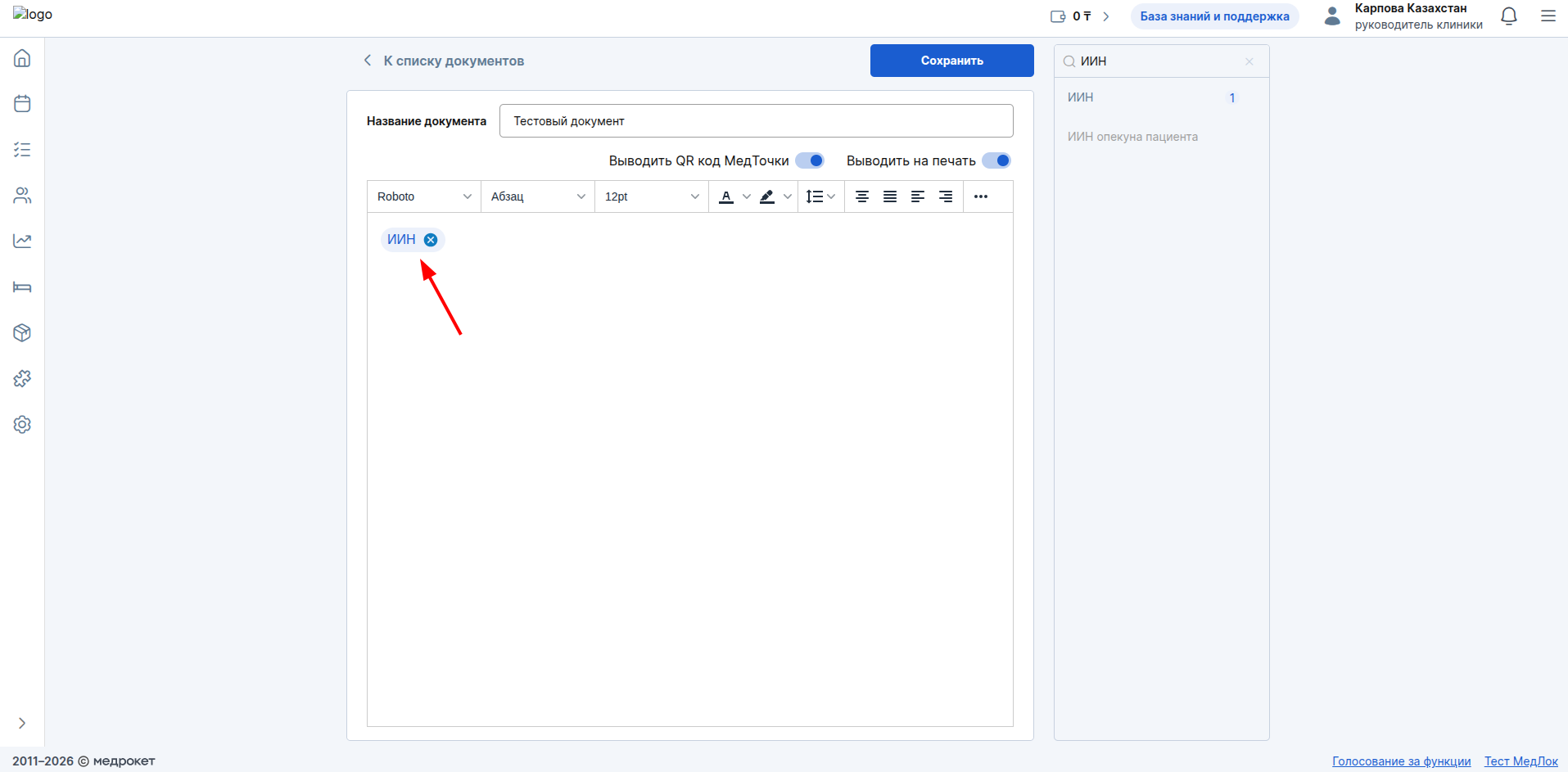
Use the variable search to find «ИИН»or «ИИН опекуна пациента». Click on the desired variable to add it to the document template.
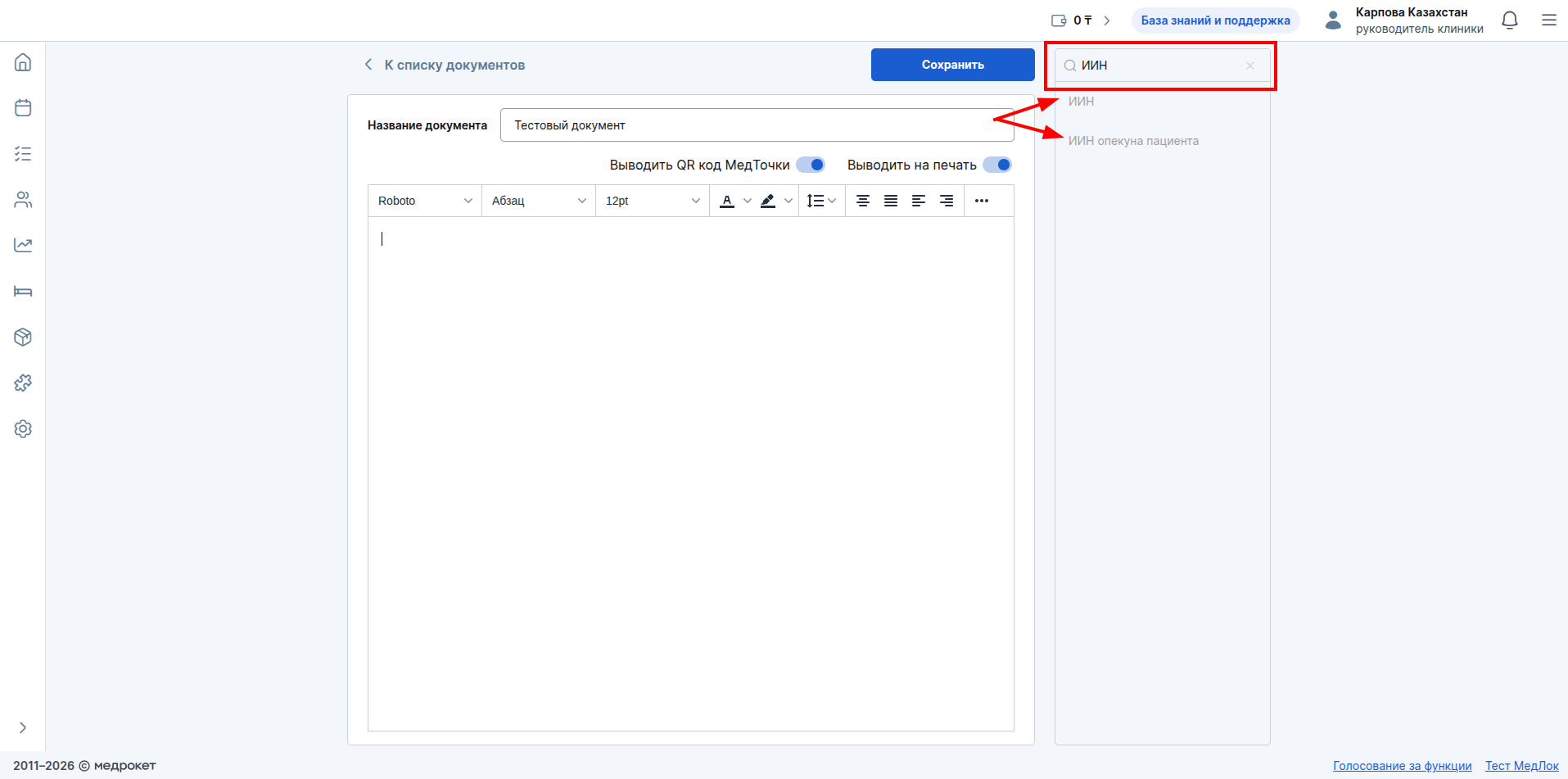
The variable will be moved to the document template.
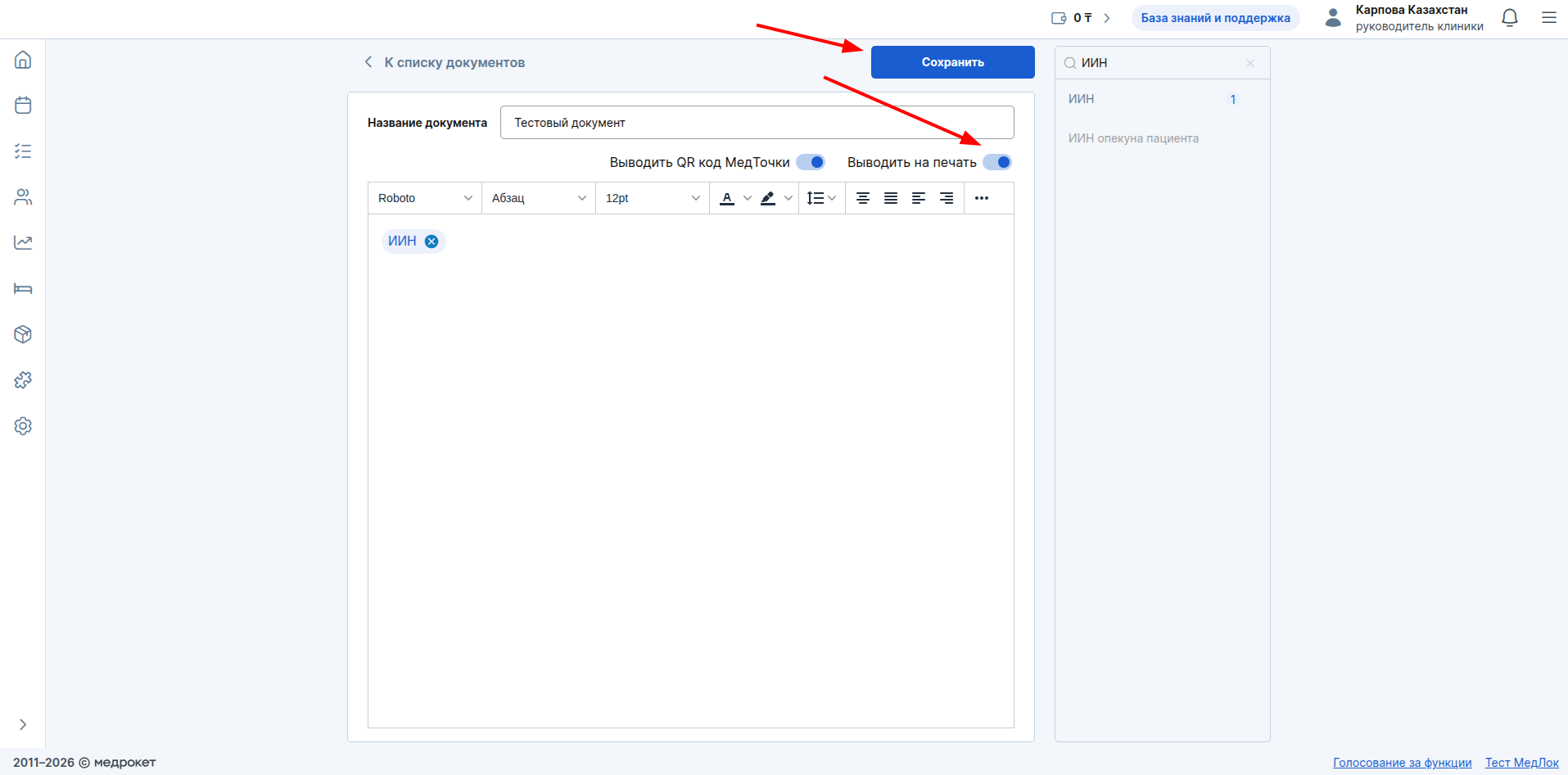
If you need to print the document from the appointment window, make sure that the slider is active«Выводить на печать». Make sure that the name of the document is specified and click on «Сохранить».
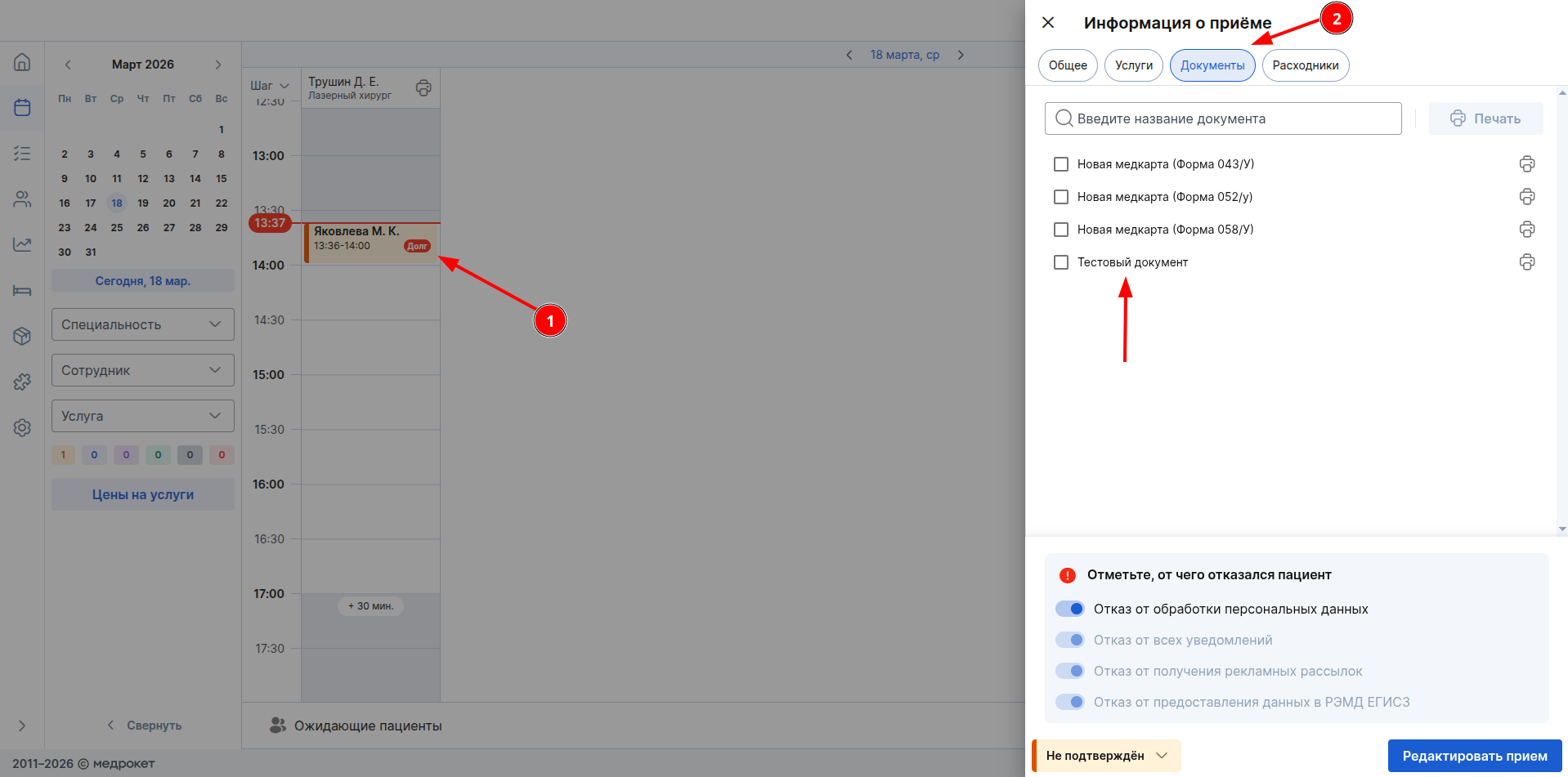
After that, the document with the IIN variable will be displayed in the appointment window in the subsection «Документы»from where it can be printed.
Read more in the articles in the Documents section.