The module is useful for clinics that use cash registers that do not integrate with the medical device.
An external cash register allows you to make cash and non-cash payments for services, print receipts for services rendered and generate a daily report.
How to start working with an external sales register 
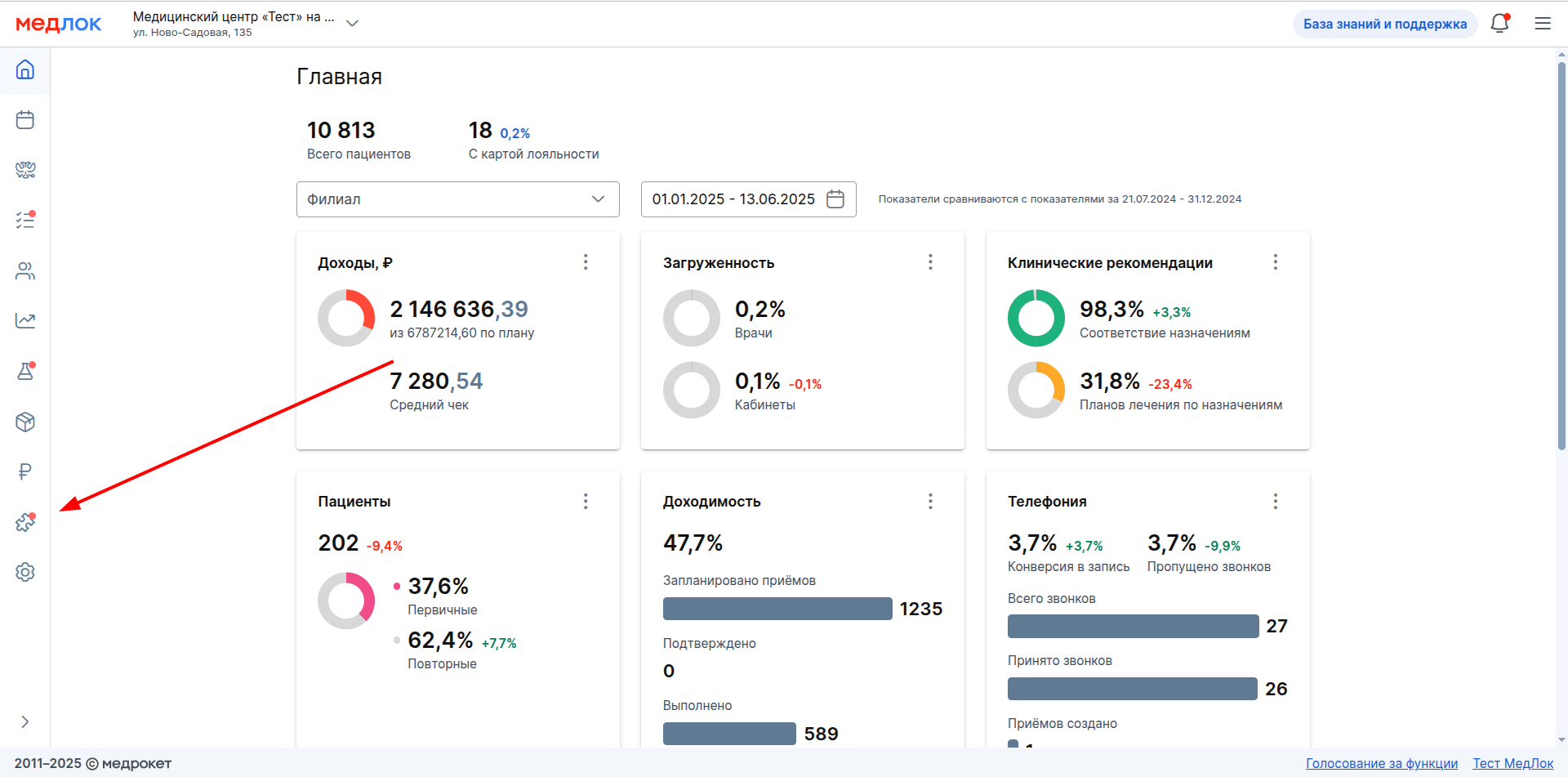
- From the main page, go to the section «Модули».
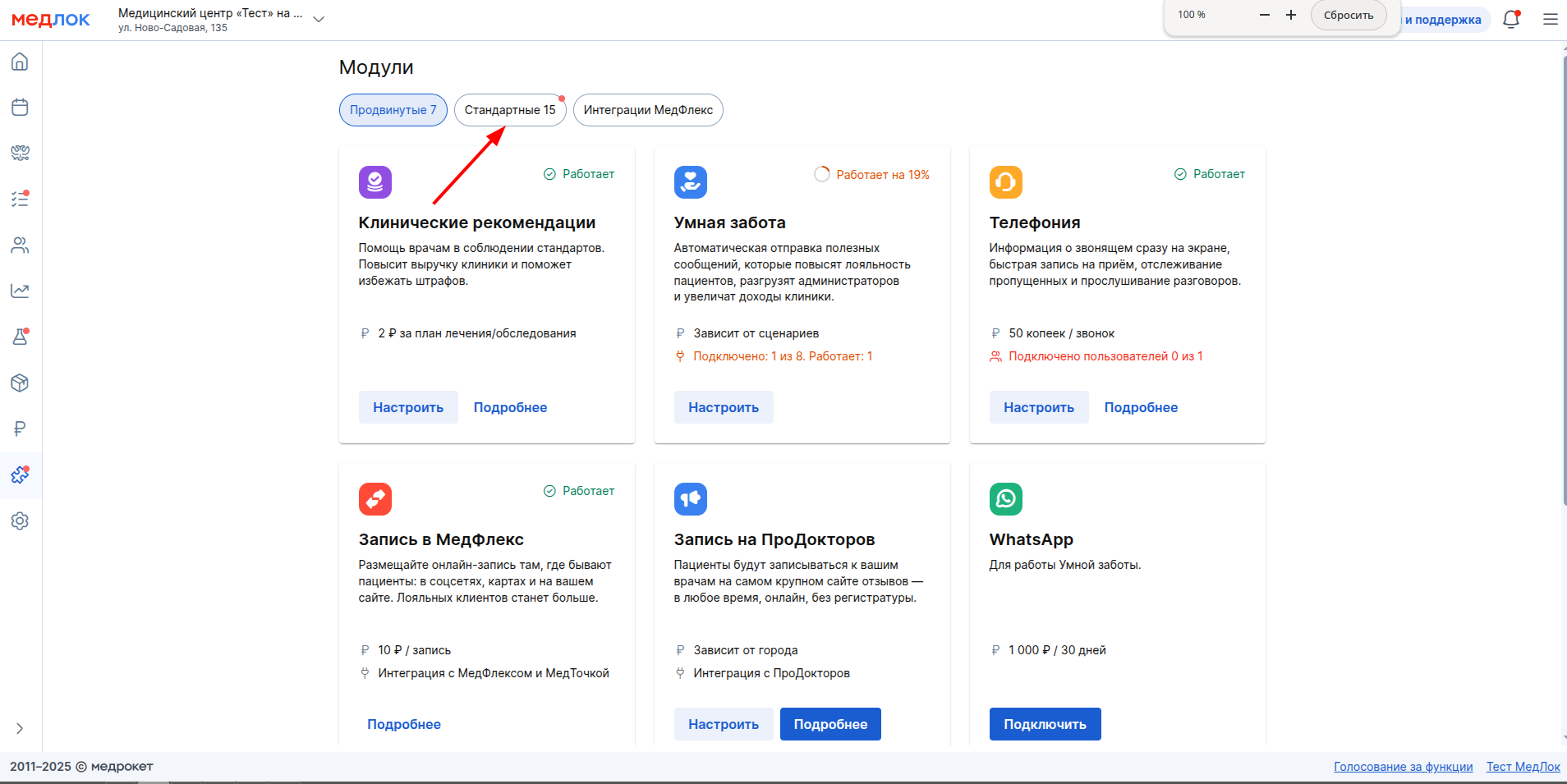
2. Go to the section «Стандартные».
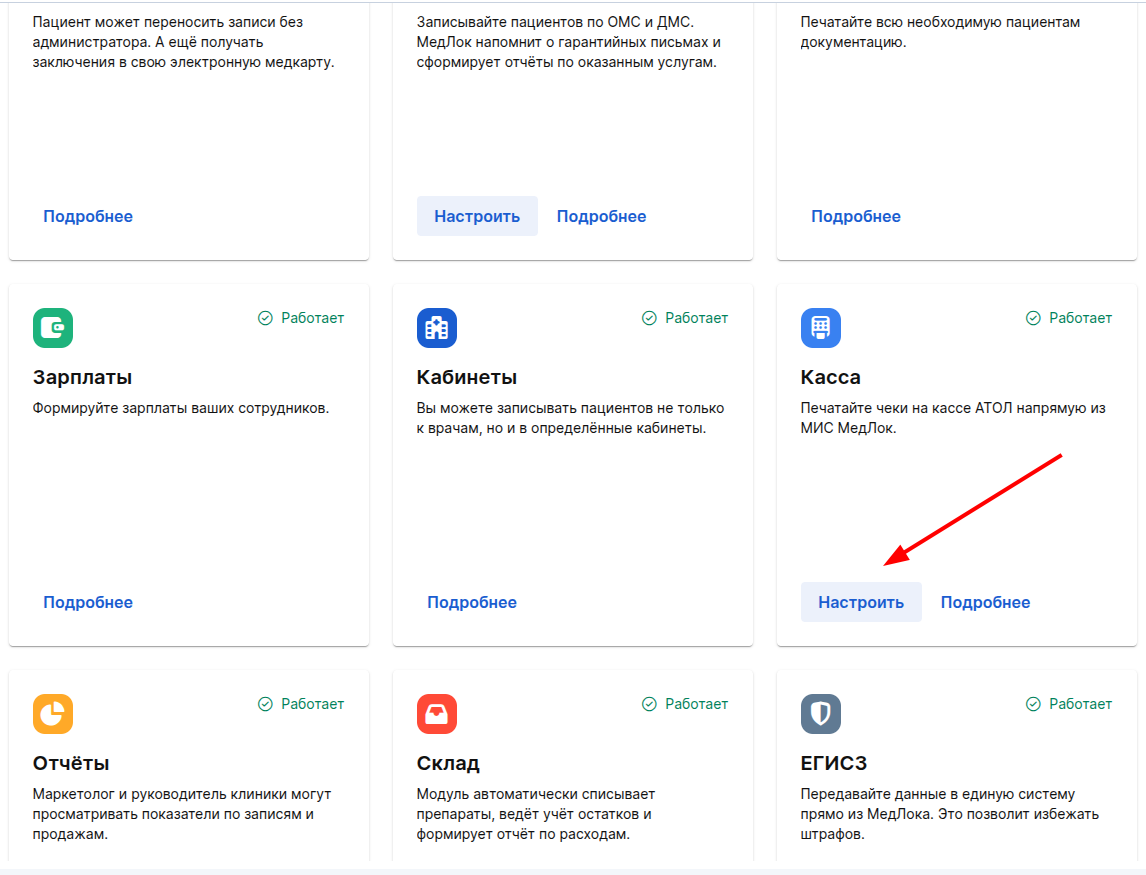
3. Find the module «Касса»and click in it «Настроить».
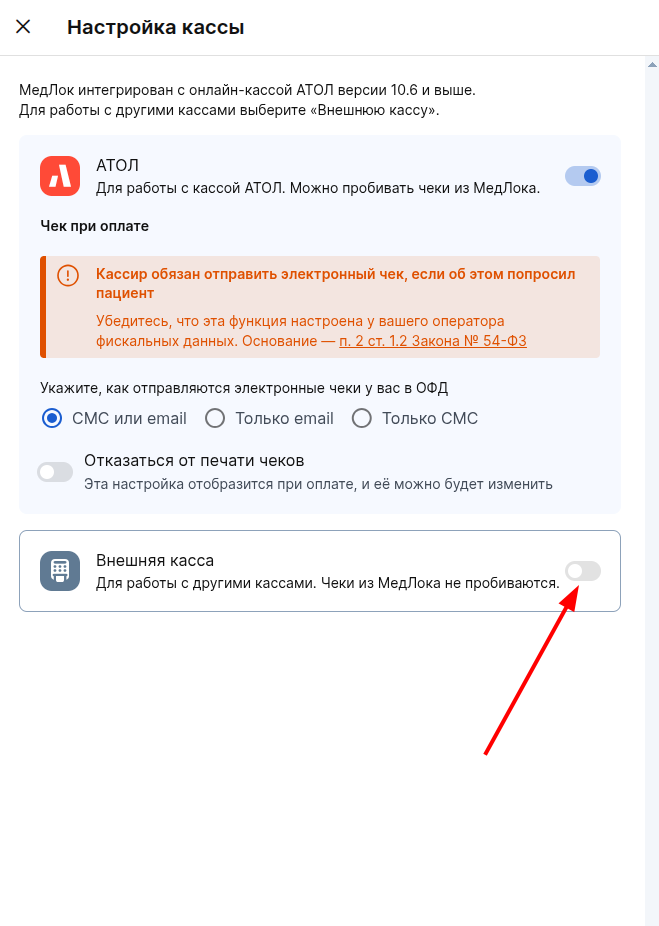
4. In the window that opens, click on the slider next «Внешняя касса»to it.
Calculation and payment
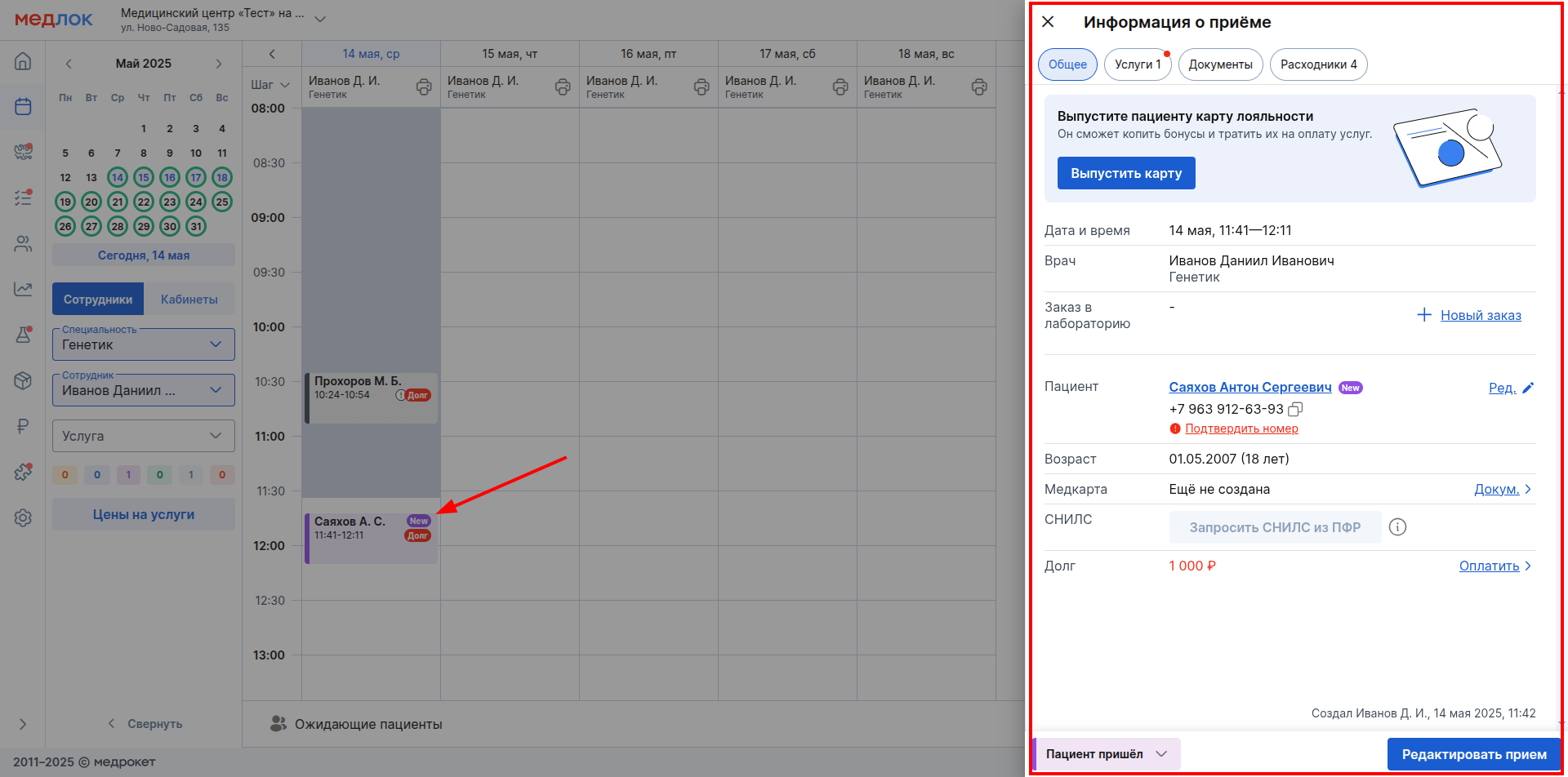
You can pay for services from the window«Информация о приёме». You can open it by clicking on the appointment in the doctor's schedule.
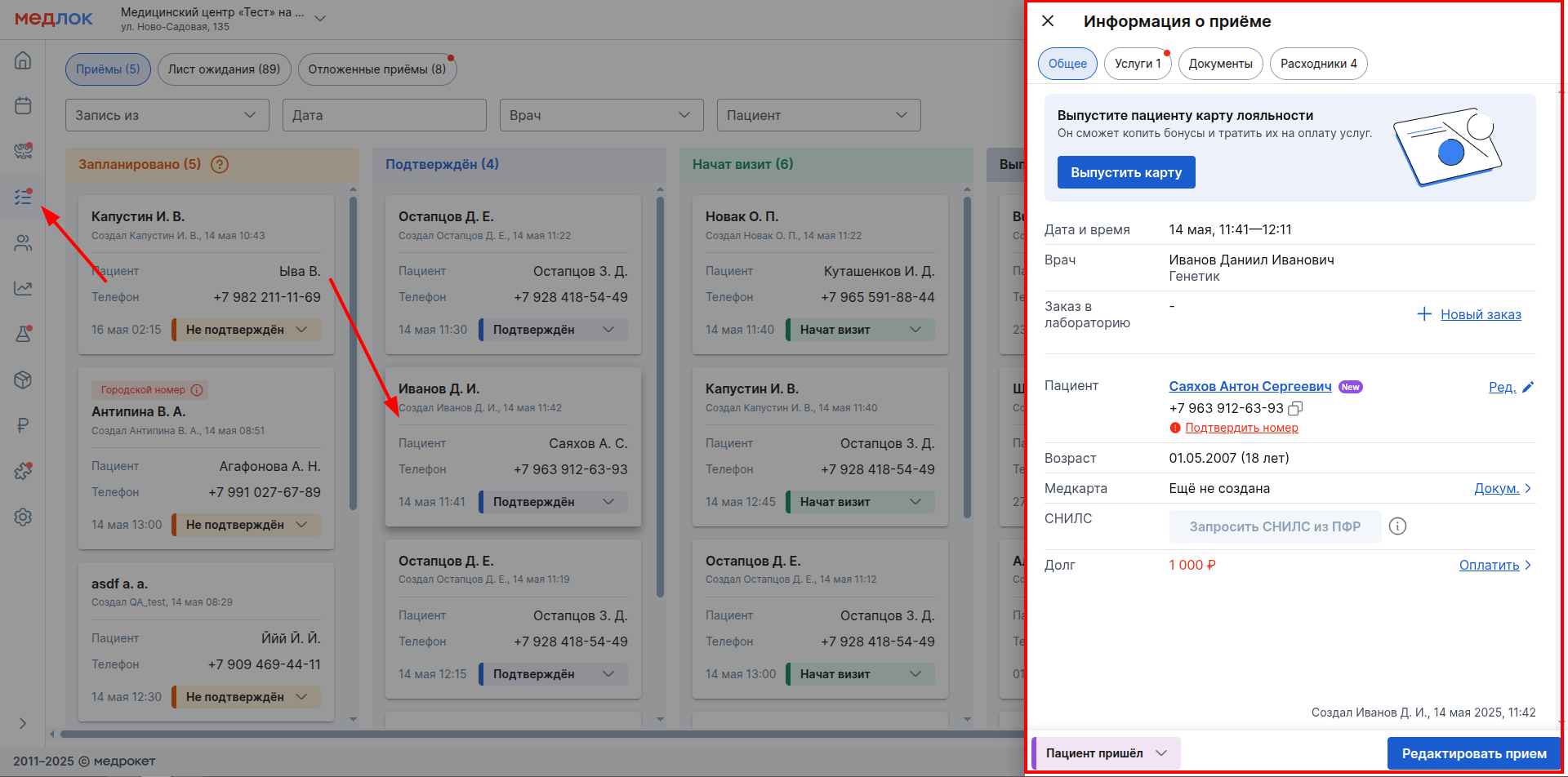
«Информация о приёме»You can also open the window by clicking on the reception in the section«Задачи».
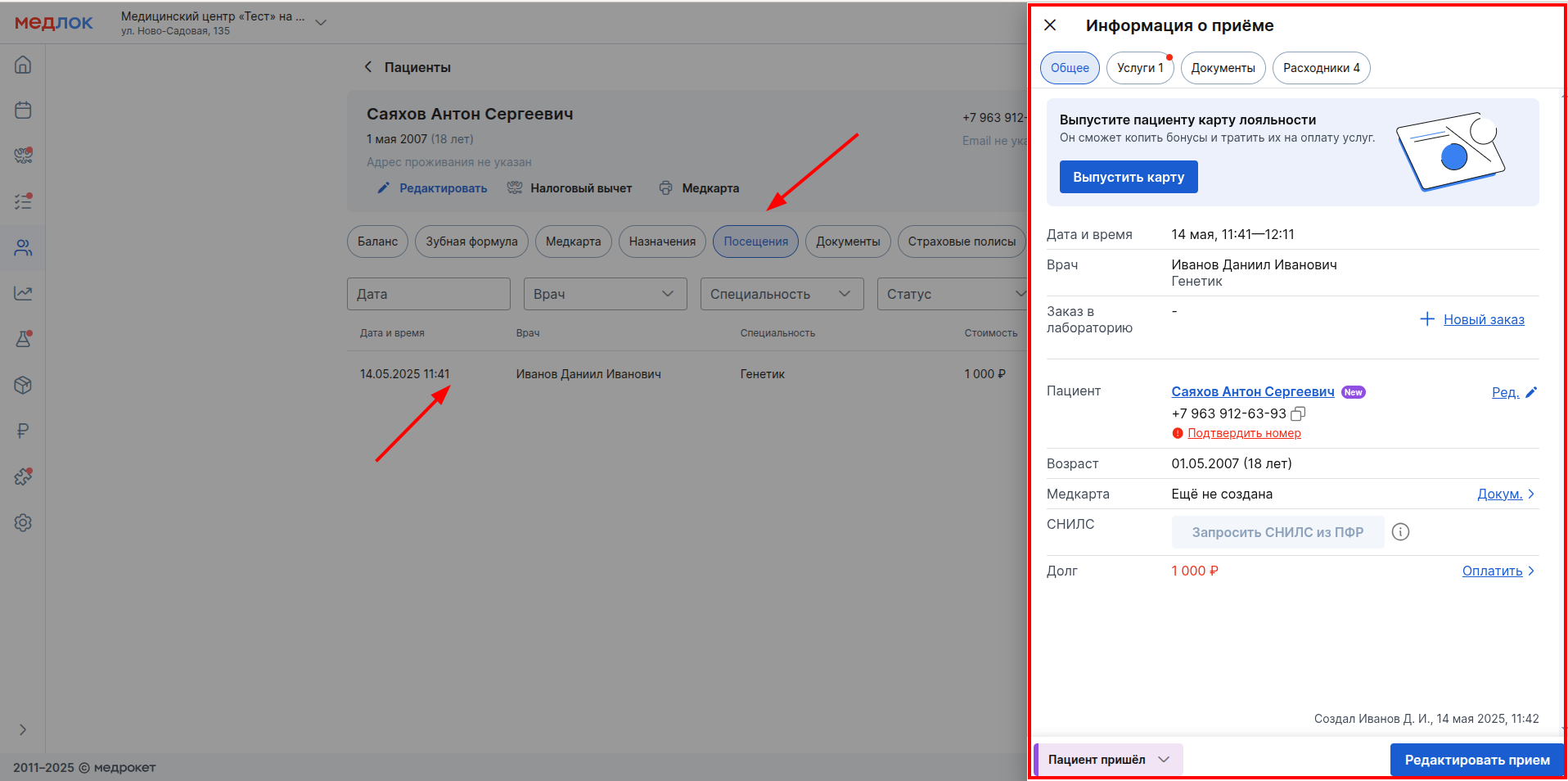
The window is also «Информация о приёме»available in the patient's profile in the tab«Посещения».
Important! In order for the services from the reception to be paid for, it must have the status «Пациент пришёл»(in the - section «Задачи»«Подтверждён»), «Начат визит»or «Выполнен».
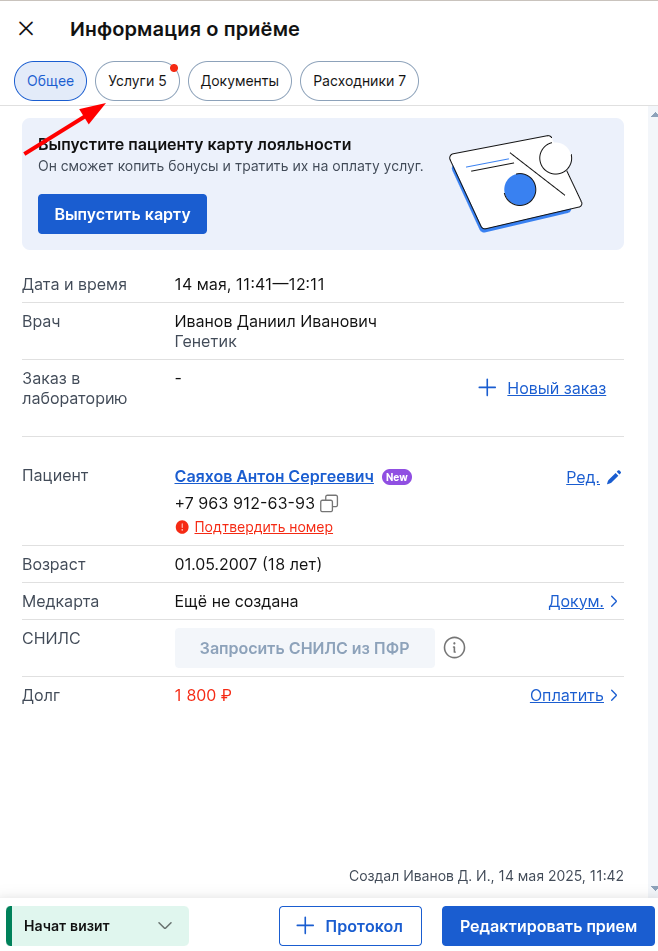
- In the window«Информация о приёме», go to the section «Услуги».
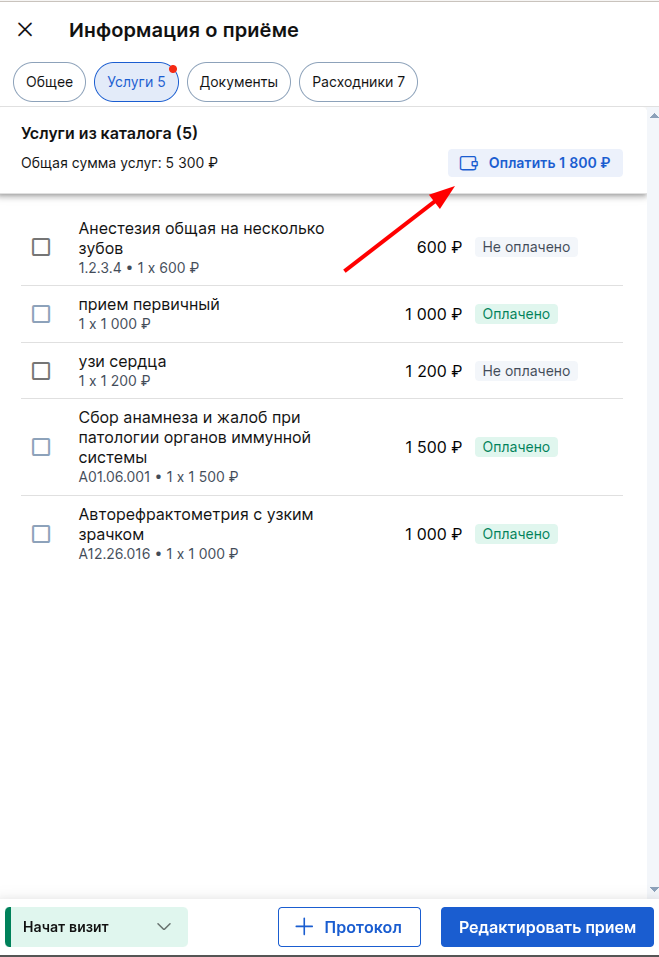
2. You can pay for all assigned services at once. To do this, click on the button «Оплатить»(the button will indicate the cost of all unpaid services).
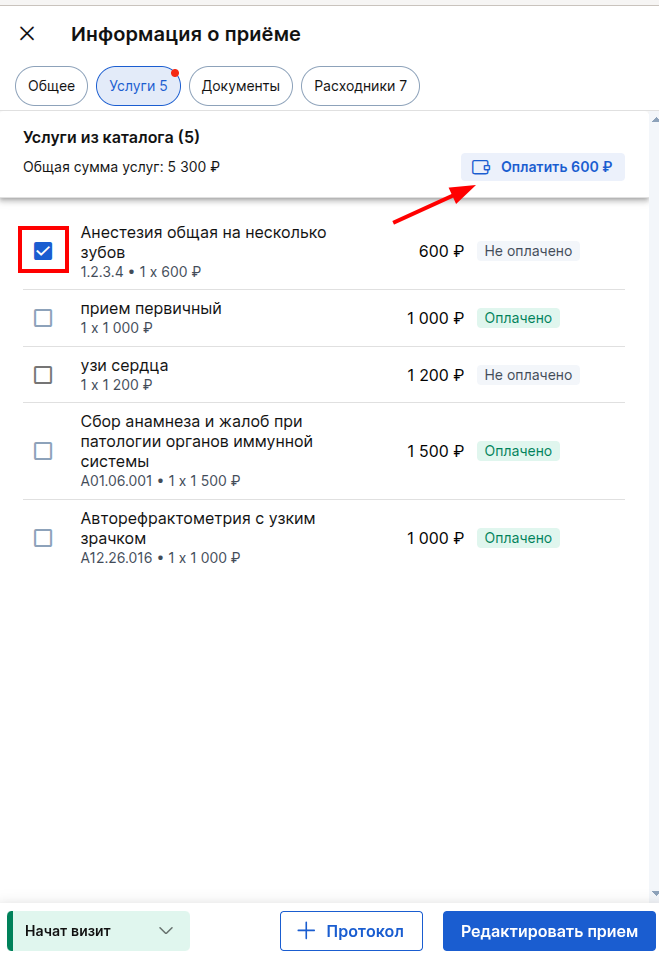
3. To pay for individual services, tick them and also click «Оплатить»(the amount in the button will change to the amount of the selected services).
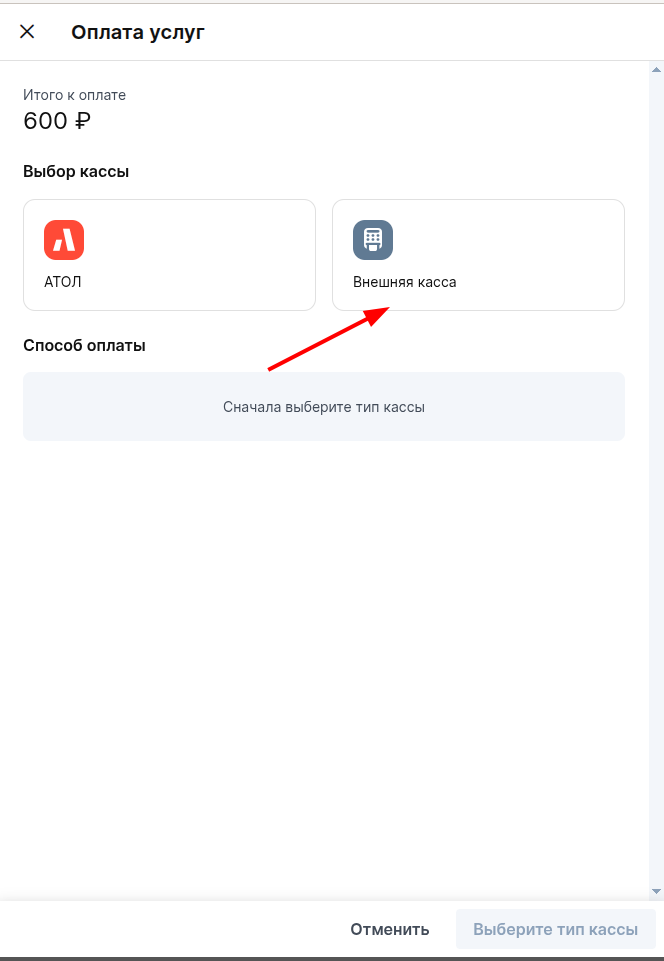
4. In the window that opens, select «Внешняя кассу».
5. If the patient has made an advance payment, the maximum amount will be offered for payment in the window«Списать с депозита». The total amount deposited by the patient through an external cashier will be indicated below the window.
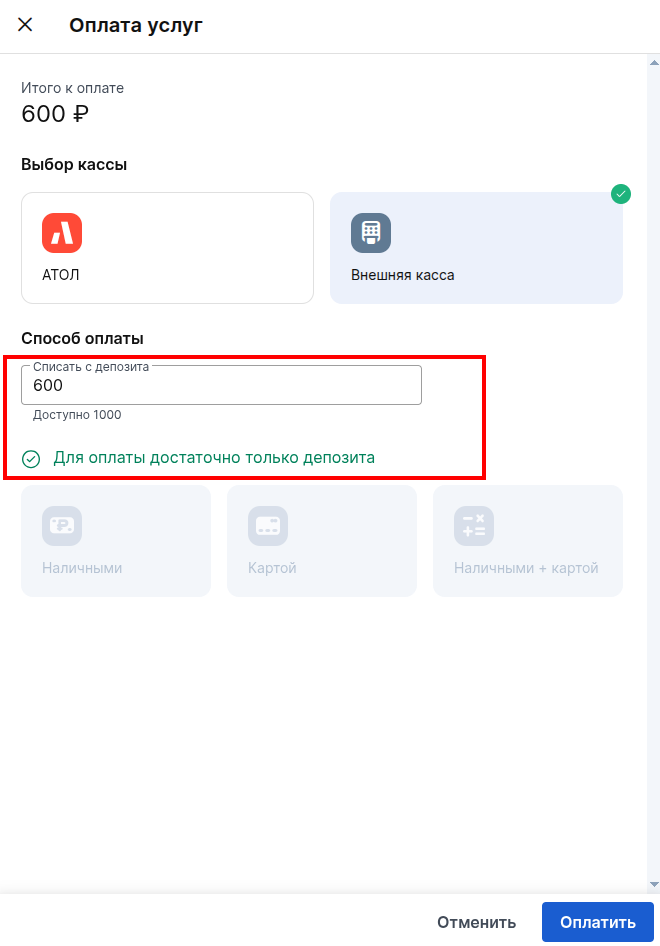
6. You can debit the full amount of the deposit to pay for the service or part of it. For more information, see the Deposit article.
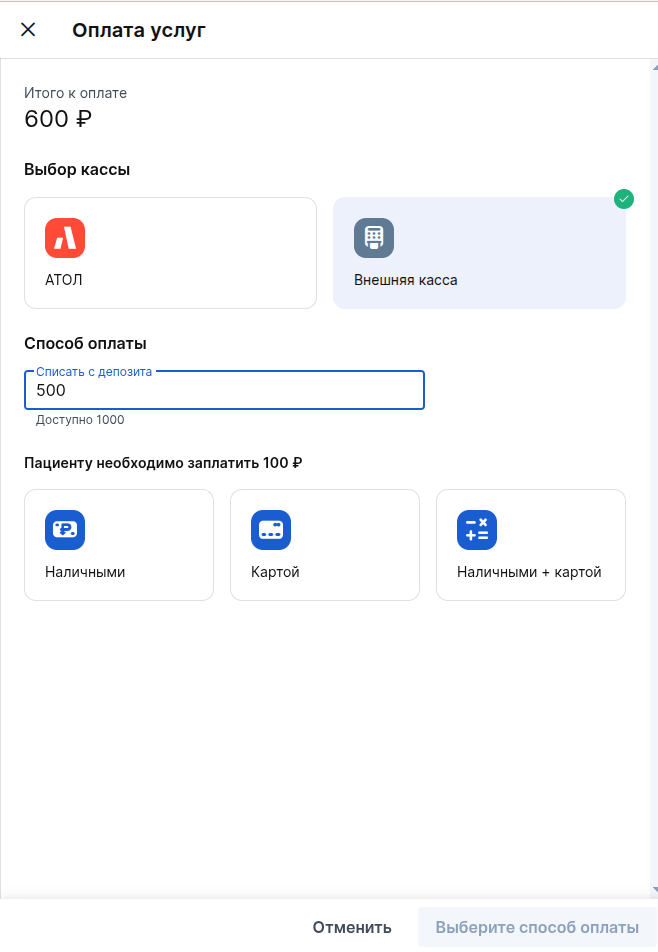
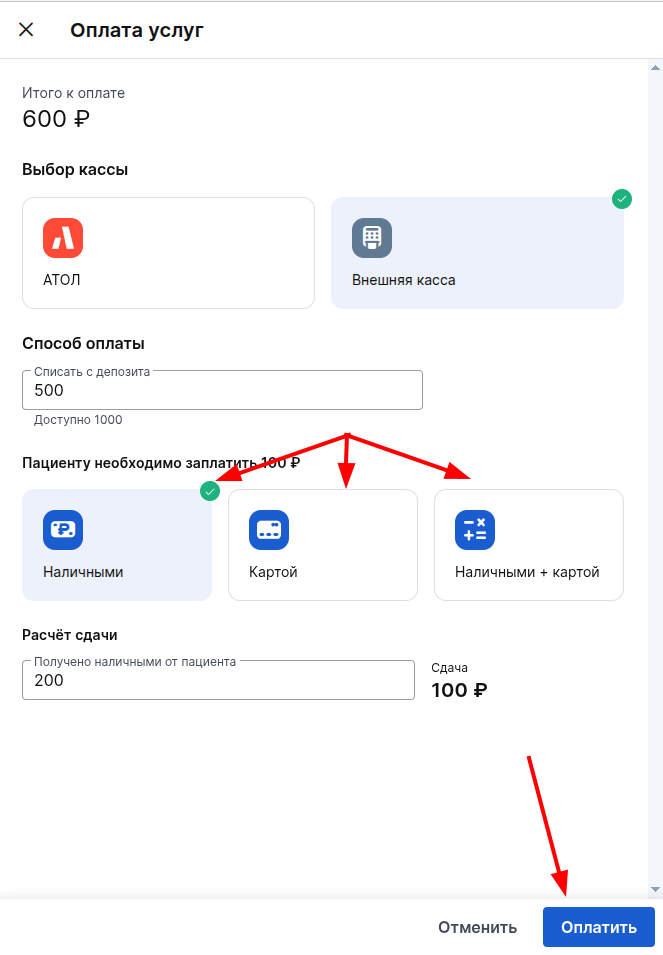
7. Next, select the payment method, enter all the necessary information and click «Оплатить».
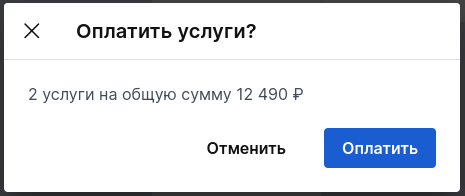
8. In the window that opens, check the information about the paid services again and click «Оплатить».
Important! When working with an external sales register, receipts from the program are not printed.
Payments are carried out as usual, and in MedLock you can only mark transactions and view reports.
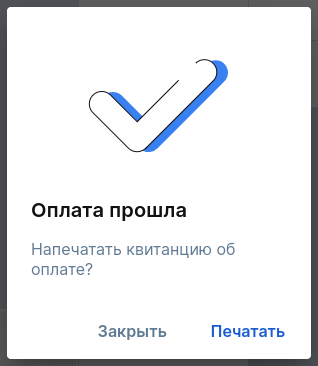
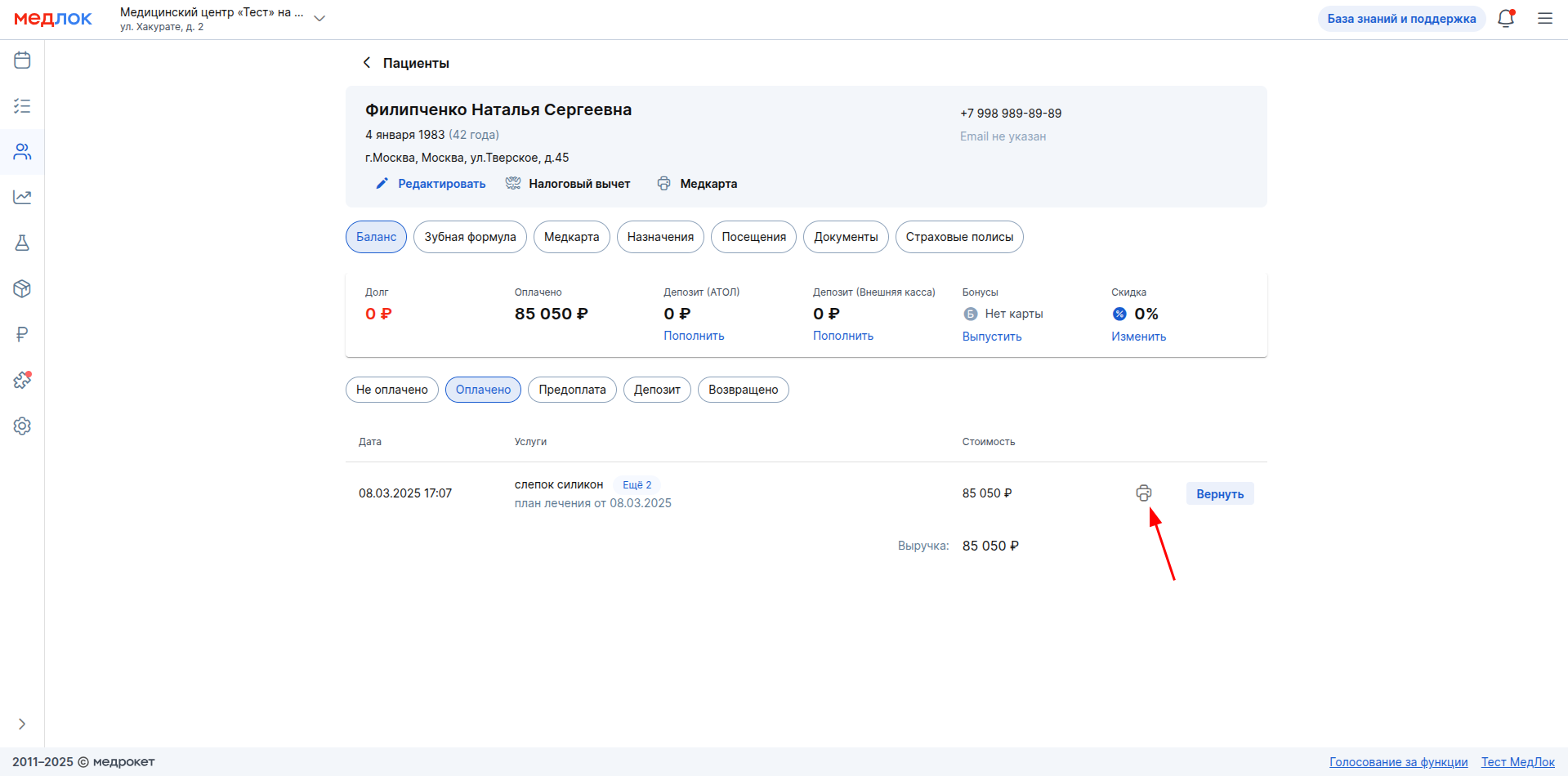
9. In the window that appears, you can form «Квитанцию об оплате»it by clicking «Напечатать». You can also print the receipt in the patient's profile in the section «Баланс»in the subsection«Оплачено».
10. You can also print the receipt in the patient's profile in the section «Баланс»in the subsection«Оплачено». To do this, click on the printer button.

Important! In the receipt for payment for services for minors or incapacitated patients«Потребитель», the guardian from the reception in which this service was indicated is inserted in the field.
Balance Information
General information about the balance is available in the patient's profile. Detailed information about the patient's payments, refunds, and debts is available in the section«Баланс». You can also pay for the services assigned to the patient.
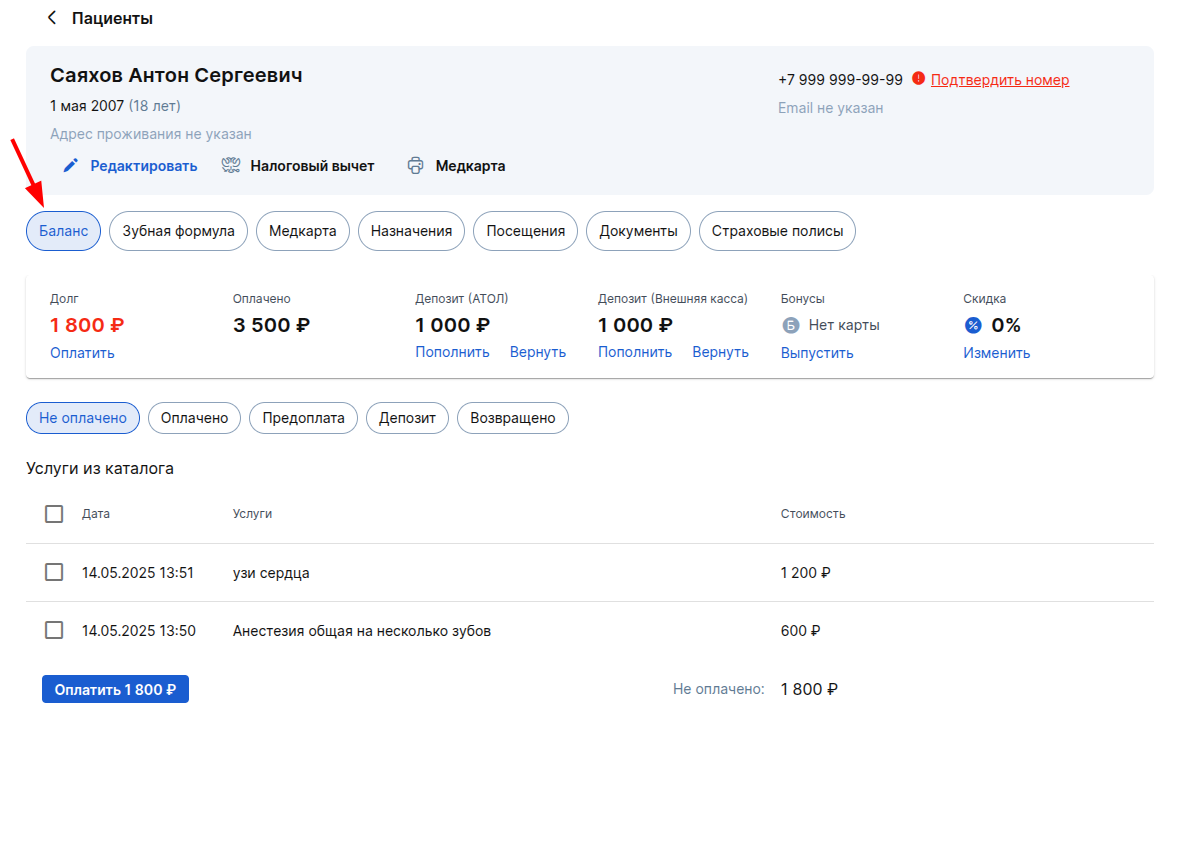
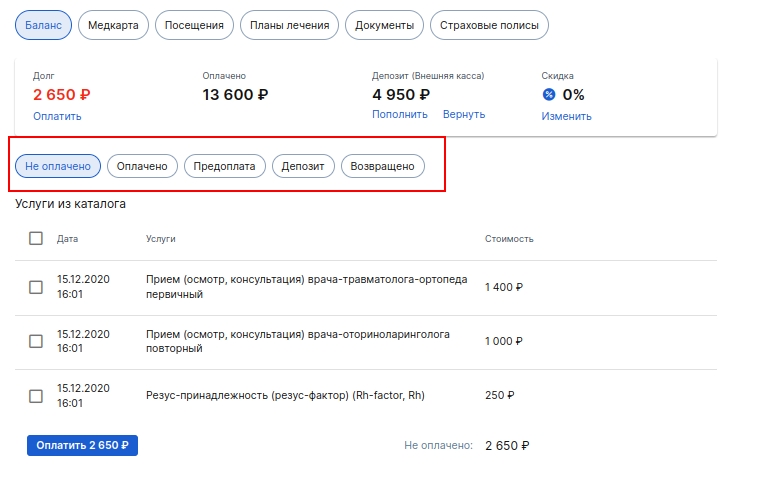
The patient's debt can be paid in full. Or check the boxes for the services that need to be paid for now.
In order for the service to appear in this section of the patient's profile, it must be included in any appointment that has the status «Пациент пришёл», «Начат визит»or «Выполнен».
Making a refund
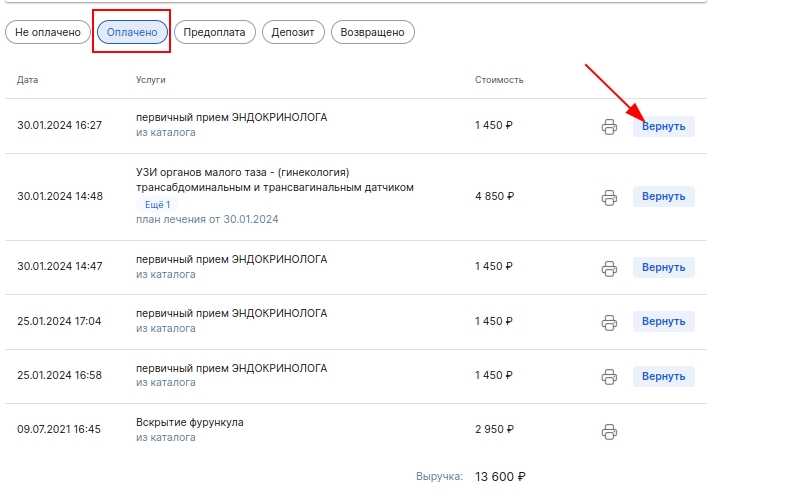
- Go to the patient's profile.
- Go to «Баланс».
- Select a tab«Оплачено».
- Click the button «Вернуть»next to the desired service.
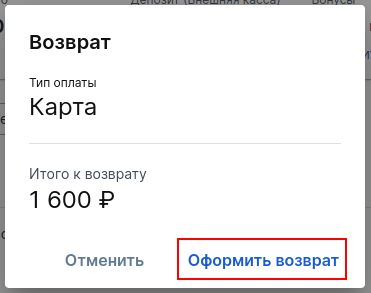
- In the window that opens, click «Оформить возврат».
Revenue report
To view or download the report:
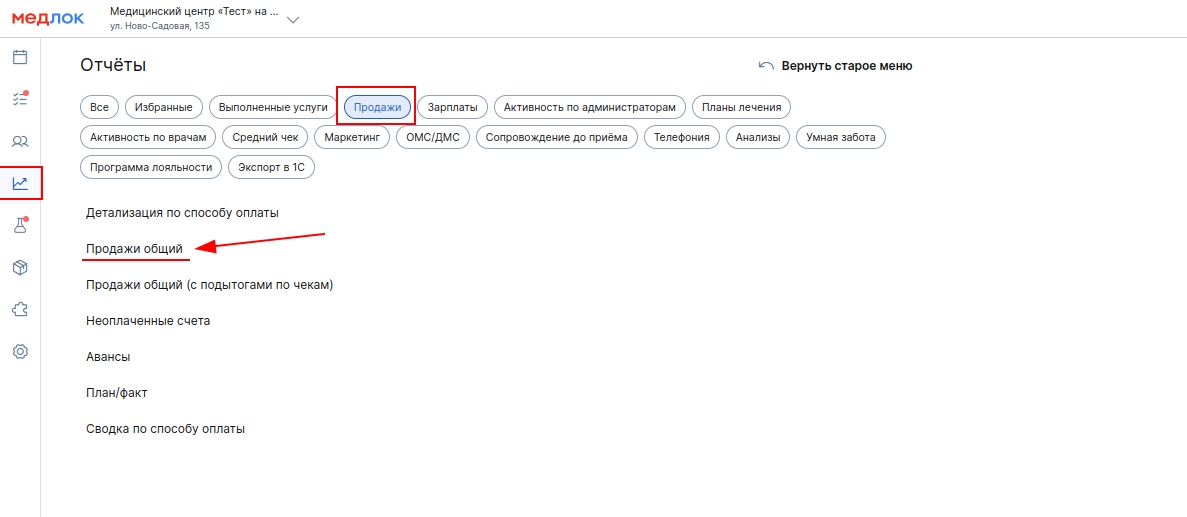
- Go to the section«Отчёты».
- Select a tab«Продажи».
- Click«Продажи общий».
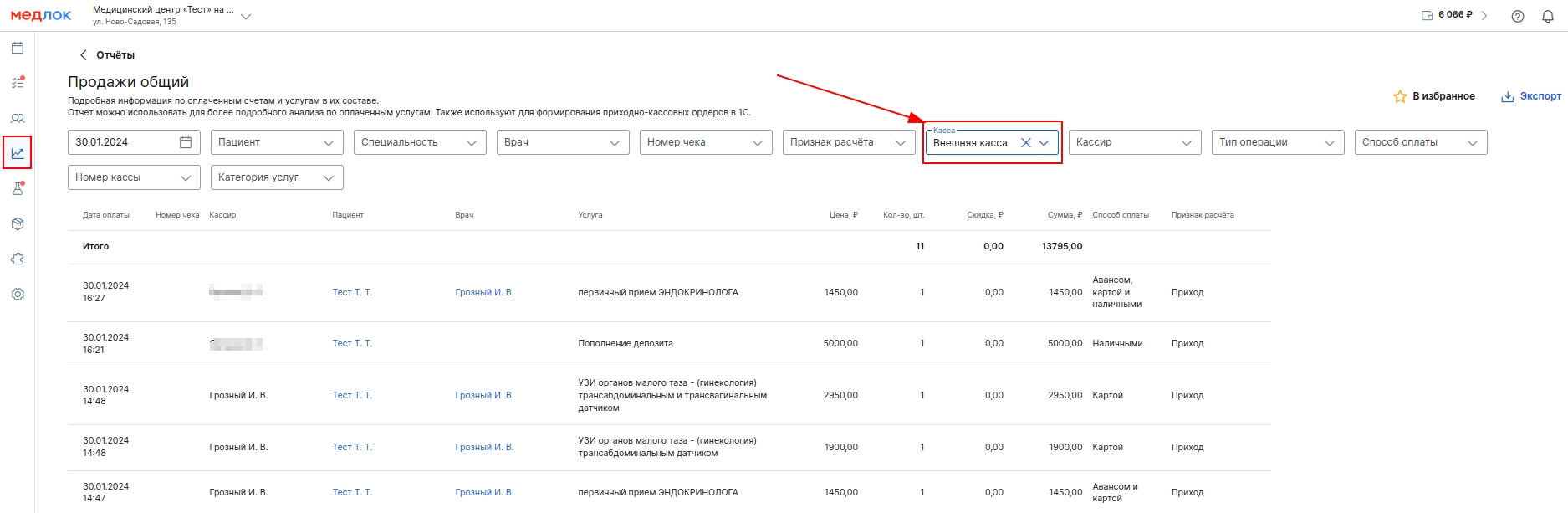
4. Select a filter«Внешняя касса».
The report can be downloaded in Excel format. To do this, click «Экспорт»on the top right.