


Content
- What tasks does the module solve?
- Connecting the module
- Accessibility of EDI for patients
- Chapter«ЭДО»
- Signed EDI documents in the patient profile
- Document management fees
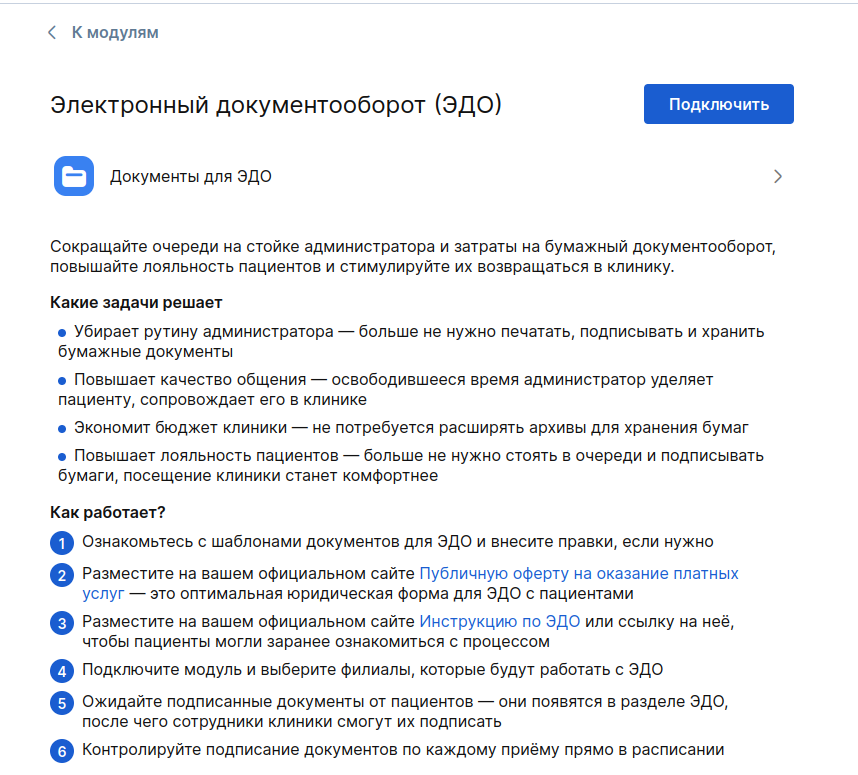
What tasks does the module solve? 
- Removes the admin's routine — you no longer need to print, sign, or store paper documents.
- Improves the quality of communication — the administrator devotes the free time to the patient, accompanies him in the clinic
- Saves the clinic's budget by not having to expand archives to store papers.
- Increases patient loyalty — you no longer need to stand in line and sign papers, visiting the clinic will become more comfortable.
The signing of documents by doctors and clinics in the medical Unit, as well as the signing of documents by patients in the medical Unit, is legally binding and complies with the requirements of Federal Law No. 63.About the electronic signatureand Federal Law No. 323On the basics of public health protection.
Connecting the module
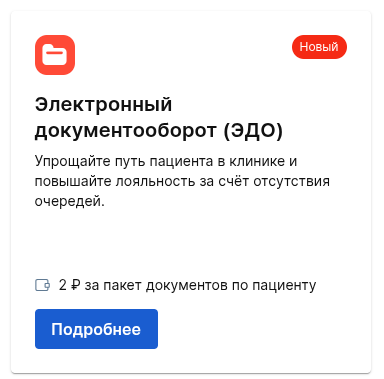
Go to «Модули», «Продвинутые», and click on More detailed
in the module card Electronic document management
.
Important! If you are registered with MedLock, but you do not have a contract with Medflex, you will not be able to connect the EDI module.
Configuring EDI Document Templates
Step 1
Before turning on the module, read the instructions in the module description. First of all, study the document templates for electronic document management. After enabling the module, patients can immediately request them for signing, it is important that the documents are correct for you. You can edit the templates as you need. To go to the documents folder, click Documents for the EDO
.
Documents are available in the folder:
- Consent to the processing of personal data;
- Public offer for the provision of paid medical services;
- Informed consent for medical intervention (IDS).
You can edit the templates as you need, but it is important to keep the clause stating that the acceptance of the offer is the specific actions of the patient in the medical record.
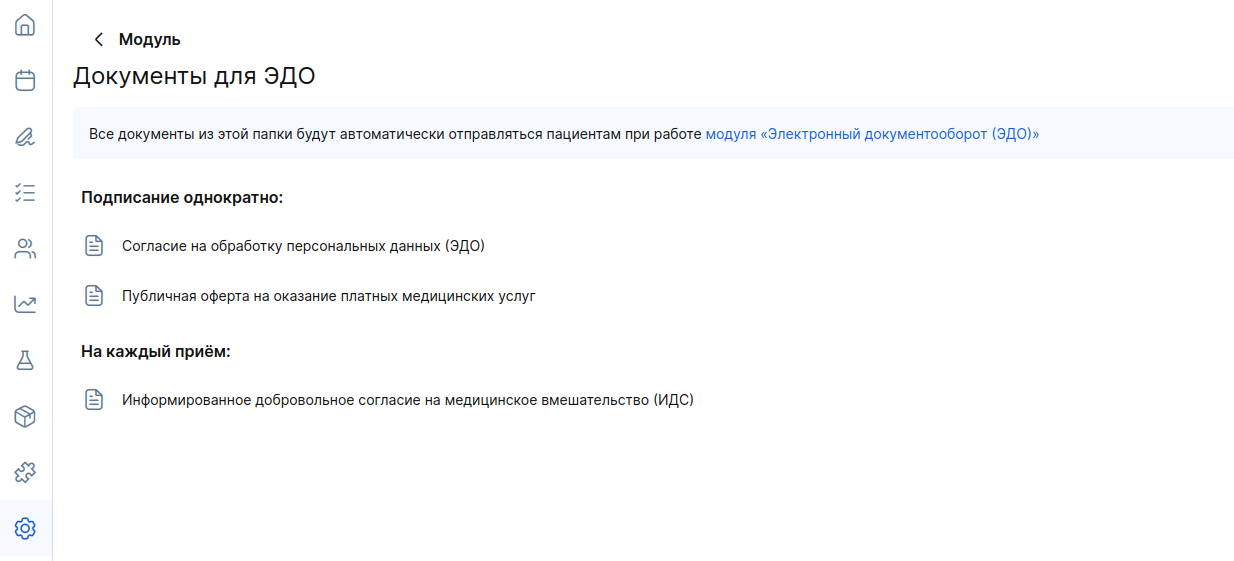
Important! The ID is sent automatically at each appointment, and the Offer and Consent to the processing of personal data are sent only at the first one. You cannot disable sending these documents, but you can change their contents.
Step 2.
Post a Public offer for the provision of paid services on your official website. This is the optimal legal form for organizing EDI with patients, as well as instructions on EDI for patients.
Step 3.
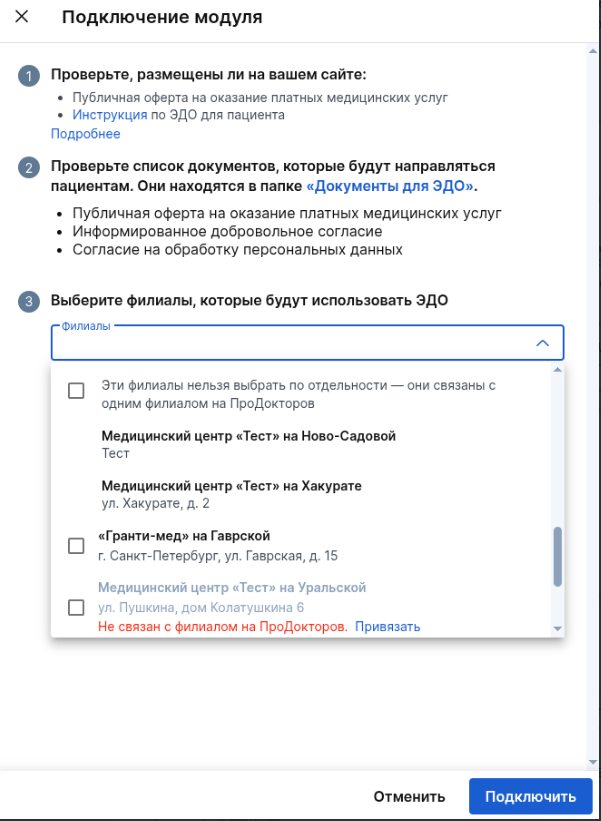
After completing the previous steps, connect the module «Электронный документооборот (ЭДО)»and select the branches that will work according to the new process.
The list shows:
- All branches added to the Medlock;
- Multiple branches in the same list are branches that are linked to a single branch on ProDoctorov. They cannot be connected separately.;
- Branches that are not available for selection.
After selecting it, click the button«Подключить».
You can change the branch settings at any time via the button«Настройка модуля».
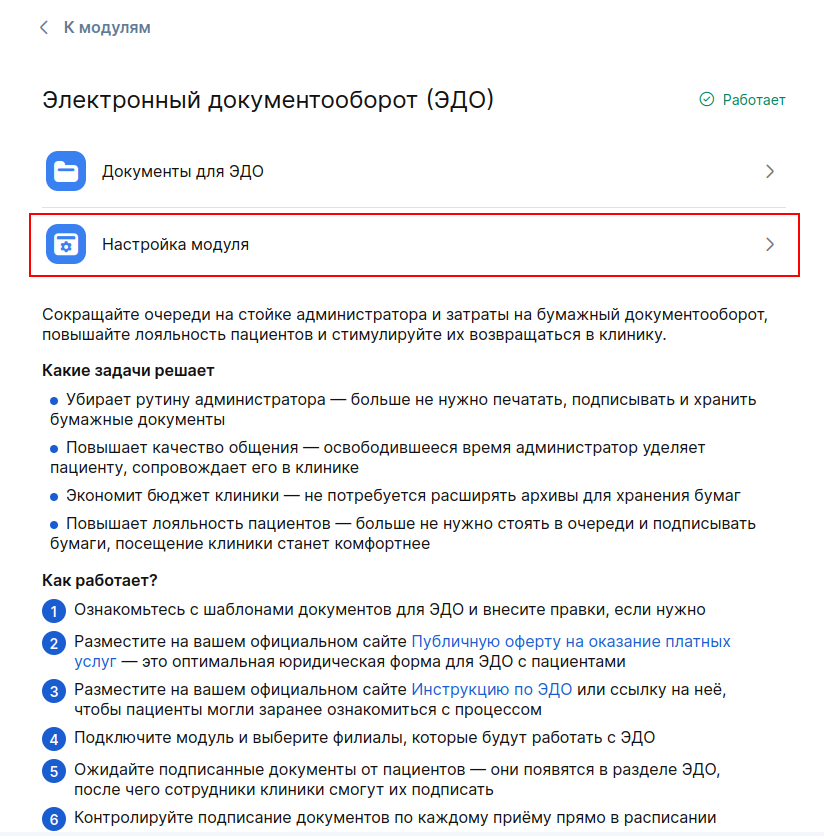
Important! When the module is connected, the «Электронный документооборот»section is «ЕГИСЗ»renamed to «ЭДО».
Accessibility of EDI for patients
After turning on the module and creating an appointment, the patient in the medical center has the opportunity to request documents for signature. For more information about the functionality on the patient's side, see the article Electronic signature of the contract with the clinic. «Документы»The in-appointment section displays information about the availability of EDI for the patient.
To work with EDI on a patient, the following conditions must be met::
- The patient's profile contains a Russian phone number.
- The patient is an adult.
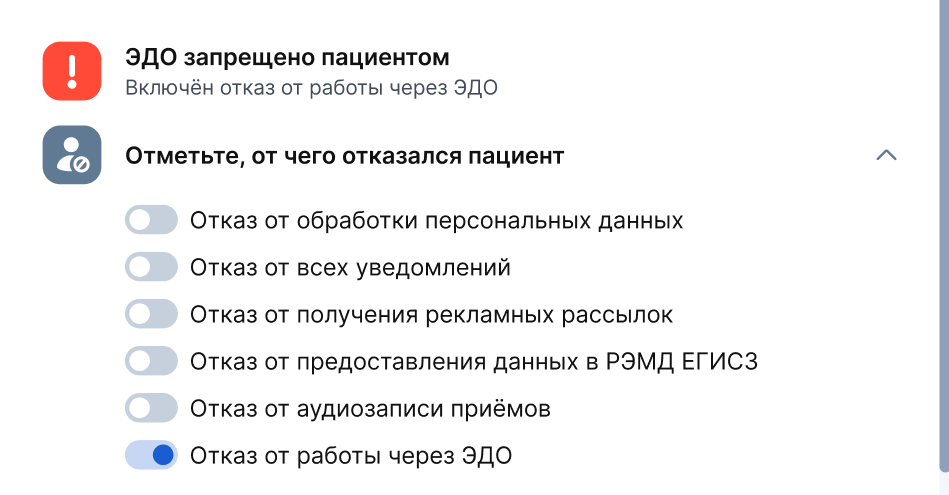
- The patient has not been issued a waiver of the use of EDI.
- The application «МедТочка»is installed on the patient's device.
- The patient's profile in the app «МедТочка»is confirmed via «Госуслуги».
If these conditions are not met, the patient will not be able to request documents through the medical center. The reason for the unavailability of the EDI is displayed in the admission of such patients.:
- The patient does not have a personal account«МедТочка».
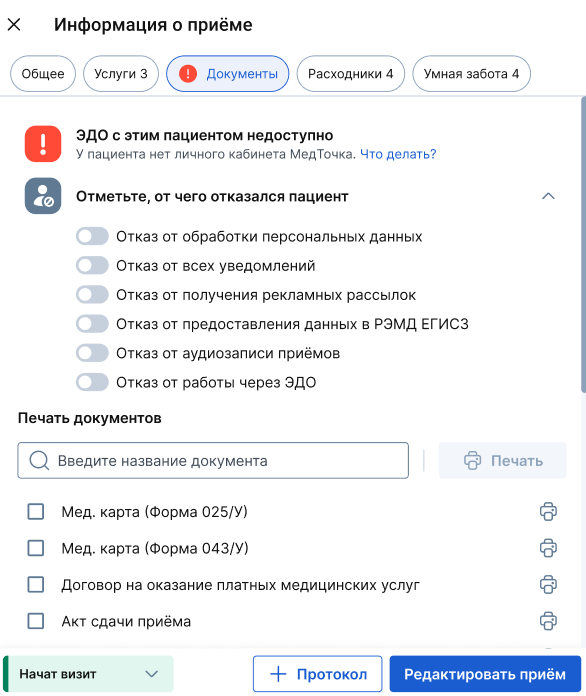
- The «МедТочка»patient has not verified his profile in the application«Госуслуг».

- The patient is underage or incapacitated.

- Refusal to work through the EDI is enabled.
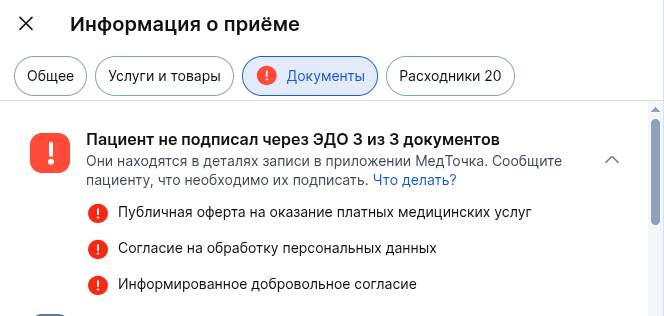
If the EDI with the patient is available, then in the section Documents
The signing status for each document is displayed.
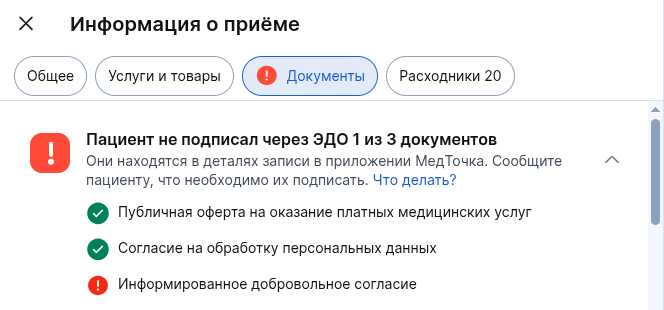
The patient did not sign the documents:
The patient partially signed the documents:
The patient signed all the documents:
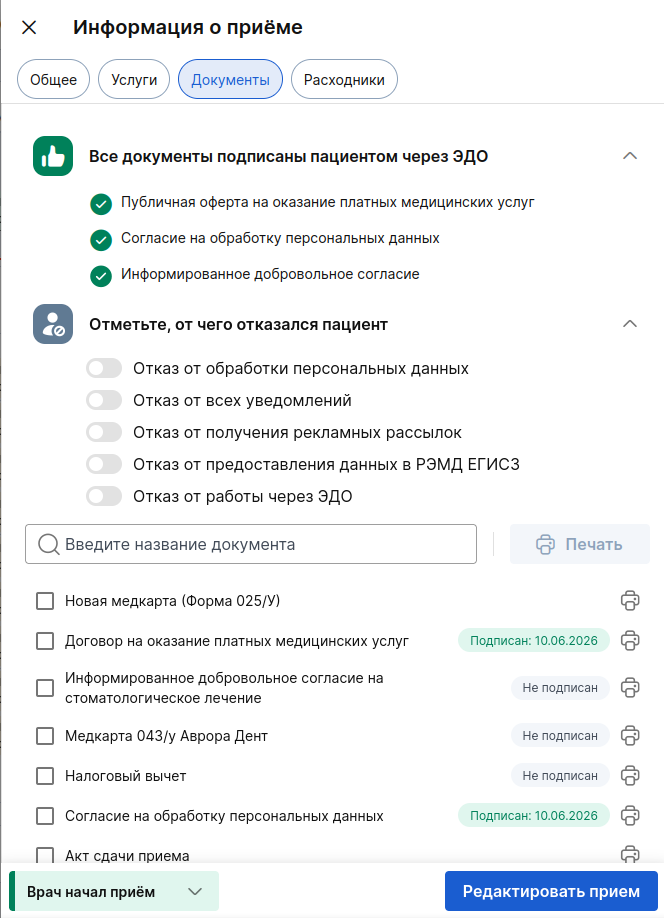
Important! In the sectionDocumentsThe documents that were sent to the patient for a specific appointment are displayed. For example, if a patient has previously signed a document«Согласие на обработку персональных данных», when creating a repeat appointment, this document will not be generated and will not be sent to him.
Currently, if the patient requested and did not sign the admission documents, and then the appointment was canceled, then when requesting documents in subsequent appointments«Оферта», «Согласие на обработку персональных данных»they will not be sent again. This will change soon and the documents will be sent.
Features of working with IDS
If the documents were generated by the admission, then:
- If the appointment is postponed within one day, the IDS will not be recalled.;
- If the appointment is postponed to another date, the IDS will be revoked.;
- When the doctor changes, the IDS is withdrawn.
The «Информированное согласие на медицинское вмешательство»doctor and the date of admission are indicated in the document. If these data are changed, the ID will become invalid, and therefore must be revoked.
In the reception, the revoked ID is displayed unsigned with an indication of the reason. In the current implementation, you will need to sign it in paper form, and soon we will finalize the automatic sending of a new document.
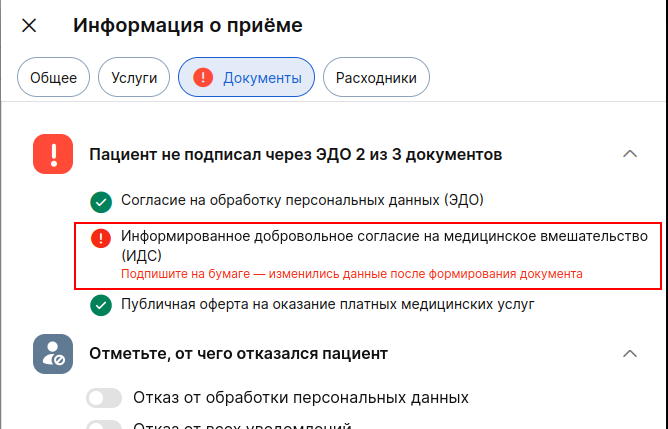
The revoked documents are not displayed in the section«ЭДО».
Chapter«ЭДО»
After signing the documents of the Offer and the IDS by the patient, they enter the section«Электронный документооборот (ЭДО)».
You can go to the EDI section through the side menu.
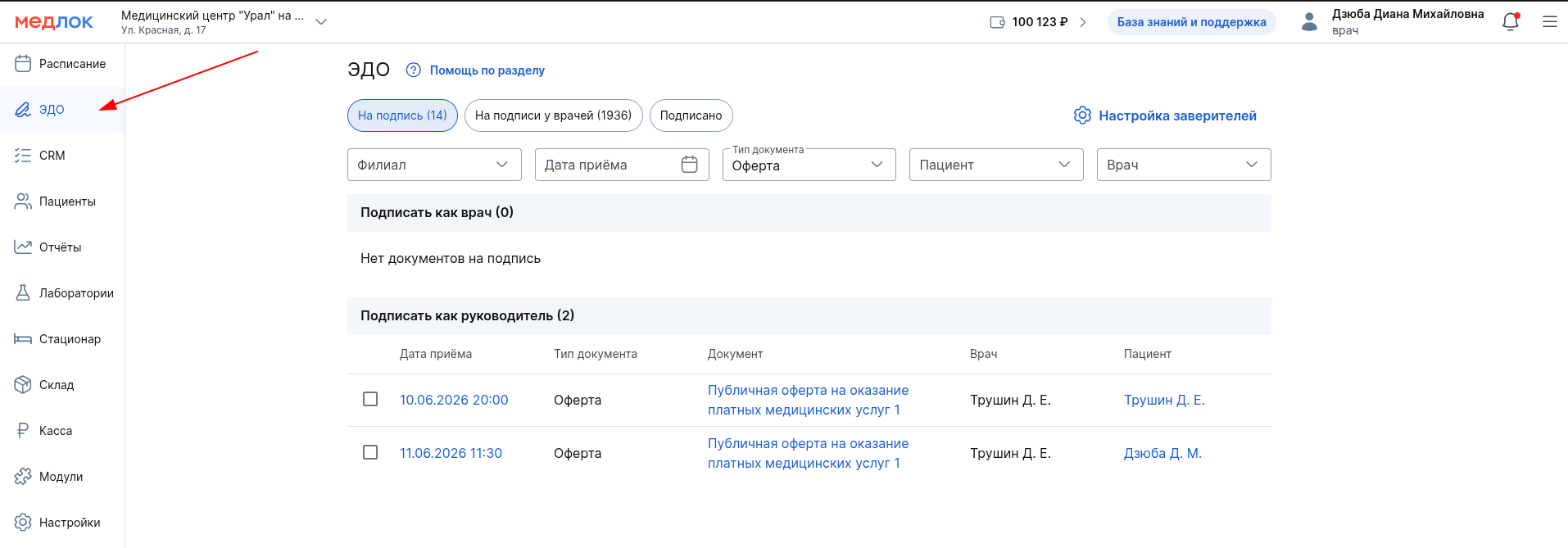
Important! If you are working with the EGISZ module, the documents to be sent to the RAMD will also be displayed in a new section so that you can sign all the necessary documents from a single location.
Depending on the role and rights, the user sees and can sign documents on the EDI page.:
- A doctor with the right to sign on behalf of the supervisor can sign IDS and Offers.;
- A doctor without the right to sign on behalf of a supervisor can only sign IDS;
- Other users with the right to sign on behalf of the manager can only sign the Offer.
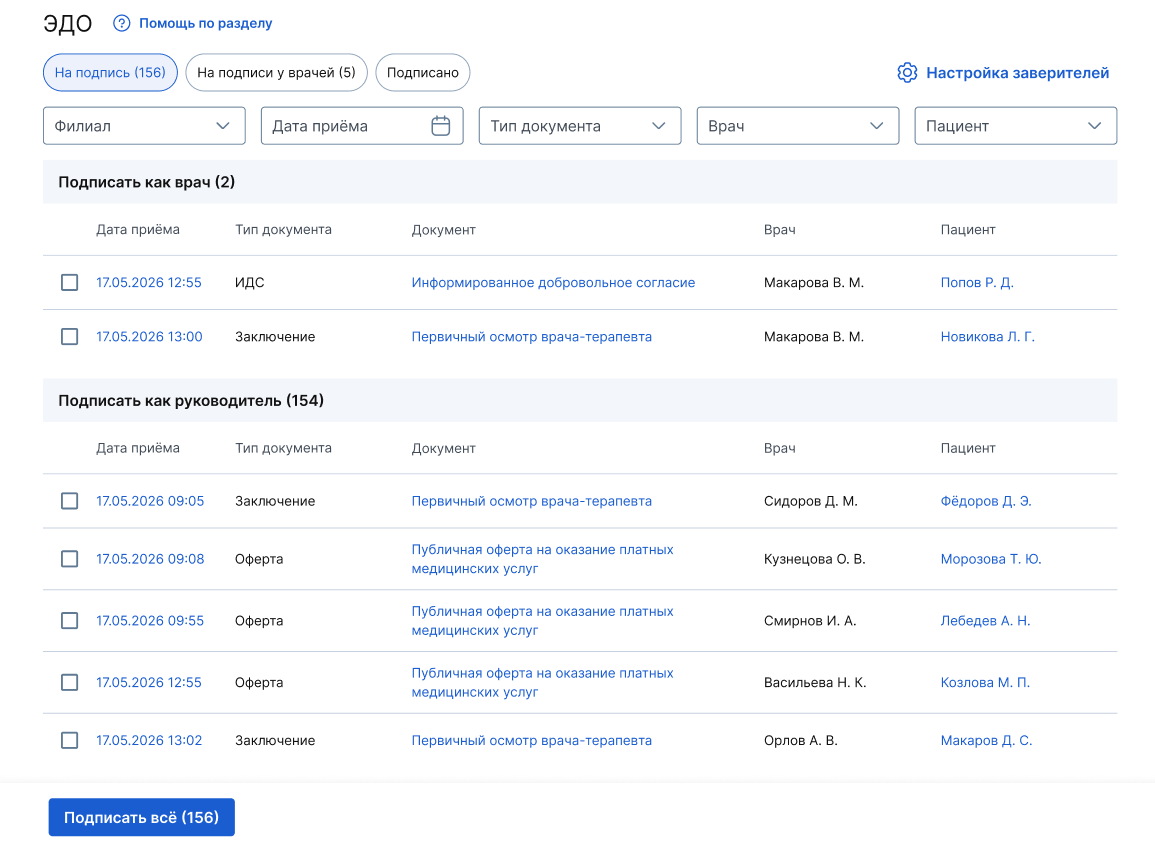
The section is displayed to the doctor with the right to sign on behalf of the supervisor and the supervisor «На подписи у врачей».
Important! In order for a doctor or administrator to sign an Offer, he must have the right to sign on behalf of the head, and he must also have an electronic signature of a legal entity (which is installed on a computer or on a USB stick).
All signed documents are displayed in the section«Подписано»:
- Doctors only see their conclusions and IDS;
- Doctors with the right to sign on behalf of the supervisor and supervisors see all signed documents.;
- Administrators with the right to sign on behalf of the manager see only signed Offers in the section.
To download a document in the section«ЭДО», click on it and it will open in a new window. The document is available for download in PDF format.
If the clinic has a module «ЕГИСЗ»enabled, but the module is disabled«ЭДО», the section «ЕГИСЗ»is not displayed.:
- For managers without the right to sign on behalf of the head;
- For administrators and marketers, regardless of the rights to sign on behalf of the manager.
Signing of documents
- Consent to the processing of personal data requires only the signature of the patient.
- A public offer for the provision of paid medical services requires the signature of the patient and the medical organization.
- Informed consent for medical intervention (IDS) — requires the signature of the patient and the doctor from the appointment.
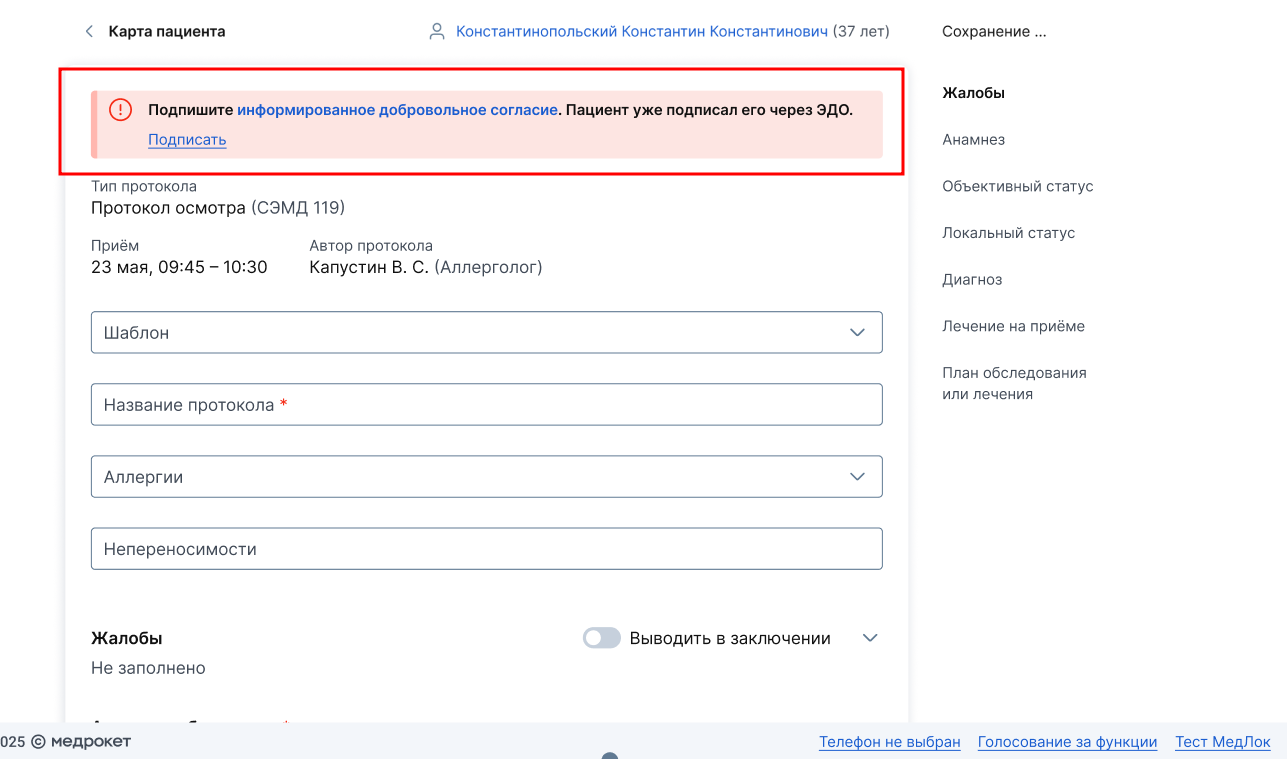
- If the patient has signed the IDS, then when creating the protocol, the doctor will display an information sheet stating that it is required to sign the IDS.;
- Click the button «Подписать»to sign the IDS from the protocol page.
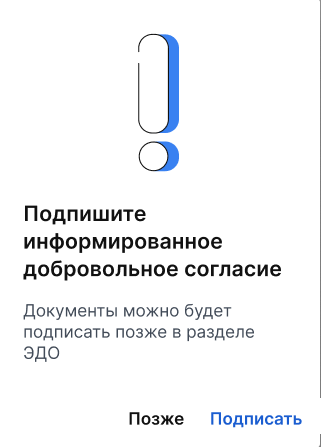
- If the doctor closes the protocol page without signing the IDS, a pop-up window will appear.:
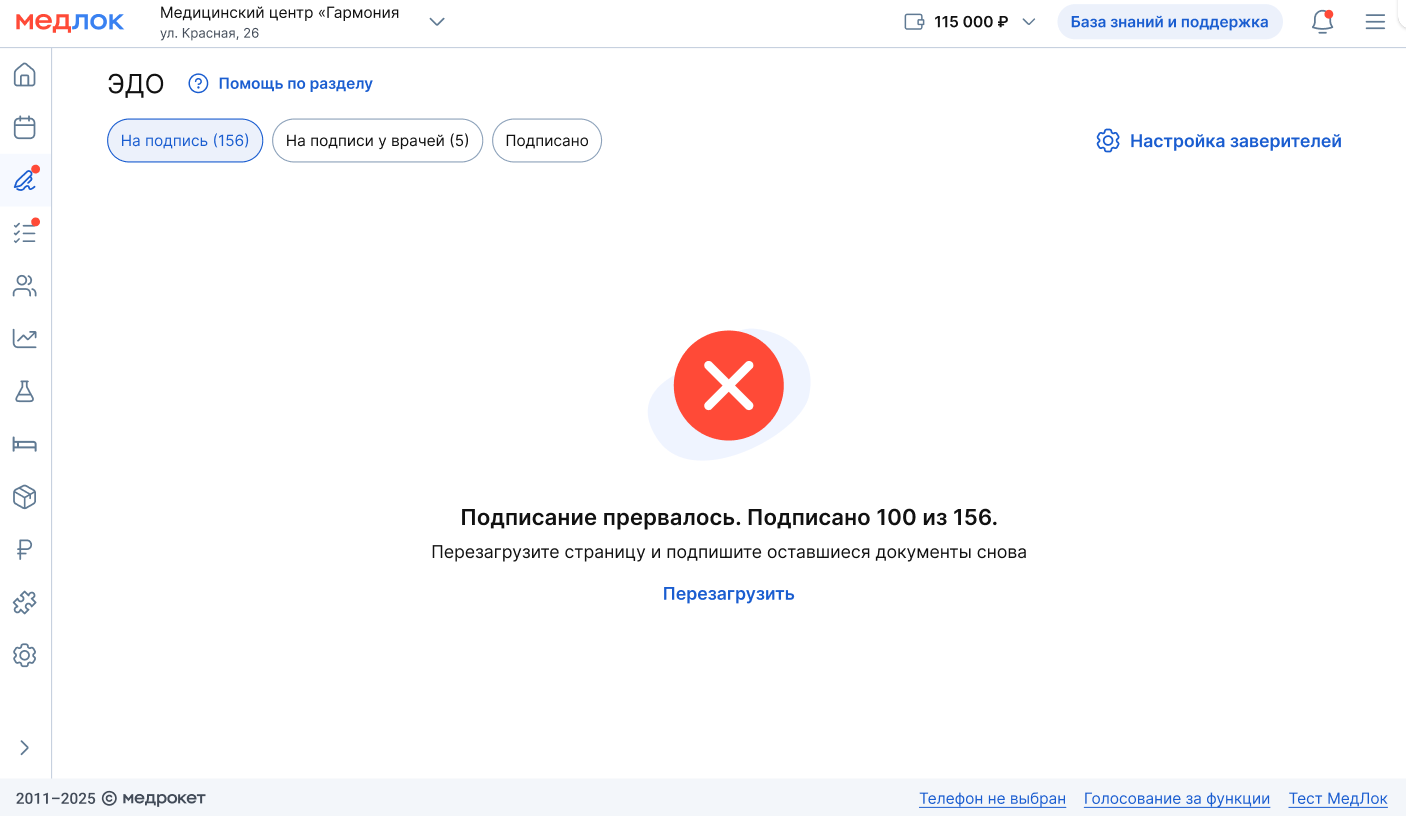
Signing errors:
If 5 errors occur during multiple document signing, the process is suspended and an error message is displayed.:
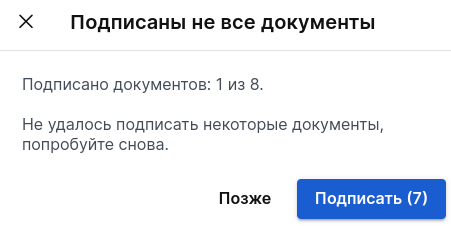
If less than 5 errors occur during the signing process, a pop-up window appears indicating the number of signed and unsigned documents.:
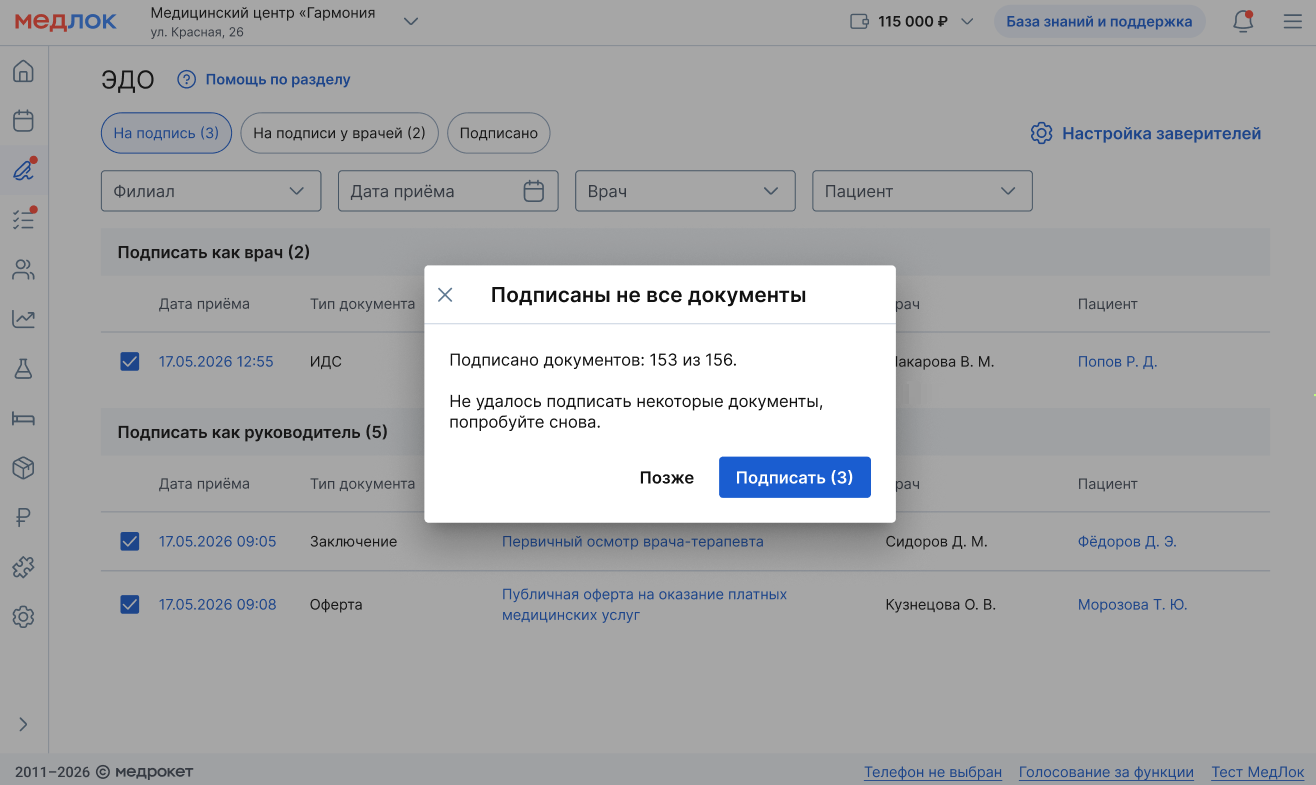
The window «Подписаны не все документы»shows the total number of signed documents, excluding those that have been sent for correction.
The RAMD documents
- If the doctor has the right to sign documents on behalf of the supervisor, then clicking on the button «Подписать всё»offers a choice of signatures of both an individual and a legal entity (if any).
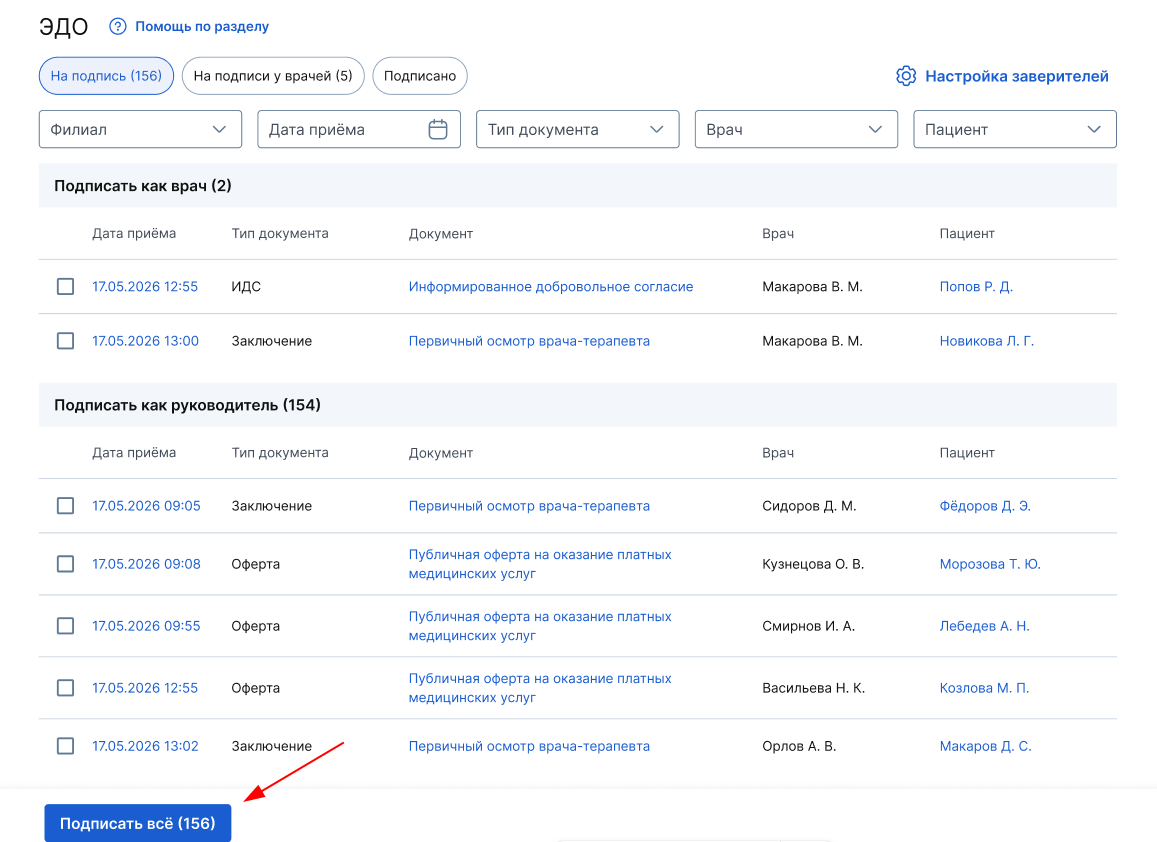
- If you want to sign documents only with the signature of an individual, select them from the table «Подписать как врач»and click on the button«Подписать N».
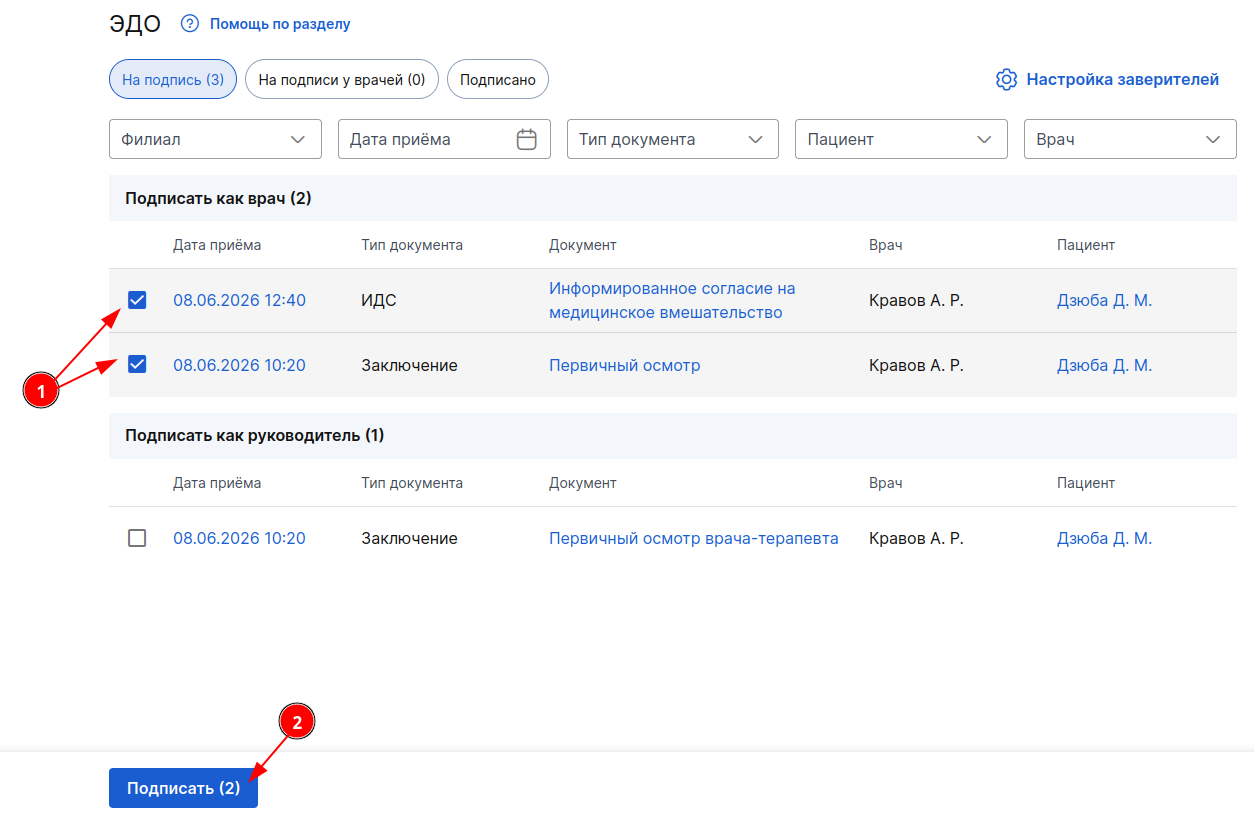
Important! If in the tableSign as a supervisorIf there are no documents, then the button «Подписать всё»offers a choice of signatures of both an individual and a legal entity.
- If the documents are selected in the and tables«Подписать как врач»«Подписать как руководитель», the documents will be signed with two types of signatures.
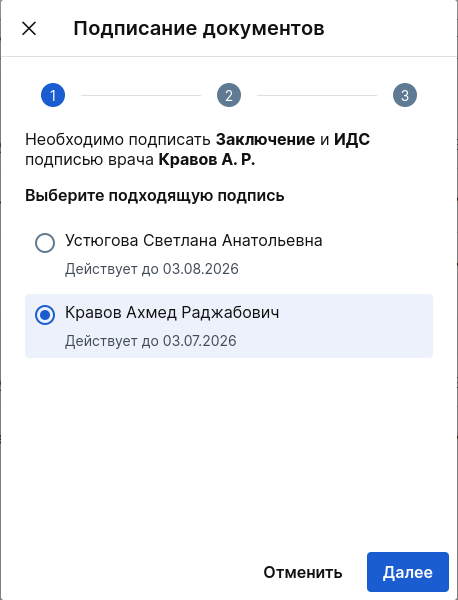
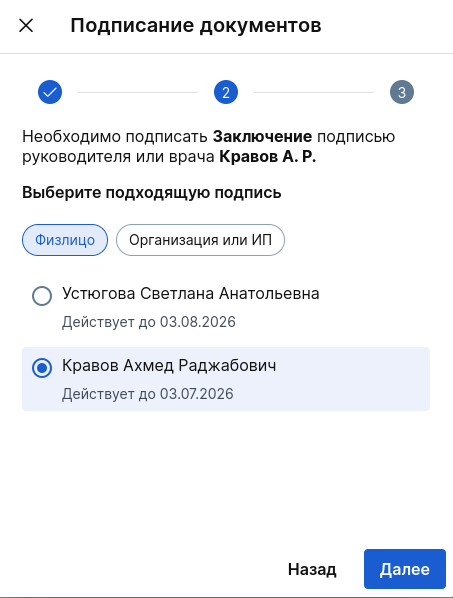
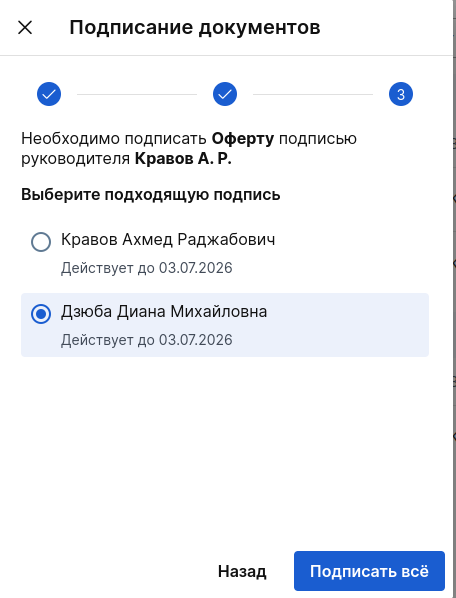
If an employee signs different types of documents, a signature selection window opens for each of them.:
- Step 1: Sign the document as a doctor (IDC and Conclusion)
- Step 2: Sign the document with the signature of the supervisor or doctor (Conclusion)
Step 3: Sign the document with the signature of the supervisor (Offer)
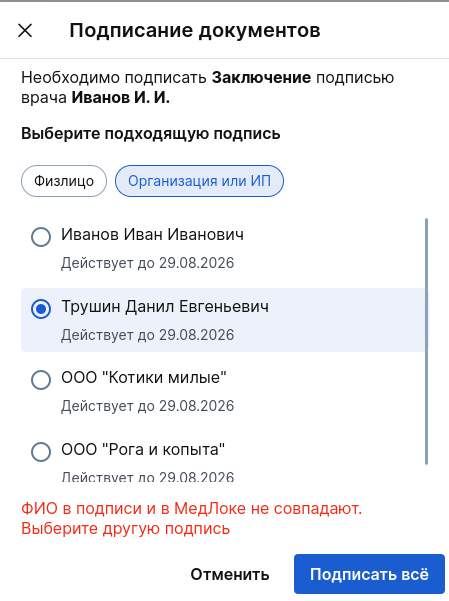
Multiple signature certificates can be installed on an employee's computer. In this case, a list of all available certificates will be displayed in the window. Signatures suitable for these documents will be at the top of the list.
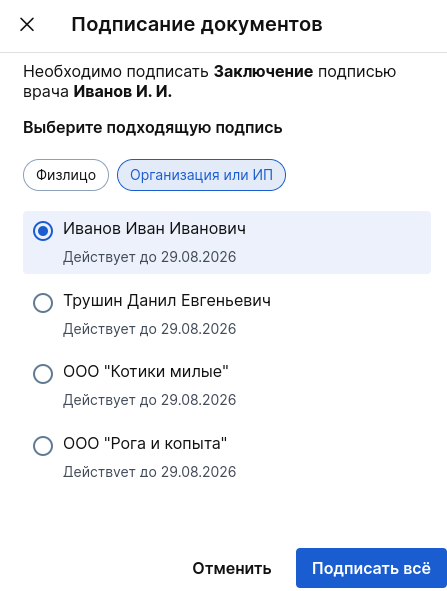
If the signature selected from the list does not match, you will see a message about it at the bottom of the window«Подписание документов».
Signed EDI documents in the patient profile
To find the signed documents in the patient's profile, go to the section «Документы».
Important! The patient's profile displays documents signed by both the patient and the clinic: «Оферта»and «ИДС», as well as signed by the patient «Согласие на обработку персональных данных».
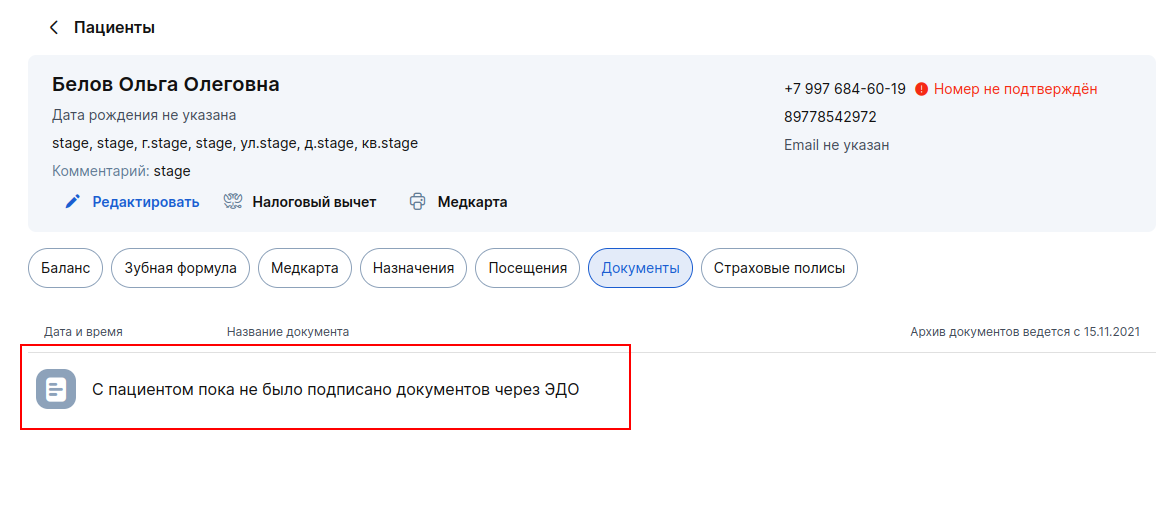
If the patient does not have signed documents, the folder with the EDI documents is displayed inactive.:
If the patient has signed documents, then the folder is active for the user. It displays a list of documents:
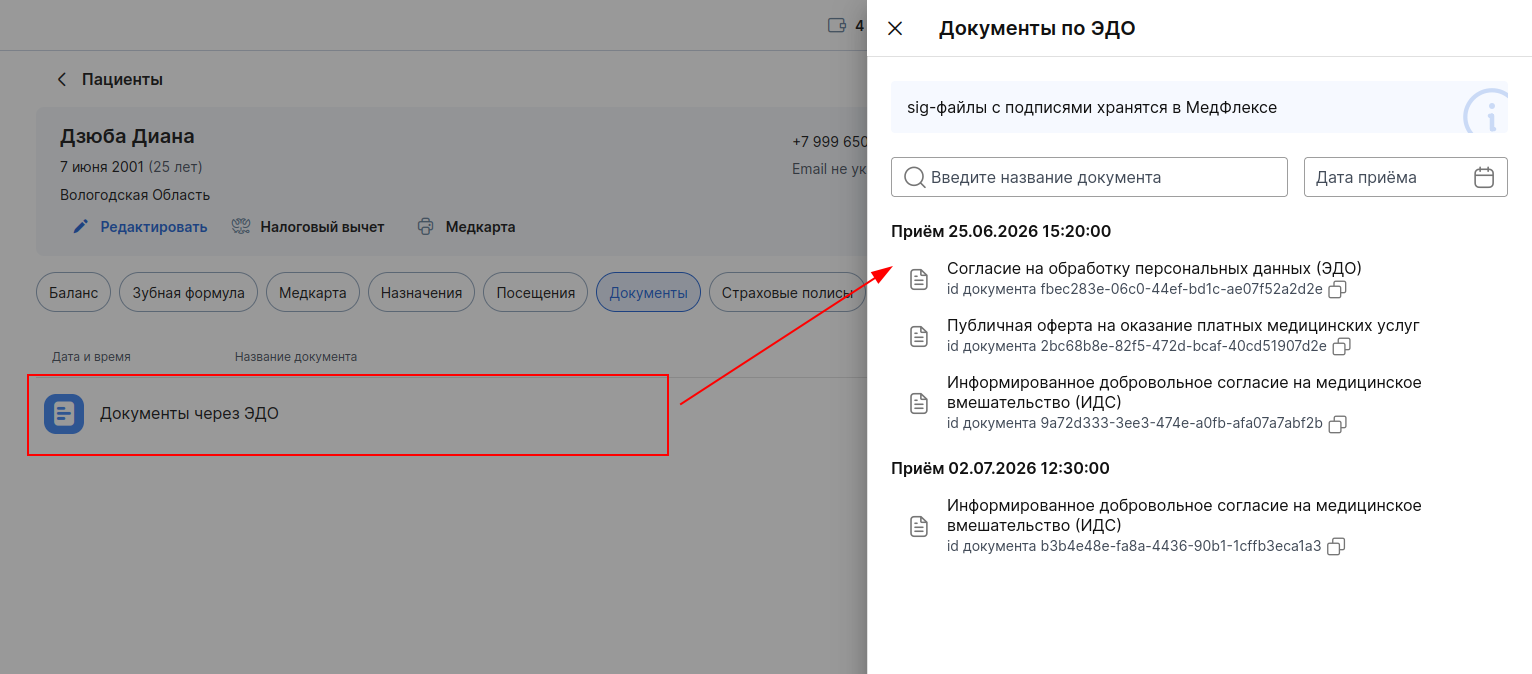
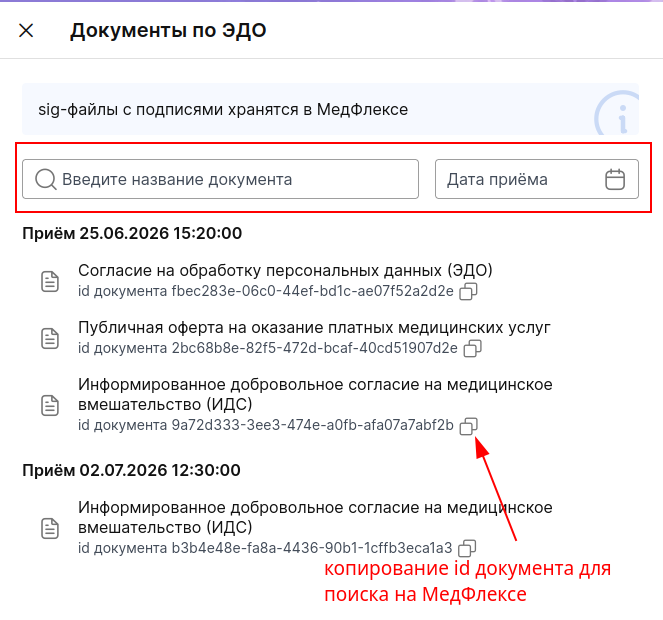
The documents in the folder are grouped by receptions. Filtering by document name and acceptance date is available. The document id is displayed under the document name. You can use it to find the document in your personal account «МедФлекс»and download it (along with the sig files). Learn more about searching and downloading documents in the documentation«Немедицинские документы».
When you click on a document, it opens in a new tab, from where you can download it in PDF format.
If the patient has a revoked IDS, then the documents in the folder «Документы через ЭДО»are not displayed.
If you disable the Electronic Document Management (EDI) module, the signed documents will be displayed in a folder «Документы через ЭДО»in the patient's profile. However, it will be impossible to download them. In this case, the download is available only from the personal account «МедФлекс»of the document id.
Document management fees
Payment via Medlock
A payment is made daily for the use of the functionality for the previous day. The amount is 2 rubles. for a package of documents. If the package contains several documents, the entire package is charged.
The logic of write-offs:
- The charge is made only for the package in which the patient has signed at least one document.;
- If the patient signs the documents from the same package on different days, there will be no repeat charge.;
- If the patient's ID card is withdrawn, the charge will be made.;
- If the patient has signed the documents and the appointment is canceled, then the package of documents is charged.;
- If the documents have been requested but not signed by the patient, no write-off is made.
Payment via Medflex
All documents signed by the EDI are stored in the personal account of the Medical Complex.
The cost of storage is 0.02 rubles per document per month.
The debit is made every 1st day of the new month in the balance of the personal account of Medflex
For more information, see the article Electronic document management