


The article contains the following sections:
- How to connect the module«Стоматология»
- How to create a protocol template
- How can a doctor create a protocol during an appointment?
- How to create a treatment plan in the protocol
- How to indicate the treatment performed at the reception in the protocol
- Dental formula in the patient's profile: how to work with it
- How to create a dental treatment plan in the patient's profile
- How to specify the treatment performed at the reception
- Features of dental treatment plans for minors and incapacitated patients
- Frequently Asked Questions
The module «Стоматология»allows doctors to:
- Create dental protocols.
- Print out the created protocols for patients.
- Keep the patient's dental formula in his profile.
- View the patient's medical history.
- Make a dental treatment plan.
How to connect the module«Стоматология» 
Create a profile in MedLock for all specialists who will need access to the module. For more information, see the article How to connect an EHR.
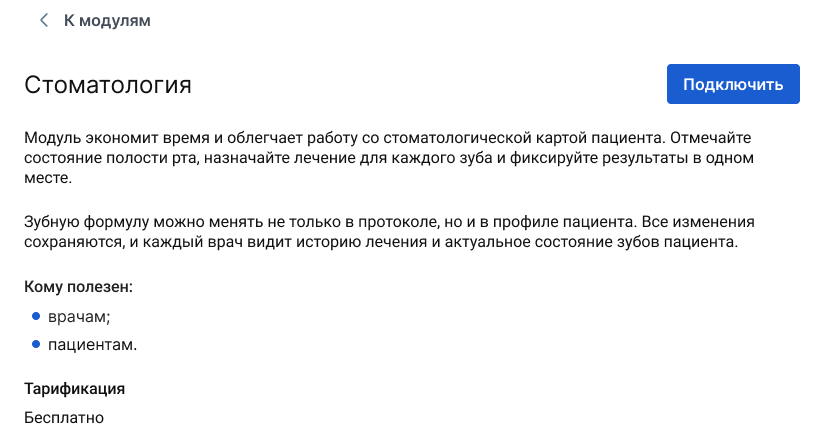
After that , go to the section «Модули», «Стандартные», in the module card «Стоматология», click «Подробнее», then «Подключить».
How to create a protocol template
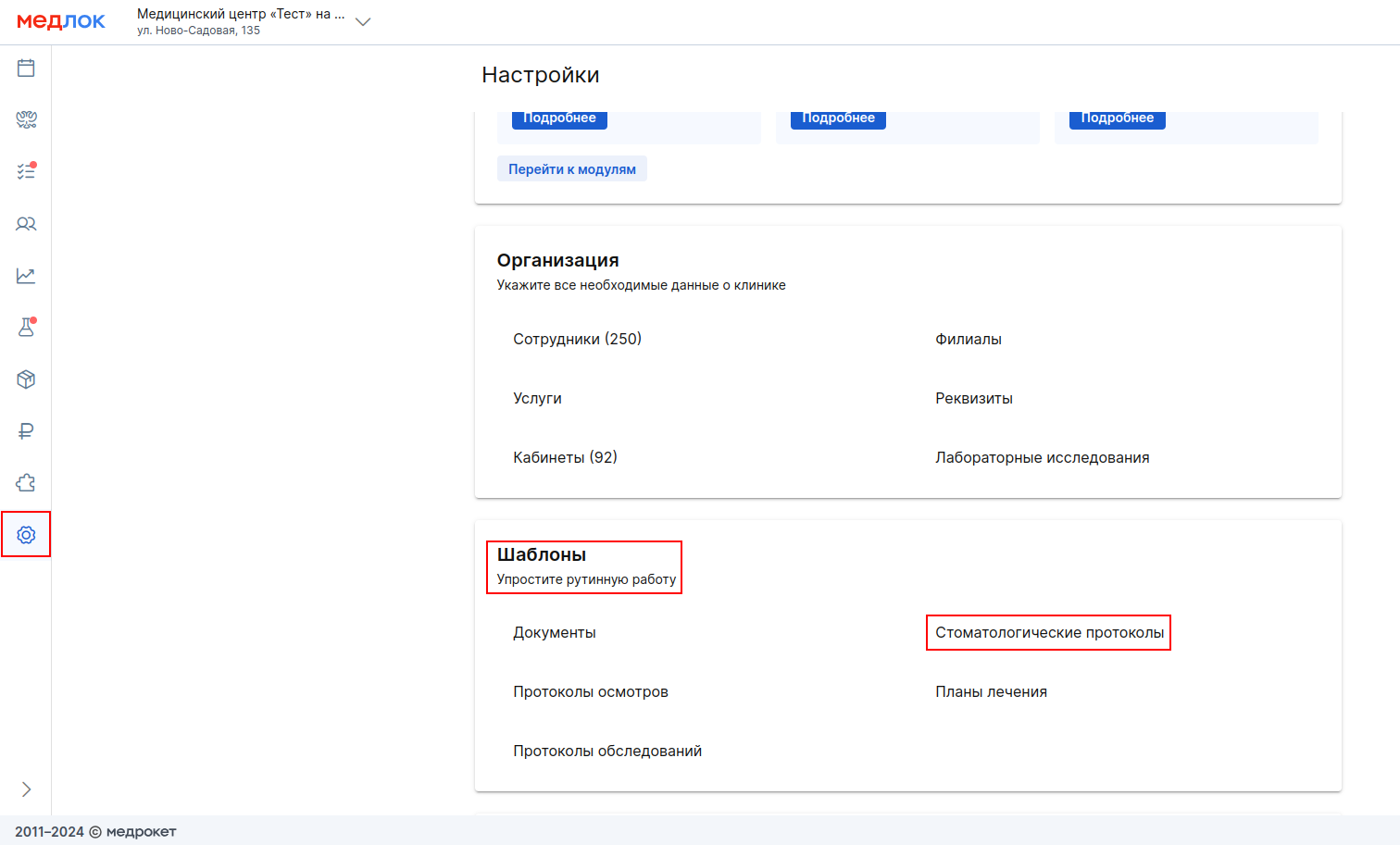
- Click«Настройки».
- Go to «Шаблоны».
- Choose«Стоматологические протоколы».
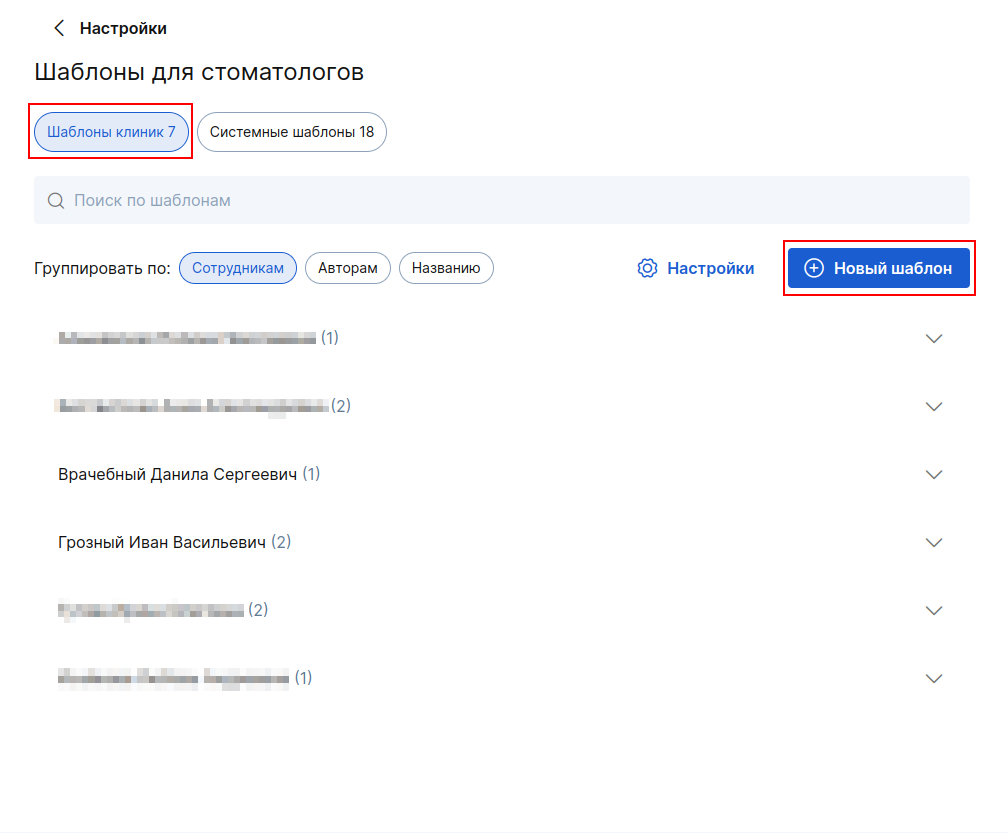
- In the upper-right corner, click «+ Новый шаблон».
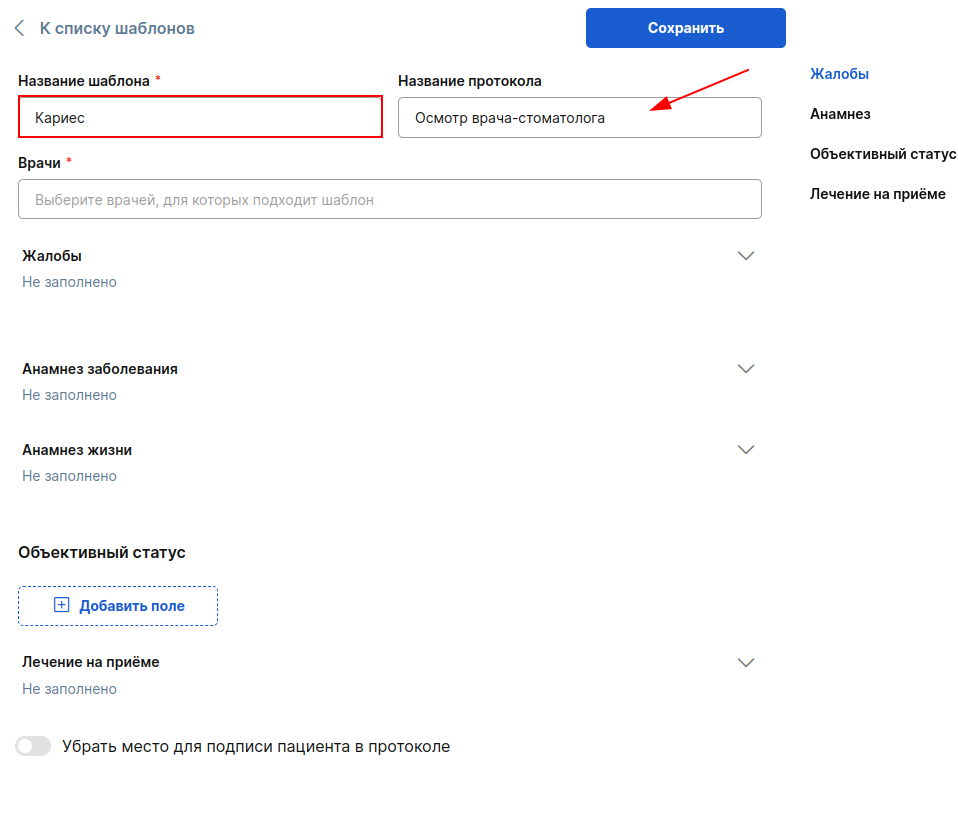
- Enter the name of the template and specify the doctors who will be able to use it. Don't forget to add yourself if you also need access to this template.
In the column«Название протокола», specify the name that will be displayed on the patient's printout.
For example, if the template is called «Кариес», but you want to see the printed version«Осмотр врача-стоматолога», then «Название протокола»write in the field«Осмотр врача-стоматолога».
If necessary, fill in the remaining fields. You can copy them from your existing templates.
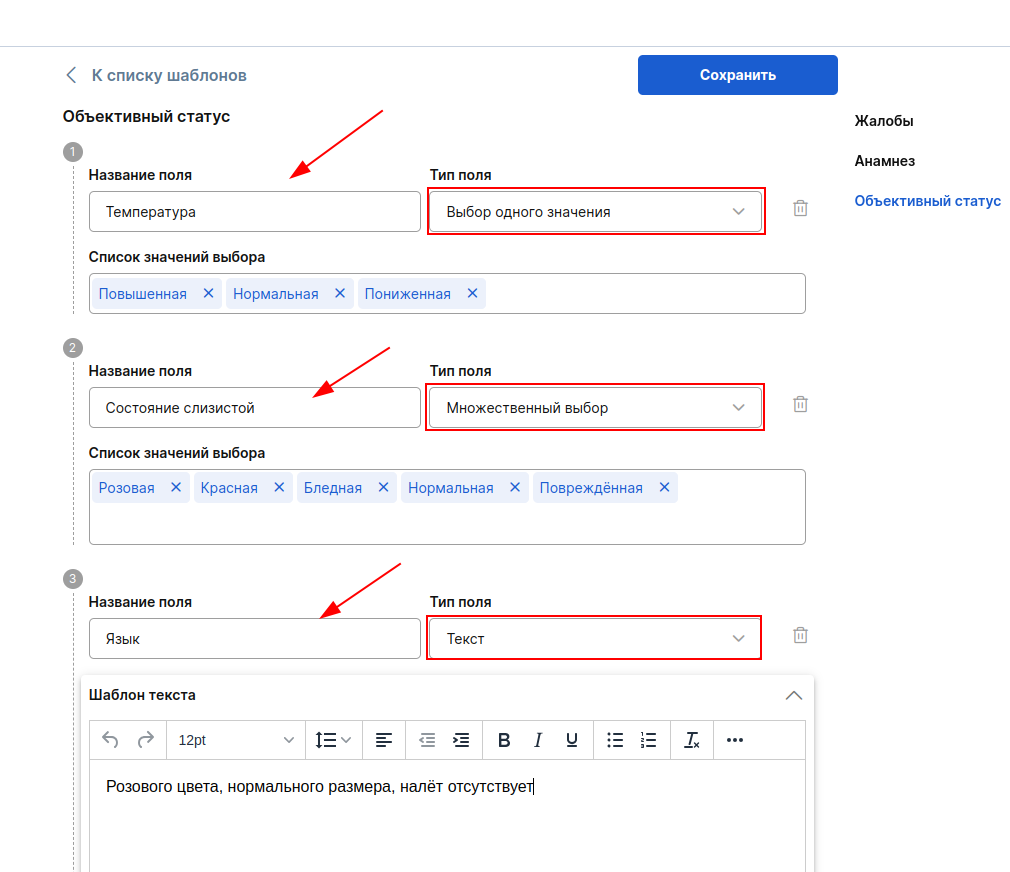
The section «Объективный статус»is organized in the constructor format.
- Specify the name of the field.
- In the column«Список значений выбора», enter, for example, «повышенная»(temperature). Press Enter.
Select the field type:
- Single value selection — when filling out the protocol, you can select only one of the listed values.
- Multiple choice — when filling out the protocol, you can select several items at the same time.
- Text — when filling out the protocol, you will be able to edit the text that you entered in the template. The default text must be specified in the column«Шаблон текста».
- To add information about the patient's treatment process, fill in the text field«Лечение на приёме».

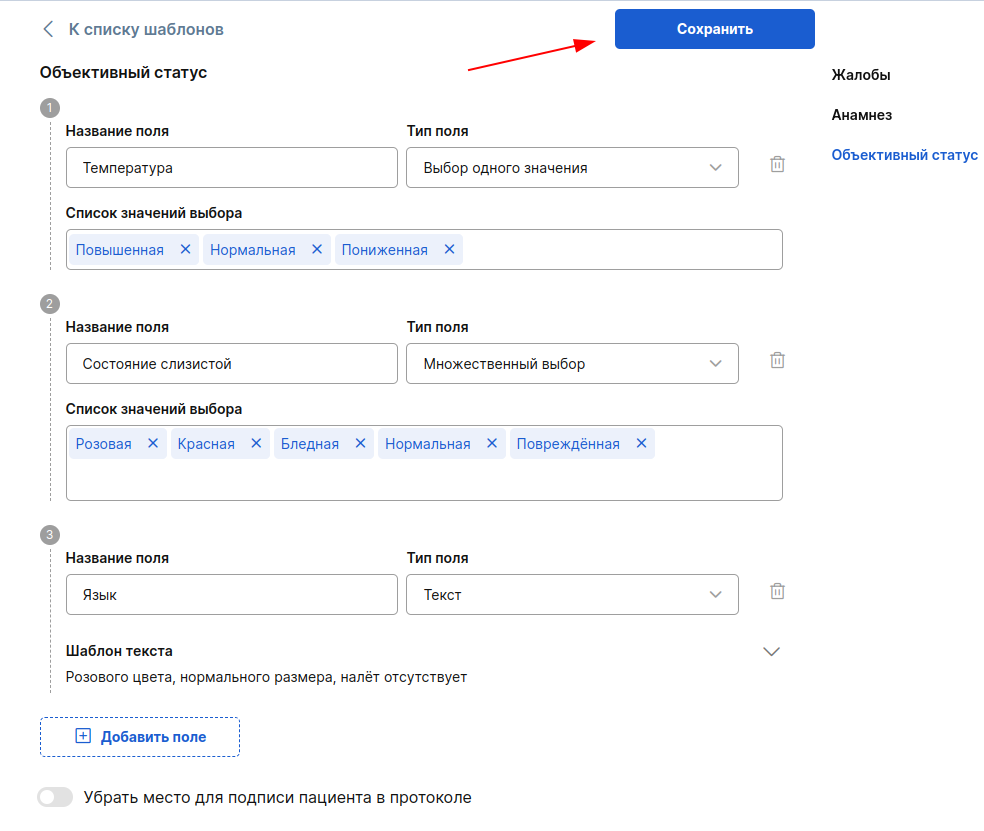
- After filling in all the necessary fields, click «Сохранить»in the upper-right corner.
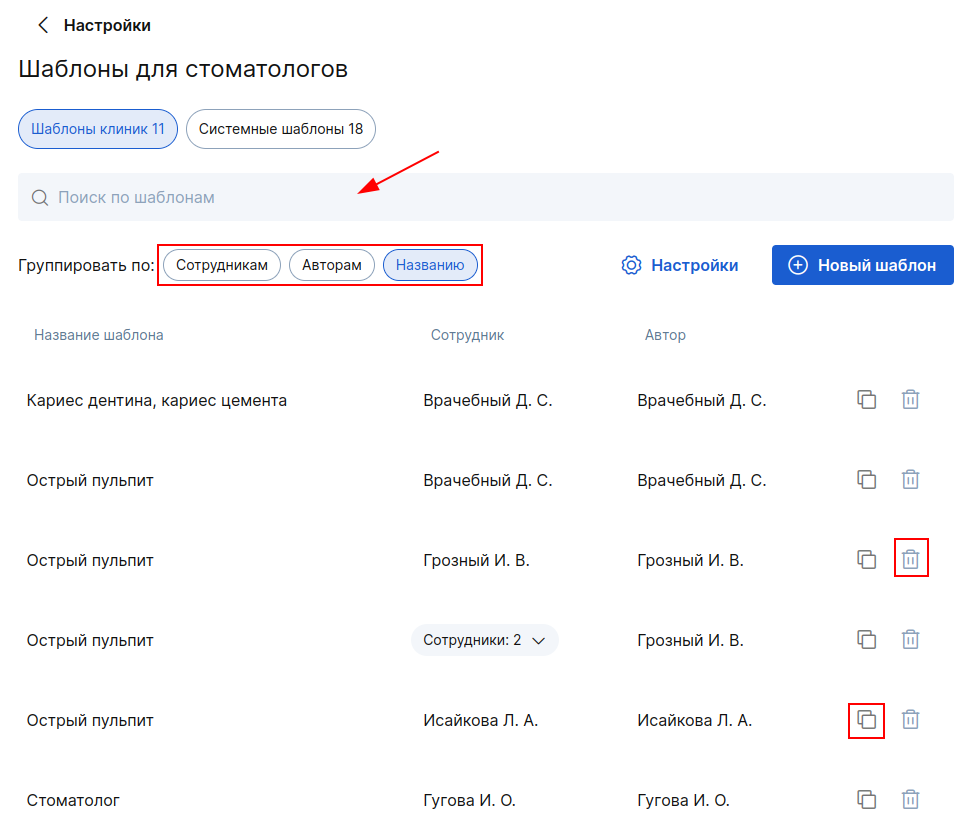
The general list of templates has a search bar with the ability to group templates by employee, author, or title.
Any template can be copied by clicking on the copy icon.
Only the author can edit or delete the template. To edit it, click on the template name, and to delete it, click on the urn icon to the right of the employee's initials.
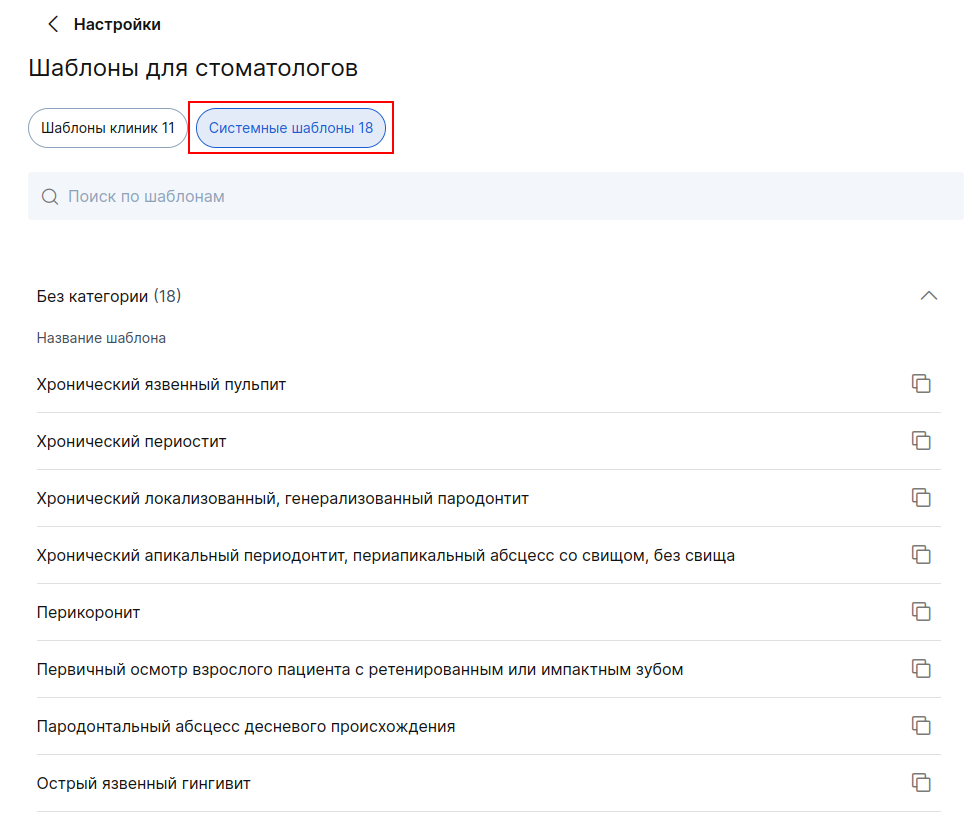
To speed up protocol setup for your specialists, use ready-made system templates for basic nosologies.
- Go to «Настройки».
- Choose«Шаблоны для стоматологов».
- Click«Системные шаблоны».
- Select the system template based on the doctor's specialization and copy it.
- Specify the doctors for whom this template will be relevant.
- Edit it if necessary and save the result.
- You will find the finished template in the tab«Шаблоны клиники».
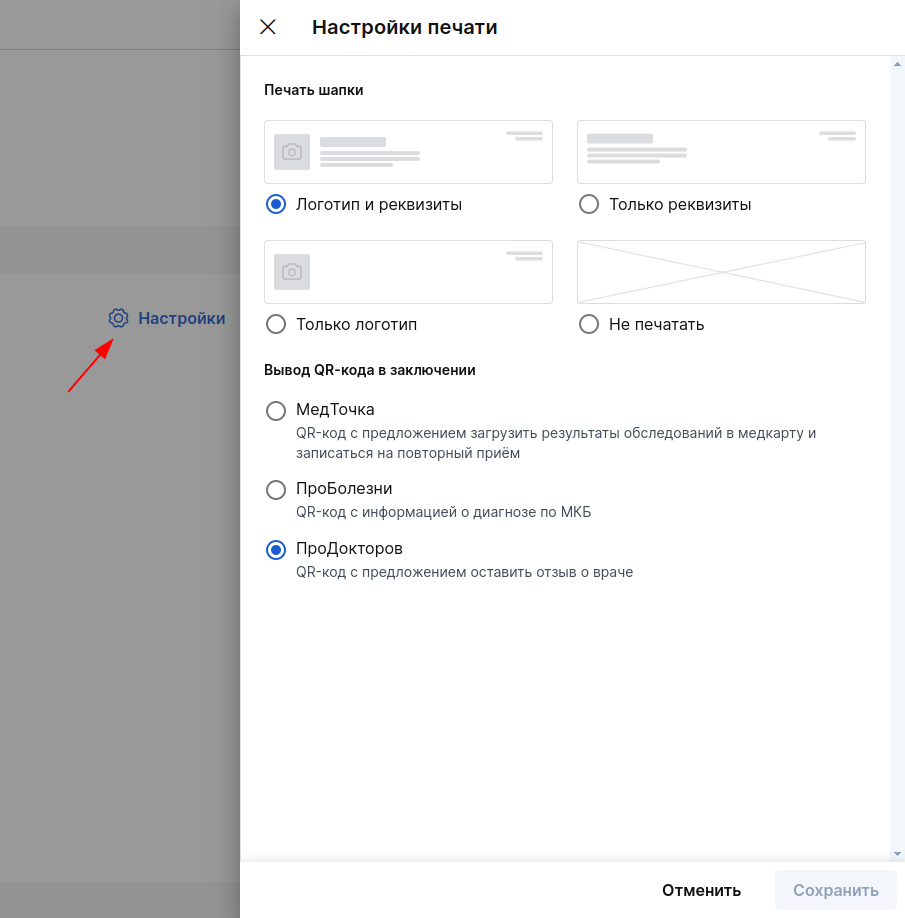
In the sections «Шаблоны для стоматологов»you can configure the printing of the protocol (caps). To do this, click «Настройки»in the upper—right corner - you have 4 printing options available.:
- The logo and banking details.
- Just the banking details.
- Just the logo.
- Do not print.
In the same setting, you can choose which QR code to output in the patient report.
How can a doctor create a protocol during an appointment?
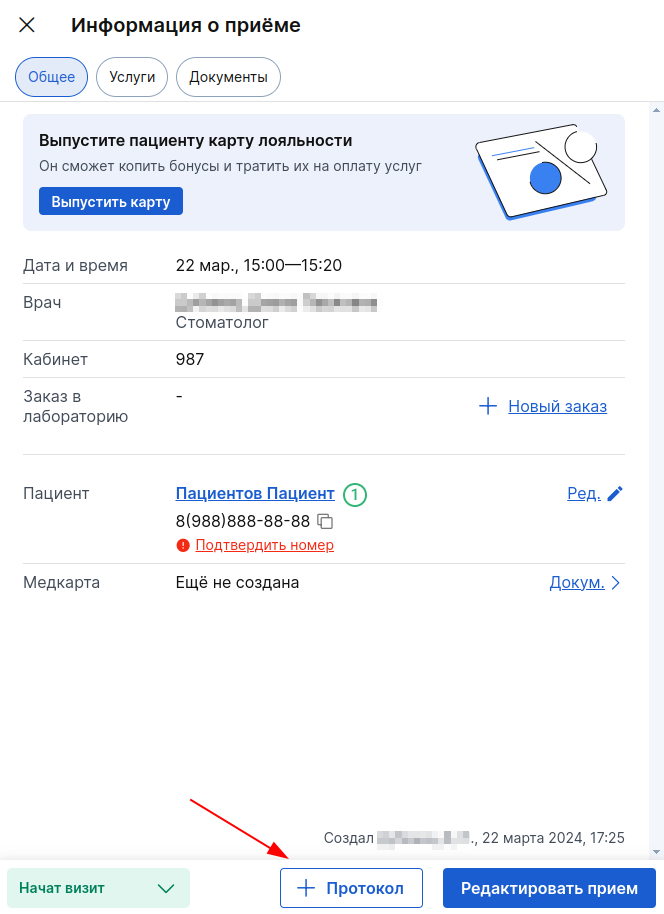
- To create a protocol, you need to set the status in the patient's record«Начат визит». After that, a button will become available «+ Протокол»— click it.
The doctor can create a protocol only for those patients who are registered with him.
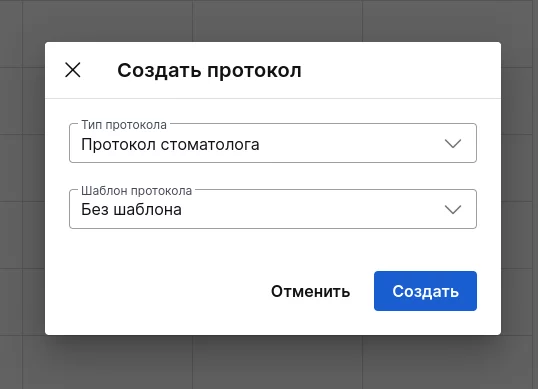
- In the protocol creation window, select a template or item«Без шаблона», and then click «Продолжить».
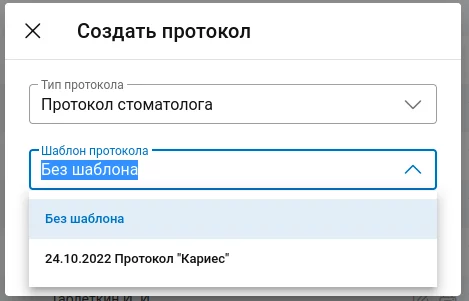
If the patient has already been to your appointment, you can use the previous protocol as a basis, so you do not have to fill out the medical history again. Click on the field «Шаблон протокола»and select the appropriate protocol from the drop-down list.
- If you have selected a template, the protocol will display the information that you have entered into this template. A dental formula indicating the type of bite of the patient will also appear in the protocol window.
These parameters appear only in the protocol (they are not in the template), since the information is individual for each person.
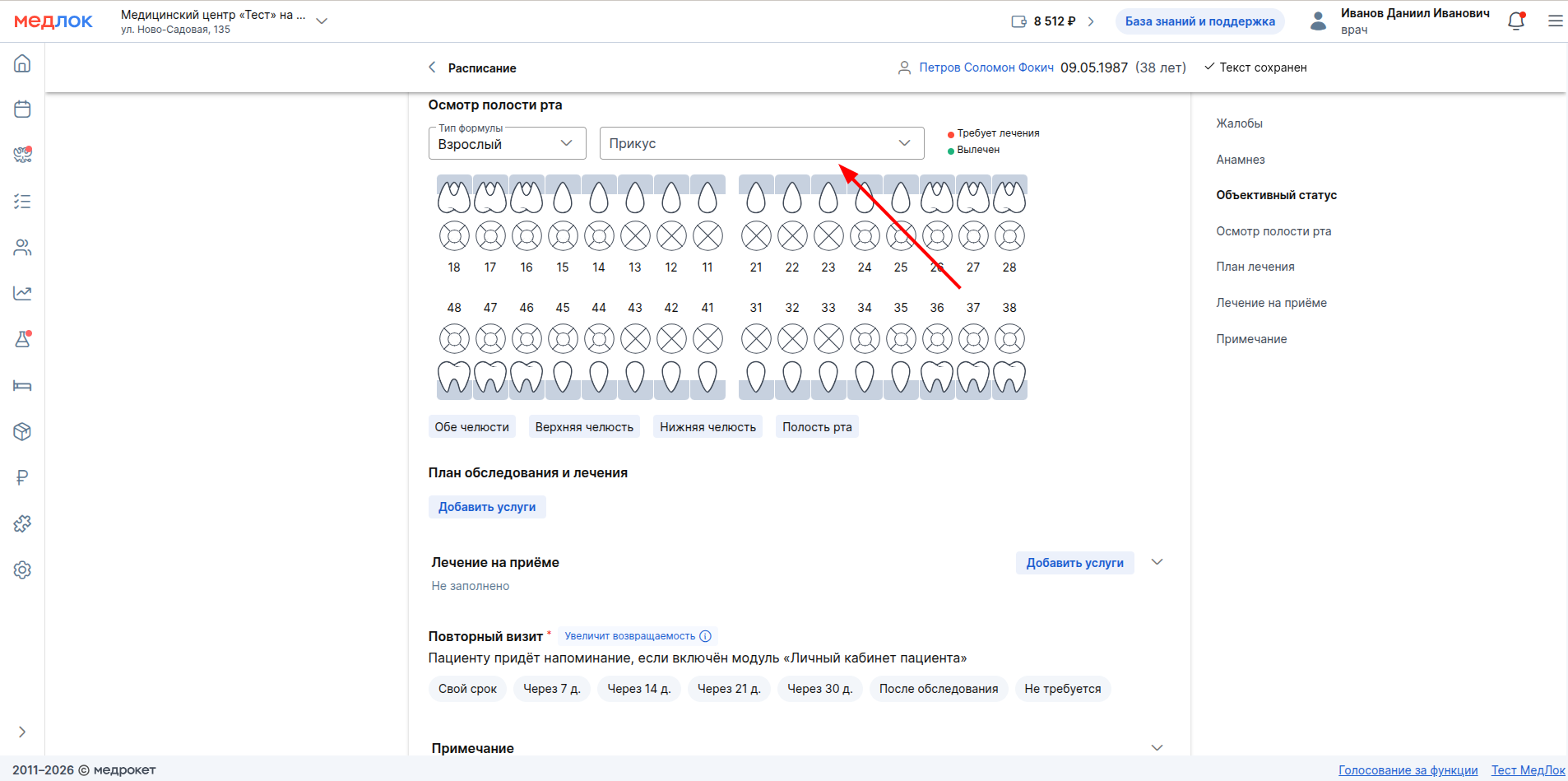
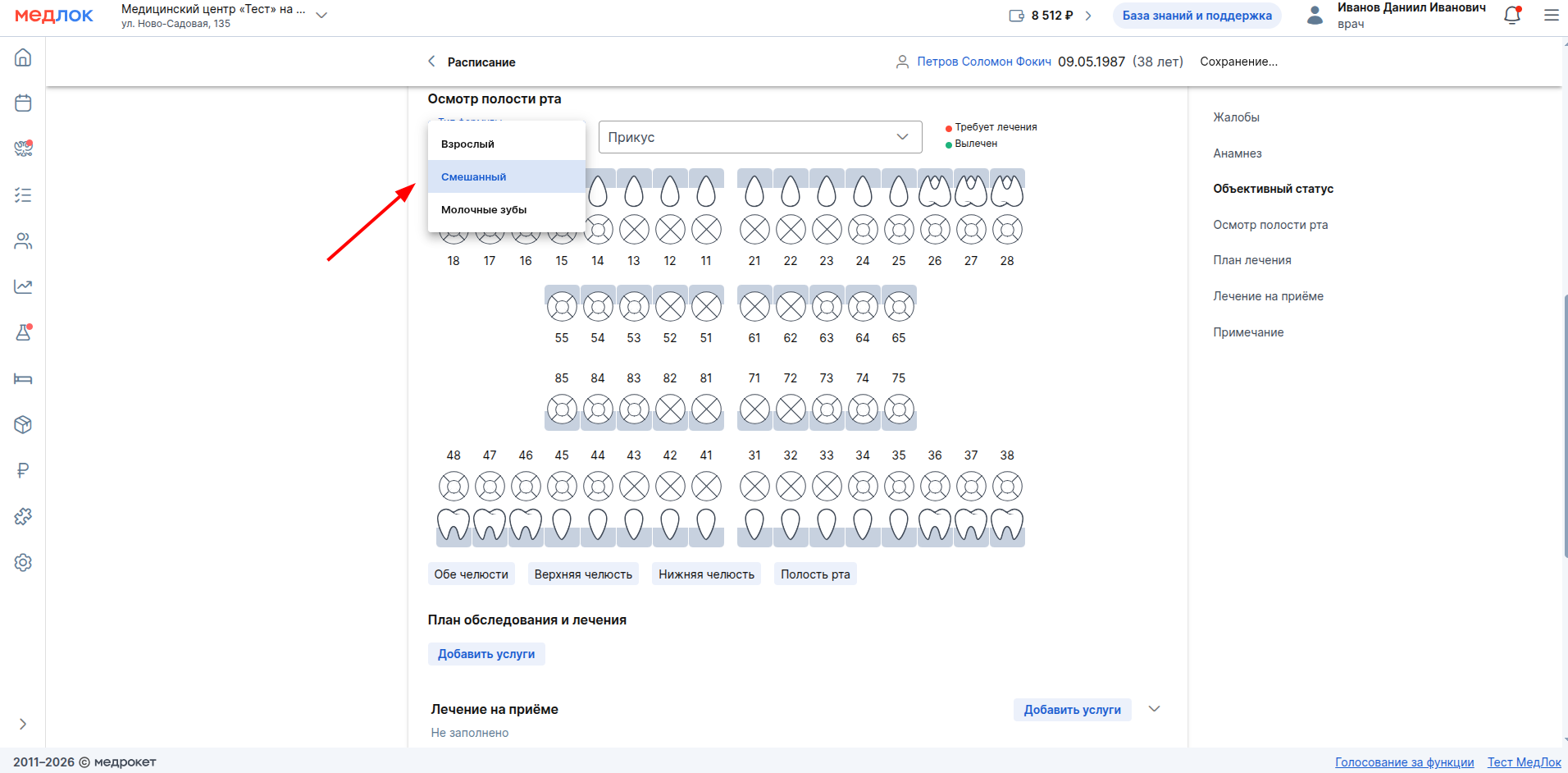
- To display the correct formula, select the type of formula according to the patient's condition.
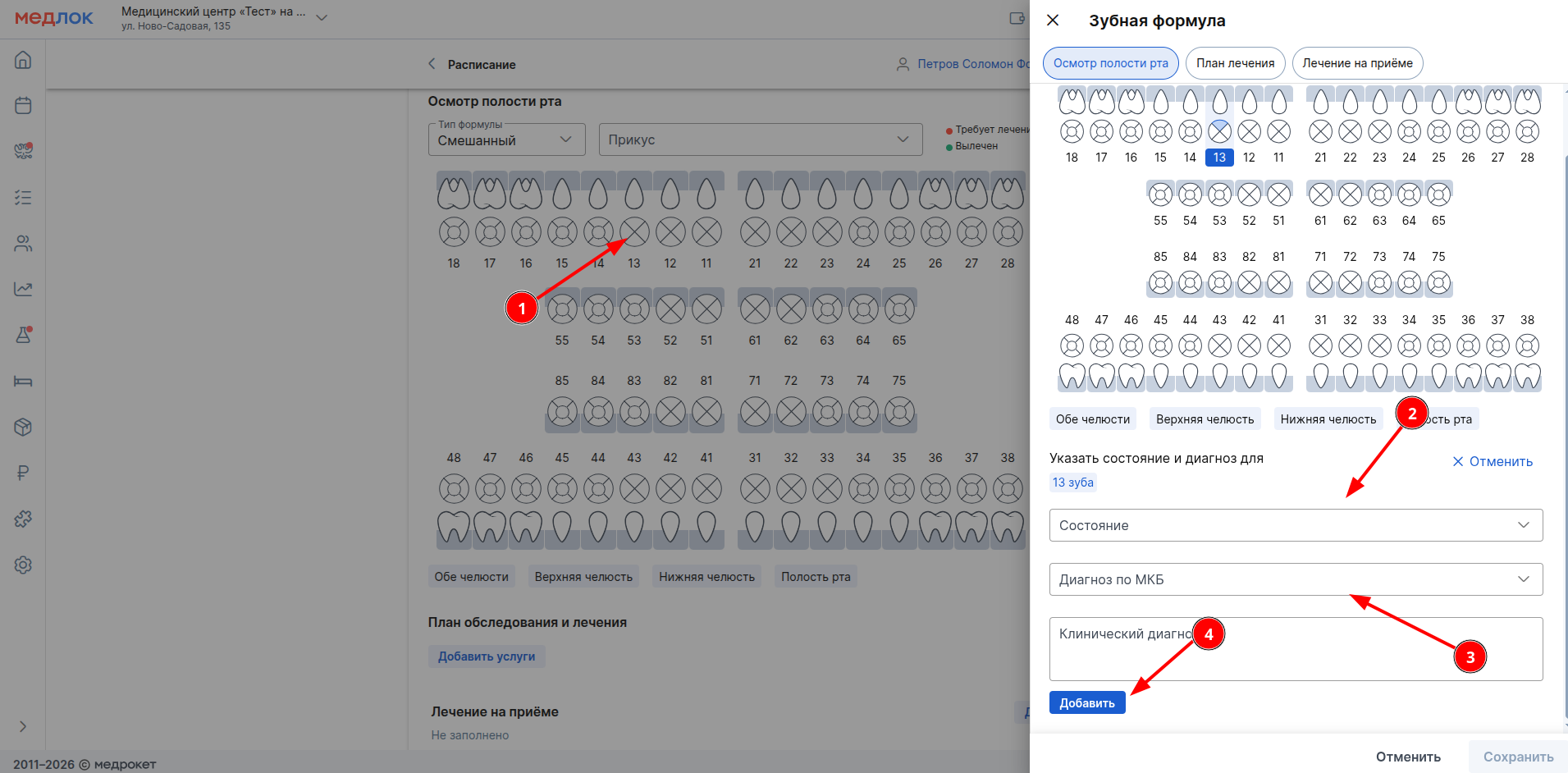
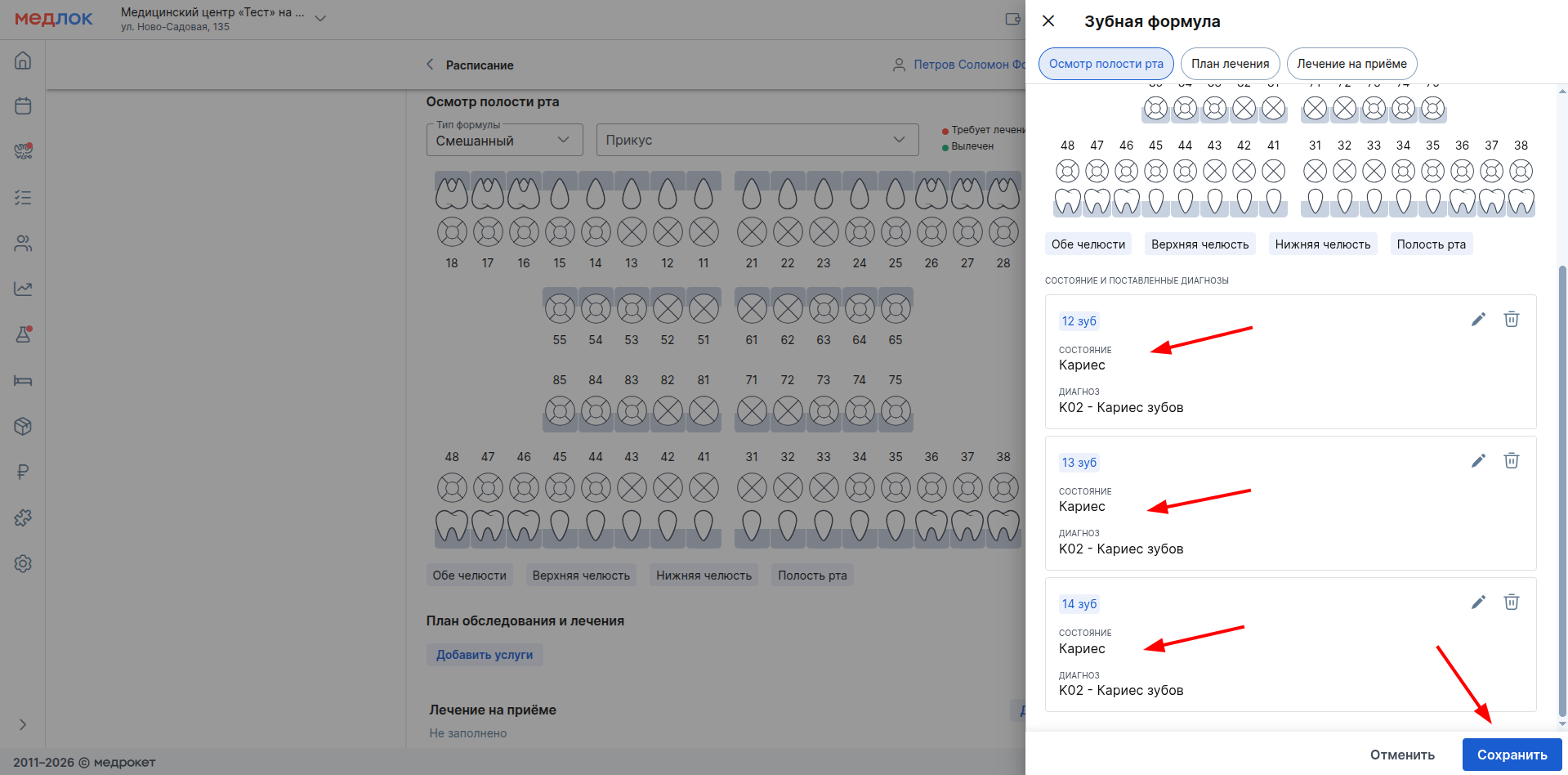
- To add the current condition of the patient's teeth, click on the desired tooth, and a window will open on the right to enter information on the selected tooth. Specify his condition and diagnosis and click «Добавить».
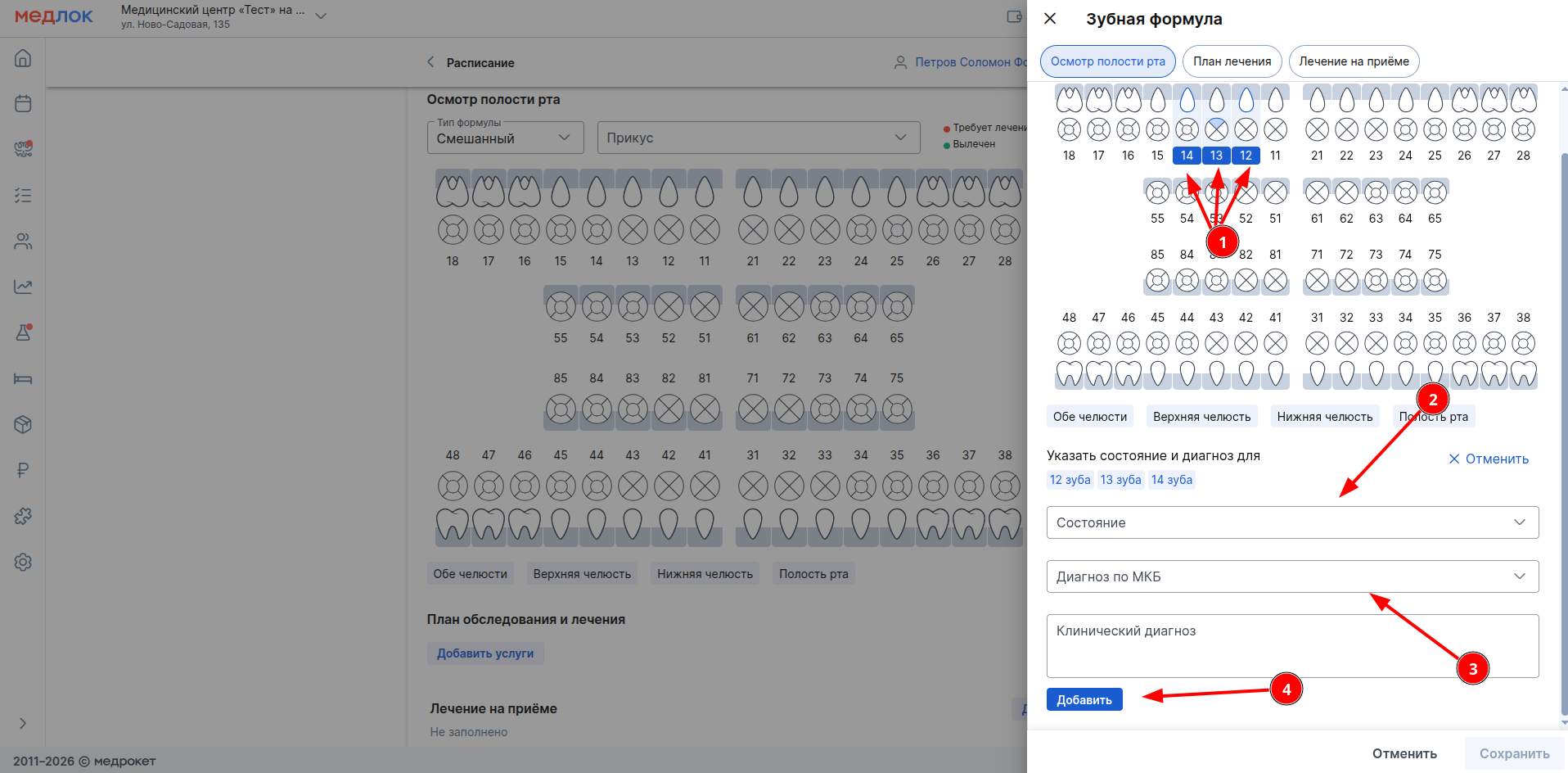
If several different teeth have the same diagnosis, you can select them at once and specify the diagnosis — it will be applied to each tooth.
- When you have entered all the necessary data, click «Сохранить».
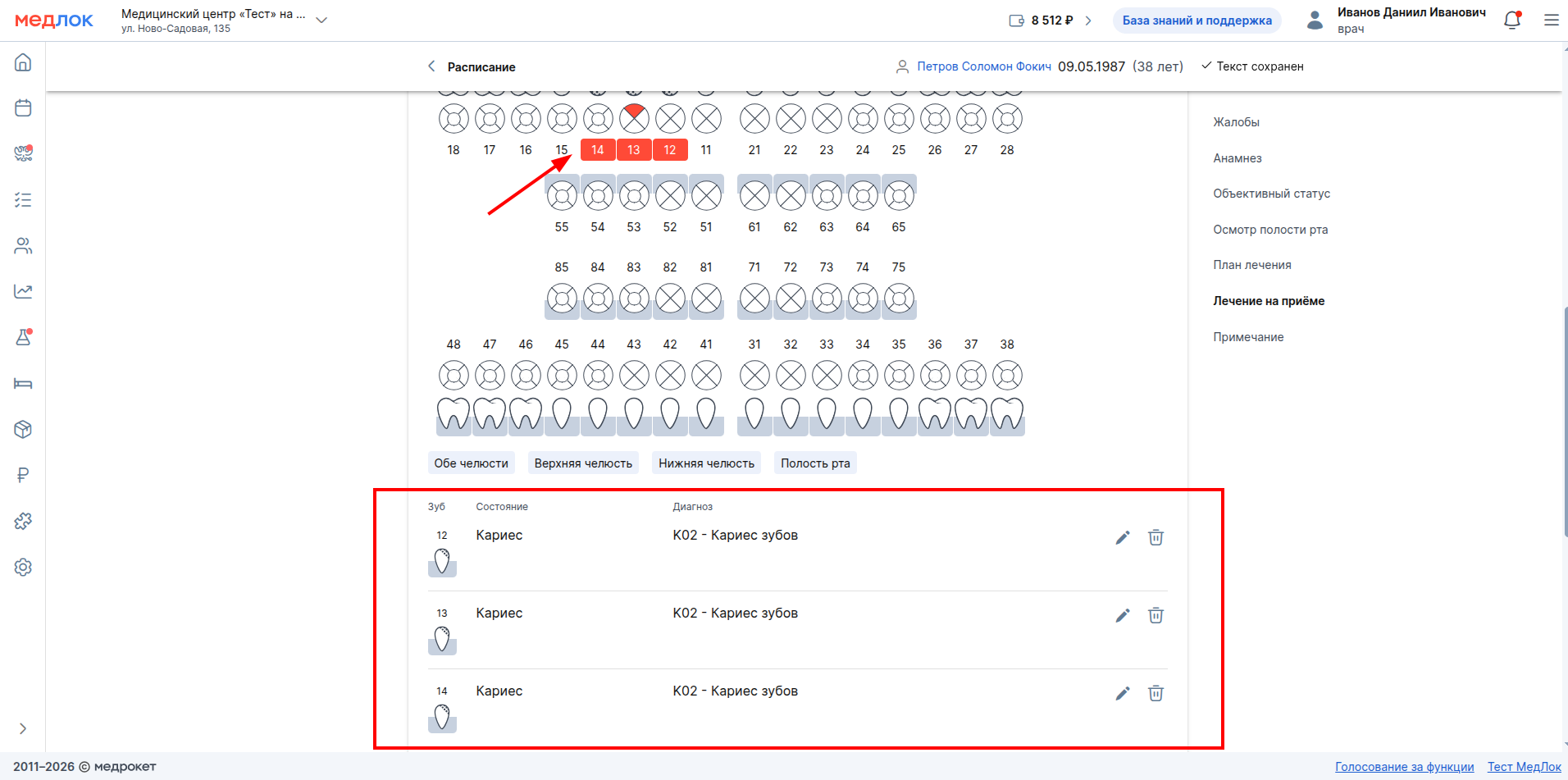
The added information will be displayed in the protocol, and the teeth that have been diagnosed will be marked in red.
How to create a treatment plan in the protocol
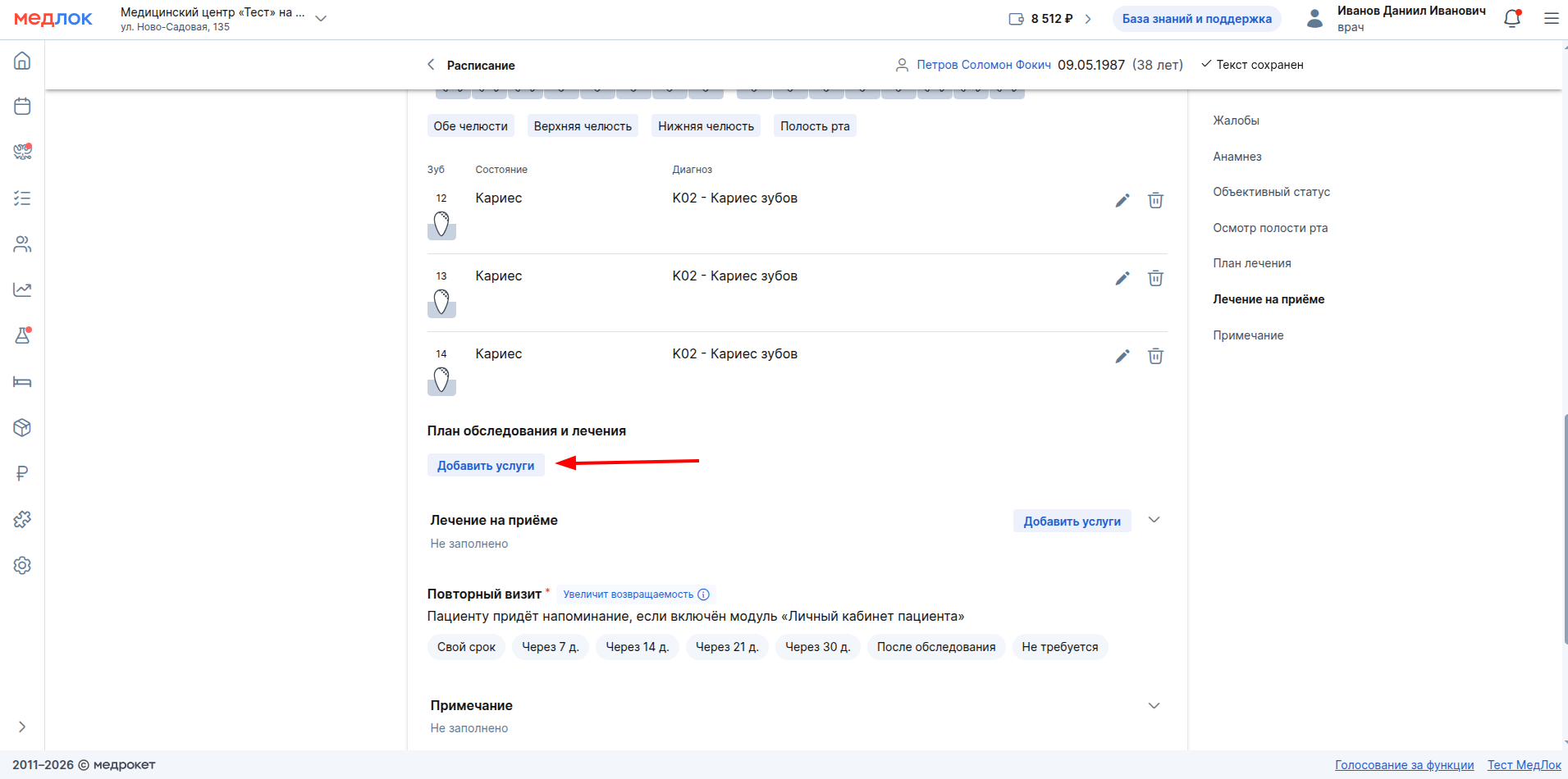
- To add a treatment plan, click «Добавить услуги»in the section «План обследования и лечения».
You can also switch to the tab in the window for adding dental information«План лечения».
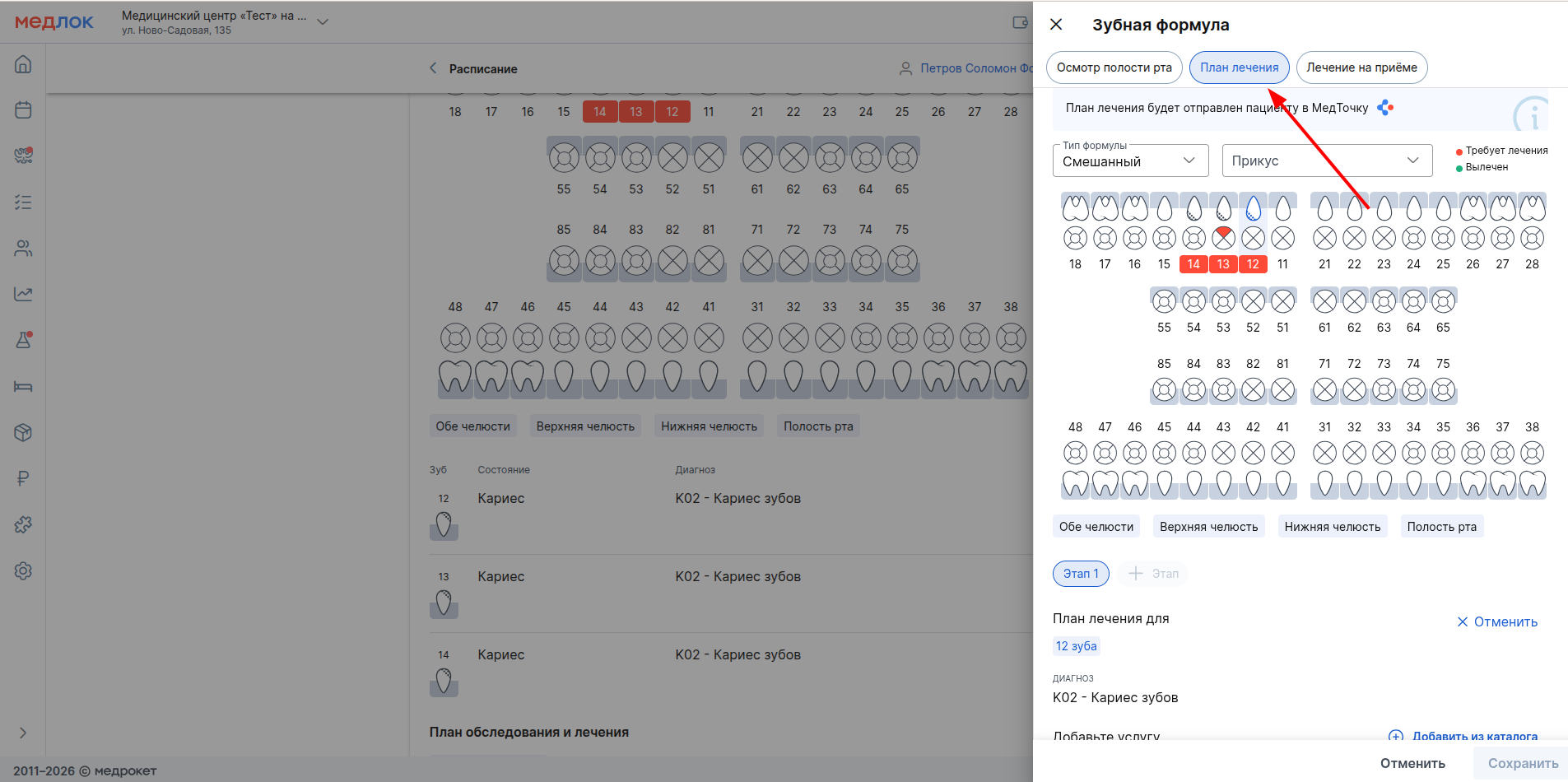
- Select the desired tooth, part of it, or several teeth. The treatment can be divided into several stages: it will be possible to complete the 2nd stage only after saving the data in the first one. Specify the necessary services for a tooth (or several teeth), then click «Добавить в план».
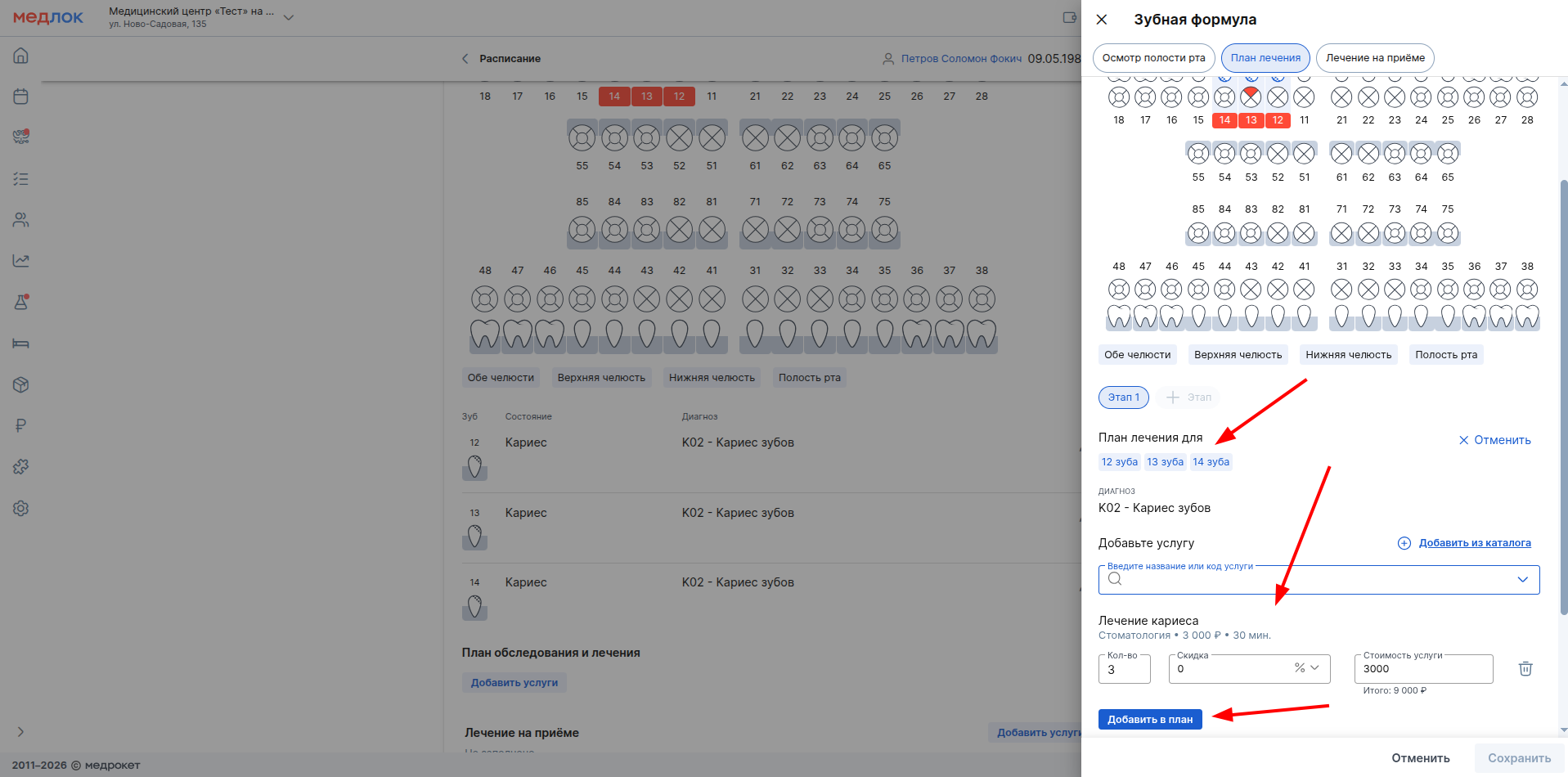
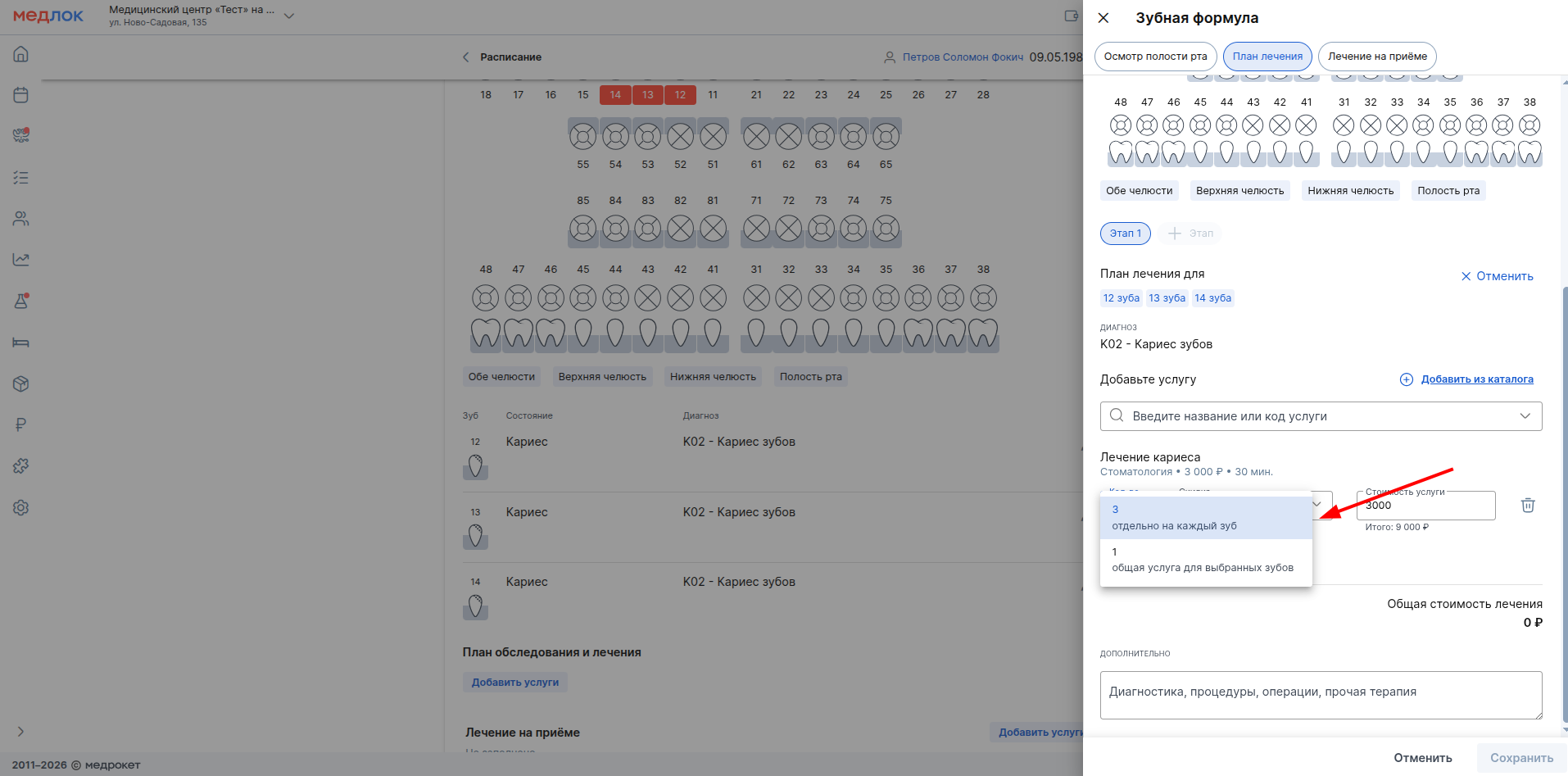
If you need to select one service for several teeth at once, click on the quantity value and select the appropriate option (for example, if you need 1 service for 3 teeth«Кариес», you need to select«Общая услуга для выбранных»).
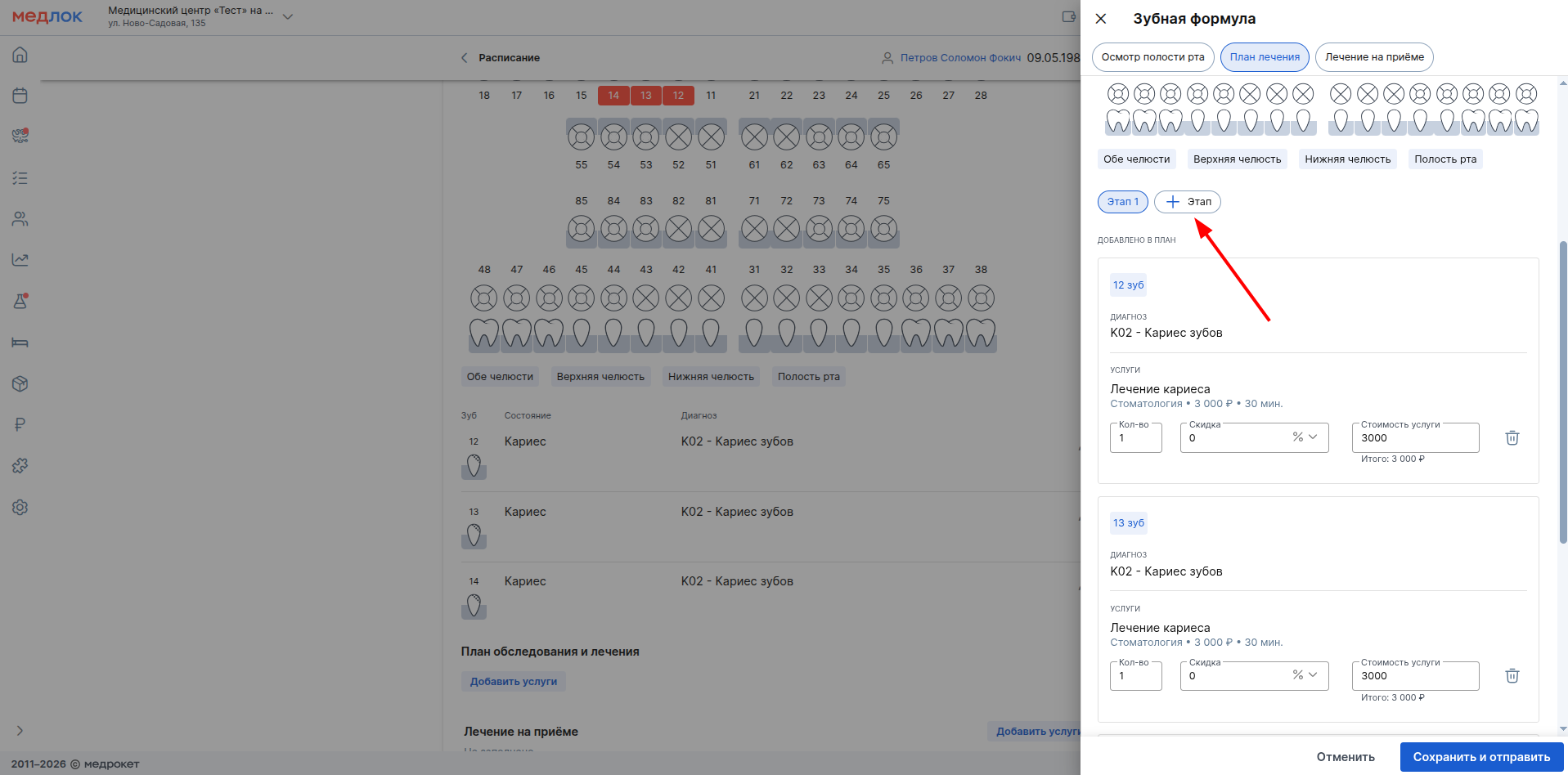
- To specify the services in the 2nd step, click on «+Этап», and then on the desired tooth.
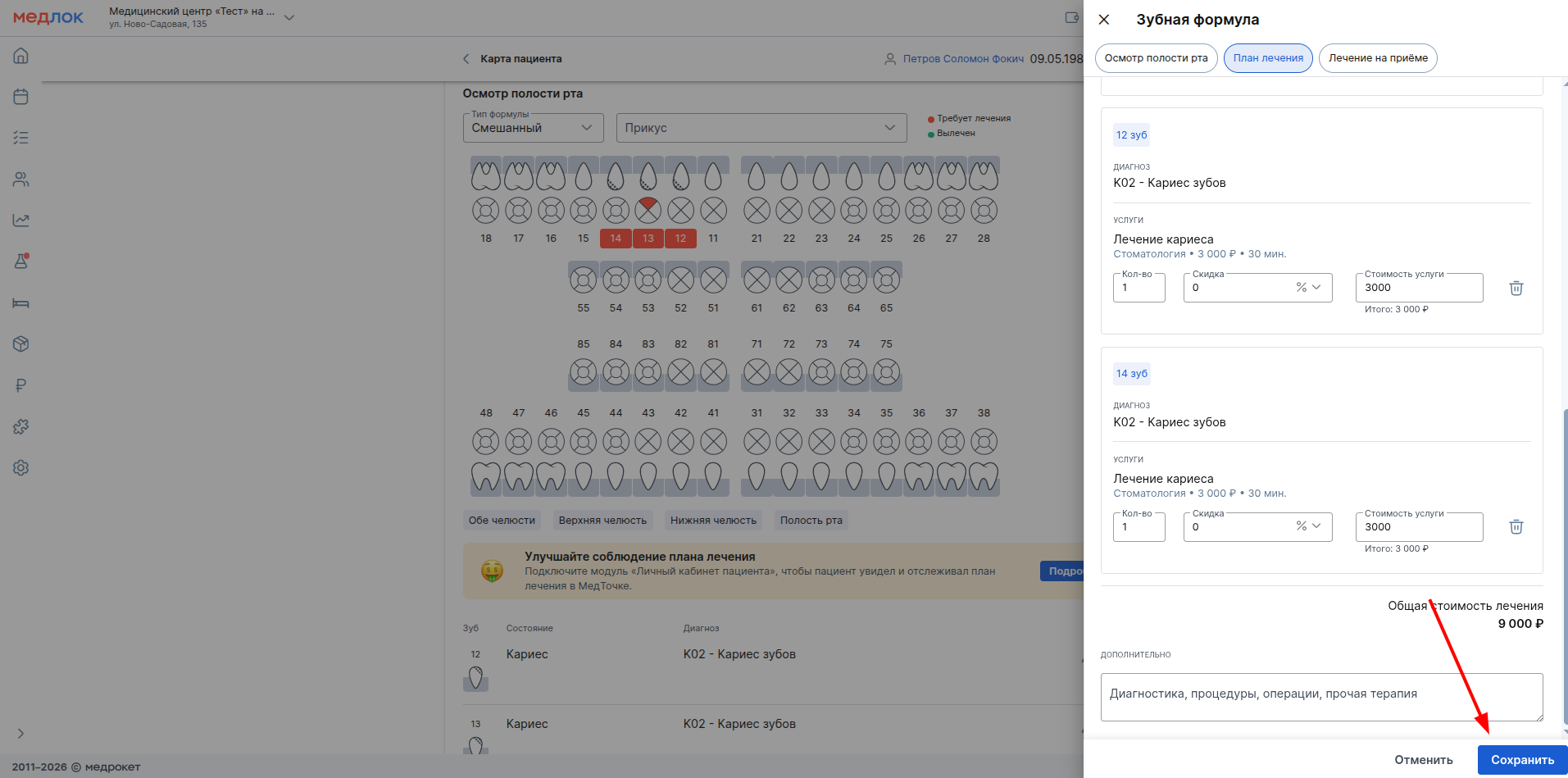
- After entering all the necessary data, click «Сохранить».
- The completed treatment plan will be displayed in the protocol. If necessary, click edit it «Редактировать».
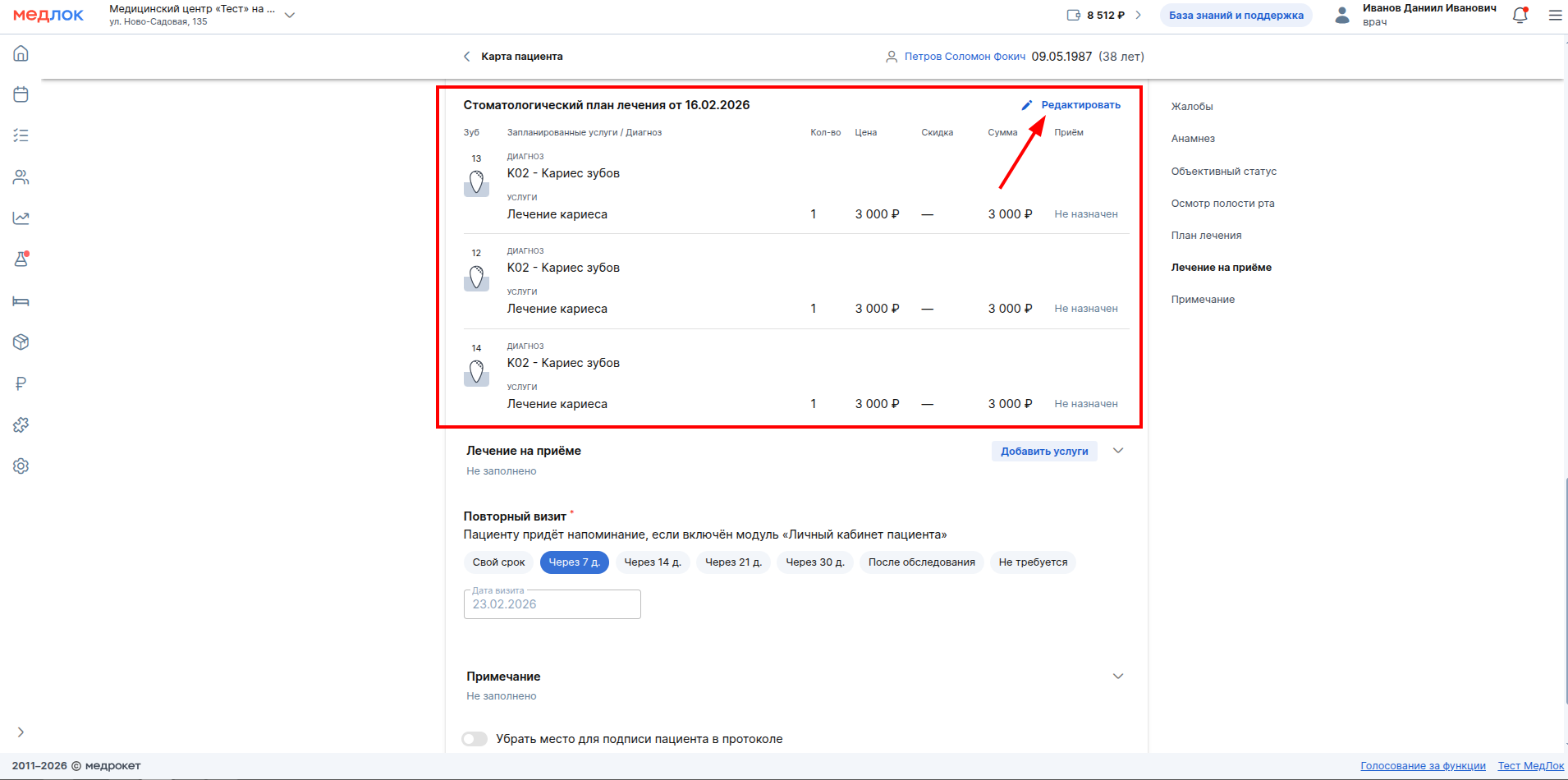
How to indicate the treatment performed at the reception in the protocol
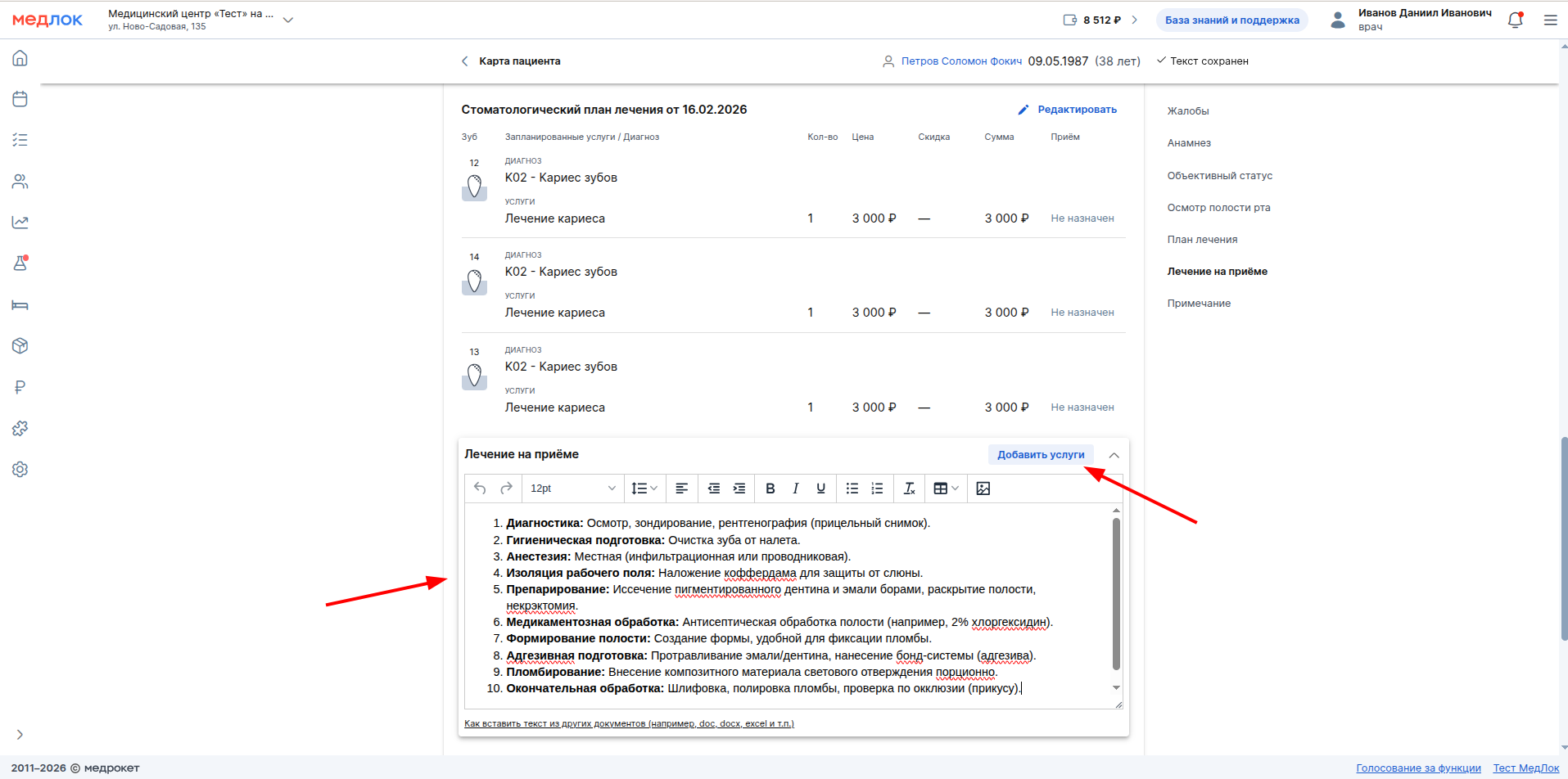
- To add information about the treatment performed at the appointment, fill in the text field if necessary.
To specify the specific services provided to the patient, click «Добавить услуги».
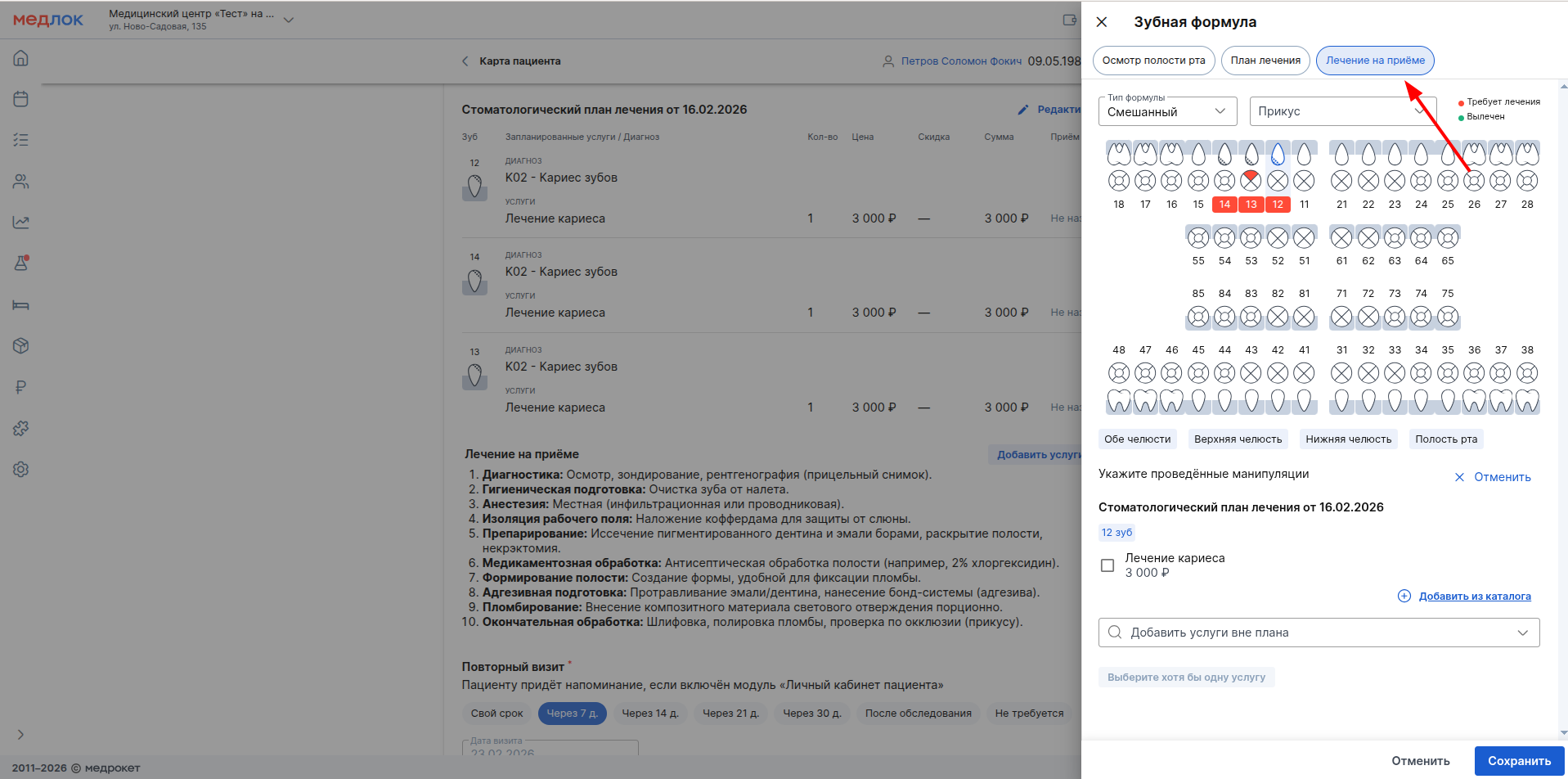
You can also switch to the tab in the window for adding dental information«Лечение на приёме».
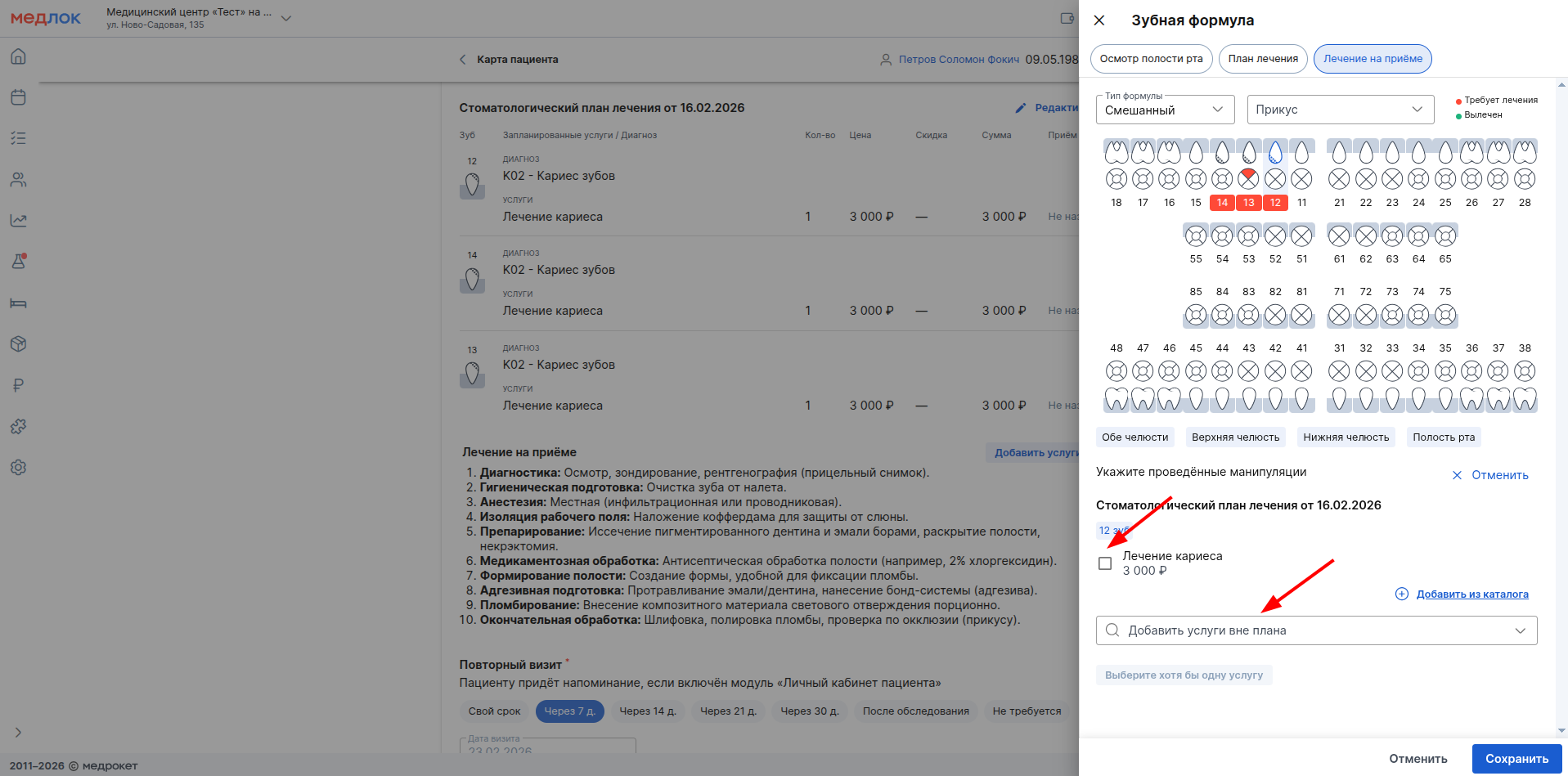
If a treatment plan has been drawn up for the tooth, it will immediately pull up through the window.
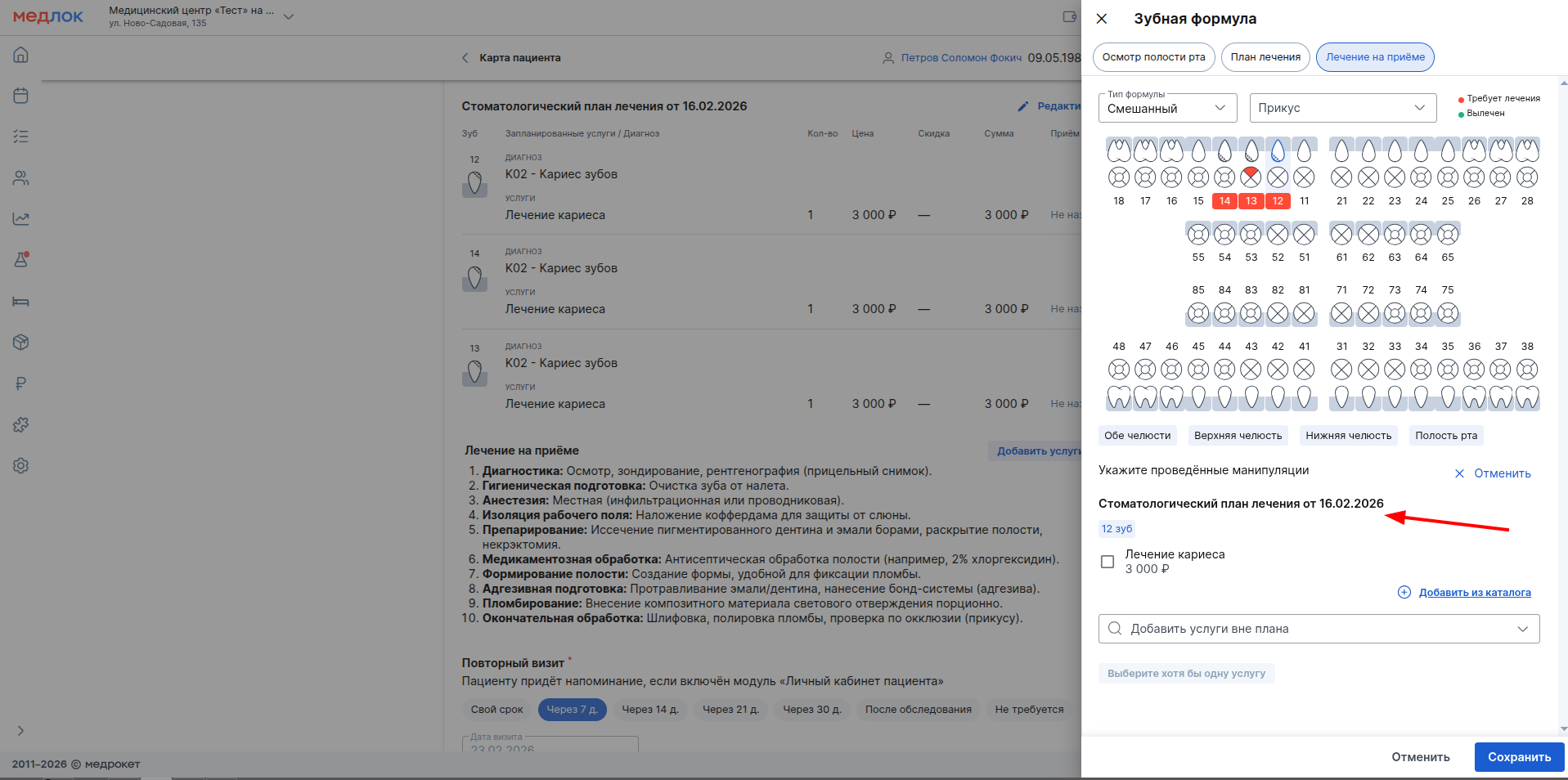
- To select the services provided at the reception, click on the checkboxes. If other services have been provided outside of the treatment plan, indicate them in the appropriate line.
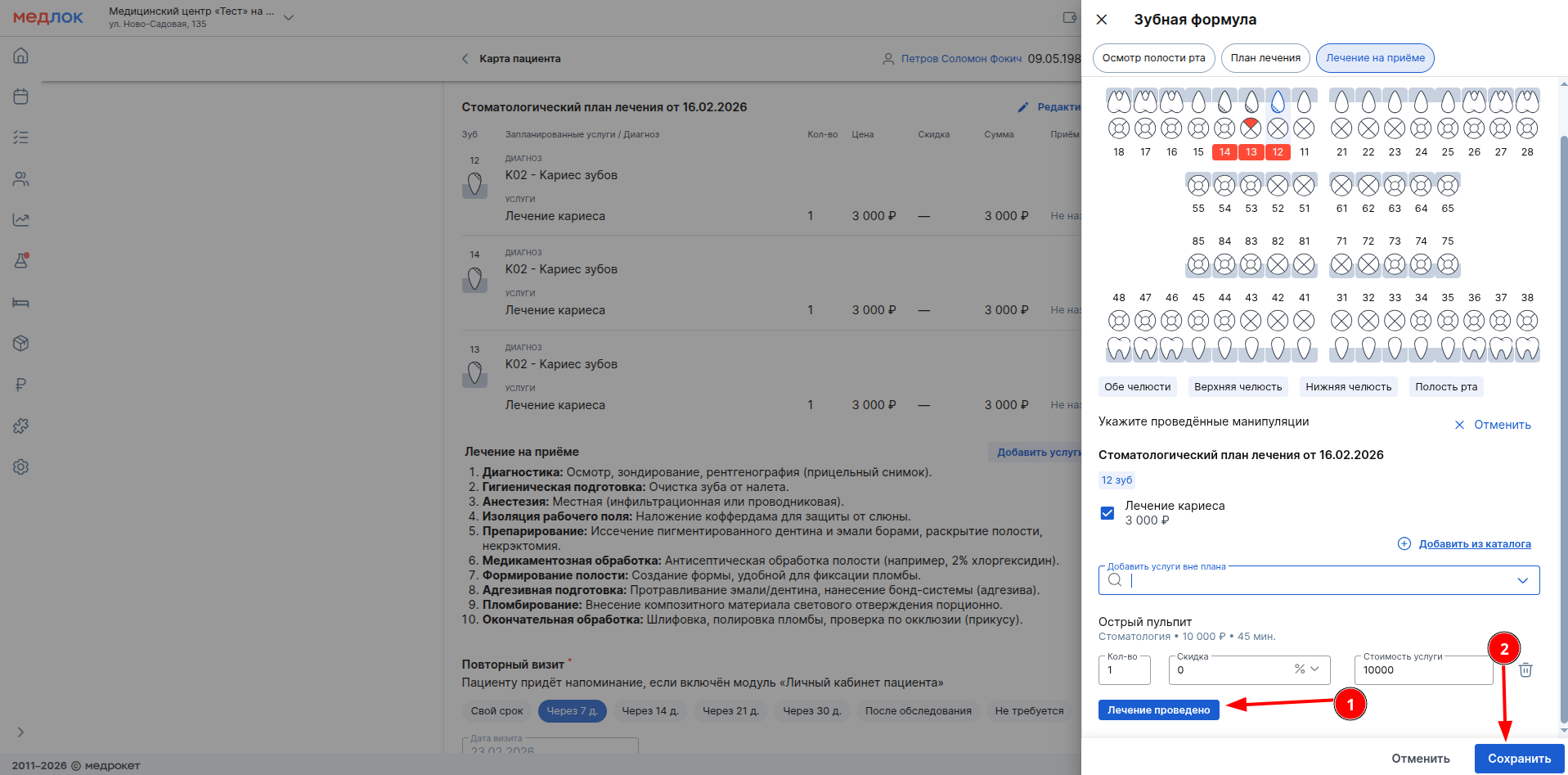
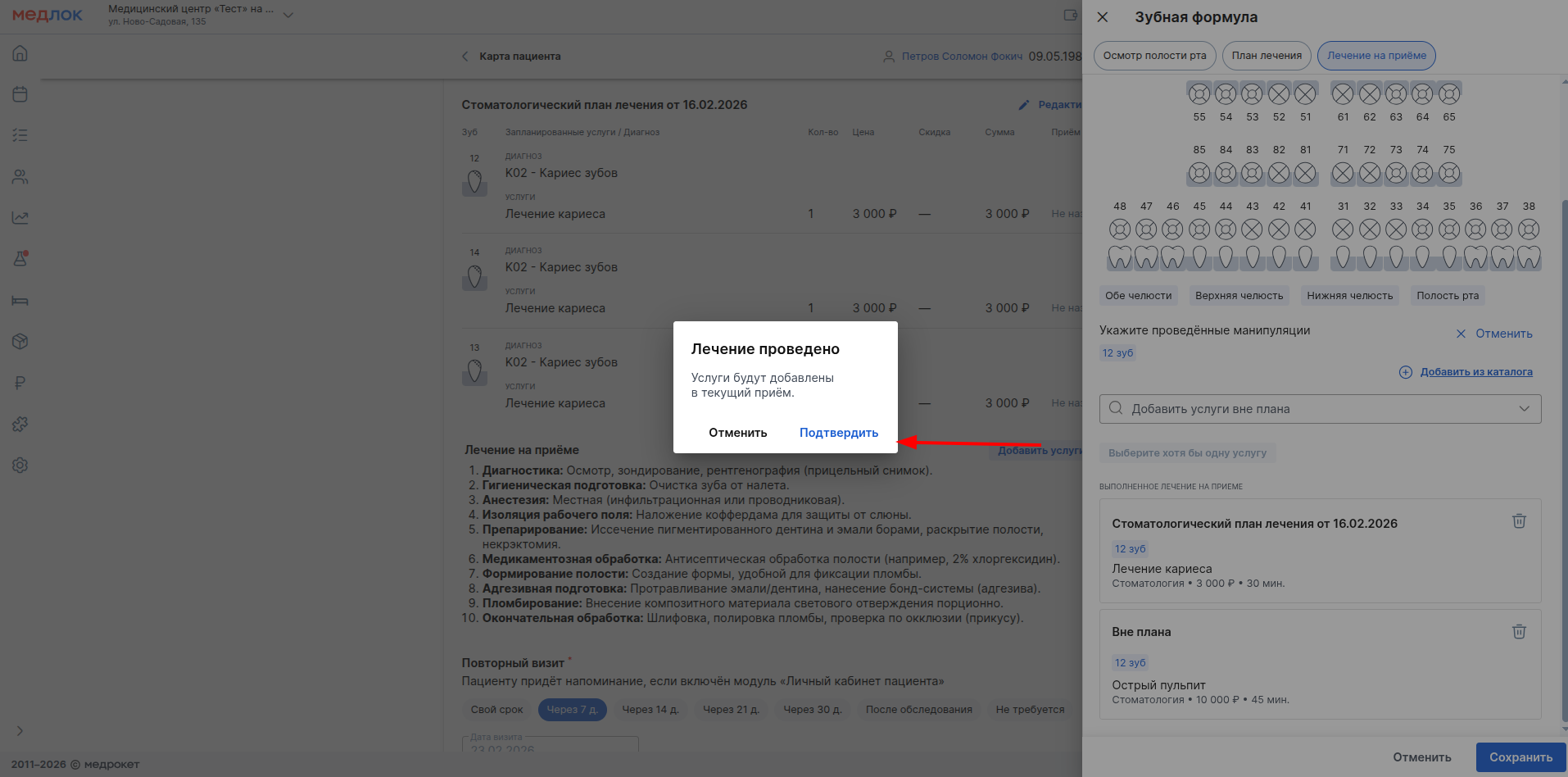
- After adding all the services, click on «Лечение проведено», and then «Сохранить»the listed services will be added to the reception.
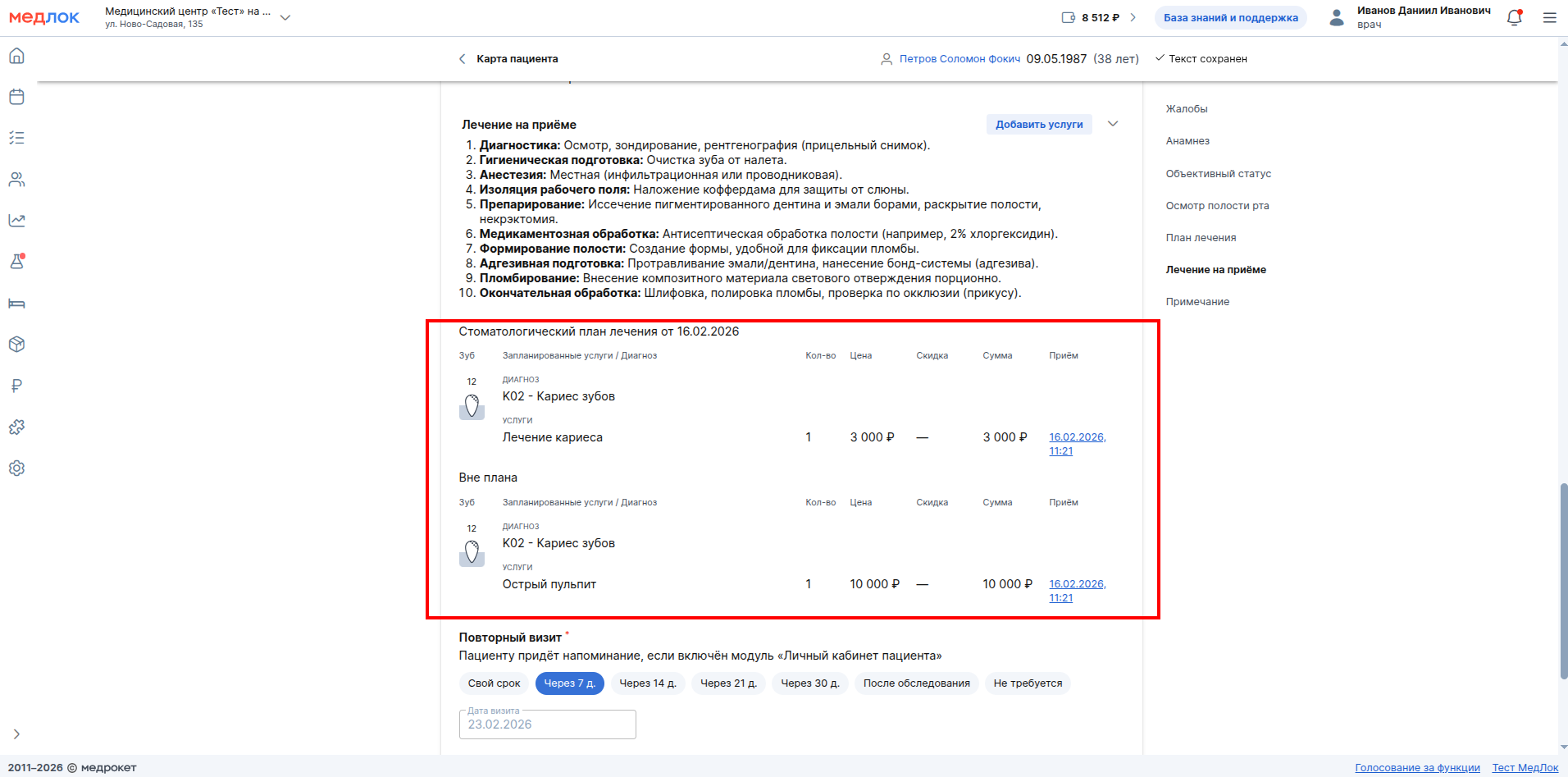
- The saved services will also be displayed in the protocol.
After completing the protocol, you can immediately print the document to the patient. Also, if you use the module«Личный кабинет пациента», you will have the opportunity to send the created treatment plan to the patient in his personal account in the medical center. It will allow you to view the condition of your teeth, scheduled services, and quickly make an appointment for a follow-up appointment.
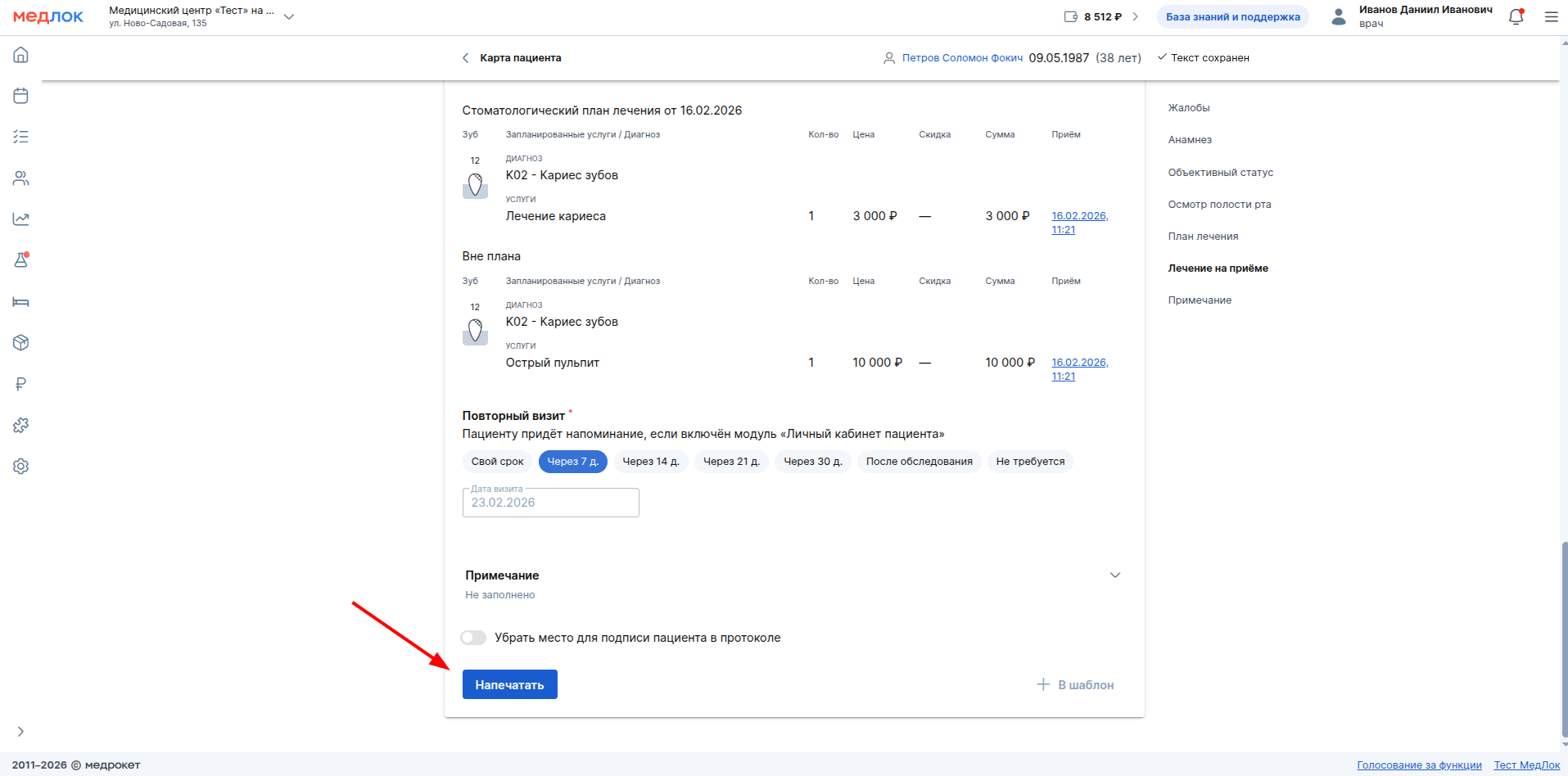
When printing the inspection report, two files are generated:
1. An abbreviated version is prepared for the patient — a Conclusion.
2. A more extended document is being prepared for the doctor — the Examination Protocol.
3. If a treatment plan has been created, it is also available for printing.
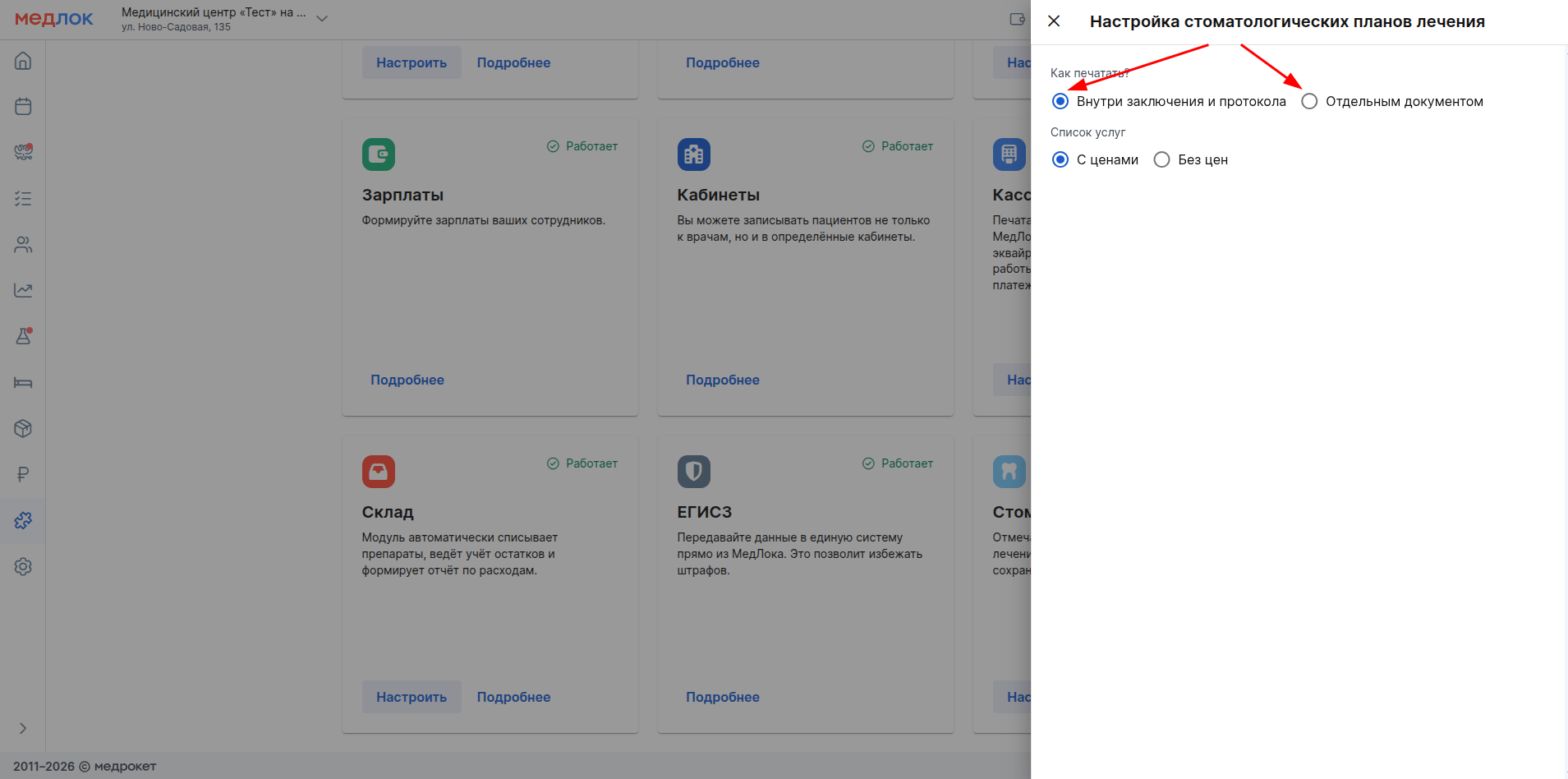
The treatment plan can be printed separately from the protocol. To do this, go to the section «Модули»and then to the subsection«Стандартные».

Select the module «Стоматология»and click «Настроить».

In the window that opens, select how to print the dental treatment plan — inside the report and protocol, or as a separate document.
Dental formula in the patient's profile: how to work with it
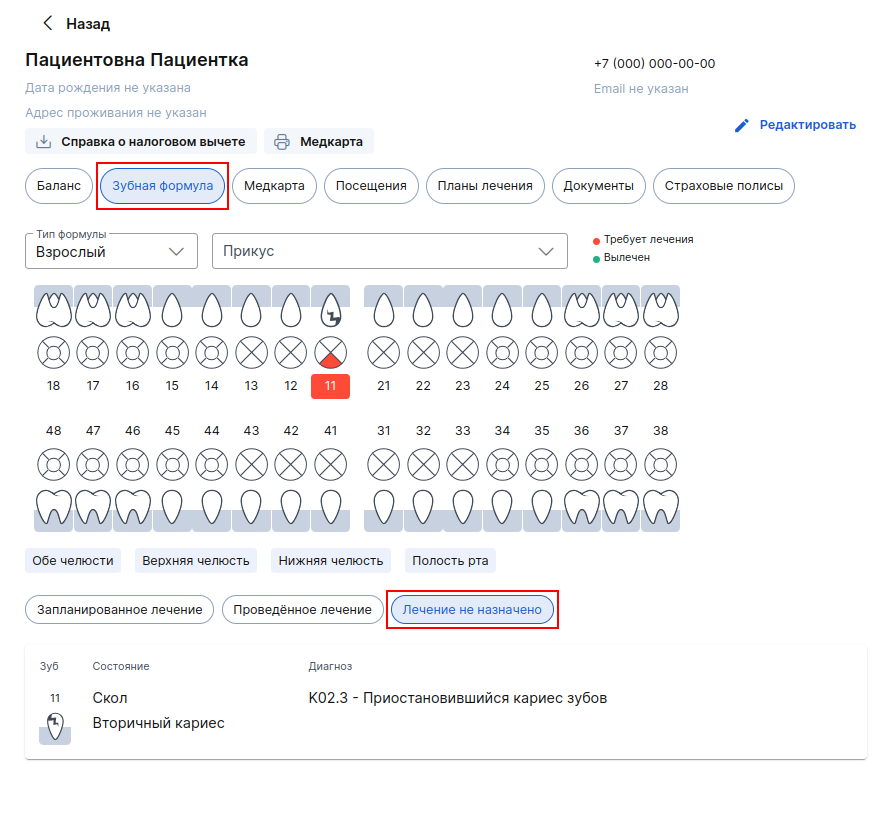
It is possible to enter data into the patient's dental formula without creating a protocol. To do this, go to the patient's profile and open the section«Зубная формула».
Without an appointment with the status«Начат визит», it will be possible to add data on the current condition of the teeth and make a treatment plan. You will not be able to specify the treatment performed at the reception.
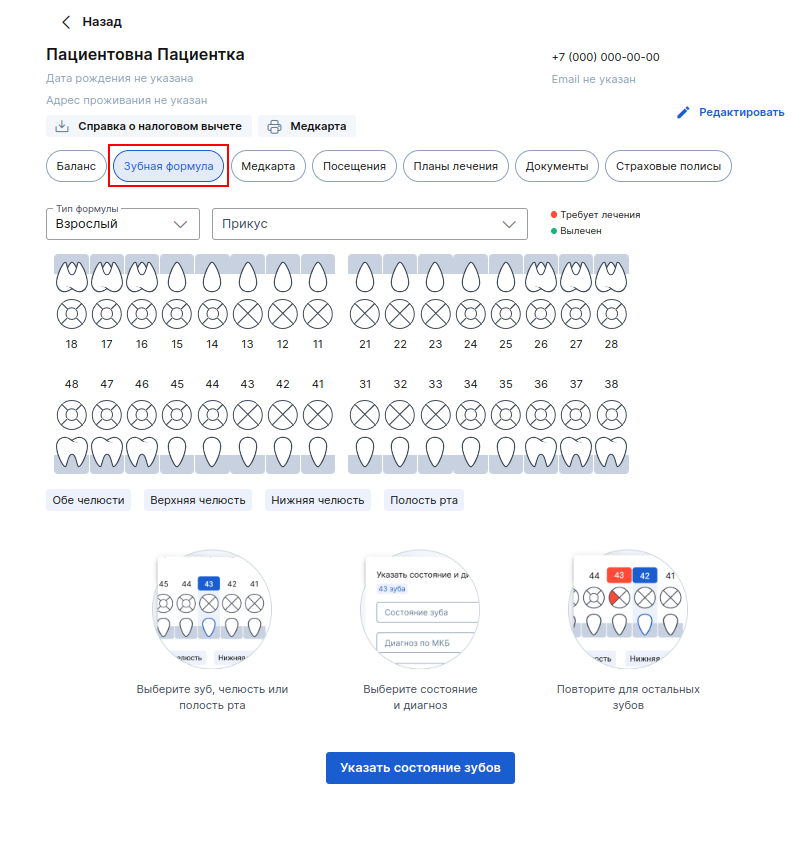
- To correctly display the formula, select the type of formula according to the patient's condition, and also specify the bite if necessary.
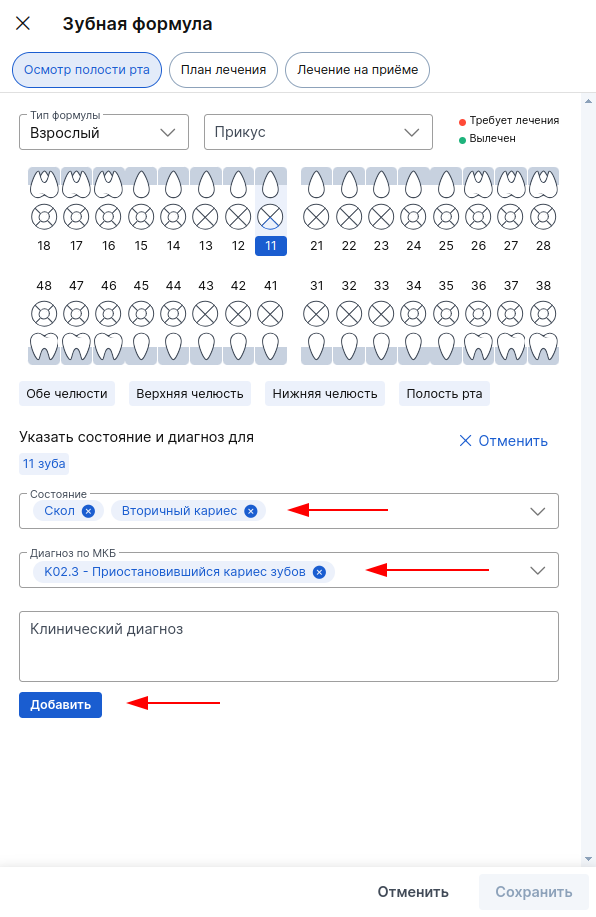
To enter the current dental condition, click on the desired tooth (part of it) or press the button «Указать состояние зубов».
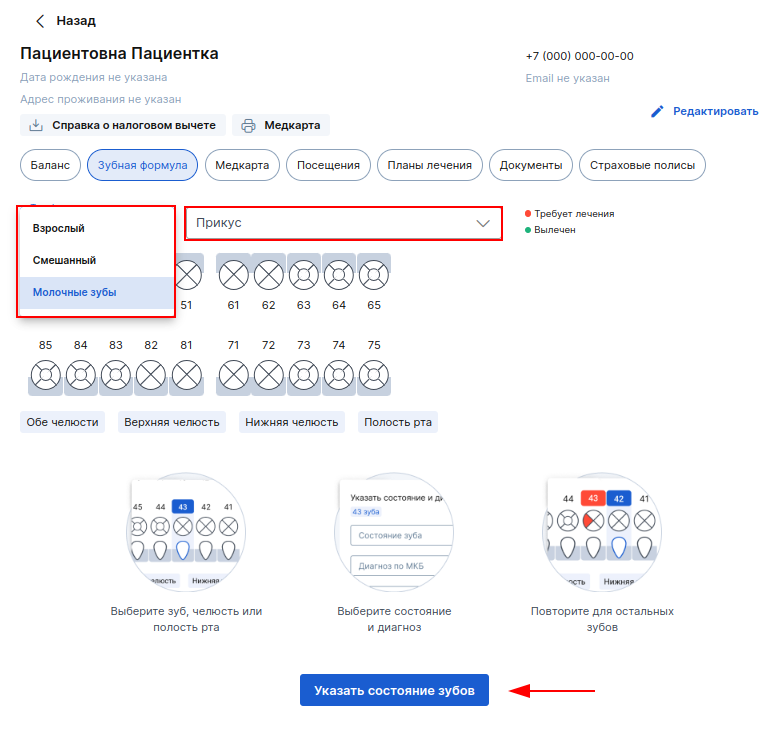
- A window with the selected tooth will open on the right, in which you need to specify its condition and diagnosis. After entering the data, click «Добавить».
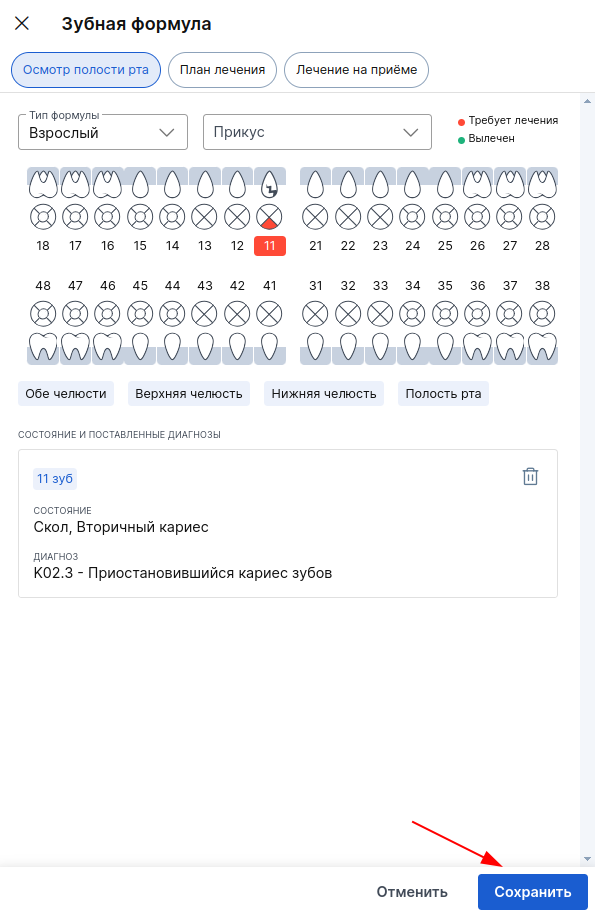
- Save the entered data. After that, the information will be displayed in the dental formula in the patient's profile in the section«Лечение не назначено».
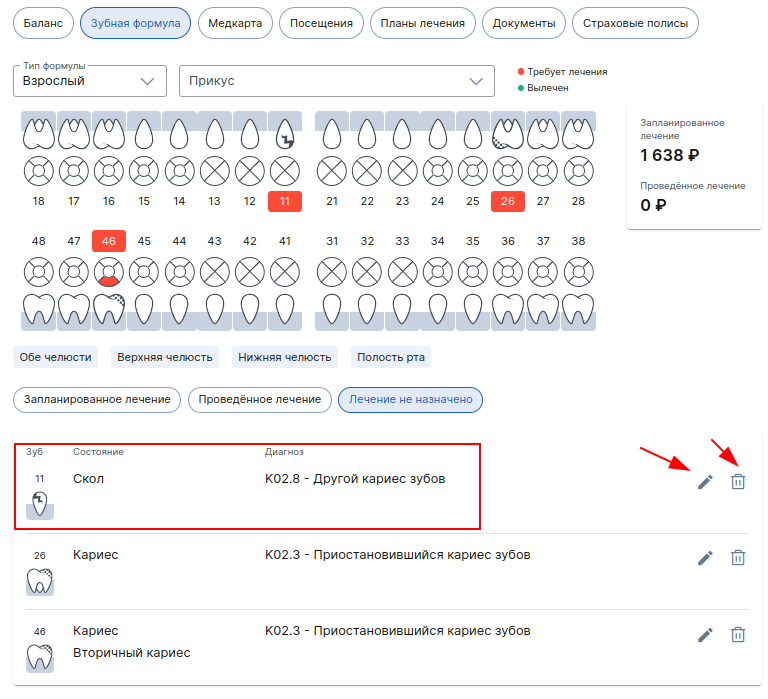
If you need to edit the already specified tooth condition, click on the pencil icon. If you need to delete a condition, click on the trash icon.
How to create a dental treatment plan in the patient's profile
- Go to the section «Запланированное лечение»and click «+ План лечения»or switch to the tab «План лечения»in the add data window.
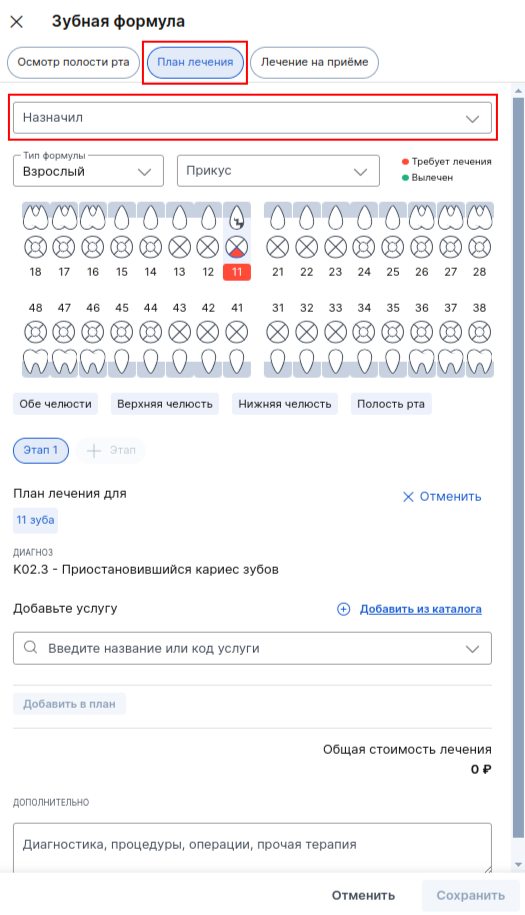
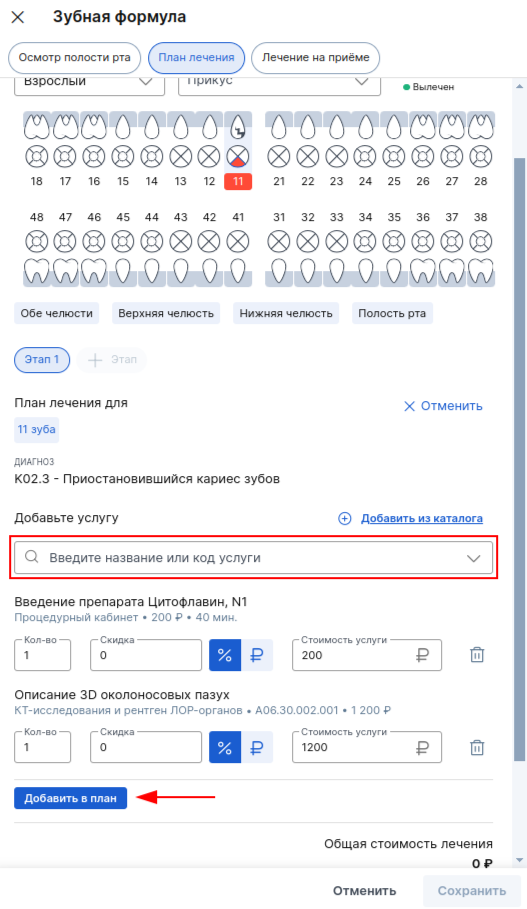
- Specify who prescribed the treatment plan, select dental services, add them to the plan by clicking «Добавить в план»and save.
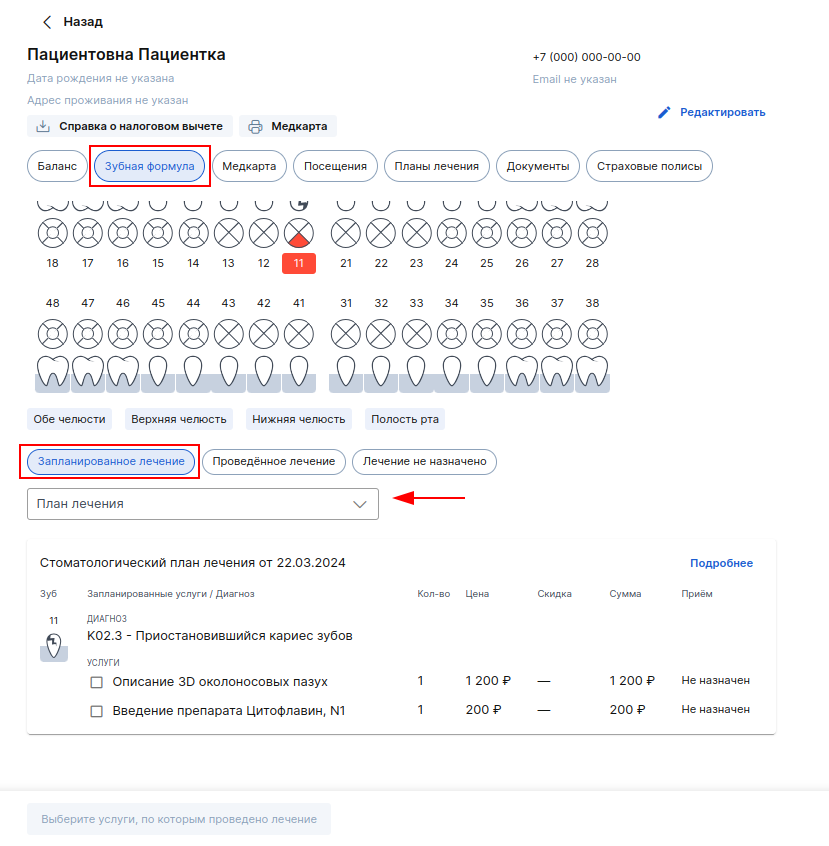
- The created treatment plan will appear in the section «Запланированное лечение». When a patient has several treatment plans, use a filter to view a specific one.
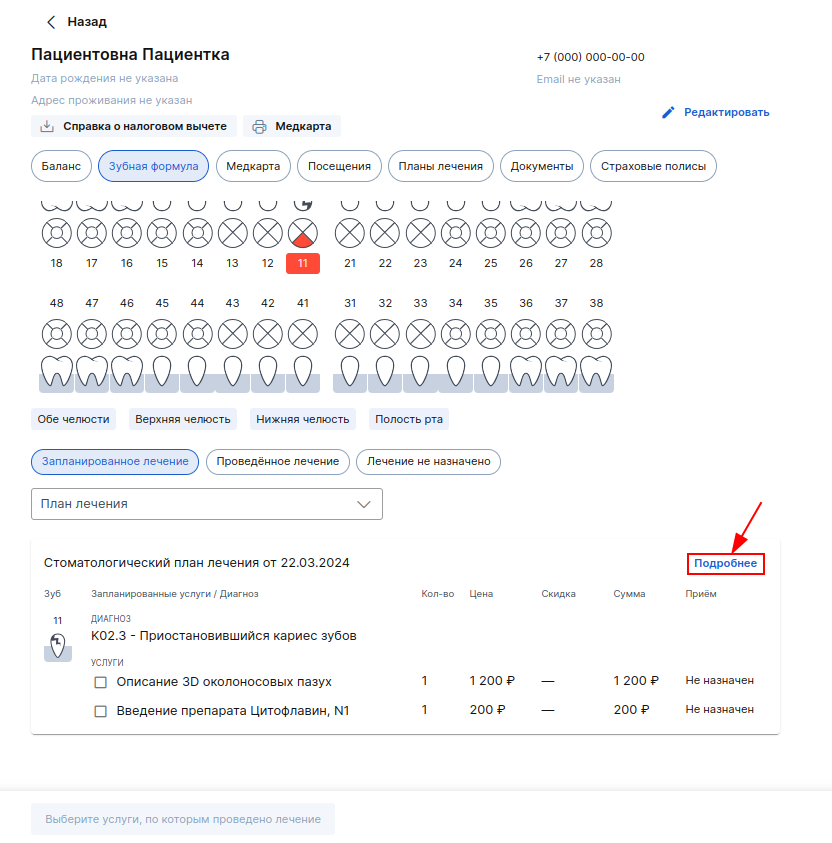
- To view information about the treatment plan or edit it, click «Подробнее».
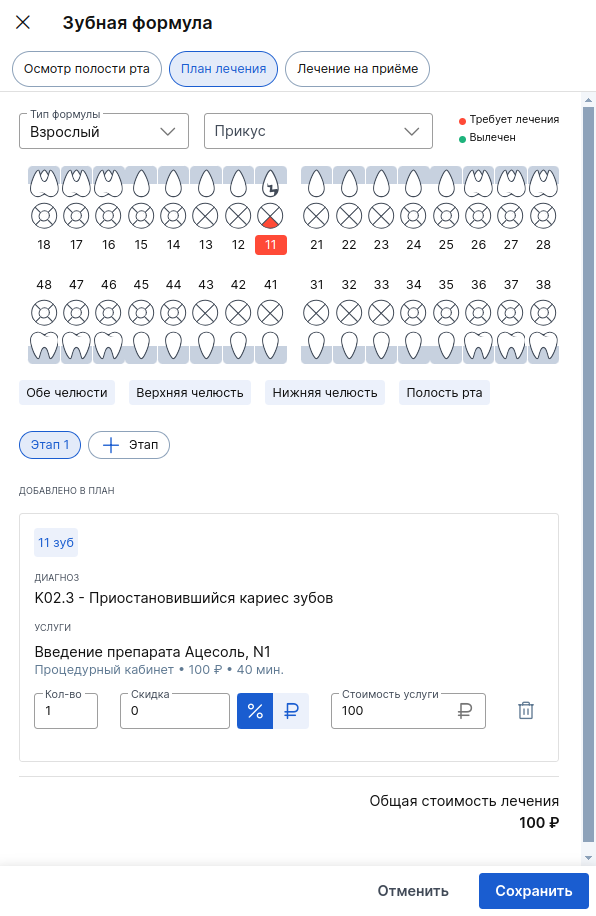
- To edit, click «+ Добавить услуги», then click on the desired tooth or part of it.
Here you can also remove services from the treatment plan.
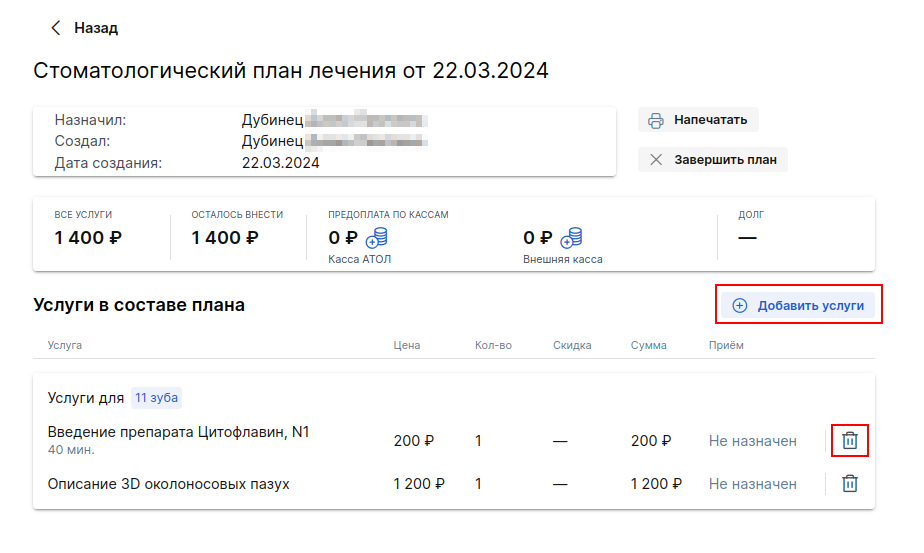
- Add the necessary services to the treatment plan and save the changes.
- If the patient has an appointment with the status«Начат визит», services from the created treatment plan can be added to the appointment. To do this, select the necessary services, click the button «Лечение»— the services will go to the section «Проведённое лечение»and will also be added to the reception.
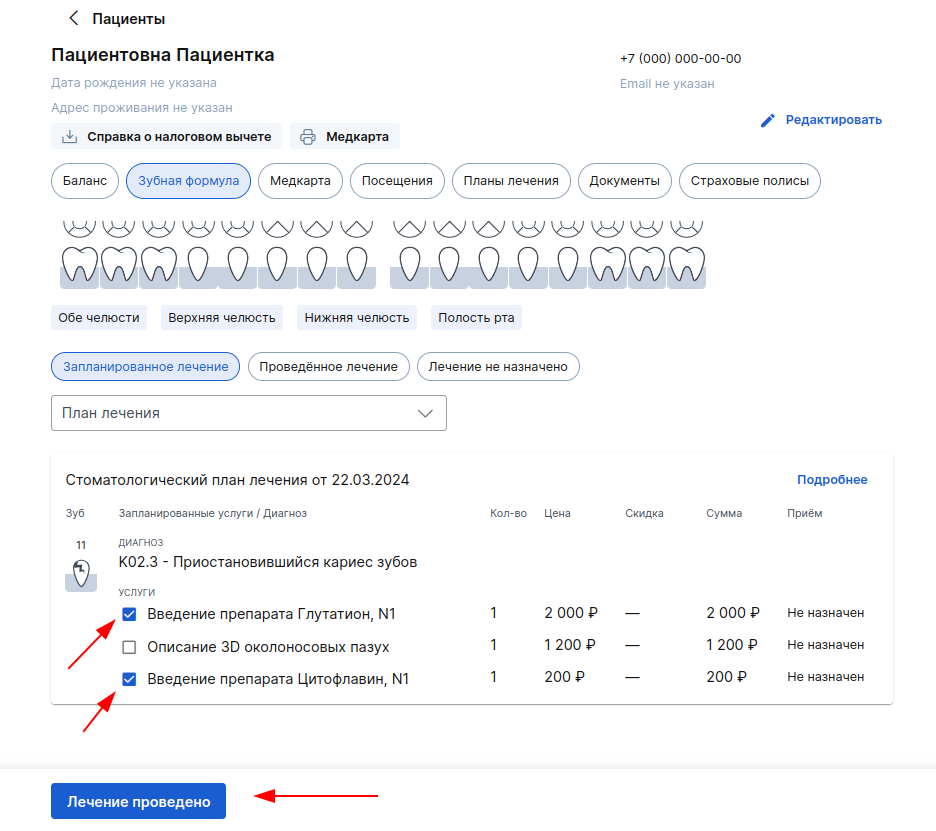
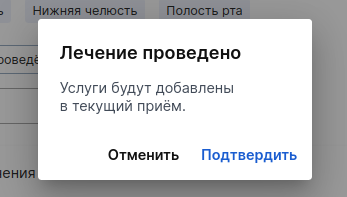
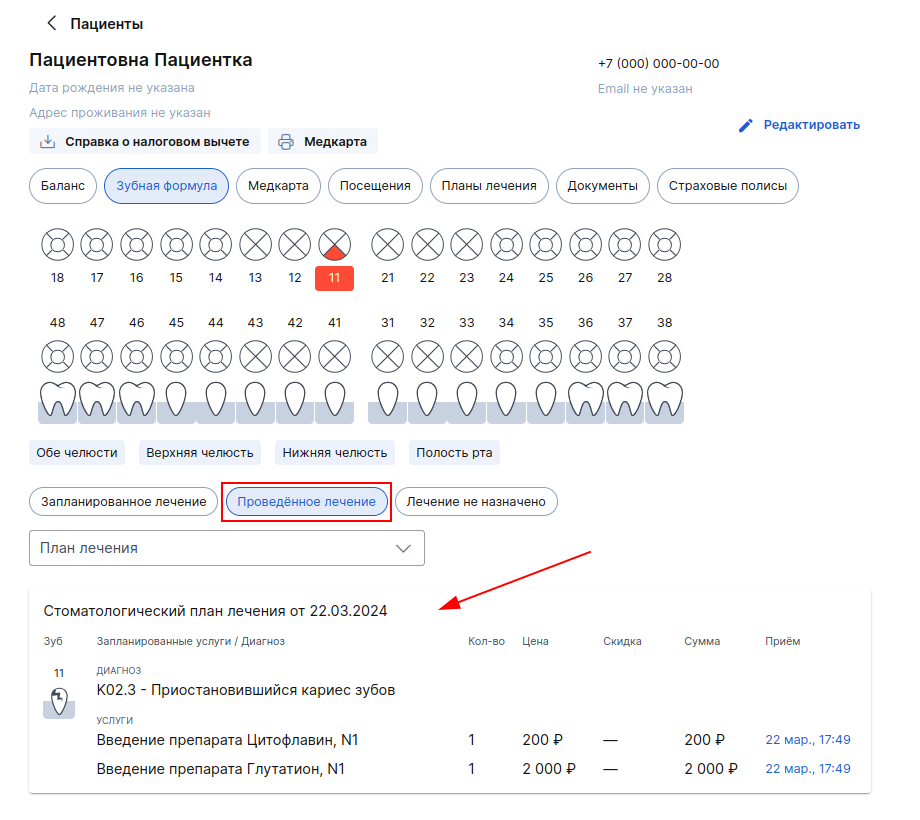
After adding services to the reception, make sure that some services in the reception are not superfluous, if necessary, delete them.
How to specify the treatment performed at the reception
- To work with the section«Проведённое лечение», it is necessary that the patient has an appointment with the status «Начат визит».
To indicate the treatment given to the patient, go to the section «Проведённое лечение»and click «Отметить выполненные услуги»or switch to the tab «Лечение на приёме»in the data addition window.
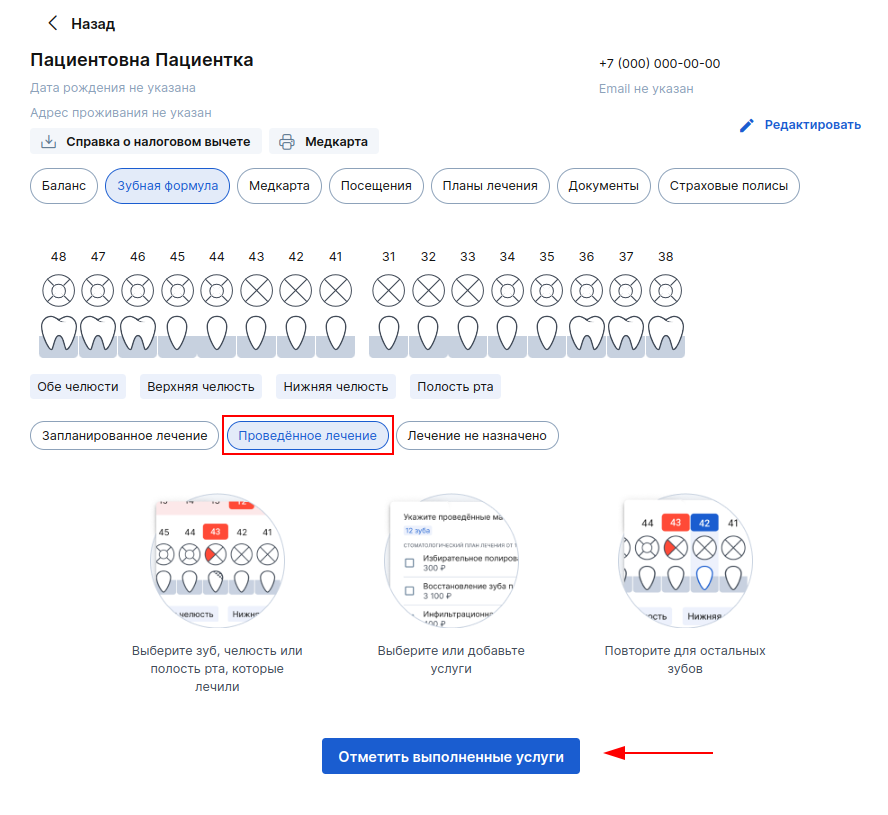
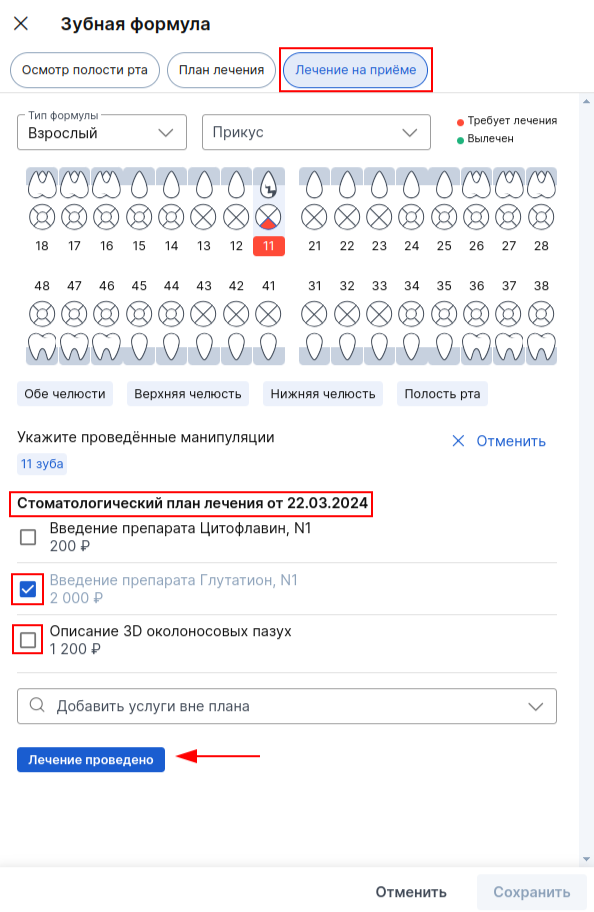
- Select the desired tooth, check the box for services provided to the patient from the treatment plan, select services outside the treatment plan, if necessary, then click «Лечение проведено»and save the data.
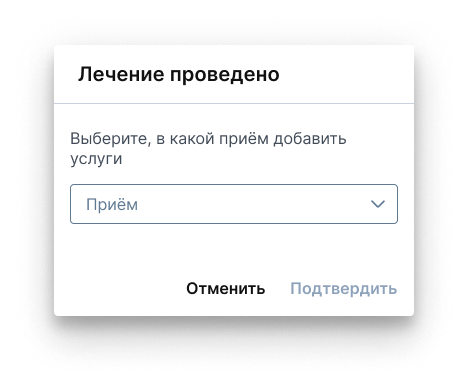
- If the patient has several appointments with the status«Начат визит», select which appointment you want to add services to.
After adding services to the reception, make sure that there are no unnecessary services in it, if necessary, delete them.
When all the services planned for the tooth are provided, it will become healthy and will be displayed in the dental formula in the patient's profile in green.
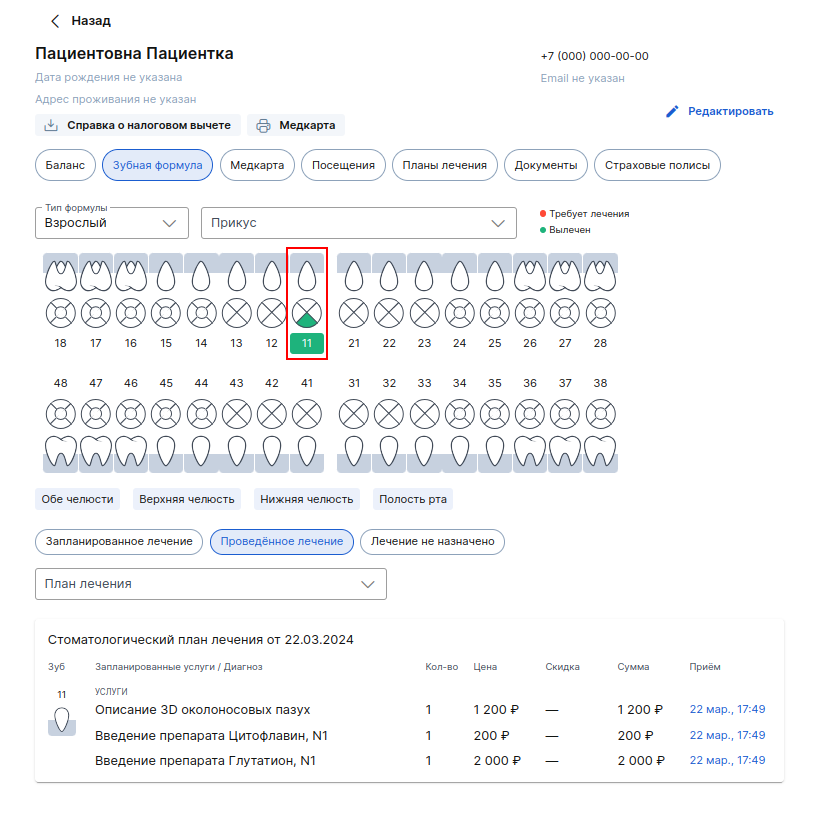
Important! When the dental condition changes, the data in the existing protocol is not updated. The data remains up-to-date at the time the protocol is created.
Features of dental treatment plans for minors and incapacitated patients
If a dental treatment plan is created in the admission protocol, it will automatically be sent to the health care provider specified in the admission. In the medical section, the treatment plan will appear in the section «Мои зубы».
When editing the protocol, the updated version is always sent to the patient.
If you create a dental treatment plan in the profile of a minor or incapacitated patient, then before sending the plan, you can choose which of the guardians to send it to.
The treatment plan is created in the same way as for adult patients. After making a plan, click «Сохранить и отправить».
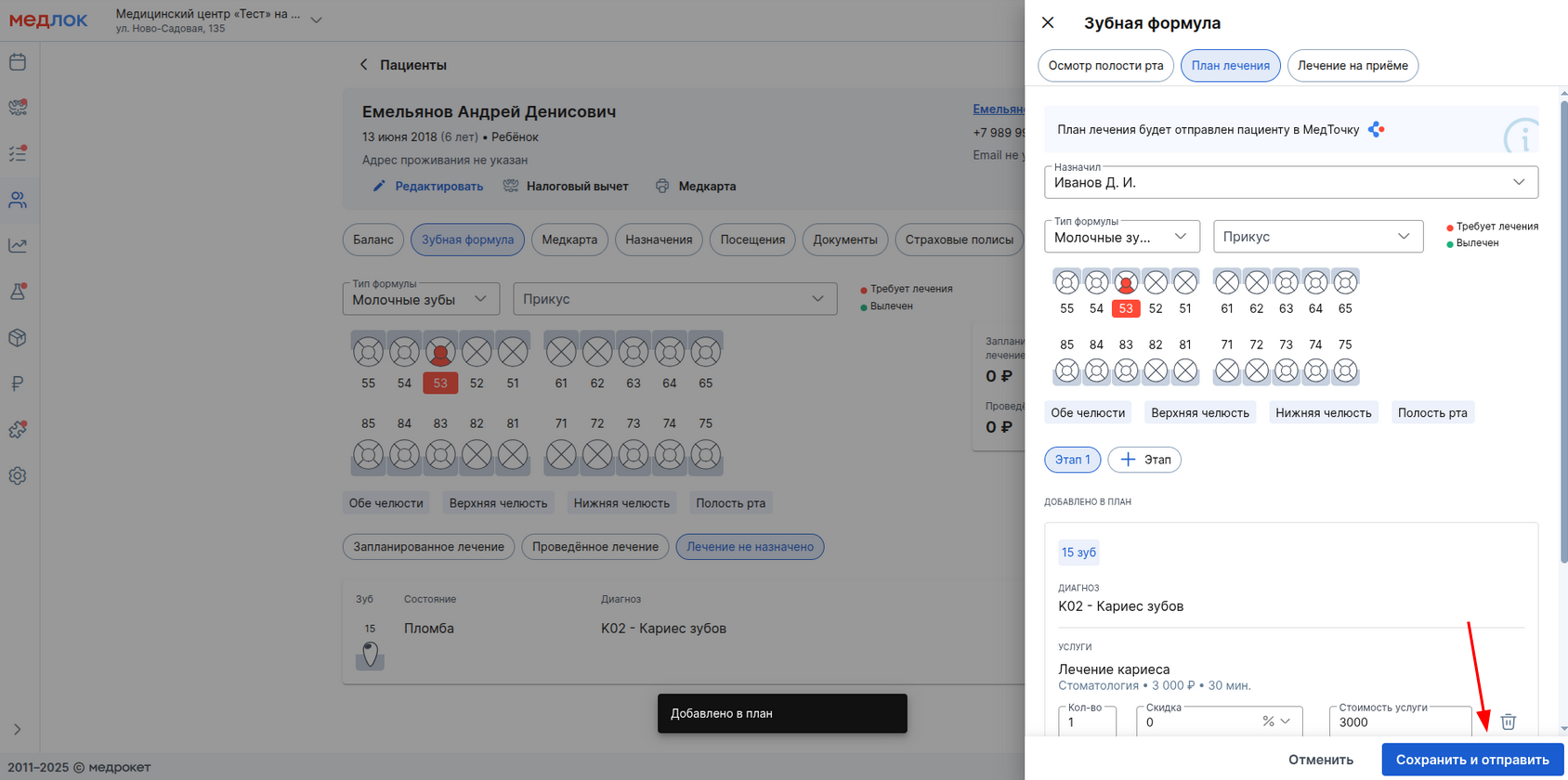
A window will appear with the choice of the caregiver to whom the dental treatment plan should be sent. Select a guardian and click «Отправить».
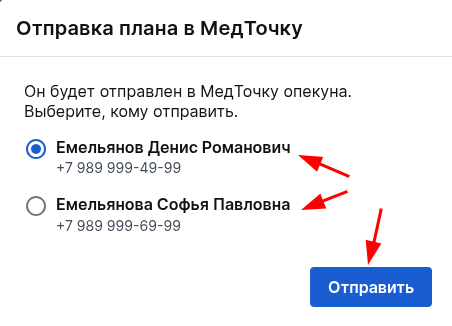
After that, the treatment plan will also appear in the guardian's medical card in the section«Мои зубы».
If there are caregivers who cannot be sent dental treatment plans to the medical center, an error will appear.
What errors can occur?:
- The guardian has a waiver of personal data.
- A local or foreign phone number is indicated.
- If there are no guardians to send files to, a notification will appear in the file upload window.
- When you click the button«Нет опекунов», a window opens with the reasons why it is impossible to send to each of the guardians.
Frequently Asked Questions
- Is it possible to mirror the dental formula in the MedLock in the same way as it is displayed when printing
In all medical systems, the dental formula is displayed in the same way as the doctor sees the patient's teeth during the appointment. It is mirrored in the documents for the patient, since the patient does not perceive the location of his teeth in a mirror way.
You may also be interested in an article about working with the section«Пациенты».