


The article contains sections: 
- How to make a payment at the reception
- How to make a payment through the patient's profile
- How to make a payment through the section«Касса»
- How to make a refund
- How to deposit and withdraw cash
- How to close a shift
- Common mistakes when working with yandex. Checkout
- Frequently Asked Questions
Getting started with yandex. Checkout
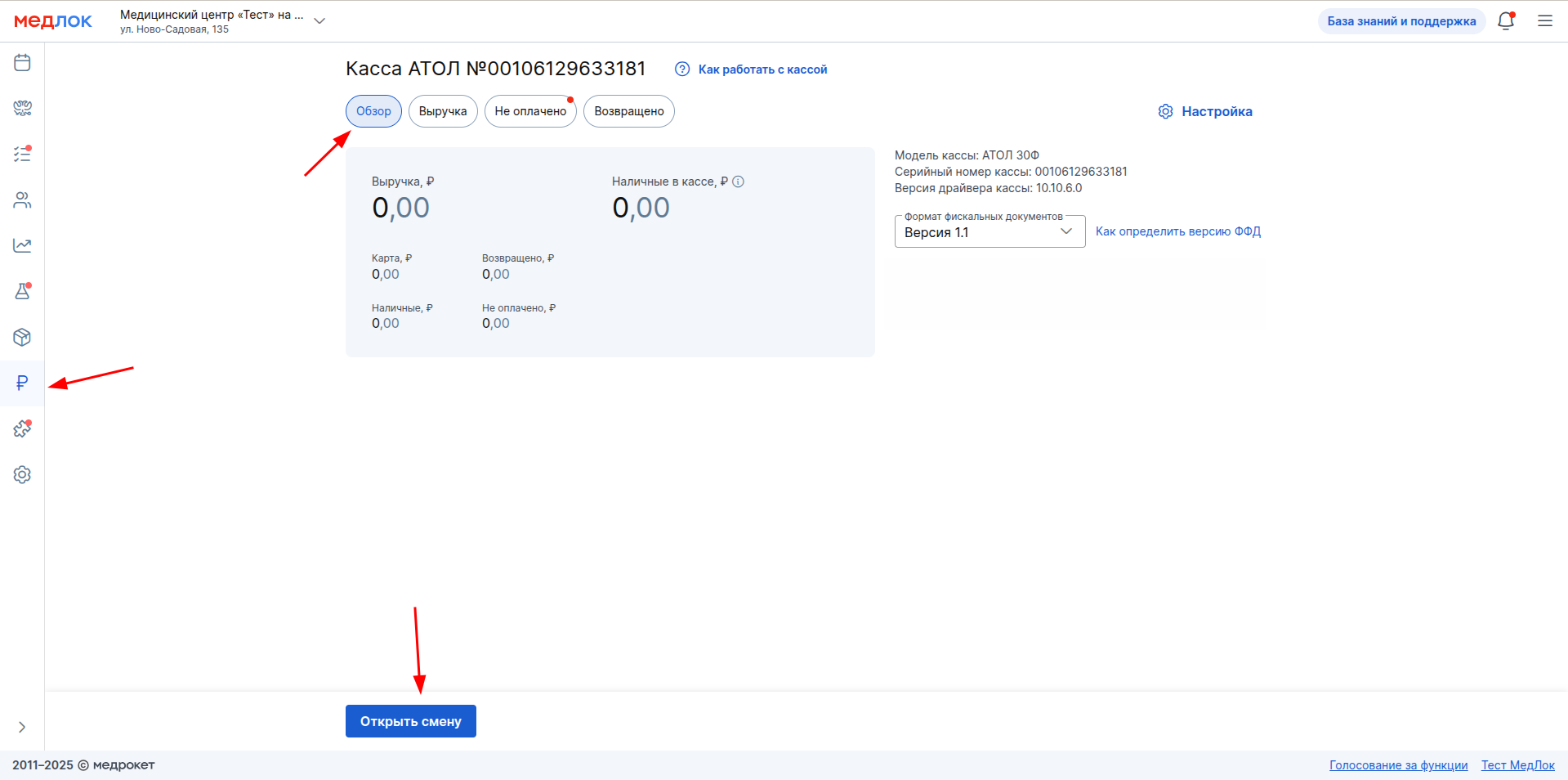
Go to the section «Касса», subsection «Обзор».
Important! The section «Касса»displays data on all branches of the clinic.
Open the shift via the Slow button«Открыть смену».
Upon successful opening, a receipt will be issued.
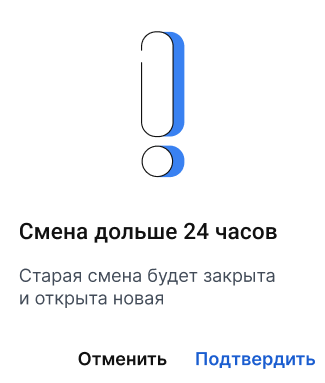
Important! The shift duration should not exceed 24 hours, otherwise the fiscal storage will be blocked. That is, after no more than 23 hours, you need to close the shift and, if necessary, open it again.
How to make a payment at the reception
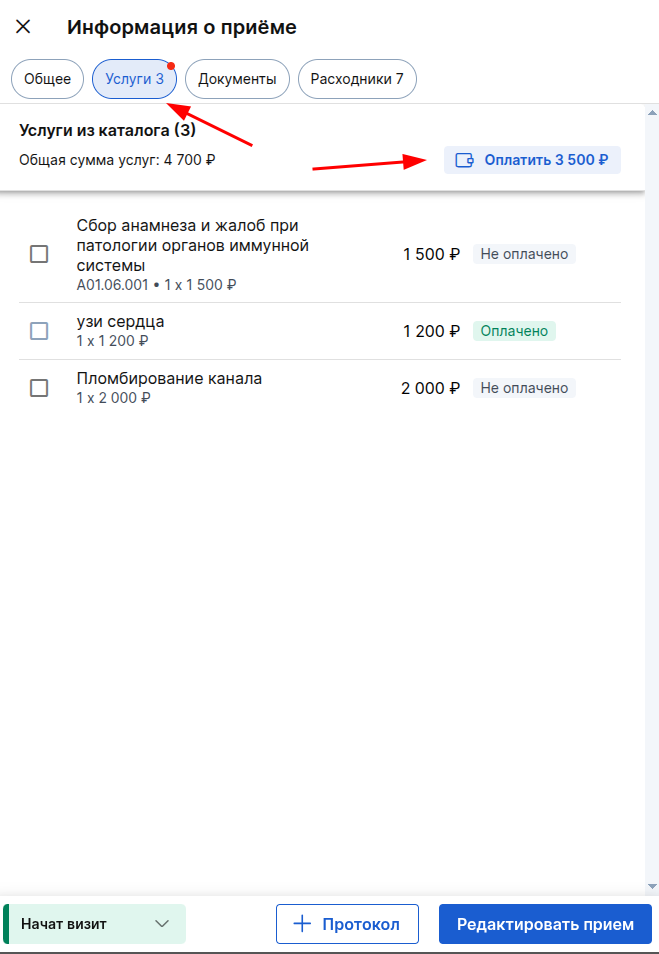
To calculate the patient, set the status «Пациент пришёл»or in the record «Начат визит». In the window«Информация о приёме», go to the section «Услуги».
To make a payment for all the services in the record at once, click on the button «Оплатить»in the upper-right corner.
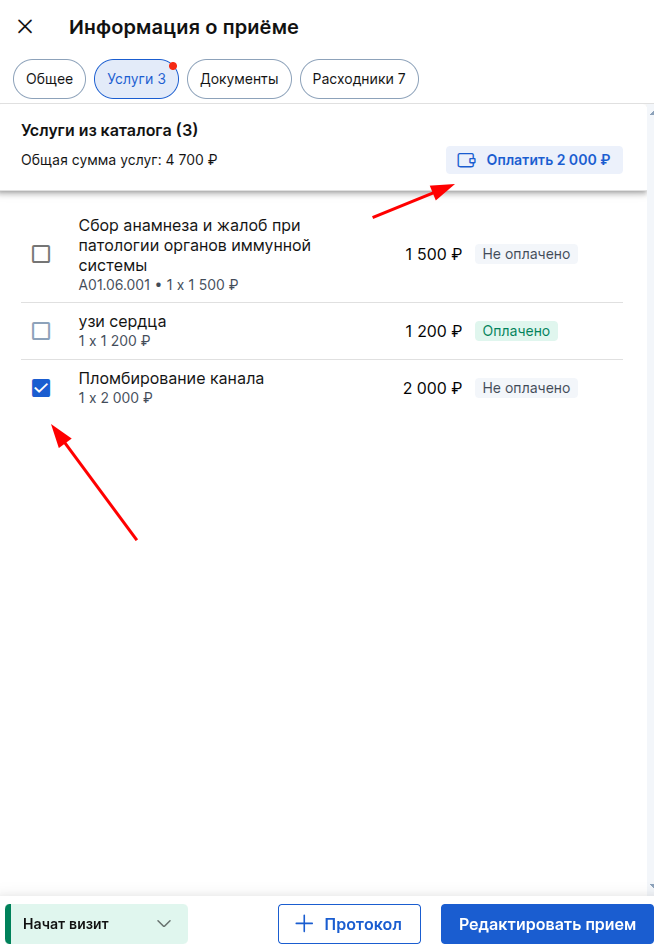
To pay for individual services, tick the appropriate boxes and click on the button «Оплатить»in the upper-right corner (the amount will change).
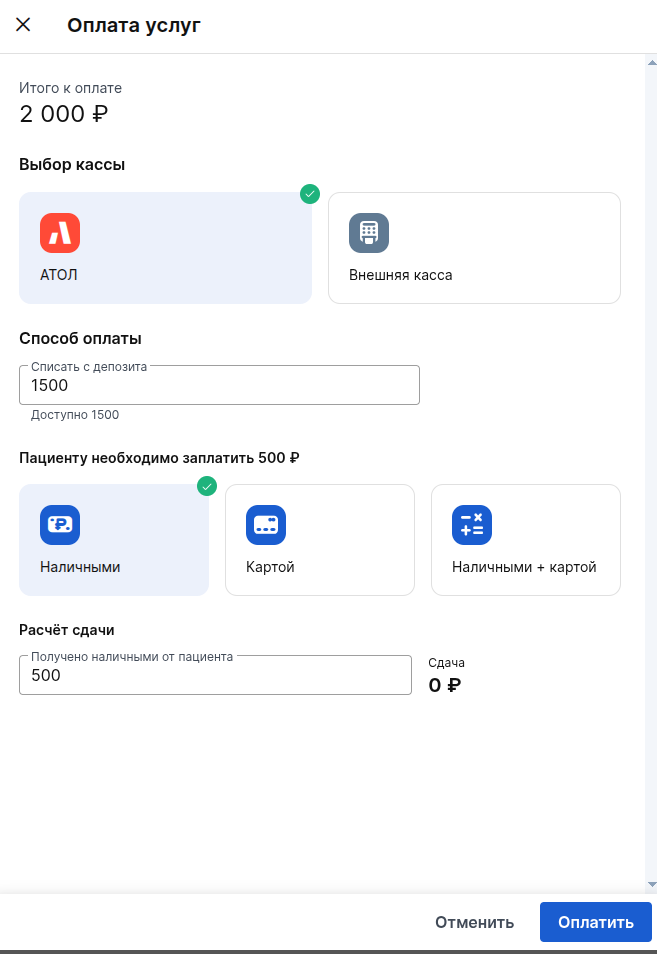
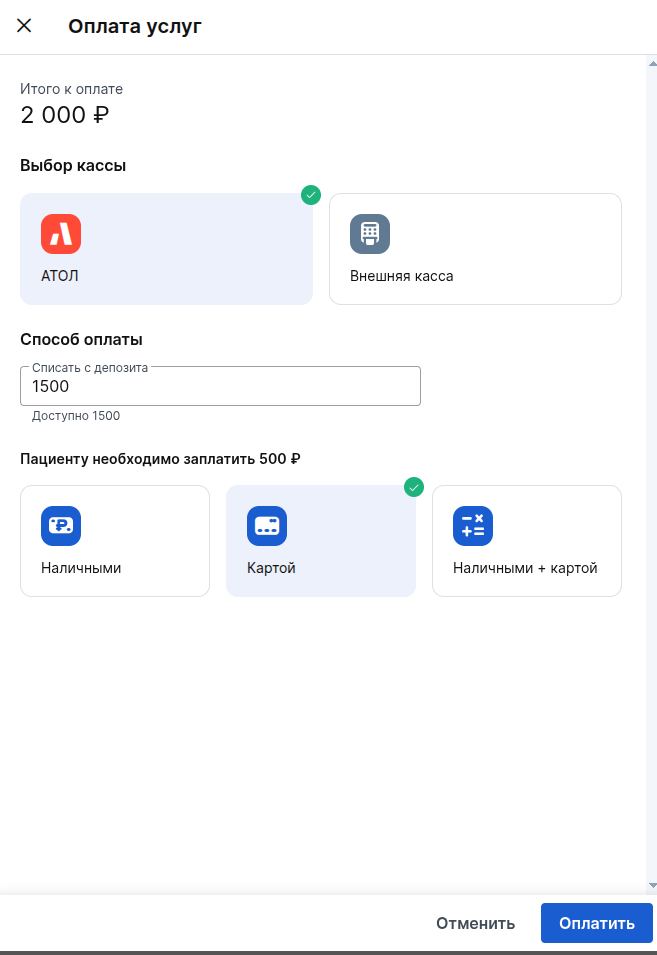
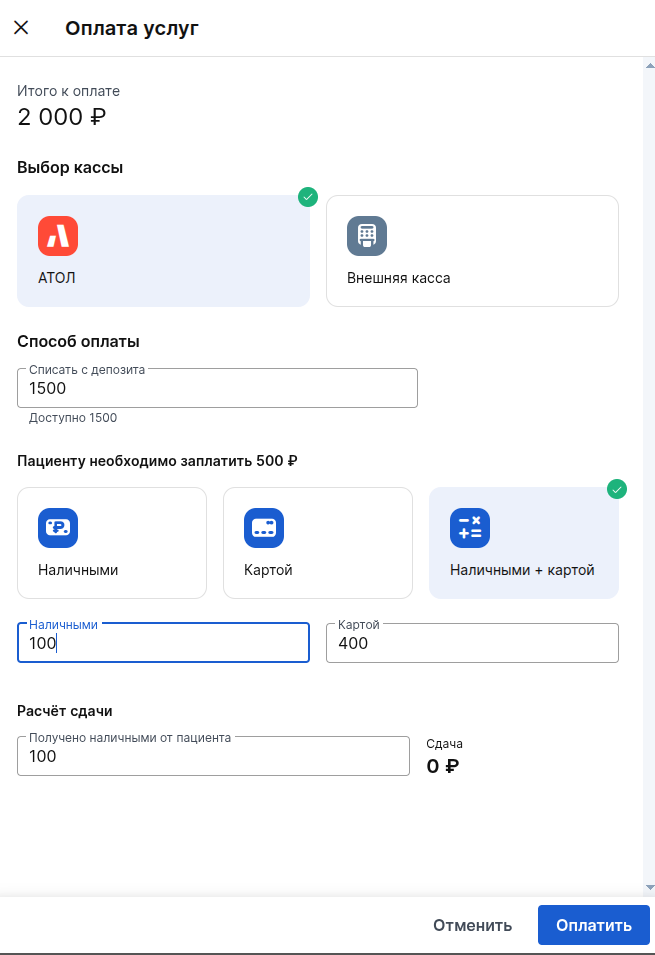
In the window that opens, select the ATOL sales register. If the patient has previously made a deposit through the ATOL cash desk, the amount sufficient for full or partial payment of the service will be displayed here.
You can change the amount charged from the deposit and the program will automatically calculate how much the patient needs to pay extra.
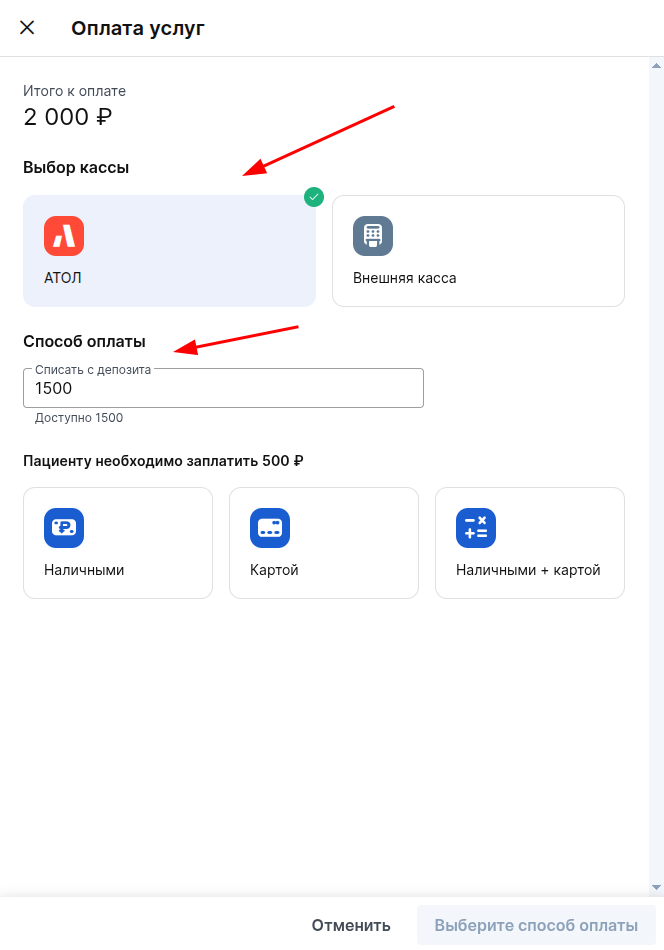
Next, select the payment method and fill in the information on the finances received from the patient. After that, click «Оплатить»at the bottom.
How to make a payment through the patient's profile
Go to the subsection in the patient's profile«Баланс».
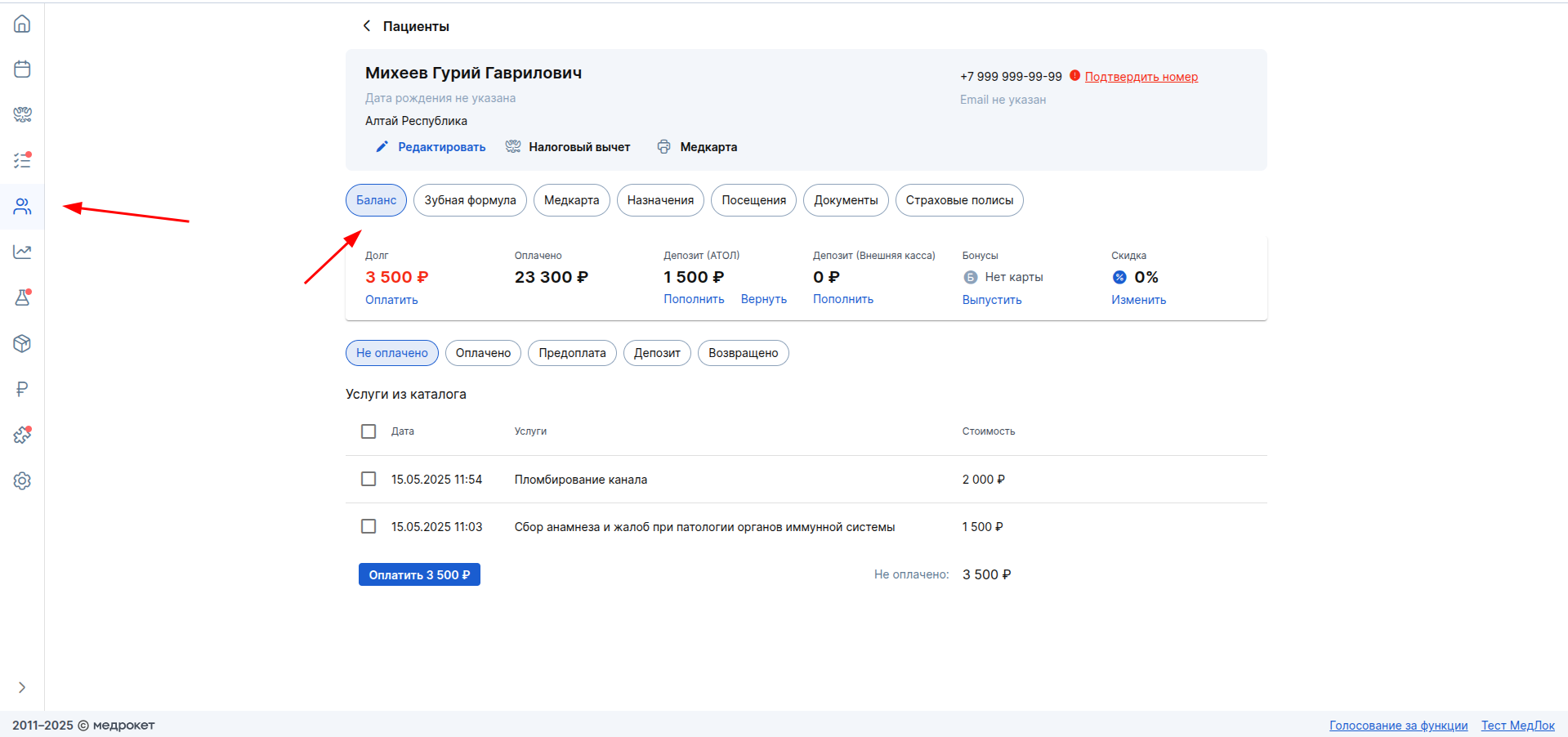
Here you can pay the entire patient's debt in full.
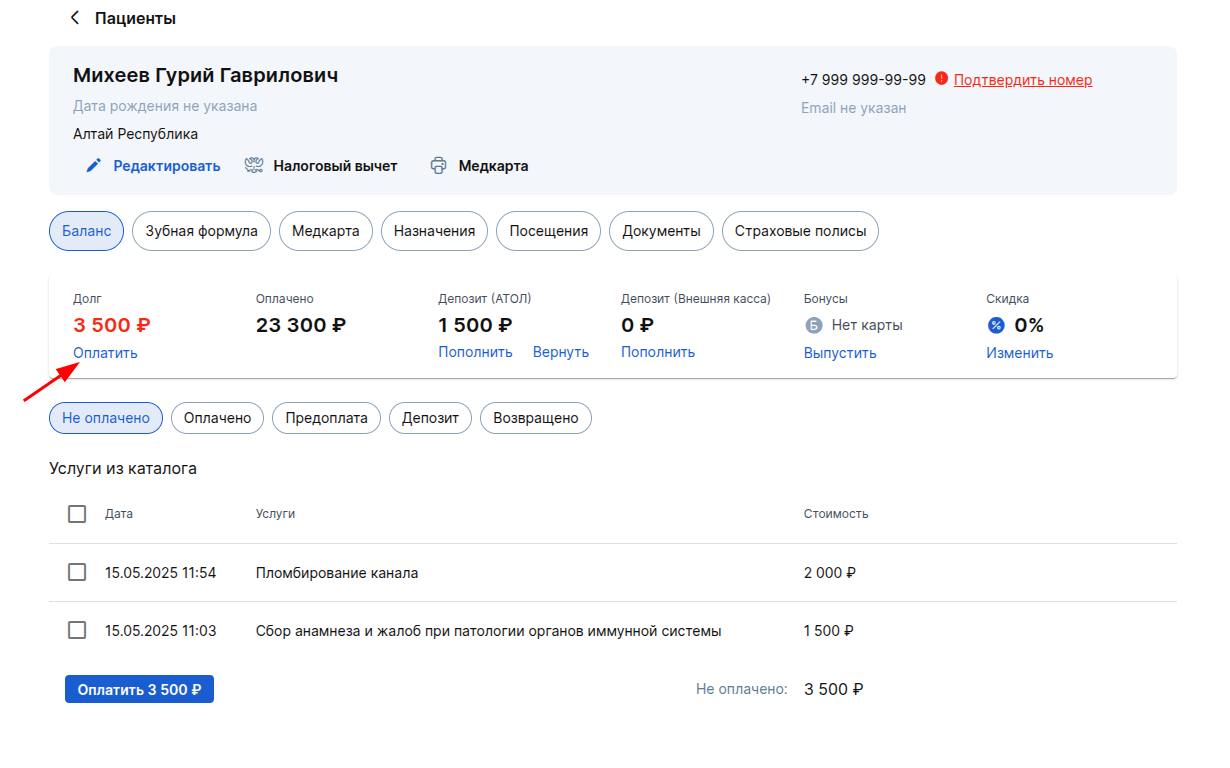
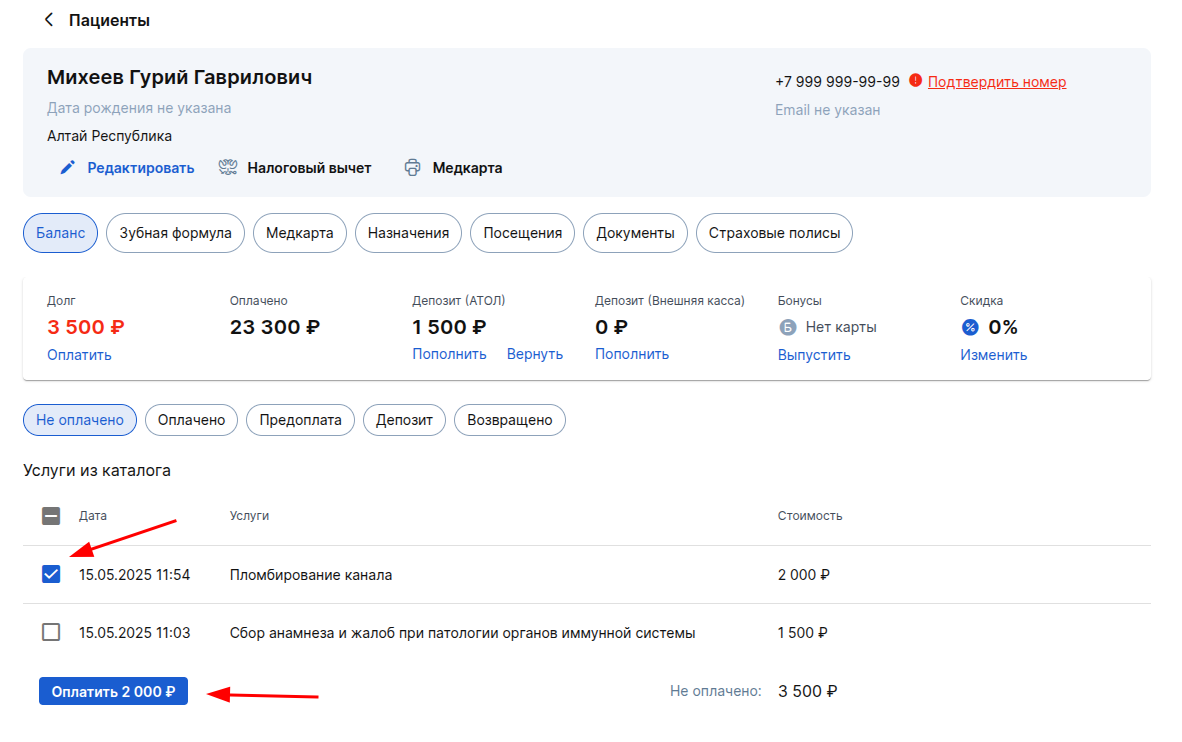
You can also check the individual services in the subsection «Не оплачено»and click «Оплатить».
How to make a payment through the section«Касса»
Go to the section «Касса»and then to the subsection «Не оплачено».
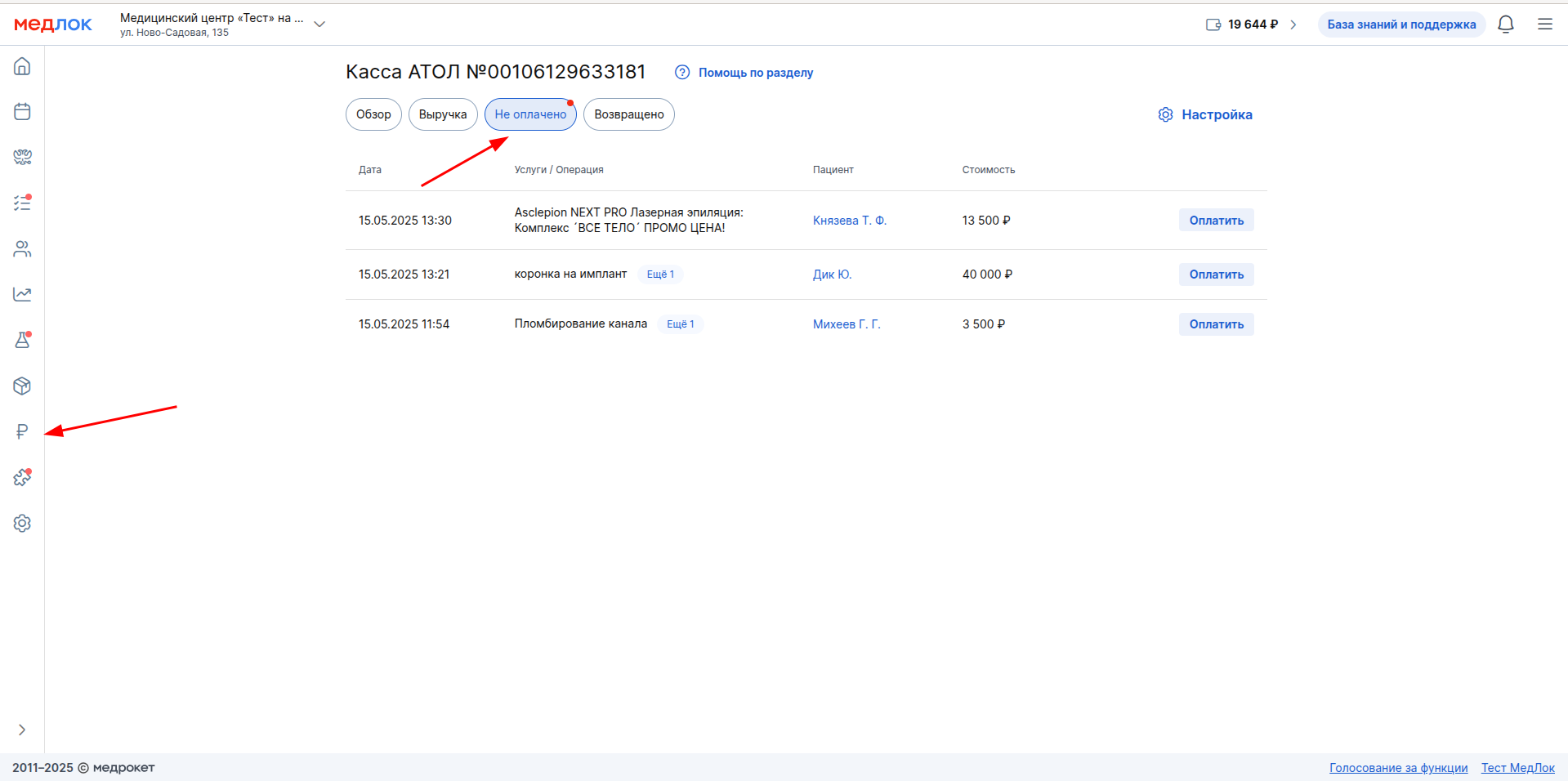
Here, services are displayed by patients who currently have an appointment with the status «Пациент пришёл», «Начат визит»or «Выполнен».
Click on the button «Оплатить»next to the desired patient.
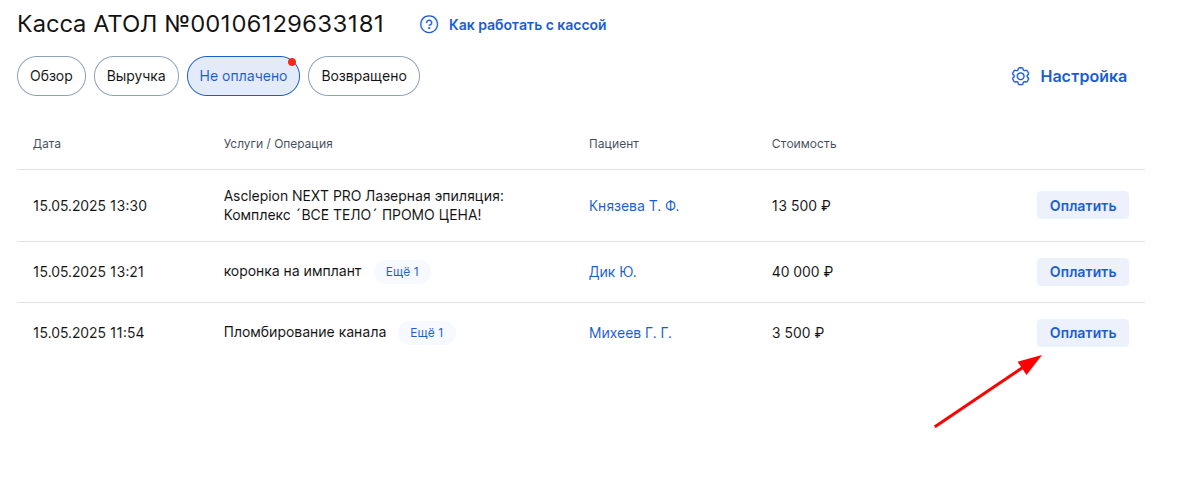
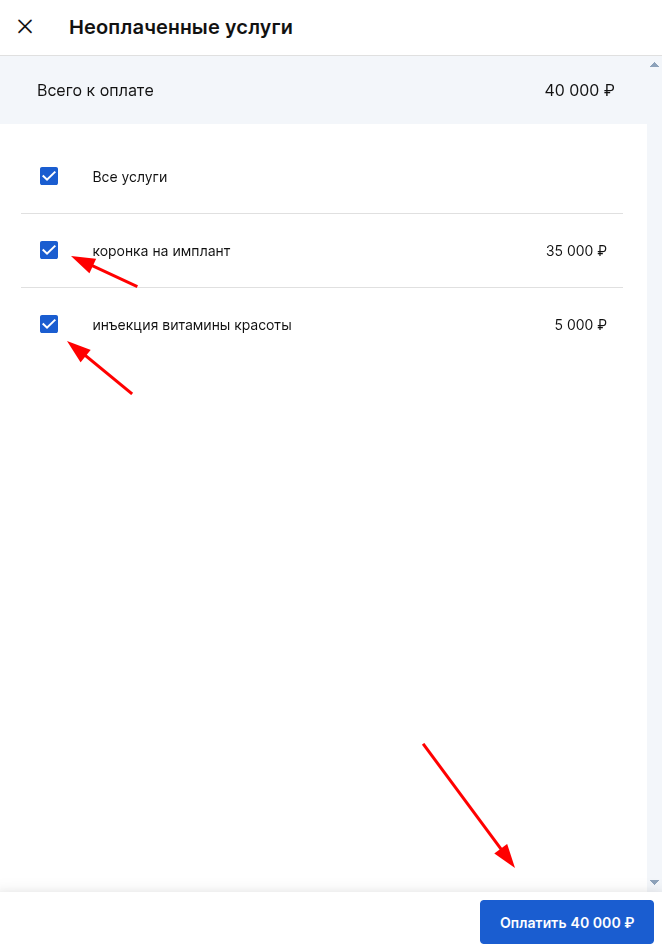
Select the services you want to pay for and click«Оплатить»
How to make a refund
- Log in to the subsection in the patient's profile«Баланс».
- Click on the button «Оплачено».
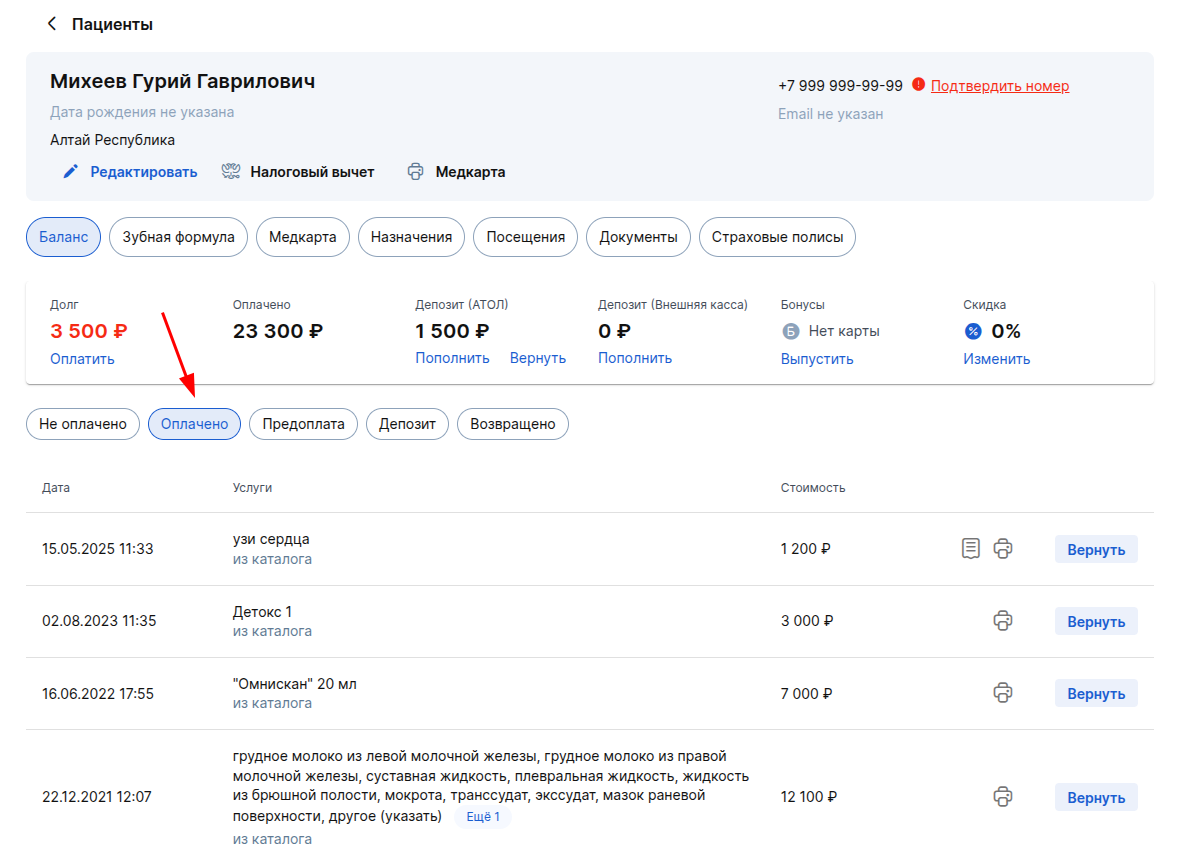
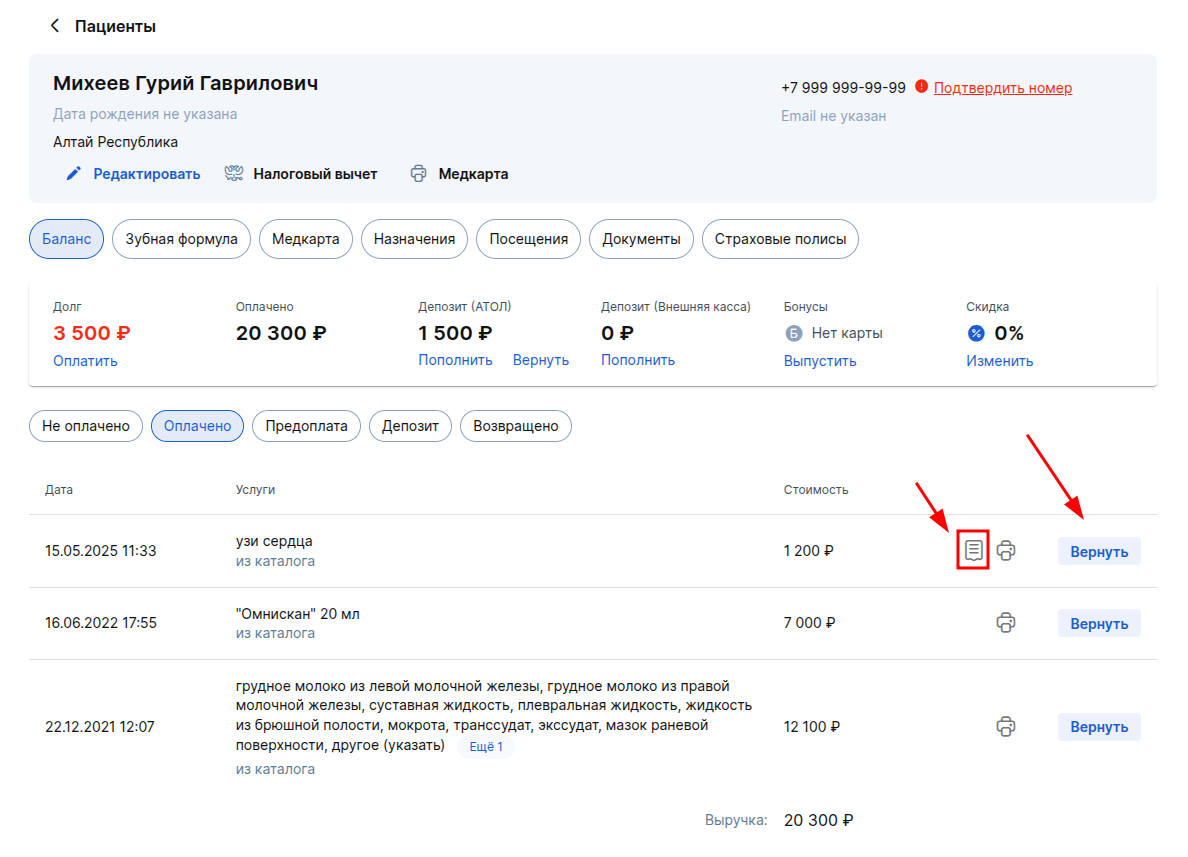
- Click next to the desired service «Вернуть». Payments through the ATOL cash register differ from payments through an external cash register by clicking «Напечатать чек»in front of them.
- Click«Оформить возврат»
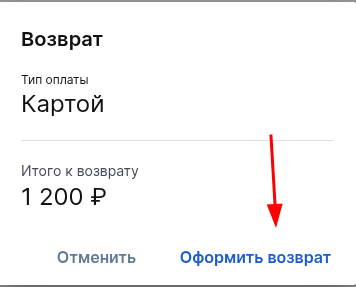
Important! A refund can only be made in the manner in which the payment was made.
You can also make a refund in the section«Касса».
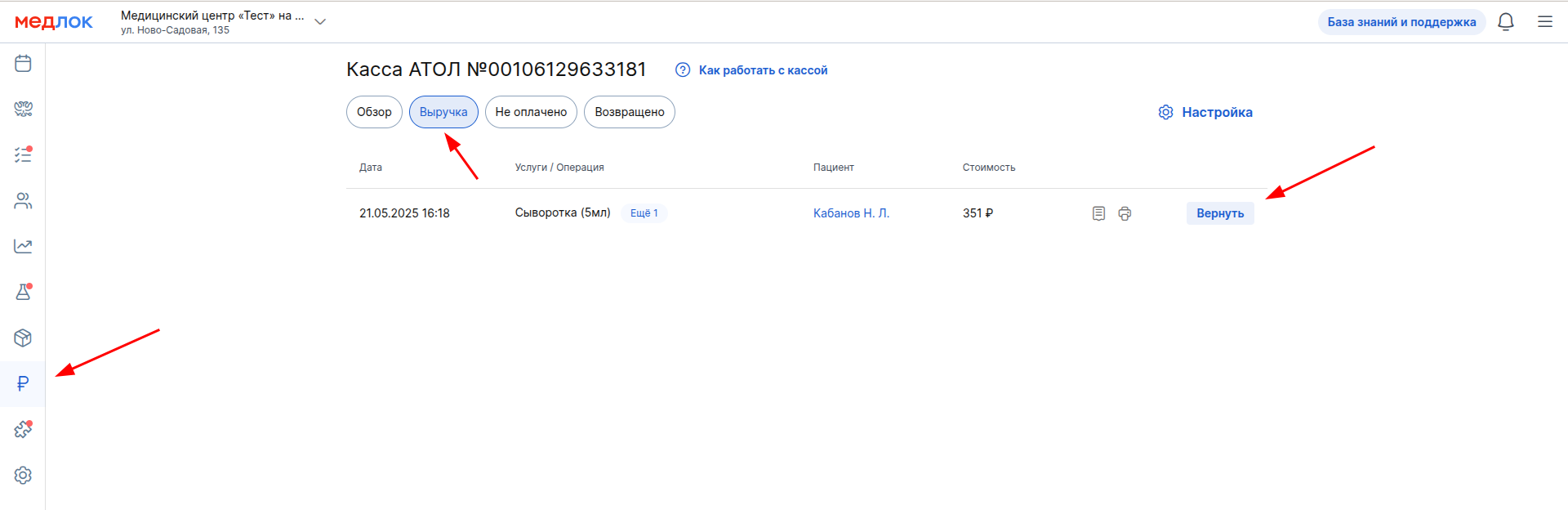
Go to the subsection «Выручка»and find the desired service.
Click «Вернуть»next to this this service. All other actions are the same as when refunding funds from the patient's profile.
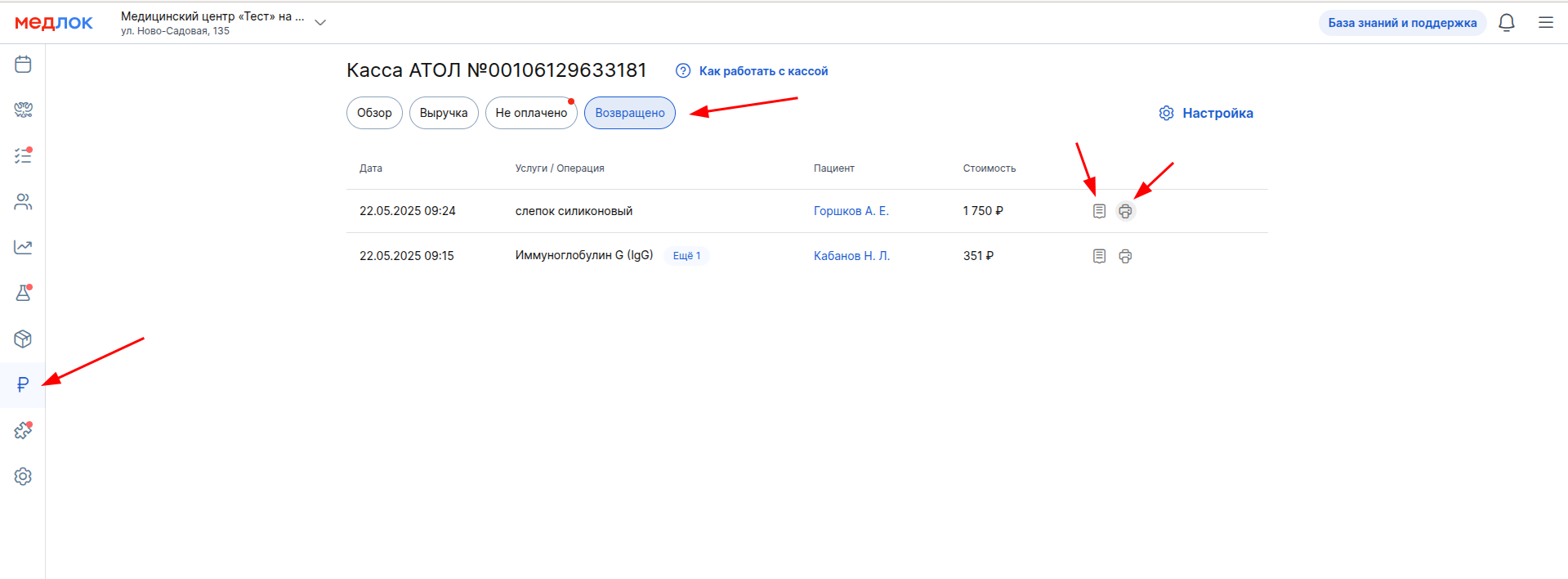
This subsection «Возвращено»allows you to view completed refunds for the current shift and re-print receipts for the return of the arrival and receipts for the refund. For more information, see our Refund article.
How to deposit and withdraw cash
In addition to paying for services in cash, you can deposit and withdraw cash from the cash register separately. The «Обзор»and buttons are available in the subsection «+ Внести»«— Изъять».
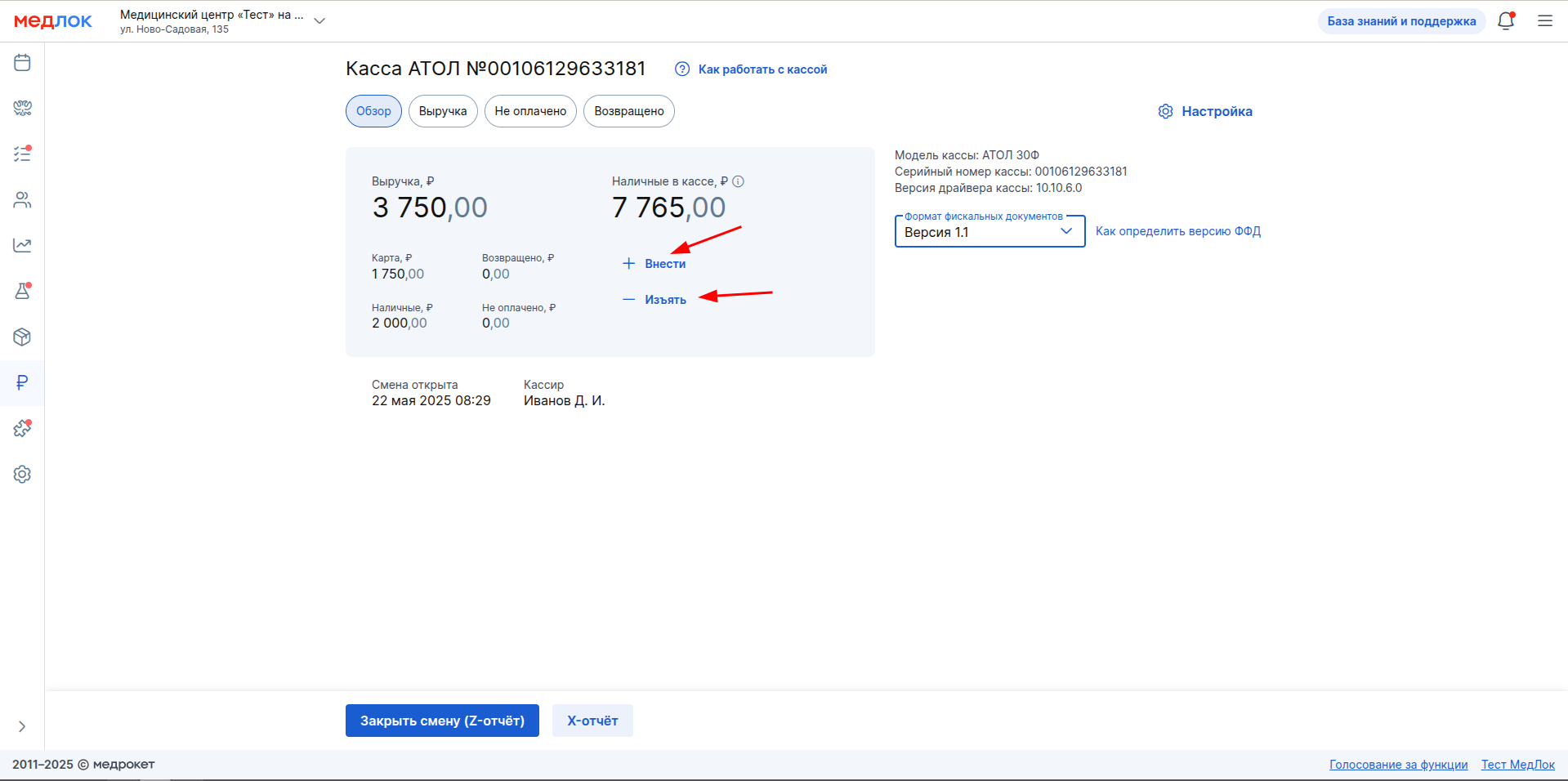
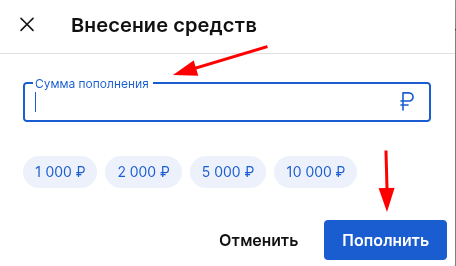
If you need to deposit cash at the cashier in addition to paying for services, click on the button«+ Внести». In the window that opens, enter the deposit amount or select from the suggested ones. Then click «Пополнить».
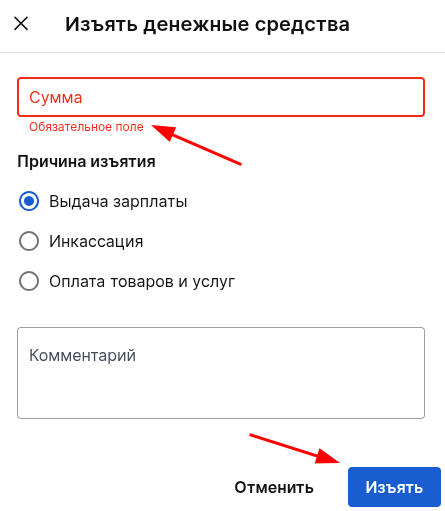
If you need to withdraw cash from the cash register, click on the button«— Изъять». In the window that appears, specify the amount you want to withdraw from the cash register (by default, the full amount of cash in the cash register will always be indicated). Then - the reason for the withdrawal and, if necessary, a comment. Click«Изъять».
How to close a shift
Go to the section «Касса», subsection «Обзор». We recommend removing the X-report before closing the shift.
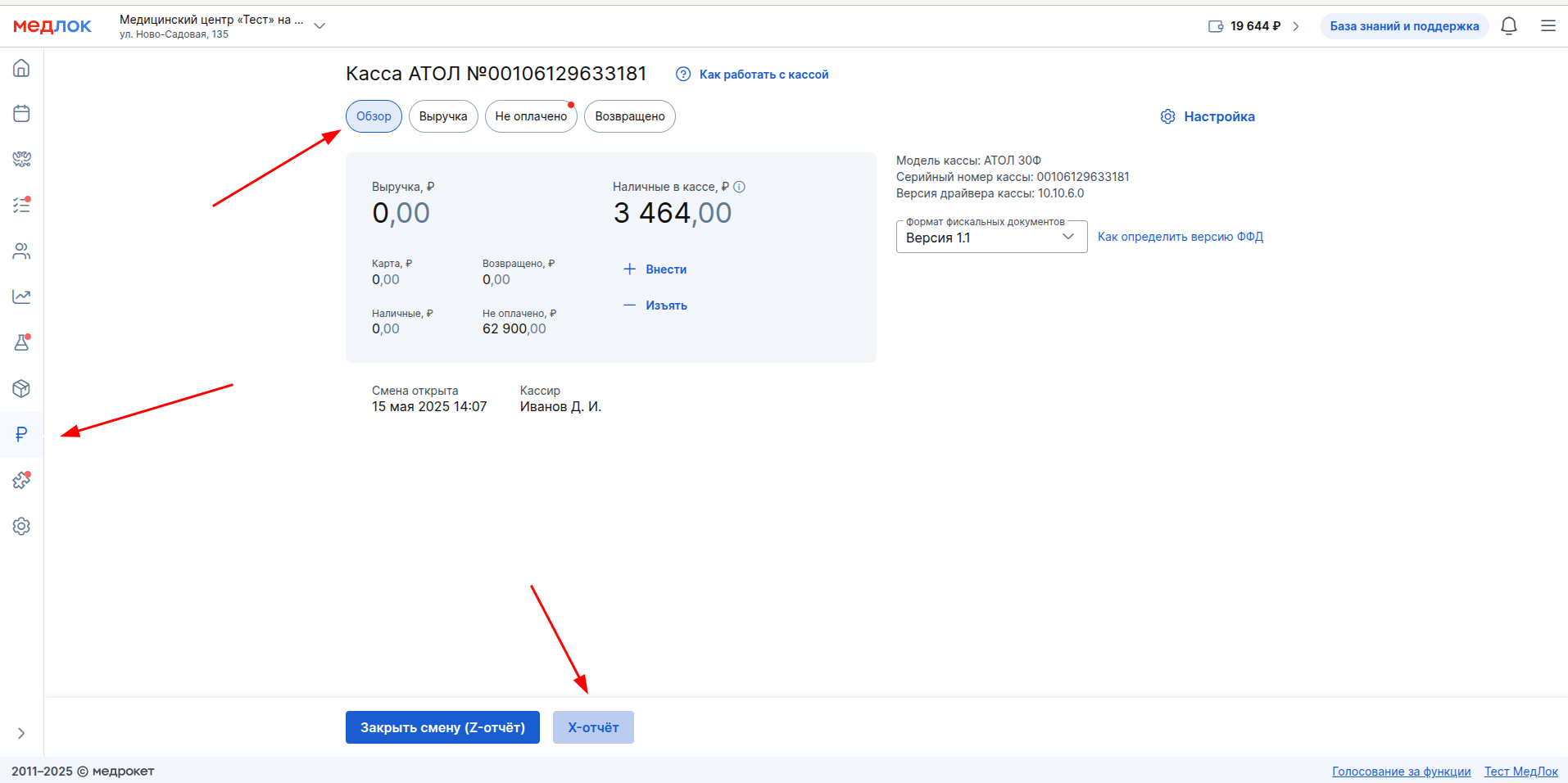
If all payments were made only through the Medlock, without using third-party programs, the amount of revenue in the report and in the MedLock will match.
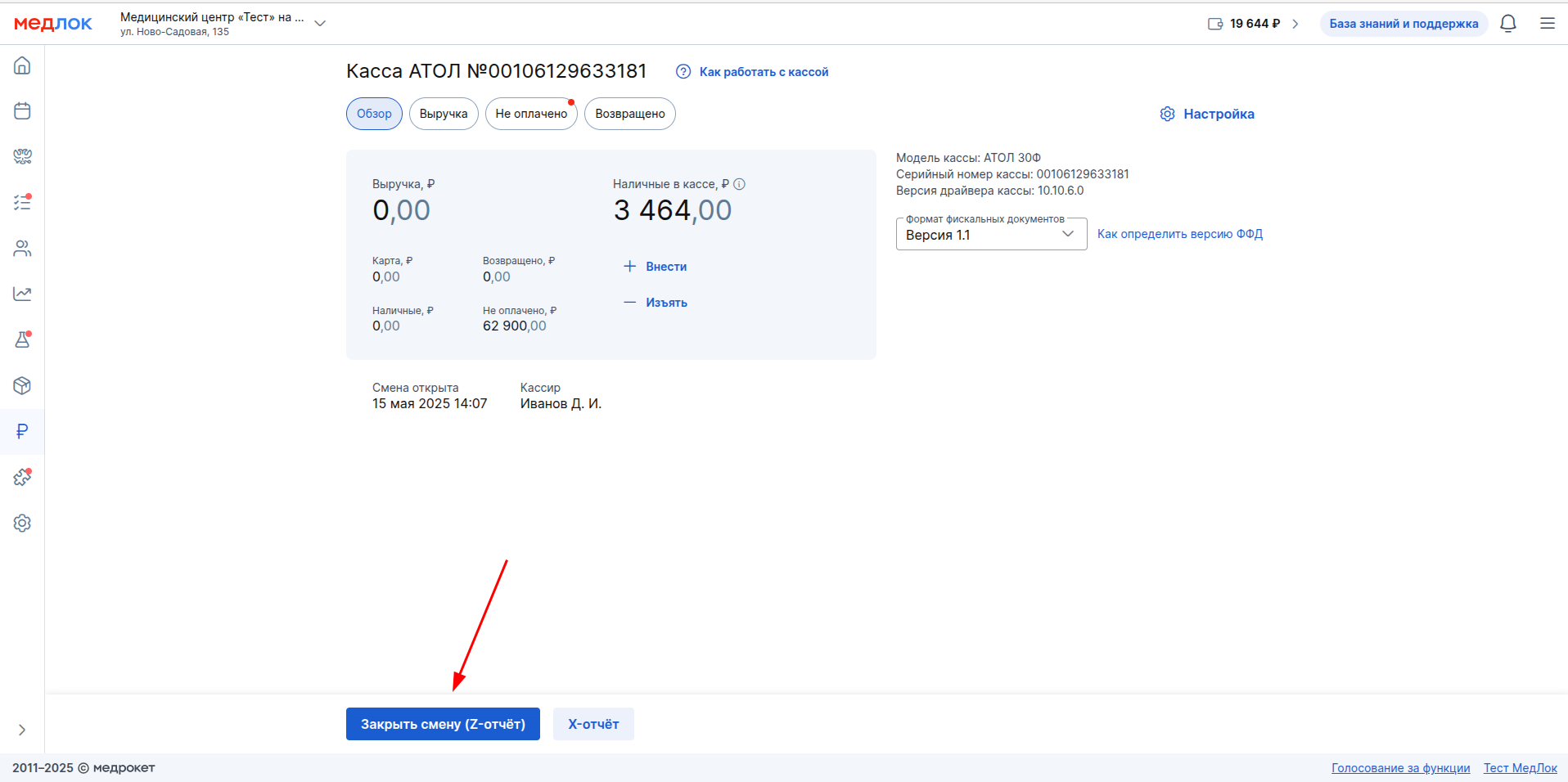
Then click the button«Закрыть смену (Z-отчёт)».
If necessary, recalculate the cash at the checkout and click«Закрыть смену»
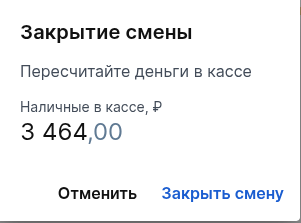
The same administrator who opened the shift closes the shift. Otherwise, an error will occur.
Common mistakes when working with yandex.Checkout
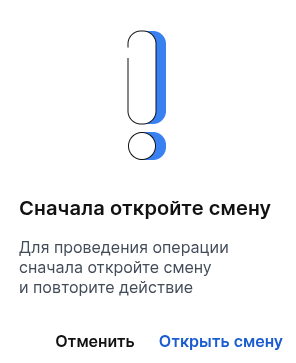
- An attempt to pay for the service if the shift is not open yet.
- The duration of the cashier's shift exceeded 24 hours.
- The connection between Yandex. Checkout and Medlock has been disconnected.

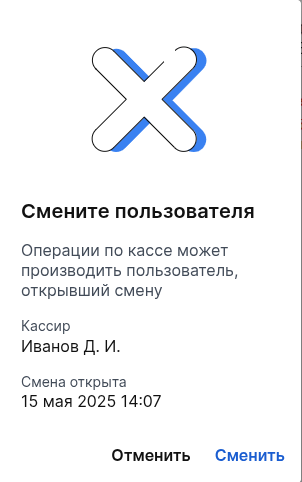
- An attempt to make a payment or other operation at the checkout is not from the account that you opened the shift from.
- Mistake«Команда не разрешена...».
You need to enter the lock code, which is purchased from ATOL.
Detailed information can be obtained from ATOL support by phone on the official website.

To work correctly, we recommend opening and closing shifts, as well as making payments only through the medical device.
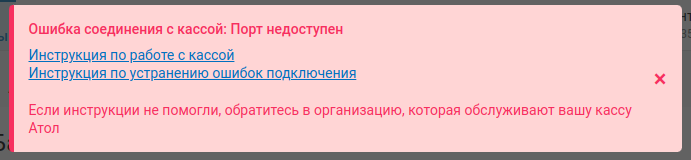
- Mistake«Порт недоступен».
It is necessary to check the physical connection of the cash register to the computer. Also check that the cash register is turned on and all cables are in good condition (both at the point where the cable enters the cash register and at the point where it is connected to the computer).
Frequently Asked Questions
- What to do if an error occurs at the checkout?: shift won't open/payment won't be made - «Ошибка соединения с кассой: ошибка веб-сервера»?
If such an error occurs, follow the steps in the article Error connecting to yandex.Checkout: Web server error. If these steps do not solve the problem, contact ATOL support.
- How do I get a refund?
Read about making refunds in our Refund article.
- How can I collect or withdraw funds?
Read more about this above in this article.
- The computer to which the cash register was connected is broken. How can I connect the cash register to the Medlock from another computer so that I can print receipts?
You can activate the cash register yourself according to the instructions in the ATOL Cash Register Setup article or contact your personal manager for help.
- Is it possible to download cash transactions for 1C from MedLock?
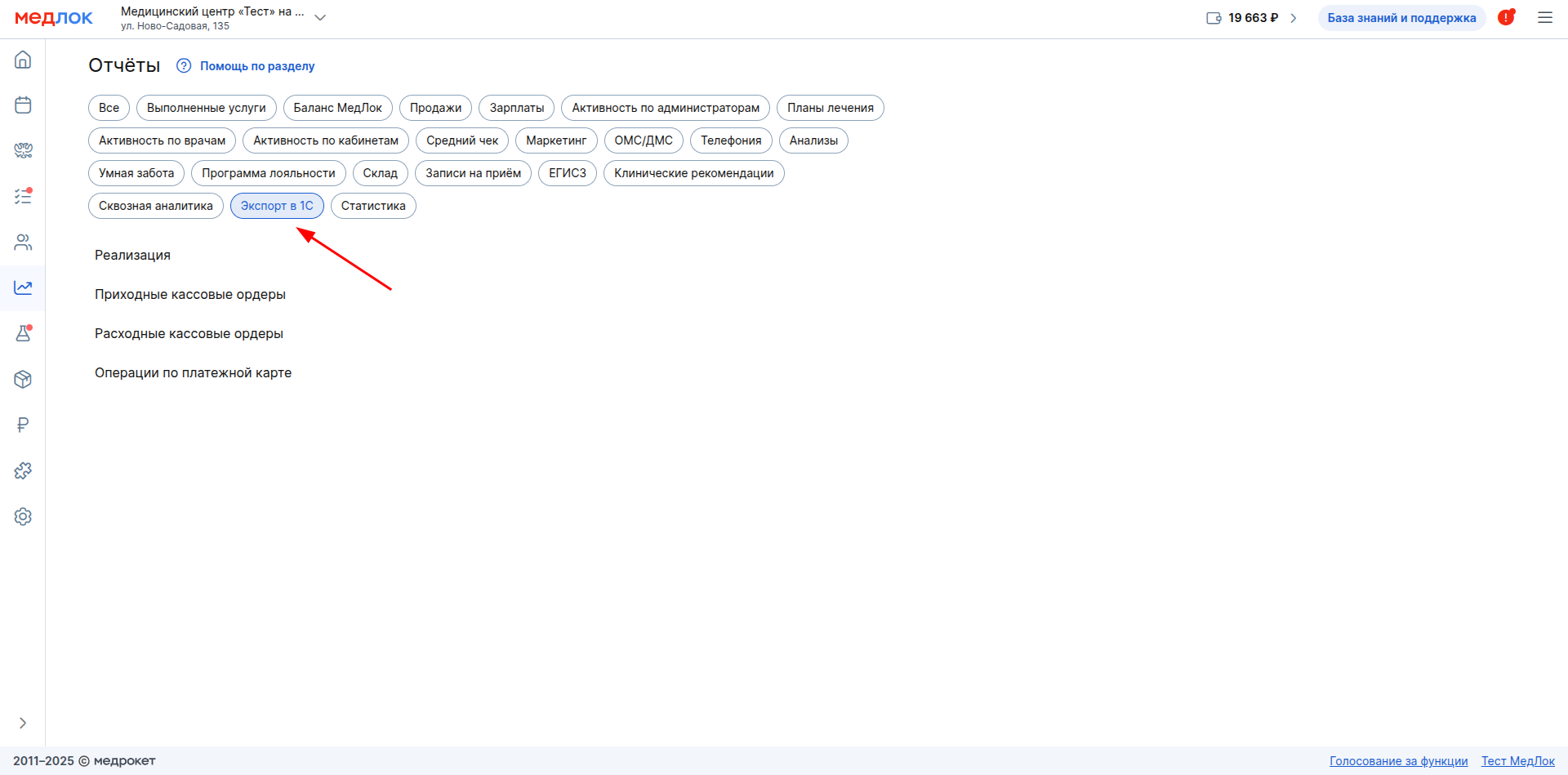
Go to the section «Отчёты». Here, select a group of reports «Экспорт в 1С»and navigate to the desired report.
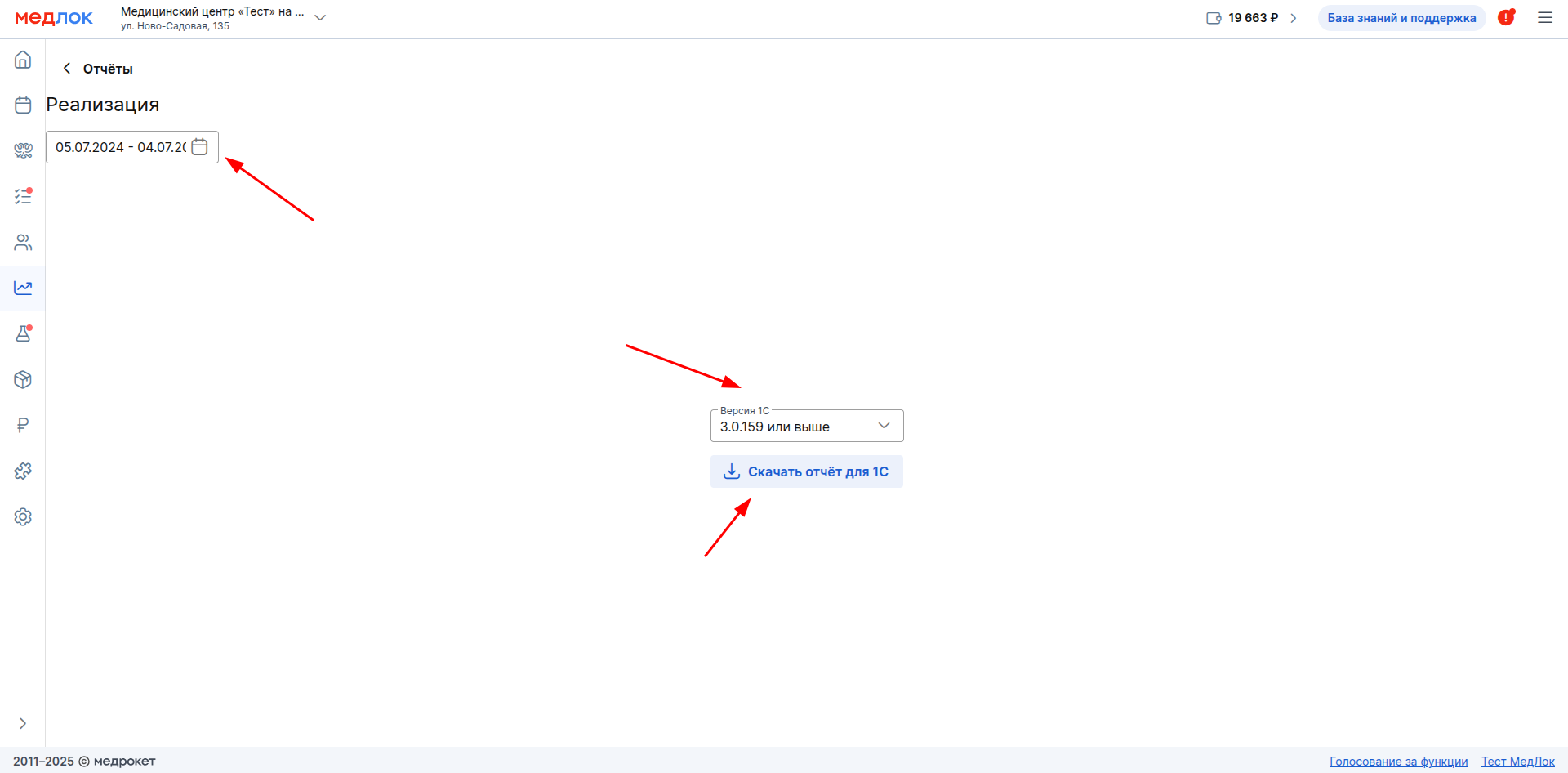
Select the desired period, the 1C version for which you want to upload data, and click «Скачать отчет для 1С».
For more information, see the article Upload a report for 1C.