


The article contains sections:
- Connecting and configuring the module
- Choosing a branch
- Making a hospital appointment
- Viewing a hospital appointment
- Editing a hospital appointment
- Transfer of the patient between the wards
- Creation of stationary documents
- Hospital admission statuses
- Working with the section«Пациенты в стационаре»
- Calculation of wages
- Recording hospital events in the action log
- Accounting of hospital data in reports
- Billing records
- Upcoming improvements
Connecting and configuring the module 
To connect the module«Стационар», go to «Модули» — «Стандартные», Select «Стационар»and press the button «Подключить».


Next, you need to add wards and beds — without them, the schedule for booking beds will not work. You can add wards and beds immediately after connecting the module by clicking the button«Настроить».

You can also configure the module through the section «Настройки»where you need to select «Коечный фонд».

If you are currently in a branch that has not been selected for a hospital, you will see a message telling you to switch it when you set up a bed. Switch the branch at the top and continue setting up.

To add a ward, click «+ Палата».

In the window that opens, specify the name of the ward, its type, and, if necessary, link the service so that it is automatically added to the admission record.

Add the beds by specifying their name.

After entering all the data, click the button «Добавить»to save everything.

The ward will appear in the section«Коечный фонд», the setup is complete.

Choosing a branch
The module provides a separate branch selection filter. The data is displayed according to the selection in the row«Стационар: [название филиала]».
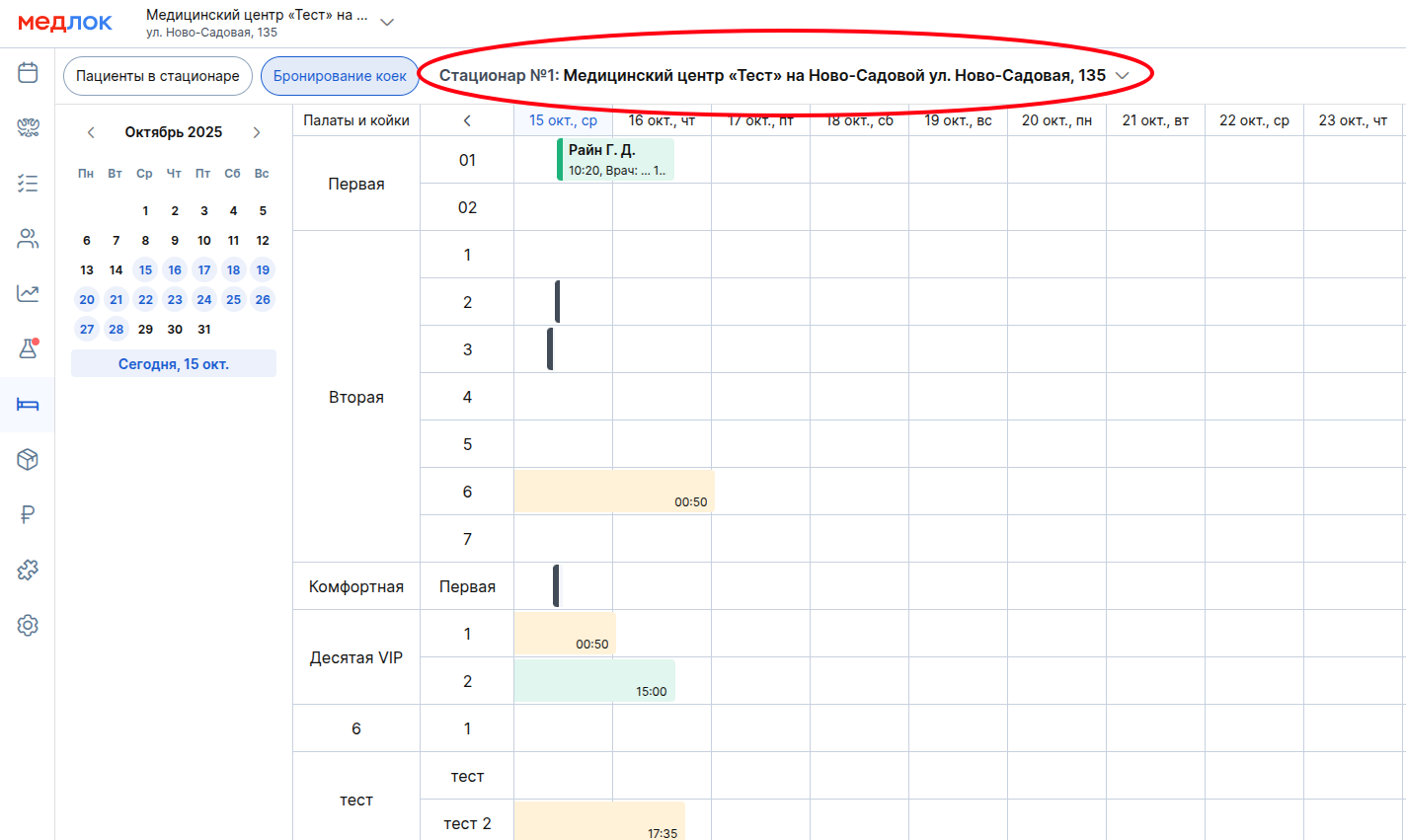
The main branch filter (in the upper-left corner) does not affect the hospital data (administrators do not need to constantly switch branches in the general interface to monitor the work of the branch with the hospital).
Making a hospital appointment
To book a patient for hospitalization, go to the schedule for booking beds by clicking on the icon «Стационар»in the side menu.

Next, select a section «Бронирование коек» — the schedule page opens.
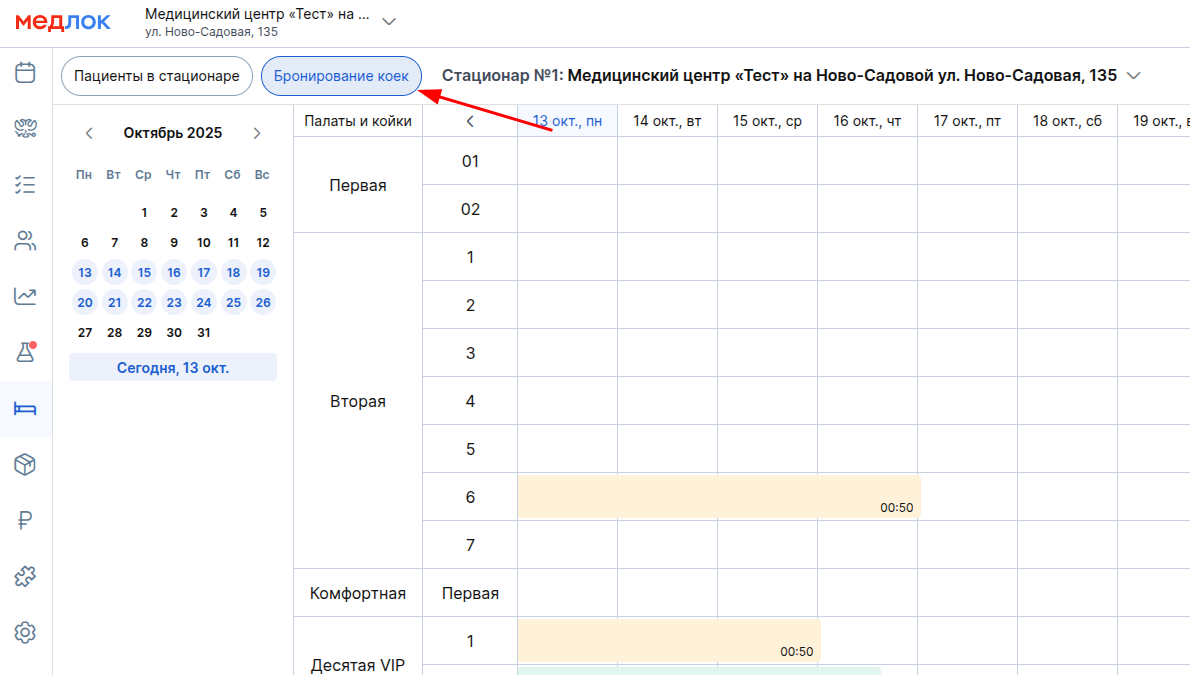
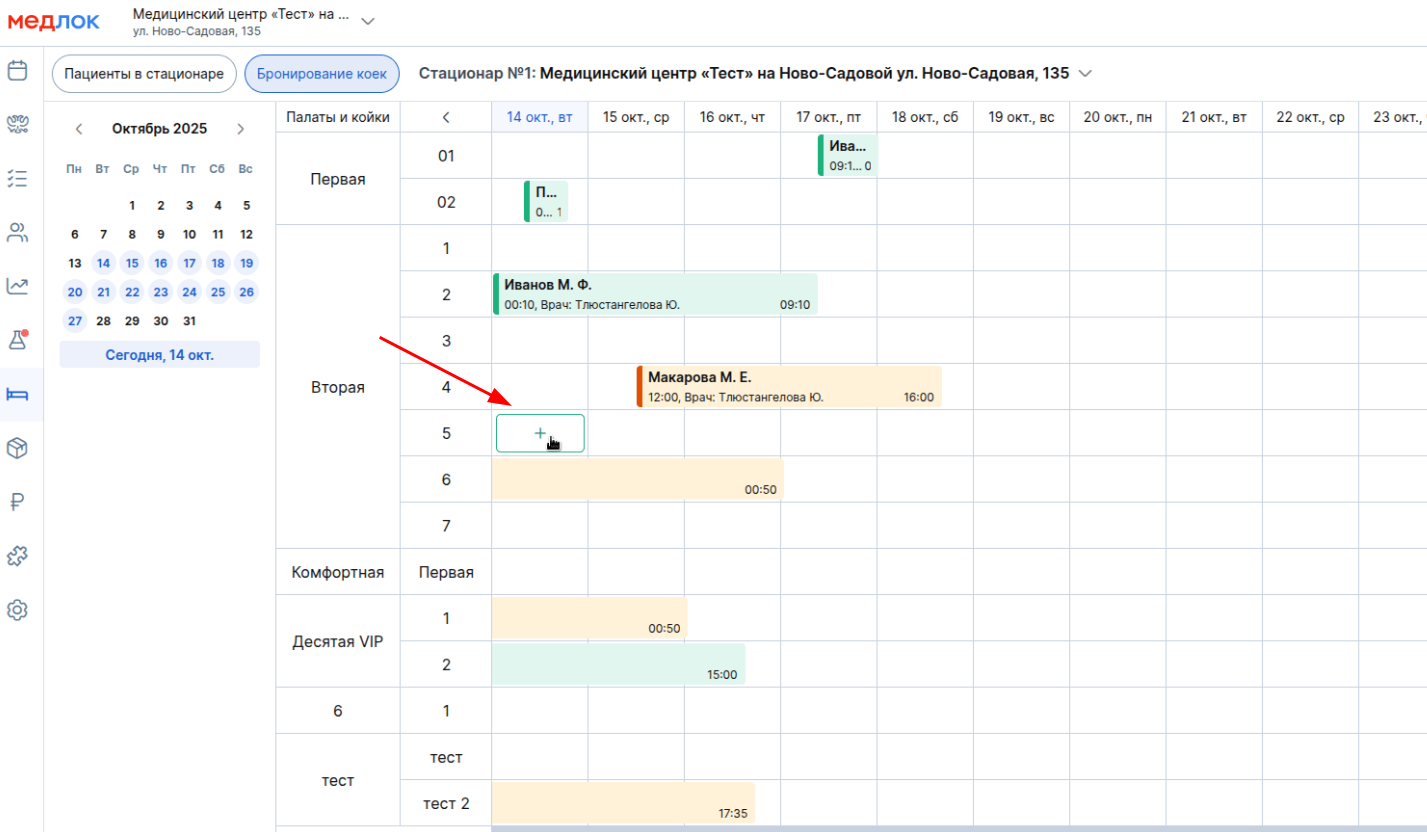
In the bed booking schedule, select the appropriate cell in the corresponding ward and click on it.
Fill in the information in the window that opens.
Required fields:
- Patient: Find a patient in the system or create a new one by clicking in the upper right corner«+ Новый пациент».
Important! The search for patients' full names is triggered only when 3 characters or more are entered into the search bar. The phone number search is triggered only when the patient's full phone number is entered.
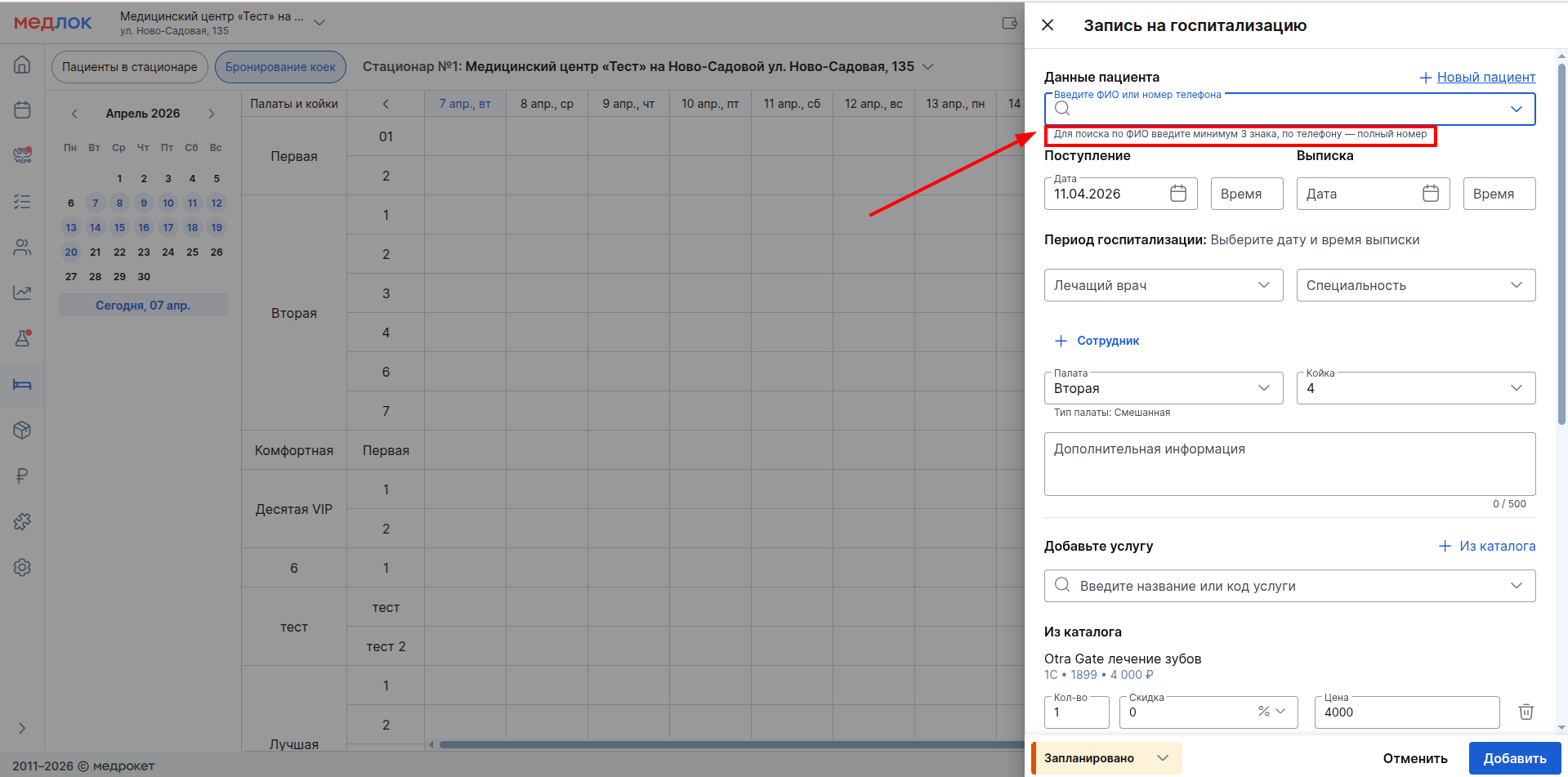
- Date and time of admission and discharge to record the period of hospitalization.
- The attending physician and his specialty.
Additional settings:
- To add multiple employees to an entry, click «+ Сотрудник».
- You can add up to 10 additional employees. To delete an employee, click on the urn icon next to it.
- All added employees will be able to add protocols/documents to the hospital admission record.
- Check the correctness of the displayed room and beds — they are inserted automatically from the previously selected cell.
- The system checks the correspondence of the type of ward (M/W/Mixed) and the gender of the patient. If there is a discrepancy, a warning will appear, but the record can be created.

- If necessary, you can also:
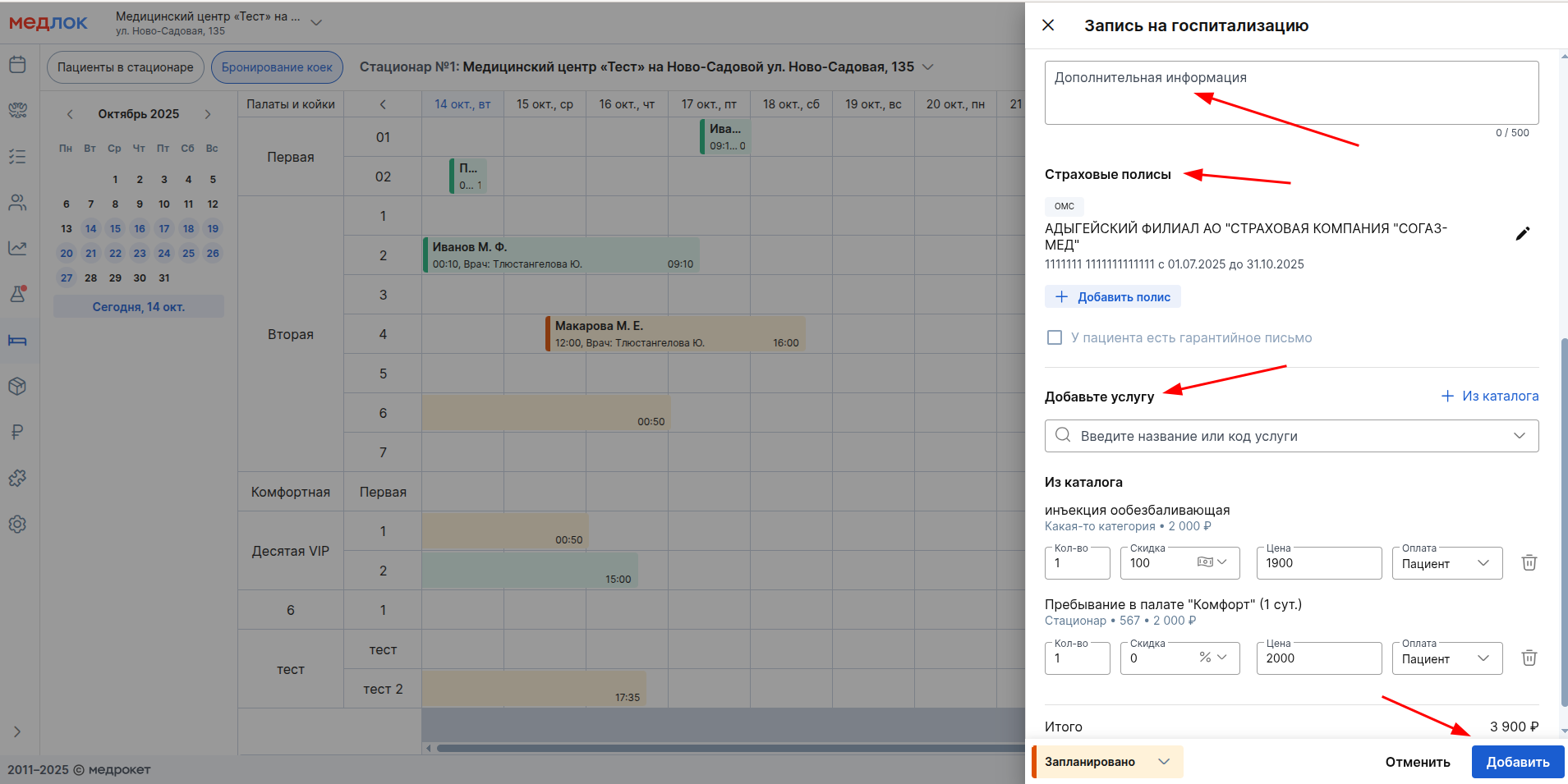
- Fill in the field«Дополнительная информация».
- Add an insurance policy — then, when paying for services, you can make a payment through the added policy, as in the usual methods.
- Add one or more services from the catalog or from the treatment plan (if available).
- To select a service, click«Добавить из каталога». In the window that opens, you can select a service. Alternatively, enter the name of the service in the search bar and select the one you need.
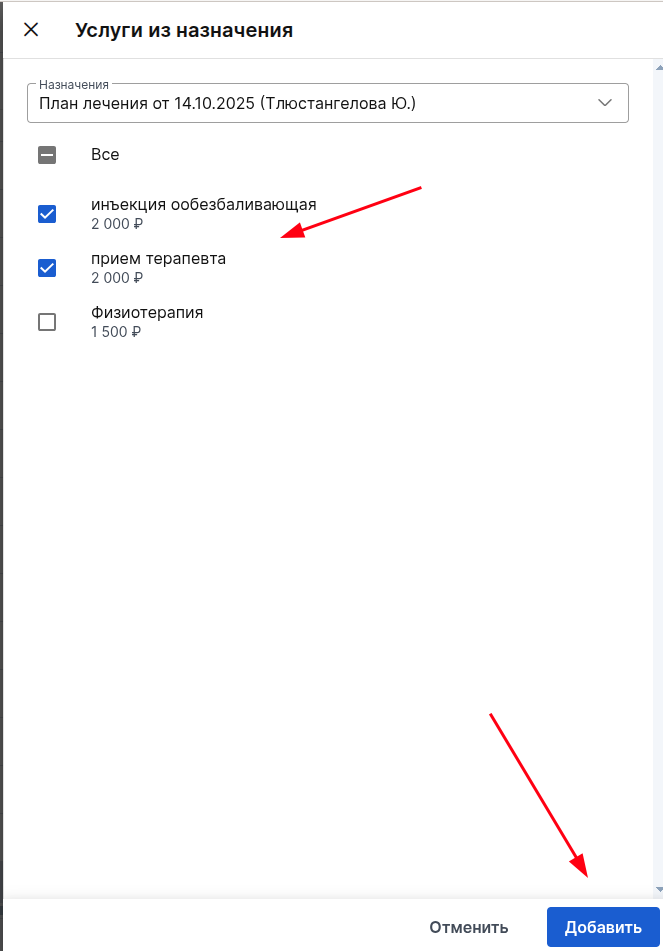
- If a patient has been assigned a treatment plan, you can select services from it by clicking «Добавить услуги из листа назначений».

- Select the necessary services from the list according to the treatment plan and click the button«Добавить».
- You can set any price for the service. If the price is set below the price list, the system will display the difference as a discount in rubles. When all services are selected, «Итого»the total cost will be displayed in the line.
- At the bottom left, you can set the recording status.:
- If the receipt date is the same as today, then the following statuses are available: «Запланировано», «Пациент пришёл», «В палате».
- If the admission date is scheduled for the future, then only the status will be available«Запланировано».
- To complete the creation of a hospital admission, click «Добавить».
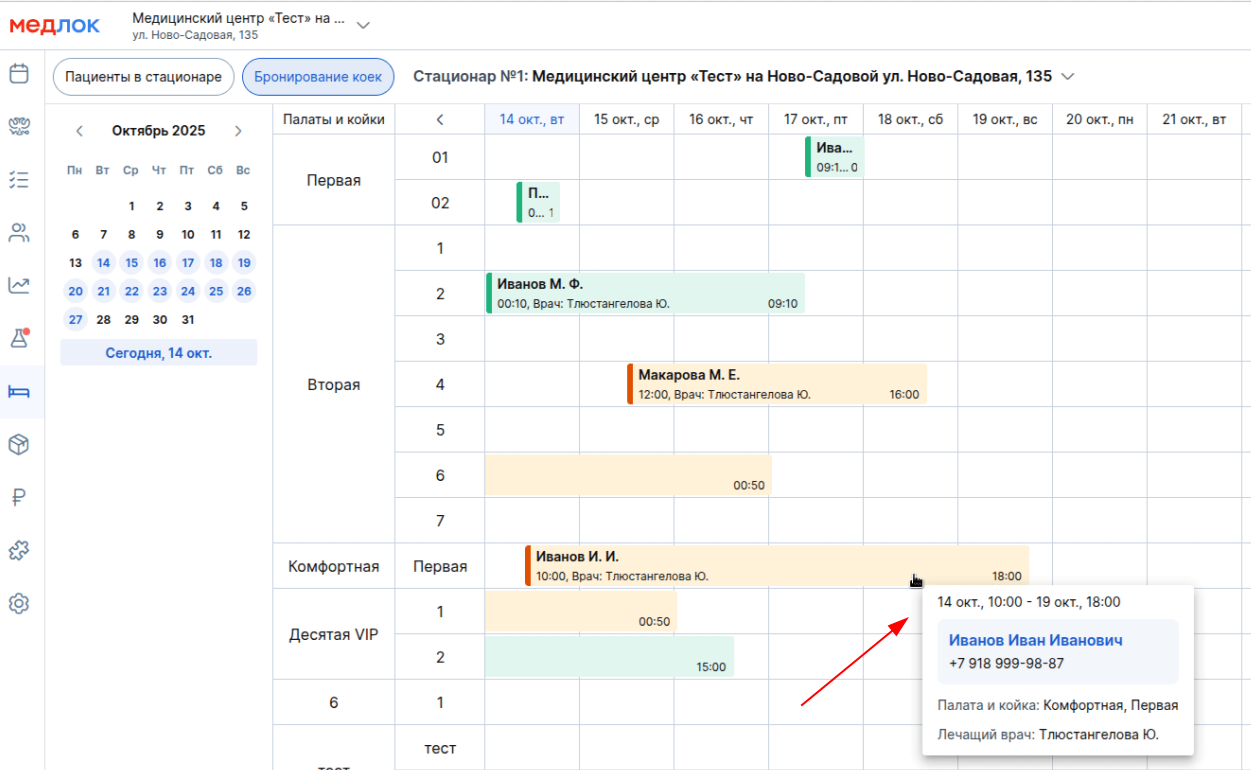
The created record is displayed in the schedule as a bar, where its color indicates the status, and its length indicates the duration of hospitalization. The record contains information:
- Patient's full name.
- Full name of the attending physician.
- The start and end time of the hospital stay.
When you hover the cursor over the recording, an information preview with basic information about the hospitalization is displayed.
Pay attention:
- If services are linked to it in the ward settings, they will be automatically added when an entry is created for this ward. They can be deleted if necessary.
- The system does not automatically recalculate and does not add repeated instances of the service based on the number of days of stay. If the service rate is applied for each day of stay, you must manually calculate the required number of days and add the appropriate number of services to the hospital admission card.
Viewing a hospital appointment
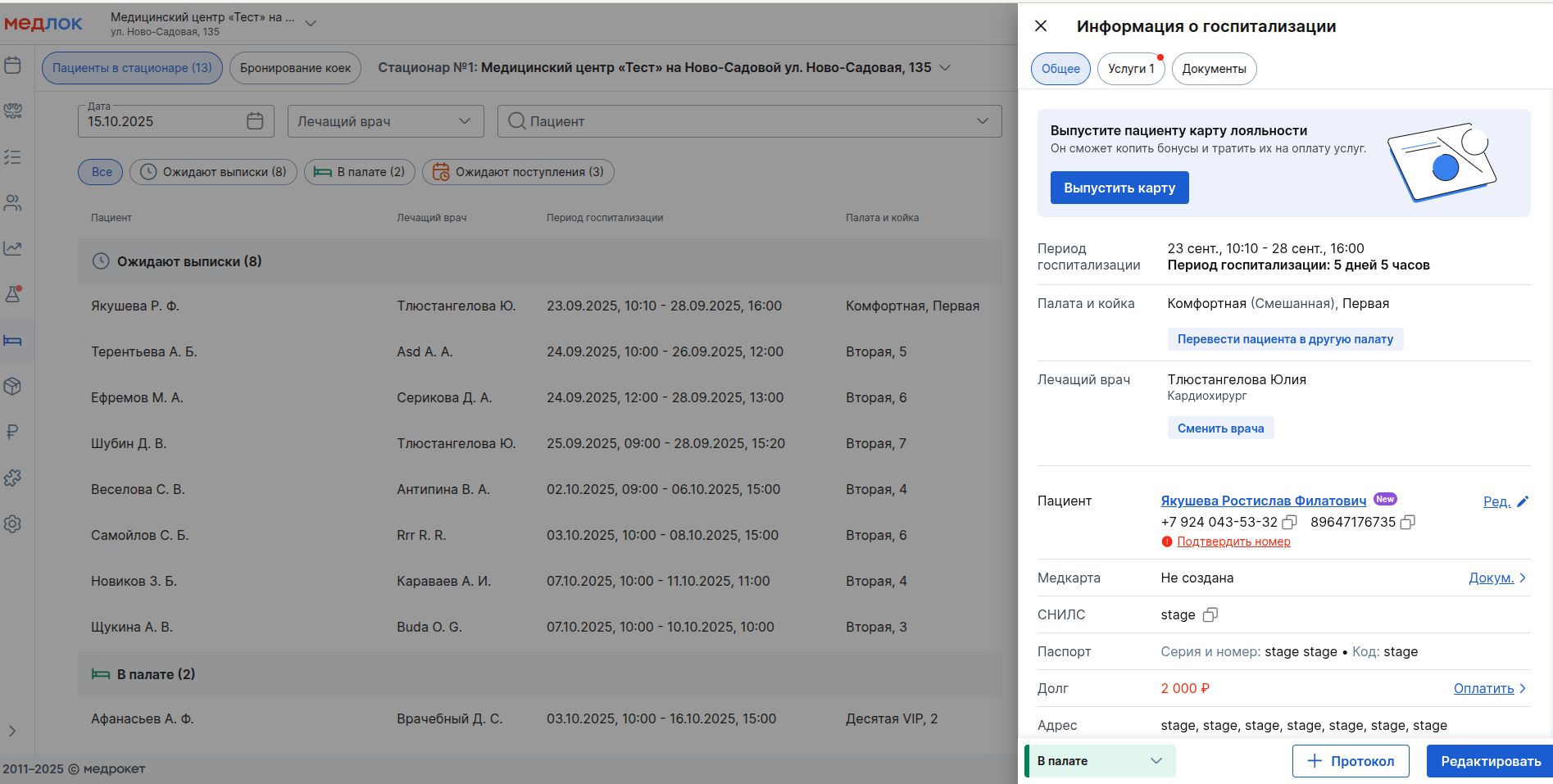
To view the details of the recording, click on it to view the recording«Информация о госпитализации».
The section «Общее»contains:
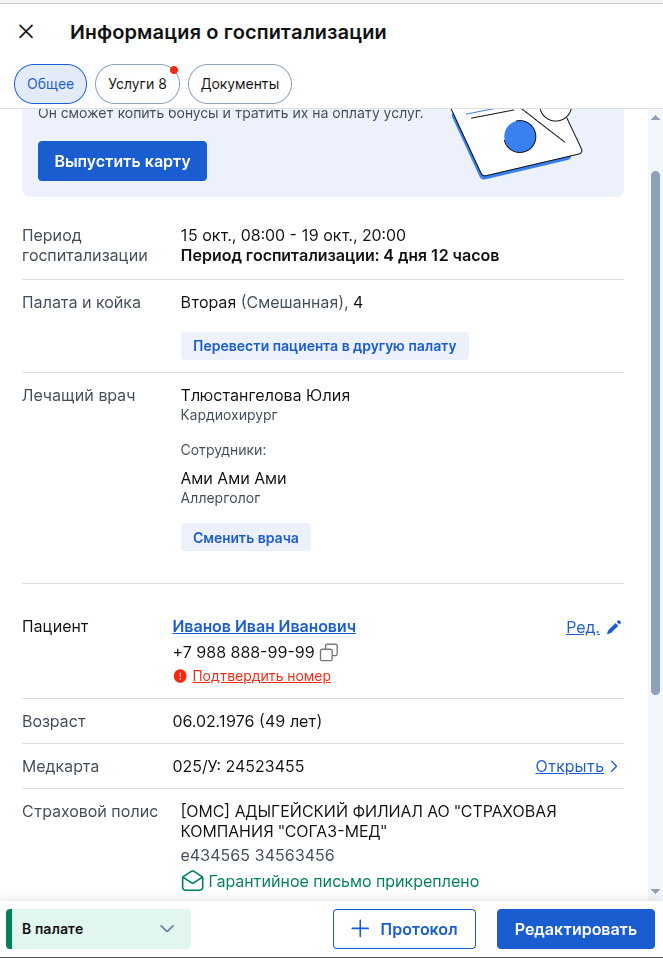
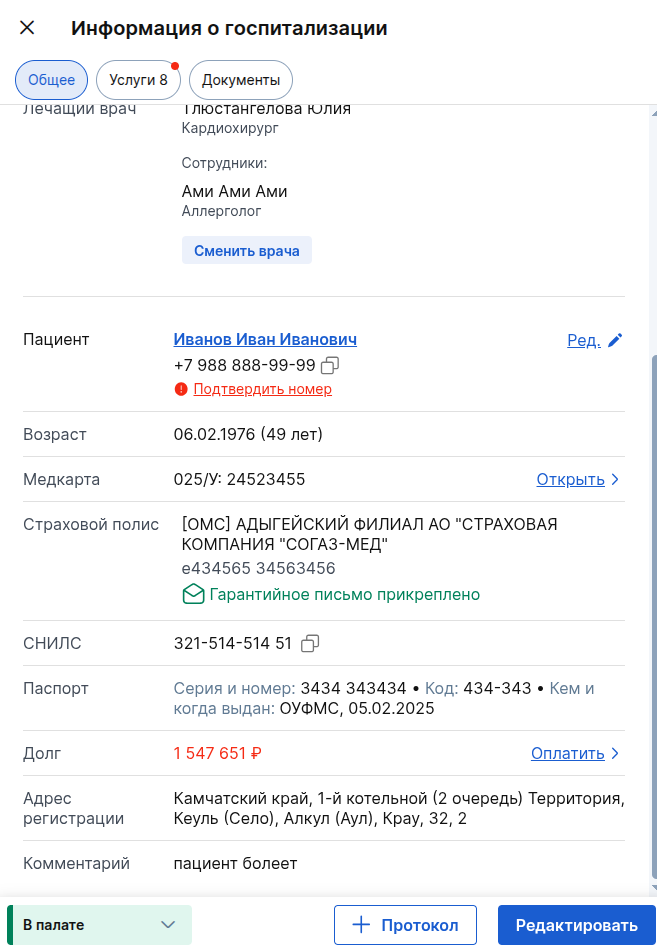
- The period of hospitalization.
- A room and a bed.
- Full name and specialty of the attending physician and staff.
- The patient's full name and phone number (with the transition to editing).
- Date of birth and age of the patient.
- Medical card information (with a link to the documents section).
- Document information:
- An insurance policy.
- SNILS.
- Passport.
- Registration address.
- Information about the debt, if available (with the transition to payment).
- Comment.
Chapter«Услуги»:
To view and edit the services, go to«Услуги».
- The services in the list are divided into two groups:
- Services from the catalog.
- Treatment plan services.
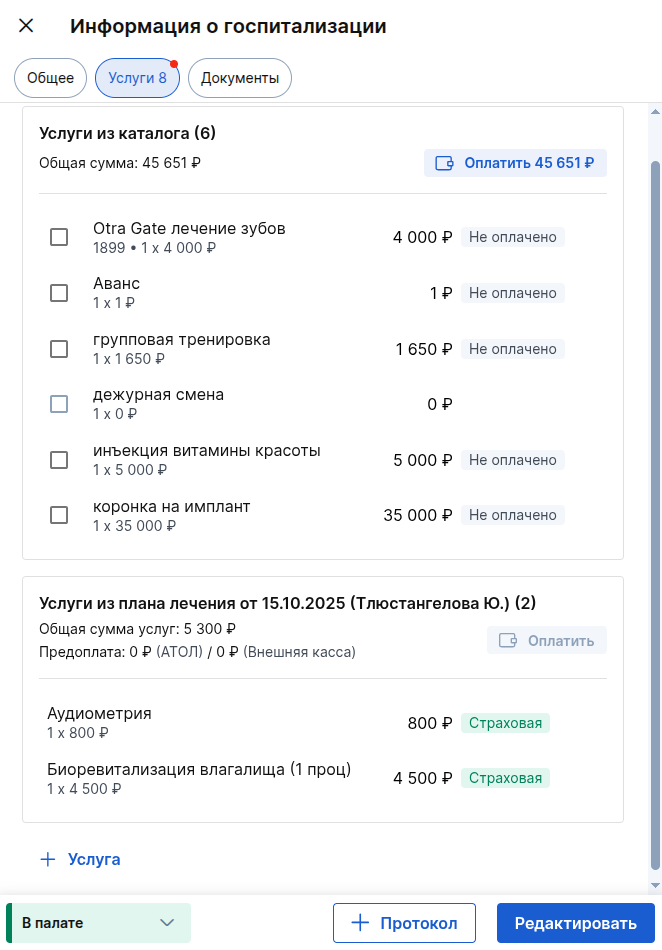
- When you click "
+
Service" opens a service editing window with the option to add/remove a list of services. - Payment for services becomes available starting from the status «Пациент пришёл».
- The cost of the service is fixed at the time of transition to the status «Пациент пришёл»(or the following). After that, only the discount amount changes.
Section «Документы"
The list of documents available for printing is displayed here.
You can search for the desired document if there are more than 7 of them.
To print a document, click the printer icon to the right of the desired document name.
You can select several documents and click «Печать»at the top right to print them all at once.

Editing a hospital appointment
- To edit an entry, click «Редактировать»from view «Информация о госпитализации».
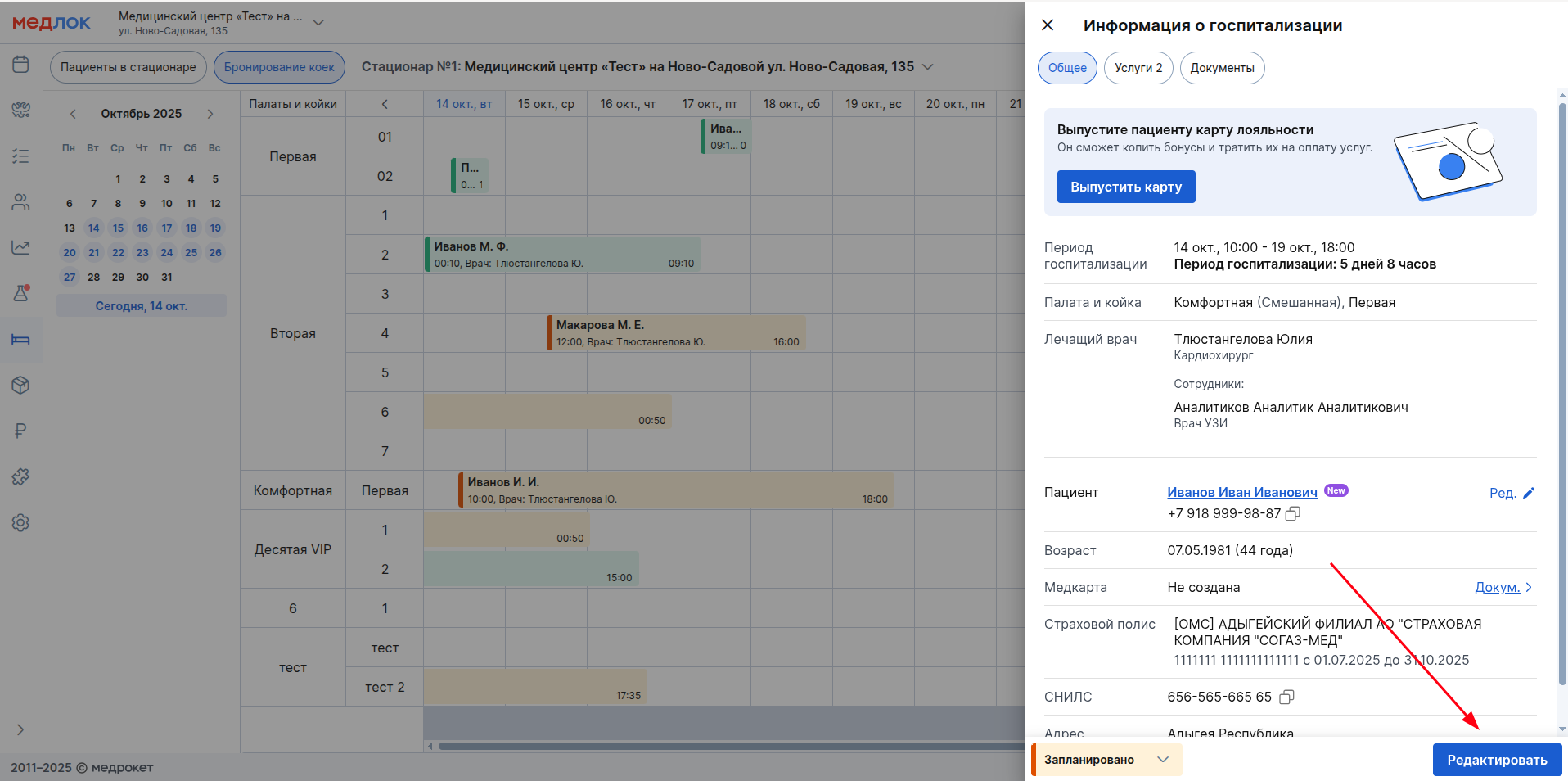
- All fields of the record can be freely edited until the record is upgraded to the status«В палате».
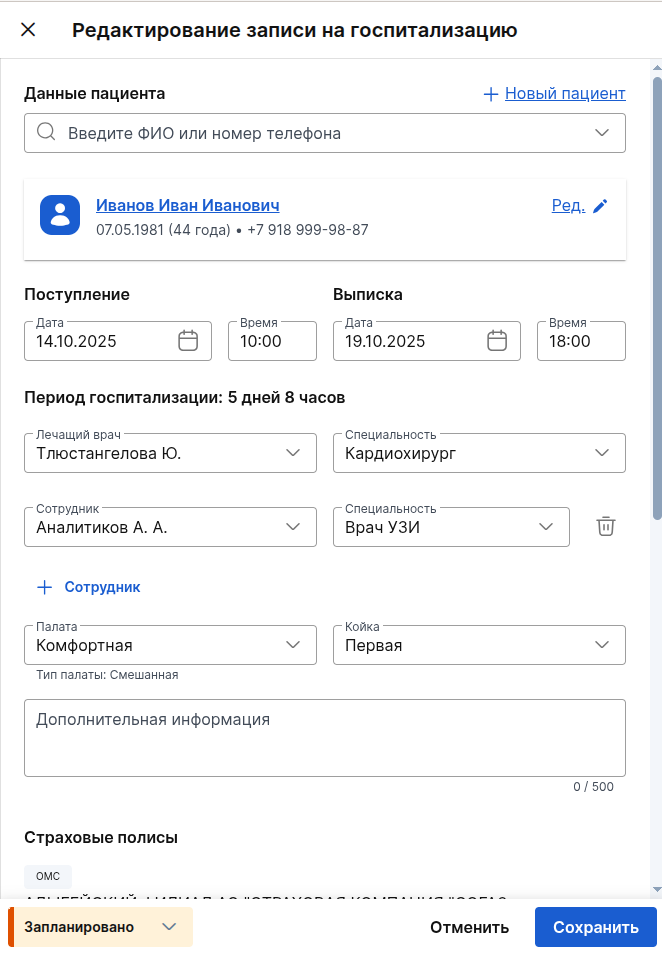
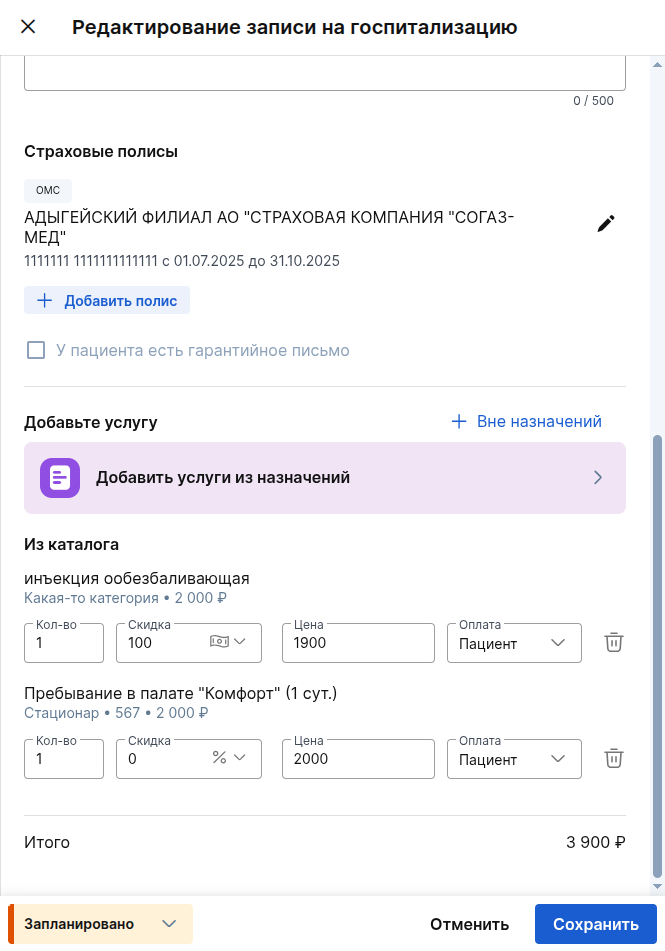
When the record changes to the status «В палате»and then:
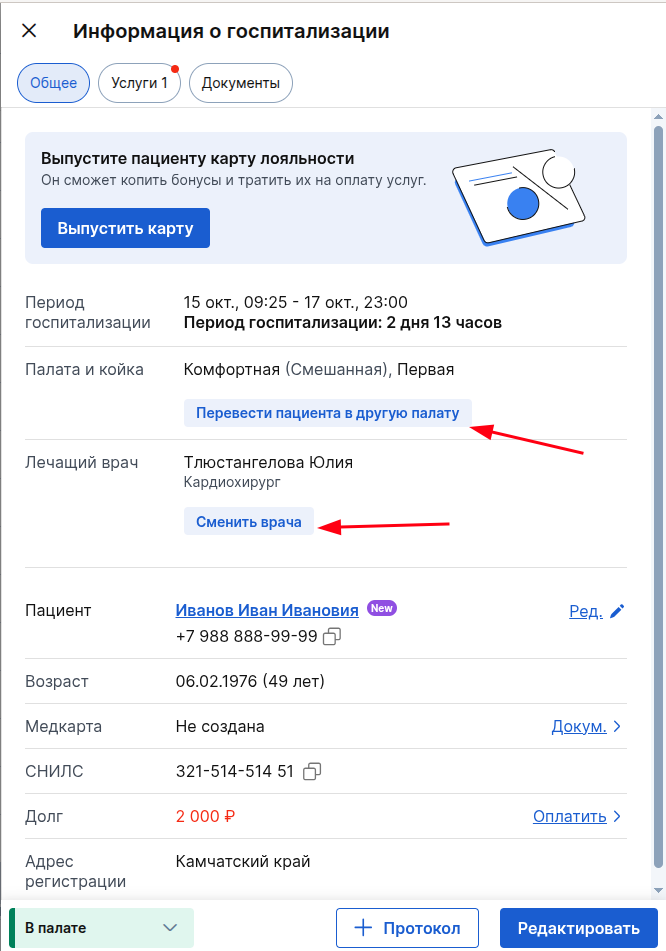
- As soon as the record has entered the status«В палате», the system automatically records the current date and time as the date of receipt, the fields are unavailable for changes.
- The date and time of discharge can be edited until the record is upgraded to the status«Пациент выписан».

- To change the doctor or add employees, click «Сменить врача»and the fields will be available for modification.
- For recording with the status«В палате», the ward transfer function is available directly in the hospital admission information card.
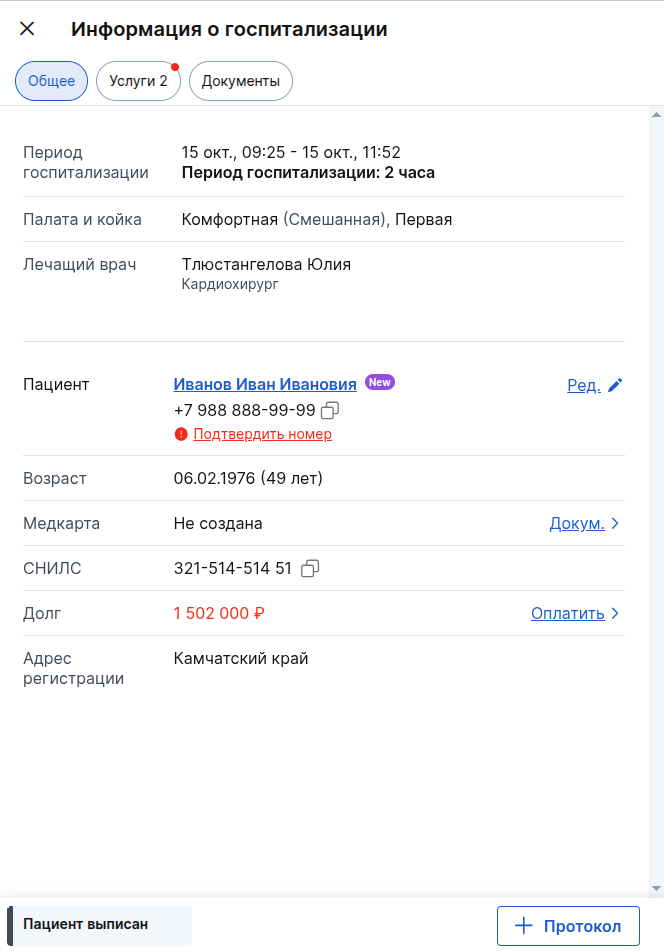
- As soon as the record changes to the status«Пациент выписан», the system automatically records the current date and time as the date of discharge, the fields are unavailable for changes.
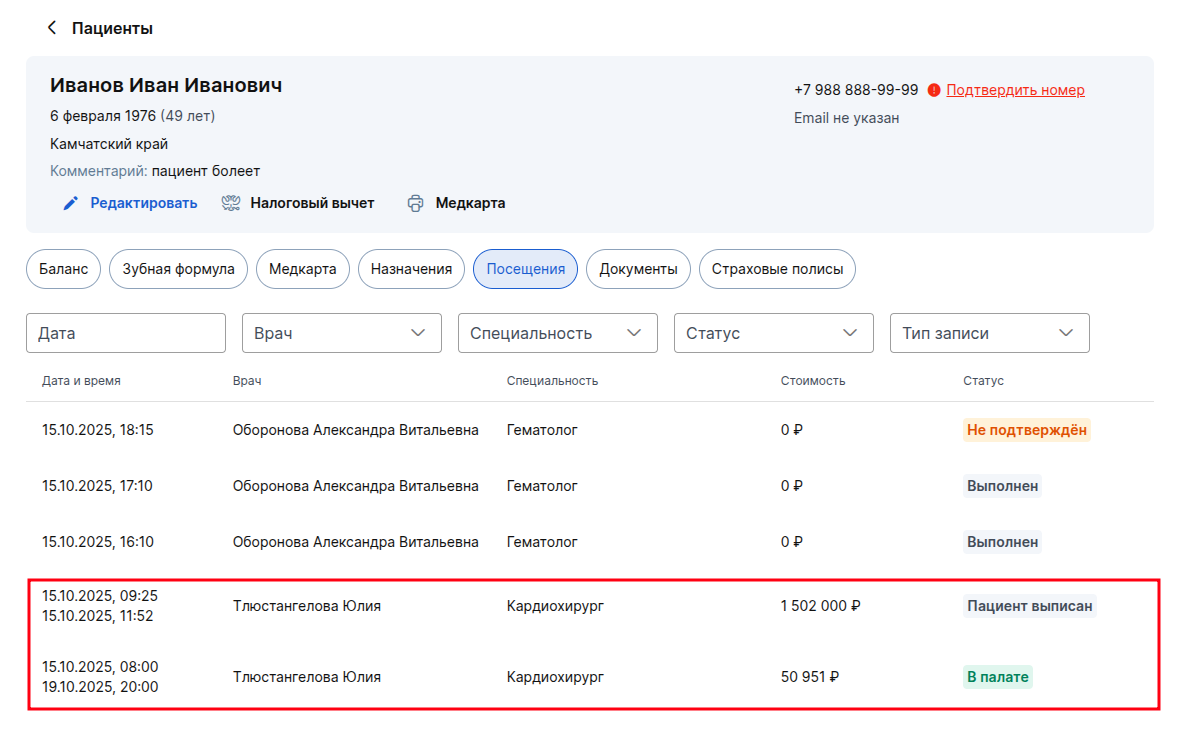
- The patient's profile will show a record of the patient's hospital visit (section «Посещения»).
Transfer of the patient between the wards
Within the framework of one hospitalization, it is possible to transfer the patient to another ward.:
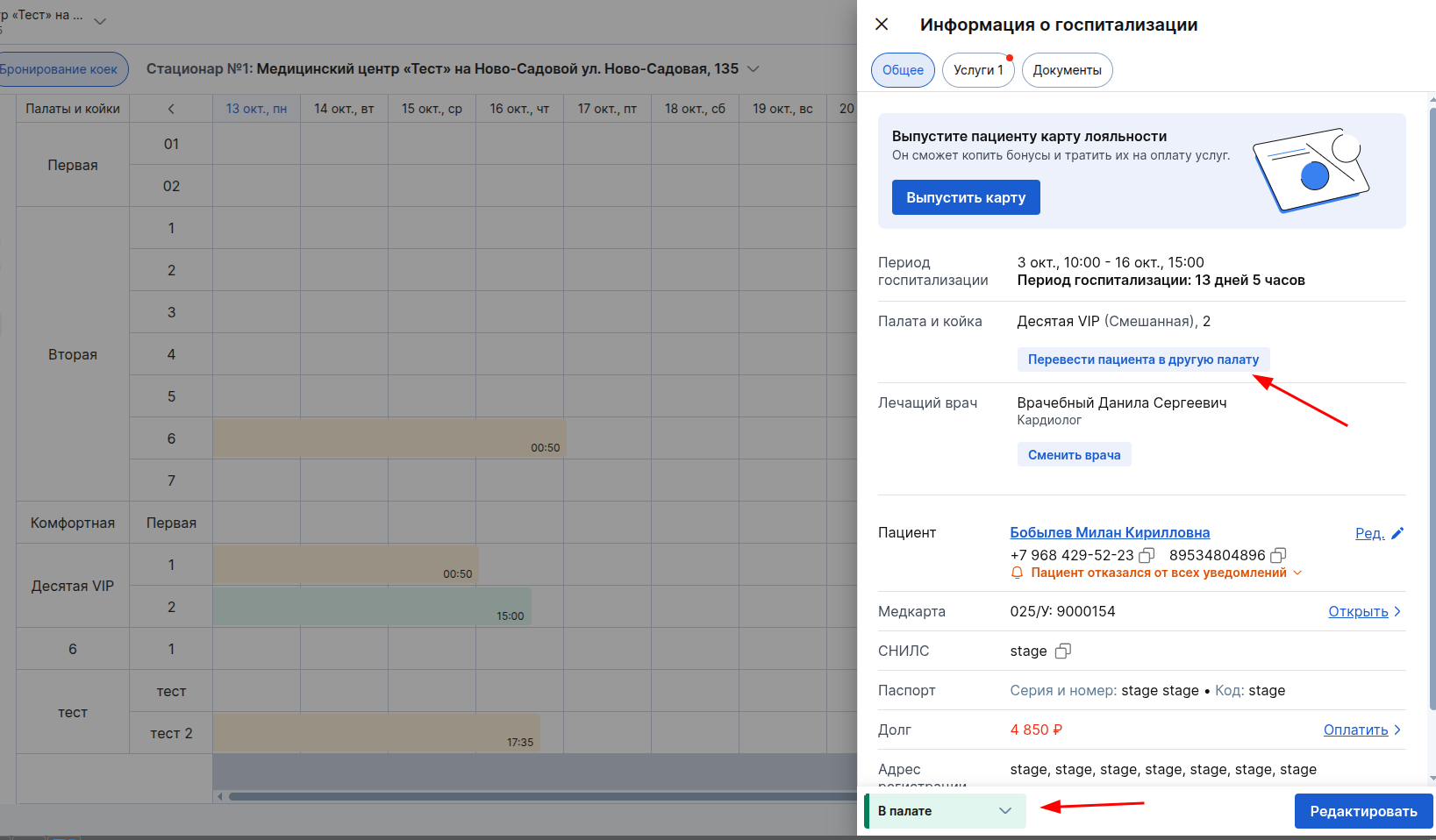
- In the booking schedule, select the status entry «В палате»and click on it — a window «Информация о госпитализации»«Палата и койка»will open, a button will be available in the section«Перевести пациента в другую палату»
.
- Clicking on the button opens a window with the option to select a new ward.
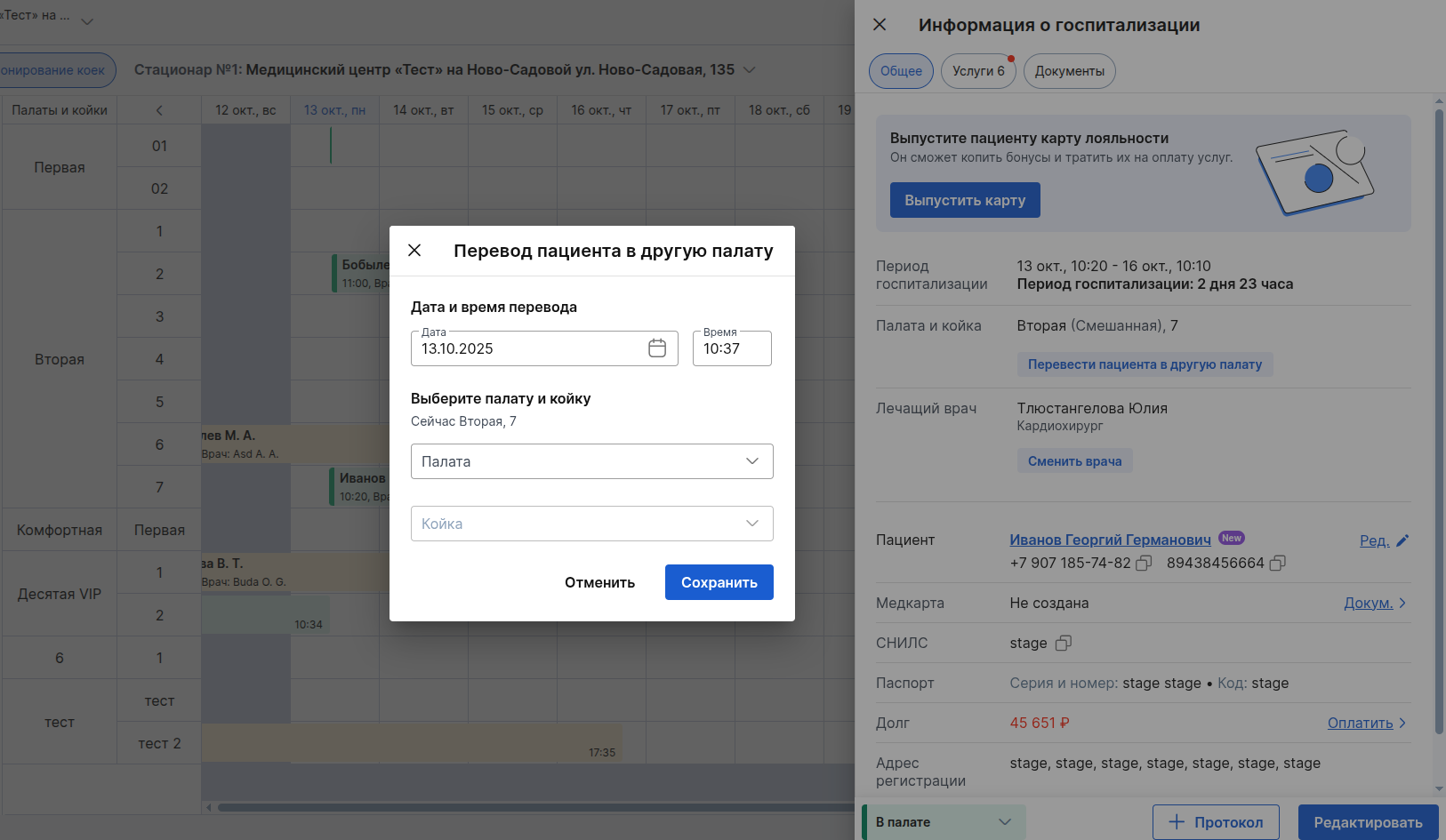
- Select a new room and bed for the patient, and specify the date and time of the planned transfer.
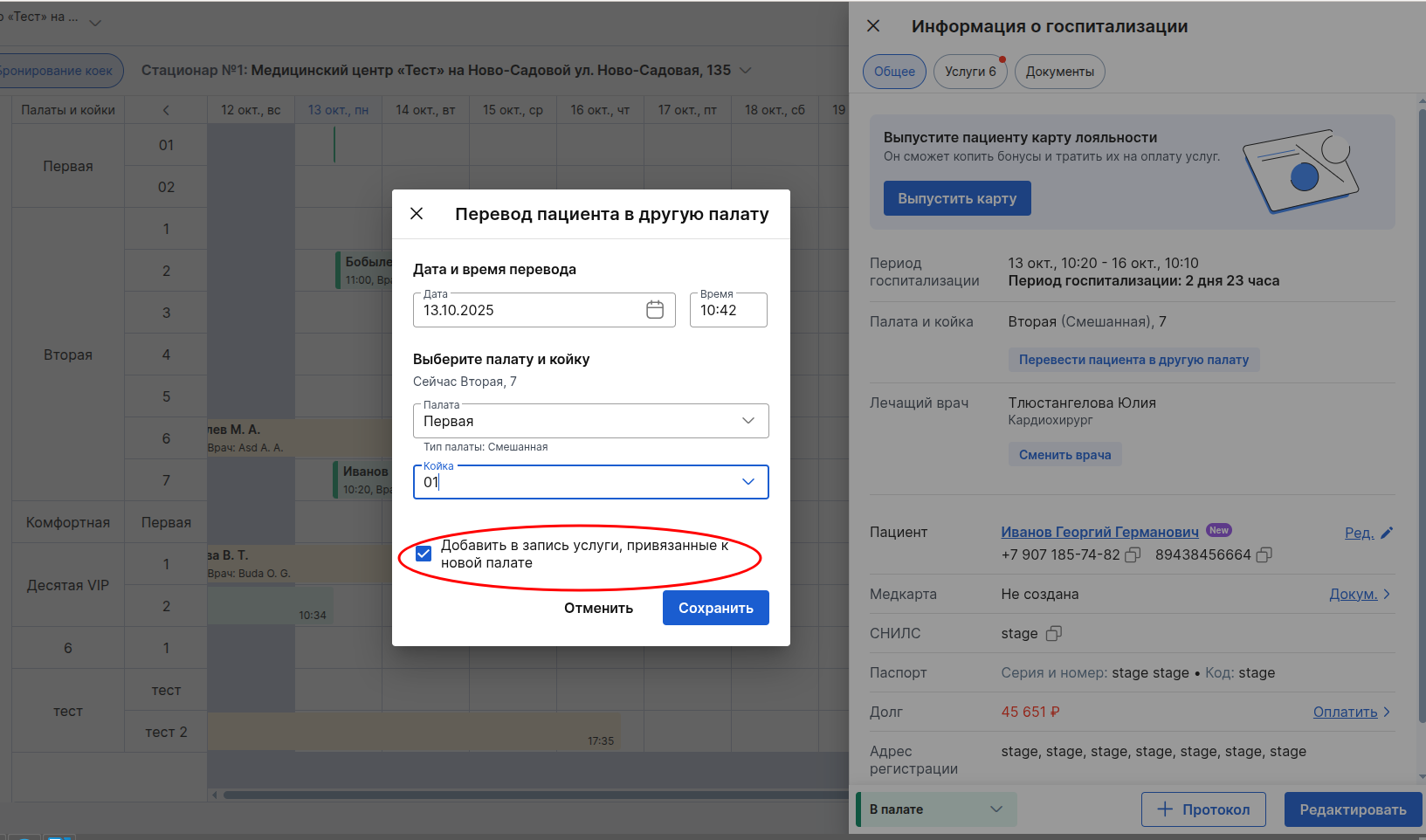
- Pay attention to the check mark«Добавить в запись услуги, привязанные к новой палате». If it is enabled, when a patient is transferred to a new ward, all services related to this ward will be automatically added to his record.
- The system allows you to make transfers with dates in the past, present or future. However, it is allowed to schedule only one transfer for a future date. You will be able to create a new transfer after completing an active scheduled one.
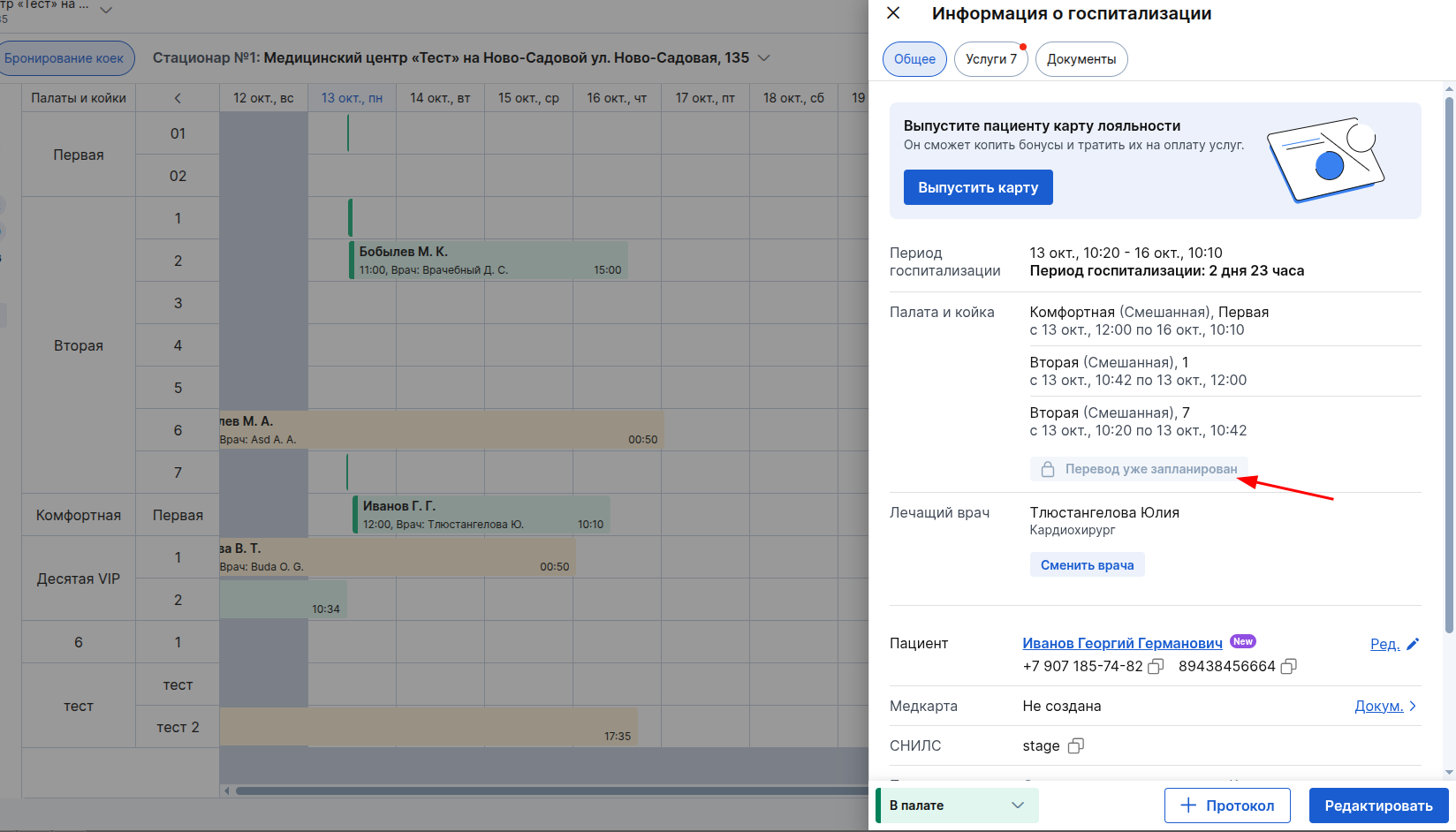
Important! The planned transfer cannot be deleted yet — this option will be implemented later. Plan your movements between wards carefully, taking this feature into account.
- The entire transfer history will be saved in the hospital admission card.
Creation of stationary documents
Inpatient's medical record (Form 003/y)
To keep a patient's medical history in a hospital, you can create an inpatient's medical record (form 003/y). This is the main document that is filled out when a patient is admitted to the hospital for treatment.
The 003/y medical card provides for the possibility of creating multiple copies per patient.
Medical records can be created:
- From the card«Информация о госпитализации», in the section «Документы»— to do this, select «Новая медкарта (Форма 003/у)»and send for printing.

- From the patient's profile, click «Медкарта»by selecting the appropriate value.

- After that, the medical card will be added to the patient's medical card list, while it remains possible to add another medical card in the form 003/y.
(1), (2) — the created medical card (with the assigned number).
(3) — the opportunity to create another medical card 003/y.

(1) — the created medical card (with the assigned number).
(2) — the opportunity to create another 003/y medical card.

A full description of the functionality of working with medical records, including instructions for creating, filling out and printing, is available in the articles:
Working with medical records in the patient's profile
Setting up and working with documents
Protocols (SAMDs)
Protocols (SAMDS) are available for recording medical interventions and observations during hospitalization. Protocols are available to add when the record is upgraded to status«В палате».
Standard forms are available within the hospital, such as:
- The protocol of the operation (SAMD 189).
- Examination by the attending physician (SAMD 191).
- Preoperative epicrisis (SAMD 217).
- List of assignments and their execution (SAMD 221).
- Discharge epicrisis in the hospital (SAMD 235).
The created protocols are displayed in «Документы»the hospital admission card tab.
Other documents
The tab «Документы»also automatically displays the created documents configured in the clinic (for example, contracts, informed consents).
Hospital admission statuses
All statuses are changed manually only. The statuses reflect the key stages of hospitalization:
- Scheduled — an entry has been created and is displayed in the schedule.
- At this stage, you cannot pay for services or add a protocol.
- Status change before the date of hospitalization: can only be transferred to «Отмена».
- Status change on the day of hospitalization or later: you can transfer to «Пациент пришёл», «В палате», «Отмена»or «Неявка».
- The patient has arrived — the patient has arrived at the clinic.
- Payment for services is available in this status.
- Changing the name/prices for services is blocked, the price without discount is fixed.
- At the same time, changing the patient's discount will also lead to recalculation of the applied discounts for unpaid services.
- Status change: can be transferred to «В палате»or «Отмена».
- The patient is accommodated in the ward.
- The moment of transfer to the status «В палате»is automatically recorded as the time of the start of hospitalization.
- The date and time of receipt become unavailable for editing.
- It becomes possible to add a protocol.
- Status change: can be transferred to «Пациент выписан»or «Отмена».
- The patient is discharged — the final status.
- The moment of transfer to the status «Пациент выписан»is automatically recorded as the time of discharge.
- The hospitalization is completed. All fields of the record are blocked for editing (when switching to this status, the system will show a confirmation window with a warning about the impossibility of further changes).
- Cancelled is the final status.
- Hospitalization has been canceled. The record cannot be edited, and it is hidden from the schedule.
- No—show is the final status.
- The patient has not arrived. The record cannot be edited, and it is hidden from the schedule.
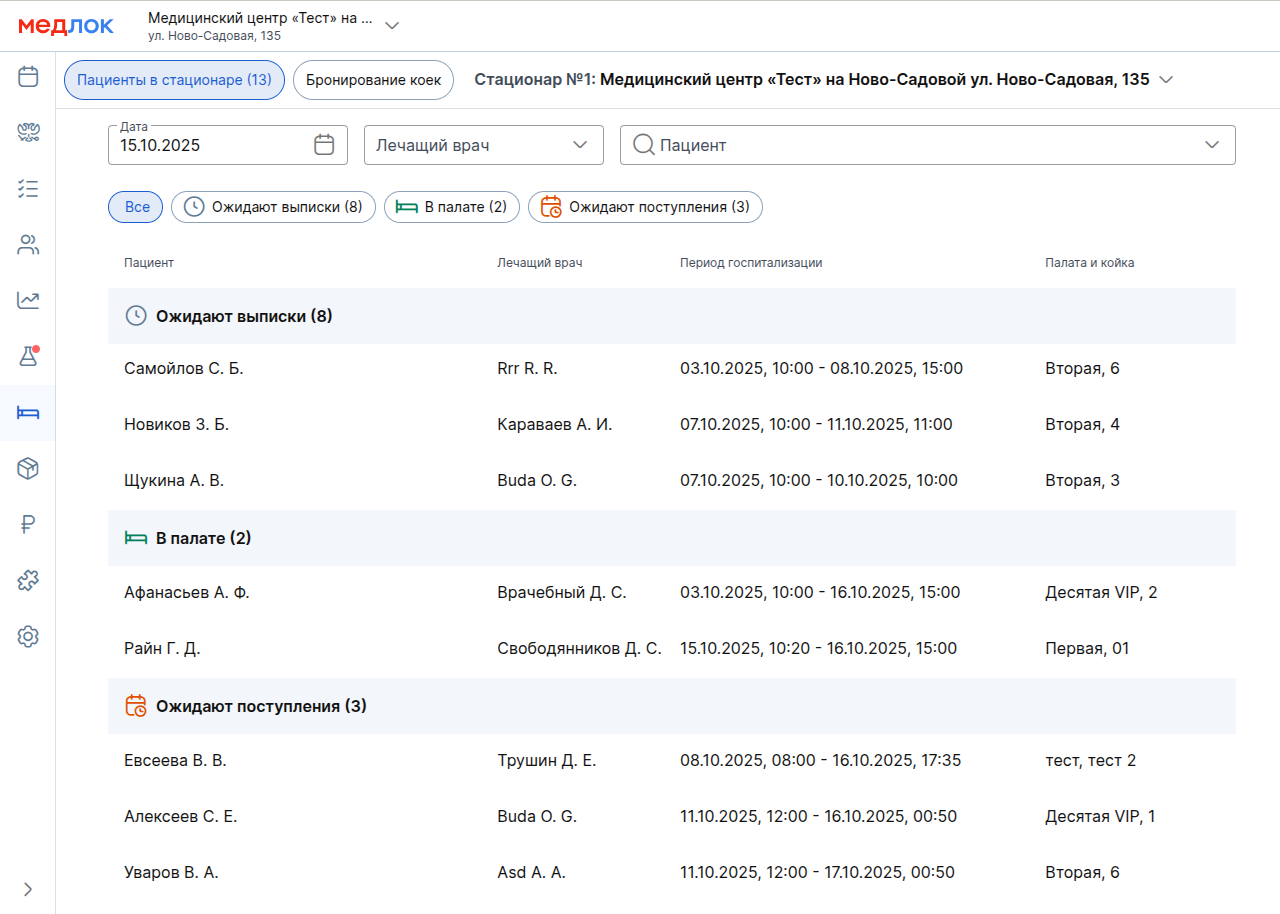
Working with the section«Пациенты в стационаре»
This section «Пациенты в стационаре»allows you to quickly track the current status of patients. It is a list that is automatically divided into three groups according to the selected date in the filter (by default, the current day).
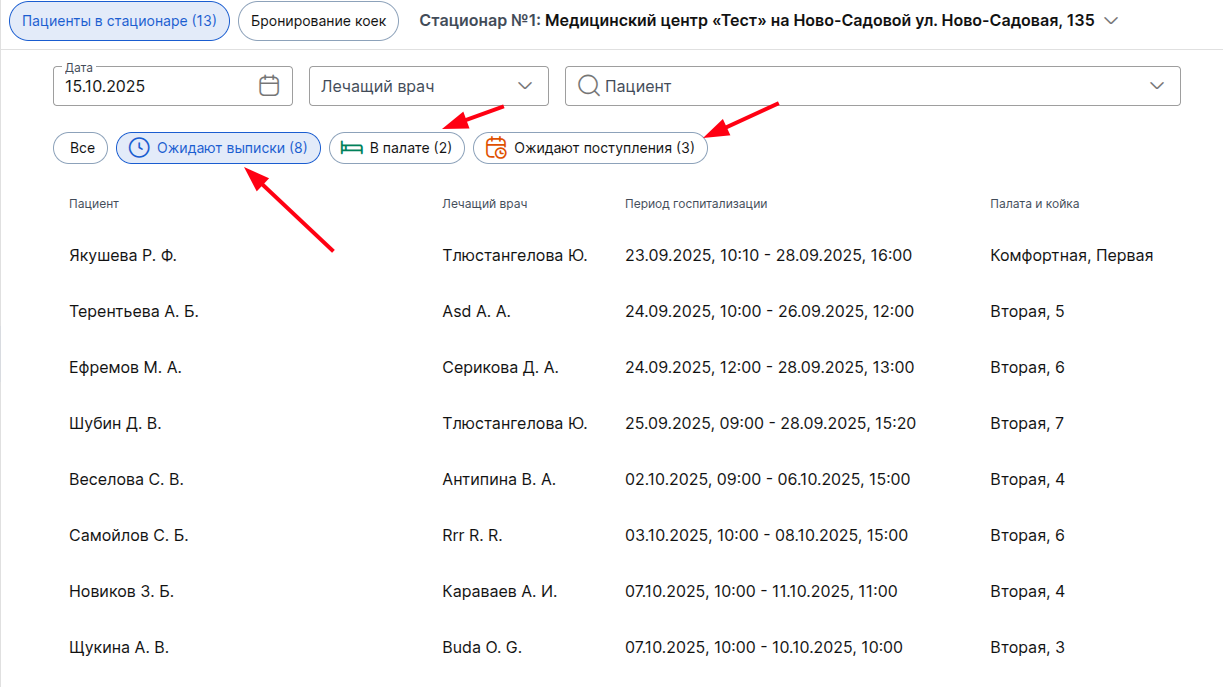
- «Ожидают поступления» — patients who are scheduled to be admitted on the selected date.
- «В палате» — all patients whose current hospitalization status«В палате».
- «Ожидают выписки» — patients who are scheduled to be discharged on the selected date.
Groups with no entries are not displayed in the interface.
- To open the full information about the hospital, click on any entry in the list and a sidebar will open«Информация о госпитализации».
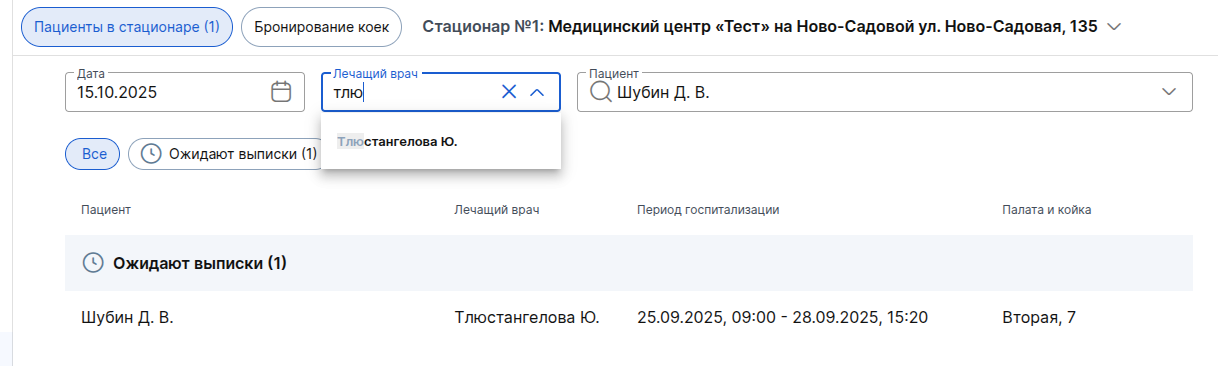
For quick information search, there are:
- Filter by date.
- Search by the attending physician.
- Search by patient's full name.
To filter by patient status, use tab filters.:
Calculation of wages
- Payroll is calculated according to the rules set out in the employee's personal profile.
- The calculation is performed automatically when the hospital admission record (status «Пациент выписан») is completed.
- All doctors/staff assigned to the record at the time of the patient's discharge are involved in the calculation.
- The calculation is performed for all services added to the hospital record.
- When the PO is recalculated (performed when its settings are changed), the accrual for hospital admission services is recalculated only if the patient's discharge date falls within the recalculation period.
The calculation of wages does not take into account:
- Hourly payment.
- Payment for recommendations (not provided for «Стационара»).
Otherwise, the charging rules for hospital admission services are similar to regular admission services.
Salary data for hospital services provided is available in three main reports:
Important! The reports include charges for those hospitalizations that were completed (received the status«Пациент выписан») during the specified period of the report filter, without reference to payment. The period of hospitalization does not matter at the same time — the system focuses on the date of discharge, since it is at this moment that the accrual is formed.
Recording hospital events in the action log
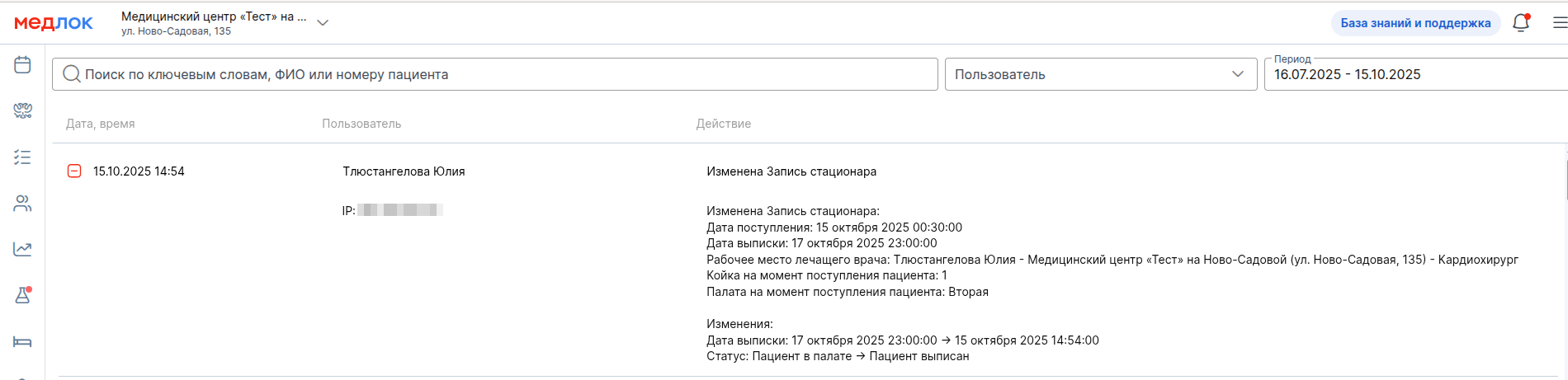
The following are recorded in the action log:
- Create and edit hospital admission records.
- Adding and removing services.
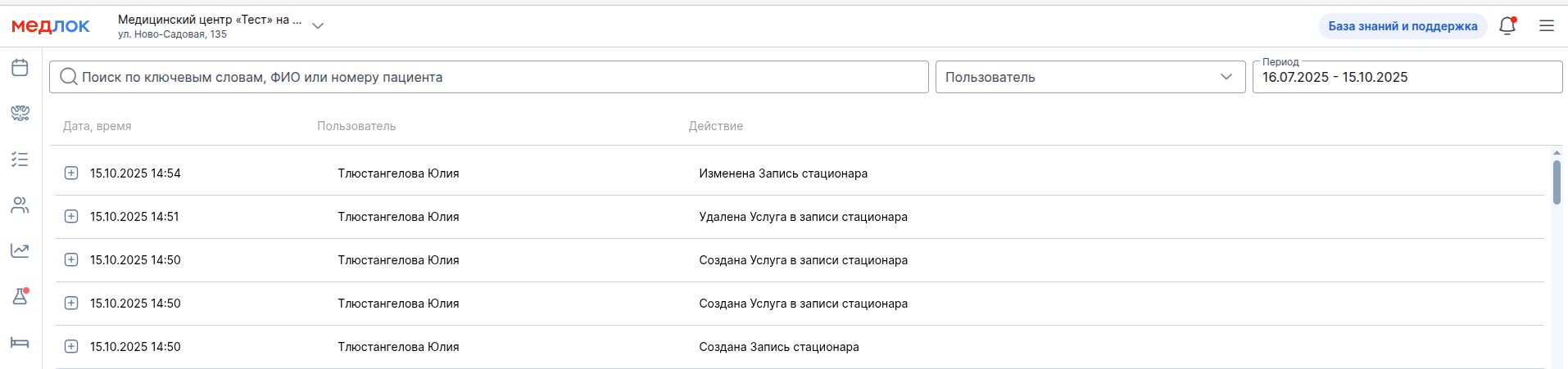
For each operation, the time, the responsible employee, and the details of the action performed are indicated.
Accounting of hospital data in reports
Data on inpatient services is currently implemented only in some reports, which are described below.
Important:
- To recalculate the current data in the reports, the hospital admission record must be completed. The exception is the report«Сводка по врачам и услугам», where the data from the hospital admission record is updated immediately.
- In the reports on services performed, the date filter for hospital services displays data on the date of discharge (the date of service provision is equal to the date of completion of the admission record).
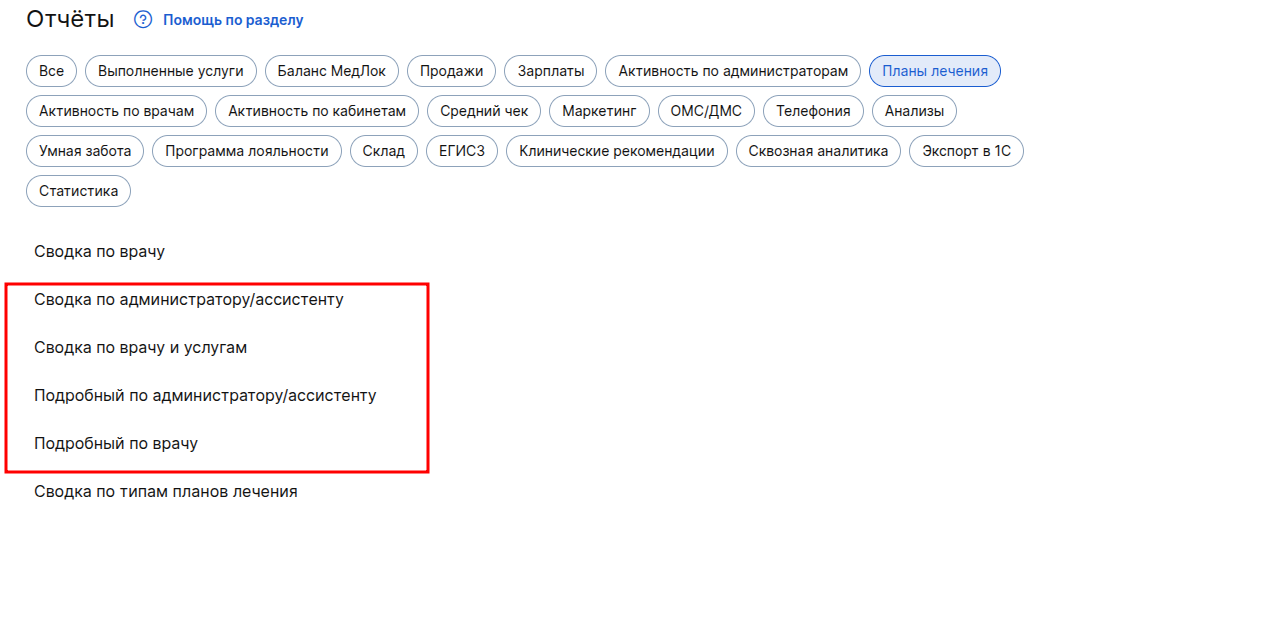
Reports from the group«Планы лечения»:
- Summary of the administrator/assistant.
- Summary of the doctor and services.
- Detailed information about the administrator/assistant.
- Detailed by the doctor.
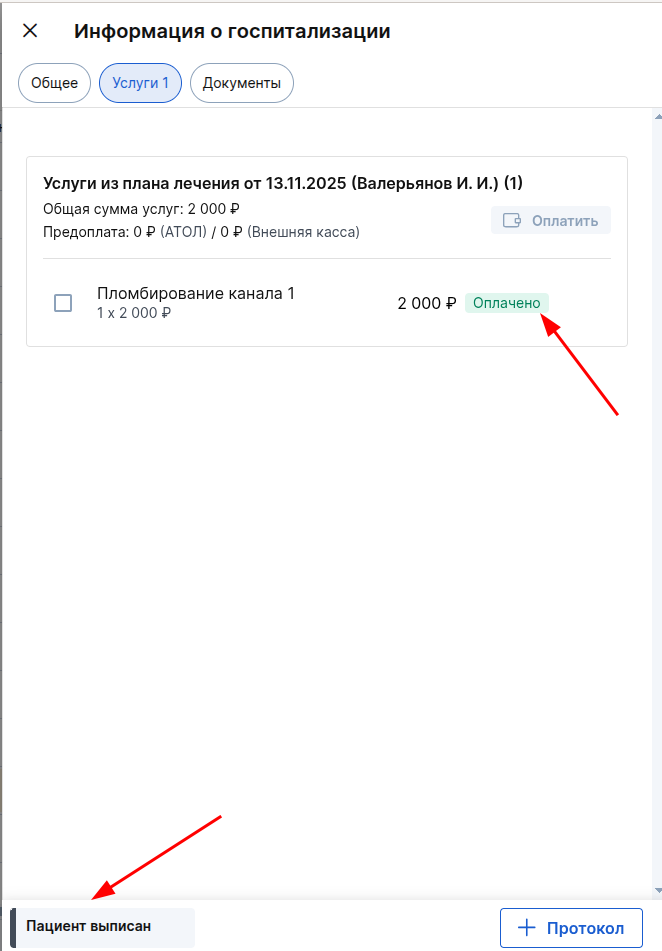
For example, a patient has an assigned treatment plan.
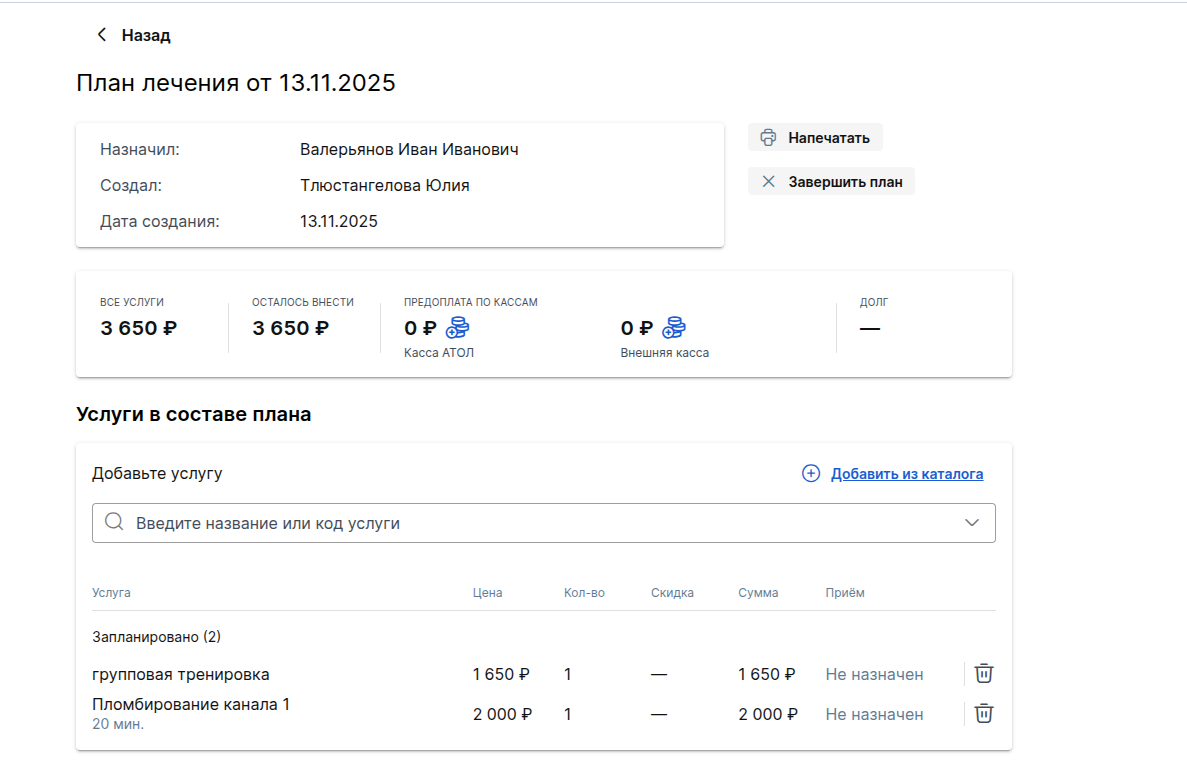
A service has been added and paid for to the hospital admission record from this plan, and the hospital admission record has been completed.
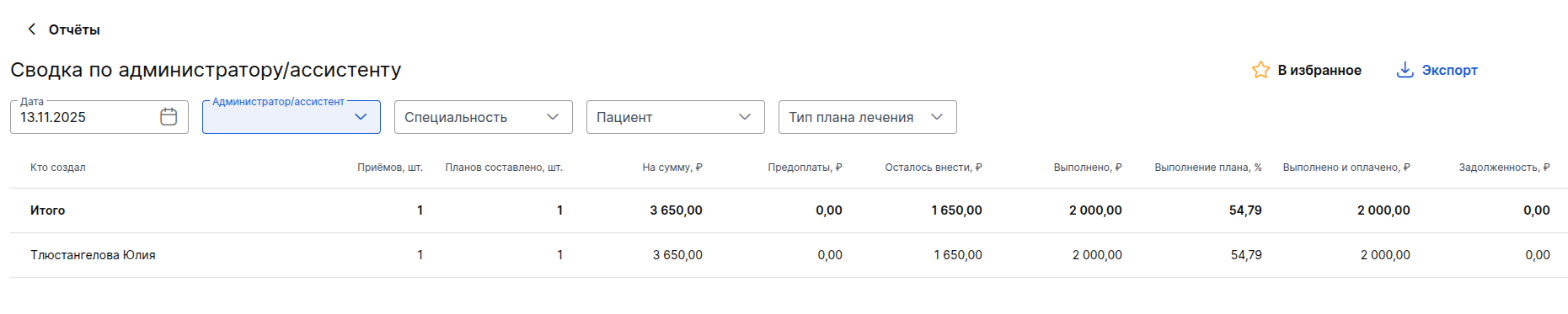
The report «Сводка по администратору/ассистенту»will provide summary data on the treatment plan and services performed in the hospital record created by the administrator/assistant. An assistant is a person who helps a doctor during an appointment (for example, a nurse).
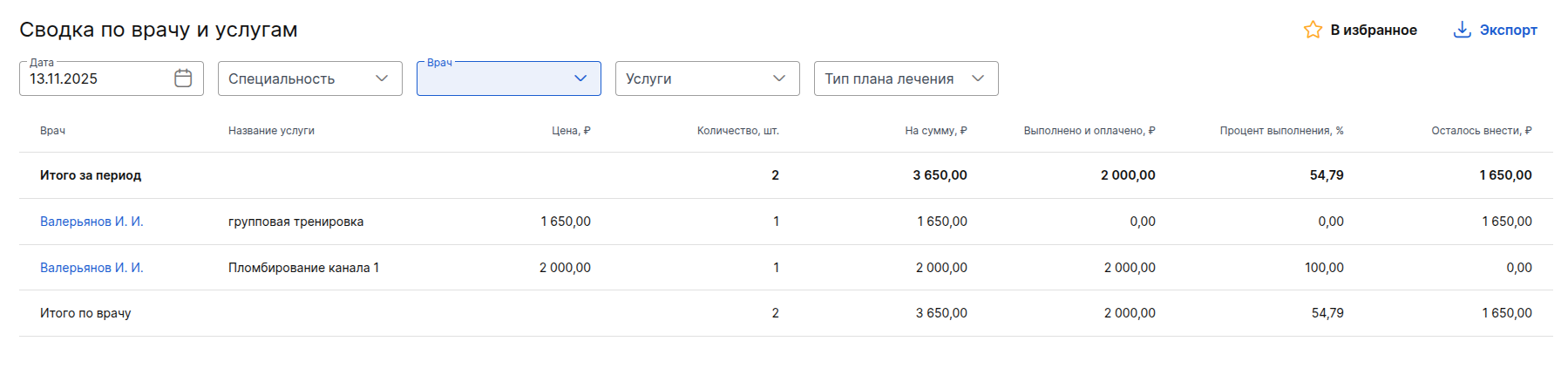
The report «Сводка по врачам и услугам»will only contain data on the doctor who prescribed the treatment plan.
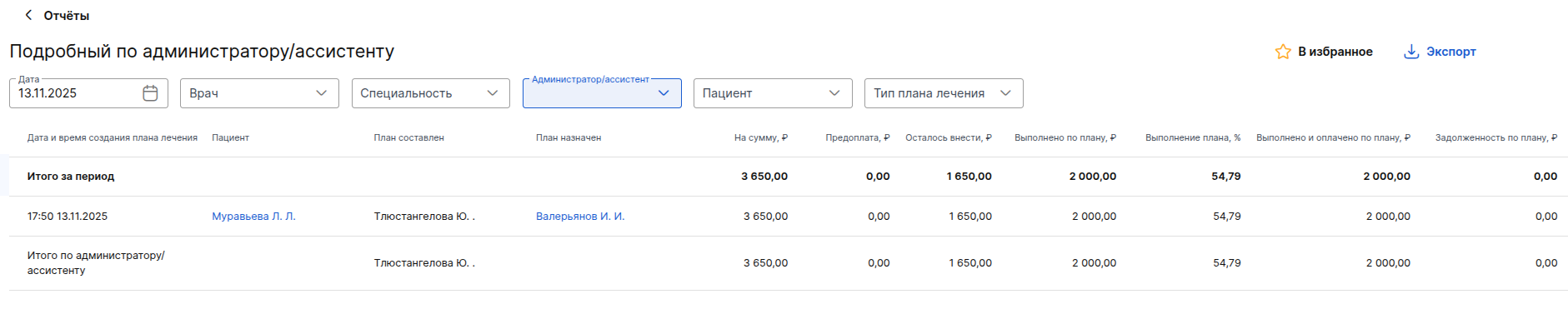
The report «Подробный по администратору/ассистенту»will provide detailed information on the treatment plan and services performed in the hospital record created by the administrator/assistant.
Important! The report «Подробный по врачу»is collected by the doctor who prescribed the treatment plan (data in the column«План назначен»). The report «Подробный по администратору/ассистенту»is collected based on who actually started the plan in the MedLock (data in the column«План составлен»).
The report «Подробный по врачу»will contain detailed data: the patient is indicated from the record, the employee who added the service from the treatment plan to the record — the plan column is drawn up and the employee (doctor) who assigned the treatment plan to the patient — the plan column is assigned.

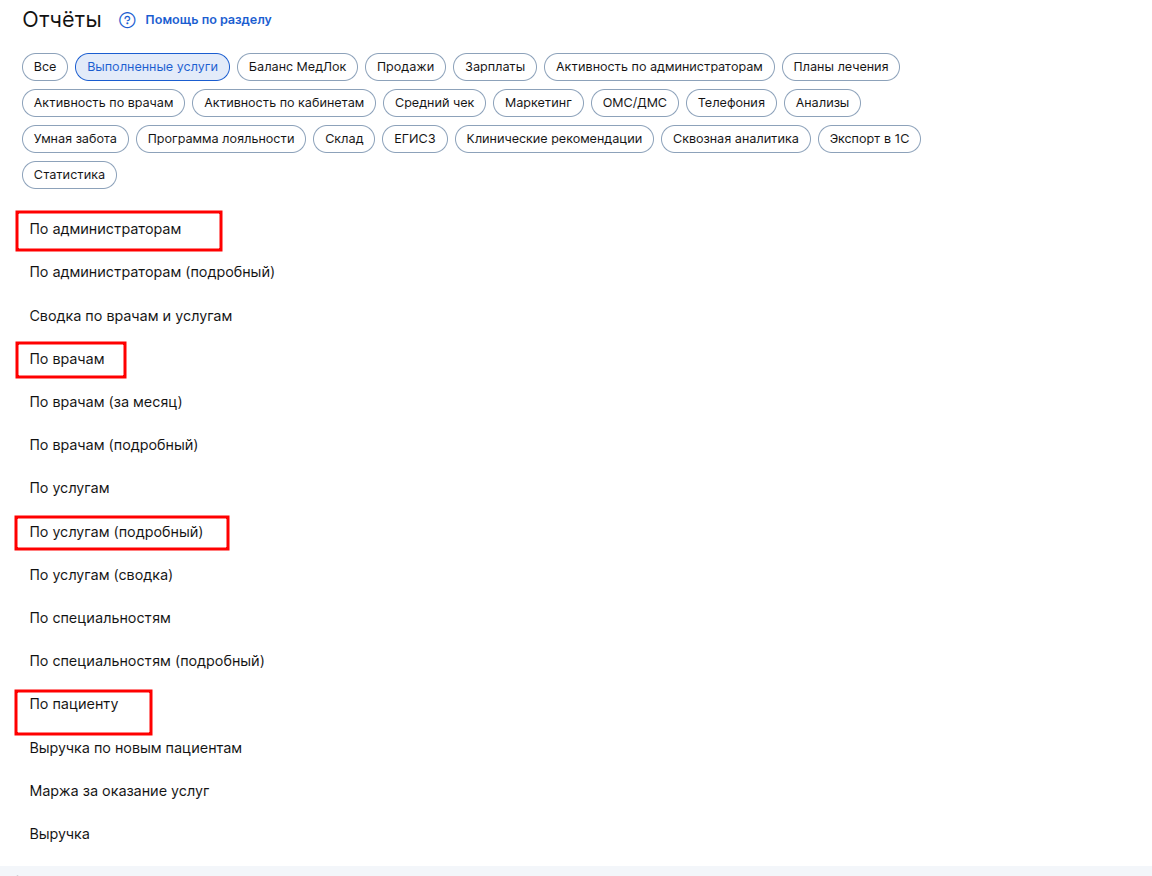
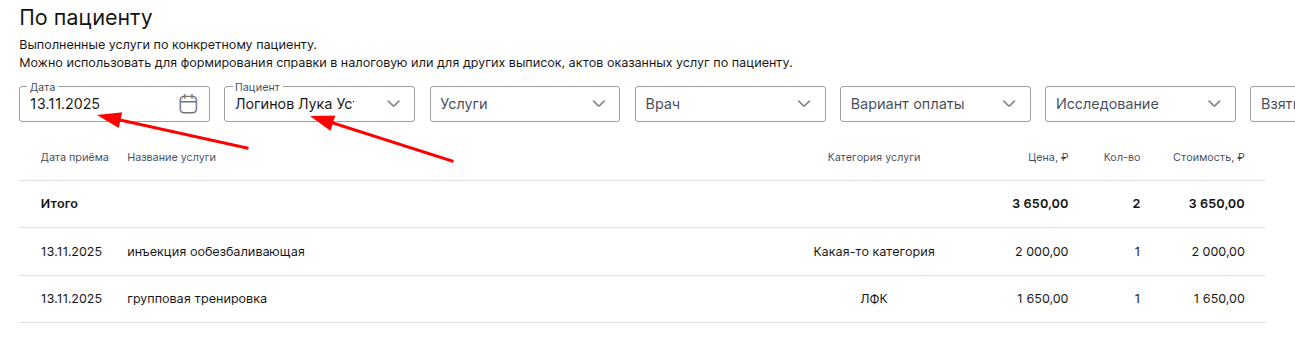
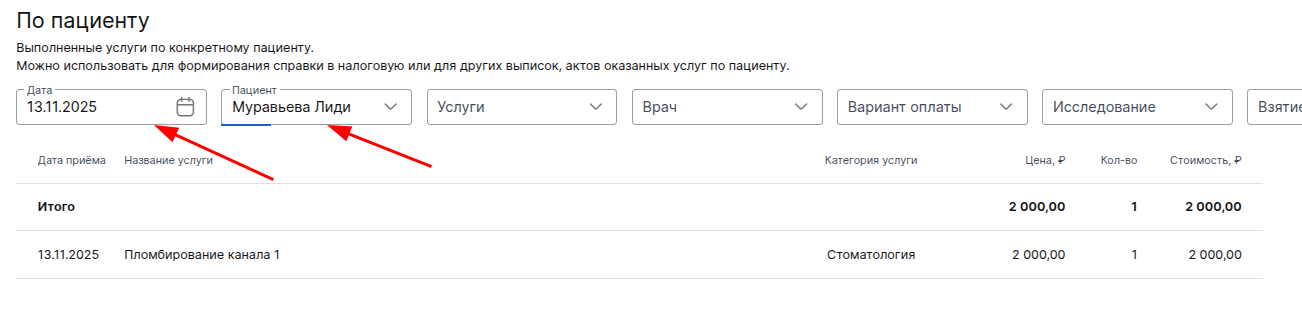
Reports from the group«Выполненные услуги»:
- By administrators.
- For services (detailed).
- According to the doctors.
- According to the patient.
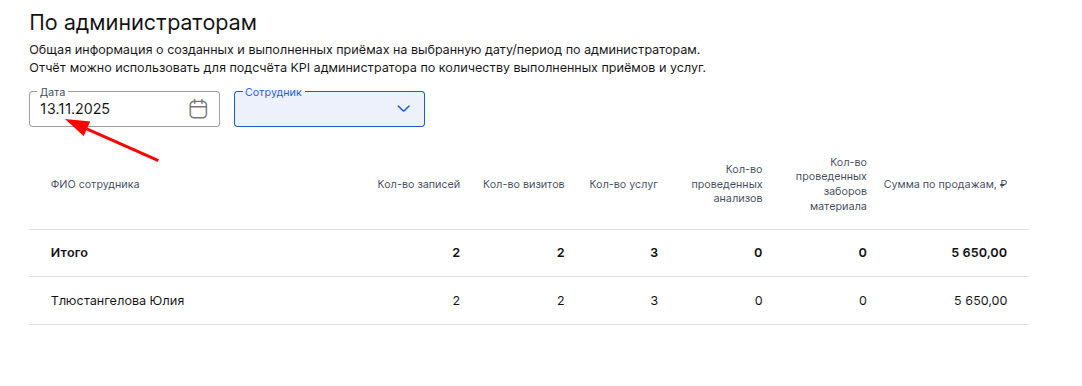
For example, on a certain date, there are two completed hospital admission records with completed services.
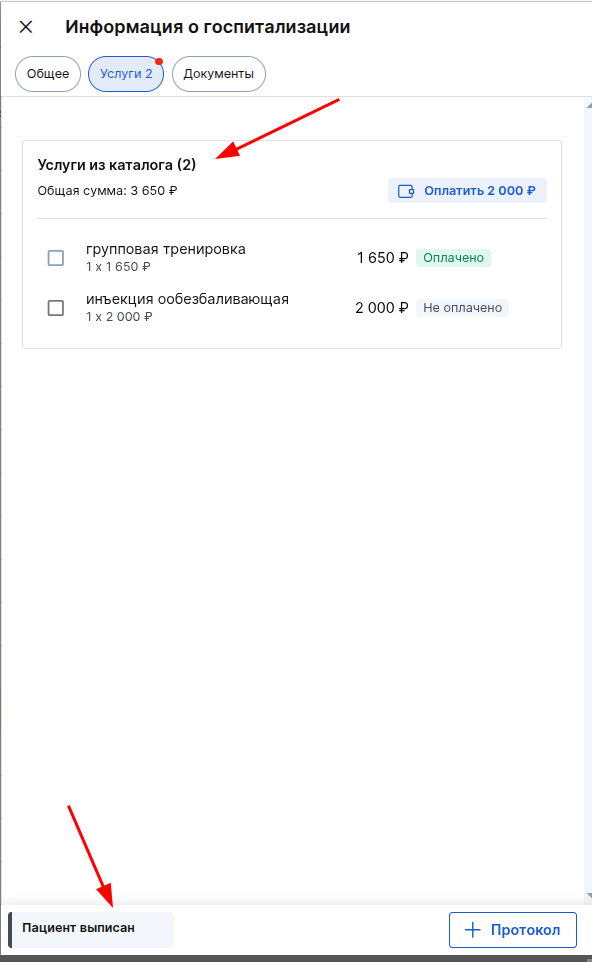
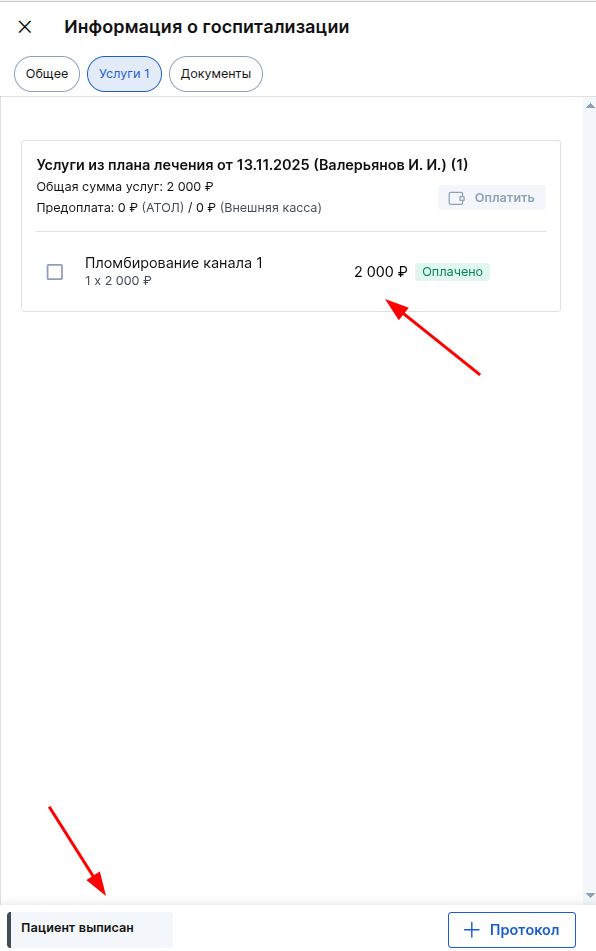
If the date of completion of the recording is indicated in the reports, then the reports will contain data on services from completed hospital records.:
- By administrators.
- For services (detailed).

- According to the doctors.

- According to the patient.
Billing records
«Стационар» It belongs to the standard free MIS modules. The creation of a hospital admission record is charged at the usual rate of 2 ₽/entry.
Upcoming improvements
The module «Стационар»will be supplemented with the following features:
- Supplementing reports with hospital data (according to treatment plans: «Сводка по врачу», other reports on services performed).
- Improved visibility of short-term hospital records in the interface.
- The ability to return to previous recording statuses to prevent erroneous actions.
- Revision of inpatient EMS and medical card 003/y to automatically fill in data from the hospital admission card: dates of admission and discharge, number of days of treatment and history of transfers between wards.
- The ability to delete scheduled transfers between wards.