The article describes the features of working with the WhatsApp channel.
Important! The chat is not intended for medical consultations, and therefore roles are not available«Врач».
Table of contents 
- WhatsApp Channel
- Activation cost
- How to connect WhatsApp
- Connected Channel Settings
- How to disable a number
- Choosing a communication channel in a chat
- Message statuses in the WhatsApp channel
- Blocking the WhatsApp channel
WhatsApp Channel
The WhatsApp channel is a WhatsApp chat with a patient by phone number. The channel is connected in the module«Центр коммуникаций».
Modules «Умная забота»«Центр коммуникаций»for both rooms are included and paid for independently of each other.
Important! Connecting a medical device is no longer necessary to connect any other channels, but it is necessary for their operation in the Communications Center.
Activation cost
Connecting WhatsApp will cost 1,000 ₽ in 30 days for each module — separately for «Умной заботы»and separately for «Центра коммуникаций». For clinics outside the Russian Federation, the connection is currently free of charge.
Important! To connect the communication channel, the current user must have an active right to «Кошелёк». For more information, see the article Authorization in the MedLock.
How to connect WhatsApp
Step 1. Open«Центр коммуникаций»
Go to the «Модули»→ section «Центр коммуникаций» and click the button «Подключить»next to the WhatsApp channel.

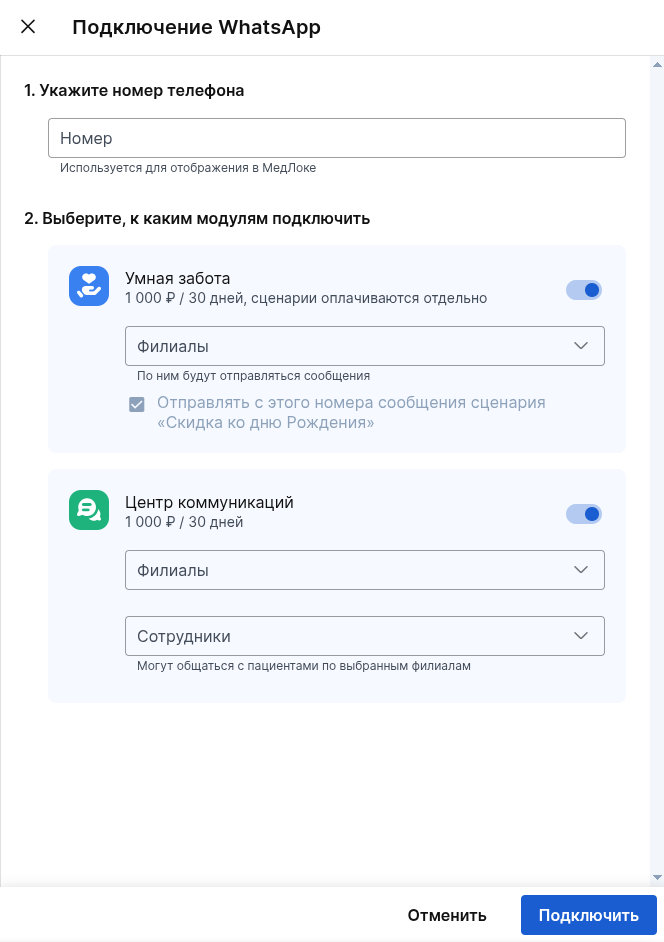
Step 2. Specify the number and select the modules
In the drover that opens:
- Specify the phone number.
- Enable one or both modules:
- «Умная забота» — specify the branch(s) where this number will work for UZ scenarios.
- «Центр коммуникаций» — specify the branch(s) and employees who will correspond with patients from this number. By default, all roles are available except «Врача».
Step 3. Confirm the debit (for the Russian Federation)
Click«Подключить». If there are enough funds on the clinic's balance, a window will appear with the amount of the upcoming debit.
If there are not enough funds, instead of confirmation, a window will appear with the amount to be replenished, depending on which modules you are connecting.
Step 4. Log in using a QR code
After confirming the debit, a modal authorization window opens with step-by-step instructions.
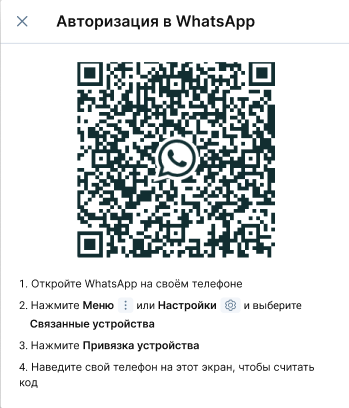
Important! It can take up to 5 minutes to download the QR code.
If the QR code does not appear within 5 minutes, you will see a message«WhatsApp не отвечает». Click «Повторить»to request the QR code again.
If trying again didn't help either, contact your personal manager or Customer Support: help@medrocket.me .
Important! Do not disconnect or reconnect the module if authorization has failed. The paid period will expire upon disconnection, and the reconnection will be charged again.
Connected Channel Settings
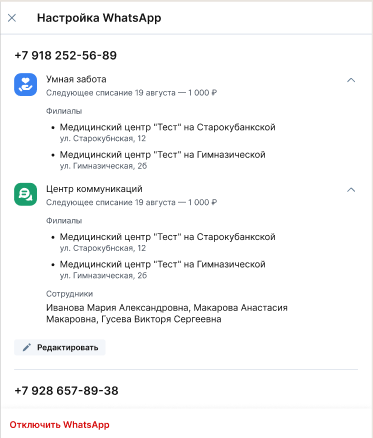
After connecting, the drover opens «Настройка WhatsApp»— here you can see the number, connected modules, branches and employees, as well as the date of the next debit.
To change the settings, click«Редактировать»:
- You can change the phone number itself — this does not affect the operation of the channel.
- You can independently enable or disable «Умная забота»the and modules«Центр коммуникаций».
- You can change the branches for each enabled module«Центра коммуникаций», and the list of employees for each enabled module.
If there are not enough funds to enable the additional module, the changes will not be saved.
How to disable a number
You can disable either one module or the entire room.
- If you disable only one of the two modules (for example, leave it enabled only«Умную заботу»), the number is saved and continues to work through the remaining module.
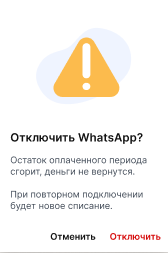
- If you disable both modules or click«Отключить номер», a warning will appear that the paid period is running out and the money for it will not be refunded.
Important! After confirmation, reconnecting the number will require a new authorization using the QR code and will be charged anew, even if you connect it immediately after disconnecting.
Choosing a communication channel in a chat
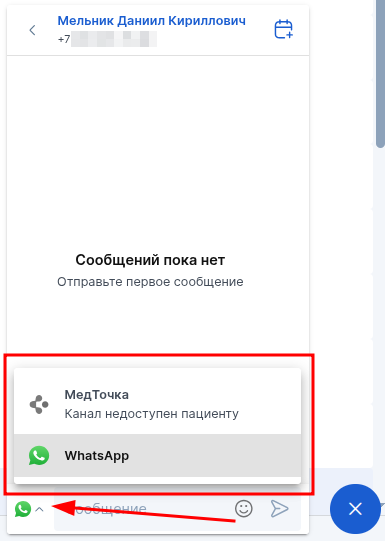
By default, the chat automatically selects the communication channel based on where the patient wrote to you from: if the patient wrote to you via WhatsApp, WhatsApp will automatically be substituted for the response.
Important! Smart Care messages do not affect the automatic channel selection.
To select a channel manually, open the menu in the lower-left corner of the chat and select the desired number.
Message statuses in the WhatsApp channel
The message is displayed as a clock icon during the sending process.

The delivered message is marked with a single check mark.
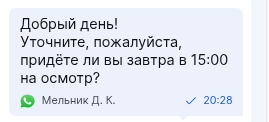
The message you read is marked with two checkmarks.

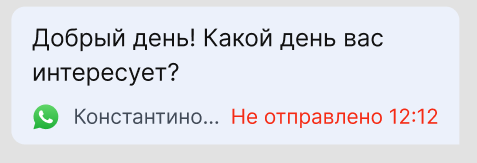
If the message could not be sent in the end, it will be marked in red. You will need to send the message again, if necessary.
Blocking the WhatsApp channel
In some cases, the chat with the patient may not be available.:
- If the patient does not have a WhatsApp account.
- If the WhatsApp channel is not paid for.
- If WhatsApp is not authorized.
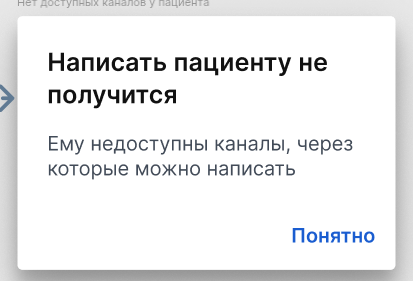
If the patient is unavailable in all communication channels and there are no already created chats with him, you will not be able to open such a chat using the button in the patient's card, an error will appear.